
How to find and merge duplicate contacts
When the same customer or vendor is saved more than once, merge the copies into one contact in Contacts: select them in list view, click Actions ‣ Merge, choose the contact to keep and click Merge Contacts. Every quotation, order, invoice and message of the merged copies moves to the contact you keep. Use Deduplicate the other Contacts to let Viindoo scan the whole contact list for duplicates.
Who |
Any user with access to Contacts. Merging contacts that have different emails requires the Administrator. |
App |
Contacts (also reachable from Sales, CRM, Purchase and Accounting) |
Before you start
Install the Contacts app.
Know how to filter and search records.
Warning
Merging cannot be undone. The copies you merge are deleted and only the destination contact remains. Check the list of contacts in the merge window before you confirm.
How do I find duplicate contacts?
Search by the part of the name, email or phone number that is shared by the copies.
Go to Contacts and switch to the list view.
Type part of the name in the search bar, for example Duy, and choose Search Name for: Duy.
![Searching contacts whose name contains "Duy" in the Viindoo Contacts list view]()
Compare the email, phone and tax ID columns. Contacts with the same details are duplicates.

To check the whole contact list at once instead of searching name by name, see How do I let Viindoo find all duplicates for me?.
How do I merge duplicate contacts into one?
Merging keeps one contact (the destination contact) and moves everything recorded on the other copies to it, so you lose no history.
In the list view, tick the duplicates (up to 3), then click Actions ‣ Merge.
![Three duplicate contacts selected and the Merge action in the Actions menu]()
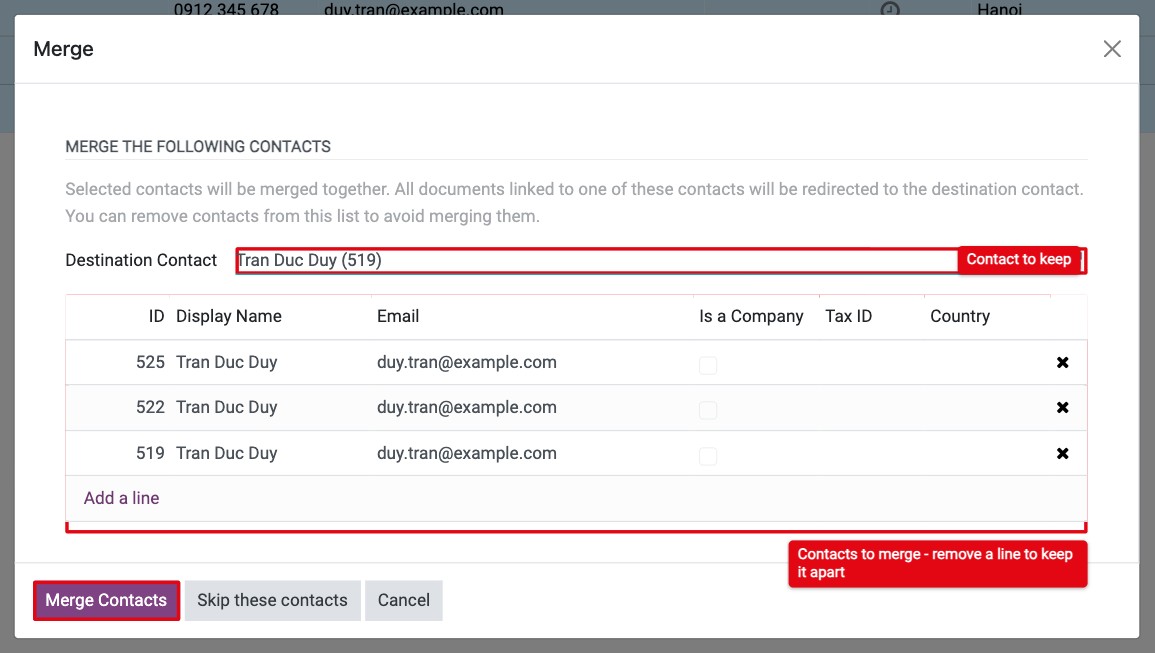
In the Merge window, check the list of contacts and choose the contact to keep in Destination Contact. Viindoo proposes one; change it if another copy has the most complete details. Remove any contact from the list that should not be merged.
![Merge window with the Destination Contact field and the list of contacts to merge]()
Click Merge Contacts.

You should now see only the destination contact in the list. Its chatter shows the note Merged with the following partners with the names and IDs of the merged copies.

How do I let Viindoo find all duplicates for me?
The deduplication tool groups contacts that share the details you choose, then lets you check each group or merge all groups automatically. It has no menu of its own; you open it from the merge window.
In the list view, tick any one contact and click Actions ‣ Merge, as when merging duplicates.
Click Skip these contacts. Nothing is merged.
![Skip these contacts button in the Merge window]()
Click Deduplicate the other Contacts.
![Deduplicate the other Contacts button after skipping the selected contact]()
Choose how Viindoo should detect duplicates (see the table below), then click one of the buttons:
Merge with Manual Check: shows the groups one by one. For each group, choose the Destination Contact and click Merge Contacts, or click Skip these contacts to keep them apart. Recommended.
Merge Automatically: merges every group found with your criteria without showing them. Viindoo asks you to confirm first.
Merge Automatically all process: ignores your criteria. It merges contacts that have the same name and email as their parent company, then every group of contacts sharing the same name, email and tax ID. Viindoo asks you to confirm first.
![Deduplicate Contacts window with search criteria, exclusions and merge buttons]()


When no group is left, the window shows There are no more contacts to merge for this request.
Which criteria should I choose?
Field |
What it does |
|---|---|
Search duplicates based on duplicated data in: Email, Name, Is Company, VAT, Parent Company |
Contacts are grouped when they have the same value in every field you tick (not just one of them). Email and name ignore upper/lower case; VAT ignores spaces; contacts with an empty email, name or VAT are not matched on that field. Tick at least one field. |
Exclude contacts having: A user associated to the contact |
Skips groups in which a contact is linked to a user account, so you do not merge a colleague’s contact by mistake. |
Exclude contacts having: Journal Items associated to the contact |
Skips groups in which a contact already has accounting entries. Use it if your accountant must review those contacts first. |
Maximum of Group of Contacts |
Limits how many groups are found in one run, for example 3 to review three groups at a time. Leave it at 0 to find all groups. |
What if a duplicate was created by mistake?
If nothing has been recorded on the copy yet, you can delete it, or archive it to hide it without losing it. See How to archive, restore or delete a contact. If it already has quotations, orders or invoices, merge it instead.
Common errors
Message |
What to do |
|---|---|
For safety reasons, you cannot merge more than 3 contacts together. |
Merge 3 contacts, then merge the result with the next ones. |
You cannot merge a contact with one of his parent. |
A company and one of its own contact persons cannot be merged. Remove one of them from the list. |
You cannot merge contacts linked to more than one user even if only one is active. |
Two of the contacts belong to user accounts. Keep them apart, or ask the Administrator to review the users first. |
All contacts must have the same email. Only the Administrator can merge contacts with different emails. |
Make the emails identical, or ask the Administrator to merge them. |
Unable to send message, please configure the sender’s email address. |
Merging posts a note on the destination contact, which needs your email. Add your email in your preferences (your avatar ‣ Preferences), then merge again. |
You have to specify a filter for your selection. |
In the deduplication window, tick at least one field under Search duplicates based on duplicated data in. |
Next steps
How to create a new contact: fill in contact details completely so new duplicates are easy to spot.
How to export and import data in Viindoo: clean up contacts in bulk before importing them.