
How to reconcile bank transactions step by step
Reconciling means matching every transaction of the bank statement with the entries of your books, so the balance of the bank journal equals the balance of your bank. In Viindoo Accounting you work on one screen: you select a transaction, match it with a payment, an invoice or a bill, or apply a reconciliation model, and click Validate.
This guide is for bookkeepers. The examples use the bank journal Vietcombank with three transactions: a payment to a steel vendor, the payment of a bill of cartons, and a bank fee.
Requirements
This tutorial requires the installation of the following applications/modules:
Who can do this, and where?
Task |
Role needed |
Application |
|---|---|---|
Reconcile bank transactions |
Bookkeeper |
Accounting |
Before you start
The transactions are in the system, added by hand or imported, see How to manage bank statements. Until they are reconciled, a transaction sits on the Bank Suspense Account of the journal.
How do I open the reconciliation screen?
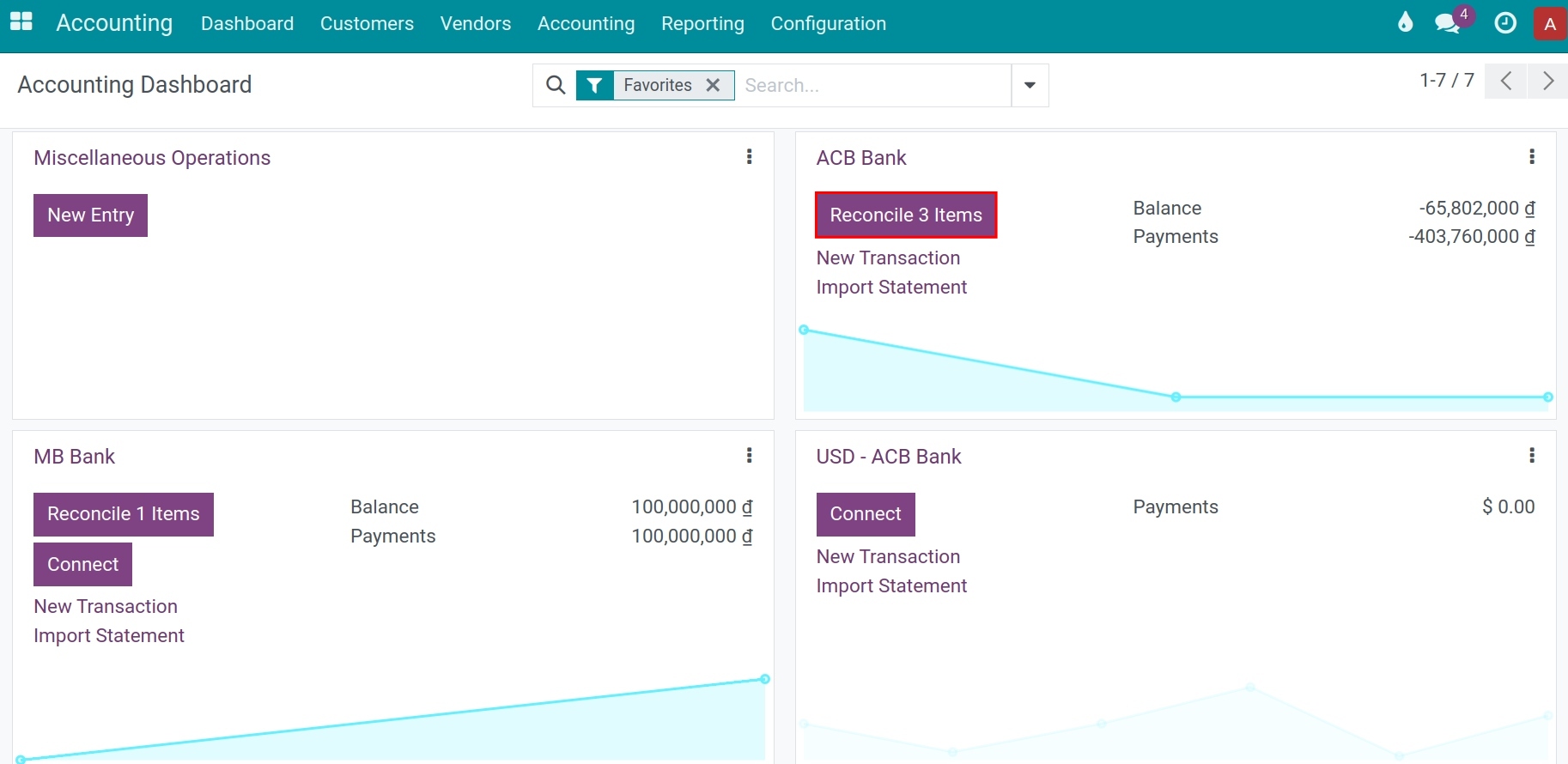
On the card of the bank journal of the dashboard, click Reconcile; its label shows the number of items to reconcile.
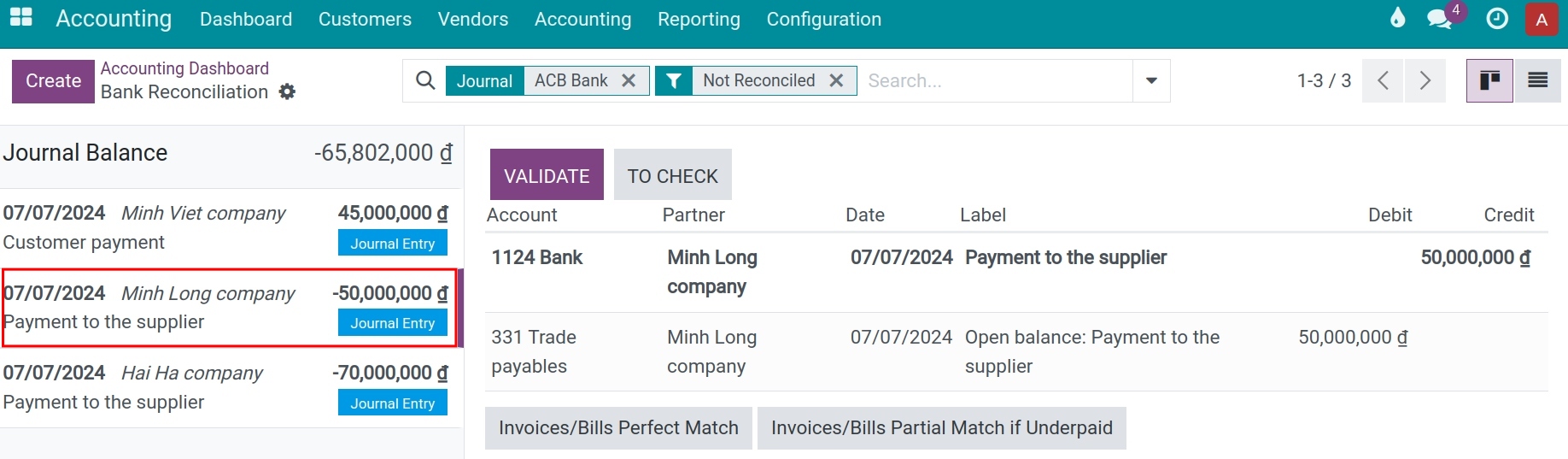
The screen has two parts. On the left, the list of the transactions with the Journal Balance; the filters Reconciled and Not Reconciled narrow the list. On the right, the selected transaction: its lines at the top, the buttons of the reconciliation models, and the tabs below.
Match Existing Entries: the open items you can match, filtered on the partner of the transaction.
Manual Operations: add a line yourself with an account, a name and an amount.
![The tab Manual Operations of a transaction]()
Validate completes the reconciliation and moves to the next transaction. To Check keeps a transaction you are unsure of for later; the filter To Check lists them.
Case 1: how do I reconcile a transaction with a payment?
You registered the payment of a vendor bill before the money left the bank, see How to process a vendor bill from receipt to payment and bank reconciliation. The payment sits on the account Outstanding Payments.
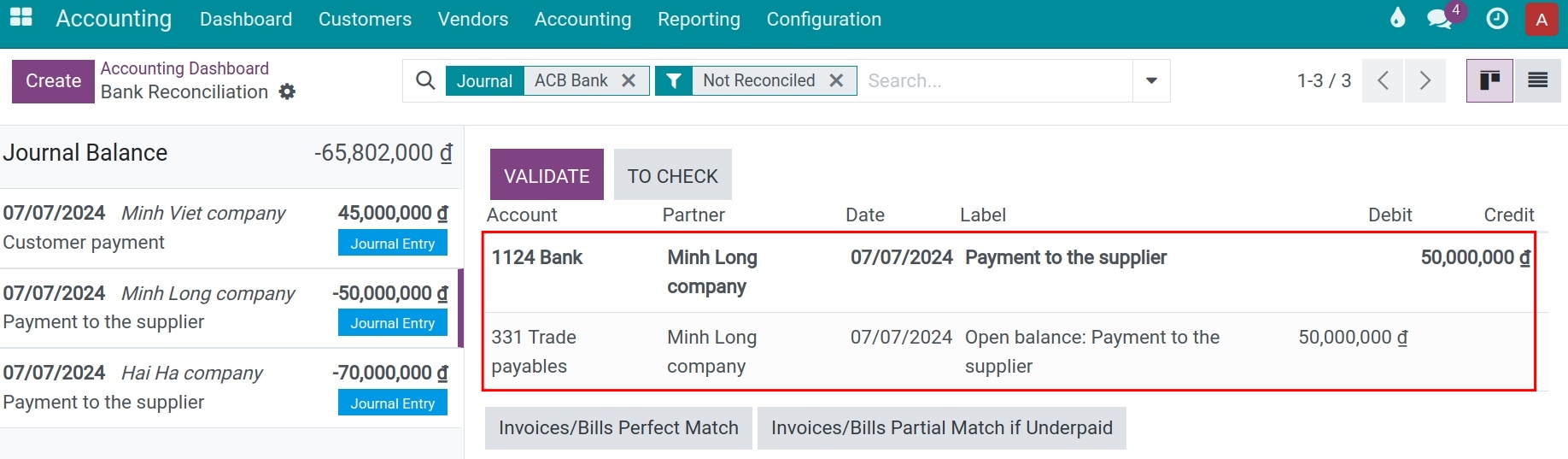
Select the transaction. The payment of the same partner and amount is already proposed in the lines at the top.
Click Validate.
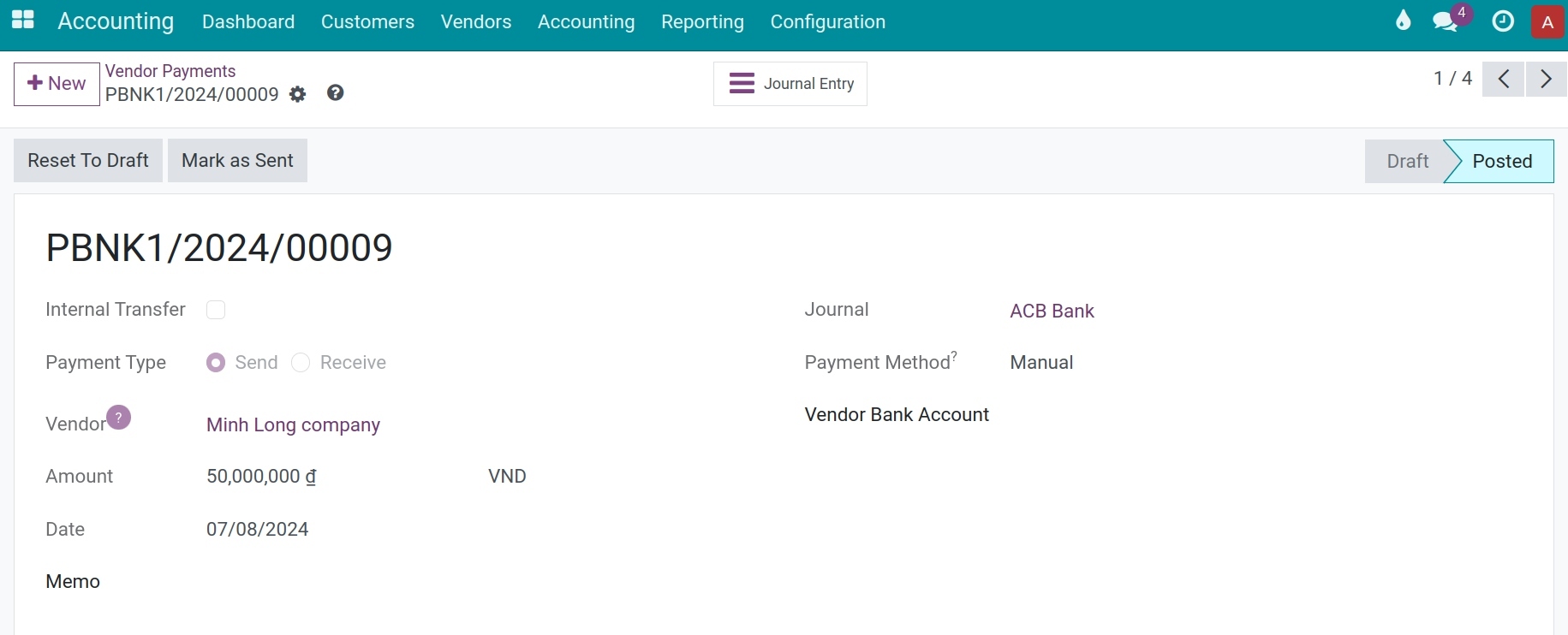
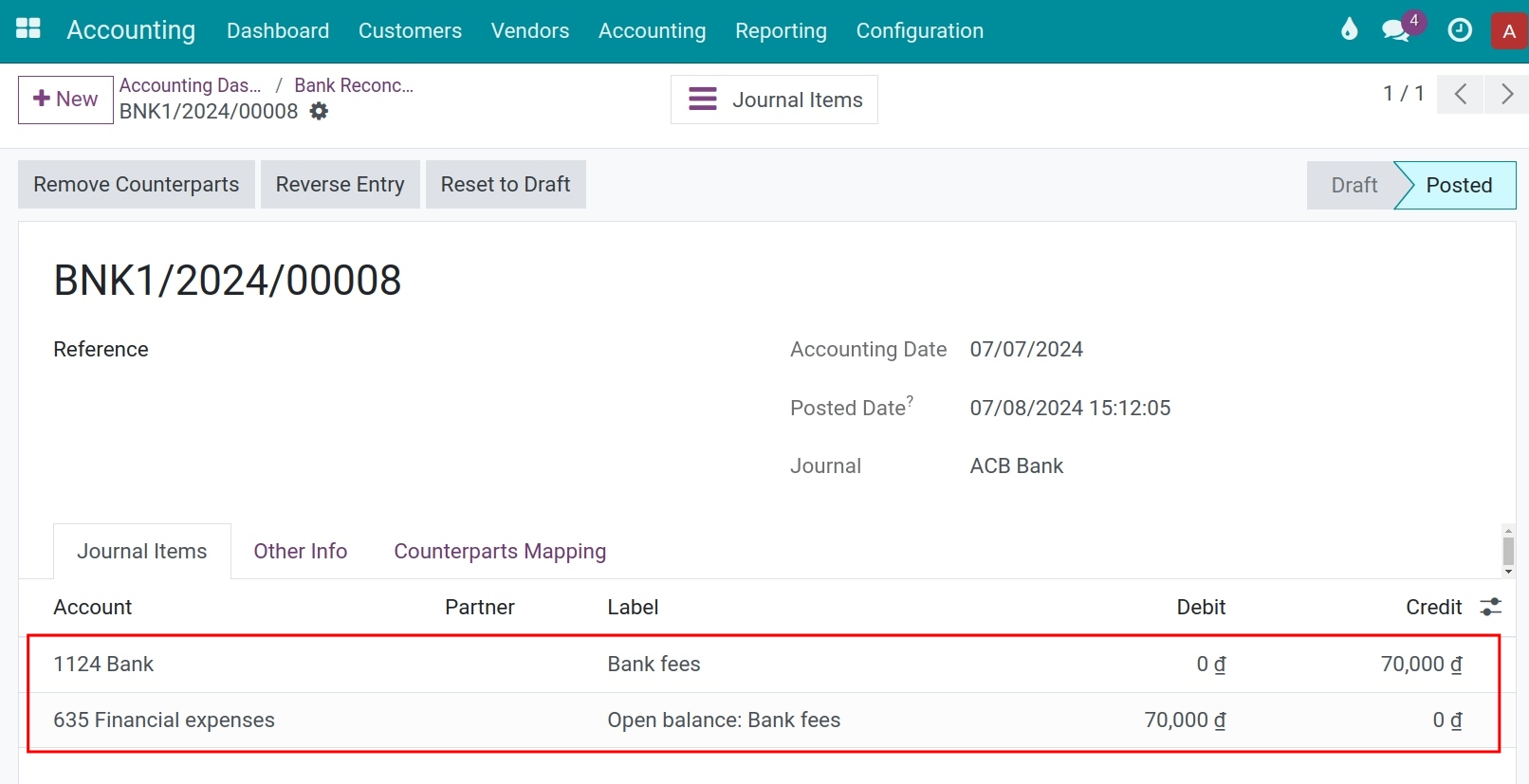
The bank transaction now replaces the suspense account with the outstanding payments account: both are cleared and the entry of the bank journal is posted. Open to see it.
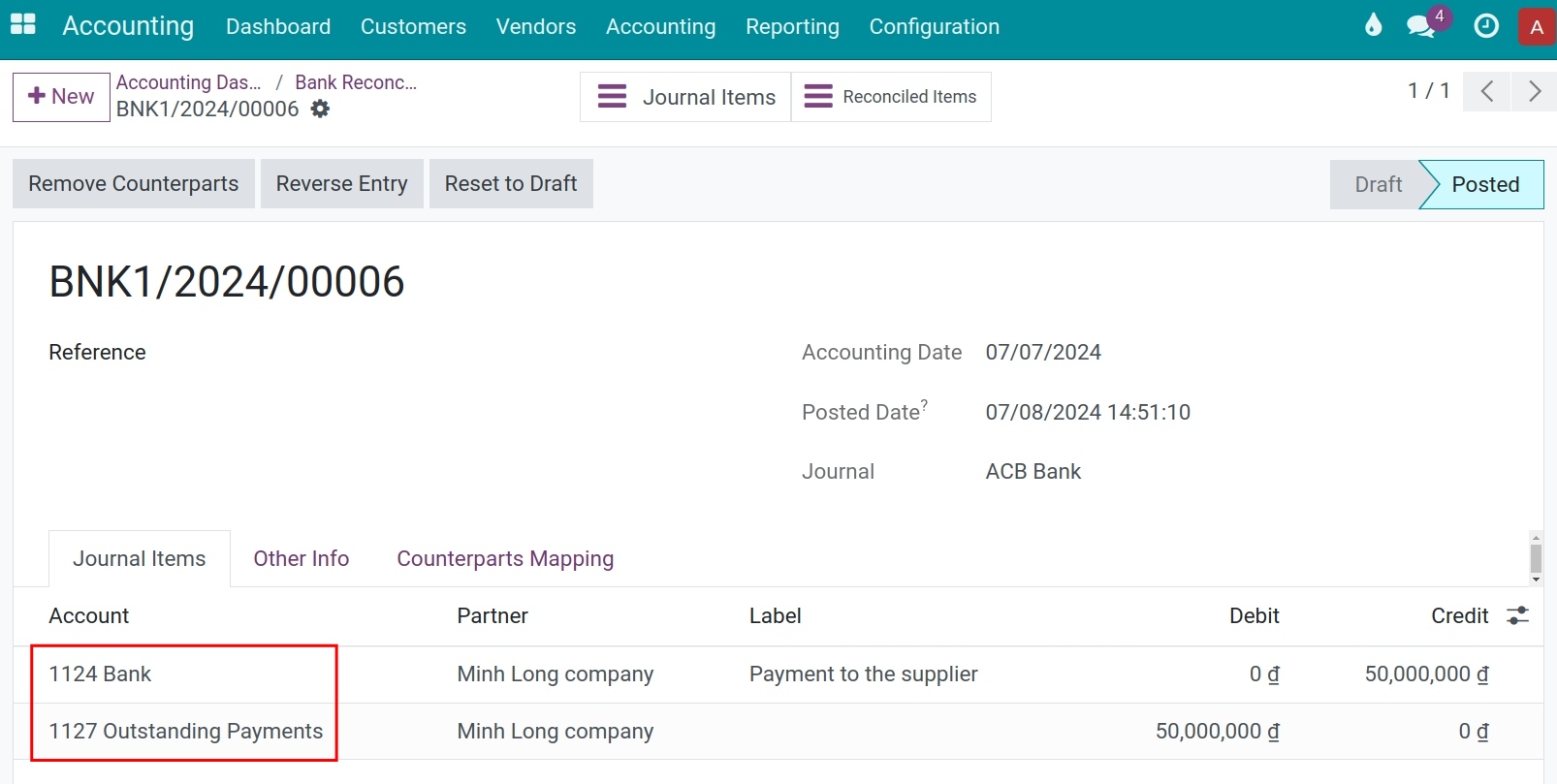
Case 2: how do I reconcile a transaction with a bill that has no payment?
The bill is posted and unpaid. Select the transaction of the vendor: when the partner and the amount match, the payable line of the bill is added in the lines at the top; otherwise click the bill in the tab Match Existing Entries. Click Validate.
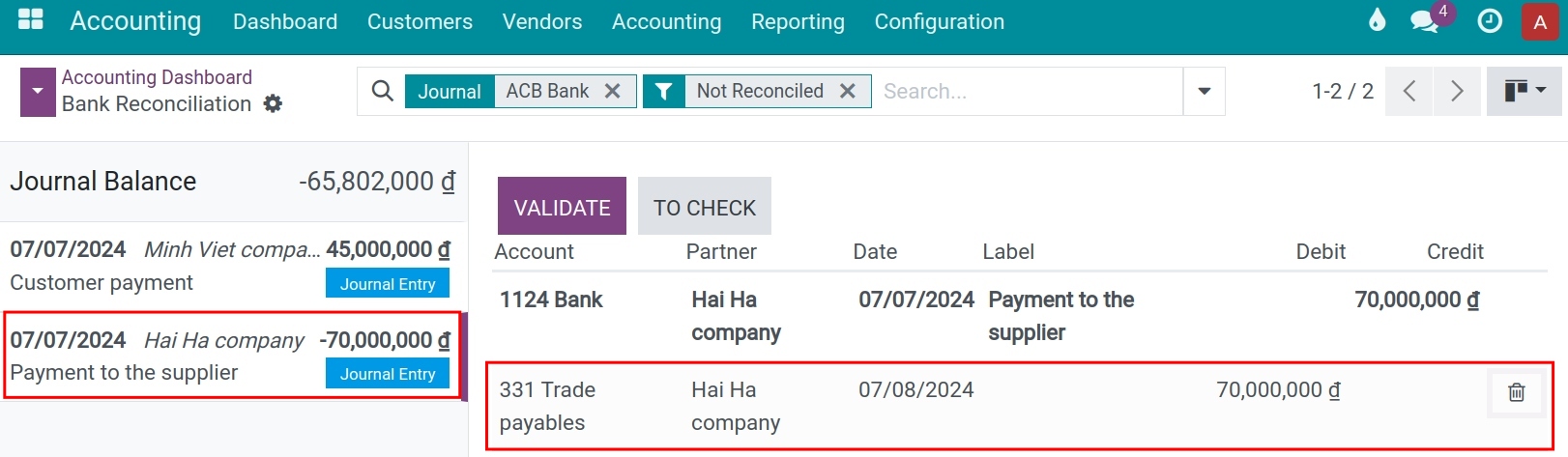
The bill is Paid, reconciled with the transaction without a separate payment.
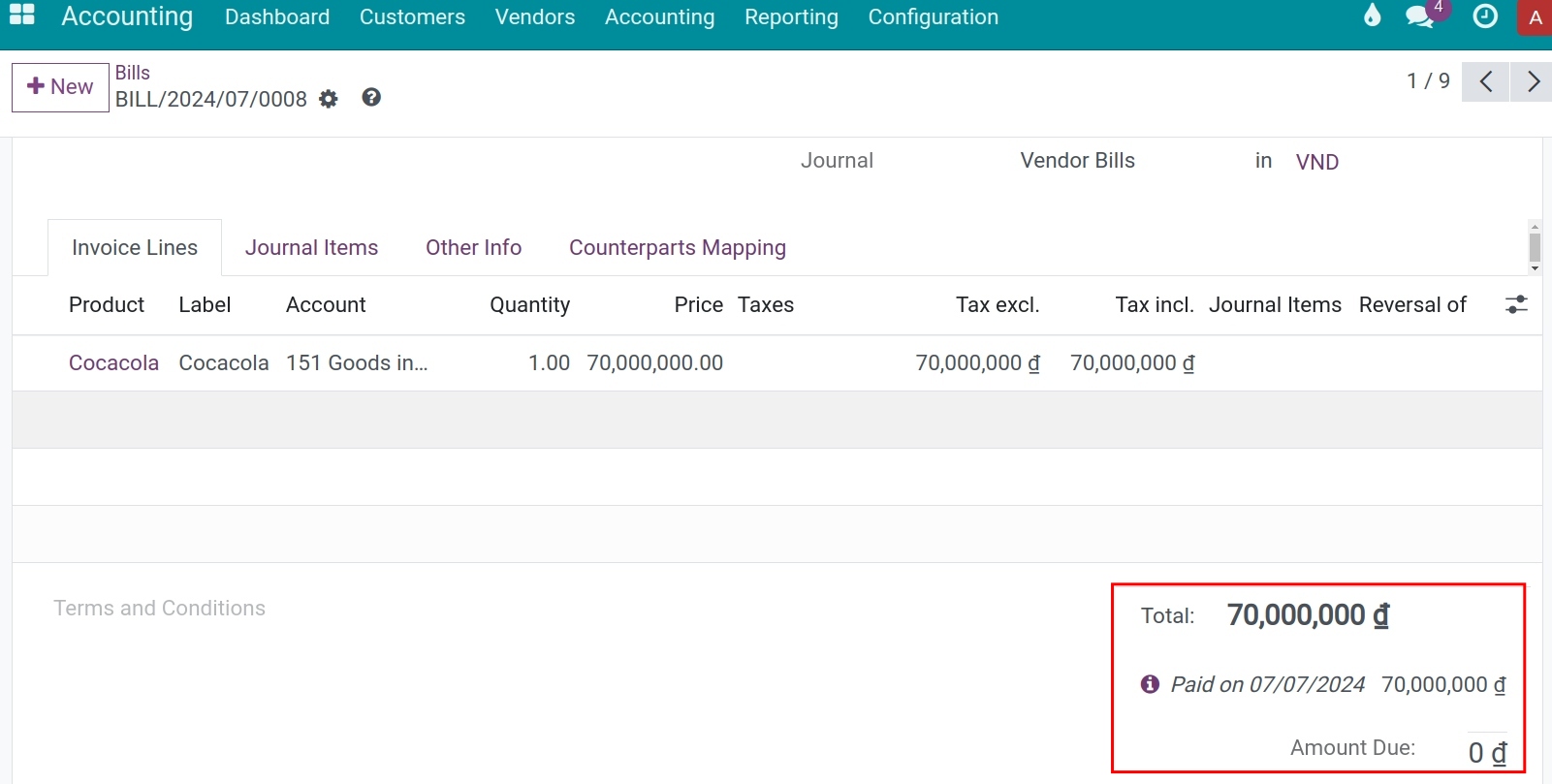
Case 3: how do I reconcile a transaction that has no document?
Recurring items such as bank fees or interest have no invoice or payment. A reconciliation model adds the lines for you: it is a button under the lines of the transaction.
Select the transaction, for example the bank fee of 55,000.
Click the button of the model, here Bank fees.
![A bank fee transaction with the button of the reconciliation model Bank fees highlighted]()
Check the line added, here the expense account 6428, then click Validate.
![The bank fee transaction with the expense line added by the model and the Validate button highlighted]()
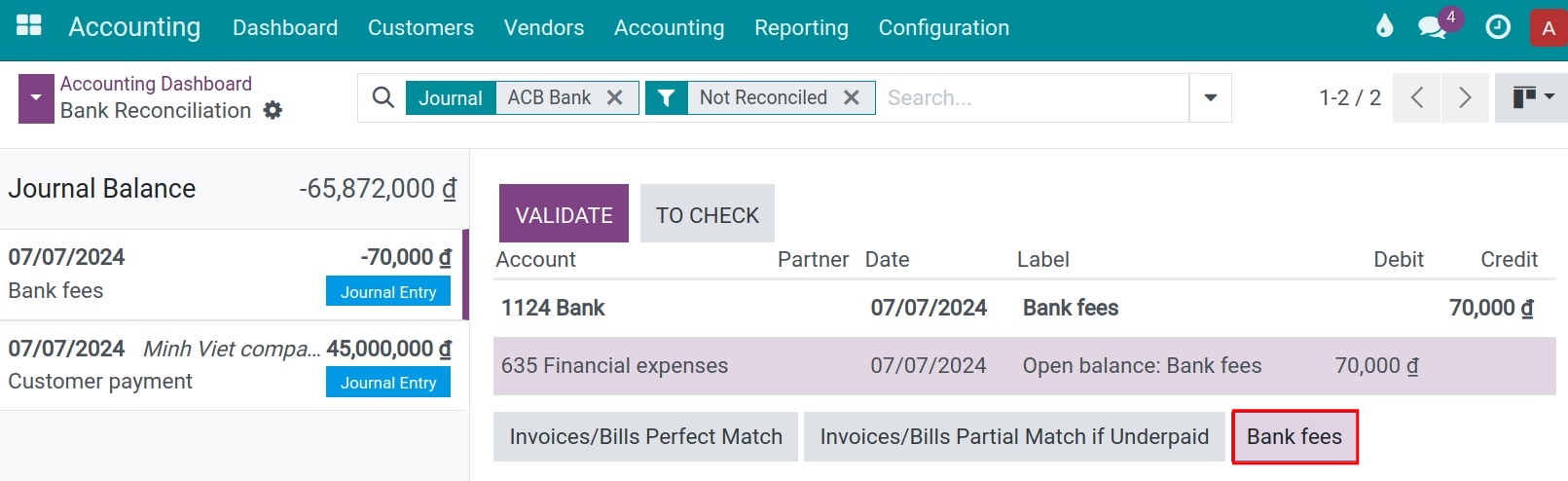
To create the models, see Reconciliation models in Viindoo Accounting.
What should I see afterwards?
The transactions disappear from the filter Not Reconciled and the card of the journal no longer counts them.
The invoices and bills you matched are Paid.
Common problems
Problem |
Cause |
What to do |
|---|---|---|
A message says the whole amount stays on the suspense account |
Nothing is matched yet: validating would change nothing. |
Match an item, apply a reconciliation model, or choose an account in Manual Operations. |
The invoice or bill is not proposed |
The list is filtered on the partner of the transaction and the document belongs to another partner. |
Set the right partner on the transaction, or remove the filter Partner. |
The result is not balanced |
The matched amount differs from the transaction. |
Add another entry, or add a line in Manual Operations for the difference. |
Next steps
See also
Related article
Optional module