
How to manage the contracts that are about to expire
You follow the labour contracts that are about to expire in Employees > Employees > Contracts. When the end date falls within the notice period of your company (7 days by default), the system puts the contract in Warning (a red dot) and creates a to-do for the person in charge. When the contract is over you set it to Expired, then decide to renew it with a new contract or to archive it, for example for an employee who leaves.
Requirements
This tutorial requires the installation of the following applications/modules:
Who can manage the contracts?
Users whose access right for Contracts is Administrator. Users with the Employee Manager right can only view the contracts. A user who only has the right for Employees does not see the contracts.
How to see the contracts of the employees?
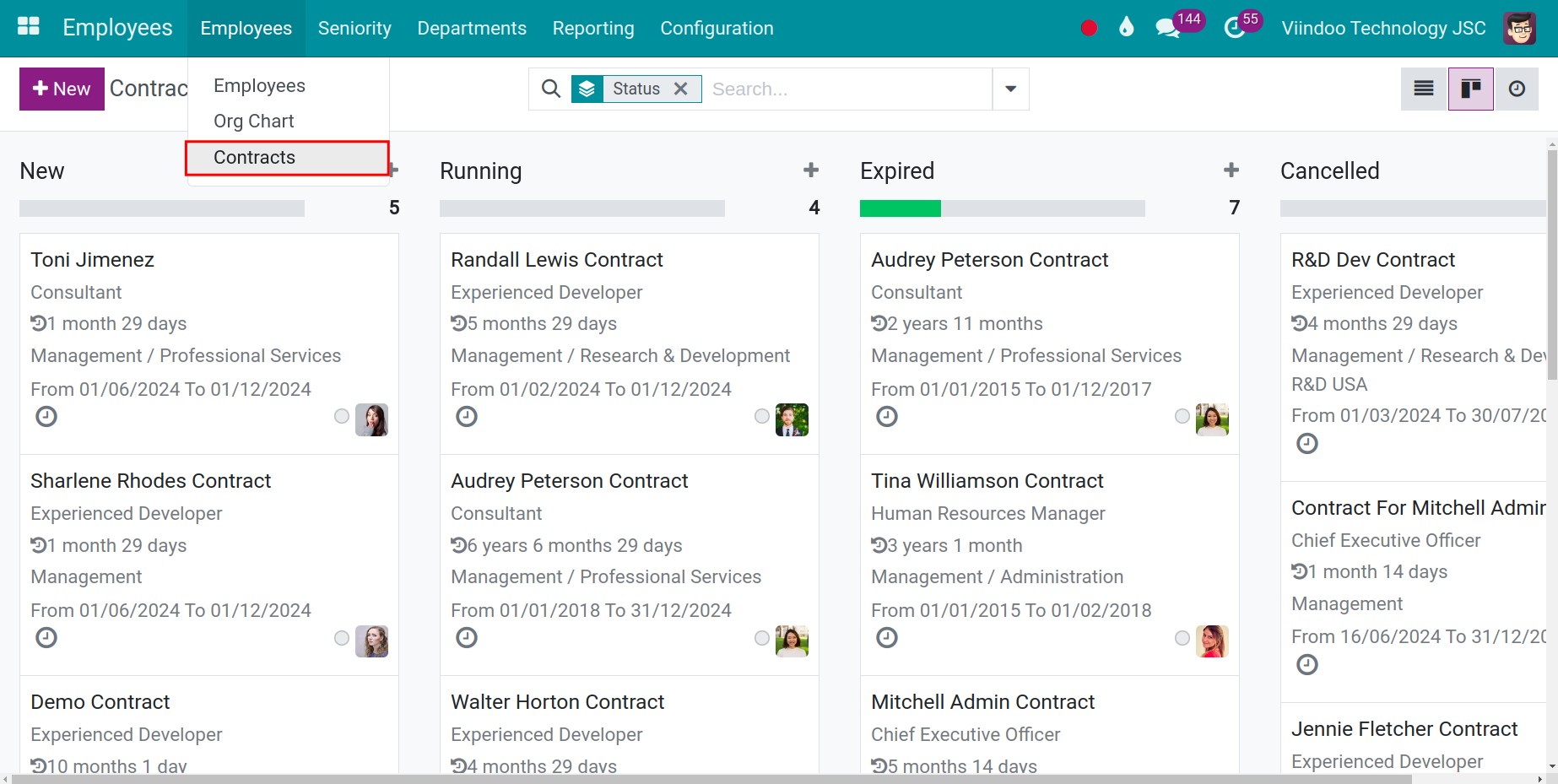
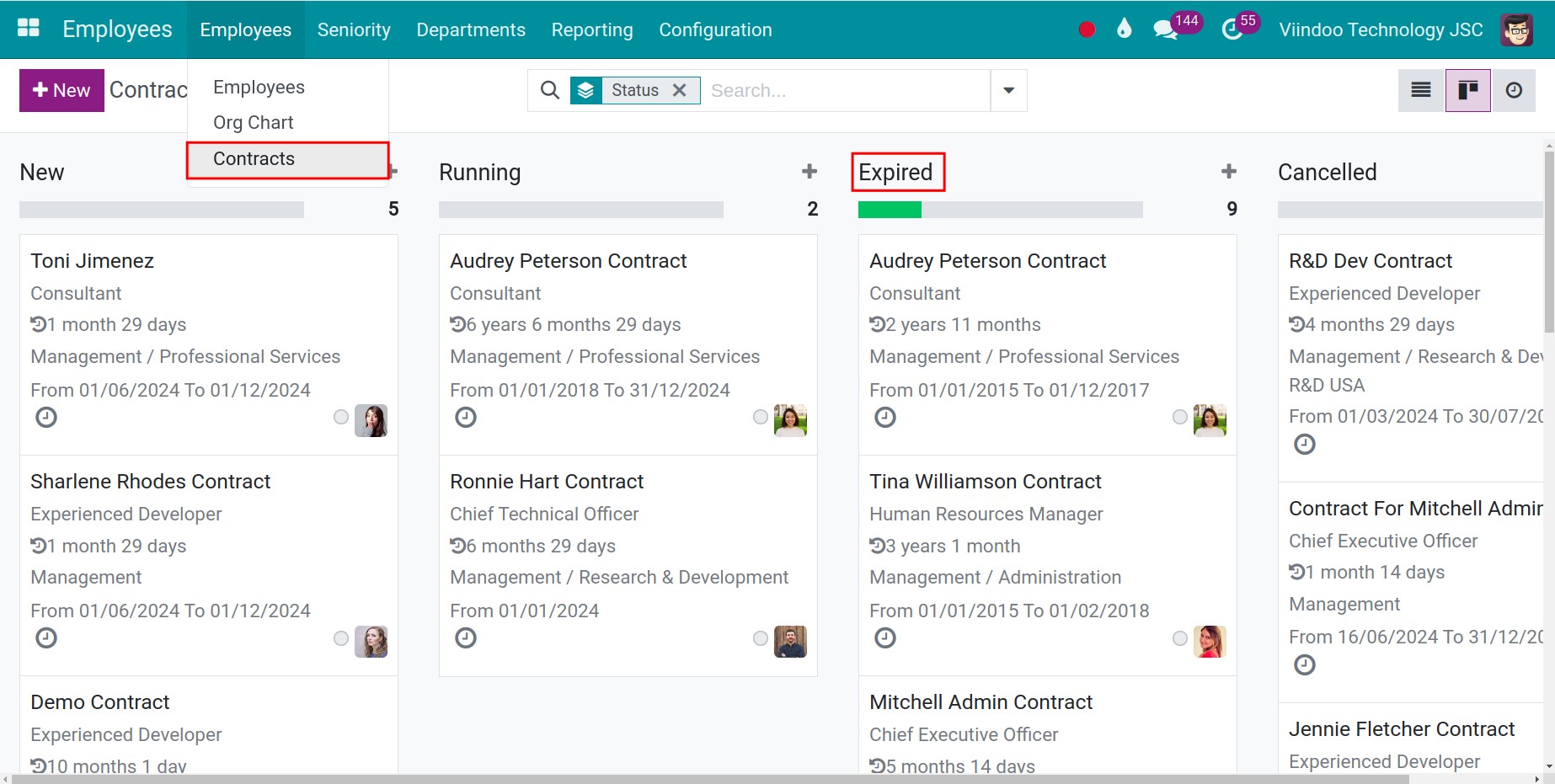
Go to Employees > Employees > Contracts. The contracts are grouped by status: New, Running, Expired and Cancelled. Click a status to open the group. The column Date End shows when each contract ends.
How does the system warn you about an expiring contract?
The system warns you in two ways.
Automatically. Every day the system looks for the running contracts whose Date To falls within the next days of the notice period. For each one, it:
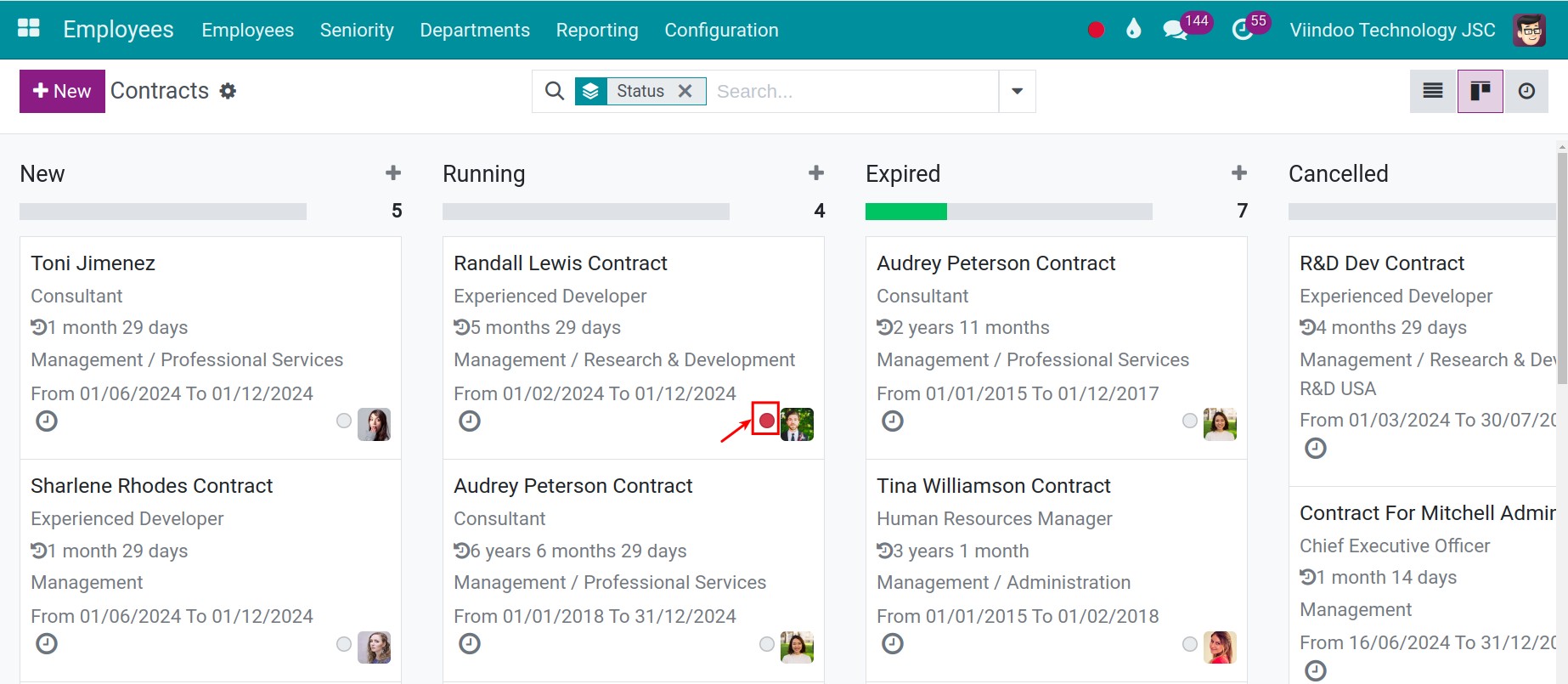
puts the status of the contract in Warning, shown as a red dot, in the kanban view and in the contract form;
creates a to-do for the user in the HR Responsible field of the contract (or for the user who runs the check when the field is empty), and writes a note in the chatter of the contract.
To see the red dot in the kanban view, click the kanban icon at the top right of the list.
The notice period is the setting Contract Expiration Notice Period of your company, 7 days by default. To change it, go to Employees > Configuration > Settings and enter the number of days in the block Contract. The setting Work Permit Expiration Notice Period, 60 days by default, does the same for the work permit of the employee: when it expires soon, the contract of that employee also goes to Warning.
Manually. Open the contract and click the status dot at the top right of the form, then choose Warning. The other choices are Ongoing and Ready.
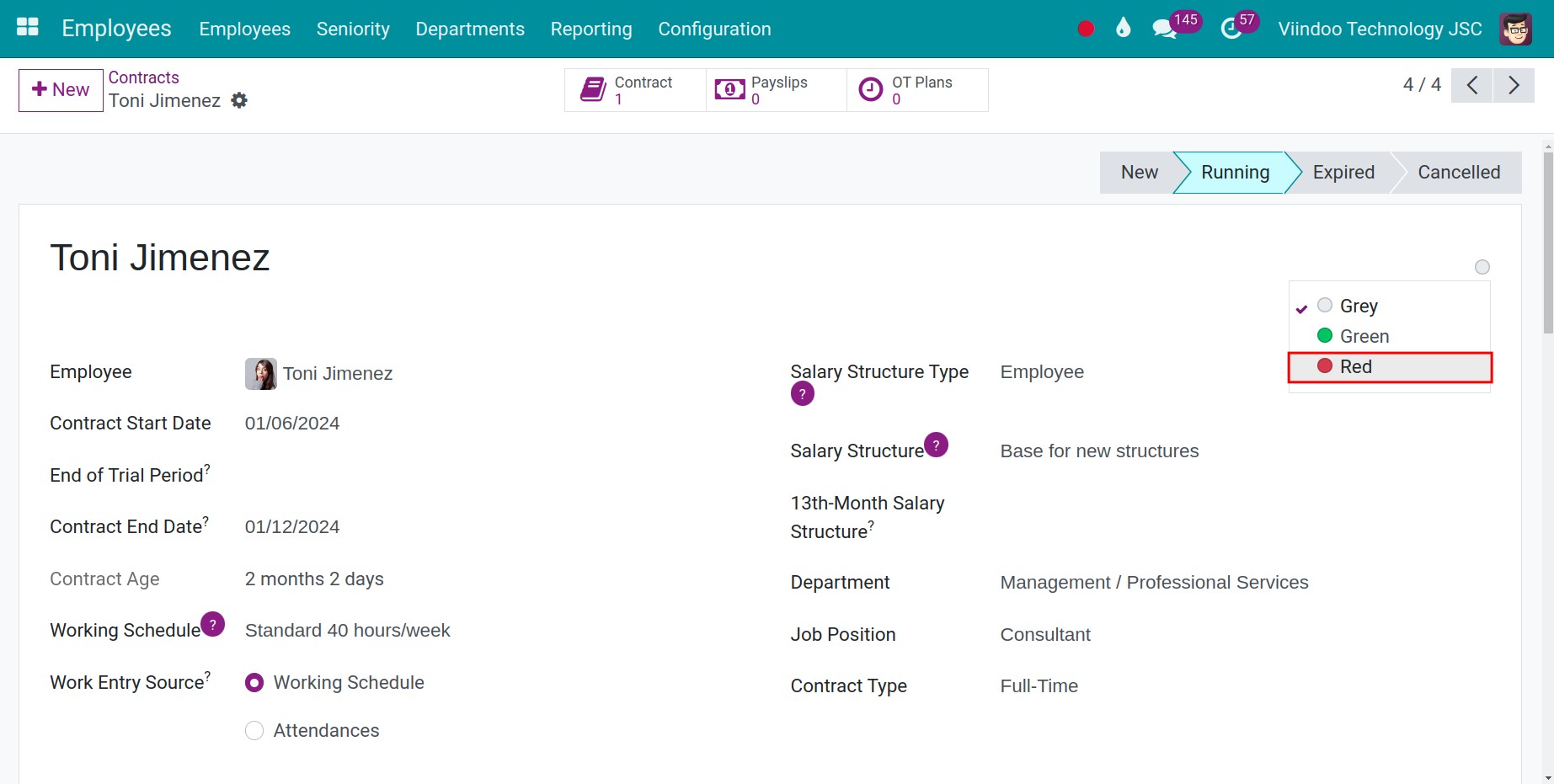
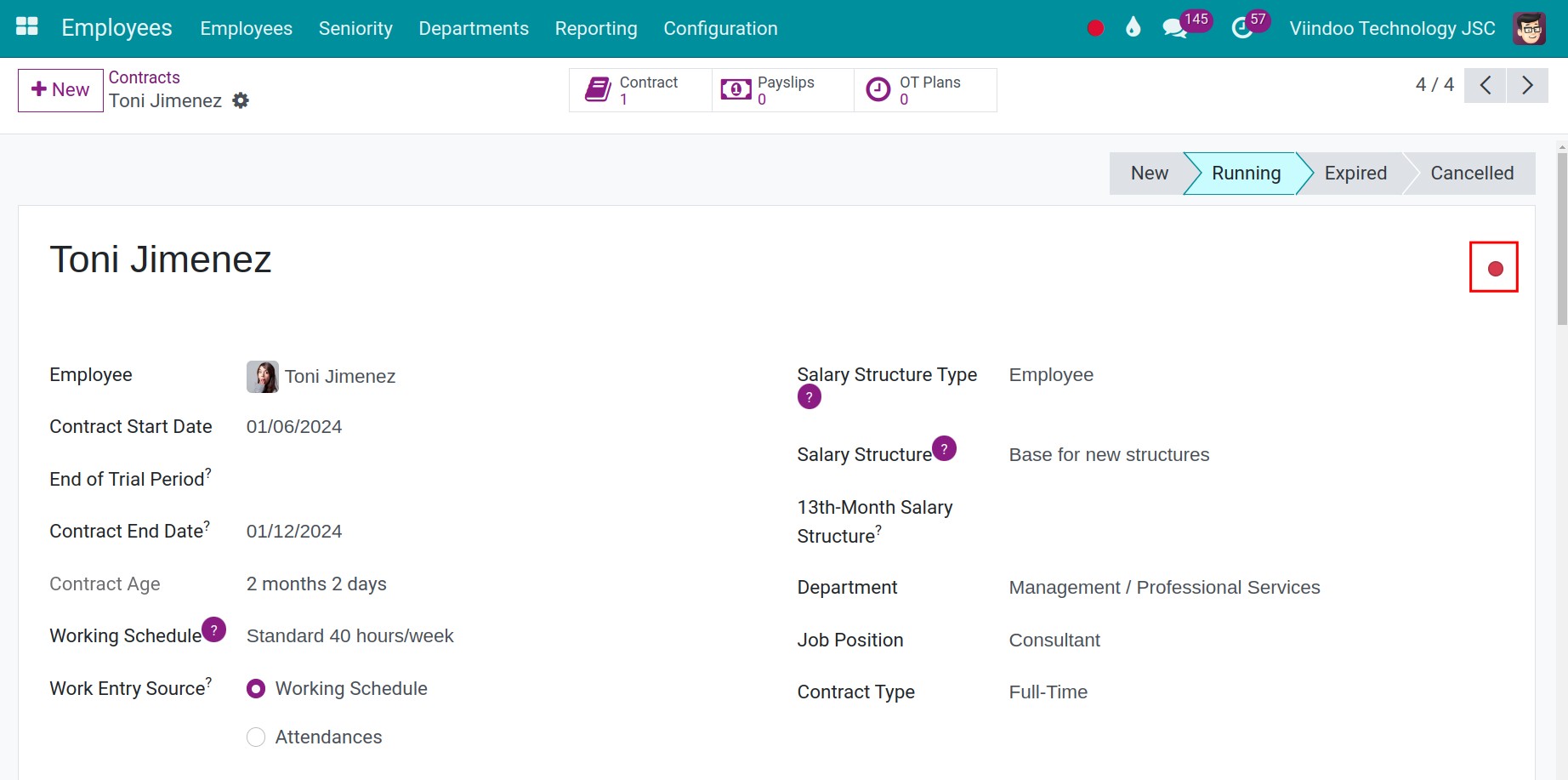
The dot turns red.
How to set a contract to Expired?
When the contract is over, open it and click Expired in the status bar at the top right of the form.
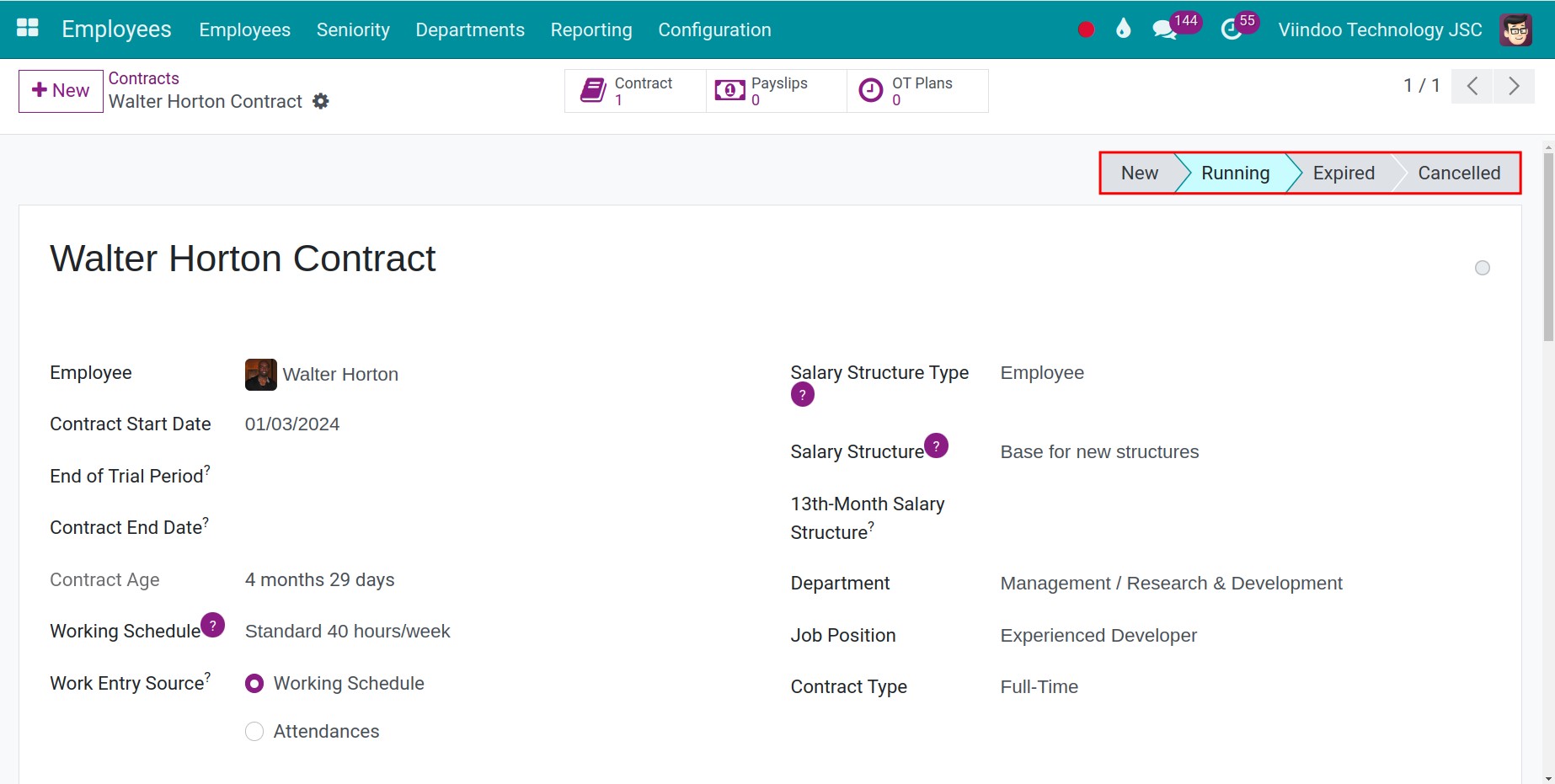
The contract becomes Expired. If Date To is empty, the system fills in today’s date.
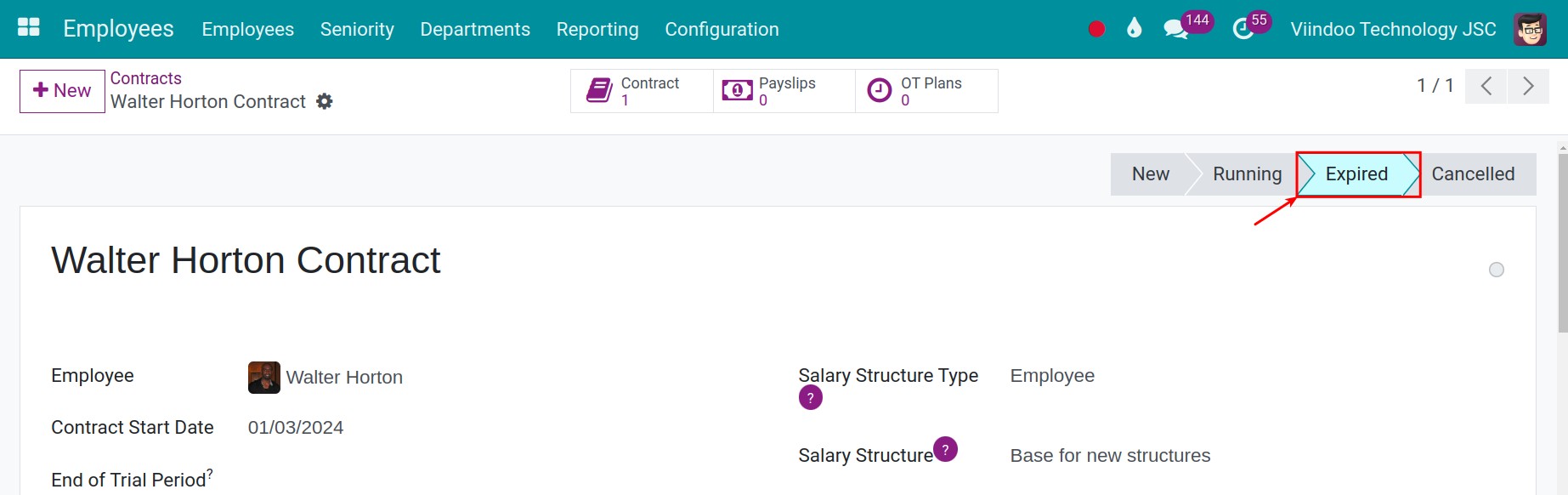
You do not always have to do it by hand: every day the system sets to Expired the running contracts whose Date To is today or earlier.
Note
If the contract has adjustments (addendums), the system asks you to use the button Close Contract instead. The button closes the contract and updates its addendums to end on the same date.
To see the expired contracts, go to Employees > Employees > Contracts and open the group Expired.
How to renew a contract that has expired?
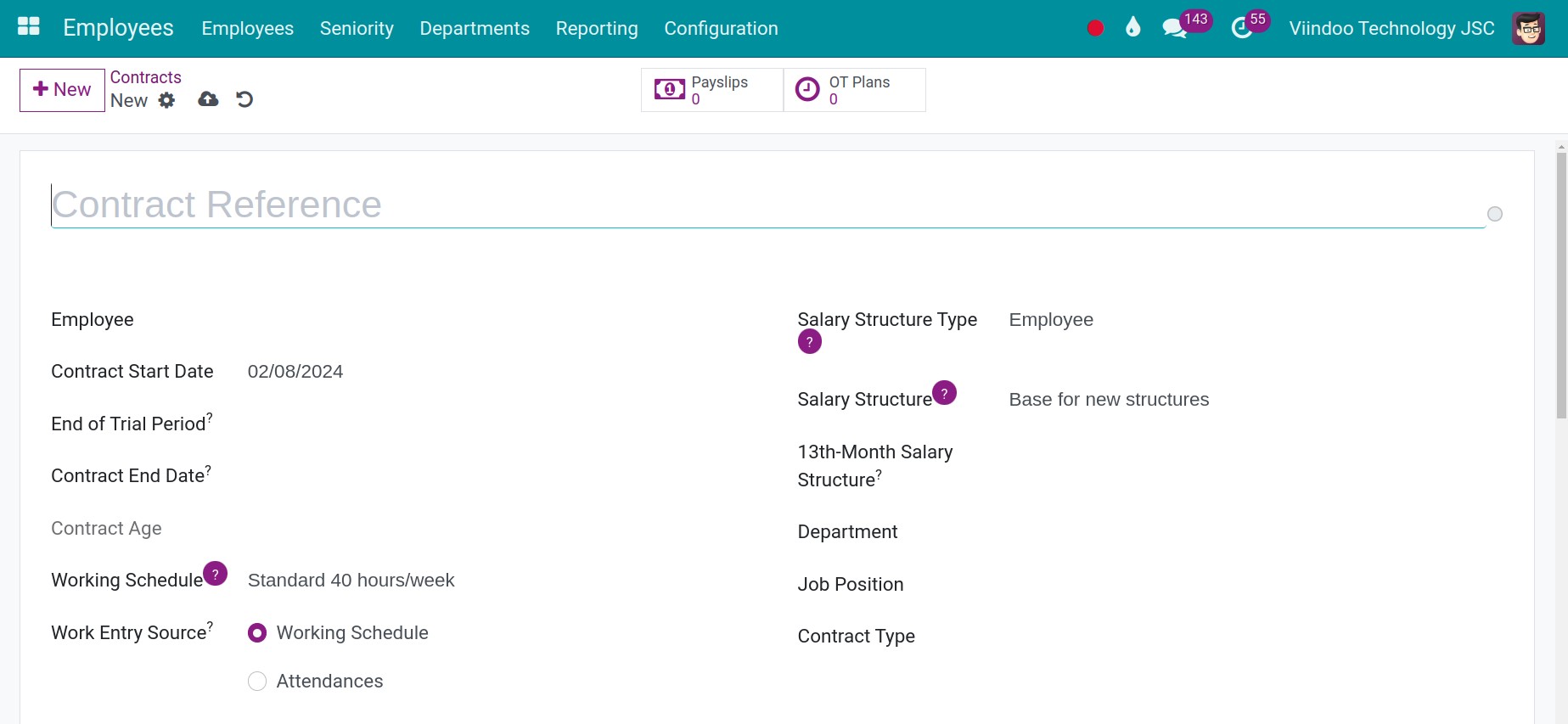
Go to Employees > Employees > Contracts and click New.
Choose the employee and fill in the contract as described in How to create a labour contract. Enter a Date From after the Date To of the expired contract: the system refuses two running contracts of the same employee that overlap.
Click Running when the new contract starts. The system then updates the current contract, the job position and the department of the employee.
How to archive an expired contract?
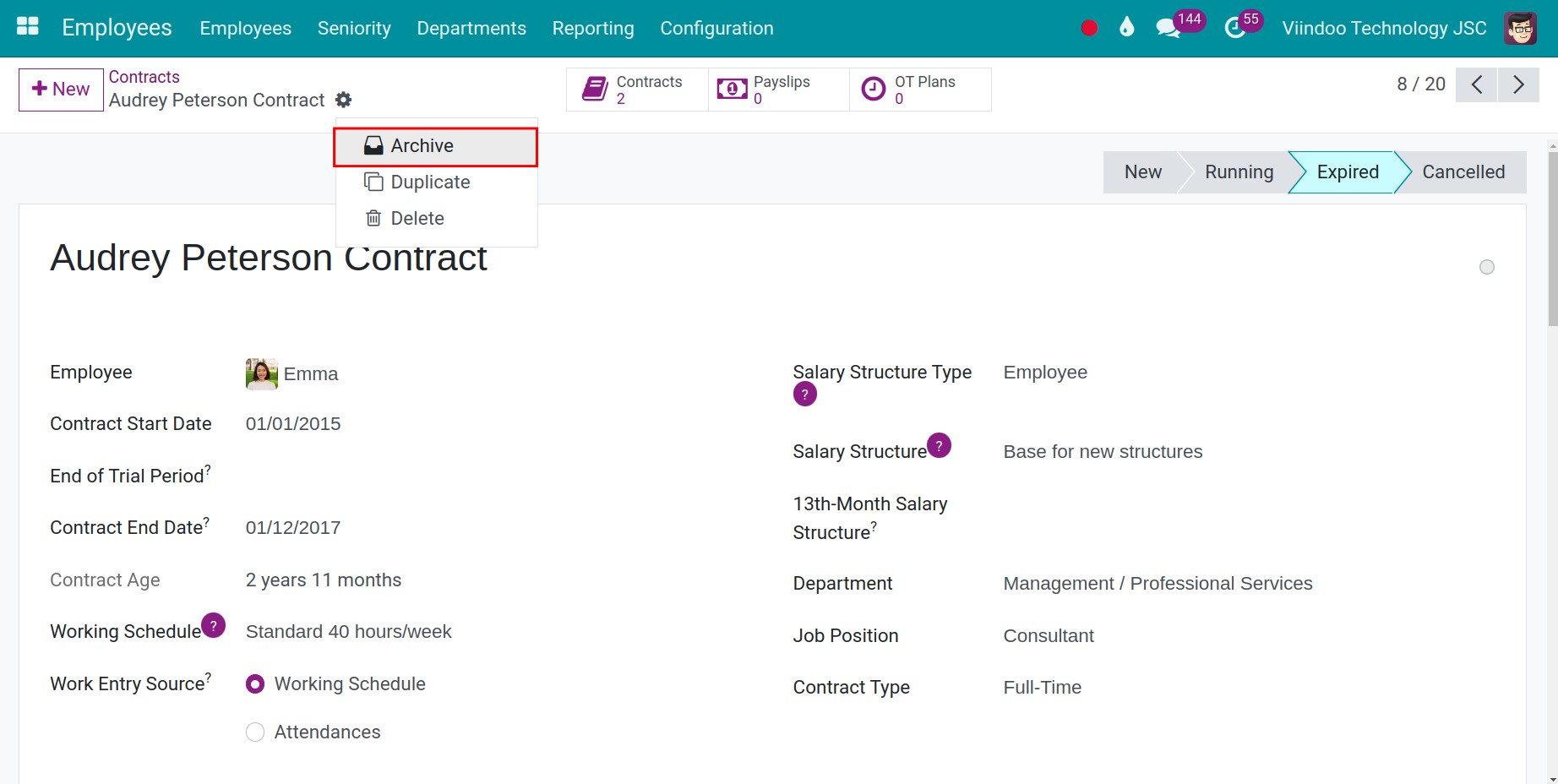
If you do not renew the contract, for example because the employee leaves, you can archive it. Open the contract, click the gear icon and select Archive, then confirm.
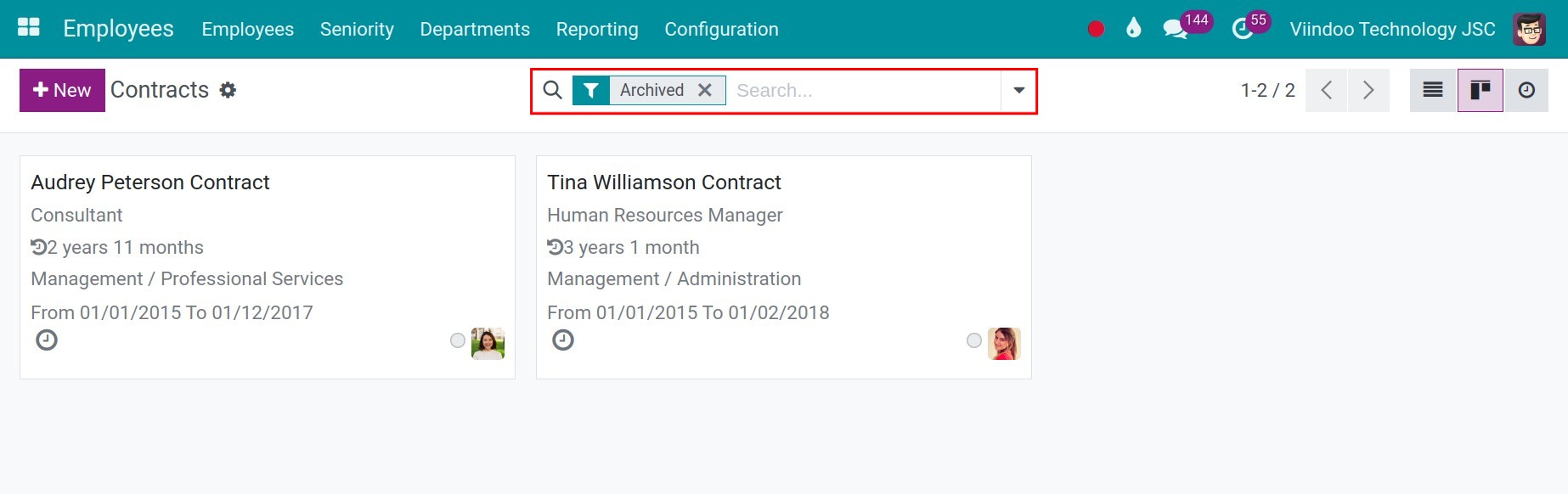
To see the archived contracts, go to Employees > Employees > Contracts, open Filters and select Archived.
Tip
Before you archive the contract of an employee who leaves, archive the employee: in the departure window, tick Contract and the system sets the contract to Expired on the last day of the employee.
Note
A contract that already has payslips cannot be deleted. Archive it instead. To change the salary of an employee who already has payslips, we recommend that you set the contract to Expired and create a new contract rather than editing the old one, so that the old payslips keep their history.
Common problems
Problem |
What to do |
|---|---|
The contract has no red dot although the end date is near. |
Check that the Date To of the contract is filled in, that the contract is Running, and that the end date falls within the Contract Expiration Notice Period of the company. The system checks once a day. |
The system refuses to set the contract to Expired. |
The contract has adjustments. Use the button Close Contract. |
The system refuses the new contract. |
Another contract of the same employee is still running on those dates. Set it to Expired first, or start the new contract after its end date. |
You cannot see the menu Contracts. |
Ask an administrator to give you the access right Contracts. |
See also
Related article
Optional module