
How to set user access rights with groups
In Viindoo, what a user may do is decided by the groups they belong to. Each group lists, for each type of record (model), whether its members can read, write, create or delete it. To see these rights, turn on developer mode, go to , open a group and look at the Access Rights tab. To give a user the rights of a group, add the user on the group’s Users tab.
Who |
Users with the Administrator (Settings) access right. |
App |
Settings |
Before you start
Turn on developer mode. The Groups menu is hidden without it.
For everyday cases, grant rights from the user form instead: How to create and manage user accounts. Use this page to understand or check those rights.
How do I see what a group can do?
Go to .
![Groups in the Users & Companies menu of Viindoo Settings]()
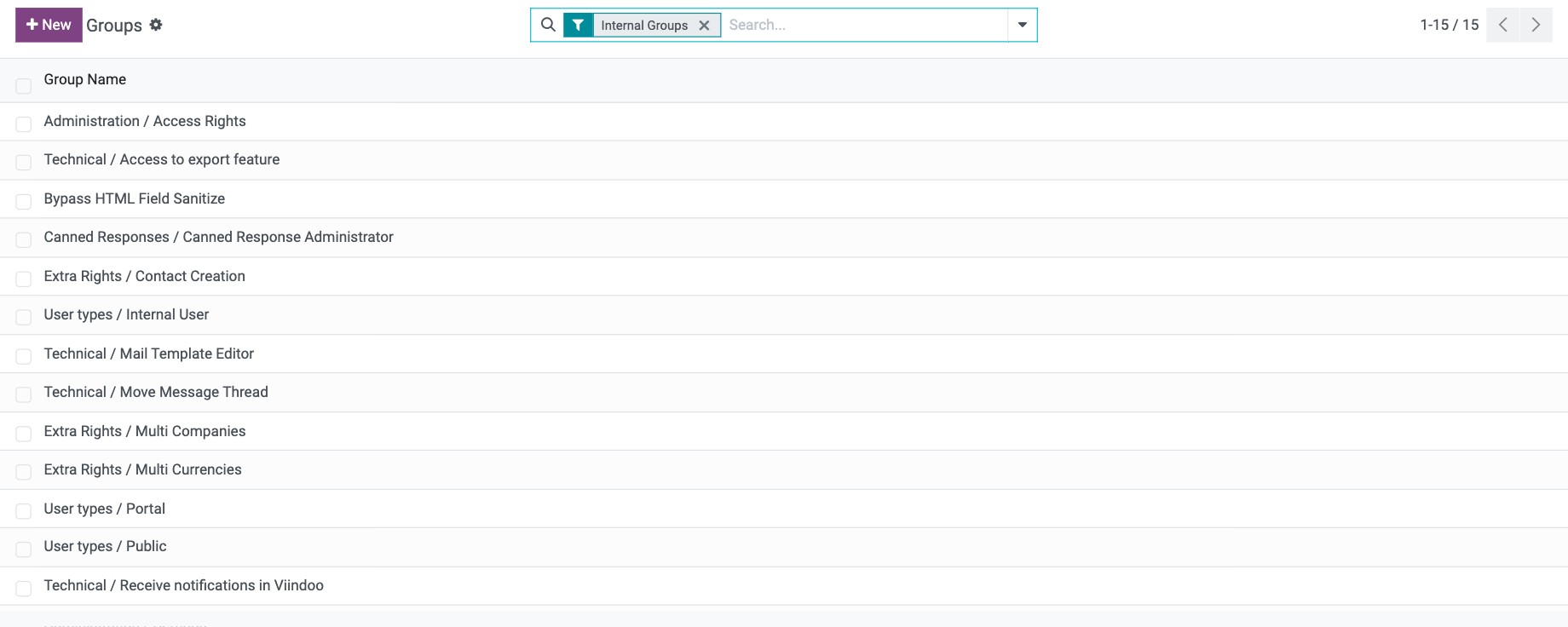
Open the group, for example Extra Rights / Contact Creation. Group names start with the app or the category they belong to.
![List of access rights groups in Viindoo]()
Open the Access Rights tab. Each line gives the group rights on one model.
![Access Rights tab of a group with one line per model]()


The other tabs show the Users in the group, the groups it Inherited from (their rights are included), the Menus and Views it can see, and the Record Rules that limit which records of a model its members see.
What do the columns mean?
Column |
Meaning |
|---|---|
Name |
Name of the access rule. |
Model |
The type of record the rule applies to, for example Contact. |
Read Access |
Members can see records of this model. Without it, they cannot open them in any way, not even through a link or a related record. |
Write Access |
Members can edit existing records, but not create new ones. |
Create Access |
Members can create records, including by duplicating one. |
Delete Access |
Members can delete records. |
A user has a right if any of their groups gives it. For example, on the Contact model the res_partner group_partner_manager rule of the Extra Rights / Contact Creation group allows all four actions, while the rule of the User types / Internal User group only allows reading. A user in both groups can therefore create, edit and delete contacts.

Warning
Do not edit the access rules and groups that come with Viindoo. They are reset to their original values whenever the app is updated, so your changes would be lost. If you need different rights, contact Viindoo.
How do I add users to a group?
Open the group and go to the Users tab.
![Users tab of an access rights group]()
Click Add a line, tick the users in the Add: Users window and click Select.
![Add Users window with users ticked and the Select button]()
To remove a user from the group, click the X at the end of their line.
Save.


The result is the same as choosing the matching level in the user’s Access Rights tab.
Common errors
Problem |
What to do |
|---|---|
I do not see the Groups menu. |
Turn on developer mode. |
A user still cannot open a record although the group has Read Access. |
A Record Rule of the group may hide that record, or the user is not in the group. Check the Record Rules and Users tabs. |
My changes to a group disappeared. |
Groups that come with Viindoo are reset when the app is updated. Contact Viindoo instead of editing them. |
Next steps
How to create and manage user accounts: grant rights from the user form.
How to set up your company and work with several companies: limit users to some companies.