
How to track products by serial number
To track every unit on its own, turn on Lots & Serial Numbers in the Inventory settings, set the product to Track Inventory ‣ By Unique Serial Number, then enter one serial number per unit on the receipt. On the delivery, Viindoo proposes the serial numbers to ship and you can change them. The Traceability report of each serial number shows its full history.
Who |
Inventory Administrator to turn on the setting and edit products; Inventory User to enter serial numbers on transfers. |
App |
Inventory |
Before you start
Install the Inventory app.
Turn on Lots & Serial Numbers in Inventory ‣ Configuration ‣ Settings ‣ Traceability (see How to track products by lot number).
Use serial numbers only for products that need after-sales follow-up, such as warranty. For batches of identical goods, lots are lighter.
How do I set a product to be tracked by serial number?
Go to Inventory ‣ Products ‣ Products and open the product.
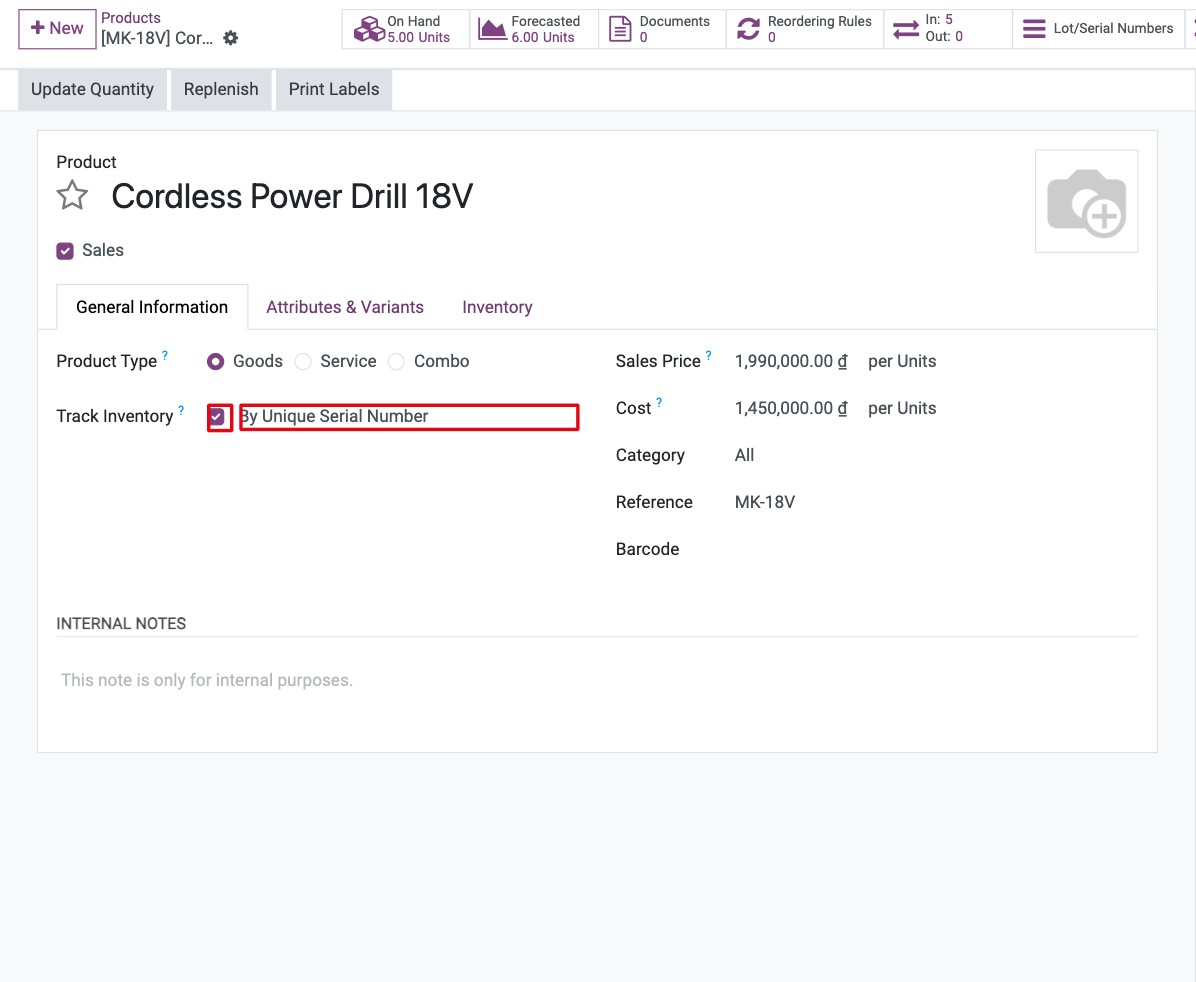
On the General Information tab, make sure Product Type is Goods and tick Track Inventory.
In the field next to it, choose By Unique Serial Number, then click Save.
![Product form with Track Inventory ticked and By Unique Serial Number selected]()
How do I enter serial numbers on a receipt?
Go to Inventory ‣ Operations ‣ Transfers ‣ Receipts and open the receipt.
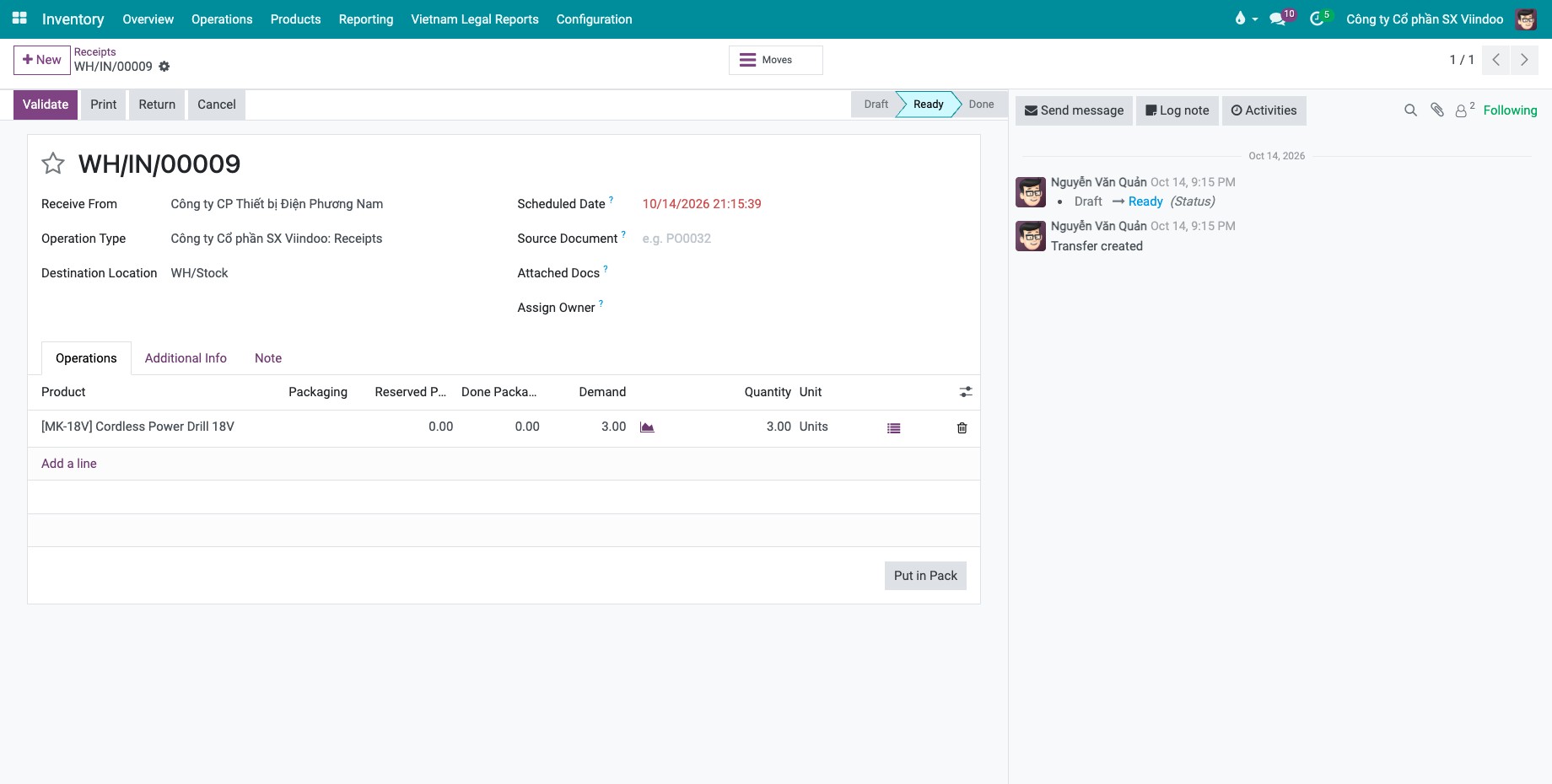
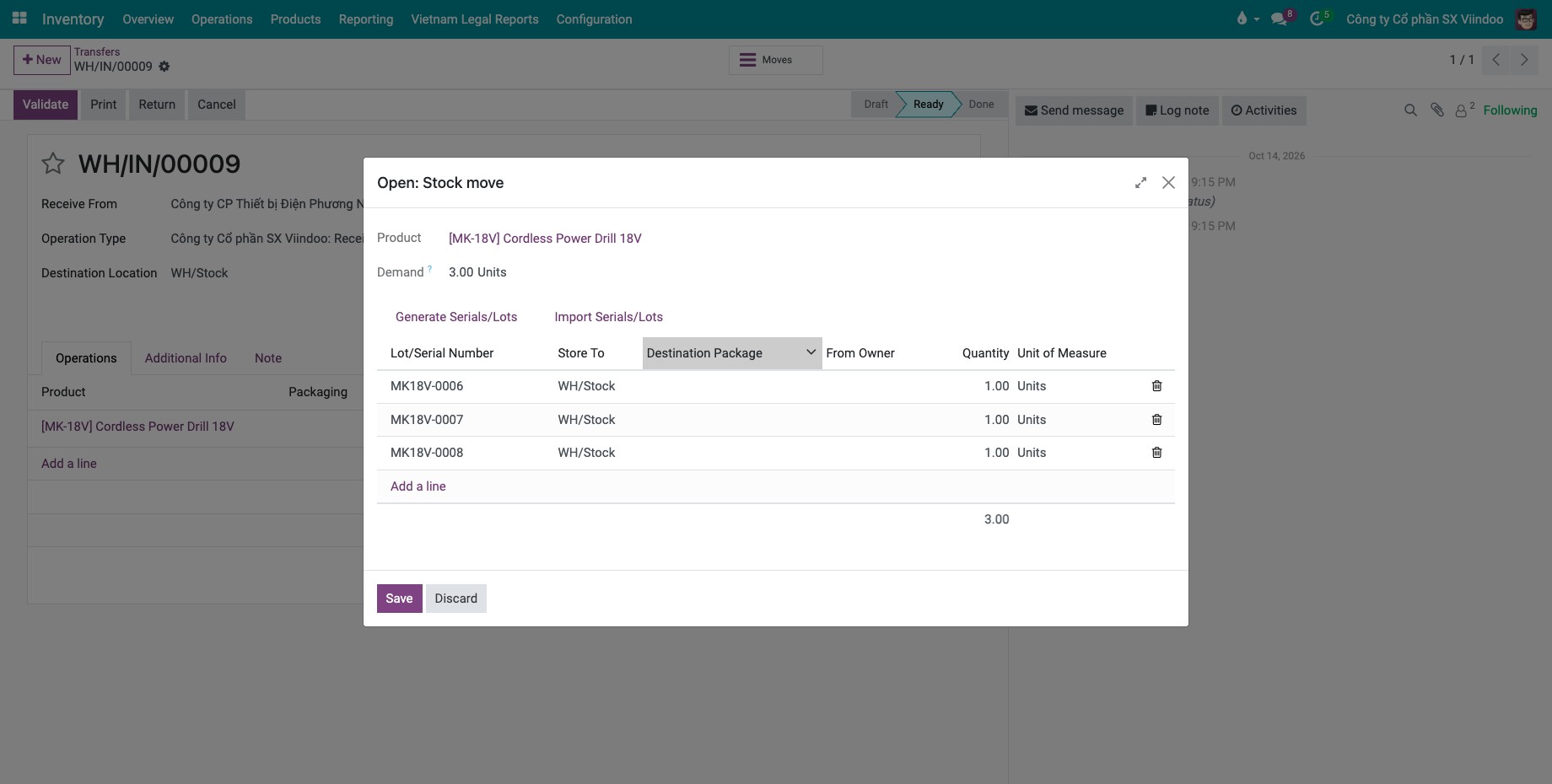
Click the list icon at the end of the product line to open the line details. Each serial number is one line with a quantity of 1.
![Receipt in the Ready state with one product line to receive in three units and the list icon at the end of the line]()
Enter the serial numbers in one of three ways:
Type them: click Add a line and type one serial number in Lot/Serial Number. Repeat for every unit.
Generate them: click Generate Serials/Lots, enter the First Serial Number and the Number of SN, then click Generate. Viindoo counts up from the last number in the first serial number, so it must contain at least one digit (MK18V-0006, MK18V-0007, …). Tick Keep current lines to keep the lines you already entered.
![Detailed operations window with three serial numbers generated from MK18V-0006]()
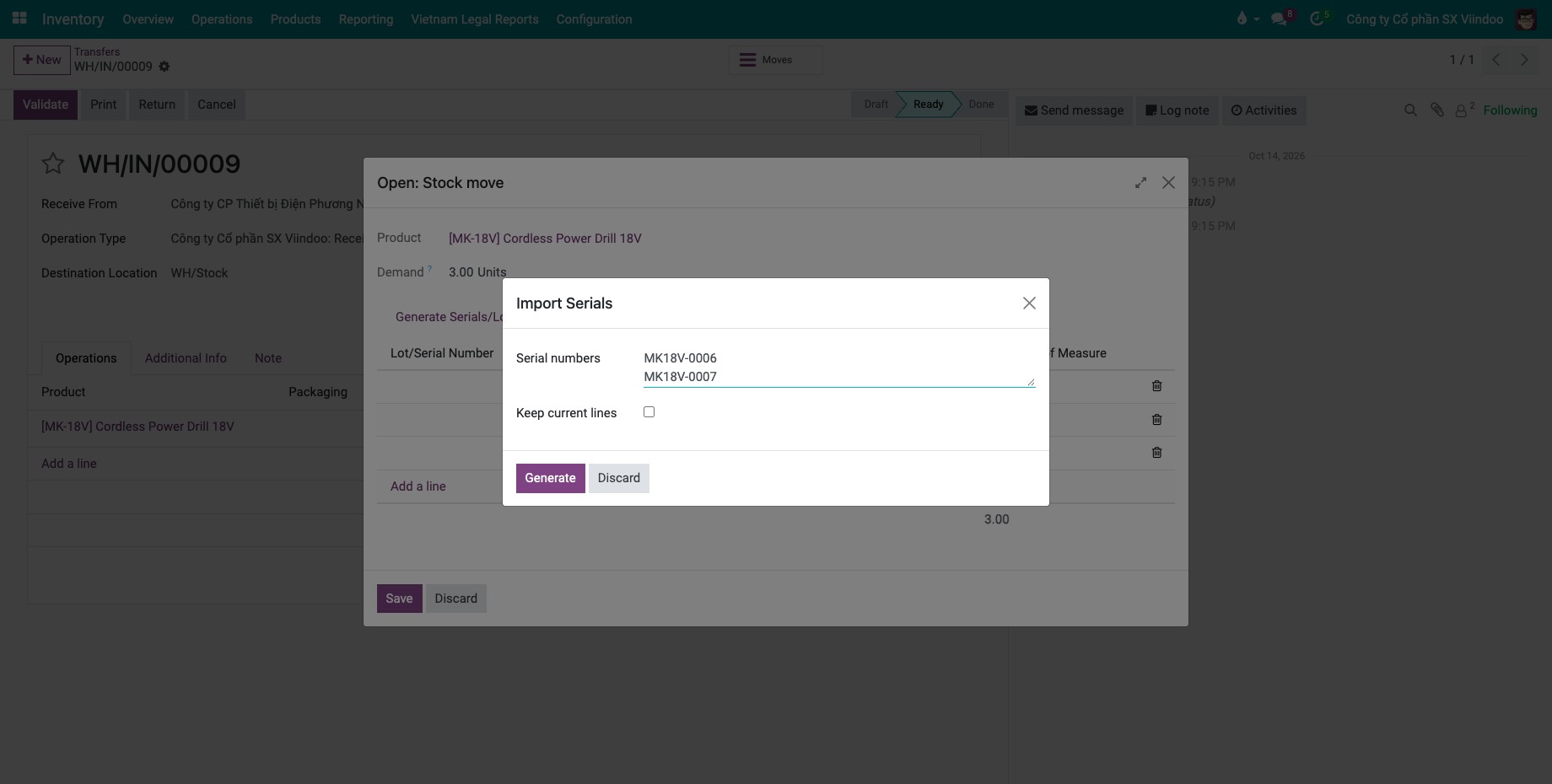
Paste them from a spreadsheet: click Import Serials/Lots, paste the column of serial numbers (one per line) and click Generate.
![Import Serials window with three serial numbers pasted, one per line]()
Click Save, then Validate.
Every serial number now exists as its own record under Inventory ‣ Products ‣ Lots / Serial Numbers.
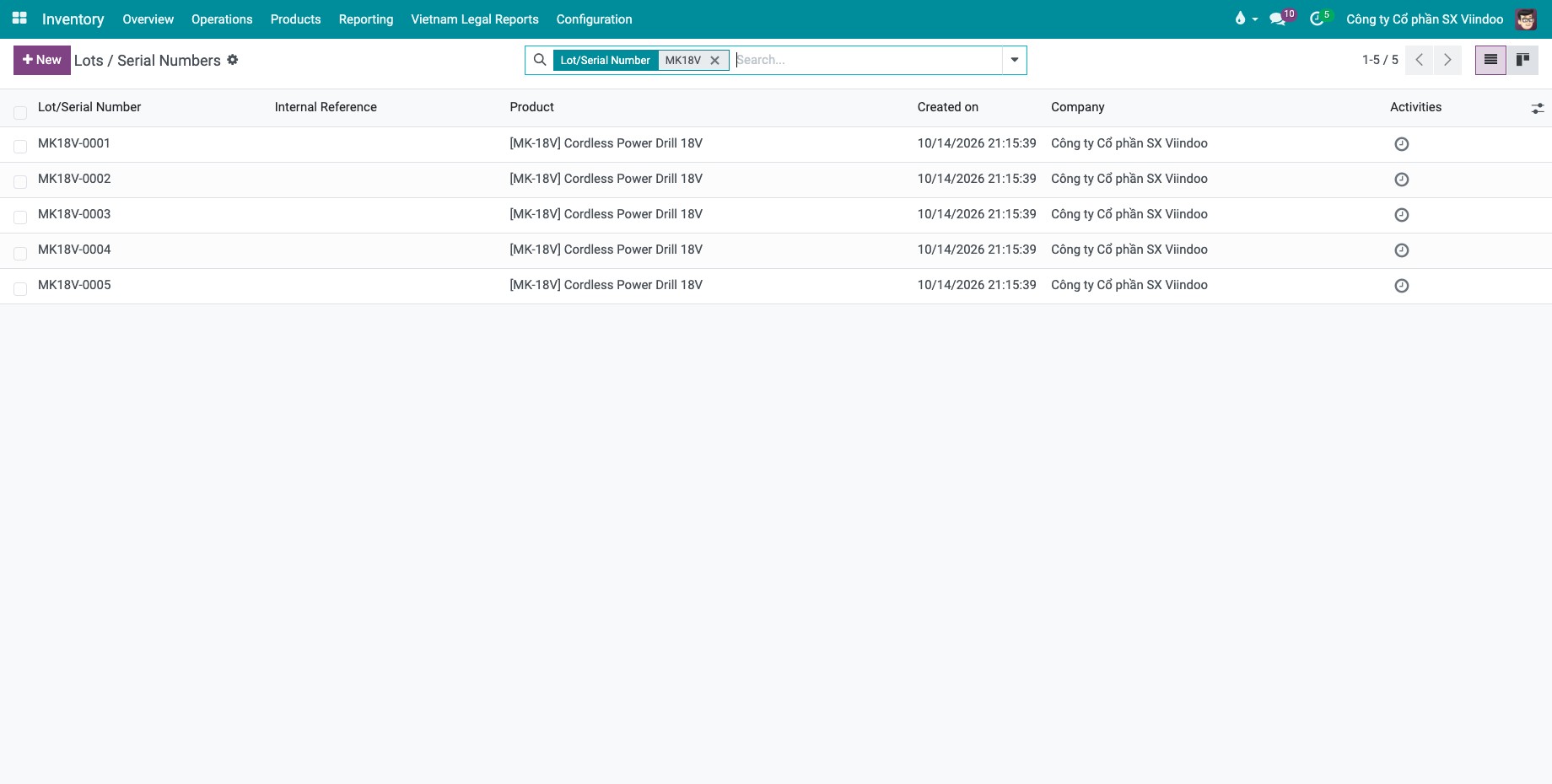
How do I choose the serial numbers to deliver?
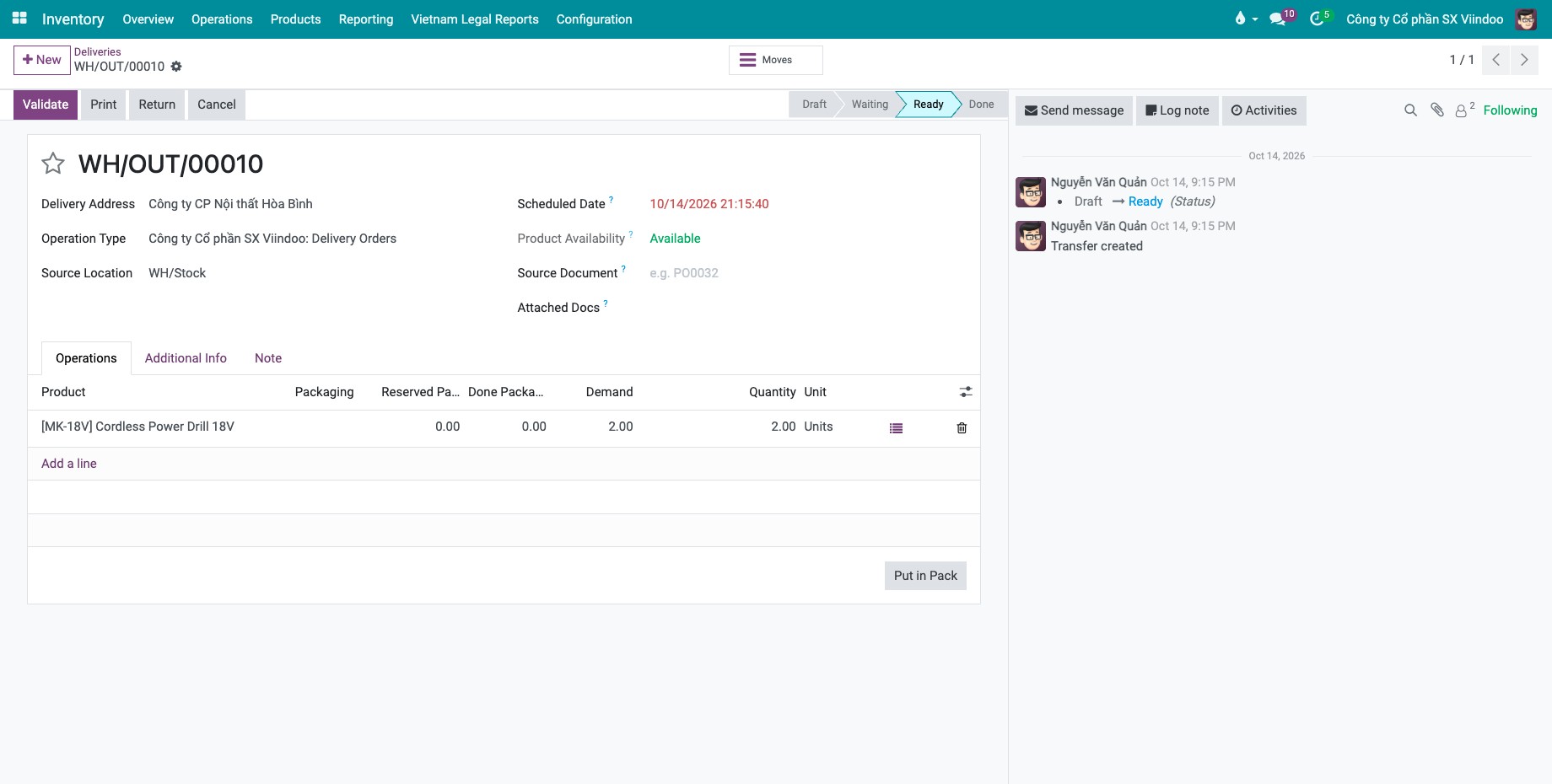
Open the delivery order from Inventory ‣ Operations ‣ Transfers ‣ Deliveries.
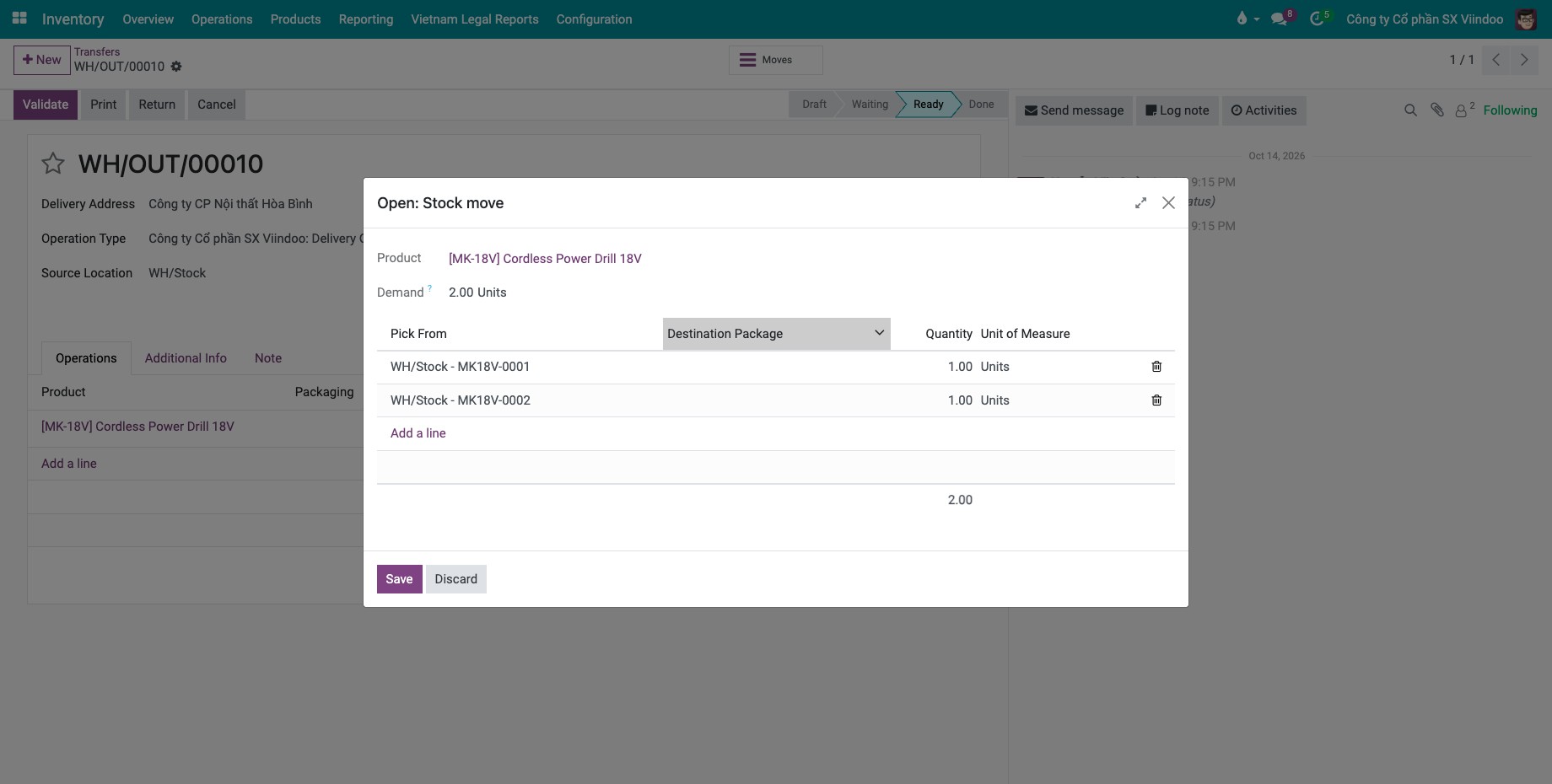
Click the list icon at the end of the product line. Viindoo has already reserved serial numbers according to the removal strategy of the product category (FIFO by default).
![Delivery order in the Ready state with one product line of two units and the list icon at the end of the line]()
To ship other units, change the serial number on a line, for example because the customer asked for a specific unit, then click Save.
![Delivery line details with the reserved serial numbers MK18V-0001 and MK18V-0002]()
Click Validate on the delivery.
For the removal strategies, see How to choose which goods leave first with removal strategies.
How do I trace a serial number?
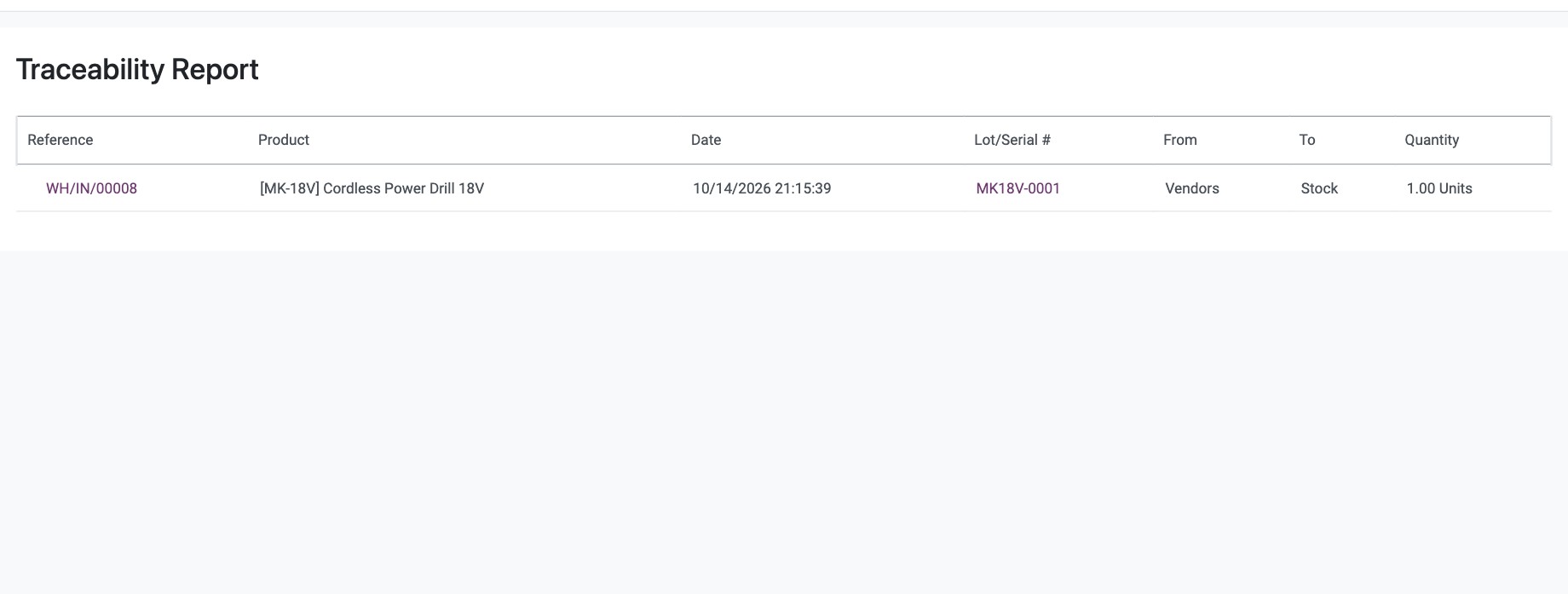
Go to Inventory ‣ Products ‣ Lots / Serial Numbers and open the serial number.
Click Traceability to see its movements from the receipt to the delivery.
![Traceability Report of serial number MK18V-0001]()
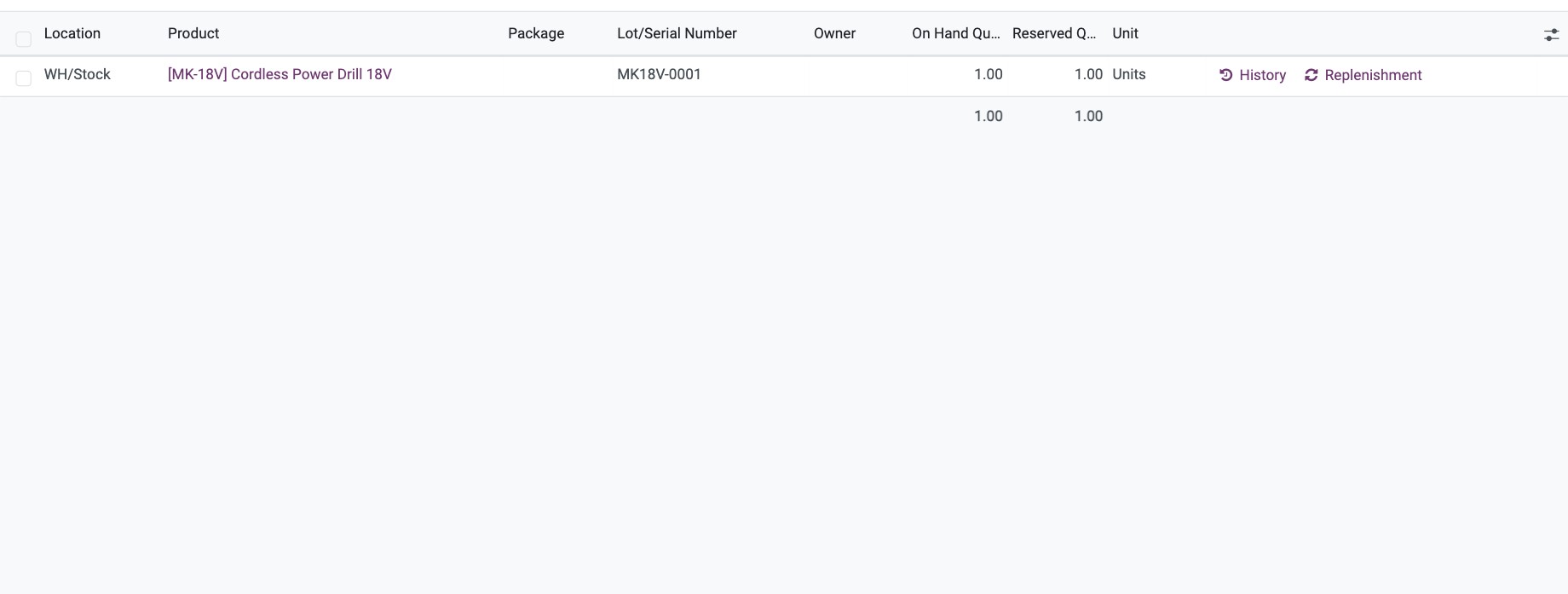
Click Location to see where the unit is now.
![Location list showing the warehouse location that holds serial number MK18V-0001]()
Note
The Transfers button of the serial number lists the transfers that contain it, including the delivery to the customer. Use it together with warranty information for after-sales service.
Common errors
Message |
What to do |
|---|---|
You need to supply a Lot/Serial number for products … |
Validate was clicked while a unit has no serial number. Enter one serial number per unit. |
You can only process 1.0 Units of products with unique serial number. |
A serial number line has a quantity other than 1. Set the quantity to 1 and add one line per unit. |
You cannot use the same serial number twice. Please correct the serial numbers encoded. |
Two lines of the same transfer carry the same serial number. Remove or correct one. |
The combination of lot/serial number and product must be unique within a company … |
The serial number already exists for this product. Use a new number. |
The Serial Number (…) is already used in location(s) … |
The unit is already in stock. Check that this receipt is not a duplicate; correct the number if it is a typing error. |
Next steps
Version notes
The tracking choice is on the General Information tab of the product.
The serial number record shows Customer, Supplier and Service State fields filled from its transfers.