
Apply Engineering change order on BOM
An engineering change order (ECO) changes the components or the operations of a bill of materials without touching the version your workshop uses. Create the ECO, click Start New Revision to get a copy of the BoM, edit the copy, then apply it: the new version becomes active and the old one is archived. With ECO Approvals, the change is reviewed on an approval request before it is applied.
Who |
Engineers with the PLM ‣ User and Manufacturing ‣ Administrator access rights, and the approvers of the Approval app. |
App |
PLM, Manufacturing, Approval |
Before you start
Activate Product Lifecycle and give the access rights, see Introduction to Product Lifecycle in Viindoo.
Create at least one ECO type, see Initial Configuration for Product Lifecycle.
To review the ECO before it is applied, install the ECO Approvals module.
The example on this page changes the bill of materials of the Work desk: 4 of its 12 screws are replaced with wood dowels, and the assembly goes from 40 to 30 minutes.
How do I create an ECO?
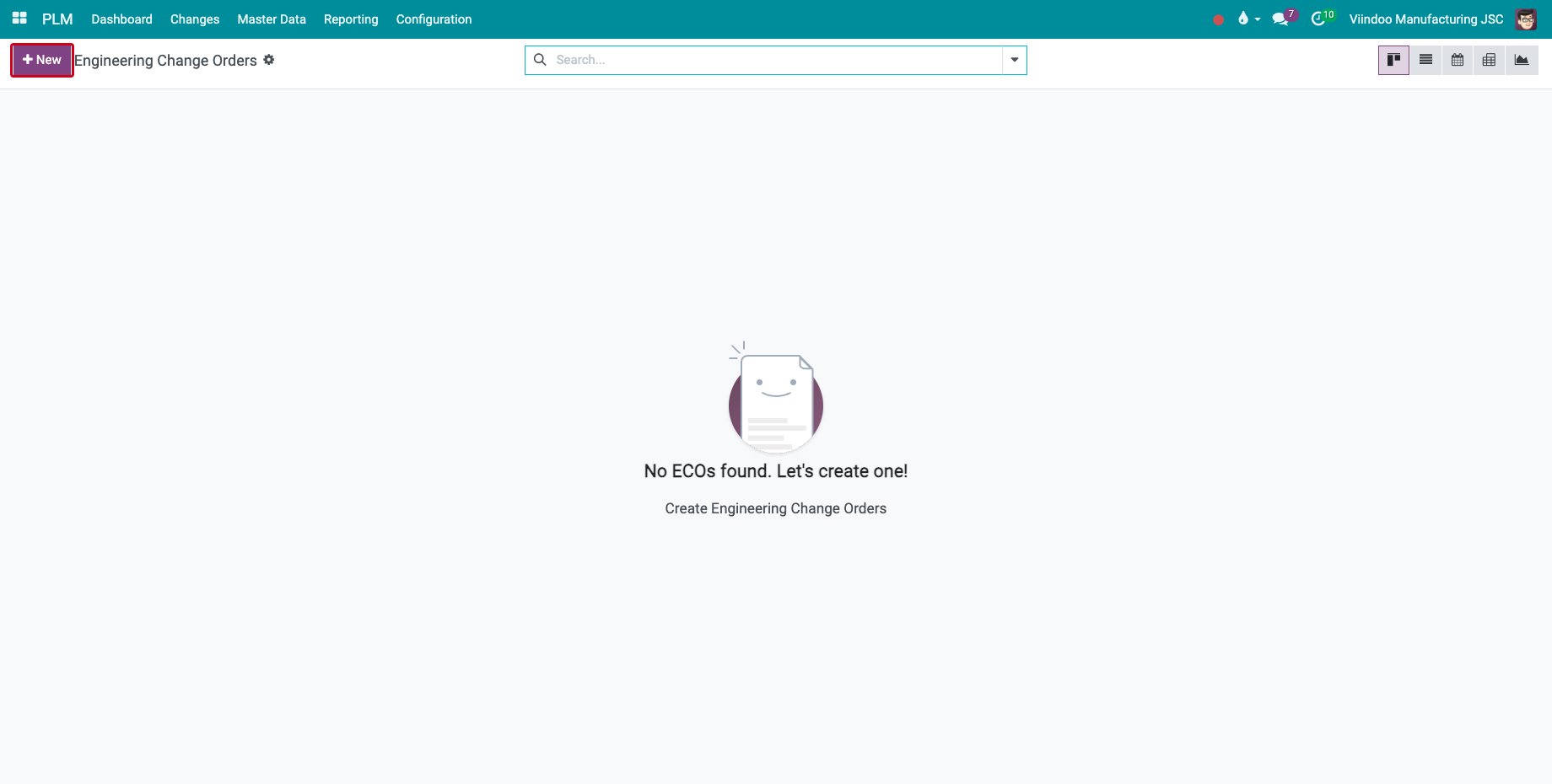
Go to PLM ‣ Changes ‣ Engineering Change Orders and click New.
![The engineering change orders with the New button]()
Fill in the ECO, then save. The ECO gets a reference, for example ECO0001, in front of its summary.
![A new ECO on the bill of materials of the work desk]()
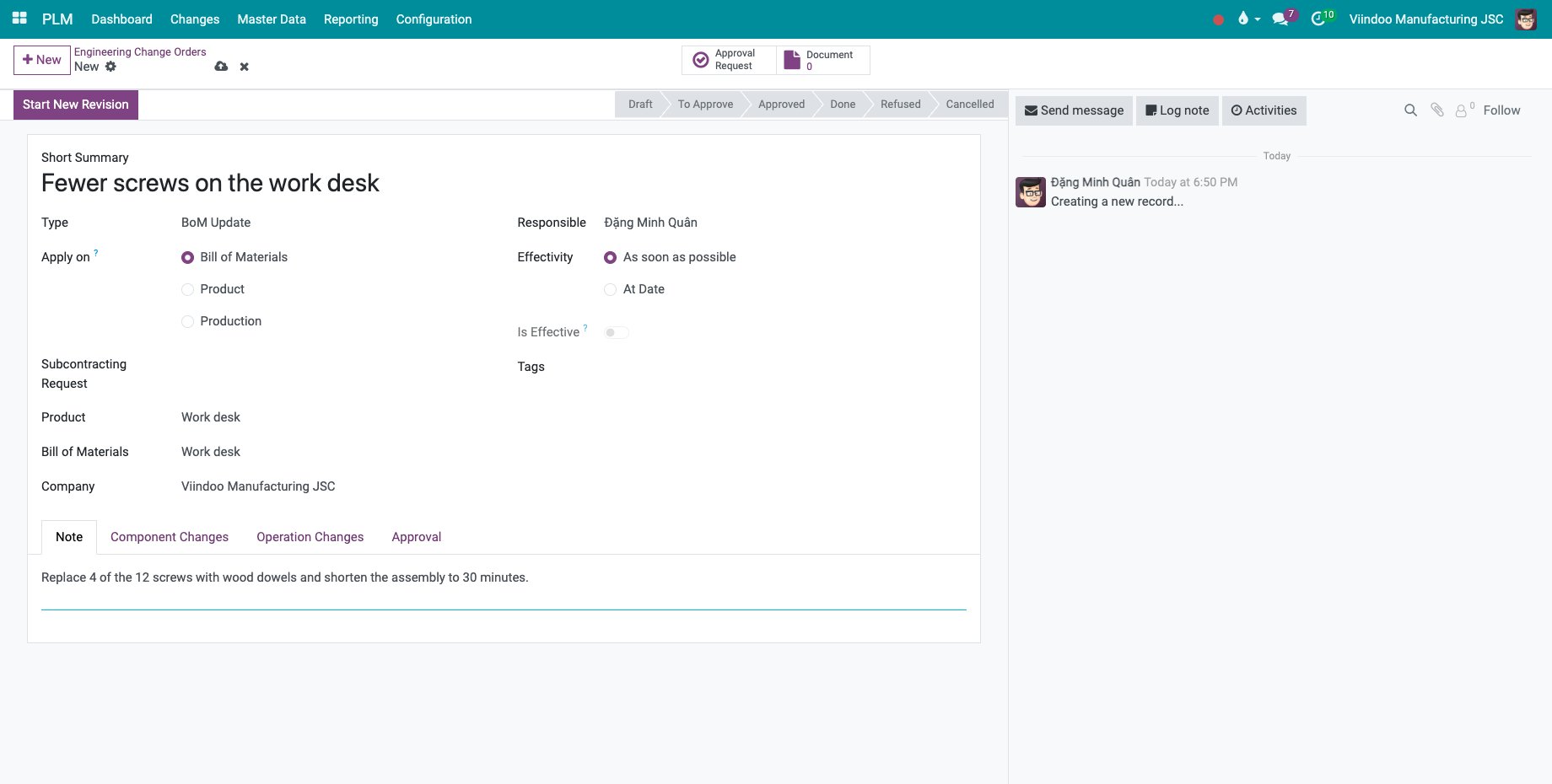
Field |
What it does |
If it is wrong |
|---|---|---|
Short Summary |
What changes, in a few words. |
The ECO is hard to find in the list. |
Type |
The ECO type, which decides the dashboard card of the ECO. |
The ECO counts on the card of another type. |
Apply on |
Bill of Materials changes a BoM. Product records a change of the product only, without a BoM. Production changes the BoM of one manufacturing order in progress. |
The revision buttons do not show. |
Product and Bill of Materials |
The product and the BoM to change. |
The revision copies another BoM. |
Responsible |
The person in charge of the change. |
None. |
Effectivity |
As soon as possible applies the change when you apply the ECO. At Date applies it at the Effectivity Date. |
The new version becomes active too early or too late. |
Tags |
Classify the ECO for searching. |
None. |
Note |
The description of the change and its reason. |
The approver does not know why the change is asked. |
How do I prepare the new version of the BoM?
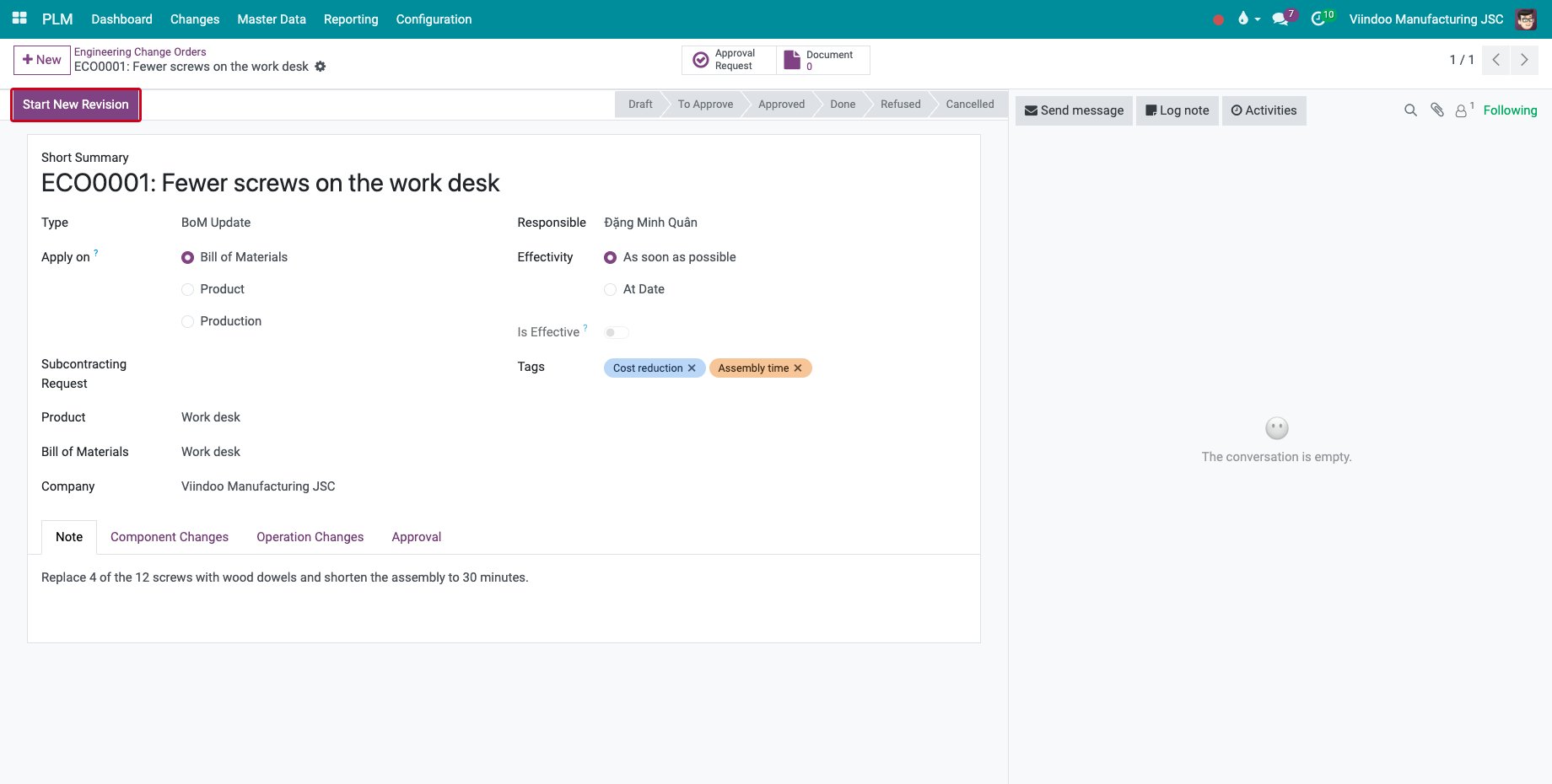
On the saved ECO, click Start New Revision.
![A saved ECO with the Start New Revision button]()
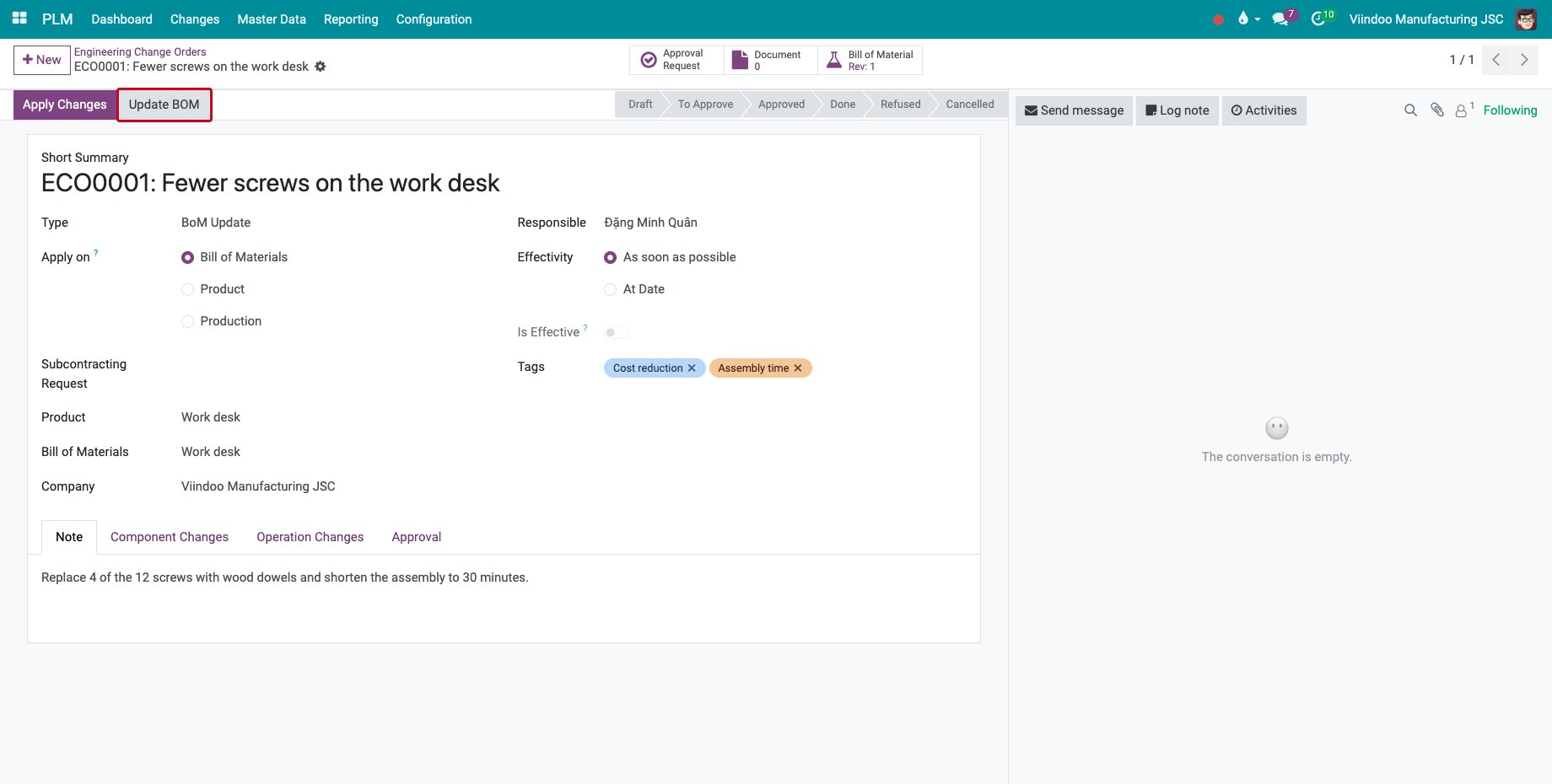
The app copies the BoM into a new, inactive version. Click Update BOM, or the Rev ‣ Bill of Material button, to open it.
![The ECO with the Update BOM button after the revision is started]()
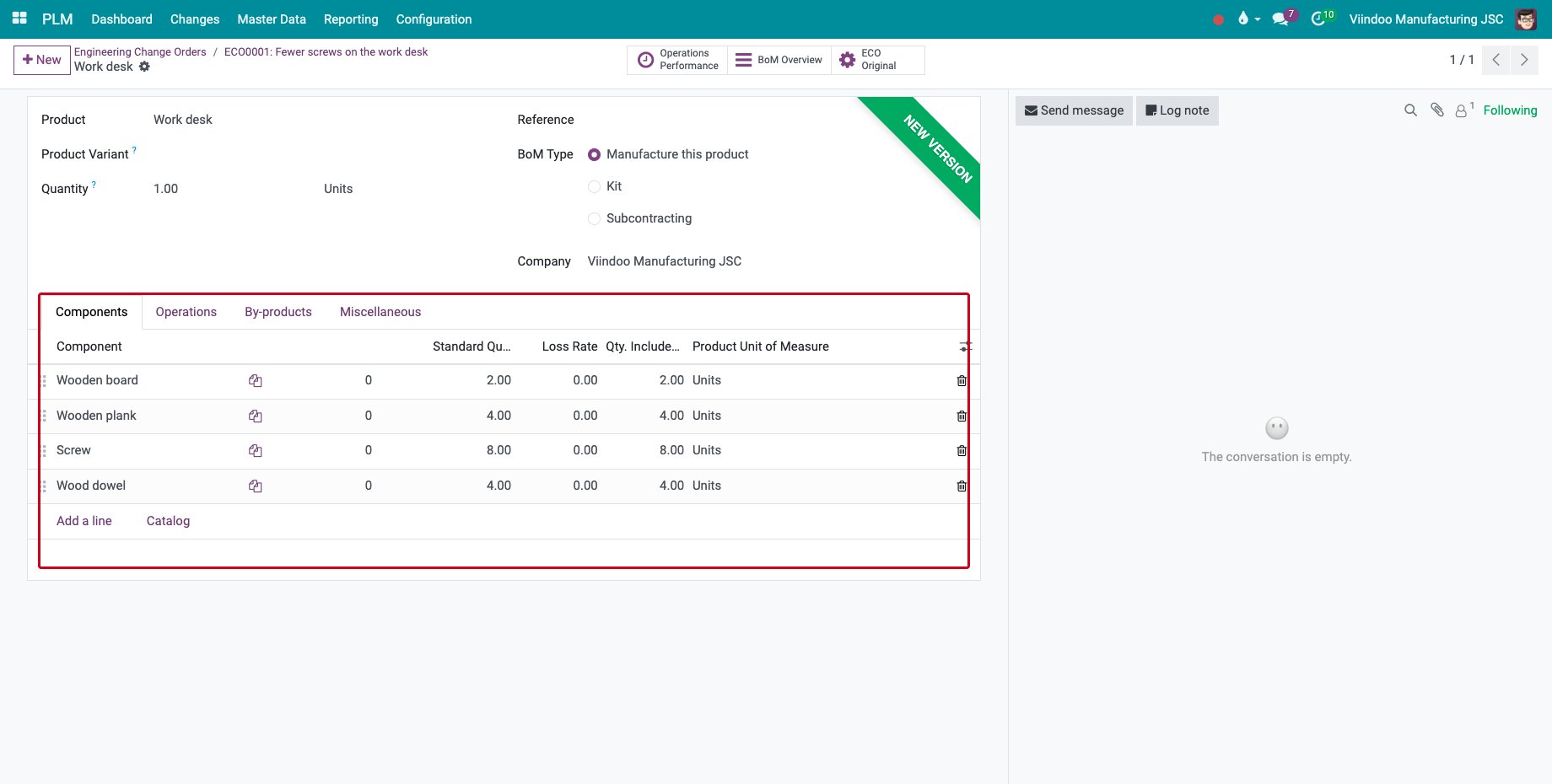
Edit the Components tab of the new version: here the screws go from 12 to 8 and 4 wood dowels are added. Save.
![The components of the new BoM version]()
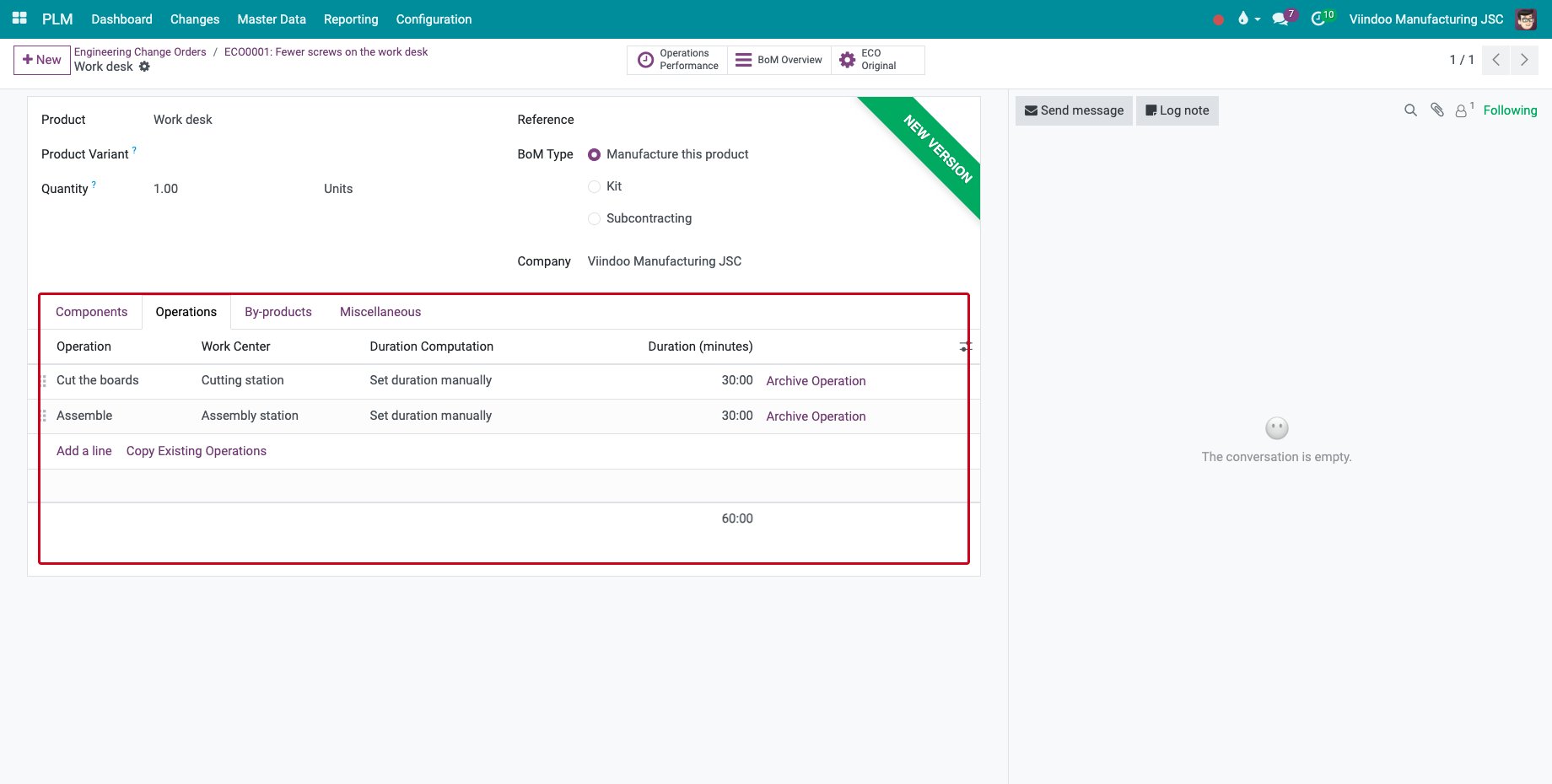
Edit the Operations tab: here the assembly goes to 30 minutes. Save.
![The operations of the new BoM version]()
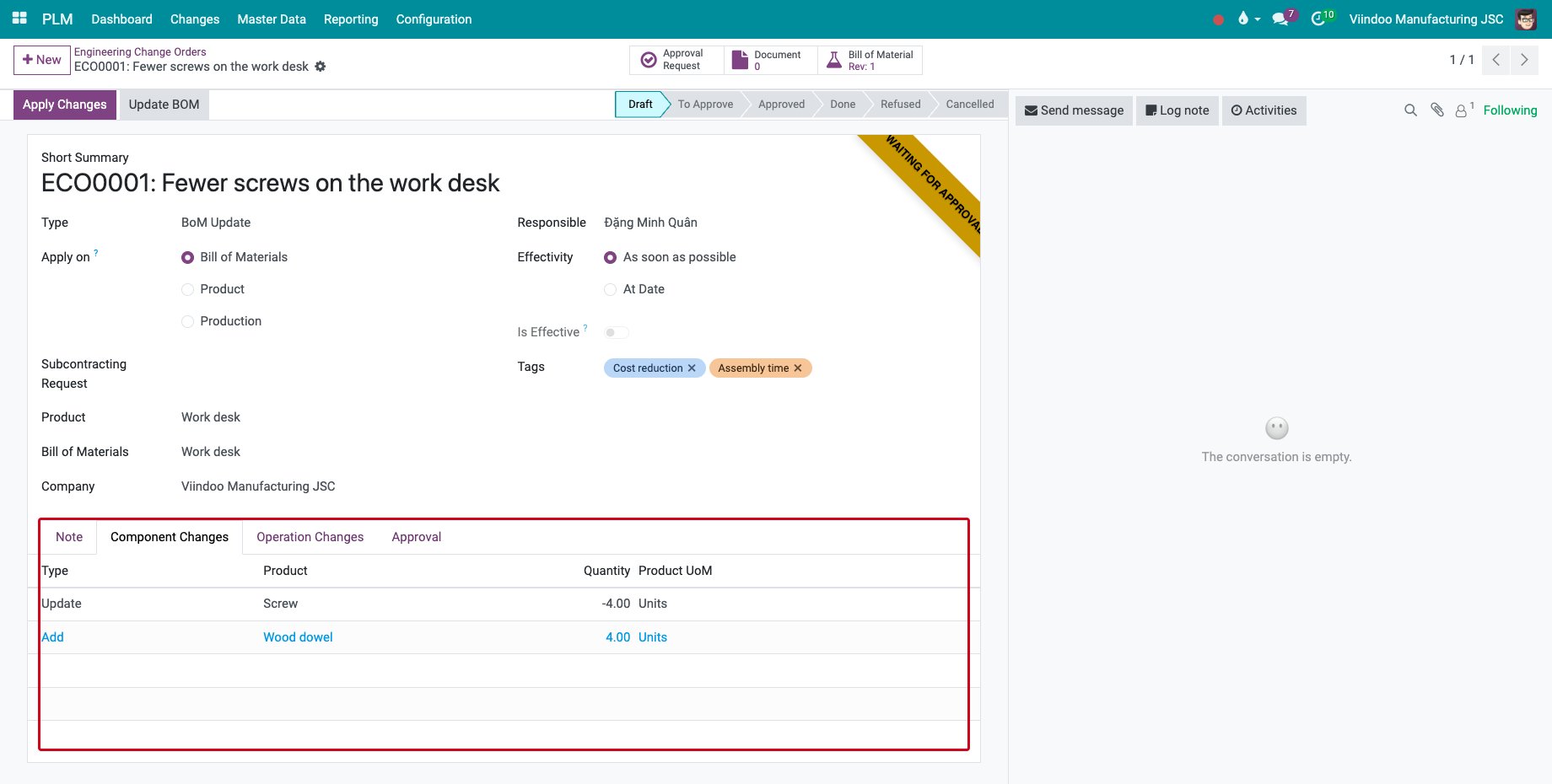
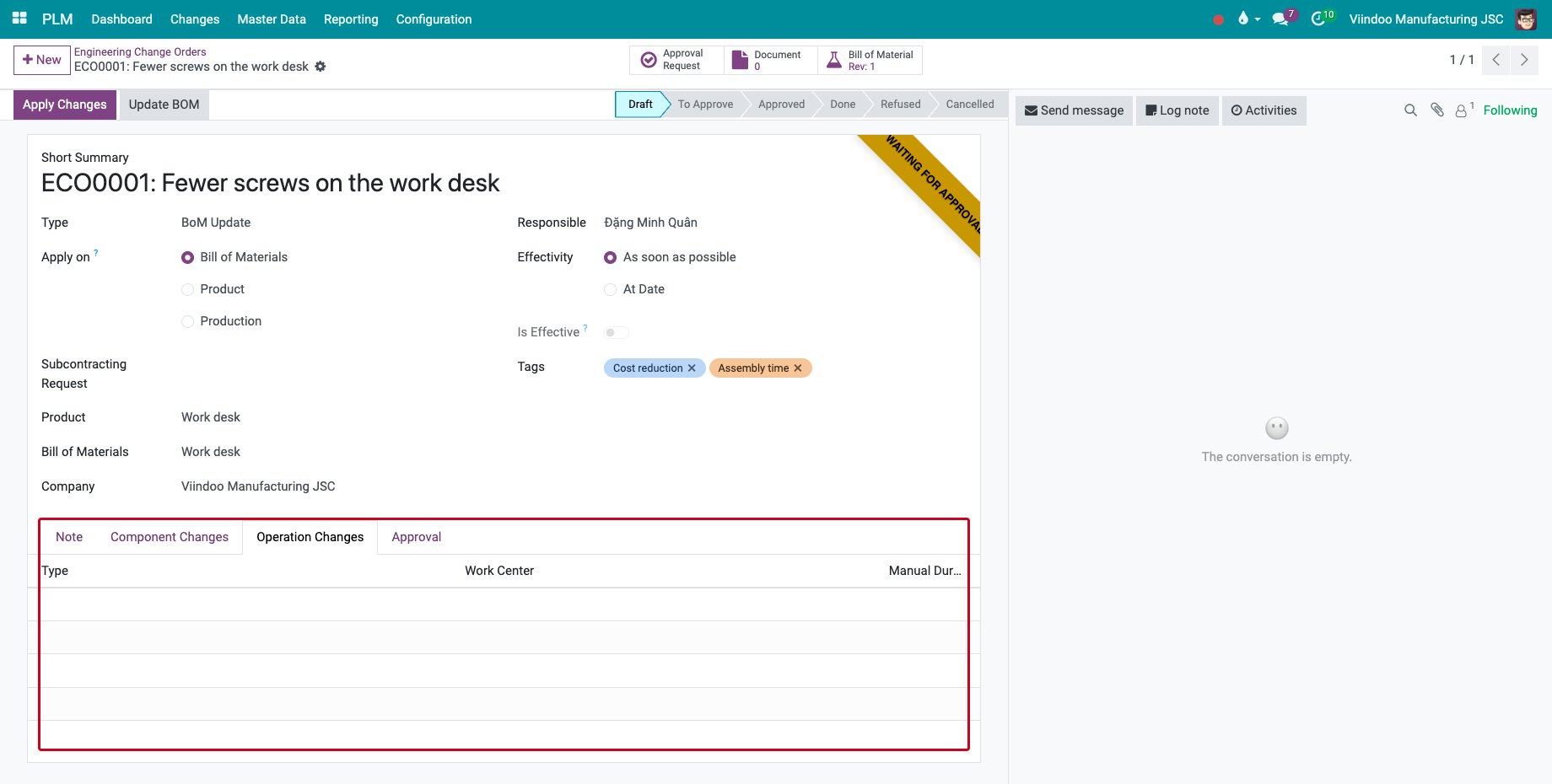
Go back to the ECO by its name in the breadcrumb. The Component Changes and Operation Changes tabs list what differs from the current version: added lines in blue, removed lines in red, and the new quantity or duration.
![The Component Changes tab of the ECO]()
![The Operation Changes tab of the ECO]()
The current version of the BoM stays active while you prepare the new one, so the workshop keeps manufacturing with it.
How do I get the ECO approved?
With ECO Approvals installed, each company has an Engineering Change Order approval type. The request goes first to the manager of the employee who submits it.
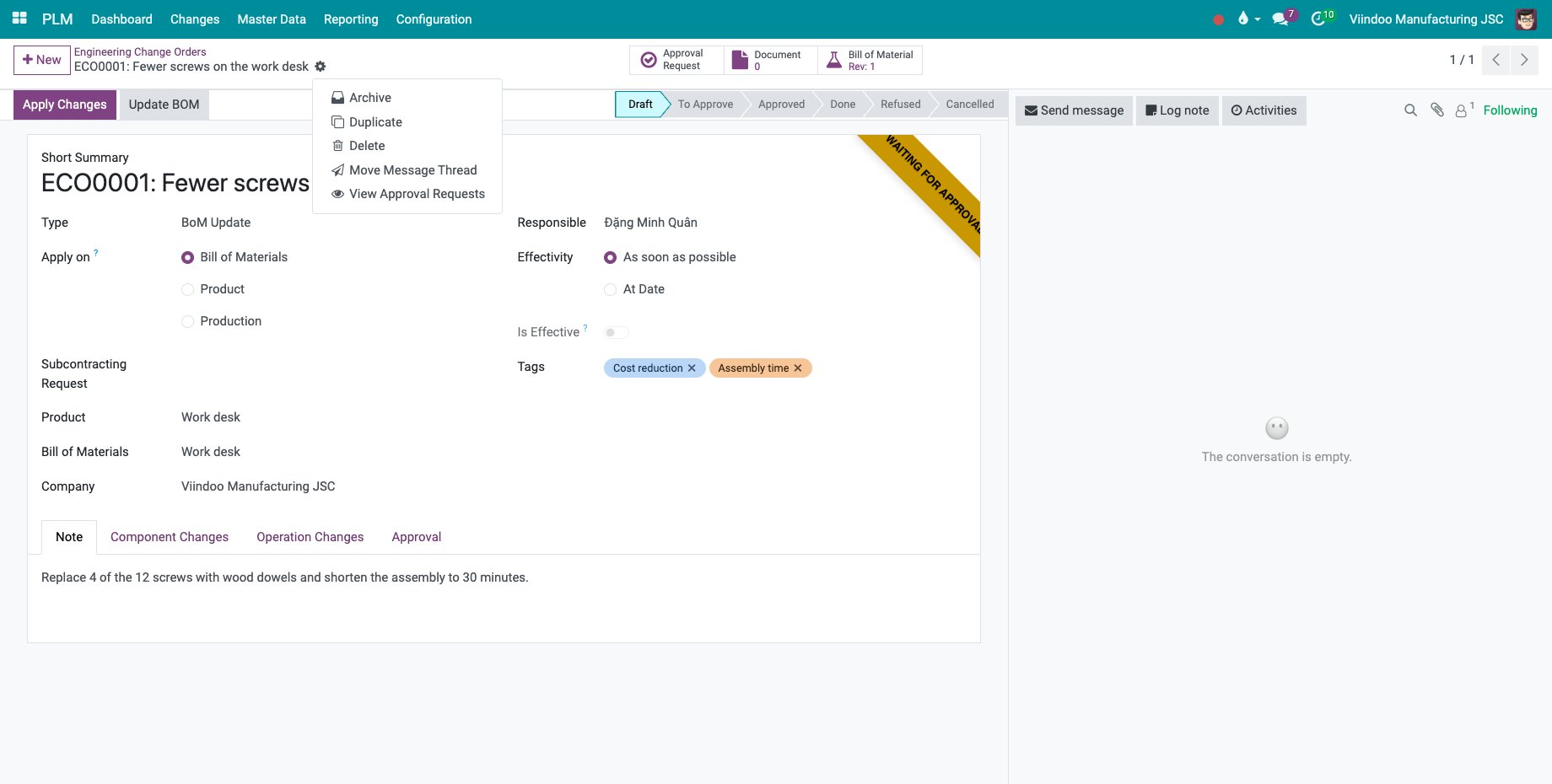
On the ECO, open the gear menu next to its name and choose Get Approved.
![The Get Approved action in the gear menu of the ECO]()
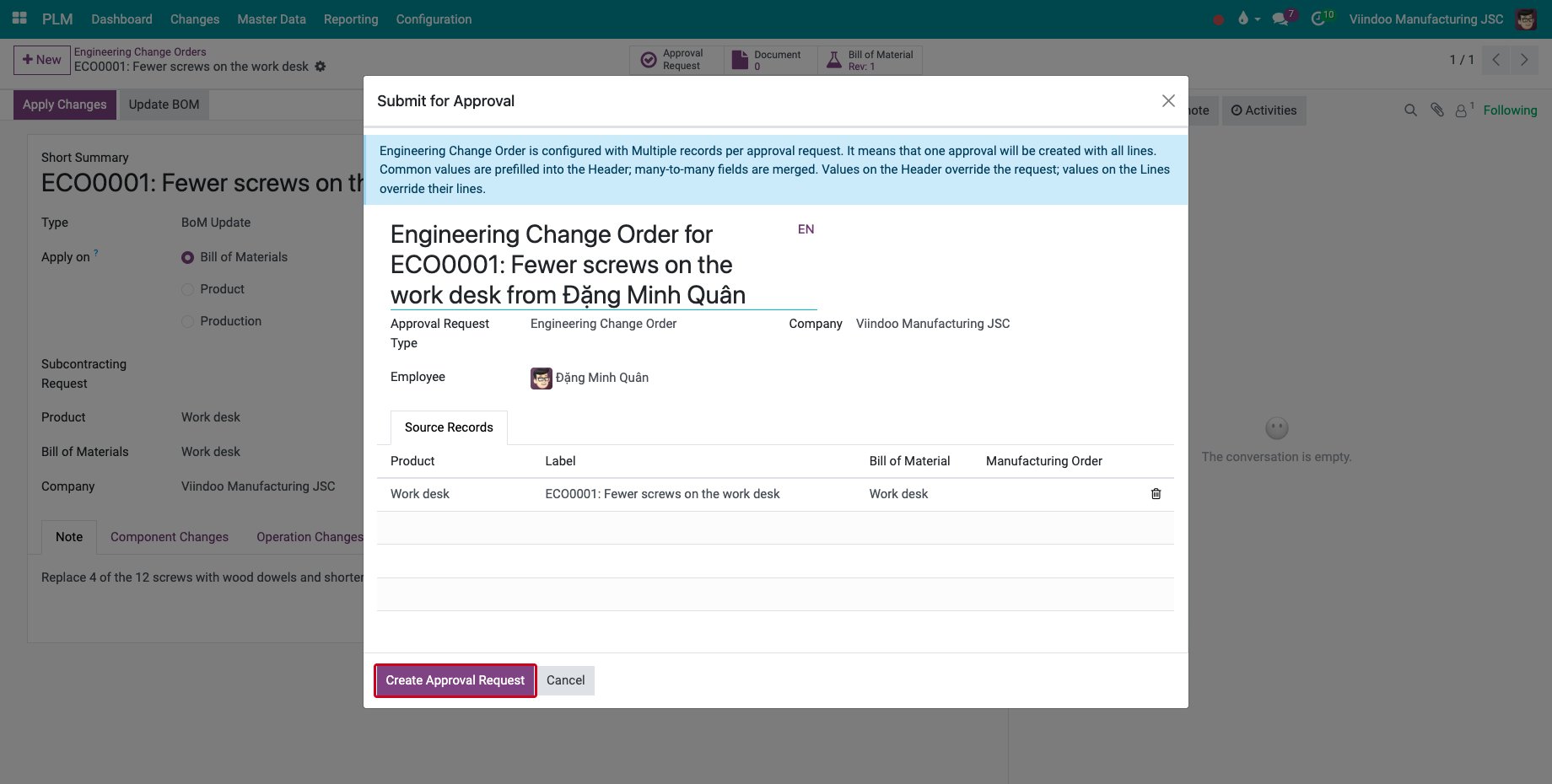
In the Submit for Approval window, keep the Engineering Change Order type and click Create Approval Request.
![The Submit for Approval window]()
The request opens in Draft, with the ECO in its lines. Check the approvers and click Submit. The request moves to To Approve.
The approver opens the request in Approval ‣ Approval Request ‣ Request and clicks Approve, or Refuse.
![An ECO approval request to approve]()
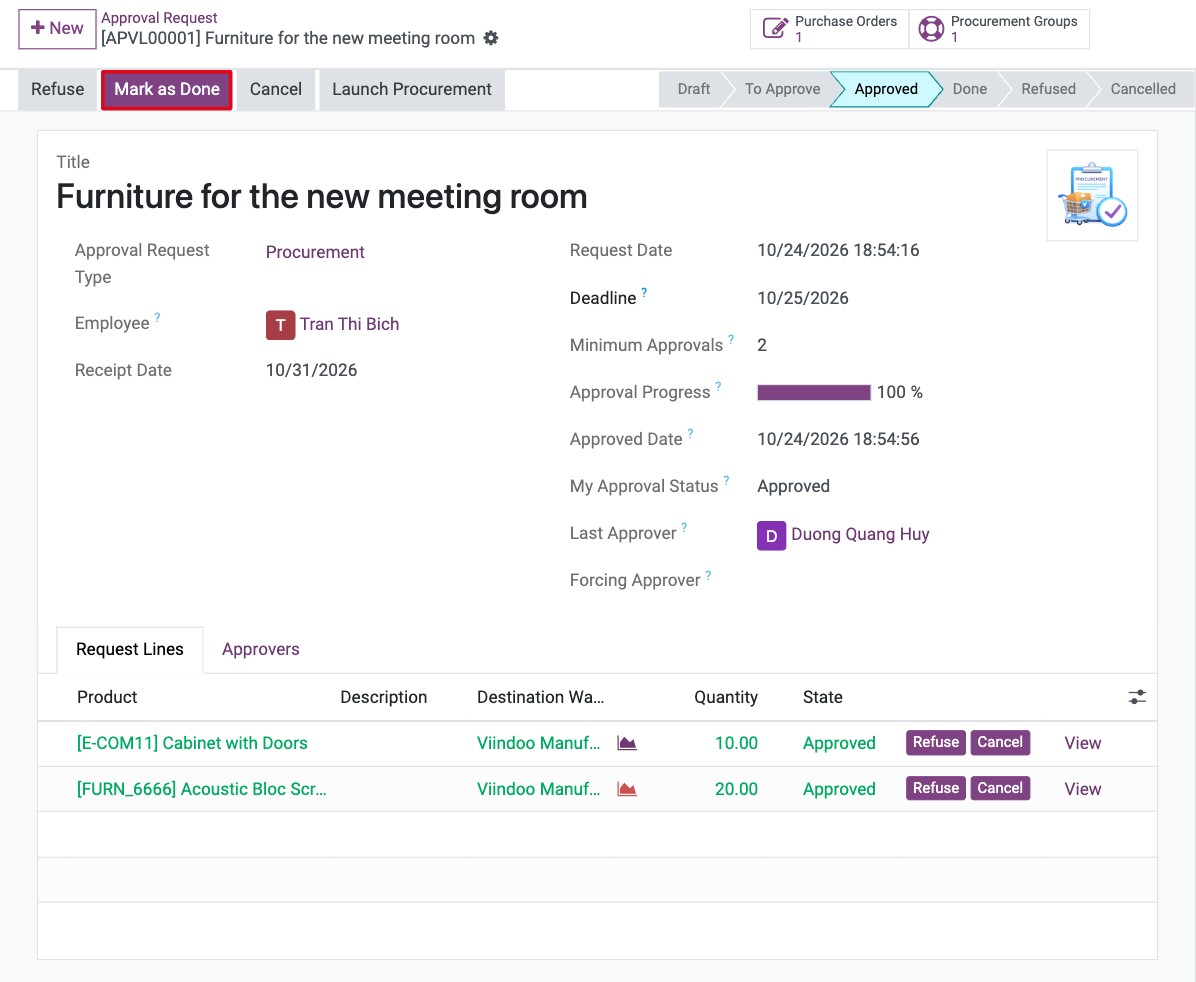
When the last approval is given, the request is Approved. Click Mark as Done: the ECO is applied in the same step.
![An approved ECO request with the Mark as Done button]()
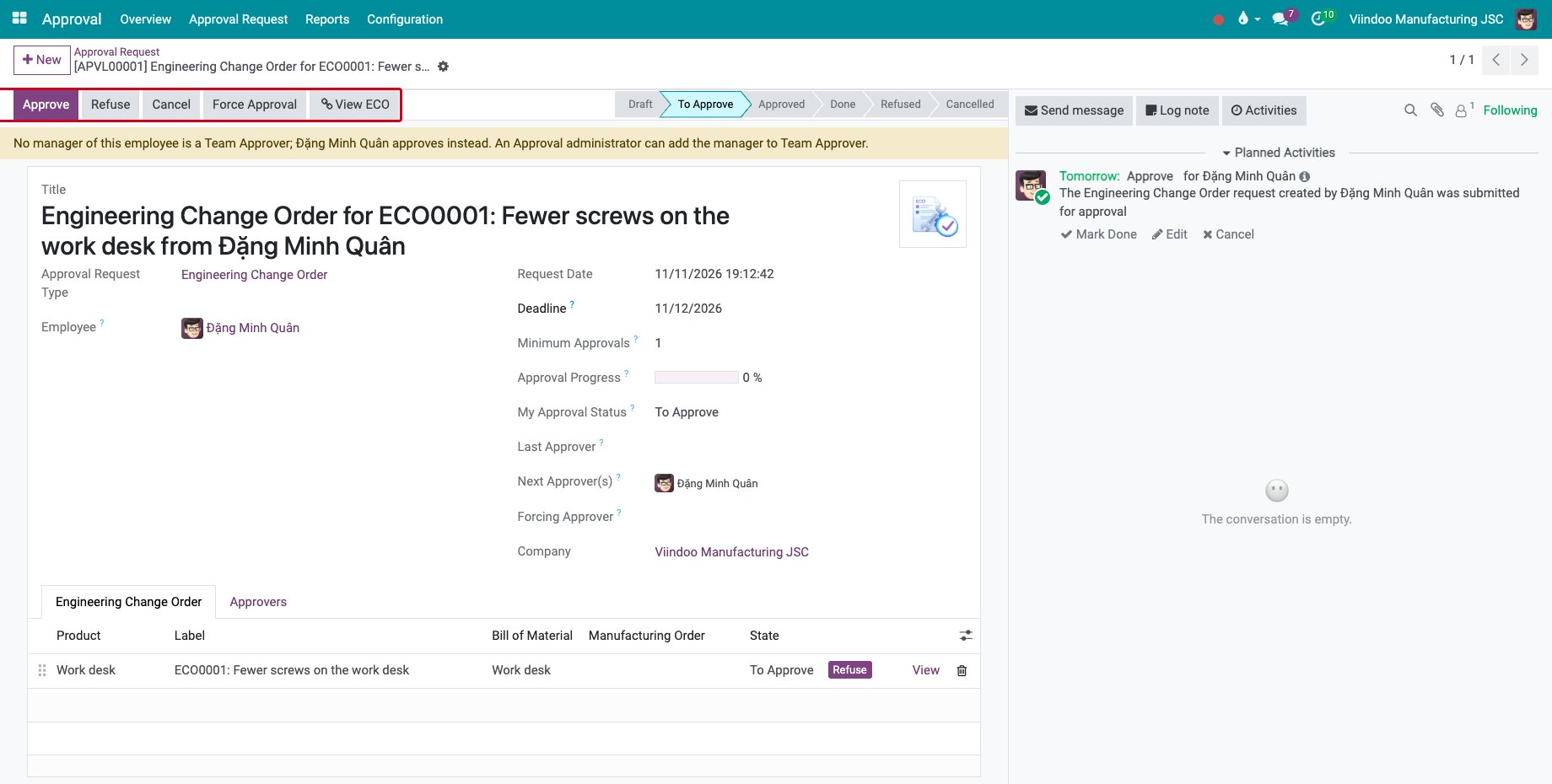
The status bar of the ECO shows the state of its request, and the Approval tab lists its requests. When the manager of the employee is not a team approver, a message on the request says who approves instead.
How do I apply the ECO?
Without ECO Approvals, click Apply Changes on the ECO. With ECO Approvals, Mark as Done on the approved request applies it.
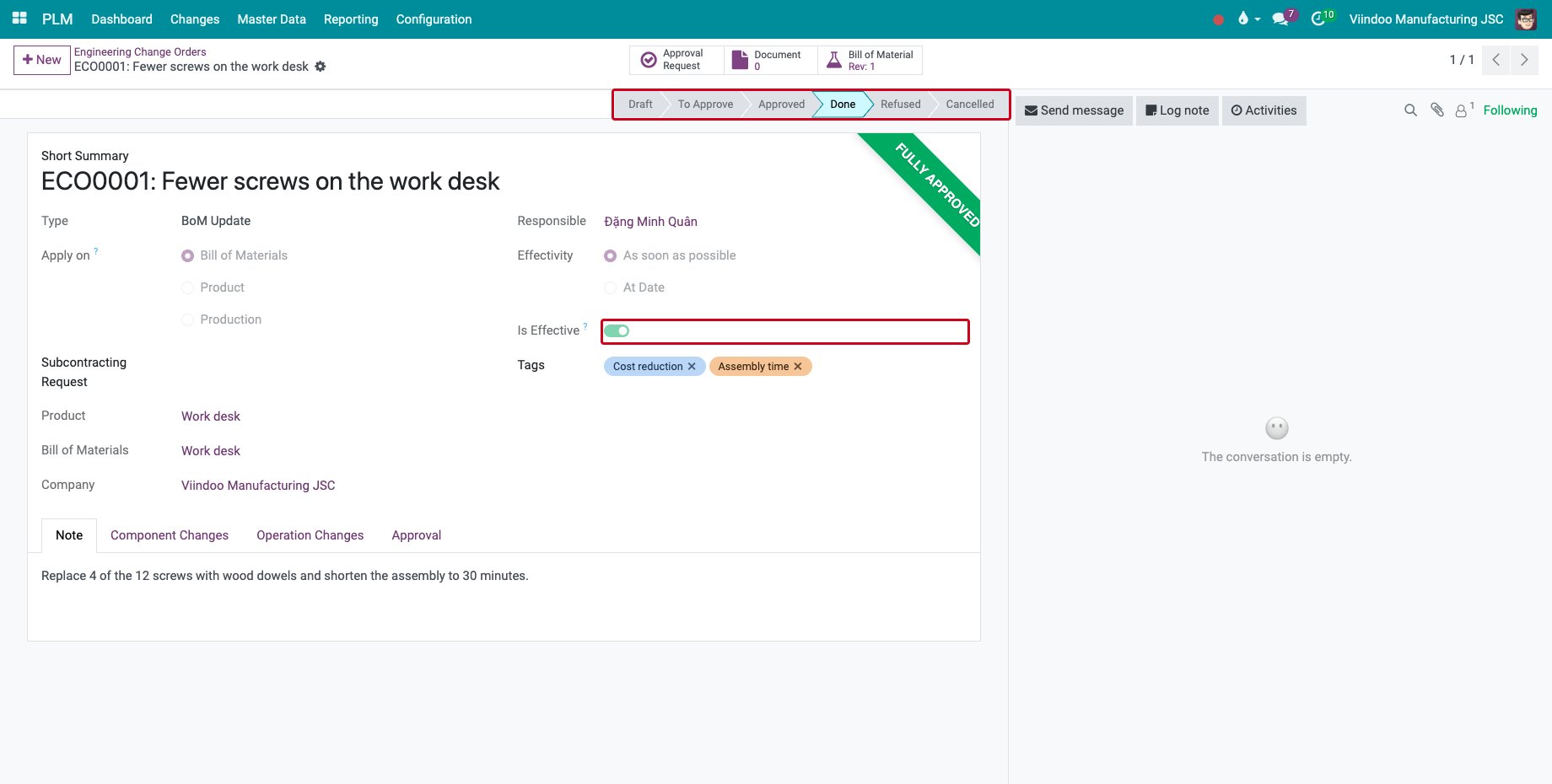
When the ECO is applied, the new version of the BoM becomes active, the previous version is archived, and the ECO shows Is Effective. With ECO Approvals, the ECO also shows the Fully Approved ribbon and Done in its status bar. With At Date and a date in the future, the ECO is marked as done and a scheduled action activates the new version once the date is reached; it runs every hour.
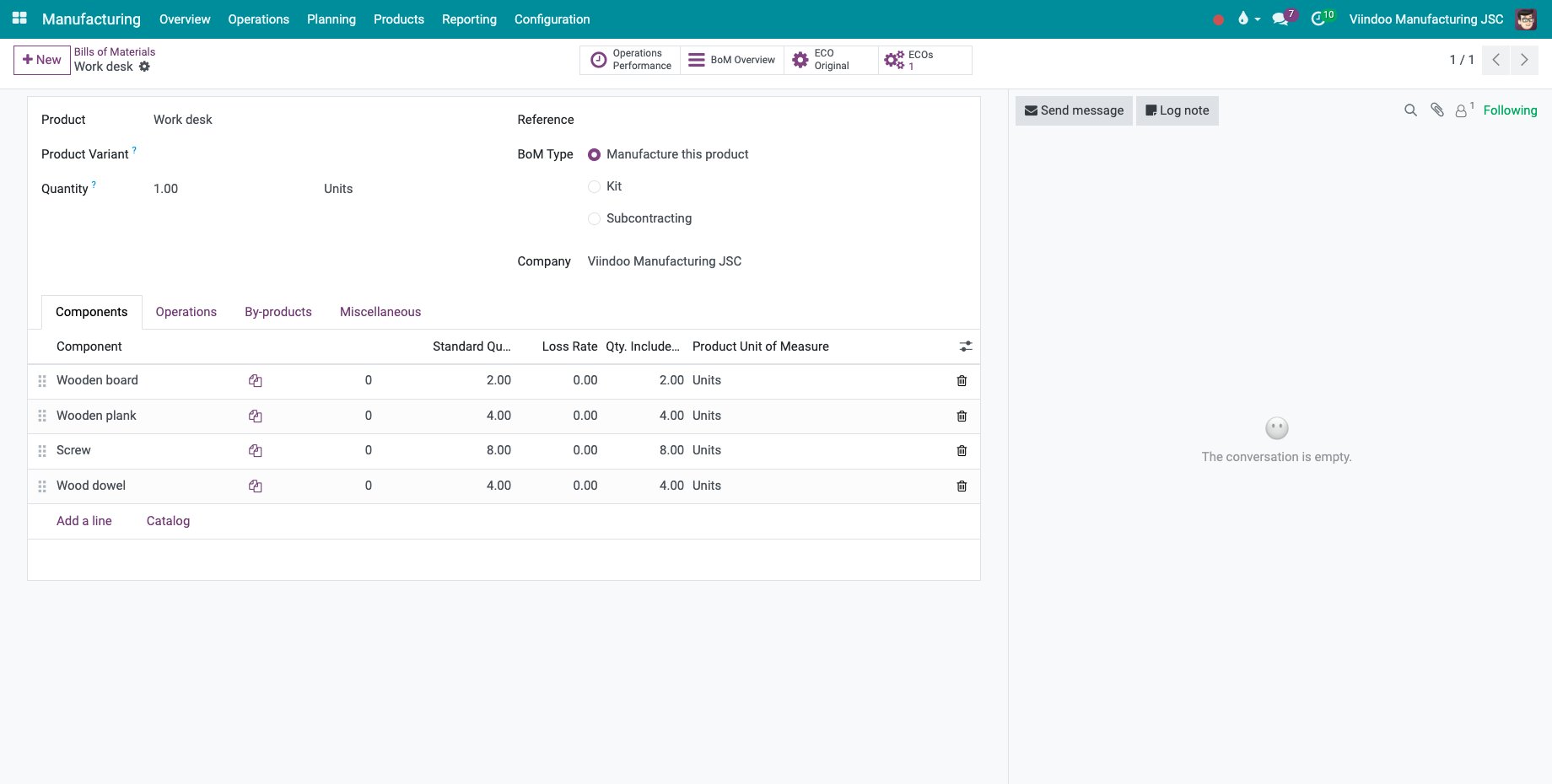
The new version of the BoM is the active one, with the ECO Original button to the ECO that created it and the ECOs button to the ECOs of the product.
Common errors
Problem |
What to do |
|---|---|
Start New Revision does not show. |
Set Apply on to Bill of Materials. The button also disappears once the revision is started: use Update BOM. |
Start New Revision or Apply Changes is refused. |
Give the user the Manufacturing ‣ Administrator access right. |
The workshop still uses the old components. |
The ECO is not applied yet, or its effectivity date is in the future. |
The request says that another person approves. |
The manager of the employee is not a team approver. An approval administrator approves instead. |
Next steps
Understand ECO reports: analyse the ECOs.
See also
Related articles
Optional modules