
How to configure putaway rules in a warehouse
A putaway rule tells Viindoo where to store a product when it arrives in a location. Create the rule in : choose the location where goods arrive, the product (or product category) and the sub-location to Store to. When you receive that product, Viindoo fills in the sub-location as the destination of the goods, so nobody has to choose it by hand.
Who |
Users with the Inventory Administrator access right to create the rules. |
App |
Inventory ‣ Configuration |
Before you start
Install the Inventory app.
Turn on Storage Locations in .
Create the sub-locations, for example Stock/Shelf B (see How to create a warehouse and its locations).
How do I turn on putaway rules?
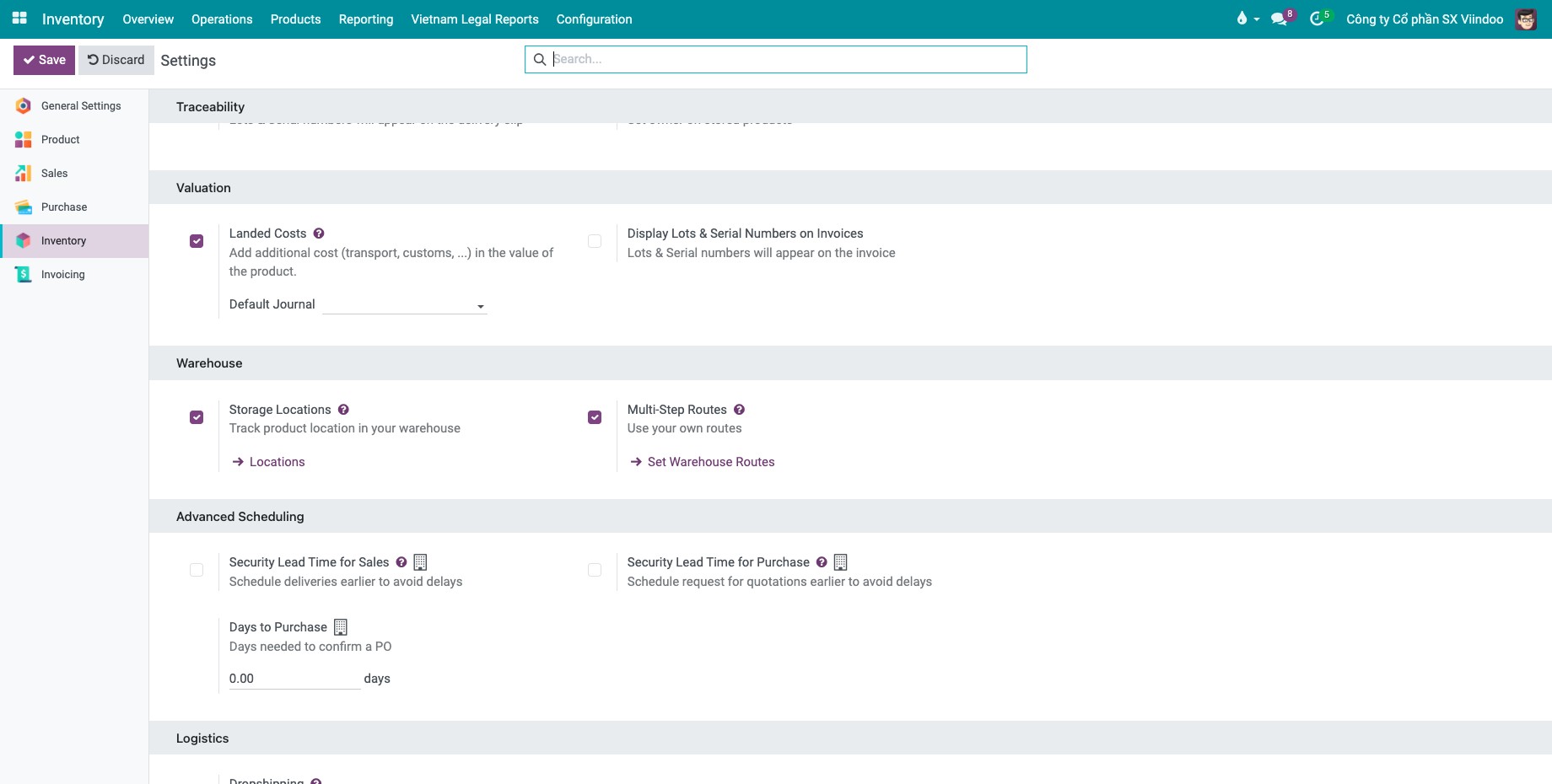
Go to , tick Storage Locations in the Warehouse section and click Save. The Putaway Rules menu appears.
How do I create a putaway rule?
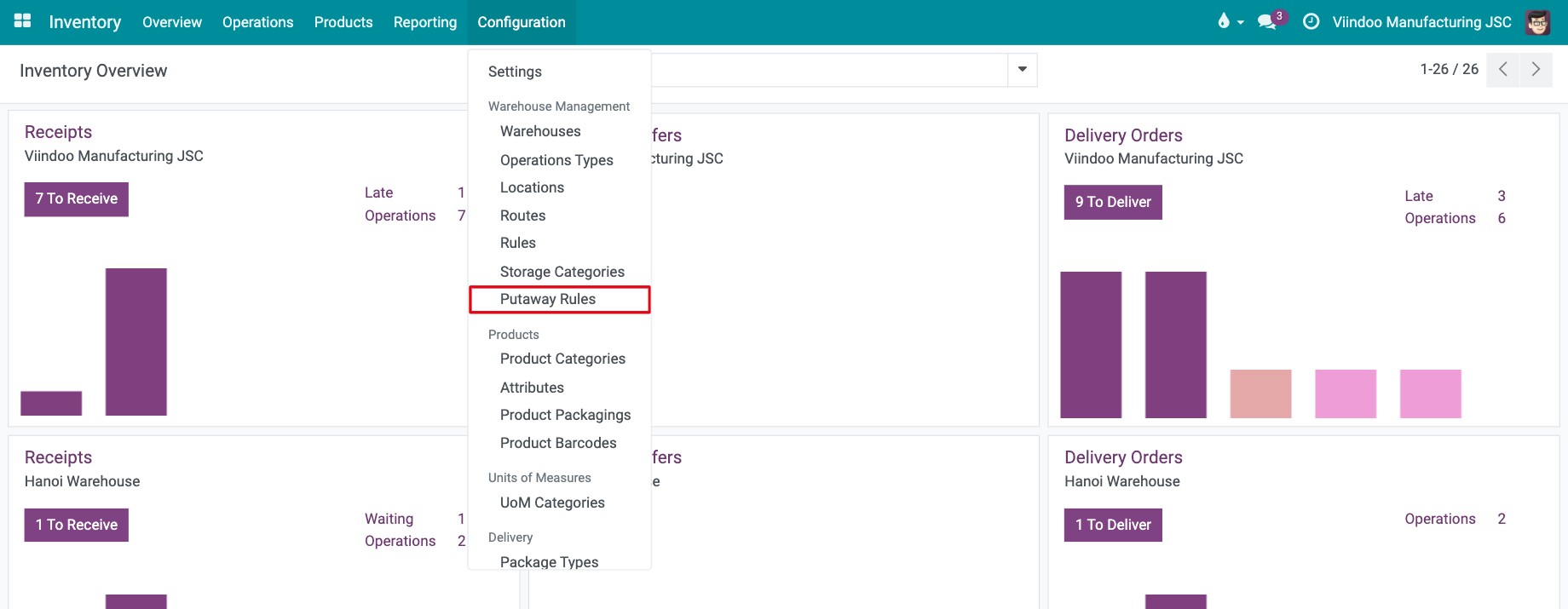
Go to .
![Putaway Rules entry in the Warehouse Management menu of the Inventory configuration]()
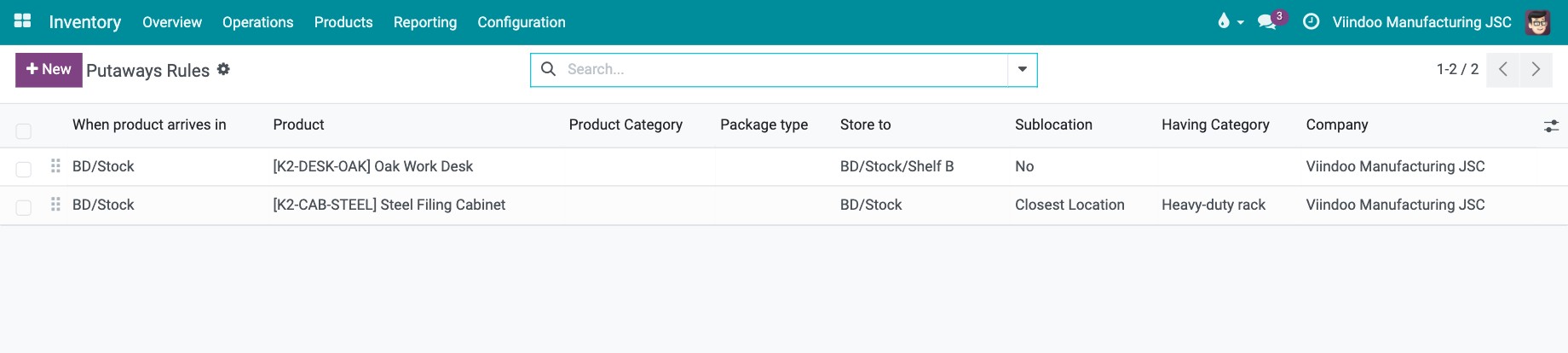
Click New and fill in the line (see the table below). For example, when an Oak Work Desk arrives in Stock, store it to Stock/Shelf B.
![List of putaway rules with a rule storing a product from the stock location to a shelf]()
Click Save.
Field |
Effect |
If wrong or empty |
|---|---|---|
When product arrives in |
The location the goods arrive in, for example the stock location of the warehouse. |
Required. The rule never applies to other locations. |
Product and Product Category |
The rule applies to this product, or to every product of the category. Leave both empty to apply to all products. A rule with a product beats a rule with a category. |
A rule for all products also applies to the products you did not think of. |
Package type |
The rule applies to goods packed in this package type (needs Packages turned on). |
Optional. |
Store to |
The sub-location where the goods go. It must be inside When product arrives in. |
Required. |
Sublocation |
No: use Store to. Last Used: use the sub-location where the product was last stored. Closest Location: use a sub-location with the Having Category storage category (see How to limit what a location holds with storage categories). |
With No, goods always go to Store to. |
Company |
The company the rule belongs to (several companies only). |
The rule is not applied in other companies. |
How do I check that goods go to the right location?
Receive the product: create a receipt for the warehouse (see How to receive goods in one step) and click Mark as Todo. If you also install Purchase, confirm a purchase order instead.
![Receipt of the product with the putaway rule applied]()
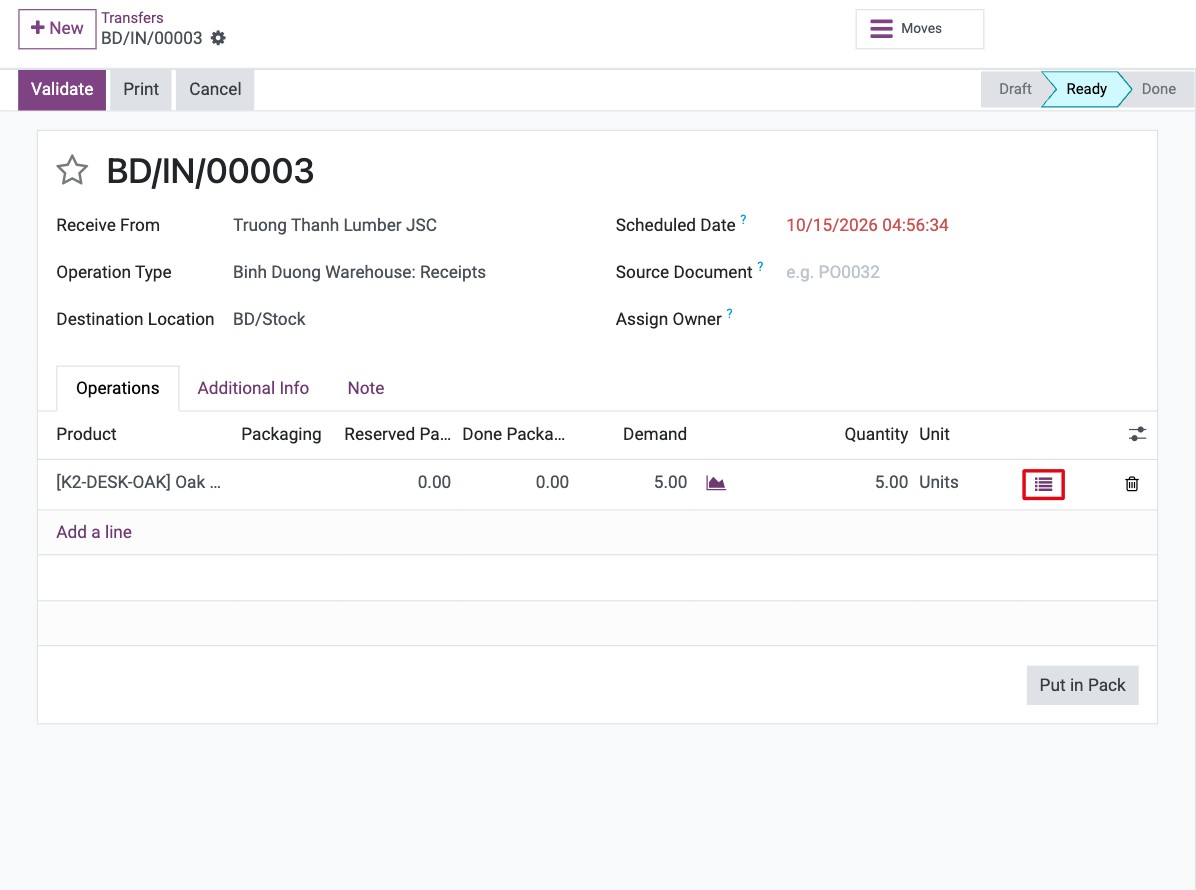
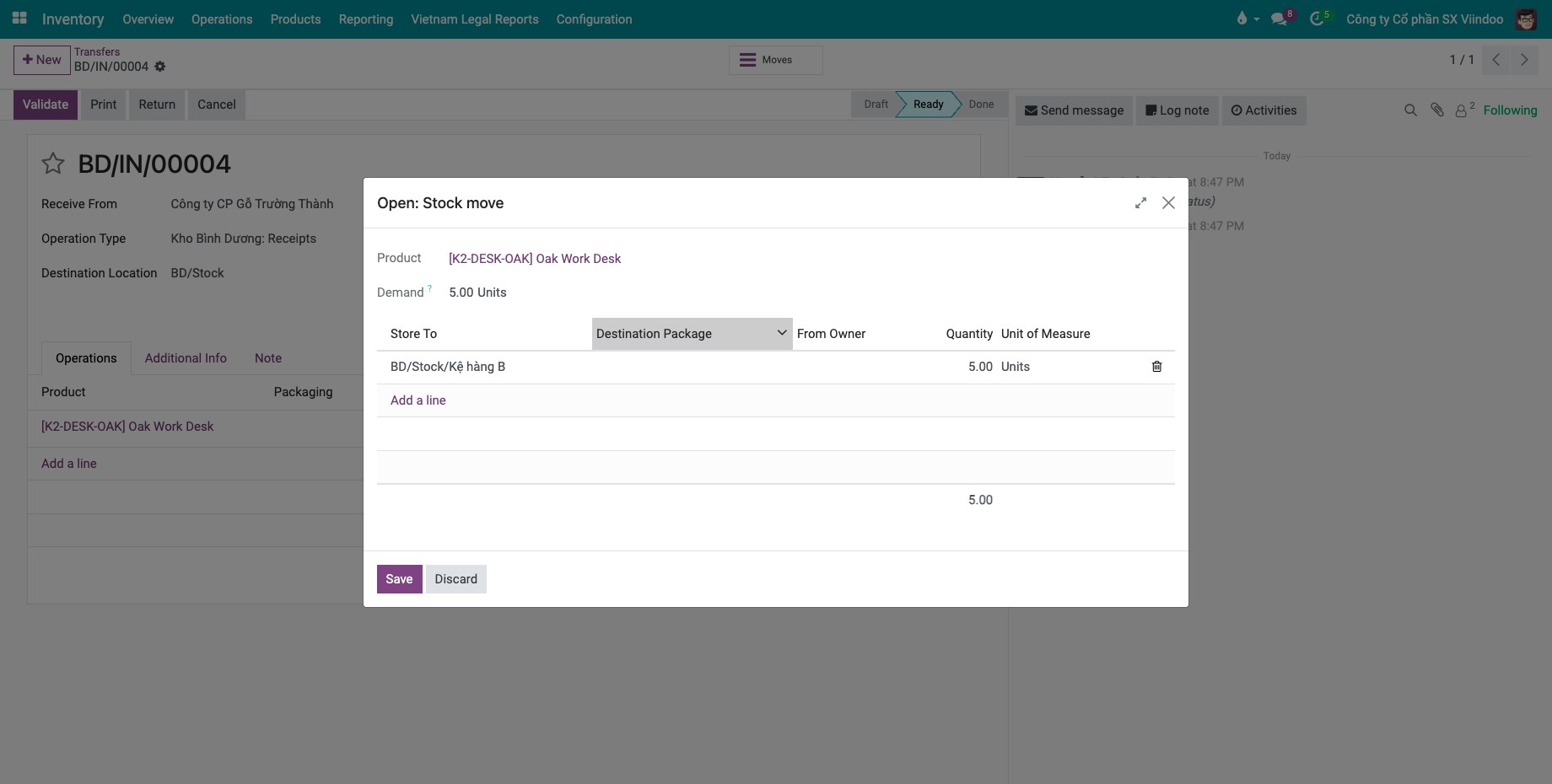
On the line, click the list icon at the end of the line to open the stock move. The Store To column shows the sub-location chosen by the rule.
![Stock move window of the receipt line with the destination sub-location chosen by the putaway rule]()
Click Validate, then go to to see the goods in the sub-location.
![Stock by location report with the product in the shelf sub-location]()
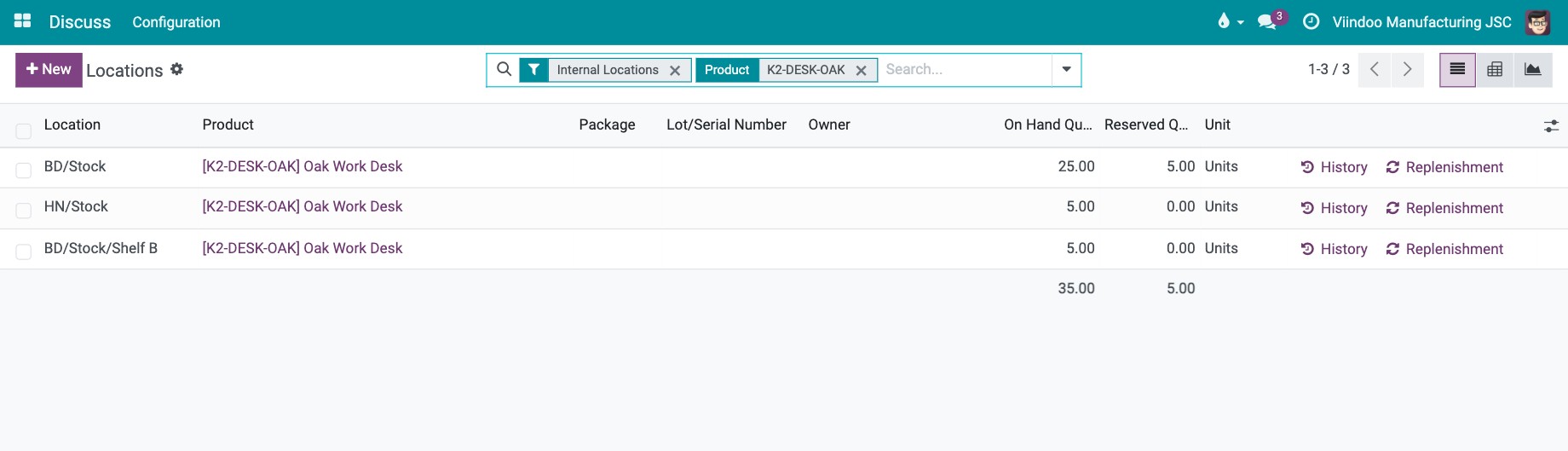
You should now see the product in Stock/Shelf B and not in the stock location itself.
Common errors
Message |
What to do |
|---|---|
Selected storage category does not exist in the ‘store to’ location or any of its sublocations |
You chose Closest Location with a Having Category that no sub-location of Store to uses. Apply the storage category to a sub-location, or change the category. |
Goods still arrive in the stock location. |
The rule does not match: check When product arrives in, the product or category, and the Package type. Rules apply when the move is reserved, so confirm the receipt first. |
Next steps
How to limit what a location holds with storage categories: limit how much each location can hold.
How to choose which goods leave first with removal strategies: choose which goods leave first.