
Overtime to Compensatory Time Off Workflow
Compensatory time off is a policy that allows employees to accumulate time off based on the overtime they have worked. Instead of receiving overtime pay, they may convert those hours into compensatory time off to be used later.
Requirements
This tutorial requires the installation of the following applications/modules:
Before carrying out the process of creating and approving a compensatory time off request, check the following information:
Employees labor contracts are in the Running stage.
Module Installation
To install Overtime – Compensatory Time Off, follow these steps:
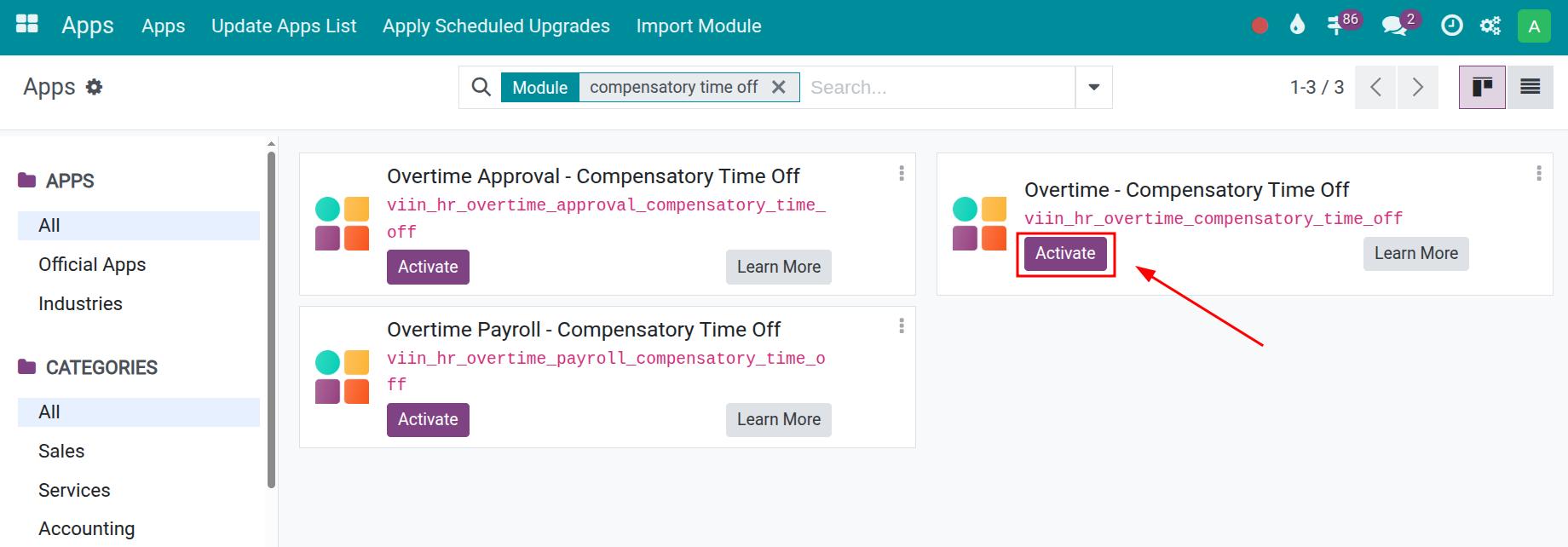
Access Apps, use the search bar to search for the Overtime – Compensatory Time Off, then click Activate.
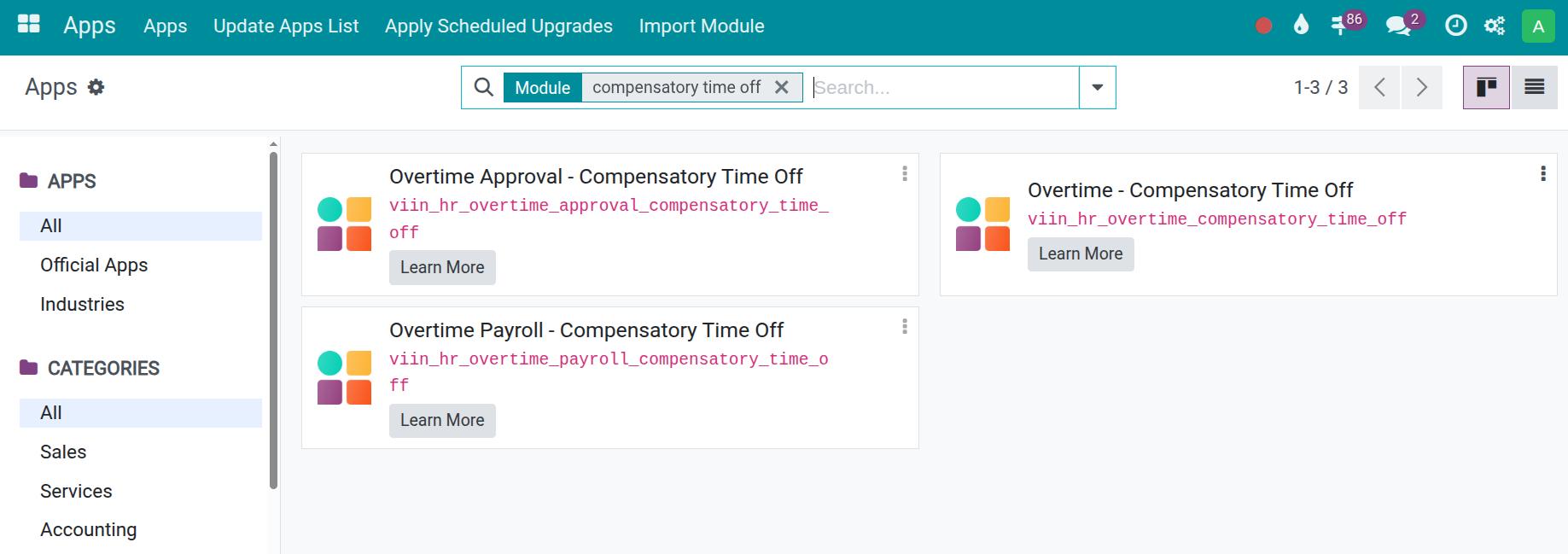
When this module is activated, the system will automatically install the following related modules:
Configuration
After activation, users with Time Off Administrator rights can further configure the Time Off type according to the company’s needs.
Note
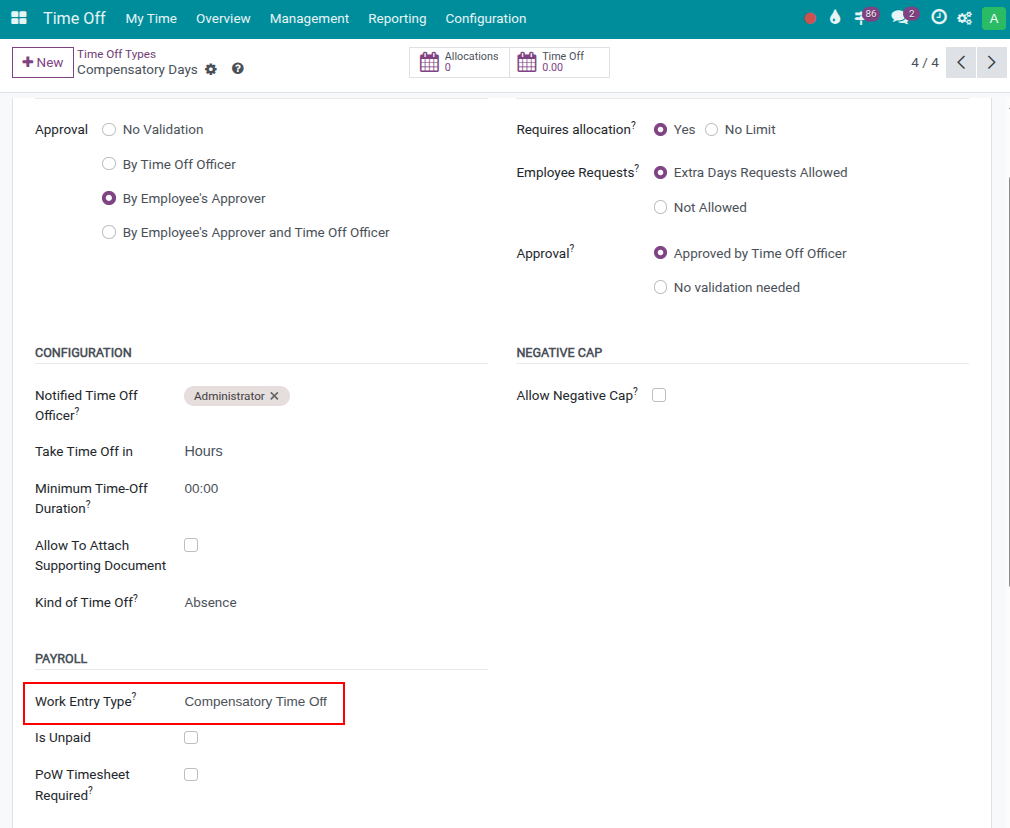
The Work Entry Type must be set to Compensatory Time Off.
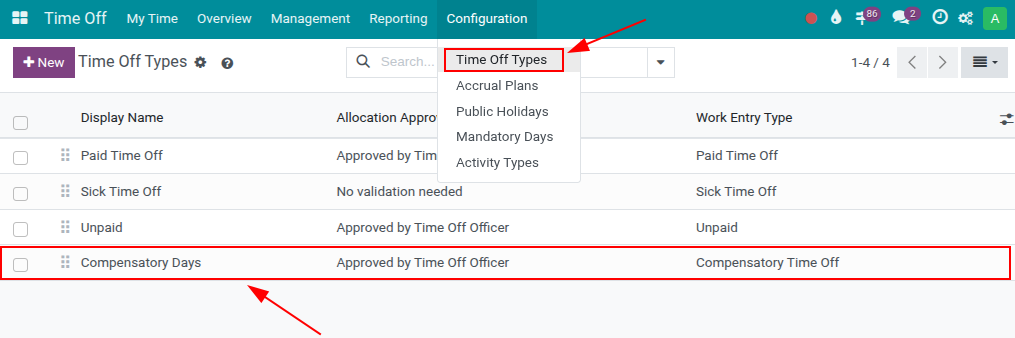
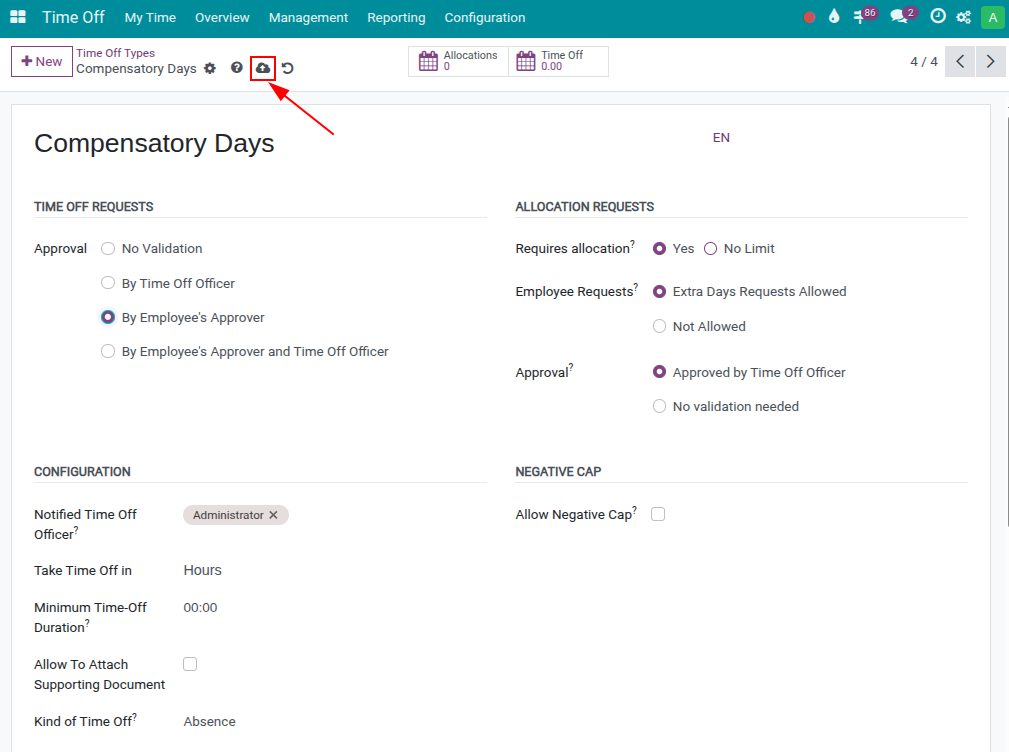
To configure further, go to Time Off module > Configuration > Time Off Types, then select the Compensatory Time Off time off type.
After completing the configuration, click the cloud icon to manually save the configured information.
Compensatory Time Off Request Workflow
The overall process from accumulating leave days to using them includes the following steps:
Employees request overtime and choose compensatory time off instead of overtime pay.
Employees work overtime and receive compensatory time off based on the actual overtime hours.
Employees create compensatory time off requests, which are then approved by the manager.
Employees submit an overtime request
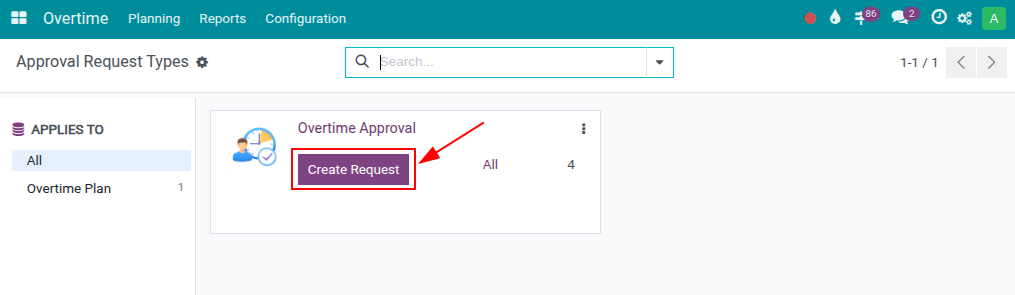
When an employee works overtime on the system, the employee accesses Overtime > Create Overtime Request.
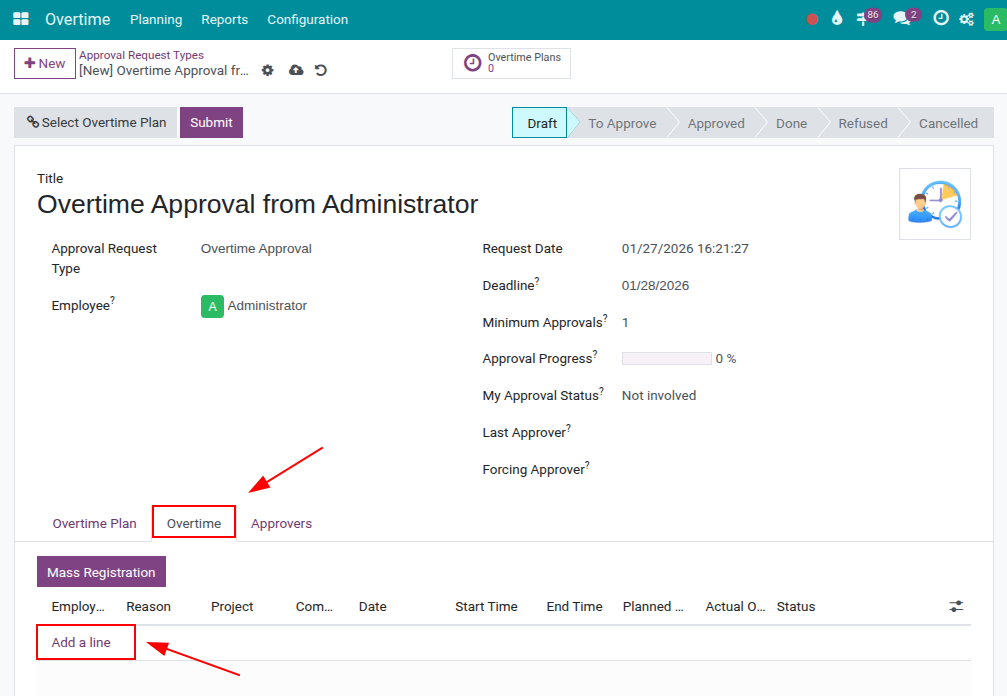
In the Overtime tab, click Add a line and select New to enter overtime details.
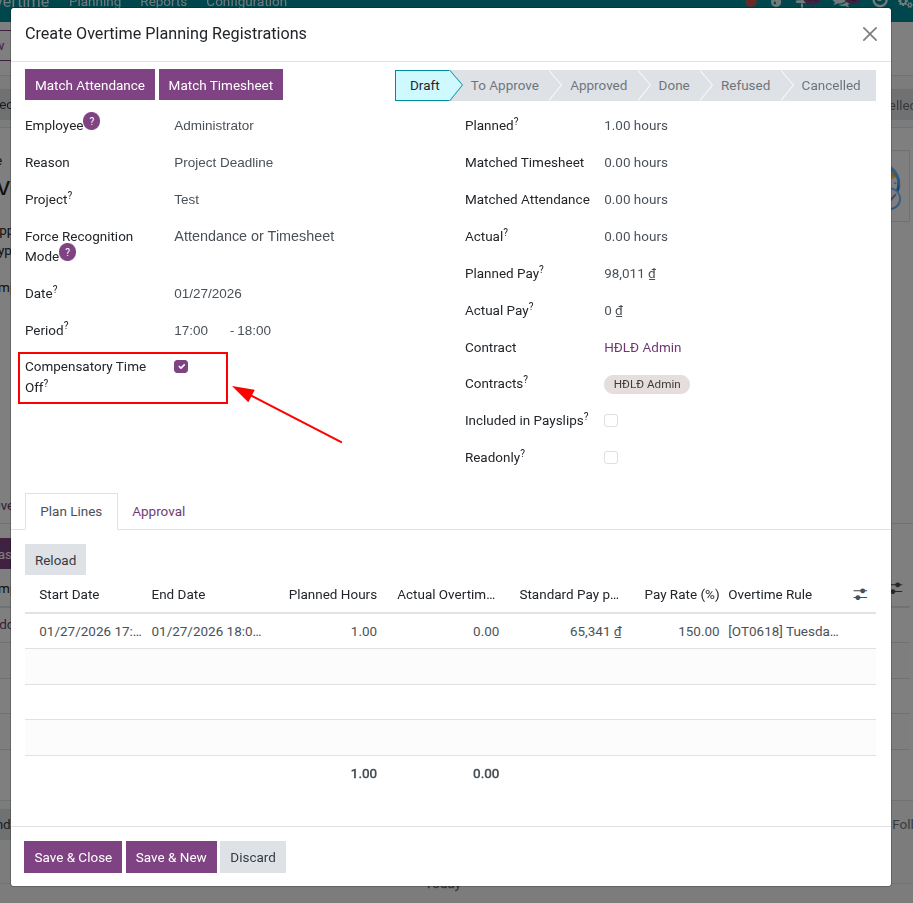
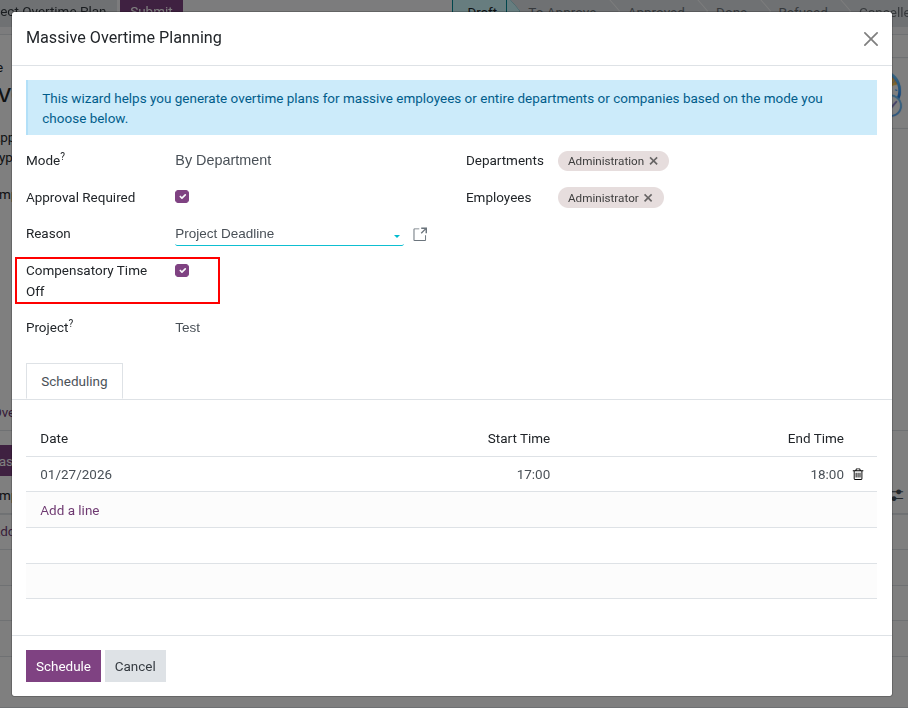
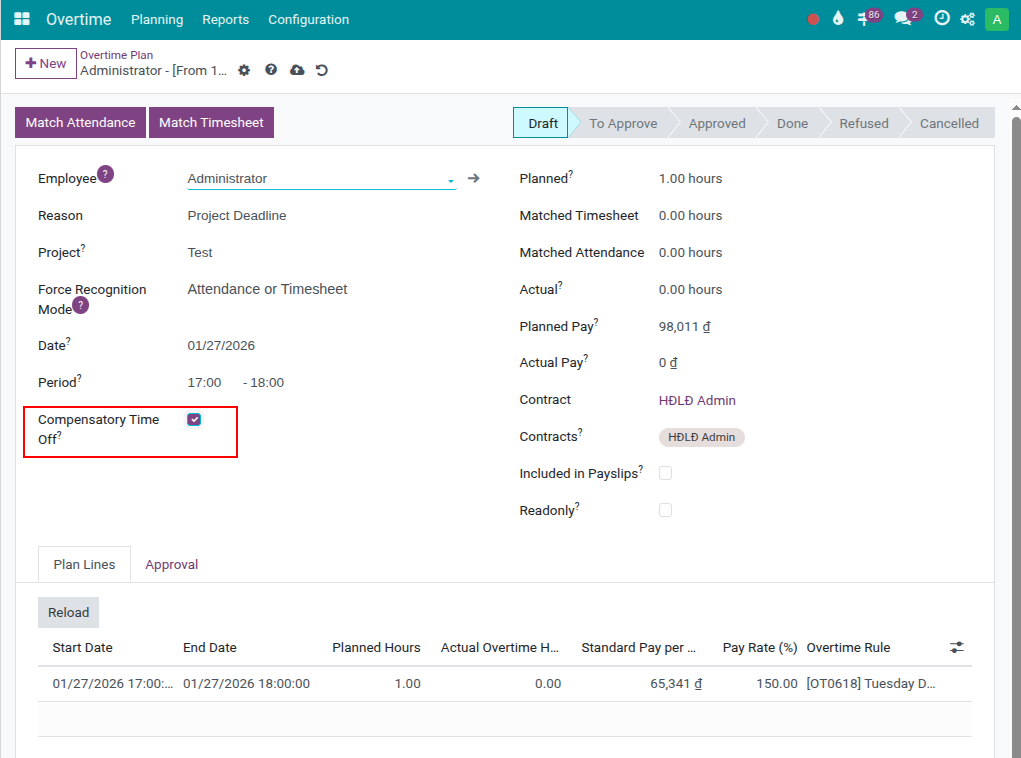
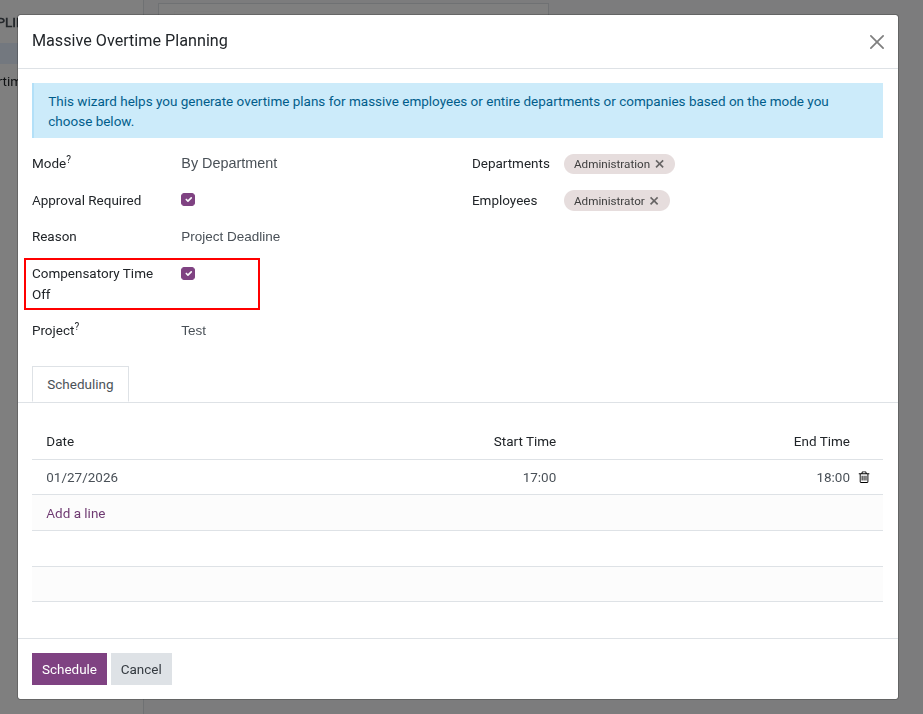
After filling in the overtime request information, in the Create Overtime Plan Registration window (Individual Overtime Request) or the Create Mass Overtime Registration window, select Compensatory Time Off so that the system records the overtime as compensatory leave instead of salary.
Note
Users who have at least Team Approver permission in the Overtime permission set can perform this action in the system.
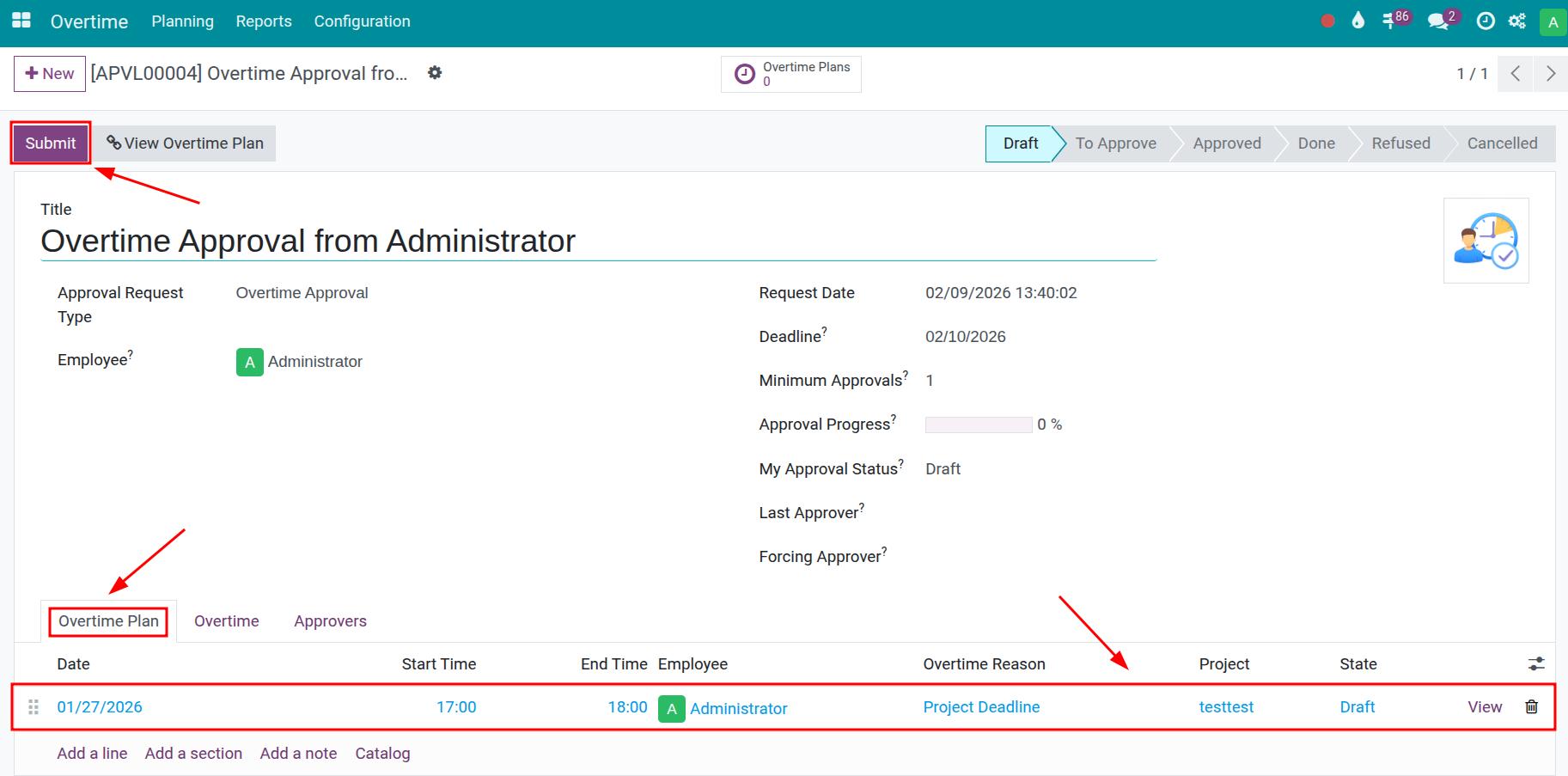
Alternatively, users can create an Overtime Plan or make a Mass Schedule in advance, then use that plan to create an overtime approval request.
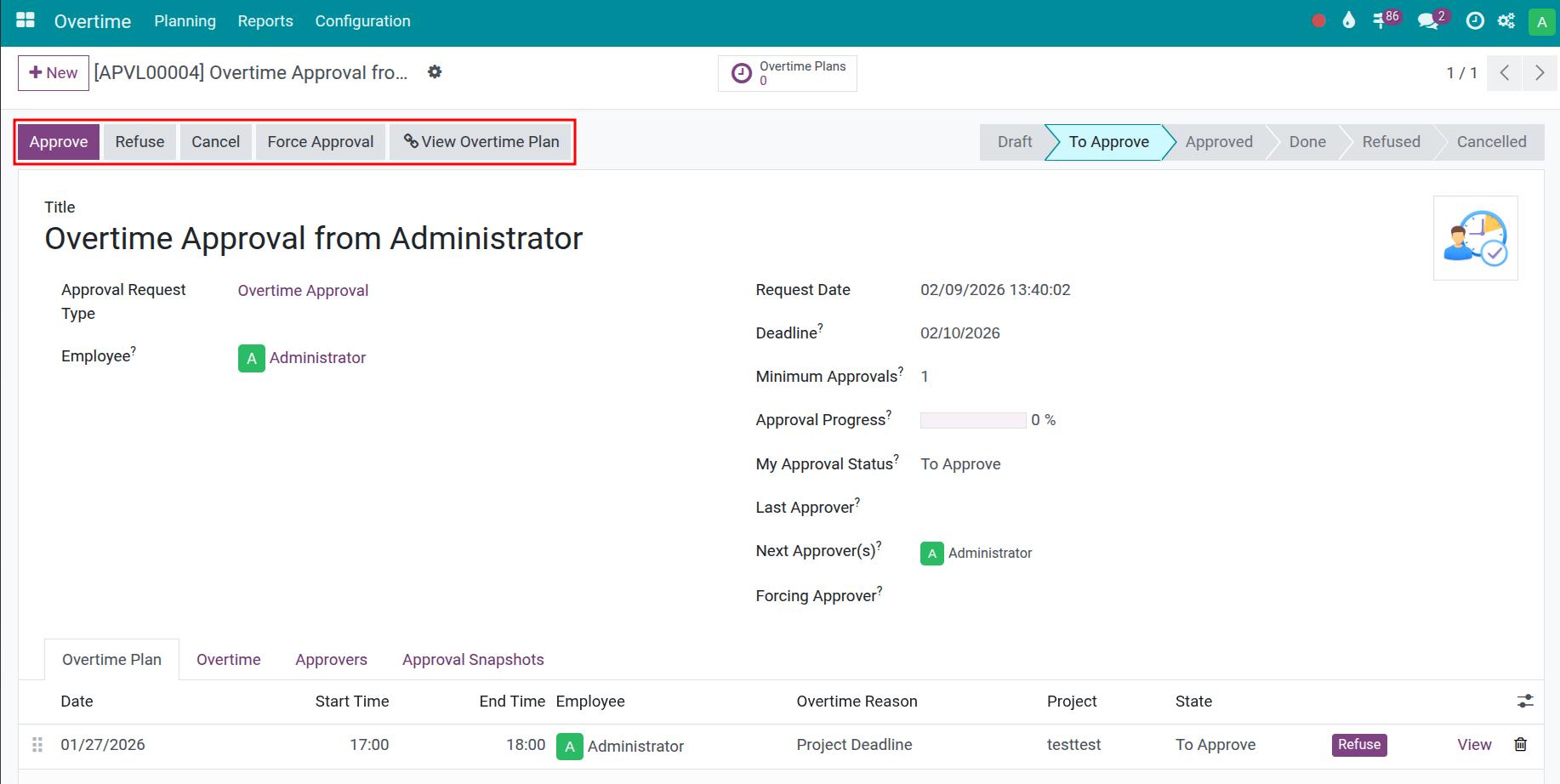
Click Submit to move the request from Draft to To Approve status.
Compensatory Overtime Approval
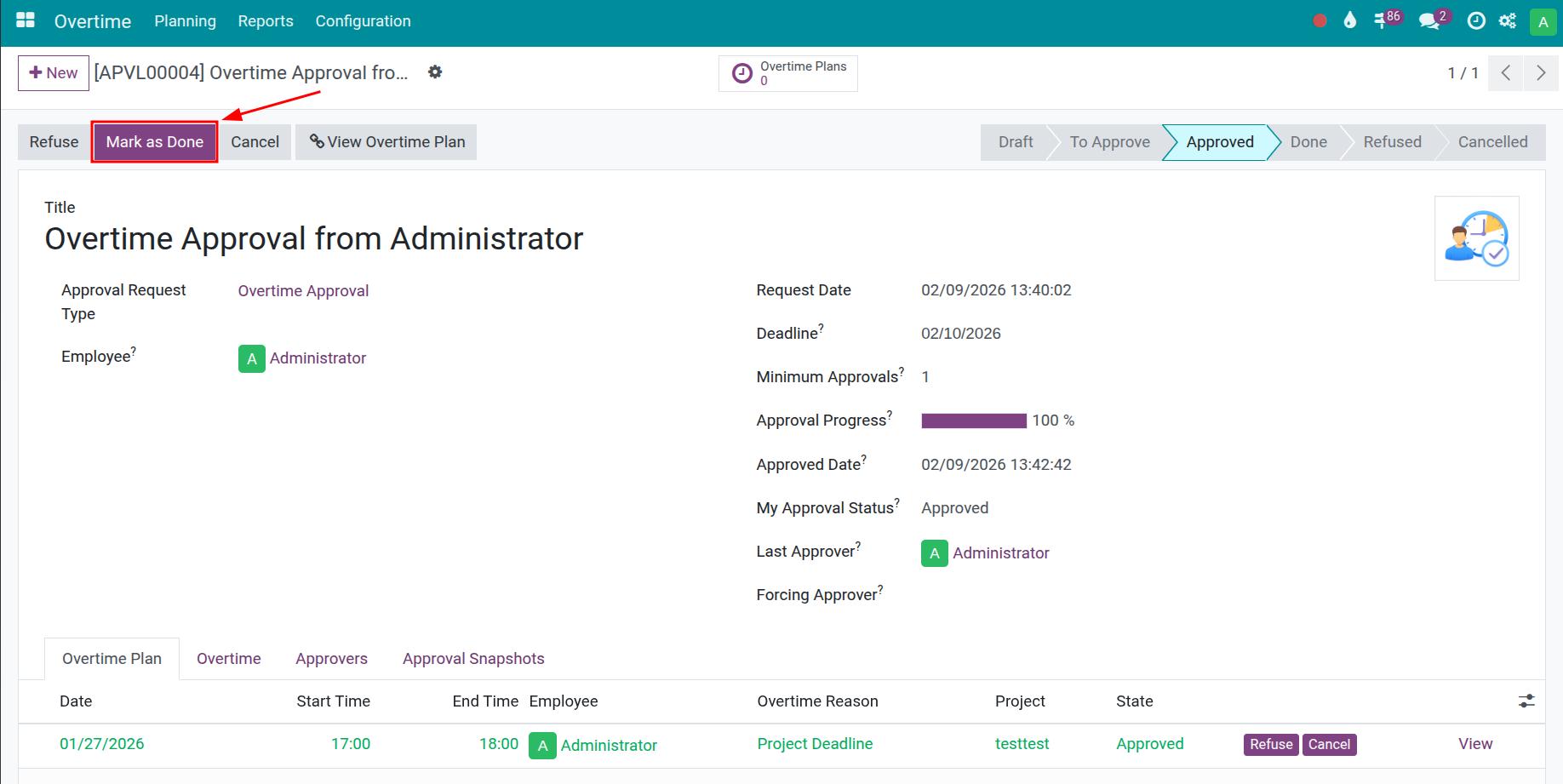
The approval or rejection of compensatory overtime requests is handled in the same way as the standard overtime approval process overtime approval process. Approvers review the overtime request details and approve, reject, or Cancel Overtime Requests according to company regulations.
See also
Tracking Compensatory Time Off Hours
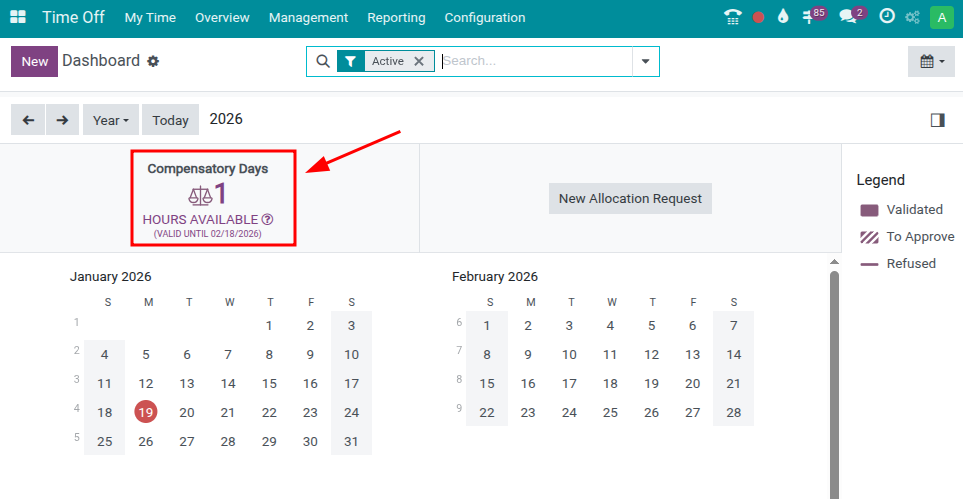
After the overtime approval request is fully approved, the system automatically records and adds the corresponding compensatory time off hours based on the actual overtime worked.
Users can track the accumulated compensatory time off time by going to the Time Off module, where the compensatory time off days/hours are displayed directly on the overview screen.
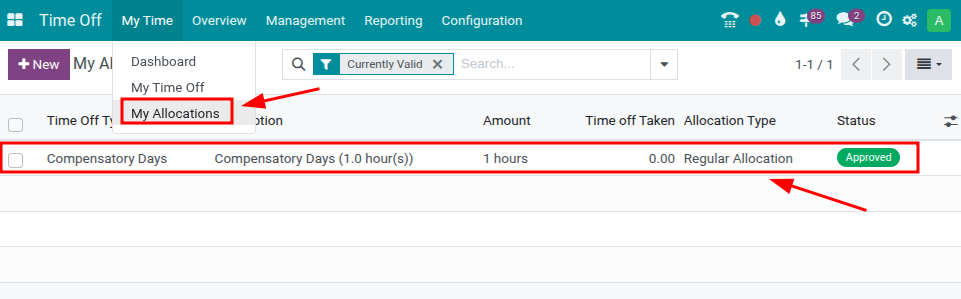
Navigate to My Time > My Allocations to view detailed information on active time off allocations.
See also
Related article
Optional modules