
How to archive an employee who leaves the job
This page is for HR administrators. You archive an employee in Employees > Employees: open the employee, click the gear icon, choose Archive, then complete the Employee Termination window. The employee is hidden from the daily lists but all the records of the employee, such as the contracts, the payslips and the time off, are kept, so you can look them up whenever needed. The same window ends the contract of the employee and can archive the user account linked to the employee.
Requirements
This tutorial requires the installation of the following applications/modules:
Who can archive an employee?
Users whose access right for Employees is Administrator. A user whose access right for Employees is Officer: Manage all employees only gets an access error when choosing Archive: ask an administrator to archive the employee.
Before you start
Settle the contract of the employee: confirm the last working day. The departure window ends the contract for you.
If the employee moves to another department or company of the group instead of leaving, use How to transfer an employee.
How to archive an employee?
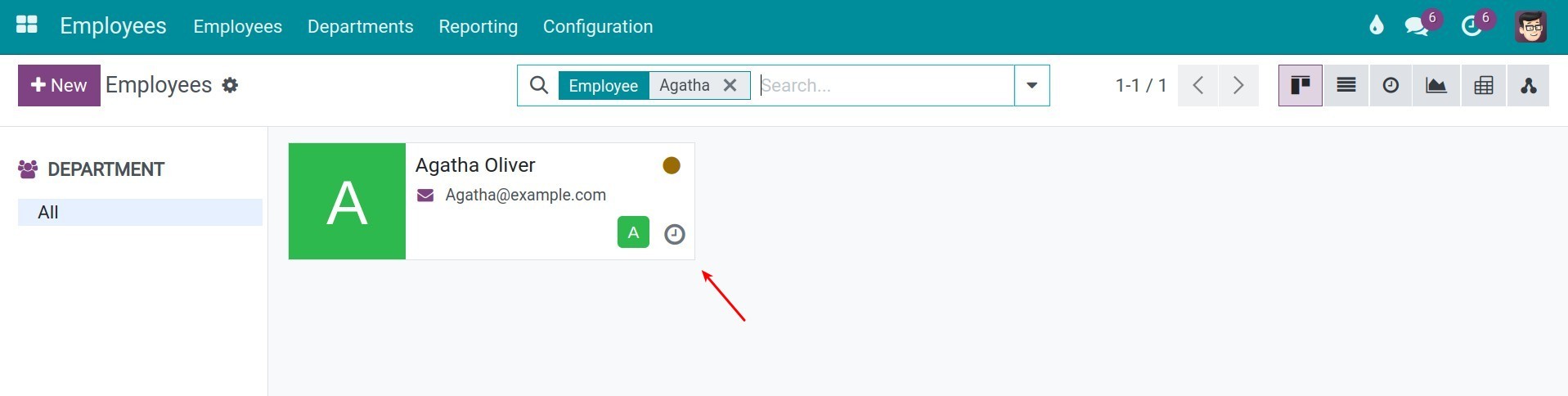
Go to Employees > Employees and find the employee, for example by typing the name in the search box.
![Search the employee in the list of employees]()
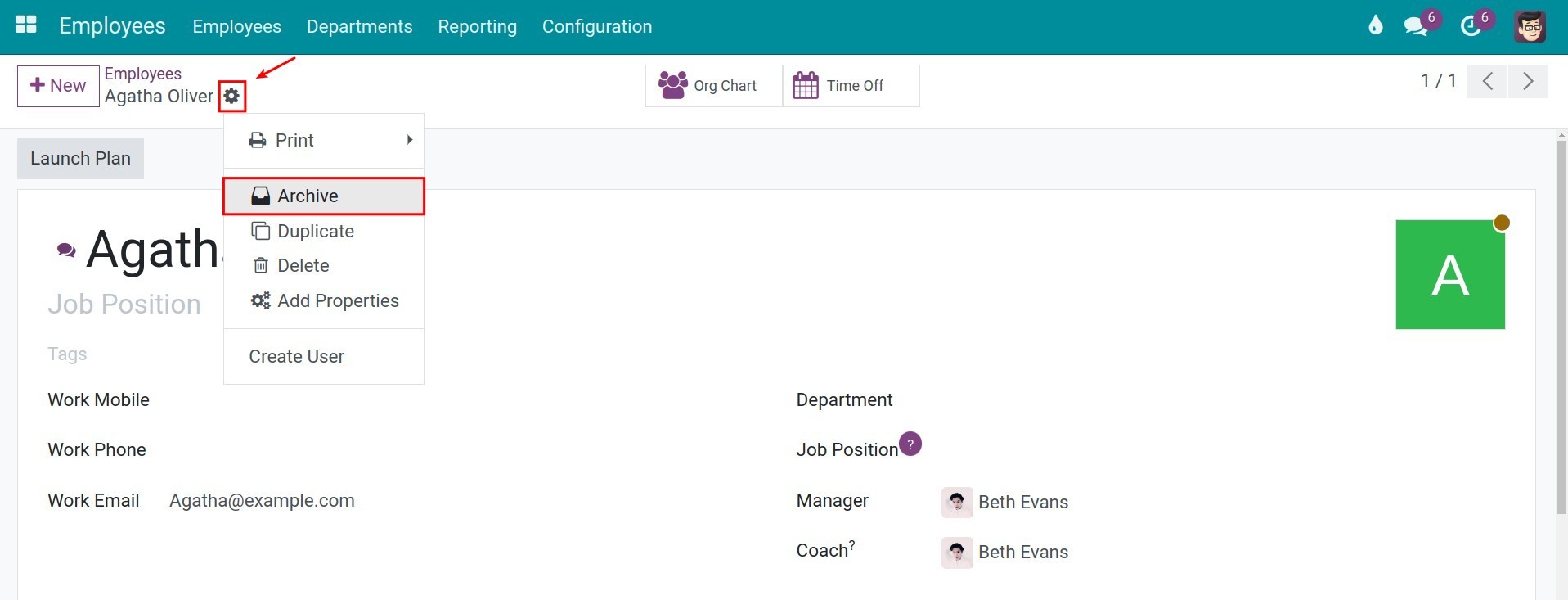
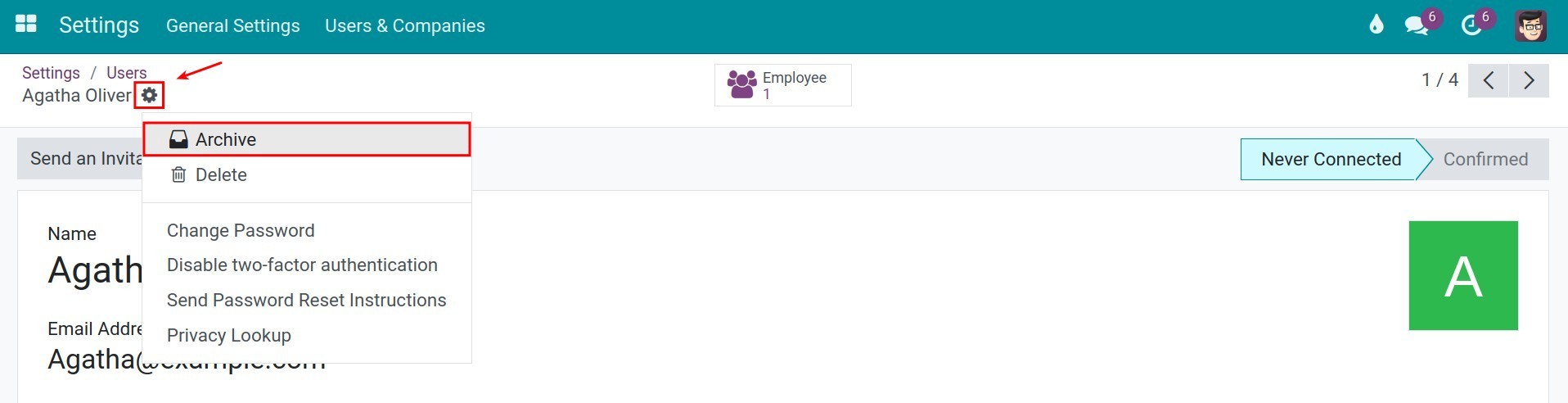
Open the employee, click the gear icon next to the name and select Archive.
![The Archive action in the gear menu of the employee]()
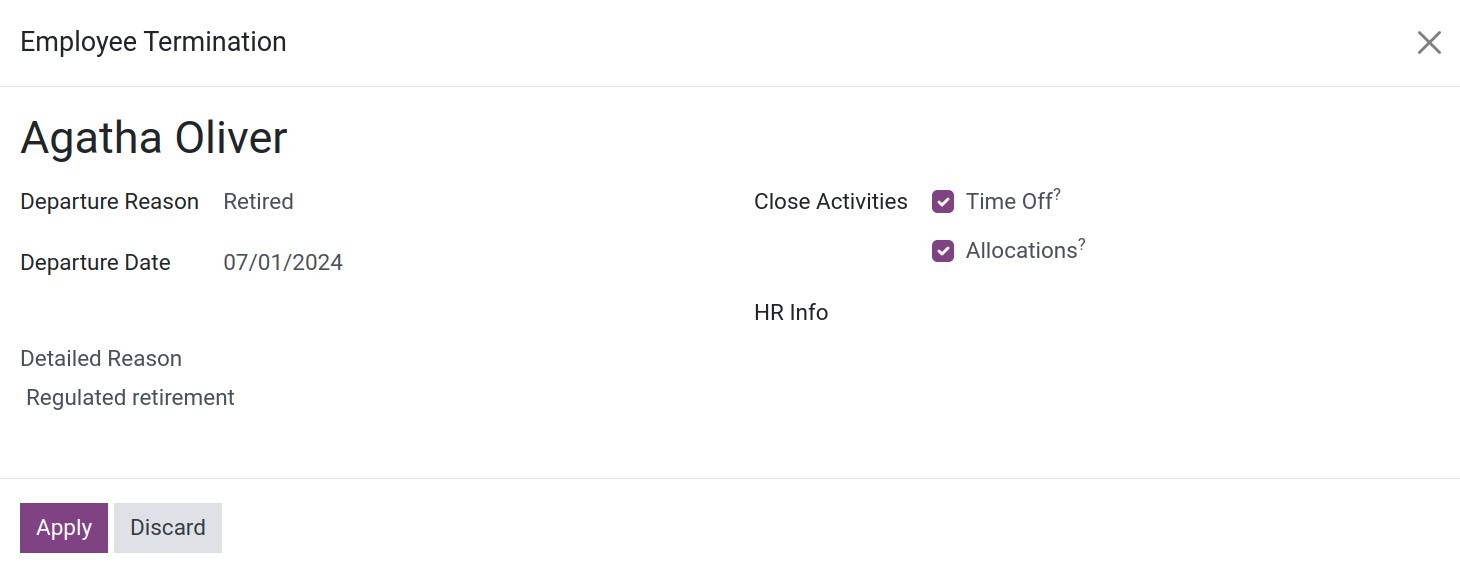
The Employee Termination window opens.
Fill in the window, then click Apply.
![The Employee Termination window with the departure reason and the Close Activities options]()
Field
What to enter
Departure Reason
Choose a reason: Fired, Resigned, Retired or Employee transfer. You manage the reasons in Employees > Configuration > Employee > Departure Reasons.
Contract End Date
The last day of the employee. The system proposes today, or the end date of the last contract that already ended. It cannot be earlier than the start date of the current contract.
Close Activities > Contract
Tick it to set the end date of the current contract to the Contract End Date. It is ticked by default. Leave it empty if you want to handle the contract yourself.
Close Activities > Related User
Tick it to archive the user account linked to the employee, unless the user is linked to another active employee. The box appears only when the employee has a user.
Detailed Reason
Free text to explain the departure.
If the application Equipment is installed, the window also has the option Equipment, to free the equipment assigned to the employee.
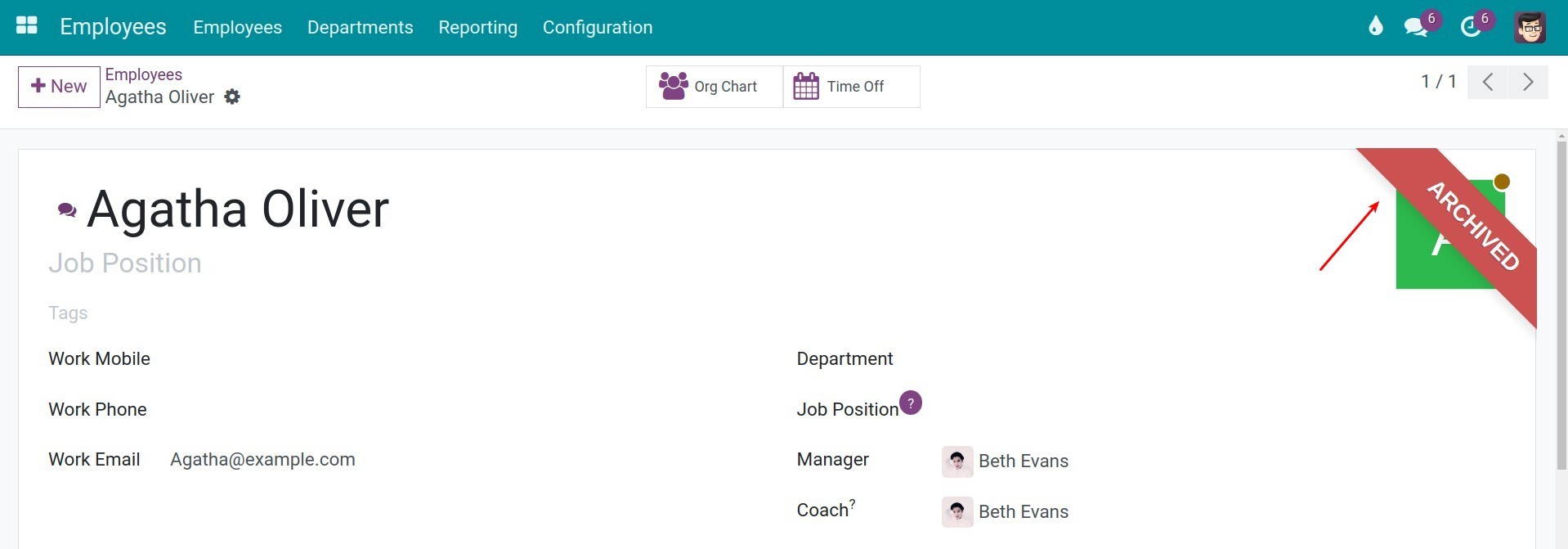
After you click Apply, the employee shows the ARCHIVED ribbon. When you ticked Related User, a notification lists the users that were archived.
![The archived employee with the ARCHIVED ribbon and the notification about the archived user]()
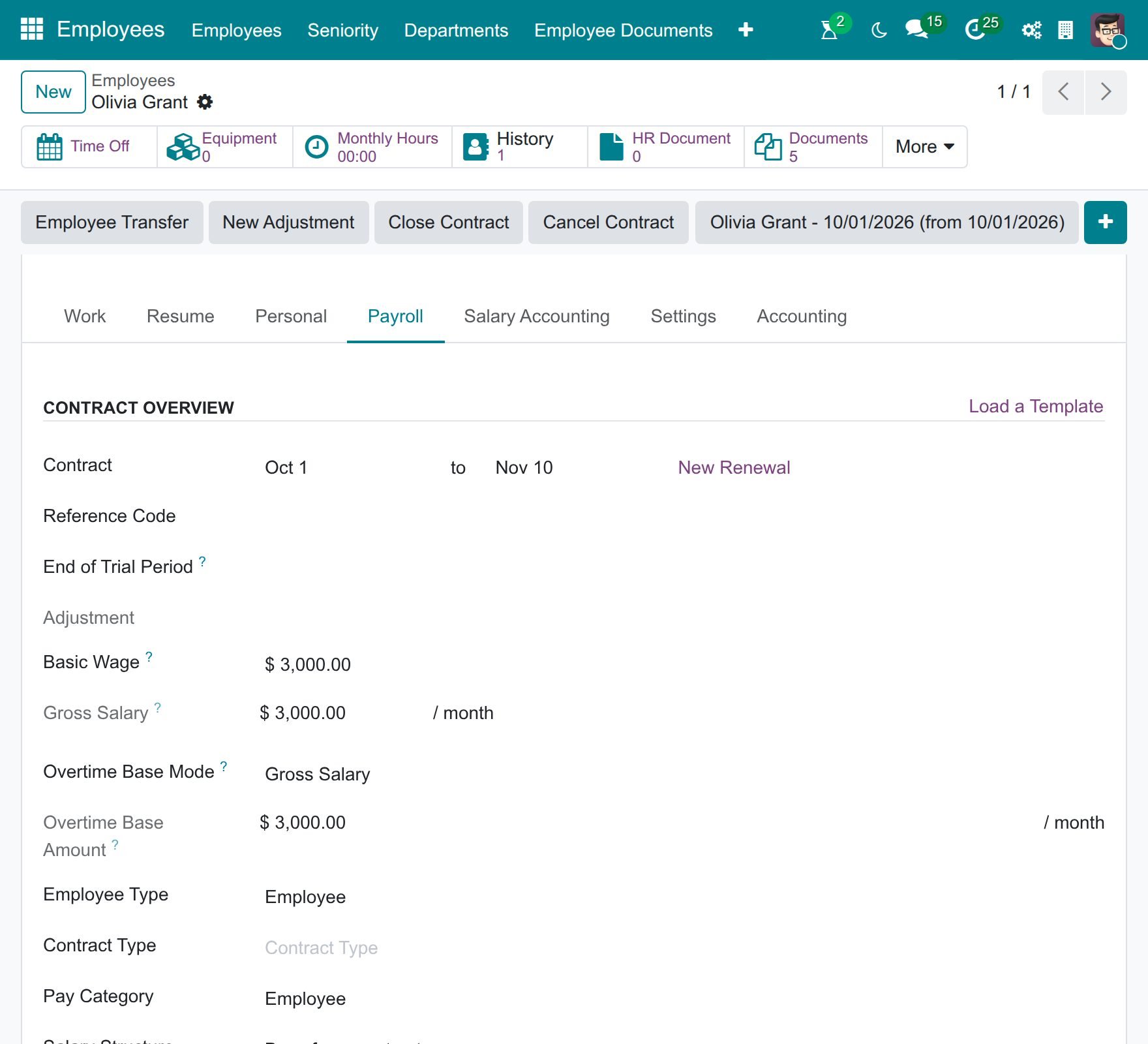
The Payroll tab shows the contract ending on the Contract End Date.
![The Payroll tab with the contract ending on the departure date]()
What happens when you archive an employee?
The employee no longer appears in the lists, the organization chart and the selection fields, but the record can be found with the filter Archived.
The employees who had this person as Manager or Coach lose that link and need a new one.
If the application Time Off is installed, the time off requests after the Contract End Date are cancelled or shortened.
The contact of the employee stays active. Archive it separately from the contact form when the person is not used for anything else, for example when the person is not also a customer or a vendor of your company.
How to find an archived employee?
Go to Employees > Employees, open Filters and select Archived.
To bring the employee back, open the employee, click the gear icon and select Unarchive.
Common problems
Problem |
What to do |
|---|---|
The message “Departure date can’t be earlier than the start date of current contract” appears. |
Change Contract End Date to a date on or after the start date of the current contract. |
The employee is still in the list. |
Check that you clicked Apply in the Employee Termination window. Closing the window leaves the employee unchanged. |
An access error appears when you choose Archive. |
Your access right for Employees is Officer: Manage all employees. Ask an administrator to archive the employee. |
The box Related User is not in the window. |
The employee has no linked user. Link a user in the Settings tab of the employee first. |
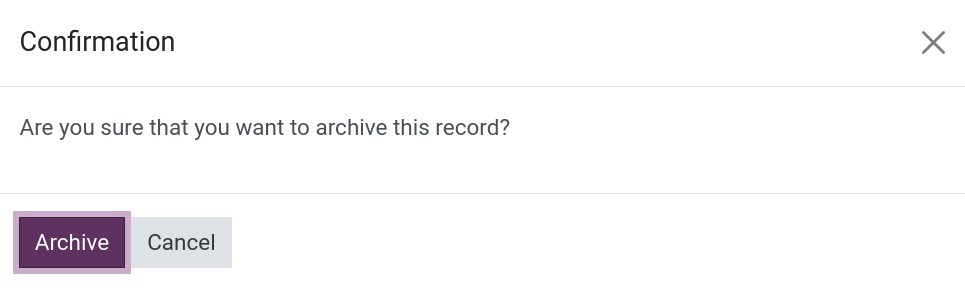
You archived the employee by mistake. |
Open the employee with the filter Archived, click the gear icon and select Unarchive. |
See also
Related article
Optional module