
Request documents and prepare the SI and draft B/L
Guide information
Requirements
This tutorial requires the installation of the following applications/modules:
Freight Project & Operations Tasks (installed automatically once Freight Sale, Project Customization and Sales Timesheet are installed)
Freight & Document Integration (installed automatically once the two modules above are both installed). If Freight Air Management or Freight Consolidation is also installed, Freight Air - Document Integration or Freight Consolidation - Document Integration installs with it and adds its own wizards and buttons (for example Prepare HBL); this guide’s plain FCL export needs neither.
A shipment lives or dies on paperwork the carrier and the customer actually accept. The Shipping Instruction (SI) tells the carrier exactly how to issue the Master Bill of Lading; the draft Bill of Lading (draft B/L) is your last chance to catch a wrong container number or a misspelled consignee before it becomes a document you pay to amend. Viindoo tracks both as dated requests, each with one person responsible and a visible Approved tag, and creates the Documents workspace and the Project task behind them for you. It does not replace the checklist you keep with the customer, or the reading you still do by eye. If a term below is new to you, see the Freight forwarding glossary.
Running scenario: on the export shipment SHP/2610/00001 for Nhat Long Footwear (2 x 40HC containers of sneakers, Hai Phong Port to Port of Los Angeles, carrier ONE Line, Incoterm CFR), Phạm Thị Hoa (Documentation) prepares the SI and the draft B/L; Duc (Team lead, in the Administrator group of Logistics) approves both before anything is sent to the carrier. The shipment has no document requests yet, so the Prepare SI and Prepare Draft B/L buttons create them. The records are sample data, so yours will differ.
Before you start
The shipment is already Confirmed (or further) - the Required Documents tab stays hidden while the shipment is still Draft.
Check container numbers, seals and cargo particulars with the shipper before submitting the SI. You do not need to wait for Gate-in to prepare the request. If details are still provisional, confirm the carrier’s submission and amendment deadlines instead of presenting planned details as final; recheck them when stuffing is complete - see Track container milestones from empty pickup to return.
Hoa is in the User: All Shipments and Project: User groups - preparing a request creates a Project task, and creating a task needs Project access (see the user’s Freight access in ).
The Team lead is in the Administrator group of Logistics, the group the Freight Documents workspace gives write access to.
Step 1: Build the checklist and request documents from the customer
Late paperwork from the customer is a common reason an SI misses its cutoff. Use Required Documents to keep an internal checklist of items and follow-up owners; customer requests still need to be sent through your usual external channel.
Work out what you still need from the customer: the commercial invoice, the packing list, buyer information, and whether the shipment needs an Original B/L or a Telex Release (log the decision in the Chatter, since there is no field for it). Email the list to the customer as soon as the booking is confirmed, and chase anything still missing as the cutoff approaches. In Required Documents, click Add a line for each item you need to track (for example Commercial Invoice or Packing List), then fill in Summary, Request To (an internal user), Due Date and Note. Use the specialized Prepare SI and Prepare Draft B/L buttons in Step 2 and Step 5 for those two documents.
Tip
To send a form instead of a plain email, use on the shipment to generate a blank SI template. The form is pre-filled with what the shipment already holds - the shipper, Incoterm, containers and seals, and the carrier’s booking number once the carrier has issued it, otherwise the internal booking reference - so the customer only completes the empty boxes. For an LCL shipment use , which lists the cargo by package and shows the CFS warehouse when one is set on the shipment, and the CFS cut-off when it is recorded. Whatever the customer sends back can later be read into the shipment with AI document parsing.
When the invoice and packing list arrive, check them by eye against the real container and seal numbers and the cargo description on the shipment - nothing in Viindoo compares them for you. If anything does not match, ask the customer to correct it; do not silently fix it yourself.
Tip
Step 1 is done when: the Required Documents tab lists a line for each item you track (for example the commercial invoice and the packing list), each with a Request To and a Due Date.
Decide who is asked to prepare it
Both wizards (Step 2 and Step 5) have a Request To field. Who you put there decides who gets a reminder and whose name shows on the task.
Request To |
Use when |
What changes |
|---|---|---|
A named colleague |
Someone else has to prepare or chase this document |
The Project task is assigned to that person, and they get an upload activity with the due date |
Yourself |
You are doing it, but still want the deadline on your own task list |
The task and the activity are assigned to you instead |
Left blank |
You only want a record, with no one to remind |
The task is created with no one assigned and no activity reminds anyone |
Assign Request To to the person responsible for preparing or chasing the document. Leave it blank only when the request is a record with no follow-up owner; if ownership has not been agreed, confirm it with the Operations lead instead of assigning the task to yourself by default.
Note
The user’s Freight access in sets the groups behind Request To.
Step 2: Prepare the Shipping Instruction
The SI turns the checklist you just reconciled into one dated request instead of loose information in an email thread.
Go to , open the shipment SHP/2610/00001, go to the Required Documents tab, and click Prepare SI. The window proposes values you can change:
Request To: empty at first - choose the person responsible, per the decision above (here Phạm Thị Hoa).
SI Due Date: proposed from the shipment’s SI Cutoff - here Nov 2. It is a required field.
Document Name: Shipping Instruction - SHP/2610/00001 on a new request; the name of the existing request when the shipment already has one.
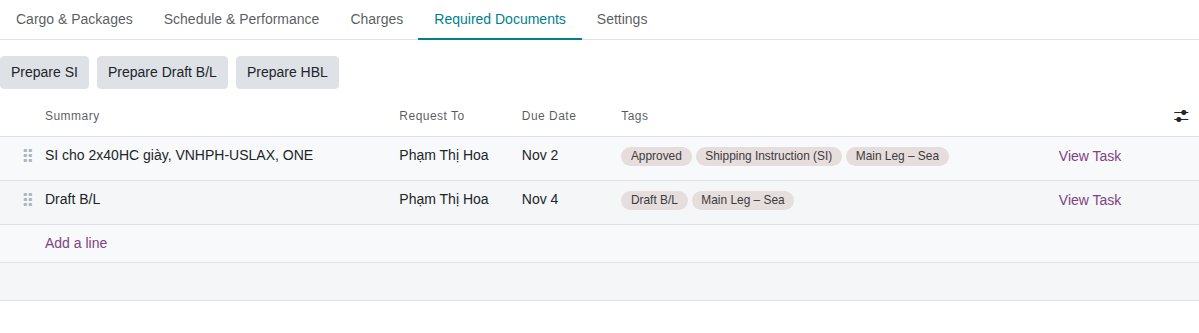
Summary: a one-line note shown on the request row in Required Documents. Required - here SI cho 2x40HC giày, VNHPH-USLAX, ONE. The Project task behind the request is named after the shipment reference (SHP/2610/00001), not after the Summary.
Goods Description for SI: proposed from the shipment’s cargo lines - here Sneakers. Review it, it is not checked against the containers and seals for you.
Marks & Numbers (here NHAT LONG / LAX / 2026-L1), Special Instruction and Request Note: free text for the carrier and for the team.
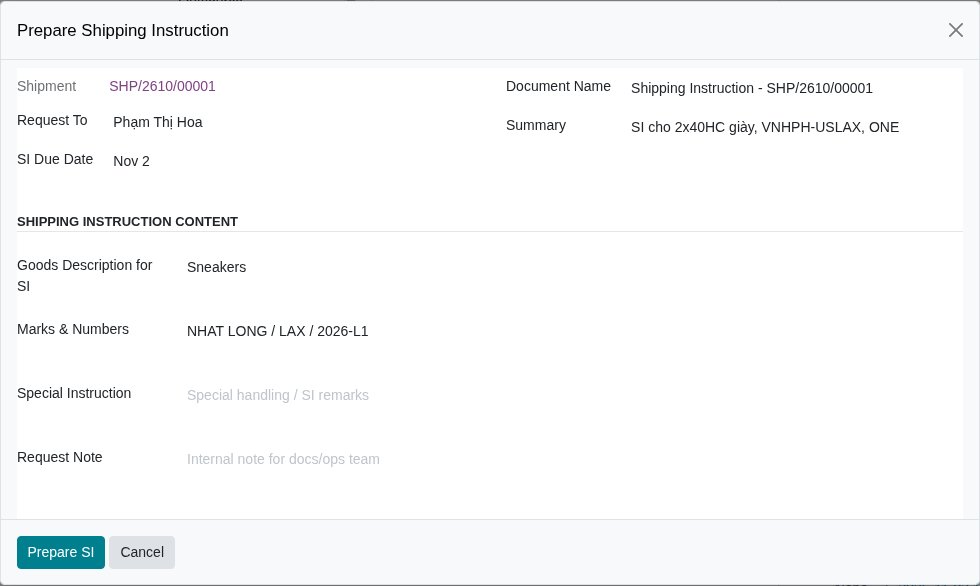
Click Prepare SI. Viindoo opens the request; go back to the shipment through the breadcrumb. A shipment has one SI request: when it already exists, the window opens with its saved values and saves your changes to that same request.
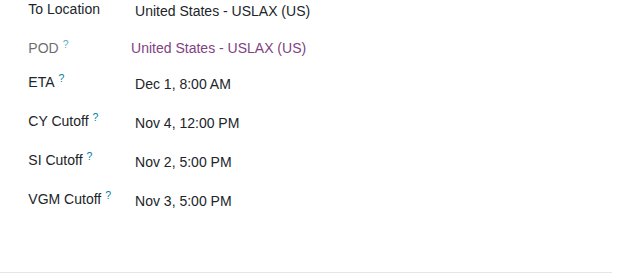
On the booking, the SI Cutoff in the Route & Schedule group shows the effect. Before the click it read Nov 2, 5:00 PM, the hour the carrier gave:
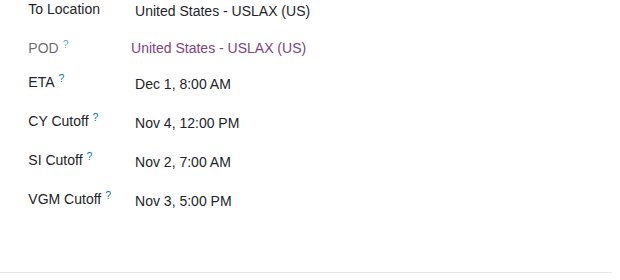
After it, SI Cutoff reads Nov 2, 7:00 AM; the chosen date replaced the hour, while CY Cutoff and VGM Cutoff did not change:
Warning
SI Due Date only accepts a date - the real cutoff hour is lost. Clicking Prepare SI overwrites the shipment’s SI Cutoff (also shown on the booking) with SI Due Date at 00:00:00 UTC - for a user in UTC+7 that shows as 07:00 on that day, not the hour the carrier actually gave. Note the real cutoff hour in the Chatter right away, so no one mistakes 07:00 for the carrier’s deadline. Always enter the carrier’s own cutoff date here, never an internal buffer date. An SI that reaches the carrier after its real cutoff can miss the sailing, and an amendment after the MBL is issued may incur a fee or delay release. Confirm the process, fee and timing with the carrier before sending the SI.
Tip
Step 2 is done when: the Required Documents tab shows one row tagged Shipping Instruction (SI), with the Request To and Due Date you chose, and the Chatter carries a note with the real SI cutoff hour.
Step 3: Get the SI approved before it leaves the company
This is the last internal check before a document leaves the company - correcting a mistake here costs minutes; correcting it after the carrier has issued the MBL costs an amendment fee and days of delay.
The person responsible attaches the SI drafted outside Viindoo to the request from , using Upload New Version in the side panel; the document then takes the name of the uploaded file, here SI_NhatLongFootwear_HLLHPHLAX2611-001.pdf. The Team lead then opens the same document from , selects it, and clicks Approve in the Actions section of the side panel.
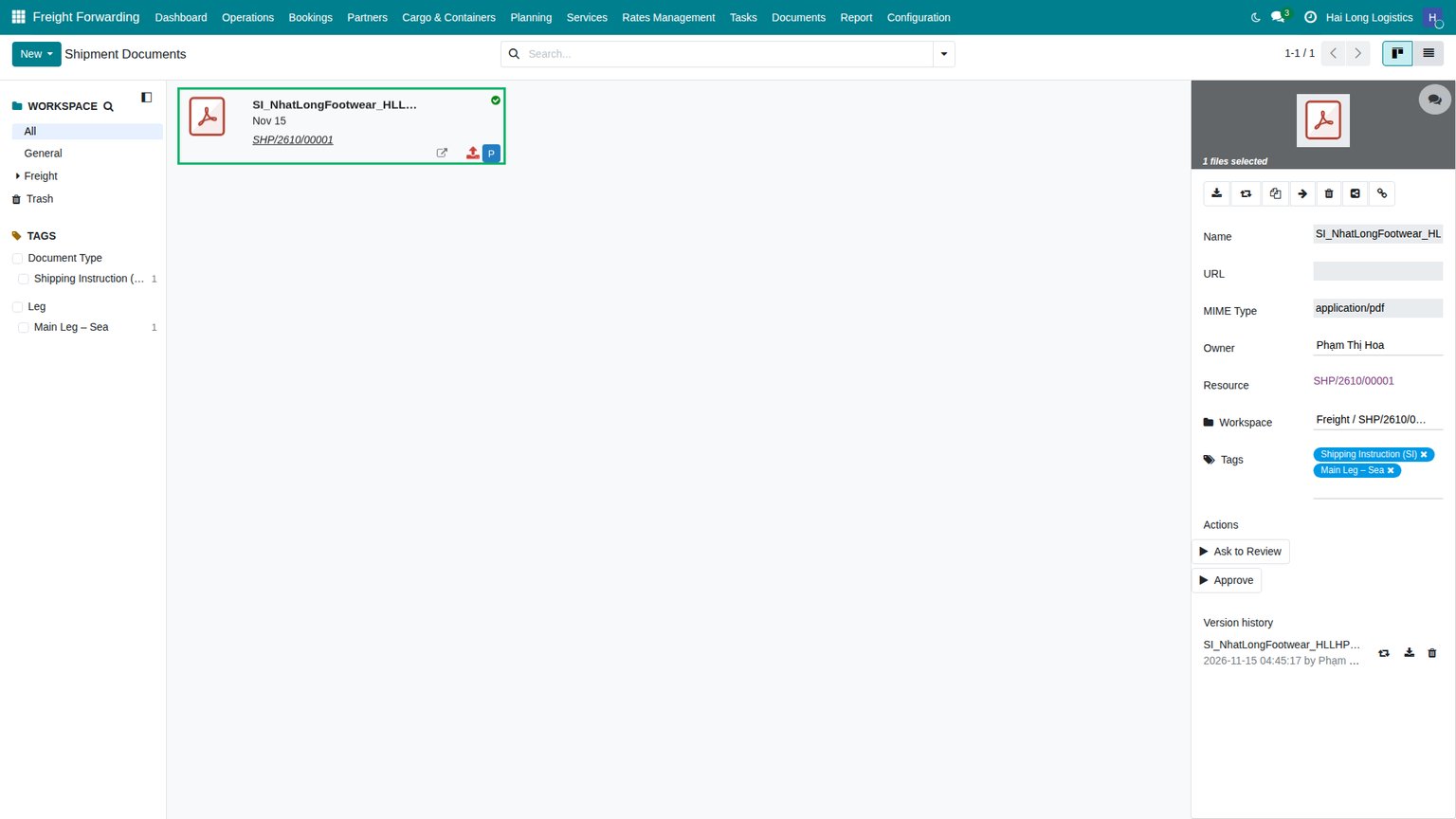
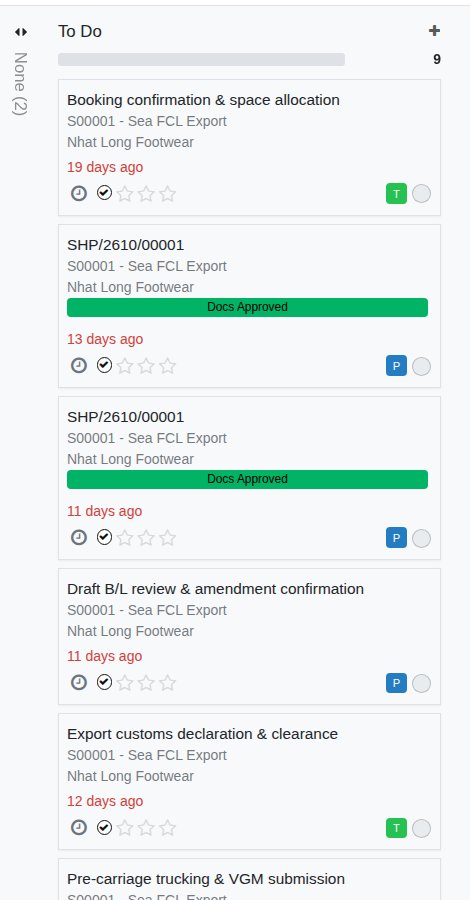
After the Team lead clicks Approve, the document gets the Approved tag (replacing an earlier status tag such as To Review), any pending To Review activity on it is completed, and the SI’s task badge changes from Docs Missing to Docs Approved.
Note
Clicking Approve only sets the tag - nothing in Viindoo stops the person responsible from emailing the SI to the carrier before it has been approved. The side panel also lists Approve for the person who prepared the document, so agree as a team that only the Team lead clicks it (see Known limitations).
Tip
Step 3 is done when: the Shipping Instruction document carries the Approved tag, and this is confirmed before anything is sent to the carrier in Step 4.
Step 4: Send the SI to the carrier before the cutoff
The carrier’s SI Cutoff is a hard deadline for this sailing - an SI that arrives late can keep the containers off the vessel.
There is no button for this in Viindoo: the person responsible emails the approved SI (or submits it through the carrier’s own portal) before the real cutoff, then posts “SI sent to <carrier>, [date/time]” in the shipment’s Chatter. If the carrier later rolls the booking to another sailing (see Handle rolled-over and not-loaded containers), confirm with the carrier that the SI carries over to the new voyage.
Tip
Step 4 is done when: the Chatter has the note SI sent to ONE Line with a date and time earlier than the real SI cutoff, and the SI document still carries Approved.
Step 5: Prepare and track the draft B/L
The draft B/L lets you check the details before the final MBL is issued. Amendment fees and deadlines depend on the carrier and the applicable local tariff; a correction can incur a fee even while the B/L is still a draft. Confirm the conditions with the carrier before requesting a change.
In the same Required Documents tab, click Prepare Draft B/L. The window proposes:
Document Name: Draft B/L - SHP/2610/00001 on a new request, and Summary: Draft B/L.
Draft B/L Due Date: required - choose a date after the SI cutoff and before the sailing, here Nov 4.
Request To: the person responsible.
B/L Remarks: free text for the document, for example FREIGHT PREPAID. NOTIFY: SAME AS CONSIGNEE.
Click Prepare Draft B/L. Unlike Prepare SI, this wizard does not overwrite any field on the shipment - it only creates (or updates) the request, tagged Draft B/L, with its own task. Here the request is the second row of the Required Documents screenshot below.
Tip
Step 5 is done when: the Required Documents tab includes both the Shipping Instruction (SI) and the Draft B/L request, each with a Request To and a Due Date.
Step 6: Reconcile and approve the draft B/L
Complete this check before printing the final HBL (see the related articles at the end). Catch container and spelling errors before the document is issued, and confirm any amendment fee with the carrier.
When the carrier emails the draft B/L, the person responsible uploads it to the Draft B/L request from My Documents and checks it by eye against the SI: shipper, consignee, cargo description, container and seal numbers, sailing date. If anything is wrong, they confirm the amendment deadline and any fee with the carrier, request the correction, and check the revised draft. Once it matches, the Team lead opens the document from Shipment Documents and clicks Approve a second time. In , the badge of each task now reads Docs Approved; a task whose document is not approved yet shows Docs Missing.
Tip
Step 6 is done when: both rows in Required Documents carry the Approved tag, both tasks show Docs Approved, and the approved Draft B/L file is the version the carrier confirmed, not an earlier draft. A task shows Docs Approved only when every document request on it is approved; the badge describes document requirements, not completion of all shipment work.
Known limitations
Step |
What Viindoo does today |
What you do instead |
|---|---|---|
Build the checklist and check documents (Step 1) |
Required Documents can track generic requests, but does not automatically send a customer-facing checklist or match returned files to the invoice/packing list; Goods Description for SI is copied from the cargo lines but never checked against the invoice, packing list, containers or seals |
Add internal request lines for invoice and packing list; send the actual request to the customer by email, and check returned documents by eye. Record the Original/Telex decision in the Chatter because there is no dedicated field. |
Request from the customer (Step 1) |
Request To only accepts an internal Viindoo user |
Send the request to the customer or shipper by email |
Prepare the SI (Step 2) |
SI Due Date only accepts a date; the SI Cutoff hour is overwritten to 00:00:00 UTC |
Write the carrier’s real cutoff hour in the Chatter and treat that note as the deadline |
Approve before sending (Step 3) |
The Approved tag is a signal - nothing stops the SI from being emailed before it is set, and the person who prepared a document also sees Approve in the side panel |
Agree as a team never to send an SI before its tag reads Approved, and that only the Team lead clicks Approve |
Send / receive with the carrier (Steps 4, 6) |
Sending the SI and receiving the draft B/L are not tracked |
Log “sent” and “received” in the Chatter, with the date and time |
Compare draft B/L with the SI (Step 6) |
No tool compares the two documents |
Read both by eye |
Final approval does not block printing (Step 6) |
Docs Approved is a visible signal, not a lock on printing the HBL |
Agree as a team not to print the final HBL while a task still shows Docs Missing |
Troubleshooting
Prepare SI or Prepare Draft B/L stops immediately
Symptom: “Please configure a document workspace for shipment ‘…’.” appears the moment you click Prepare SI or Prepare Draft B/L on a shipment that has none yet, and nothing is created.
Cause: the rule that generates a Documents workspace for shipments has no active entry for this shipment’s company.
Fix: in the Documents app, open , check the rule for Shipment, confirm its Company field is either blank or matches the shipment’s company, then run the wizard again.
The wizard will not let you continue
Symptom: “Please fill in SI Due Date.” (or “Please fill in Summary.” / “Please fill in Document Name.”) appears when clicking Prepare SI.
Cause: one of these three required fields was left empty.
Fix: fill in the missing field; if the real SI Cutoff is not known yet, ask the Booking Officer rather than guessing a date.
Prepare SI is rejected with an ETD error
Symptom: “SI Cutoff of Shipment SHP/2610/00001 must be before <date and time> - ETD of leg <leg name>.” (or “… must be before ETA.”)
Cause: the SI Due Date entered lands after the ETD of the shipment’s Main Carriage leg. The message names that leg and its ETD. When the shipment has no legs and the ETD was typed on the shipment itself, it reads “… must be before ETD.” When legs exist but the Main Carriage leg has no departure date, the cutoff is not checked against ETD.
Fix: enter a date before that ETD; if the carrier genuinely gave a cutoff after the recorded ETD, the ETD on the leg is wrong and the Booking Officer needs to fix that first.
The Approve action is not listed on the document
Symptom: the Team lead selects the Shipping Instruction or Draft B/L document, but the Actions section of the side panel has no Approve entry.
Cause: the document belongs to a workspace that does not offer the action. The Freight workspace created for a shipment offers Ask to Review and Approve.
Fix: open , open the shipment’s workspace and add Approve to its Actions.
See also
Related articles
Issue an HBL or send an Arrival Notice - printing the final HBL once both documents are Approved
Track container milestones from empty pickup to return - the Gate-in step this page checks the documents against
Optional modules