
Track container milestones from empty pickup to return
Guide information
Requirements
This tutorial requires the installation of the following applications/modules:
Freight Forwarder Management (installs Logistics Accounting automatically)
Container milestones are the system of record for where a container physically is between
booking and delivery. They drive the Verified Gross Mass (VGM) window before loading, the
free time clock that decides when demurrage starts, and the on-board date printed on the House
Bill of Lading. Export containers follow one strictly sequential path, Empty Picked ->
Stuffed -> Gate-in -> Loaded; import containers follow a different one, Arrived -> Customs
Cleared -> Gate Out -> [Unstuffed] -> Empty Returned, where Unstuffed only applies to cargo
that is unloaded at a CFS. Clicking a milestone out of order, or days after it actually
happened, breaks the free time calculation and the paper trail a bank checks against the B/L.
If a term here is new to you, see the Freight forwarding glossary.
Running scenario: Minh (Booking Officer, acting as field Operations) records container ONEU4567895 (40HC, seal OL2604187) on the Hai Long Logistics export booking for Nhat Long Footwear (Hai Phong Port to Port of Los Angeles, carrier ONE), and container CSNU8123450 (40HC, seal CS1178342) on the import shipment for Minh Phat Engineering (Shanghai to Hai Phong Port, carrier COSCO SHIPPING LINES, 7 days free time).
Before you start
The shipment is Confirmed or later. The Containers group appears as soon as the shipment has a container, even in Draft, but a Draft shipment is not an official booking yet - record milestones only after Confirm (Viindoo does not block the milestone buttons on a Draft shipment).
At least one container already exists on the shipment, created automatically when the sales order is confirmed, by hand, or through Declare cargo, packages and containers.
You are in the User: All Shipments group, or you are the Responsible of the shipment with User: Own Shipments - on any other shipment Own Shipments is read-only. See What Own, All and Admin can do inside a shipment.
Step 1: Open the container list on the shipment
Every milestone button lives on the shipment itself, next to the cargo it belongs to - there is no separate “container execution” screen to search for.
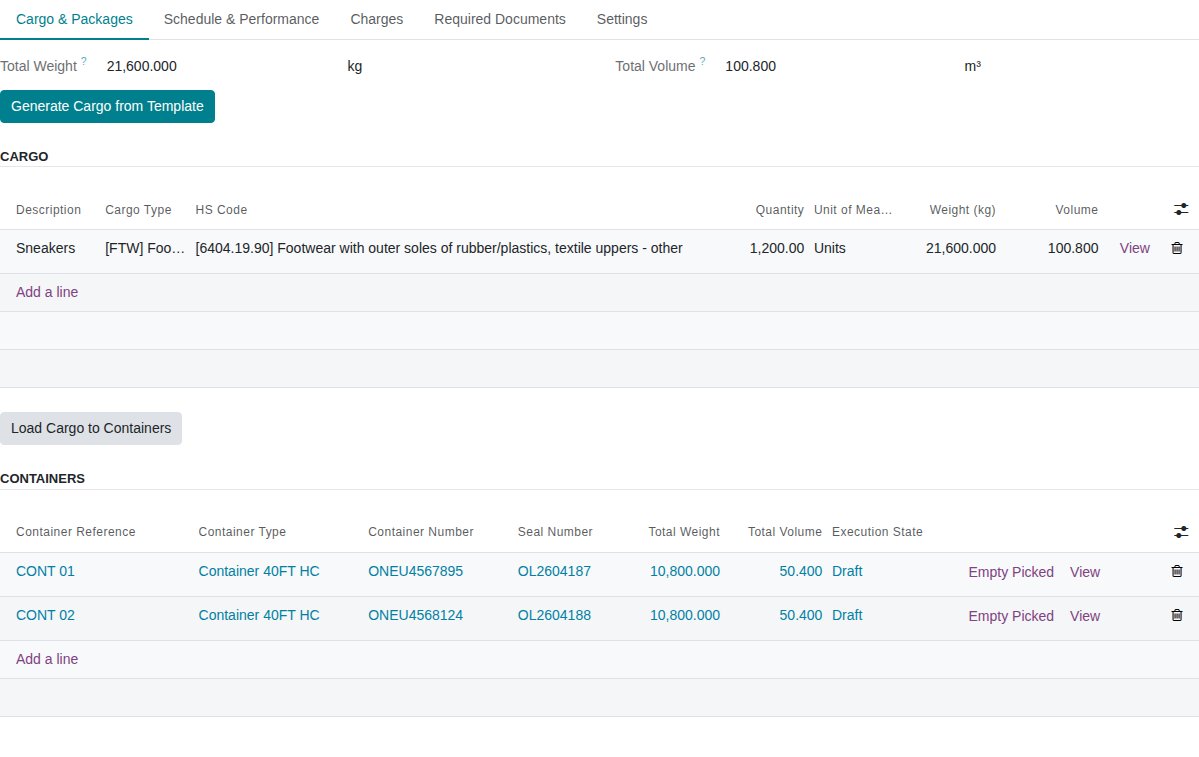
Go to , open the Nhat Long Footwear shipment, and stay on the Cargo & Packages tab (this tab holds the Containers group for FCL shipments - it is not under a tab called “Requested Details”). The Execution State column is optional: if it is not shown, turn it on from the column selector at the right end of the Containers header.
Tip
Step 1 is done when: the Containers group lists both ONEU4567895 and ONEU4568124, each showing Execution State Draft.
Step 2: Record Empty Picked and Stuffed
Empty Picked records when the truck leaves the depot with the empty container; Stuffed locks in the Container Number and Seal Number that every later document (HBL, SI) has to match.
On the row for the container:
Enter Container Number: ONEU4567895.
Once Phuong Nam Transport Co., Ltd. pulls the empty container out on 2026-11-01 08:00, click Empty Picked.
Enter Seal Number: OL2604187 once the 600 cartons are loaded.
Once the container is sealed on 2026-11-02 14:00, click Stuffed.
Warning
Clicking Empty Picked without a Container Number, or Stuffed without a Container Number and a Seal Number, is blocked (names filled in):
Cannot mark container "<container>" as <milestone> yet.
Please fill in: <fields>.

Tip
Step 2 is done when: Execution State reads Stuffed and the row shows Container Number ONEU4567895 and Seal Number OL2604187.
Container ONEU4568124 (seal OL2604188) follows the same steps: Empty Picked at 2026-11-01 09:30, Stuffed at 2026-11-02 16:00, Submit VGM at 2026-11-02 18:00 and Gate-in at 2026-11-04 10:00.
Step 3: Enter and submit VGM
SOLAS requires a Verified Gross Mass before a container can be loaded - this is a safety gate, not paperwork, and Viindoo enforces it: Loaded stays blocked until the VGM is submitted (Step 4). Click View on the row to open the container in a popup: the popup hides the header buttons, but its footer repeats the ones that apply to the container’s current state - at Stuffed, Mark Gate-in and Submit VGM; Not Loaded and Rolled Over appear once the container is at Gate-in or Loaded. Only Clear Exception is missing there - open the shipment header’s Containers smart button instead if you need that one.
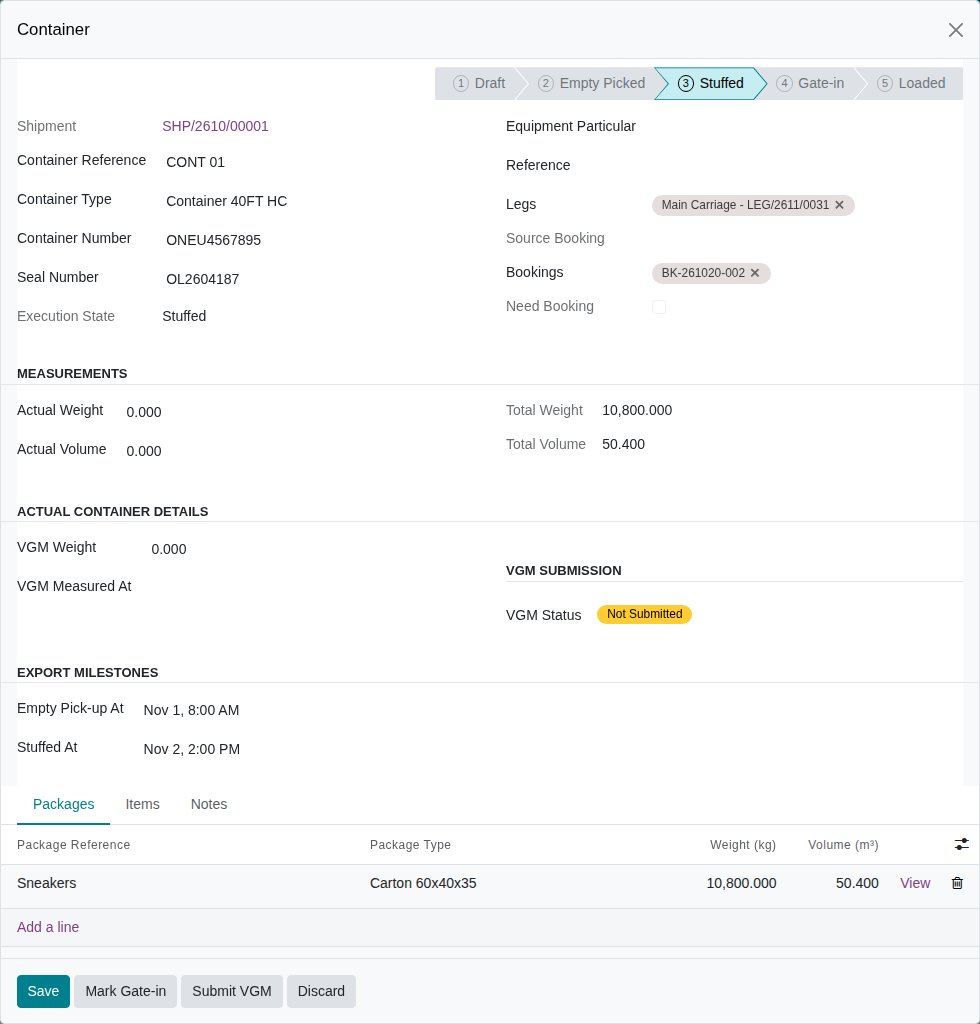
VGM Weight: 14,940 kg (weighbridge method SM1: tare 3,940 kg + cargo 10,800 kg + dunnage 200 kg).
VGM Measured At: 2026-11-02 15:00.
Click Submit VGM at 2026-11-02 16:30, ahead of the 2026-11-03 17:00 VGM Cutoff.
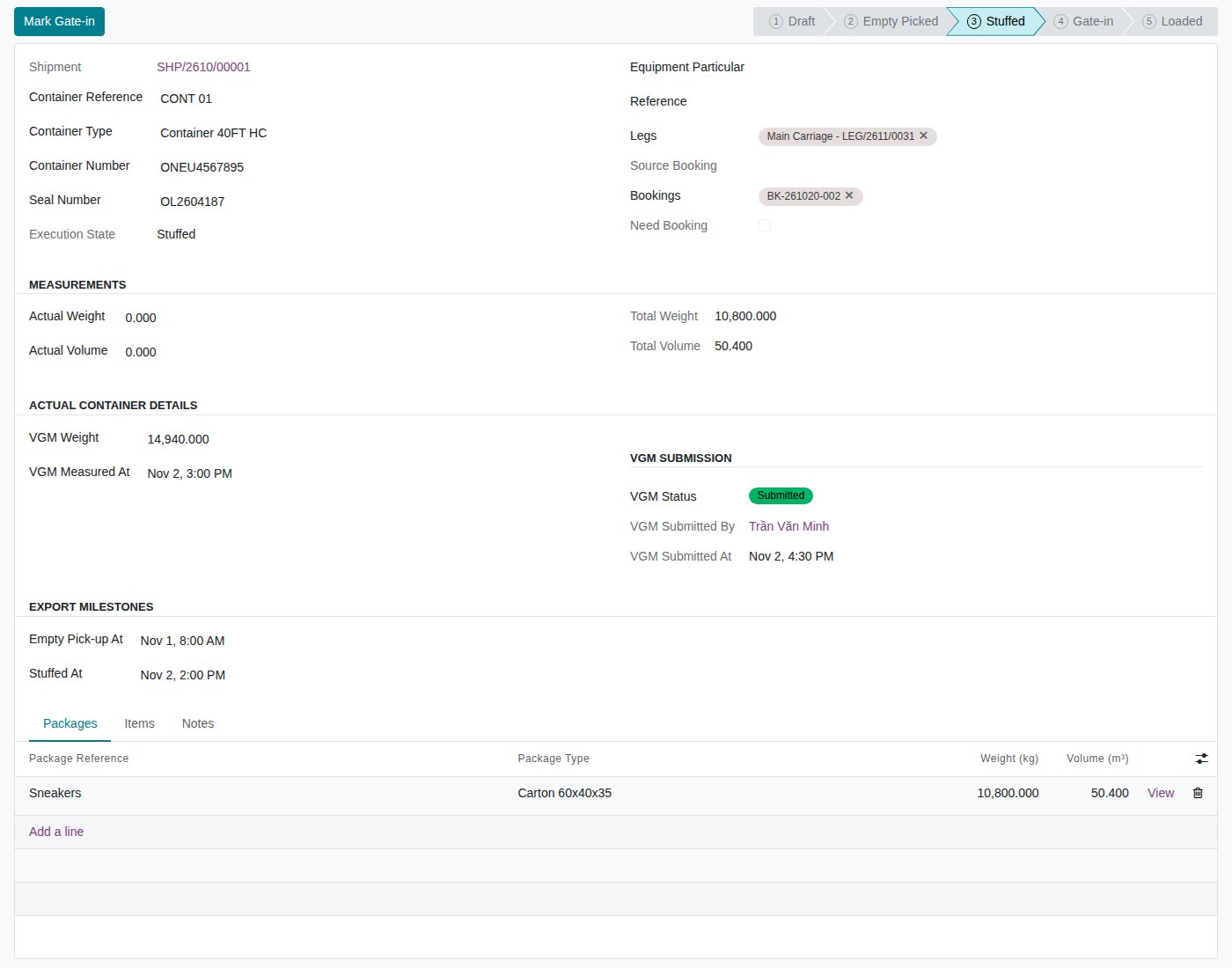
After Submit VGM, the VGM Submission badge changes to Submitted and records who submitted it and when.
Warning
Clicking Submit VGM with VGM Weight still at zero is blocked:
Cannot submit VGM for container "<container>".
Please enter VGM Weight first.
Tip
Step 3 is done when: VGM Status reads Submitted, VGM Weight reads 14,940 kg, and the submission time (16:30) is before the 2026-11-03 17:00 VGM Cutoff.
See also
Submit the container’s Verified Gross Mass (VGM) for the SM1/SM2 weighing methods and what to do if VGM is rejected.
Step 4: Move through Gate-in and Loaded
Gate-in confirms the container is inside the port’s container yard; Loaded confirms it is on the vessel - the last two clicks Operations makes before the container is out of their hands.
Click Gate-in at 2026-11-04 09:00, ahead of the 12:00 CY Cutoff.
Note
After both containers reached Gate-in, ONE rolled the whole booking - both containers - from ONE COMMITMENT 026W onto ONE COMPETENCE, voyage 027W (“Space Optimization”, the carrier’s own decision). Recording that exception and rebooking is covered in Handle rolled-over and not-loaded containers and is not repeated here - both containers stay at Gate-in through the change and end up Loaded on the new sailing instead of the original one. (If a container is bumped after it is already Loaded, Viindoo moves it back to Gate-in and clears its Loaded time - also covered there.)
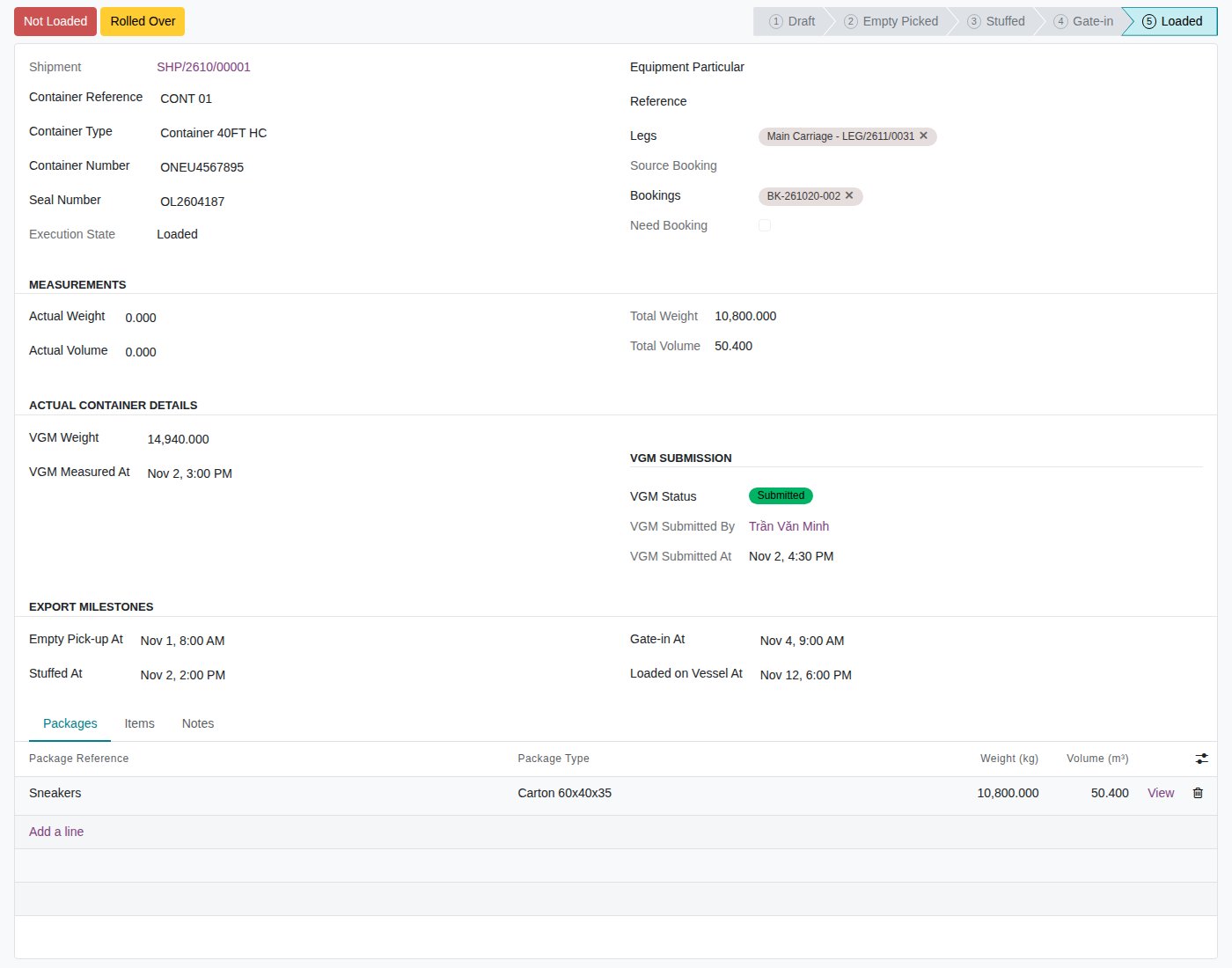
Once the containers are physically on board the new sailing, click Mark Loaded: ONEU4567895 at 2026-11-12 18:00, ONEU4568124 at 2026-11-12 18:30.
Warning
Viindoo blocks Loaded while VGM is still Not Submitted. Under SOLAS, a container without a submitted VGM must not be loaded, so the system refuses the click on every Loaded button (see Troubleshooting). Submitting the VGM in Step 3 unlocks it; it does not prove that the carrier received the figure. A container turned away for a missing VGM waits for the next sailing - 7 days later if the route sails weekly, as the 026W and 027W voyages (ETD 2026-11-05 and 2026-11-12) suggest.
Tip
Step 4 is done when: Execution State reads Loaded on both containers - Viindoo only allows it once VGM Status reads Submitted.
Step 5: Move the import container from Arrival to Empty Return
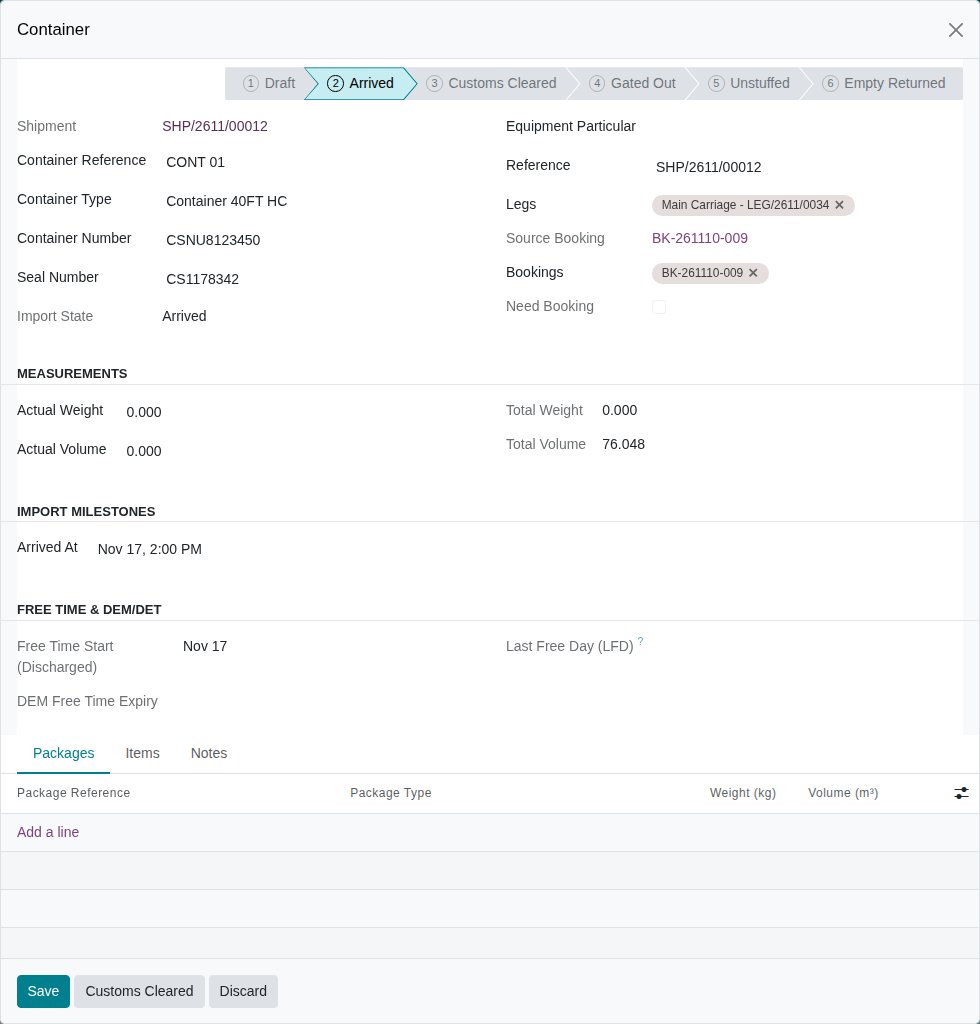
The import sequence is not the export sequence read backwards - Arrived starts the free time clock, and Empty Returned can be reached straight from Gate Out without an Unstuffed step for a container delivered directly to the consignee. Viindoo keeps two clocks: DEM (demurrage, time at the port) runs from Arrived to Gate Out, and DET (detention, container outside the port) runs from Gate Out until it is returned empty; Last Free Day is the deadline of whichever clock is running.
On the Cargo & Packages tab of the Minh Phat Engineering import shipment, on the row for container CSNU8123450:
When COSCO SHIPPING LEO berths at Hai Phong Port on 2026-11-17 14:00, click Arrived.
Once customs clears the container outside Viindoo, click Customs Cleared at 2026-11-18 16:00.
Once Phuong Nam Transport Co., Ltd. pulls the container out, click Gate Out at 2026-11-20 09:00.
Once the empty container is returned to the carrier, click Empty Returned at 2026-11-22 15:00 - no Unstuffed step is needed for this direct delivery.
Note
Clicking Arrived is enough to start the clock. Free Time Start (Discharged) takes the container’s own Arrived date (2026-11-17); you do not need to enter the shipment’s ATD/ATA first. No screen lets you enter the number of free days, so DEM Free Time Expiry and Last Free Day stay blank: work out the last free day by hand - arrival 2026-11-17 plus COSCO’s 7 days = 2026-11-24 - and note it in the shipment’s Chatter. After Gate Out, Last Free Day only repeats the Gate Out date, so do not use it as the deadline.
Tip
Step 5 is done when: Import State reads Empty Returned, Free Time Start reads 2026-11-17, and Gate Out (2026-11-20 09:00) falls before the last free day worked out by hand (2026-11-24).
Known limitations
Step |
What Viindoo does today |
What you do instead |
|---|---|---|
Step 4 (Loaded) |
Loaded is blocked until VGM Status is Submitted, but Viindoo cannot check that the carrier received the figure |
Do not click Loaded until the carrier has confirmed it holds the VGM |
Step 5 (free time) |
The number of free days cannot be entered on any screen, so DEM Free Time Expiry and Last Free Day stay blank, no row turns red when free time runs out, and the built-in “free time expiring” reminder is shipped switched off |
Work out the last free day by hand from the carrier’s free time and compare Gate Out against it yourself |
Troubleshooting
Stuffed is blocked
Symptom: clicking a milestone shows (names filled in):
Cannot mark container "<container>" as <milestone> yet.
Please fill in: <fields>.
Cause: Container Number or Seal Number is still empty for the milestone you clicked.
Fix: Enter the missing field on the row, then click the milestone button again.

Submit VGM is blocked
Symptom: clicking Submit VGM shows:
Cannot submit VGM for container "<container>".
Please enter VGM Weight first.
Cause: VGM Weight is still zero.
Fix: Enter VGM Weight in kilograms, then click Submit VGM again.
Loaded is blocked
Symptom: clicking Loaded shows (container filled in):
Cannot mark container "<container>" as Loaded: VGM has not been submitted yet.
SOLAS requires a Verified Gross Mass before a container may be loaded on the vessel.
Cause: the container’s VGM Status is still Not Submitted.
Fix: enter VGM Weight and click Submit VGM (Step 3), then click Mark Loaded again.
