
What to know to start with Viindoo Timesheet
Managing working time for oneself and employees to help organize the work most effectively has been one of the most needed requests in today’s society. For that reason, Viindoo has developed the Timesheets app to help our users manage their business.
Main features
The Timesheet app of Viindoo system provides the following features:
Managing the working time of individuals and organizations.
Analyzing the progress and the efficiency of projects when integrated with the Project app.
Diversity and flexible report.
Create a timesheet upon time off validation.
Moreover, it can be fully integrated with other Viindoo Apps.
Activation and configuration
Activation
The Timesheets feature is provided by the Task Logs module (hr_timesheet). This module is not flagged as a standalone app, so it is hidden by the default Apps filter of the Apps list.
To activate it, go to Project ‣ Configuration ‣ Settings, tick Task Logs in the Time Management section, and press Save.
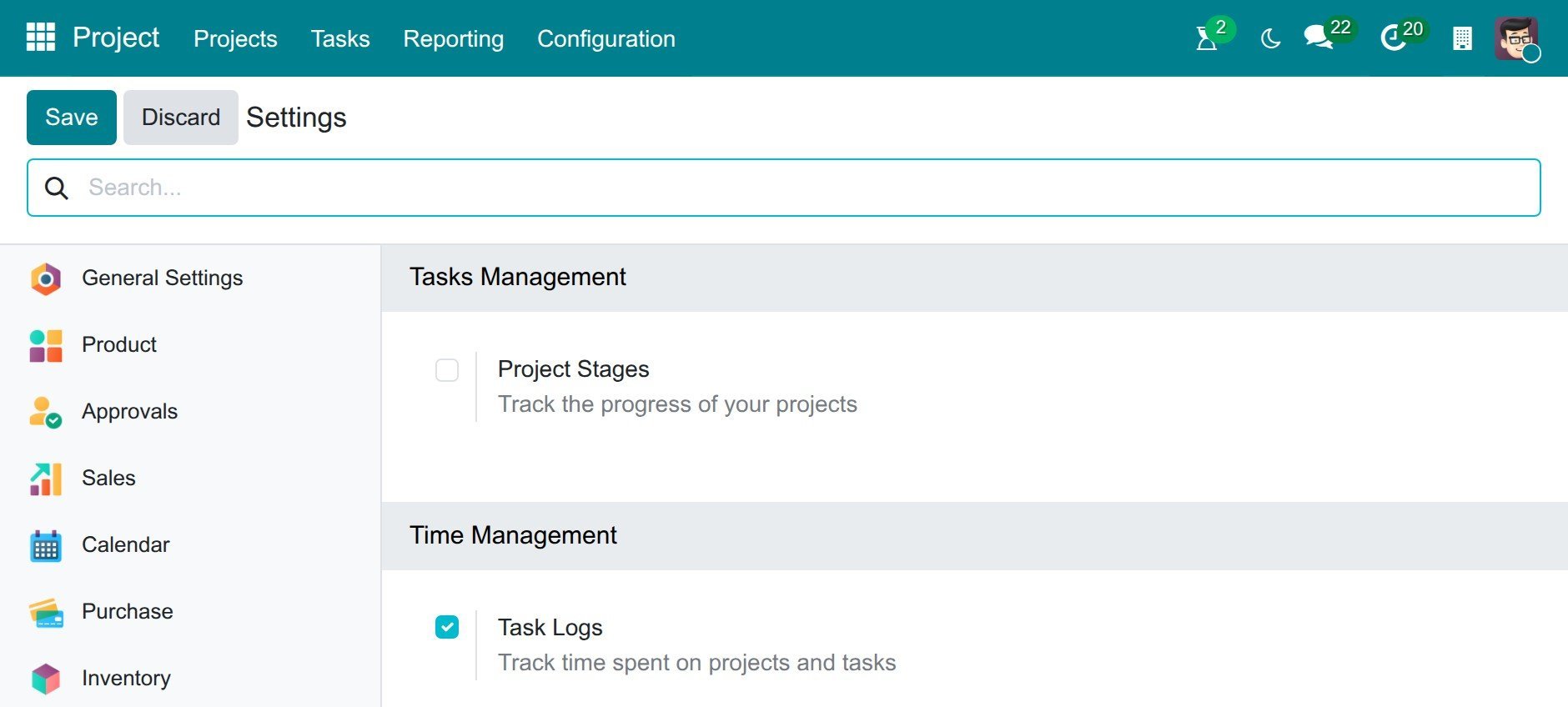
Alternatively, access Apps, remove the Apps filter in the search bar, search for hr_timesheet, then press Activate on the Task Logs card.
After successfully activating, the Timesheets icon will appear on the main menu of Viindoo system.
Note
When activating the Timesheets App, the system will automatically activate the related apps (ex: Project App, etc.) to support the Timesheets App to be fully functional.
Assign Permissions To Users
In an enterprise, a user will be assigned certain permissions to ensure an effective working time. That’s why there will be several different permissions while using Timesheet App.
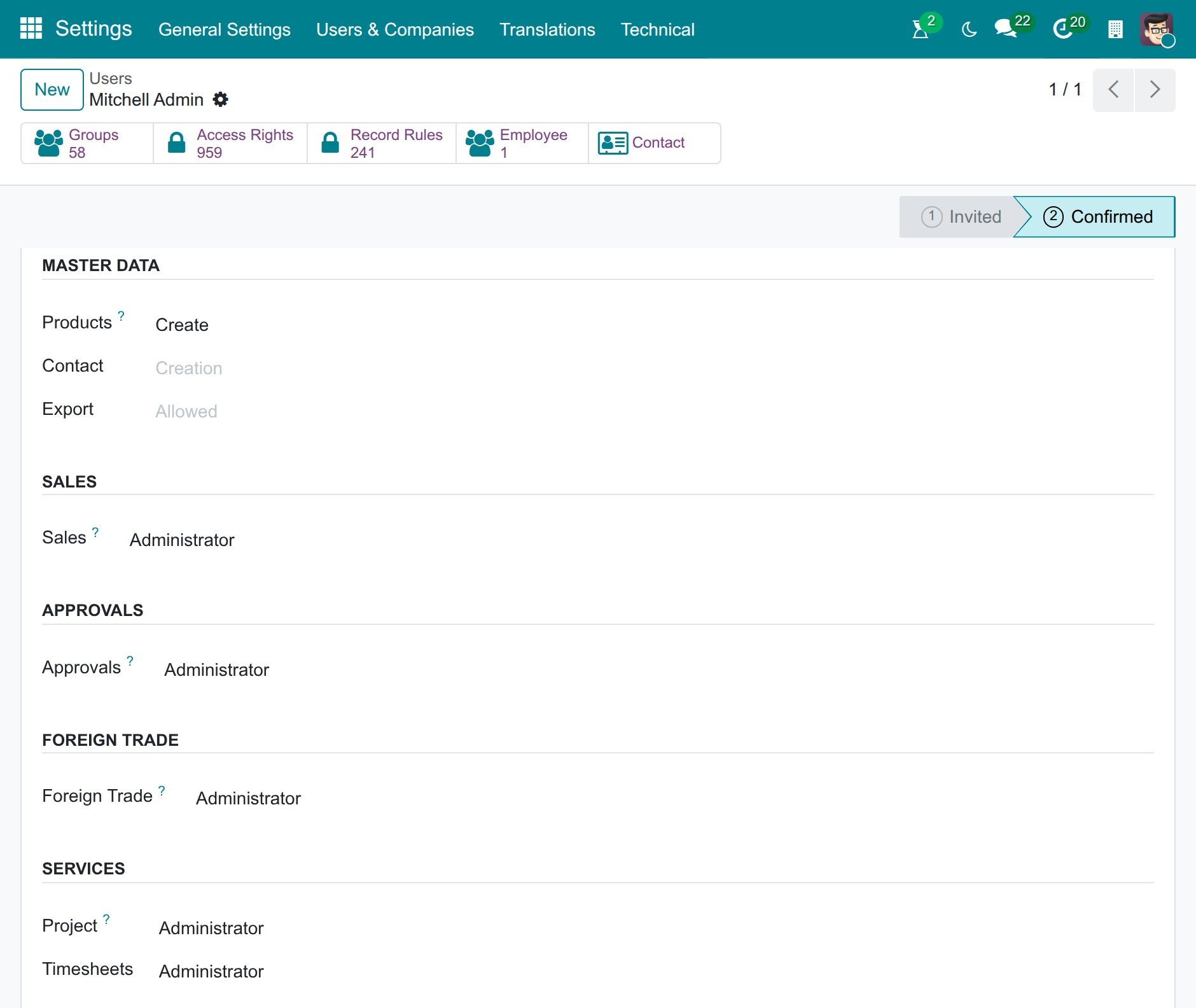
To set up user permission, navigate to Settings ‣ Users & Companies ‣ Users, and select the user you want to assign. In the Access Rights tab, the Timesheets field of the Services section will have 4 options for the users:
Blank: The user will not see the Timesheets App on the system.
User: own timesheets only: Assigned to the employees in departments. Users will be able to create, view, edit, and delete their timesheets.
User: all timesheets: Assign permissions to employees on the manager level. Users can create, view, edit, and delete everyone’s timesheets of the projects they can access. They can also open Timesheets ‣ Timesheets ‣ All Timesheets and the Reporting menu.
Administrator: Assign permission to the higher-level managers:
This user can create, view, edit, delete everyone’s timesheets of all projects, including the projects that are restricted to invited followers.
View timesheet reports by: Employee; department; project; task using many different types of reports.
Warning
If the Timesheets function is integrated with the Project app and the user is assigned as an Administrator, then Timesheets permission will automatically change to User: all timesheets or above. You can’t change the permission to User: own timesheets only if the user is a Project Administrator.
Above are the first steps to get used to Viindoo Timesheets App to help you manage working time for yourself and your employees more effectively.
See also
Related articles:
Optional modules: