
How to manually create an Asset
To record an asset yourself instead of creating it from a vendor bill, go to Accounting > Accounting > Assets, click New, fill in the asset and its depreciation information, then click Confirm. The asset becomes Running and Viindoo generates its depreciation entries.
Who does this: an accountant with the Accounting Assets Management access right (Accounting administrators have it automatically). Application: Accounting.
Before you start
This tutorial requires the installation of the following applications/modules:
Create at least one Asset Category first: the asset takes its accounts and depreciation settings from it.
How do I open the asset form?
Navigate to Accounting > Accounting > Assets, then click New.

How do I fill in the asset information?
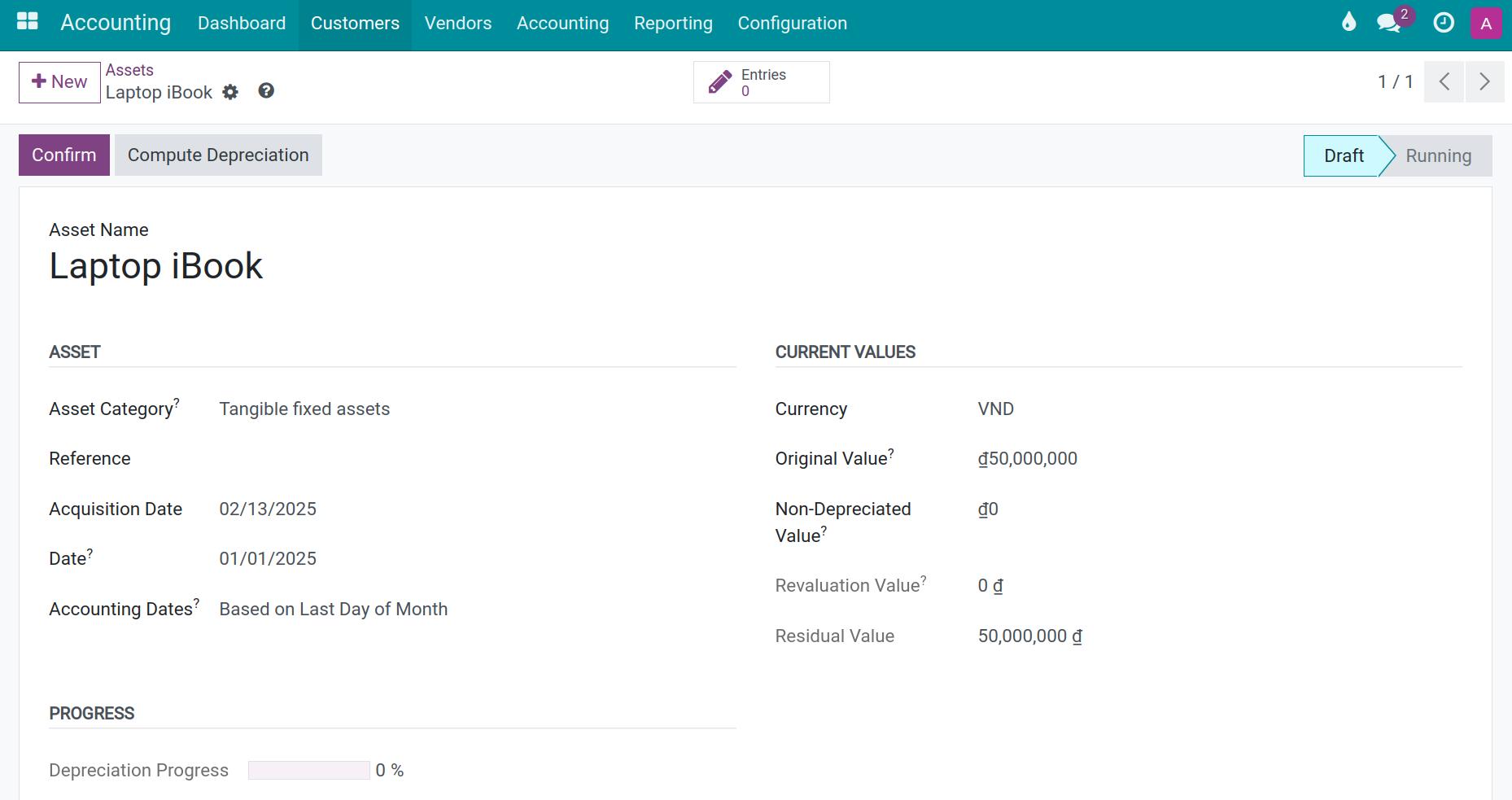
Enter the Asset Name, then fill in the groups below.
Asset
Asset Category: Choose one of the existing categories or create a new Asset Category. Once chosen, Asset Nature and Depreciation Policy are displayed (read-only, inherited from the category) and the depreciation settings and accounts of the category are copied to the asset.
Reference: The number of the vendor bill, transfer note or any other document of the asset.
Acquisition Date: The purchase or receipt date of the asset according to the accounting vouchers. When the asset is linked to vendor bill lines, it is the earliest date of those lines; otherwise it is today’s date by default.
Date: The date of the asset. Depreciation is computed from this date, and the first accounting date cannot be earlier than it.
Accounting Dates:
Based on Last Day of Month: Depreciation entries are dated on the last day of each period.
Manual: Depreciation entries are dated from the First Accounting Date that you enter.
First Accounting Date: The date of the first depreciation entry. It does not change the calculation when Prorata Temporis is on (see the Depreciation Information tab). It must not be earlier than Date.
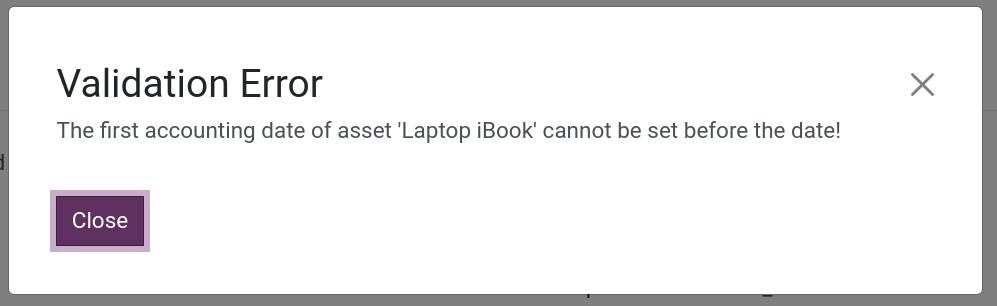
If you enter a First Accounting Date earlier than Date, Viindoo shows a Validation Error dialog with the message The first accounting date of asset ‘…’ cannot be set before the date! when you save. Click Close, then correct the date or discard your changes.
Current Values
Original Value: The gross value of the asset. When vendor bill lines are attached on the Related Bills tab, it is the total of those lines.
Non-Depreciated Value: The amount that you plan to keep and therefore do not depreciate. The depreciable amount is the Original Value minus this value (plus the Revaluation Value, if any).
Revaluation Value: The increase or decrease of the asset value from posted revaluations. Read-only.
Residual Value: What is left to depreciate: Original Value minus the posted depreciation, minus the Non-Depreciated Value, plus the Revaluation Value. Read-only.
Progress
Depreciation Progress: The percentage of the depreciable amount that has already been recorded as depreciation expense.
How do I set the depreciation method of one asset?
Open the Depreciation Information tab. It holds the computation method and the accounts used for the automatic journal entries, and is pre-filled from the asset category.

If one asset differs from its category, change the values here without touching the category.
Example
The category uses Computation Method: Linear but one asset of this category must use Accelerated Degressive. Keep the other values and choose Accelerated Degressive. The Degressive Factor field appears.
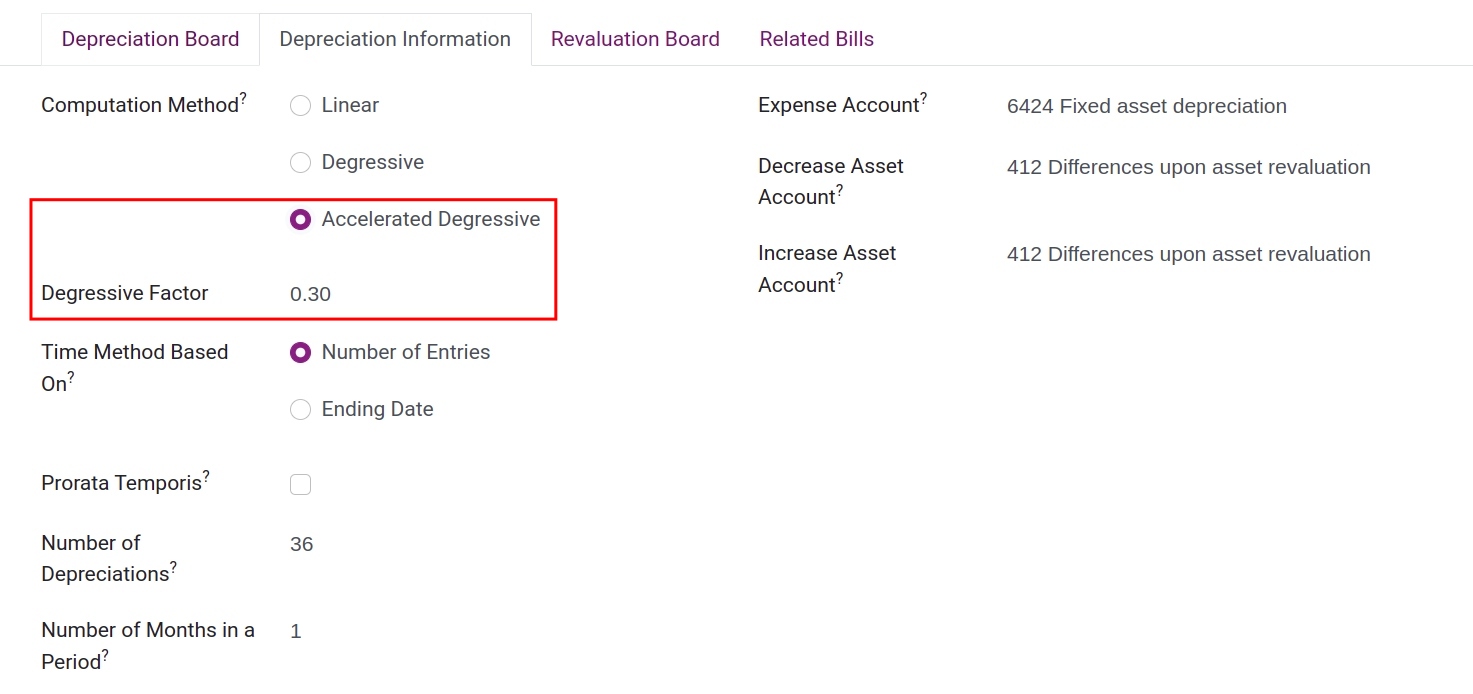
Main fields of the tab:
Field |
What it changes |
If wrong or empty |
|---|---|---|
Computation Method |
Linear: Original Value divided by the number of depreciations. Degressive: Residual Value multiplied by the Degressive Factor. Accelerated Degressive: like Degressive but never below the linear amount. |
Wrong amounts on the Depreciation Board. |
Degressive Factor |
Rate used by the two degressive methods. Hidden for Linear. |
Required for the degressive methods. |
Time Method Based On |
Number of Entries or Ending Date. |
Determines which of the next fields is used. |
Prorata Temporis |
Computes the first entry from the asset date instead of a full period. Only with Number of Entries. |
Viindoo refuses to save it with Ending Date. |
Number of Depreciations / Number of Months in a Period |
How many entries are created and how many months each period covers. |
A period of zero or less is refused. |
Expense Account, Decrease Asset Account, Increase Asset Account |
Accounts of the depreciation and revaluation entries, copied from the category. |
Entries are posted to the wrong account. |
How do I finish creating the asset?
Click Confirm. The status changes from Draft to Running. Viindoo creates the depreciation entries of the Depreciation Board: entries dated today or earlier are posted, later ones are scheduled and posted on their date. (If Auto-Confirm Assets is enabled on the category, assets created from vendor bills are confirmed automatically.)
Expected result
The asset appears in Accounting > Accounting > Assets with the status Running.
The Entries button shows the number of depreciation entries.
Depreciation Progress increases as entries are posted.
Common mistakes
The first accounting date of asset … cannot be set before the date! - set First Accounting Date on or after Date.
Asset Category left empty - the field is required, so the asset cannot be saved.
Next steps
See also
Related article
Optional module