
How to approve a procurement request
An employee lists the products to supply in a Procurement request and submits it. When the required approvals are given, Viindoo applies the replenishment rules of each product and creates the draft purchase orders (requests for quotation) to the vendors set on the products, without any other click. The Launch Procurement button stays on the approved request to run the procurement again after you fix a product.
Who |
Any internal user creates the request; the approvers approve it (Approvals ‣ Team Approver or higher); a user with Inventory ‣ User can launch the procurement again. |
App |
Approval, with Purchase and Inventory |
Before you start
Install OmniApproval™ - Procurement Approvals: go to Approval ‣ Configuration ‣ Settings, tick it in the Integration block and click Save. See How to install, upgrade and uninstall apps and modules. Viindoo creates the approval type Procurement.
Set who approves the type: Manage Approval Types.
How do I prepare the products?
For every product the request can contain, Viindoo needs to know where to buy it. Open the product and, in the Purchase tab, add the vendor with its price and delivery lead time.

The Buy route comes from the warehouse (the Buy to Resupply option of the warehouse is on by default), so you do not tick it on the product. If a line must follow another route, the approver can choose it in the Stock Routes column of the line.
If no rule is found for a product when the procurement runs, Viindoo does not stop: it writes the message No rule has been found to replenish … in the chatter of the request so that you can fix the product and launch the procurement again.
How do I create a procurement request?
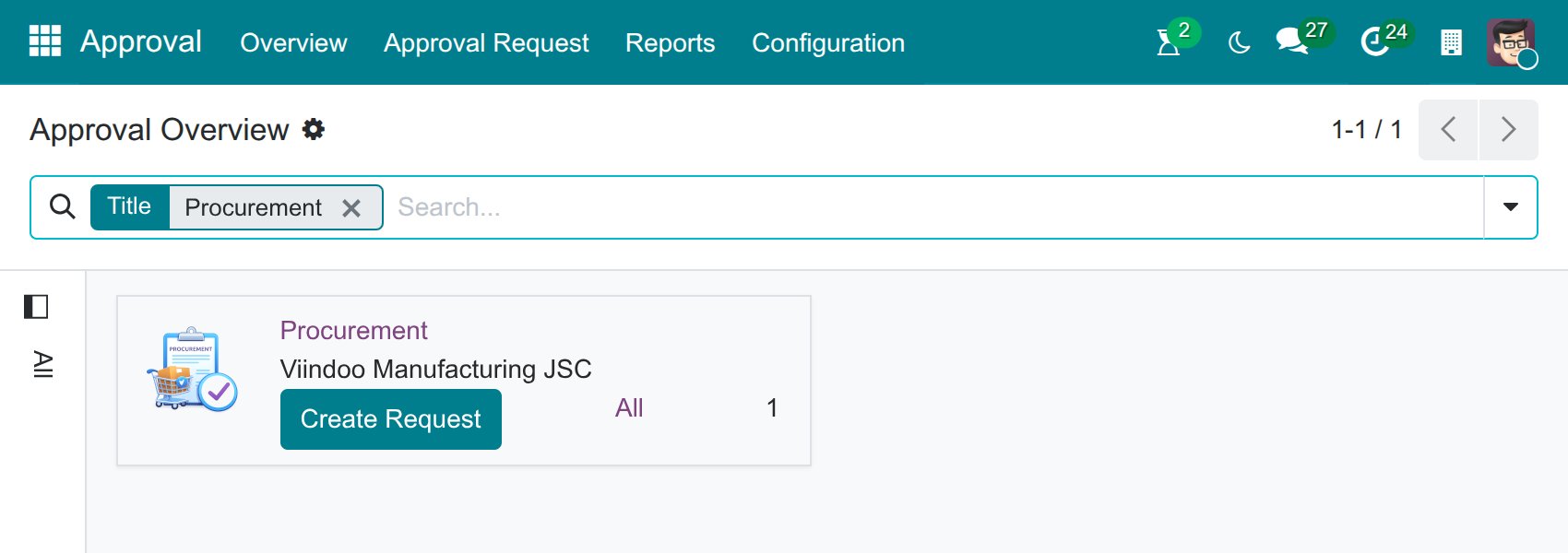
Go to Approval ‣ Overview and click Create Request on the Procurement card.
![The Create Request button on the Procurement approval type card]()
Fill in the request, add a line for each product, then click Save.
![A procurement request in Draft with two product lines]()
Click Submit. The request moves to To Approve.
![The Submit button of a procurement request]()
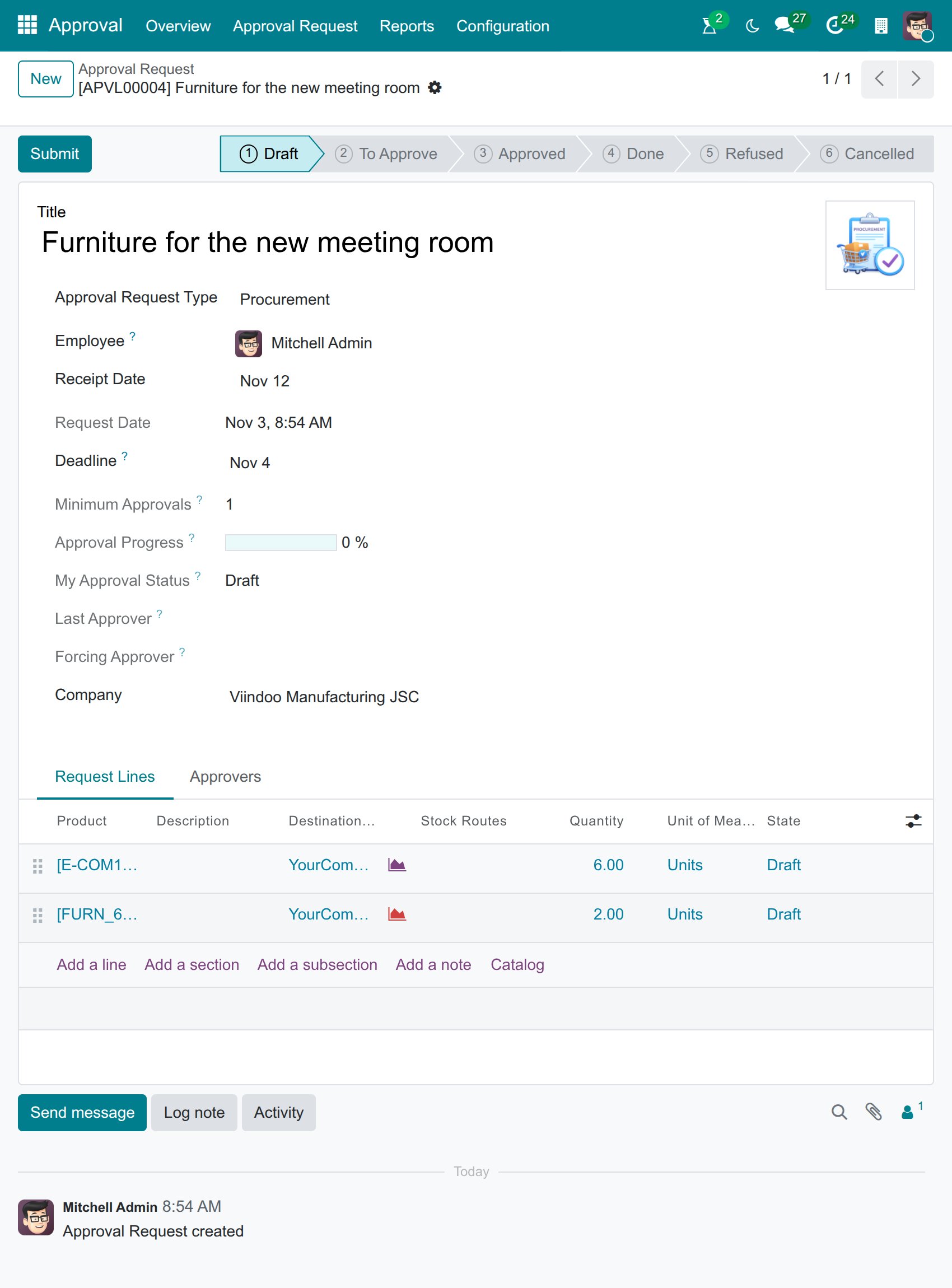

Field |
What it does |
If it is wrong |
|---|---|---|
Title |
Name of the request, for example Furniture for the new meeting room. |
A vague title makes the request hard to find. |
Employee |
The requester. The approvers are found from this employee. |
|
Receipt Date |
The date by which you want to receive the products. |
Too early a date makes the generated orders late. |
Product, Quantity |
What to supply and how many. |
Without a vendor, no purchase order is generated. |
Destination Warehouse |
The warehouse that receives the products, on each line. |
The receipt goes to the wrong warehouse. |
Stock Routes |
Optional. The routes the procurement must follow for the line. |
A route that does not fit the product makes the procurement fail with a message in the chatter. |
How do approvers approve it?
Open the Approvers tab to see who approves and in which order.
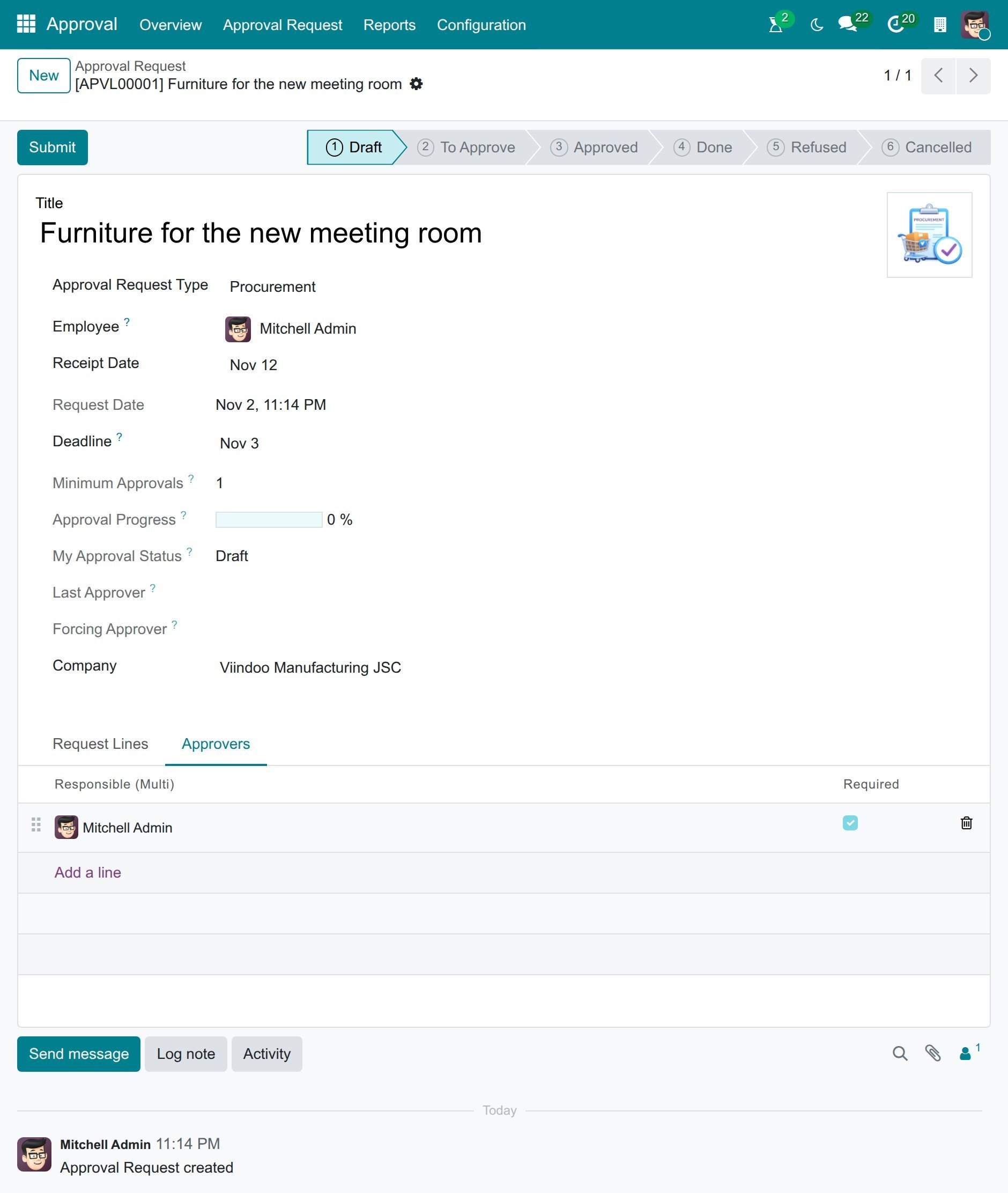
Each approver opens the request from the activity in the top bar or from Approval ‣ Approval Request ‣ Request and clicks Approve; use Refuse to refuse. The steps are the same as in How to create and approve a request.

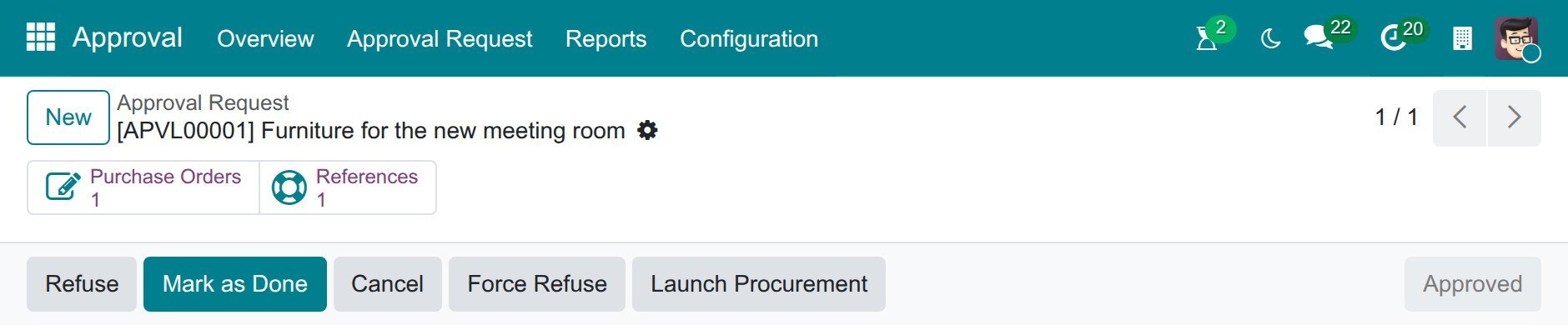
When all required approvals are done, the request is Approved and the procurement runs by itself. The buttons at the top of the form count what Viindoo generated: Purchase Orders and References.
How do I get the purchase orders?
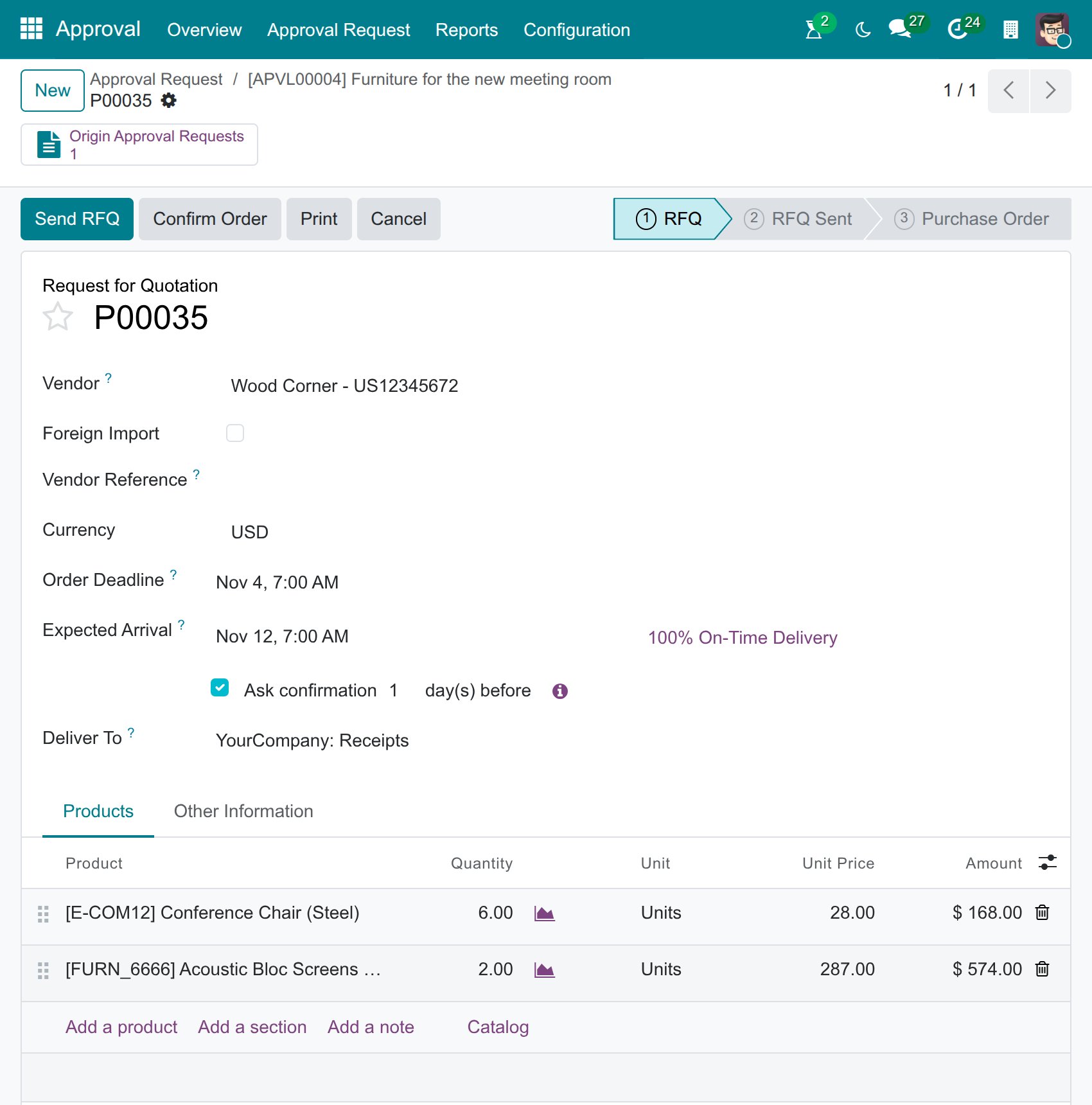
Click Purchase Orders to open the requests for quotation generated by this request.
The purchasing employee checks the price and the delivery date, then confirms each order.
![The draft purchase order generated from the procurement request]()
How do I run the procurement again?
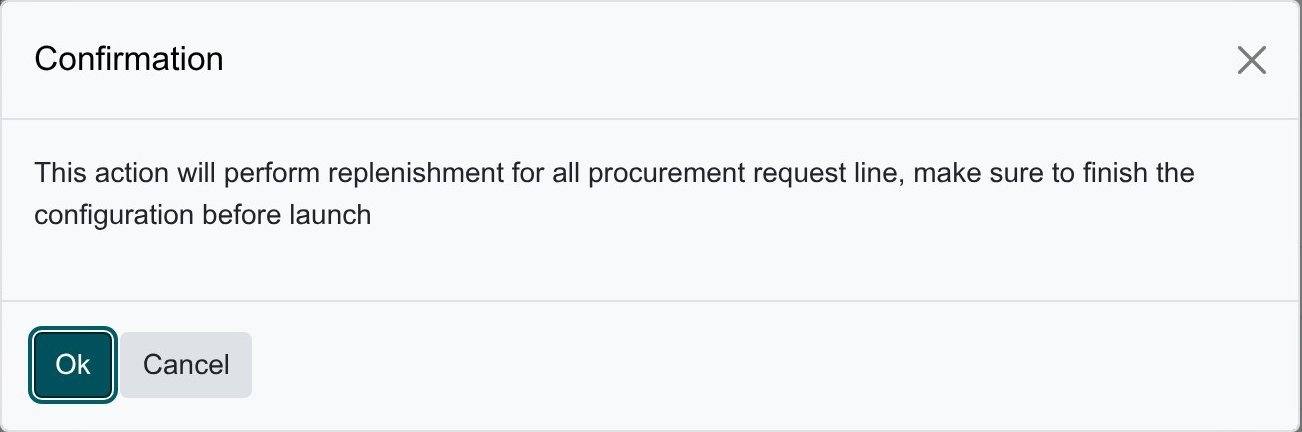
Use Launch Procurement only when a line could not be supplied (the chatter of the request says why) and you have fixed the product. Click it and confirm. Only users with the Inventory ‣ User access right can do it.
Warning
The procurement is run for every line of the request. Lines that already generated an order add their quantity again to the draft purchase order, so launch it again only after a failure.
How do I finish the request?
When the products are received, click Mark as Done. The employee who sent the request, the employee’s manager (as an approver) or an Approvals ‣ Administrator can do it. Follow the receipts and the vendor bills from the purchase orders.
See also
Related articles:
Optional modules: