
How to configure an accrual plan
To create an accrual plan, go to Time Off ‣ Configuration ‣ Accrual Plans and click New. Name the plan, choose when the days are earned and carried over, then click Create a milestone to set how many days employees earn and how often. An accrual plan is the rule that lets employees earn leave over time, for example one day every month, instead of receiving all their days at once.
Who |
Users with the Time Off ‣ Administrator access right. |
App |
Time Off |
Before you start
Install the Time Off app, see How to install Time Off and set up access rights.
Create the time off type the plan applies to, with Requires allocation ticked.
How do I create the accrual plan?
Go to Time Off ‣ Configuration ‣ Accrual Plans and click New.
![The list of accrual plans with the New button]()
Fill in the general information of the plan.
![An accrual plan with its title, when the time is accrued and the carry-over]()
Field
What it does
If it is wrong
Title
The name of the plan, for example Monthly leave accrual.
None.
When the time is accrued?
At the start of the accrual period or At the end of the accrual period: when the days of a period are added to the balance.
Employees get their days a period too early or too late.
It is based on worked time?
Shown when the days are accrued at the end of the period. Yes counts the worked hours and leaves out the time off taken during the period. No always counts the whole period (whole calendar days).
Leave and absences reduce the days earned, or do not.
Time off type (field without a label, below It is based on worked time?)
With the Viin Time-Off module, restricts the plan to one time off type. Leave it empty to use the plan with any type.
A plan restricted to a type cannot be chosen for another type.
Do you need a carry-over of the accrued days from one year to another?
Tick it to carry unused days over. Choose when: At the start of the year, At the allocation date or Custom date (you then choose a day and a month).
Unused days are carried over on the wrong date, or lost.
In Milestones, click Create a milestone. The window New Milestone opens.
![The New Milestone window of an accrual plan]()
Field
What it does
If it is wrong
Set the employee accrual frequency
The number of days or hours earned, and how often: hourly, daily, weekly, twice a month, monthly, twice a year or yearly. Choose the day of the period for the frequencies that need one.
Employees earn more or fewer days than your policy.
This milestone will be reached
At allocation creation, or after a number of days, months or years from the start of the allocation. The first milestone of a plan usually starts at the creation.
The milestone starts too early or too late.
After a year, unused time off will be
Lost or Carried over. When carried over, choose how much (Unlimited or Up to a number of days) and, if you want, a carry over validity that limits how long the carried over days stay available. Shown when the plan has a carry-over.
Days are lost or carried over against your policy.
Define a yearly cap?
Stops the accrual until the next carry-over date when the days earned reach the number you enter.
The days earned in a year grow without limit.
Define a balance cap?
Puts the plan on hold when the balance reaches the number you enter.
Without a cap, the balance grows without limit.
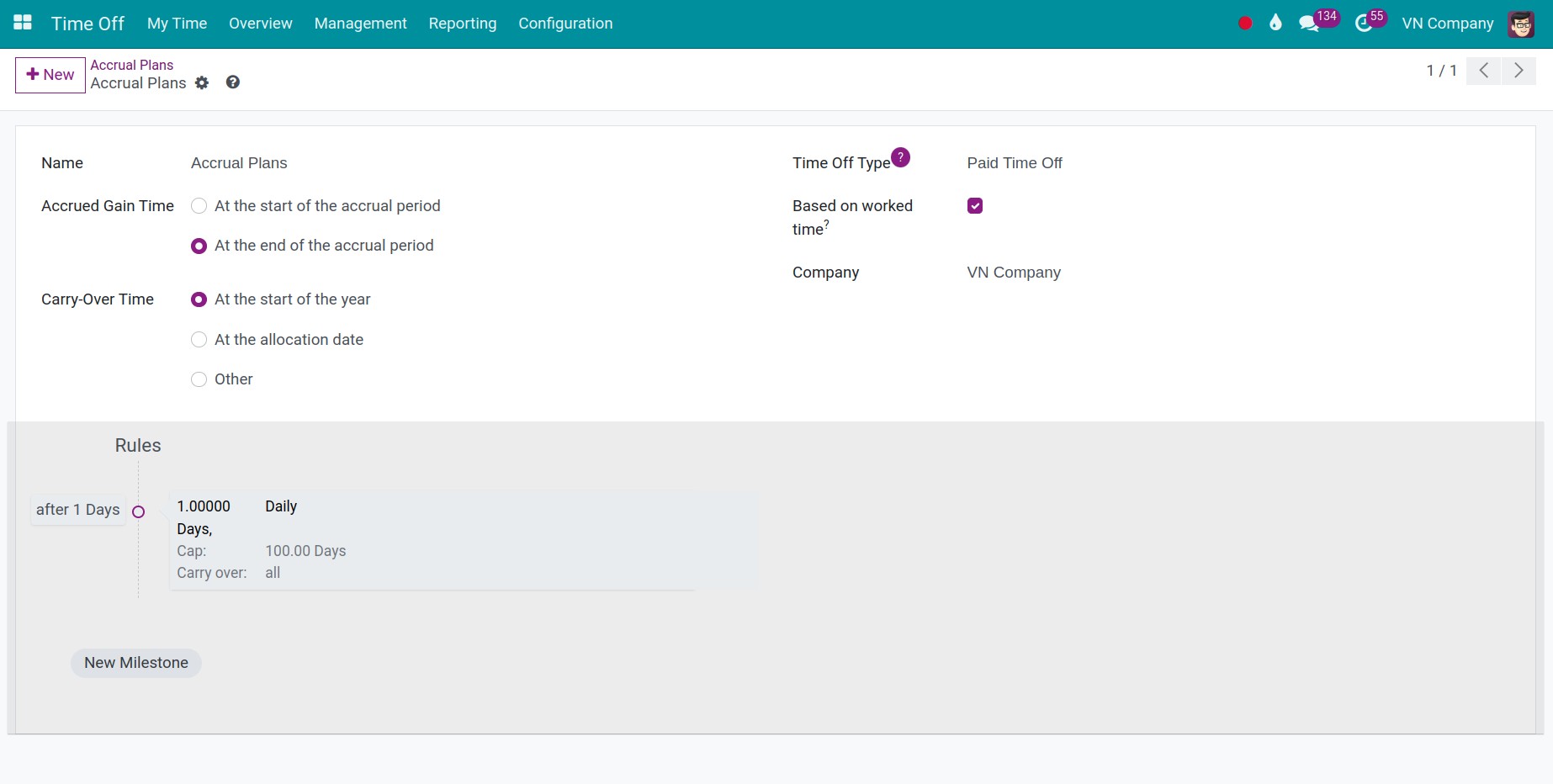
Click Save, or Save & New to add the next milestone. The milestones are listed in the plan with a sentence that sums them up. Click Add a milestone to add another one.
![A saved accrual plan with its milestone]()


The plan can now be chosen in an accrual allocation, see How to allocate annual leave.
Common errors
Problem |
What to do |
|---|---|
The plan does not appear in an allocation. |
Check the time off type of the plan: it must be empty or the type of the allocation. |
It is based on worked time? is missing. |
Choose At the end of the accrual period in When the time is accrued?. |
Employees do not earn any day. |
Add at least one milestone to the plan and check that the allocation is approved. |
Next steps
How to allocate annual leave: allocate annual leave with the plan.
How to create a time off allocation: create allocations for employees.