
Approving Subcontracting request
With the subcontracting request approval process of Viindoo software, businesses can have control over the subcontracting requests from the production department. This control enables them to manage manufacturing activities and costs, while minimizing risks associated with selecting appropriate subcontracting vendors.
Requirements
This tutorial requires the installation of the following applications/modules:
Purchase - the approved request is sent to the subcontractor as a purchase order
Configure Subcontracting approval type
First, the managers need to configure the subcontracting approval type to determine who will be responsible for approving the subcontracting requests from the production department.
Access the Approval application > Configuration > Approval Types, open the pre-configured Subcontracting Request and set up the approval levels.

Submitting and approving subcontracting requests
Creating an subcontracting request and submitting it for approval
Suppose a business has an order for 10 units of Wooden table. According to the production plan, the company will produce 4 units in-house, while the remaining 6 units will be subcontracted to a Subcontracting Vendor. To carry out this operation, the business needs to follow the following steps:
Step 1: Create a Bill of Materials (BOM) for the Wooden table. Since your business can both produce and subcontract the Wooden table, you will need to create two separate BOMs with different types: Manufacture this product and Subcontracting.
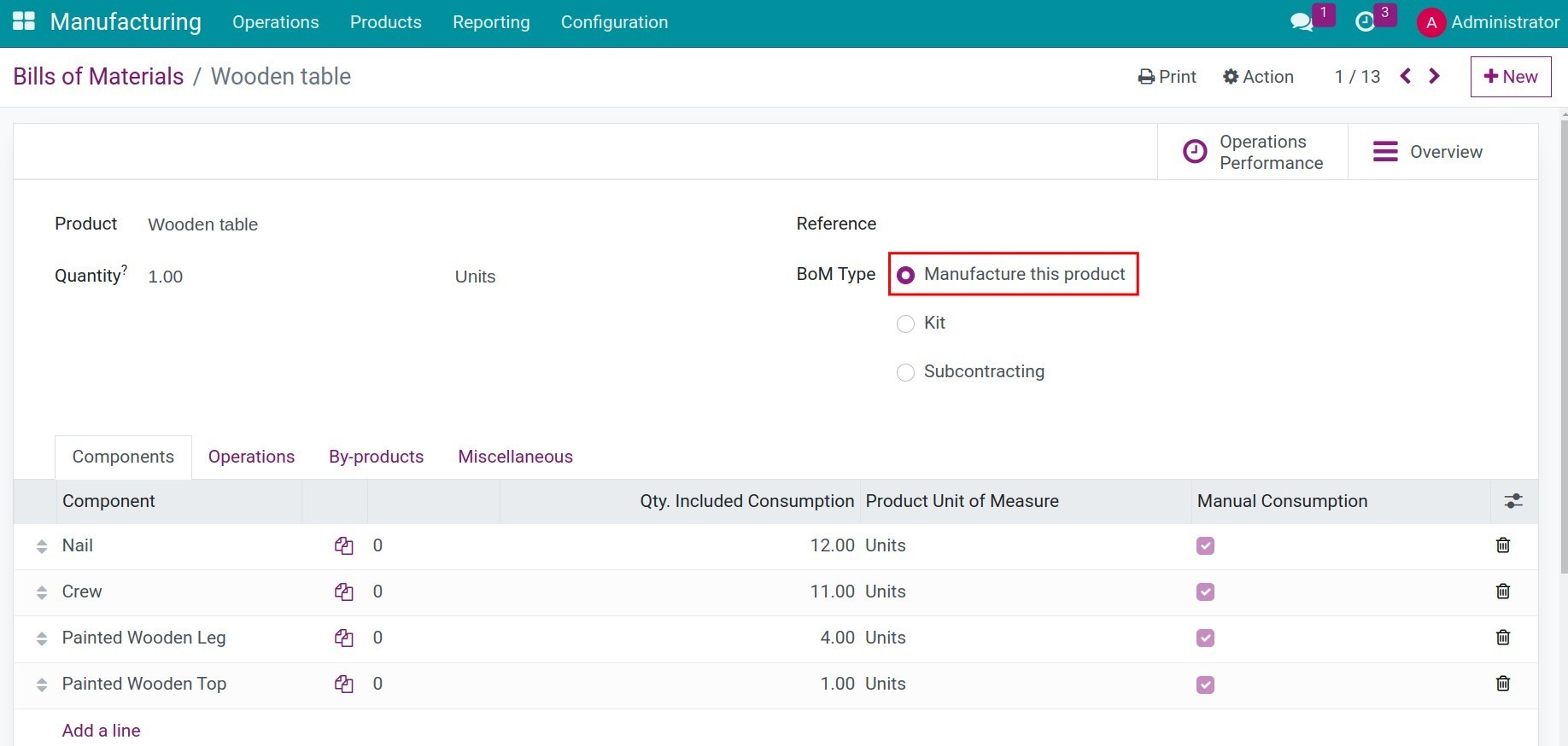

Step 2: Access the Manufacturing application > Operations > Manufacturing Orders and create a manufacturing order for the 10 units of Wooden table. The bill of materials (BOM) used in this manufacturing order will be the one with the Manufacture this product type.

Step 3: On the manufacturing order, click the Action button, select Create Subcontracting Request, and fill in the following information:
Manufacturing Order: The manufacturing order from which this subcontracting request is generated. It will be automatically filled when creating the subcontracting request directly from the manufacturing order;
Subcontracting Qty: The quantity of products that need to be outsourced;
Subcontracting BOM: Select the BOM with the Subcontracting type for the product;
Subcontractors: The vendor responsible for subcontracting this product.


Note
Additionally, you can access Operations > Subcontracting Requests and click the New button to create a new subcontracting request.
Step 4: On the subcontracting request, open the Actions menu next to the reference and select Get Approved. Fill in the following information on the Submit for Approval form:
Title: The name of the approval request, prefilled from the subcontracting request. For example: Subcontracting Request for SR00001 from Nguyen Van Quan;
Approval Request Type: The approval type this request goes through, which is Subcontracting Request;
Employee: The employee who asks for the approval. The approvers are resolved from this employee and from the approval levels of the type;
Source Records tab: The subcontracting requests covered by this approval, with the product, quantity, bill of materials and manufacturing order of each one.


Press Create Approval Request. The approval request opens; set the Deadline for the approvers, write the reason for subcontracting in the Description, check the people listed on the Approvers tab, and press Submit to send it for approval.
Approving subcontracting request
After the production department submits the subcontracting request, the manager can access the Approval application > Approval Request > Request, open the request that needs approving, and proceed with the Approval process. Once every required approver has approved it, press Mark as Done to apply the request.

The manager can check the subcontracting request linked to this approval form by clicking the View Subcontracting Request button on the approval form.

Tracking the subcontracting order and the finished goods warehousing process
When the approval request is approved and marked as done, the system will split the source manufacturing order into two manufacturing orders:
A manufacturing order for the quantity of finished products to be produced in-house (if applicable);
A manufacturing order for the quantity of finished products to be subcontracted.

Additionally, a purchase order for the finished product Wooden table with the Contracting Vendor is also created and set to the RFQ status.

Upon confirming this purchase order, the system will cancel the subcontracting manufacturing order.


The business will continue to manage the Subcontracting Process as usual.
See also
Related article
Optional module