


Subcontract Request - PLM
by Viindoo
| Lines of Code | 428 |
| Technical name | viin_mrp_subcontracting_request_plm |
| License | OPL-1 |
| Website | https://viindoo.com/apps/modules/19.0/viin_mrp_subcontracting_request_plm |
| Read description for | v 16.0 v 17.0 v 18.0 |
| Required Apps | Manufacturing (mrp) Invoicing (account) Purchase (purchase) Discuss (mail) Inventory (stock) |
| Included Dependencies | Product Lifecycle (PLM) Viindoo Manufacturing Web Gantt Subcontracting Requests PLM and Subcontracting |

Every order you subcontract is on record as an engineering change, with one purchase order
For manufacturers that subcontract part of a production and track engineering changes
When the purchase order of a subcontracting request is approved, the manufacturing order it takes over is recorded as an applied engineering change order (ECO), with no second purchase order.
Odoo 19.0 · Odoo Community · Viindoo Cloud · OPL-1
Extends Subcontracting Requests: the request that splits manufacturing orders and hands part of them to a subcontractor through a purchase order.
Extends PLM and Subcontracting: the ECO that moves a manufacturing order to a subcontracting bill of materials.
What changes for your team
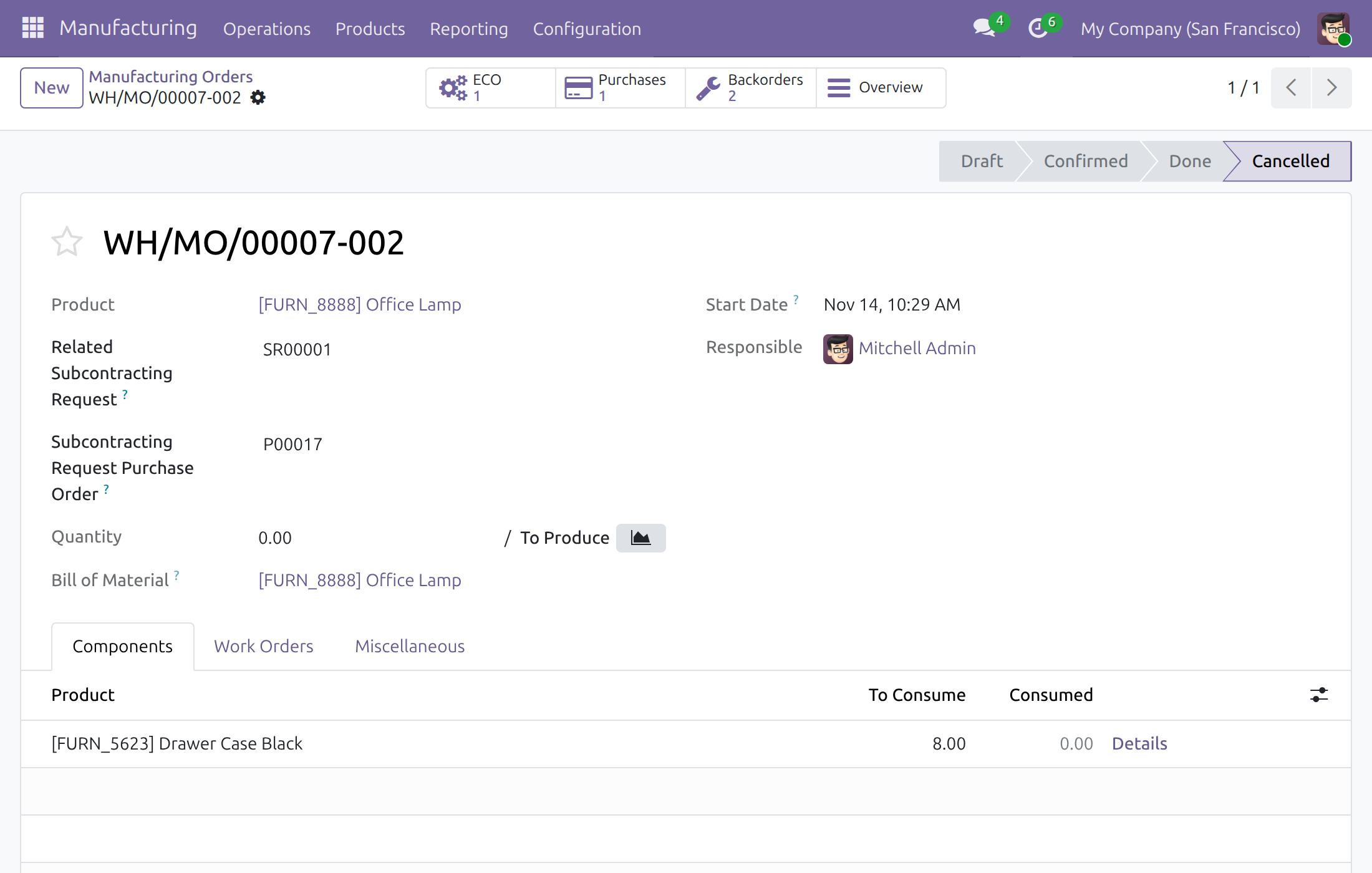
The change record follows the purchase
Today: an order goes to a subcontractor through a request, then someone opens the ECO by hand, or forgets, and the change history has a gap.
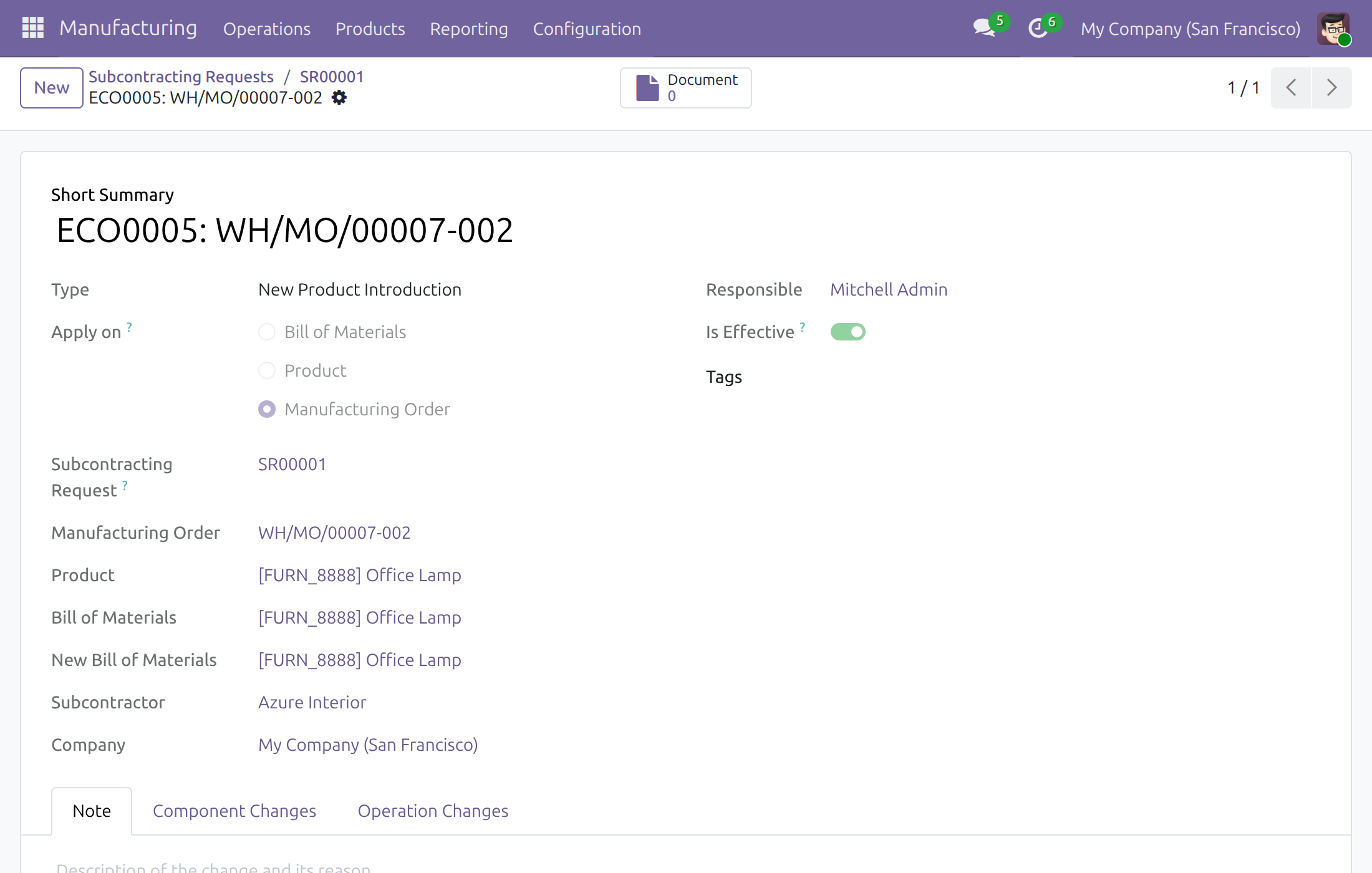
→ When the purchaser approves the request's purchase order, the manufacturing order handed over is recorded with an applied ECO: the subcontracting bill of materials, the subcontractor of the order, the company of the production. It uses that purchase order; no second one is created.
Engineers see the changes of each request
Today: the ECO and the request that caused it live in different apps, tied together only in someone's notes.
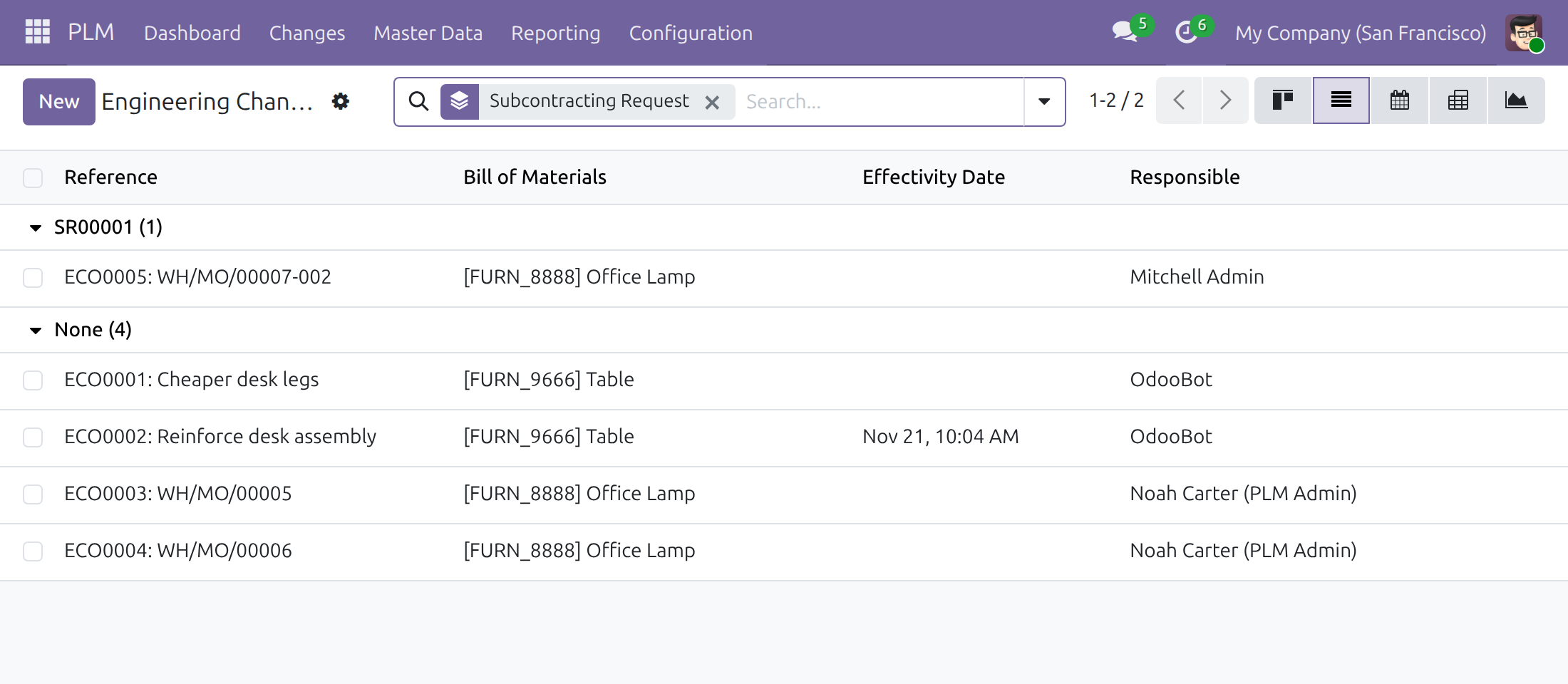
→ The request opens its ECOs from a button, each ECO names its request, and the list of ECOs is searched and grouped by subcontracting request.
One route to the subcontractor
Today: two routes lead to a subcontractor, a request and a direct subcontracting order, and the team uses both.
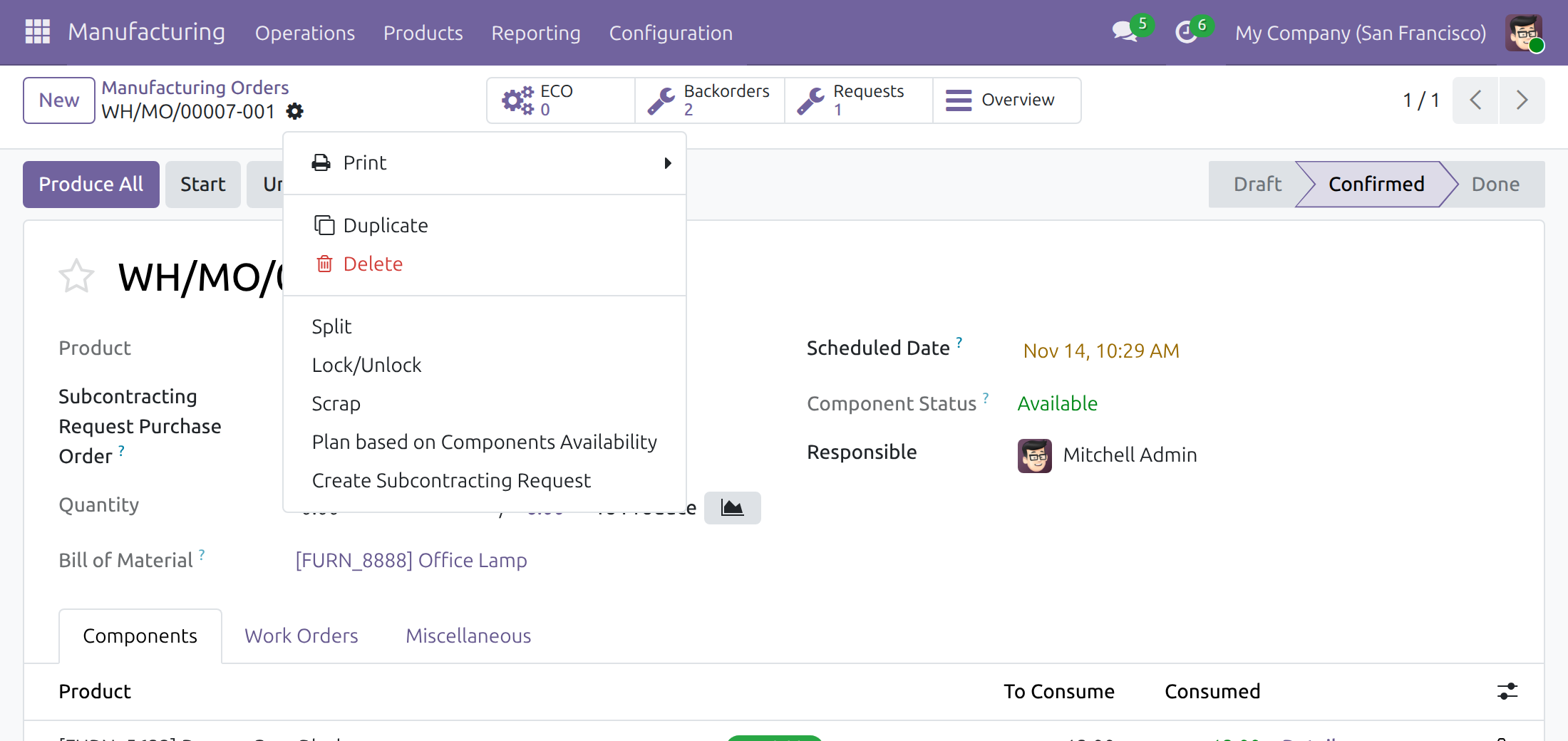
→ The Actions menu of a manufacturing order offers Create Subcontracting Request and not Subcontracting Order, so every hand-over goes through a request.
Ready on day one
Installs itself
Once Subcontracting Requests and PLM and Subcontracting are both installed, this module follows on its own.
Inside the screens you use
No new app: the ECOs button sits on the request, the request on the ECO, and the purchaser approves the order as usual.
What you set first
The access rights below and, if you wish, the ECO type flagged Use Default for Subcontracting; without one, the first ECO type is used.
What is included
The ECO recorded when a request's purchase order is approved, the link between requests and ECOs in both directions, and the request as the single route to subcontracting. Subcontracting Requests and PLM and Subcontracting install with it.
Before you decide
Who needs which access rights?
Applying a request is for a Manufacturing Administrator who is also a Purchase User. The purchaser approving the order needs Purchase / User and Manufacturing / User, and no PLM right: the ECO is recorded as part of the approval. The ECOs button and the ECO screens are for PLM users.
What if production has already started?
The approval is refused with a message when the manufacturing order to cancel has an operation under way, a produced quantity or consumed components. Nothing changes: the order stays unapproved, the manufacturing orders stay as they were and no ECO is left behind.
What about partial purchases and child orders?
When an order covers only part of a request, each approved order records its own ECO for the part it takes. Child manufacturing orders are cancelled without an ECO.
Where does the data go, and which company owns the ECO?
Everything stays in your Odoo database; the module calls no outside service. The ECO belongs to the company of the manufacturing order, not to the company of the approver.
Which languages, and can we go back?
English and Vietnamese. Uninstalling the module puts the Subcontracting Order action back on manufacturing orders.
Try it, then ask us
The Live Preview button opens subcontracting requests on a demo database; the Documentation tab walks each role through the flow.
Pre-sales & partnership
viindoo.com/contactusTechnical support
viindoo.com/ticketTechnical requirements
- Odoo version: 19.0
- Editions: Odoo Community, Viindoo Cloud
- Required modules: Subcontracting Requests, PLM and Subcontracting
- License: OPL-1
- Languages: English, Vietnamese
Subcontracting Requests and PLM
Audience: purchasers who approve the purchase order of a subcontracting request, manufacturing engineers who follow the engineering change orders (ECOs) it produces, and the administrators who set the module up.
Note
Extends Subcontracting Requests - see the viin_mrp_subcontracting_request documentation for creating, applying and following requests.
Note
Extends PLM and Subcontracting - see the viin_mrp_plm_subcontracting_purchase documentation for the ECO that moves a manufacturing order to a subcontractor.
Overview
A subcontracting request sends part of a manufacturing order to a subcontractor through a purchase order. When PLM is in use, the change of the manufacturing order must also be recorded as an engineering change order (ECO). This module does both in one step: when the purchase order of a request is approved, each production moved to the subcontractor is recorded with an applied ECO, on the purchase order of the request. No second purchase order is created.
The work passes through two stages:
- A purchaser approves the purchase order of the request. The manufacturing orders taken over by the subcontractor are cancelled and the main one is recorded with an applied ECO.
- A manufacturing engineer opens the ECO from the request, or finds it in the list of ECOs.
| Role | What they do | Access right to assign |
|---|---|---|
| Administrator | Installs the module and assigns access rights | Role / Administrator |
| Purchaser | Approves the purchase order of a subcontracting request | Purchase / User, plus Manufacturing / User |
| Manufacturing engineer | Follows the ECOs of a request | PLM / User |
Setup (for the Administrator)
Install the module
The module installs itself when Subcontracting Requests and PLM and Subcontracting are both installed. Otherwise:
- Open Apps.
- Search for Subcontract Request - PLM and click Install.
Choose the ECO type
The ECO of a request uses the ECO type flagged Use Default for Subcontracting; without a flag it uses the first ECO type of the list. Set the flag as described in the guide of PLM and Subcontracting.
Assign the access rights
- Open Settings ‣ Users & Companies ‣ Users and open the user.
- In the Access Rights tab, set the rights shown in the table of the Overview.
The purchaser needs no PLM right: the ECO is recorded as part of the approval. The ECOs button and the ECO screens are for people with PLM / User.
Subcontracting from a manufacturing order
While this module is installed, the Actions menu of a manufacturing order offers Create Subcontracting Request and no longer offers Subcontracting Order: the request is the single way to send an order to a subcontractor. Uninstalling the module offers Subcontracting Order again.
Purchaser: approve the purchase order
- Open Purchase ‣ Orders ‣ Requests for Quotation and open the request for quotation of a subcontracting request.
- Click Confirm Order. When your company requires a second approval, the ECO is recorded when the order is finally approved.
After the approval:
- The manufacturing orders taken over by the subcontractor are cancelled, as described in the guide of Subcontracting Requests.
- The main manufacturing order of the request is recorded with one applied ECO. Its new bill of materials is the subcontracting bill of materials of the request, its subcontractor is the vendor of the order and it belongs to the company of the manufacturing order. The child manufacturing orders are cancelled without an ECO.
- The purchase order is the one of the request. No second request for quotation appears, and the Purchase button of the cancelled manufacturing order opens that order.
- When the order covers only part of the request, each approved order records its own ECO for the part it takes.
The approval is refused, with a message, when the manufacturing order to cancel has already started: an operation is under way, a quantity is produced or components are consumed. Nothing changes in that case: the order stays unapproved, the manufacturing orders stay as they were and no ECO is left behind.
Manufacturing engineer: follow the ECOs of a request
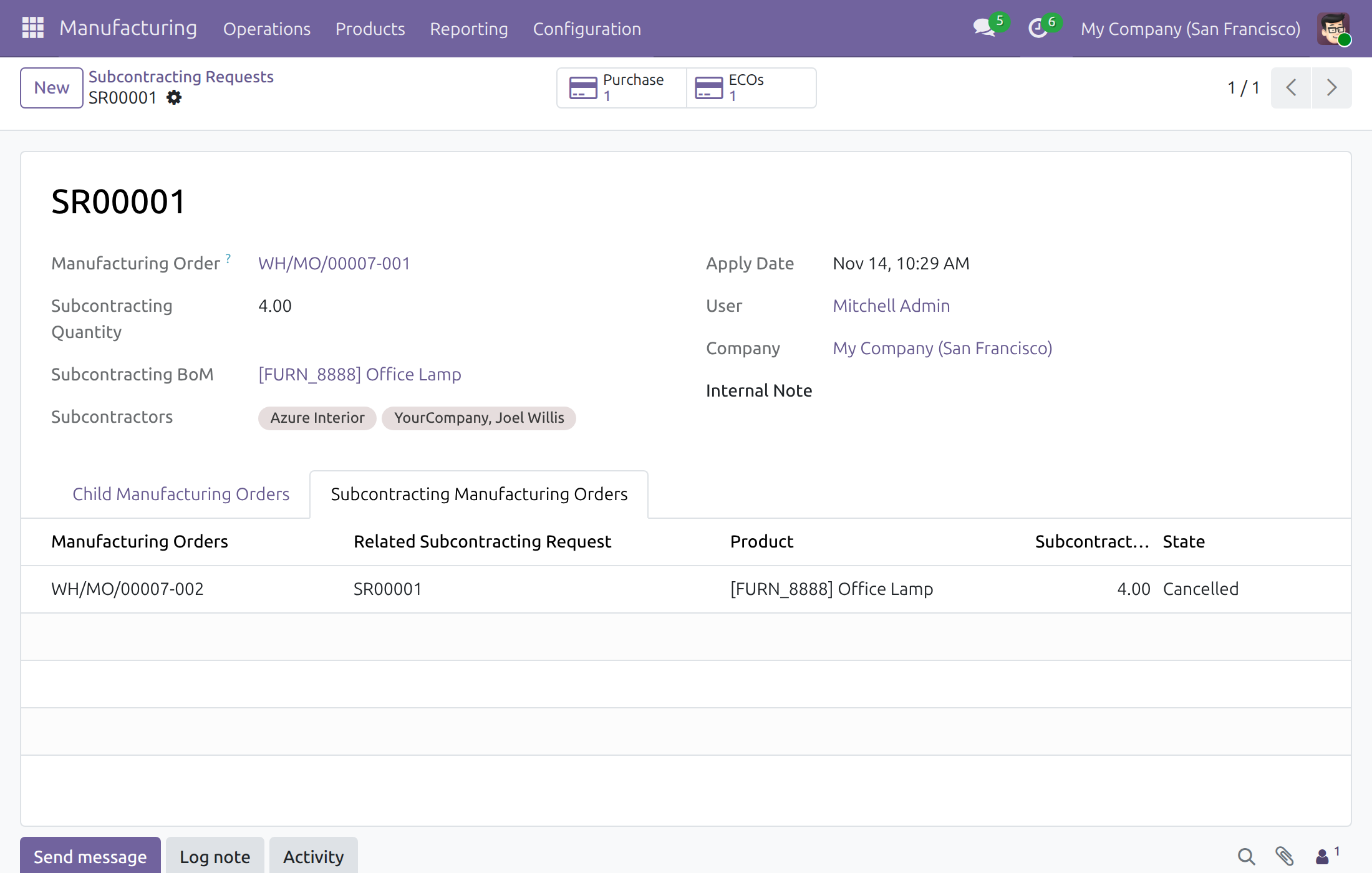
Open them from the request
- Open Manufacturing ‣ Operations ‣ Subcontracting Requests and open the request.
- Click ECOs. The button shows the number of ECOs and appears once the request has one. With a single ECO its form opens; with several, their list.
The ECO shows the request in Subcontracting Request, above the manufacturing order. Once an ECO is applied, this field is read-only.
Find ECOs by request
- Open PLM ‣ Changes ‣ Engineering Change Orders.
- Type a request reference in the search box and choose Subcontracting Request, or open the search options and group by Subcontracting Request.
An ECO that you create yourself for a manufacturing order of a request can be linked to the request in Subcontracting Request. Applying such an ECO to a subcontracting bill of materials creates a purchase order of its own for that manufacturing order, as described in the guide of PLM and Subcontracting.
This software and associated files (the "Software") may only be used (executed, modified, executed after modifications) if you have purchased a valid license from the authors, typically via Odoo Apps, or if you have received a written agreement from the authors of the Software (see the COPYRIGHT file).
You may develop Odoo modules that use the Software as a library (typically by depending on it, importing it and using its resources), but without copying any source code or material from the Software. You may distribute those modules under the license of your choice, provided that this license is compatible with the terms of the Odoo Proprietary License (For example: LGPL, MIT, or proprietary licenses similar to this one).
It is forbidden to publish, distribute, sublicense, or sell copies of the Software or modified copies of the Software.
The above copyright notice and this permission notice must be included in all copies or substantial portions of the Software.
THE SOFTWARE IS PROVIDED "AS IS", WITHOUT WARRANTY OF ANY KIND, EXPRESS OR IMPLIED, INCLUDING BUT NOT LIMITED TO THE WARRANTIES OF MERCHANTABILITY, FITNESS FOR A PARTICULAR PURPOSE AND NONINFRINGEMENT. IN NO EVENT SHALL THE AUTHORS OR COPYRIGHT HOLDERS BE LIABLE FOR ANY CLAIM, DAMAGES OR OTHER LIABILITY, WHETHER IN AN ACTION OF CONTRACT, TORT OR OTHERWISE, ARISING FROM, OUT OF OR IN CONNECTION WITH THE SOFTWARE OR THE USE OR OTHER DEALINGS IN THE SOFTWARE.
