


PLM and Subcontracting
by Viindoo
| Lines of Code | 556 |
| Technical name | viin_mrp_plm_subcontracting_purchase |
| License | OPL-1 |
| Website | https://viindoo.com/apps/modules/19.0/viin_mrp_plm_subcontracting_purchase |
| Read description for | v 15.0 v 16.0 v 17.0 v 18.0 |
| Required Apps | Manufacturing (mrp) Invoicing (account) Purchase (purchase) Discuss (mail) Inventory (stock) |
| Included Dependencies | Product Lifecycle (PLM) |
| Extensions | Subcontract Request - PLM |

Hand a planned order to a subcontractor without keying it in twice
For manufacturers that move part of their production to subcontractors through engineering changes
Hand a manufacturing order, or part of it, to a subcontractor through an engineering change order (ECO): applying the ECO cancels the order and creates the subcontractor's request for quotation.
Odoo 19.0 · Odoo Community · Viindoo Cloud · OPL-1
Extends Product Lifecycle (PLM): engineering change orders (ECOs), bill-of-materials versions and the checks made when a change is applied.
What changes for your team
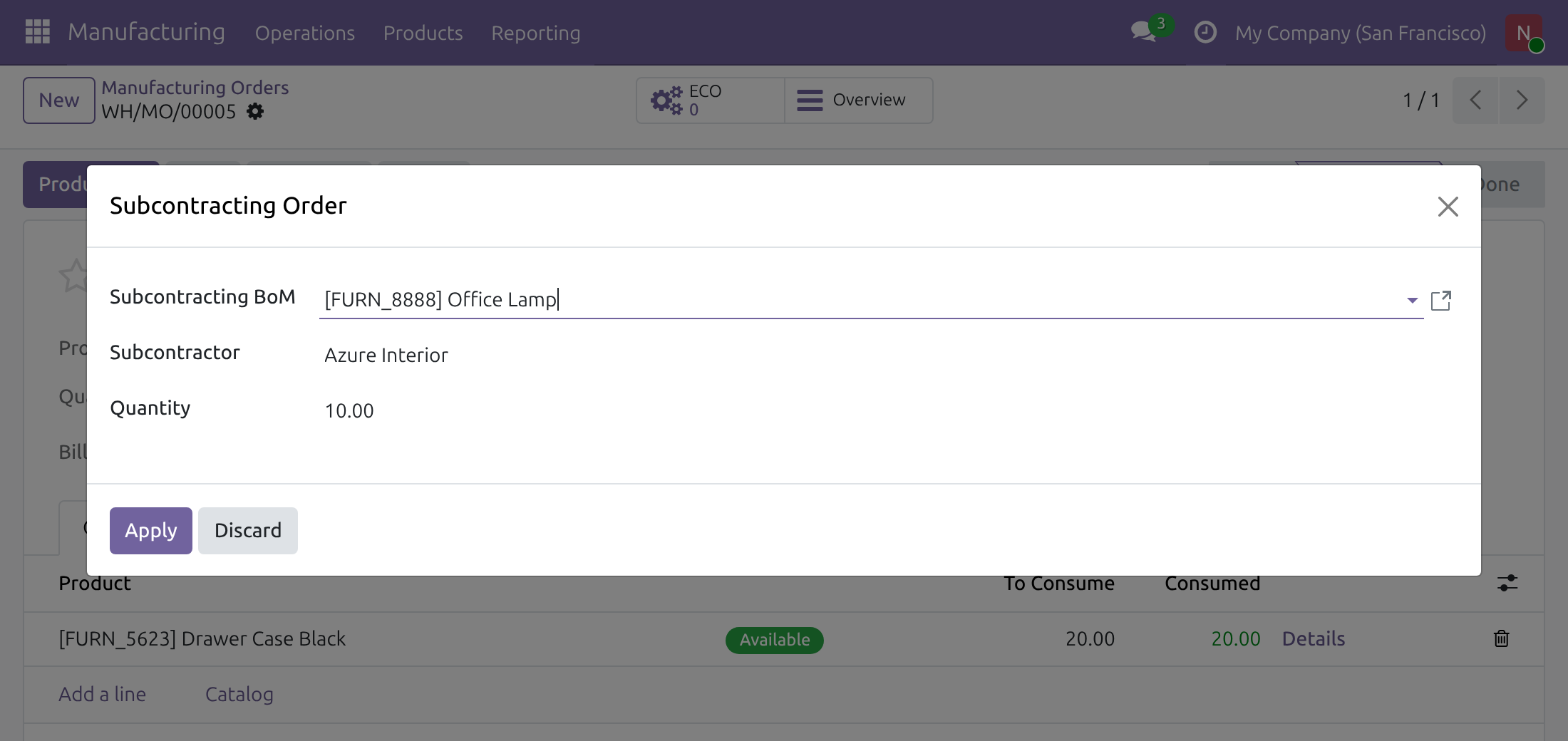
Send all or part of an order out in one dialog
Today: a confirmed order has to go to a subcontractor, so someone splits it by hand, cancels it and starts a purchase from scratch.
→ From the manufacturing order, choose the subcontracting bill of materials, the subcontractor and the quantity. A smaller quantity splits the order first; the ECO for the part that goes out is prepared and opens at once.
Decide who makes it on the change itself
Today: the choice of subcontractor lives in an email thread, away from the order it concerns.
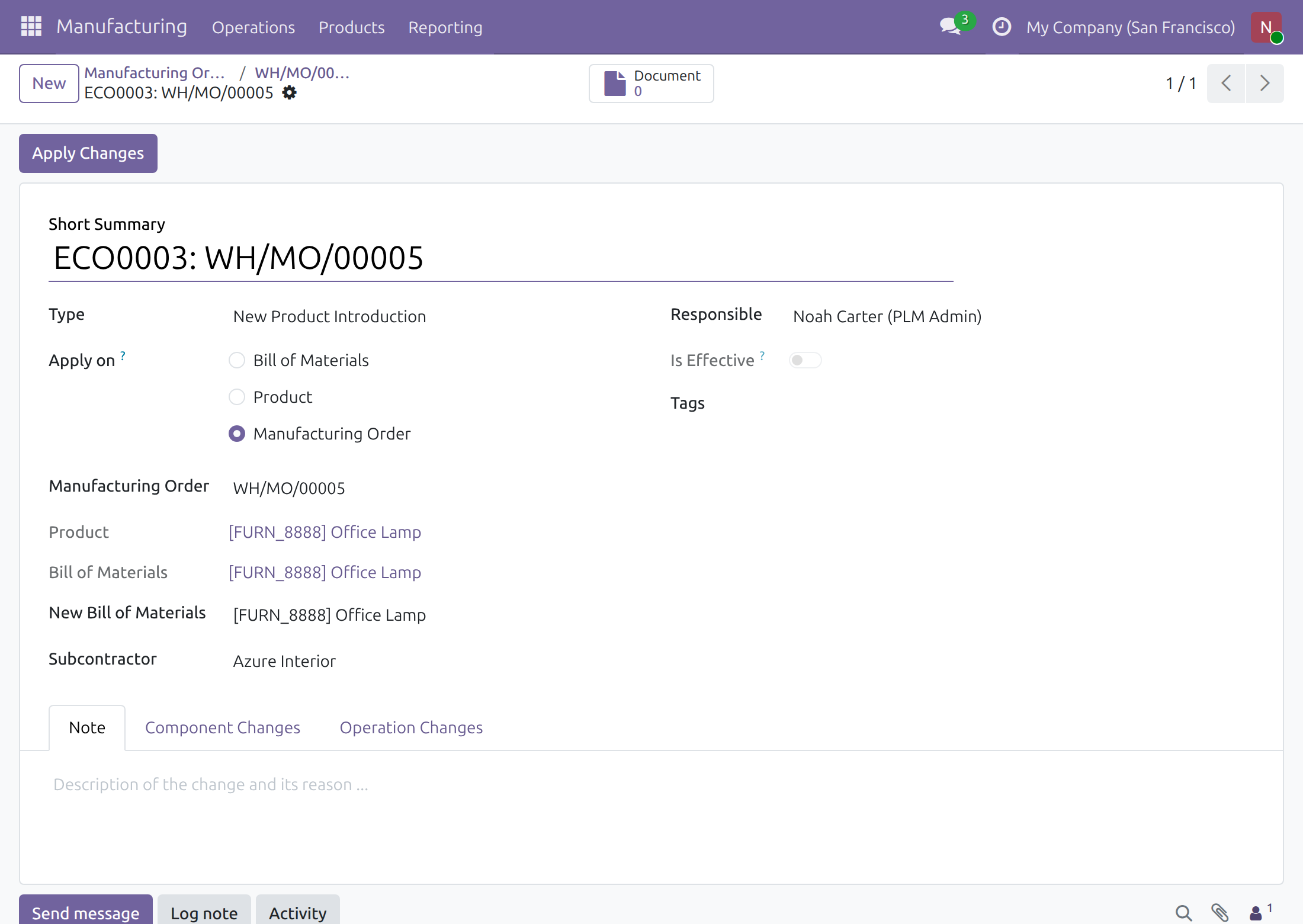
→ The ECO names the subcontractor, chosen only among those listed on the new subcontracting bill of materials. An ECO without one cannot be applied, and the choice is locked once it is.
Give purchasing a request that is already filled in
Today: a buyer copies the product, the quantity and the vendor into a new purchase, and nothing ties it back to the order.
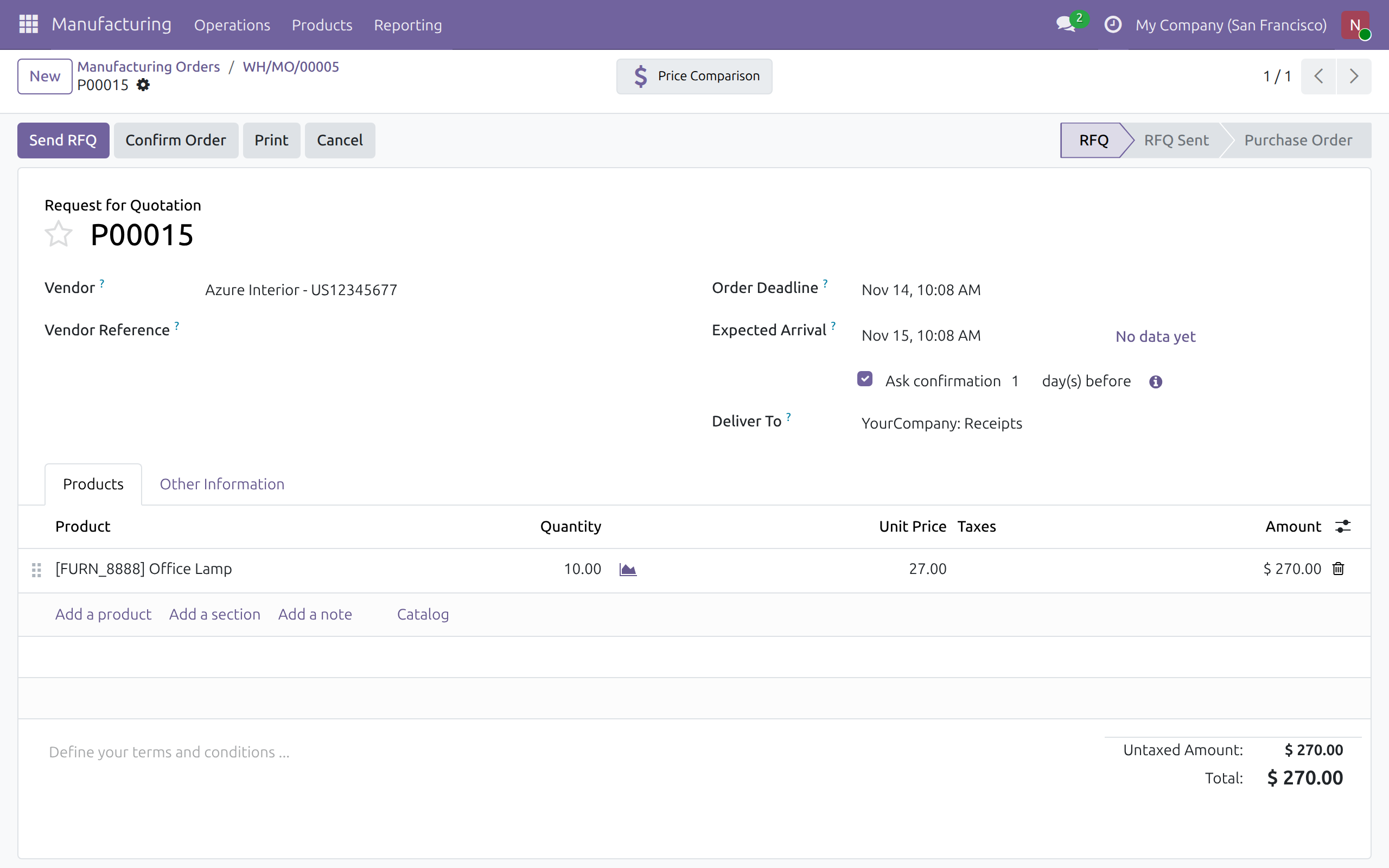
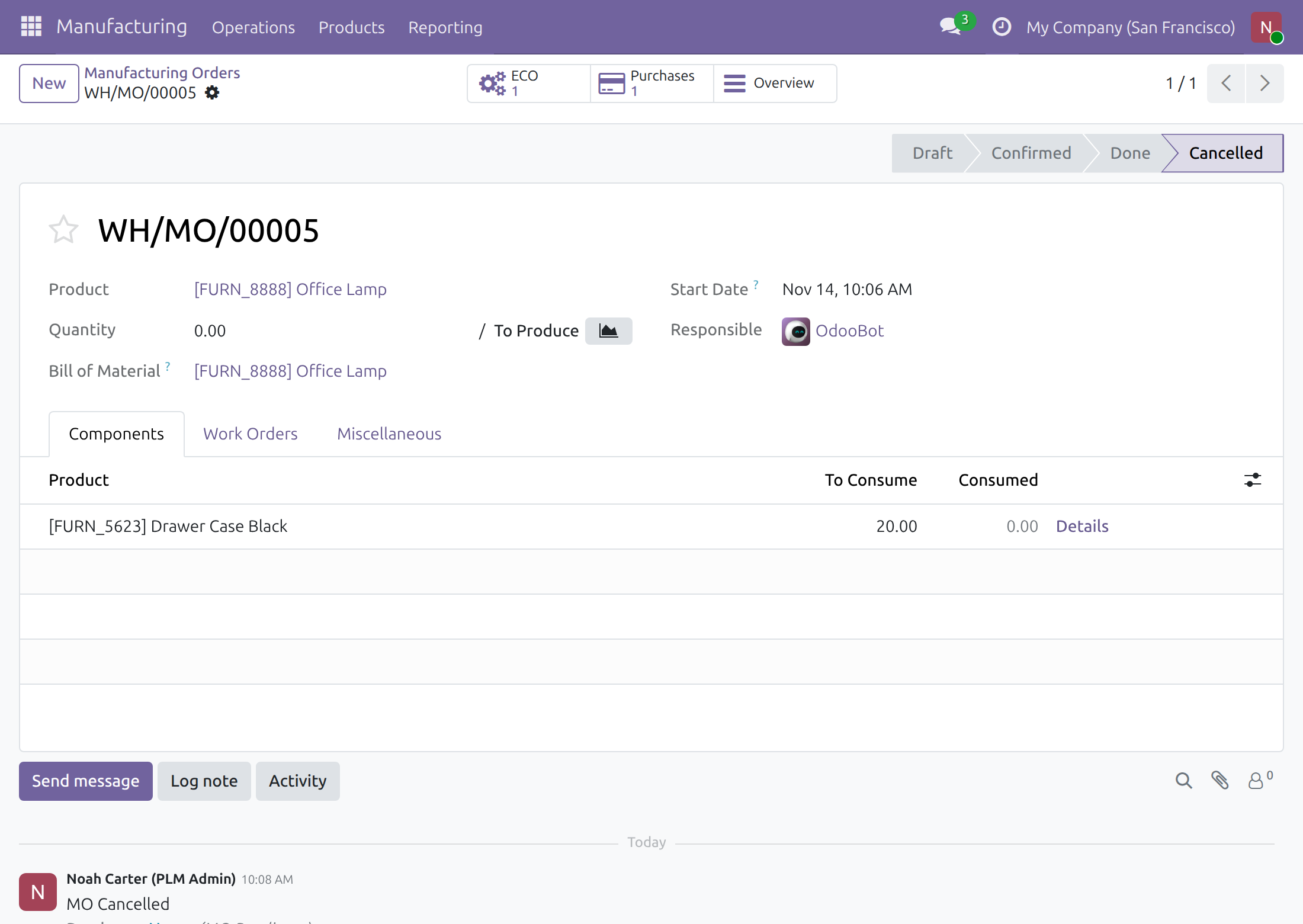
→ Applying the ECO cancels the manufacturing order and creates the subcontractor's request for quotation: the product, the order quantity, the price from that subcontractor's vendor price list. The order's Purchases button opens it.
Ready on day one
Installs itself
Once Product Lifecycle and subcontracting purchase are both installed, this module follows on its own.
Inside the screens you use
No new app: the action sits in the manufacturing order's Actions menu and the subcontractor on the ECO.
What you set first
A subcontracting bill of materials with its subcontractors, the access rights below, and, if you wish, the ECO type that carries subcontracting changes.
What is included
The Subcontracting Order action on manufacturing orders, the subcontractor on ECOs, the request for quotation created when the ECO is applied and linked to the order, and a default ECO type for subcontracting.
Optional extensions
Subcontract Request - PLM
Runs subcontracting requests through the same ECO flow: when the request's purchase order is approved, its cancelled orders get an applied ECO and no second purchase order is created.
Before you decide
Who needs which access rights?
The Subcontracting Order dialog is for PLM users. Applying the ECO creates the purchase with the rights of the person who applies it, so that person also needs Purchase User rights; without them the purchase is refused. Choosing the ECO type for subcontracting is a PLM Administrator task.
Which orders can be subcontracted?
Confirmed or in-progress orders whose product has a subcontracting bill of materials, for any quantity above zero and up to the order quantity. Draft orders are confirmed first; cancelled and done orders are refused.
What happens to the original manufacturing order?
It passes the usual Product Lifecycle checks, then it is cancelled and keeps its ECO and its request for quotation one click away. When only part of the quantity goes out, the rest stays on the order.
Is the purchase sent to the subcontractor automatically?
No. The request for quotation stays a draft in Purchase, so your purchasing team reviews, sends and confirms it as usual.
Where does the data go, and which company buys?
Everything stays in your Odoo database; the module calls no outside service. The request for quotation belongs to the company of the manufacturing order.
Try it, then ask us
The Live Preview button opens the ECOs on a demo database; the Documentation tab walks through each step and role.
Pre-sales & partnership
viindoo.com/contactusTechnical support
viindoo.com/ticketTechnical requirements
- Odoo version: 19.0
- Editions: Odoo Community, Viindoo Cloud
- Required modules: Product Lifecycle (PLM), Purchase and Subcontracting Management
- License: OPL-1
- Languages: English, Vietnamese
PLM and Subcontracting
Audience: manufacturing engineers who move production orders to a subcontractor, and the PLM administrator who sets the module up.
Note
Extends PLM - see the to_mrp_plm documentation for engineering change orders (ECOs), the checks made when an ECO is applied and the rest of the PLM screens.
Overview
A manufacturing order is already planned, but the work has to be done by a subcontractor. This module turns that decision into an engineering change order: the order moves to a subcontracting bill of materials (BoM), and applying the ECO creates the request for quotation (RFQ) of the subcontractor.
The process has two steps, both done by the same person:
- On a manufacturing order, Actions ‣ Subcontracting Order prepares the ECO.
- On the ECO, Apply Changes cancels the manufacturing order and creates the RFQ.
| Role | What they do | Access right to assign |
|---|---|---|
| PLM Administrator | Chooses the ECO type used for subcontracting. | PLM / Administrator |
| Manufacturing engineer | Sends a manufacturing order to a subcontractor and applies the ECO. | PLM / User, and Purchase / User to apply the ECO |
Setup (for the PLM Administrator)
Installation
The module installs itself when PLM and the subcontracting purchase feature of Manufacturing are both installed. Otherwise open Apps, search for PLM and Subcontracting and click Install.
Access rights
Give each engineer the PLM / User access right. The person who applies the ECO also needs Purchase / User, because applying the ECO creates a request for quotation. Without it, the Apply Changes button shows an access error.
Choose the ECO type of subcontracting
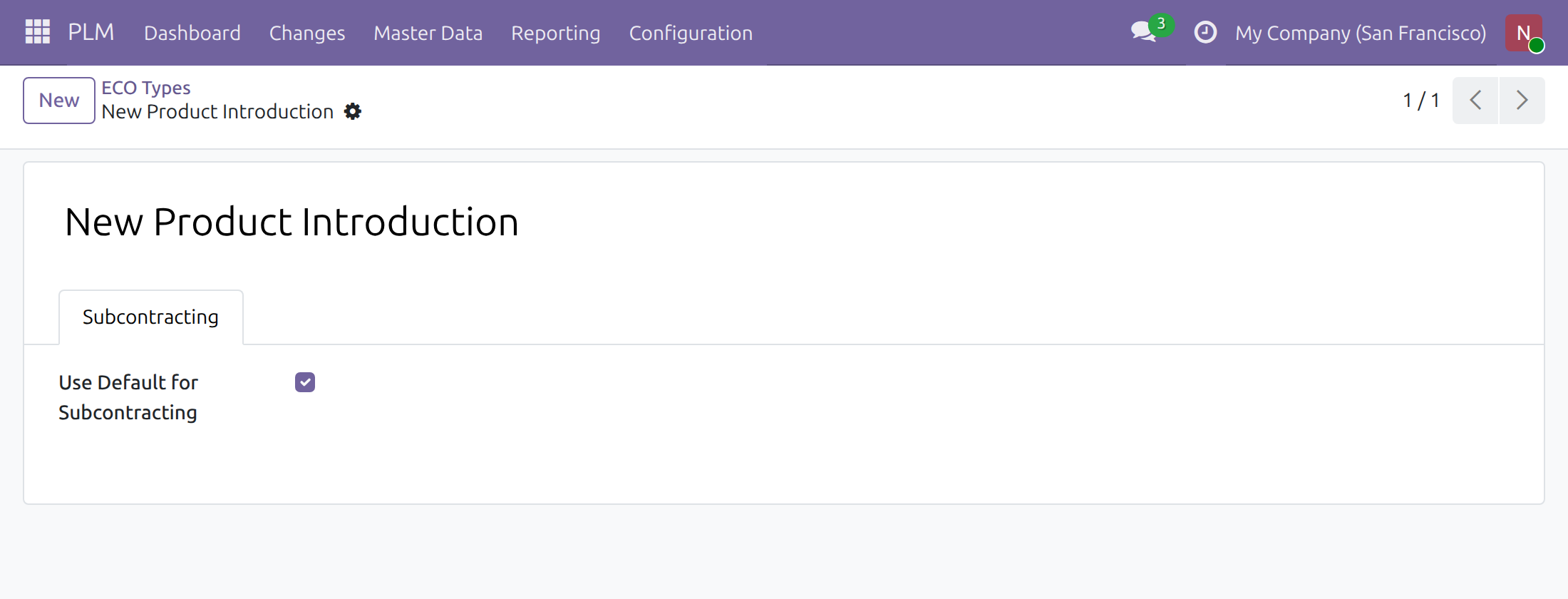
The ECO prepared by the dialog uses the ECO type flagged for subcontracting. Without a flag, it uses the first ECO type of the list. At least one ECO type must exist, otherwise the dialog is refused.
- Open PLM ‣ Configuration ‣ ECO Types and open the type.
- Open the Subcontracting tab.
- Tick Use Default for Subcontracting and save.
Manufacturing engineer: send an order to a subcontractor
Prepare the ECO from the manufacturing order
The order must be confirmed or in progress, and its product must have a subcontracting BoM.
Open the order in Manufacturing ‣ Operations ‣ Manufacturing Orders.
Click the Actions menu (the gear icon) and choose Subcontracting Order.
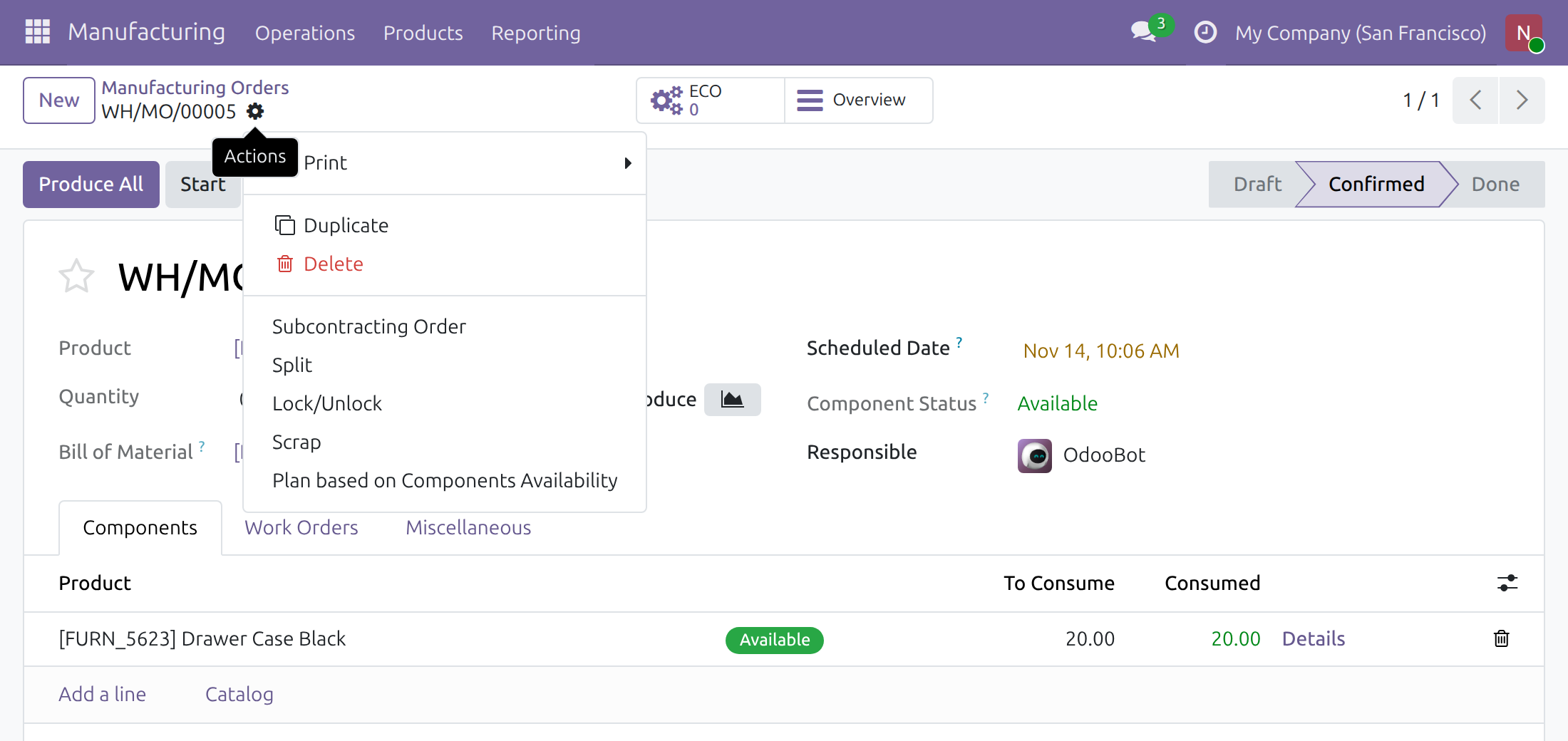
Pick the Subcontracting BoM. The Subcontractor is filled with the first subcontractor of that BoM; change it if another one should receive the order. The Quantity is the whole order quantity; lower it to subcontract only a part.
Click Apply.
When the quantity is smaller than the order, the order is split first and the ECO is created for the split part that goes to the subcontractor. The ECO opens at once.
The dialog refuses to continue in these cases, and says what to do next:
- the order is a draft: confirm it first;
- the order is cancelled or done: choose another order;
- the quantity is zero or above the order quantity;
- no ECO type exists: create one in the PLM configuration.
Check the subcontractor on the ECO
The ECO form shows the manufacturing order, its current BoM, the New Bill of Materials and the Subcontractor. The subcontractor can only be one of the subcontractors listed on the new BoM, and it is required: applying an ECO without one is refused. It cannot be changed once the ECO is applied.
You can also create such an ECO yourself in PLM ‣ Changes ‣ Engineering Change Orders: apply it on a manufacturing order, choose a subcontracting BoM as the new BoM, then choose the subcontractor.
Apply the ECO
Click Apply Changes. The usual PLM checks of an order apply (see the PLM documentation). Then:
- the manufacturing order is cancelled;
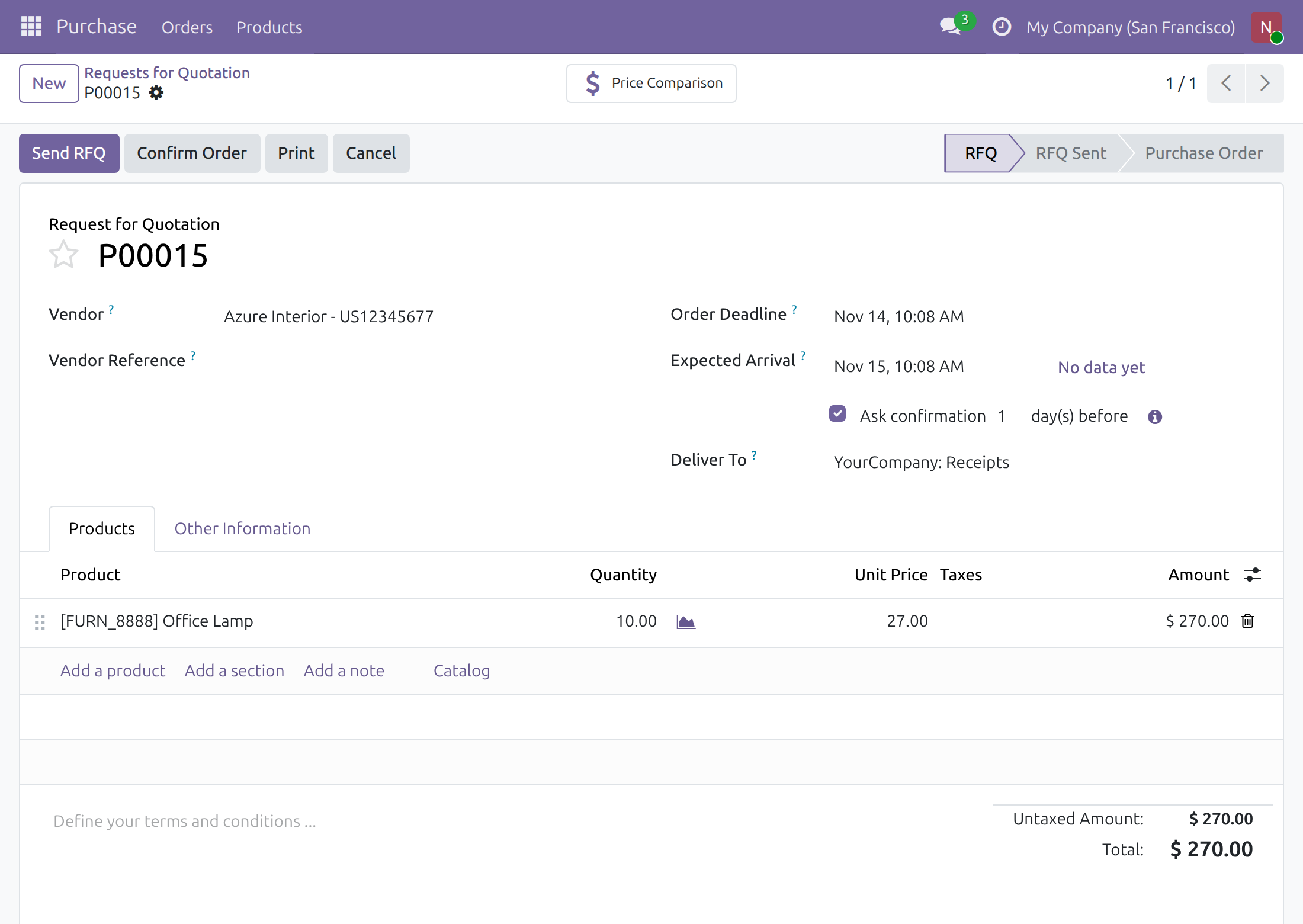
- a request for quotation is created for the subcontractor, with one line for the product of the order, in the quantity of the order, priced from the price list of the subcontractor;
- the Purchases button of the manufacturing order opens that request for quotation.
The request for quotation stays a draft in Purchase; the purchasing team sends and confirms it as usual.
This software and associated files (the "Software") may only be used (executed, modified, executed after modifications) if you have purchased a valid license from the authors, typically via Odoo Apps, or if you have received a written agreement from the authors of the Software (see the COPYRIGHT file).
You may develop Odoo modules that use the Software as a library (typically by depending on it, importing it and using its resources), but without copying any source code or material from the Software. You may distribute those modules under the license of your choice, provided that this license is compatible with the terms of the Odoo Proprietary License (For example: LGPL, MIT, or proprietary licenses similar to this one).
It is forbidden to publish, distribute, sublicense, or sell copies of the Software or modified copies of the Software.
The above copyright notice and this permission notice must be included in all copies or substantial portions of the Software.
THE SOFTWARE IS PROVIDED "AS IS", WITHOUT WARRANTY OF ANY KIND, EXPRESS OR IMPLIED, INCLUDING BUT NOT LIMITED TO THE WARRANTIES OF MERCHANTABILITY, FITNESS FOR A PARTICULAR PURPOSE AND NONINFRINGEMENT. IN NO EVENT SHALL THE AUTHORS OR COPYRIGHT HOLDERS BE LIABLE FOR ANY CLAIM, DAMAGES OR OTHER LIABILITY, WHETHER IN AN ACTION OF CONTRACT, TORT OR OTHERWISE, ARISING FROM, OUT OF OR IN CONNECTION WITH THE SOFTWARE OR THE USE OR OTHER DEALINGS IN THE SOFTWARE.
