
How to use predictive lead scoring and automatic lead assignment
Viindoo computes for each opportunity a Probability of being won from the history of your won and lost opportunities, and can distribute unassigned leads to your salespeople according to rules. Both features are in CRM ‣ Configuration ‣ Settings. Predictive lead scoring works as soon as you have closed opportunities; automatic lead assignment starts when you tick Rule-Based Assignment and give each team its rules.
Who |
A sales manager or an administrator sets up the rules. Salespeople read the probability. |
App |
CRM |
Before you start
You have closed (won and lost) opportunities: the more you have, the more reliable the computed probability is.
Your salespeople are members of a sales team, see How to convert a lead into an opportunity and assign a salesperson.
How does predictive lead scoring work?
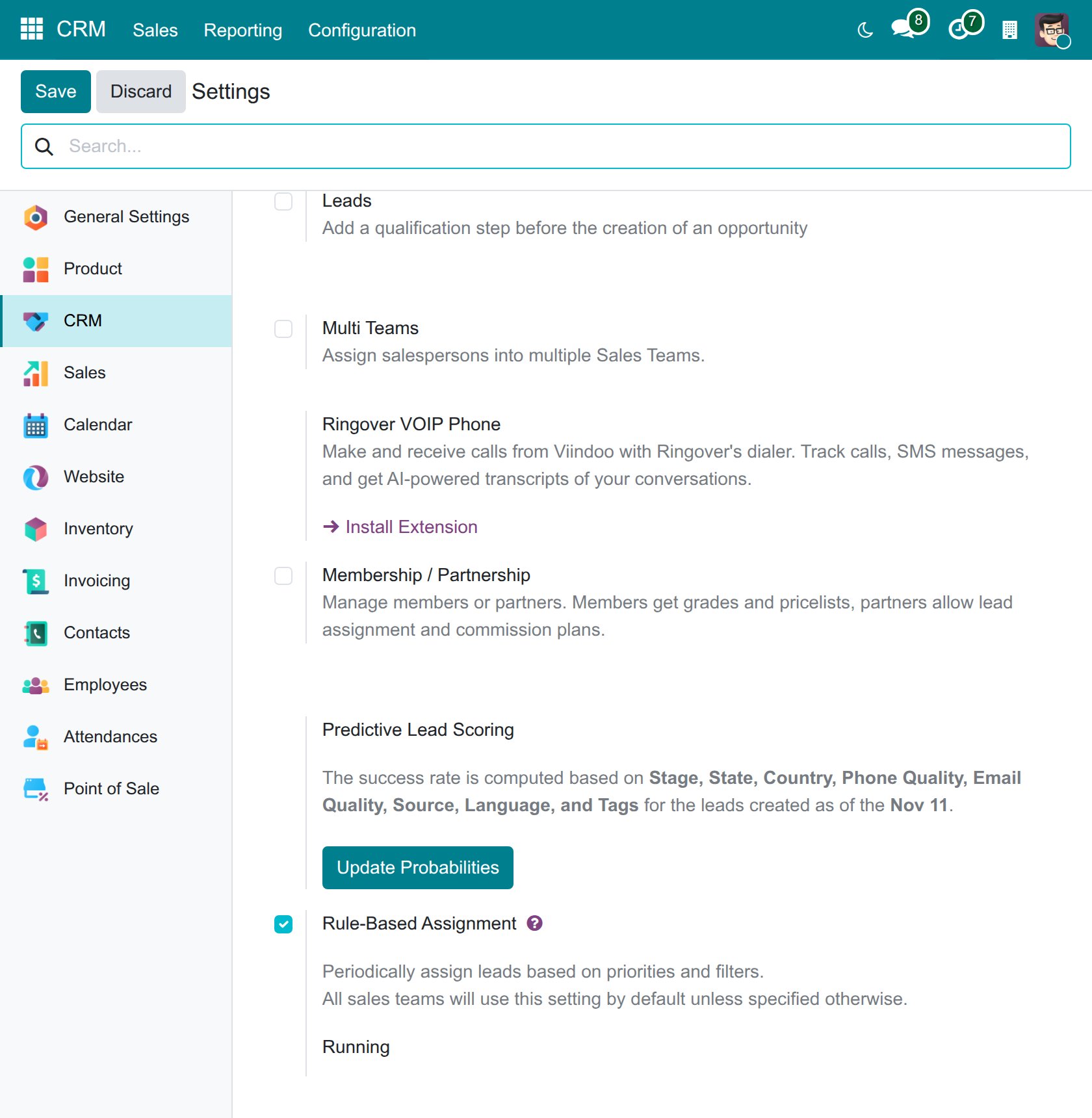
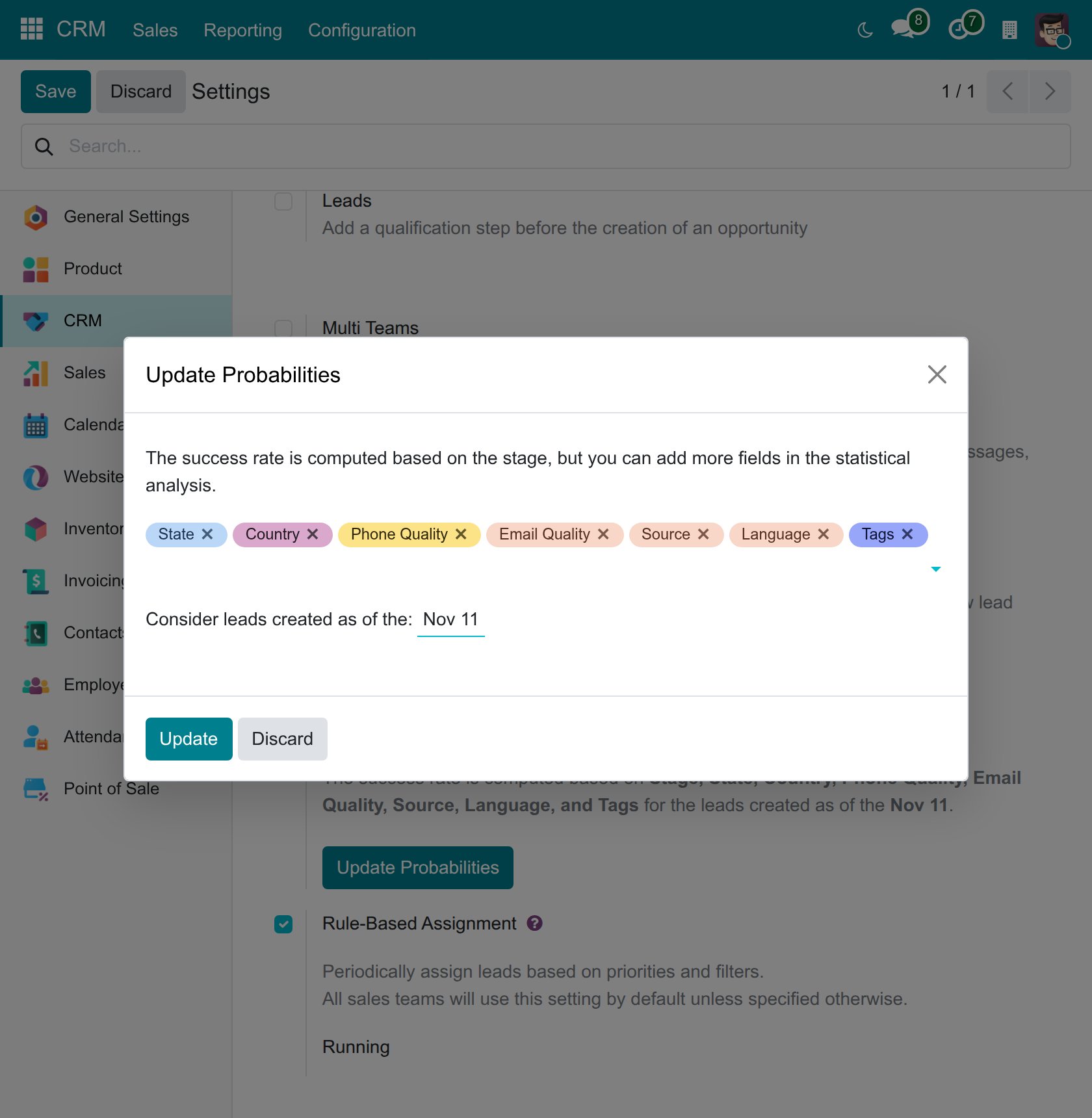
The success rate of an opportunity is computed from its stage, and from the other criteria you choose: State, Country, Phone Quality, Email Quality, Source, Language and Tags. Viindoo looks, in the leads created since a start date, at how often each value ended in a won opportunity and combines the values of the opportunity into a probability.
Go to CRM ‣ Configuration ‣ Settings. The Predictive Lead Scoring block shows the criteria and the start date.
![Predictive Lead Scoring block with the Update Probabilities button and the Rule-Based Assignment setting]()
As an administrator, click Update Probabilities to change the criteria or the start date. The success rate is always based on the stage; add the other fields in the box and choose the date from which leads are considered, then click Update.
![Update Probabilities window with the extra fields and the start date]()
Viindoo also refreshes the statistics by itself, so that the probability follows your results.
How do I read the probability of an opportunity?
On the opportunity form, Probability is next to the expected revenue.
When the probability is the computed one, click the AI button next to Probability to see the AI-computed chances of winning: the success rate and the Top Positives and Top Negatives, the stage, tags, location or contact quality that raise or lower it.
When you type your own probability, the value computed by Viindoo is shown next to it with a tilde. Click the AI button to switch back to the computed value.
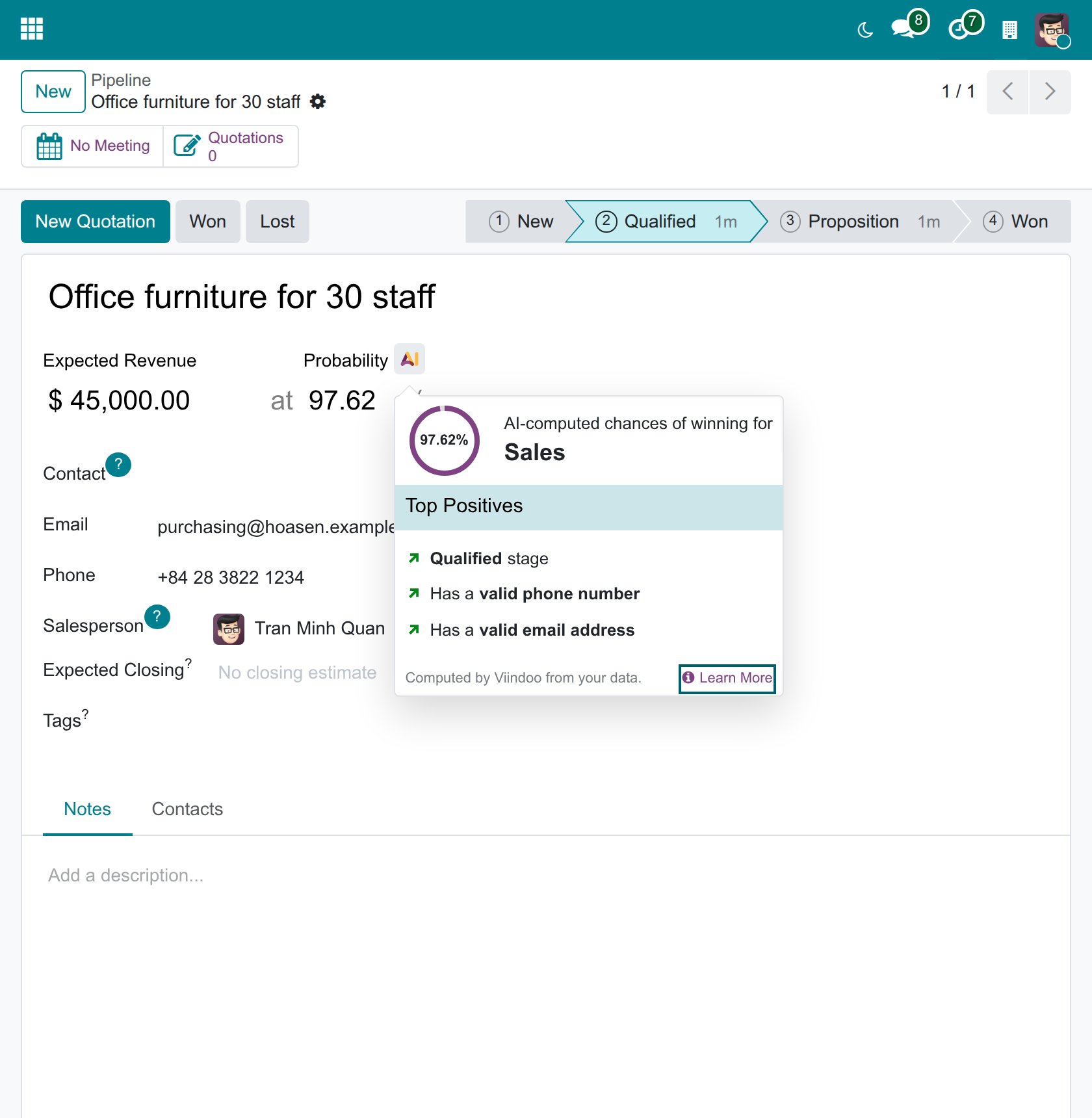
With a small history the figures are rough: the more opportunities you close, the better they get.
How does automatic lead assignment work?
Rule-based assignment gives the leads that nobody has taken to the members of your sales teams.
Tick Rule-Based Assignment in CRM ‣ Configuration ‣ Settings. In Running, choose Manually to start the assignment from a team with a button, or Repeatedly and set Repeat every to run it automatically. Next Run shows the next execution.
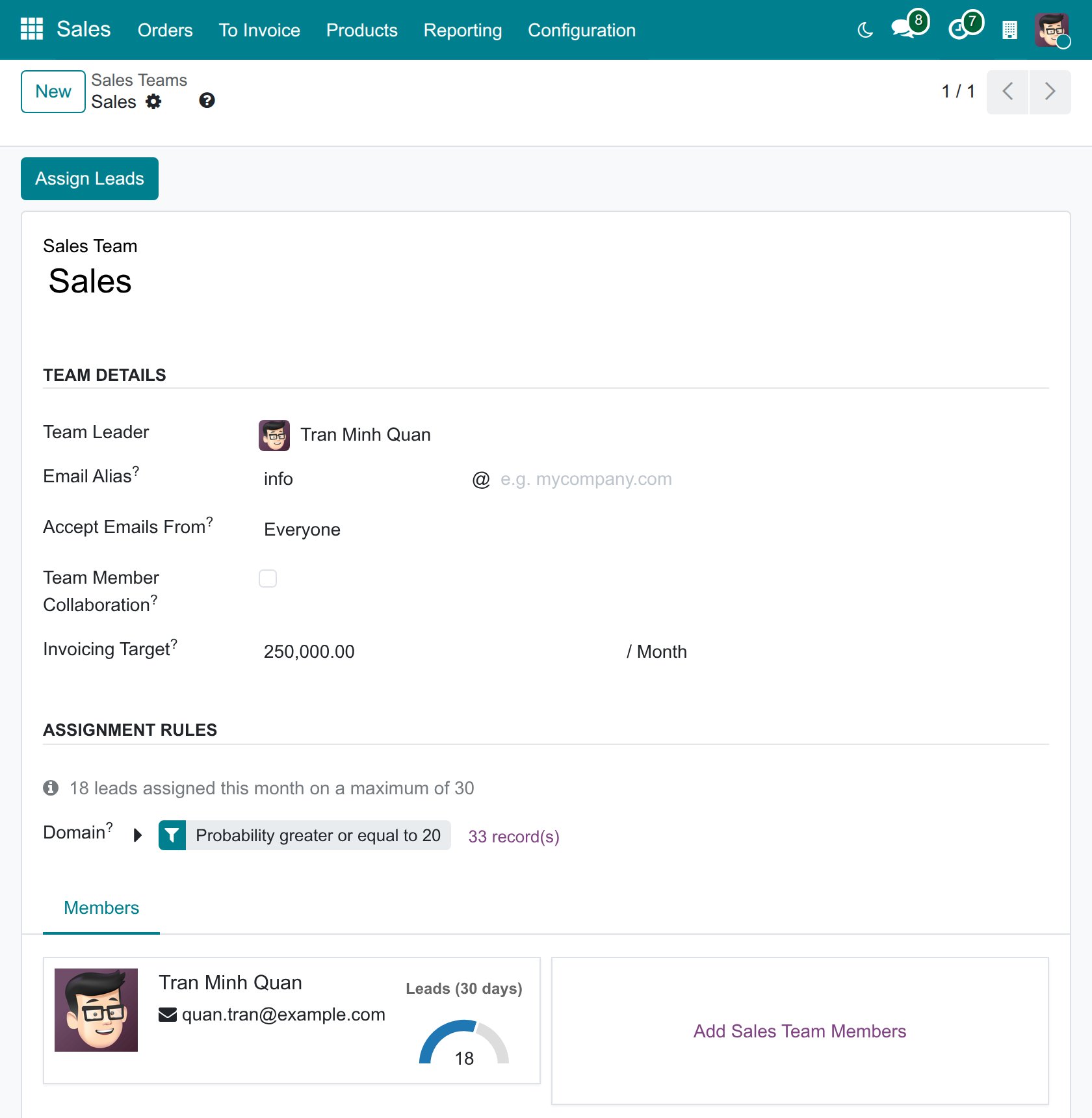
Open a team in CRM ‣ Configuration ‣ Sales Teams. In Assignment Rules, the Domain restricts the leads this team receives (it can be empty), and the note shows the leads assigned this month on a maximum equal to the sum of the capacities of the members.
![Sales team form with the Assign Leads button and the Assignment Rules]()
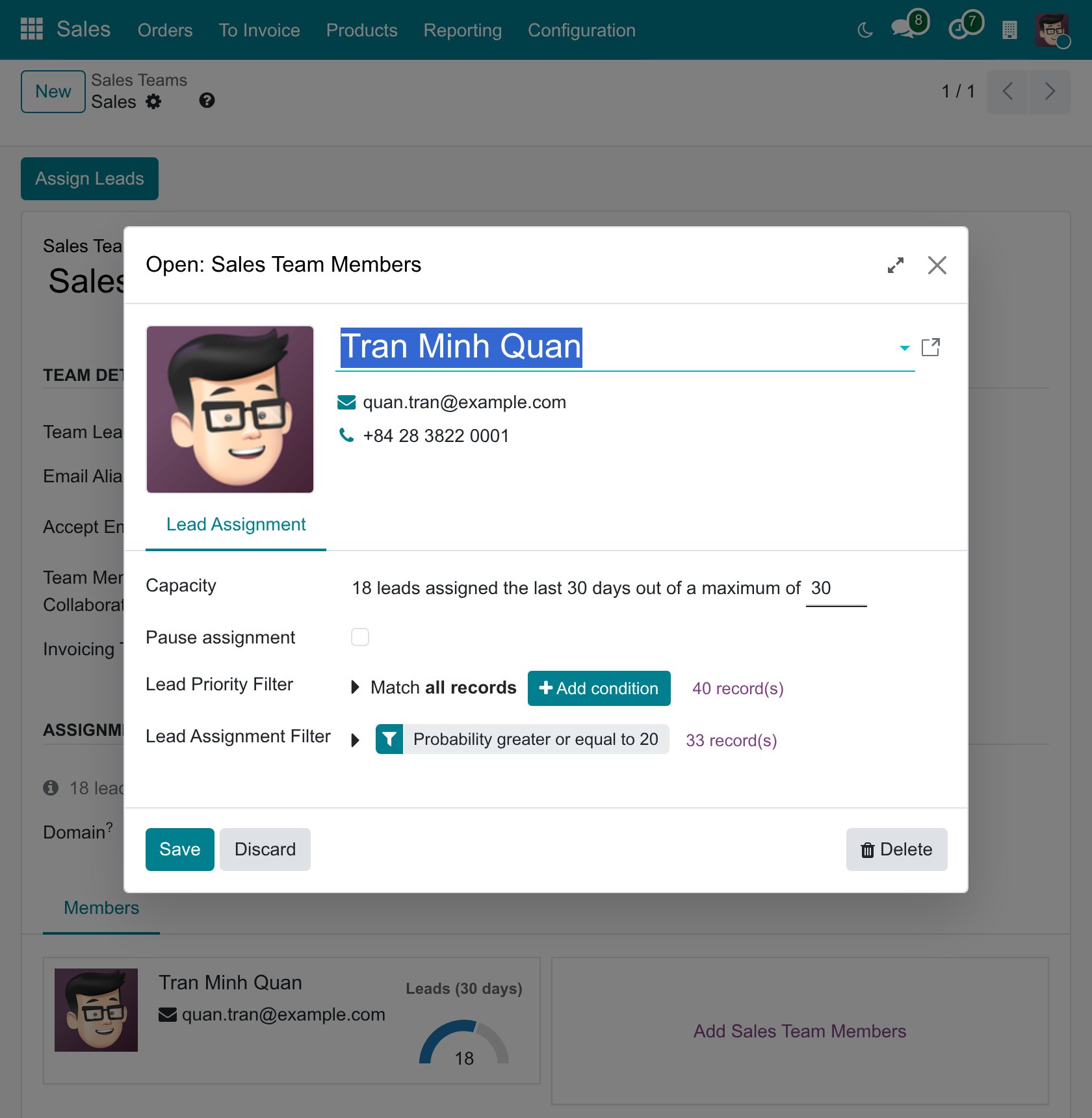
Click a member of the team and set the Lead Assignment tab:
Field
What it does
Capacity
The average number of leads the member can receive in 30 days (30 by default). It is spread evenly: a member whose capacity is 30 receives about one lead a day.
Pause assignment
Excludes the member, for example during a leave.
Lead Priority Filter
Leads that match are given to this member first.
Lead Assignment Filter
Only the leads that match can be given to this member.
![Lead Assignment tab of a team member with the capacity, the pause option and the two filters]()
How are the leads distributed?
Leads that have no team and no salesperson, created in the last 7 days, are shared between the teams whose domain they match, in proportion to the capacity of each team. Duplicates are merged.
In each team, the leads without salesperson are given to the members one after another. The leads that match a member’s Lead Priority Filter go first, then the others, always the leads with the highest probability first.
A member who reaches the daily quota (capacity divided by 30) stops receiving leads for the day. Each assigned lead is converted into an opportunity of the salesperson.
To run the assignment at once in manual mode, open the team and click Assign Leads: it is reserved to sales managers and administrators.
Common problems
Symptom |
What to do |
|---|---|
The Assign Leads button is not displayed. |
Tick Rule-Based Assignment in the CRM settings and enable leads or opportunities on the team. |
No lead is assigned to a member. |
Check that the member is not paused, has not used the capacity, and that the Lead Assignment Filter matches the leads. |
Lead/Opportunities automatic assignment is limited to managers or administrators |
Ask a sales manager or an administrator to run it. |