
How to let customers pick up online orders in store (Click & Collect)
Click & Collect lets a customer order on your website, choose one of your stores to collect the order and pay there. The customer sees on the product page whether the product is available, picks a store at checkout and receives the order confirmation at once. You prepare the order in the store, where the customer pays when collecting it.
Who |
Administrators who open Website ‣ Configuration ‣ Settings, who turn the feature on, and the users who manage the warehouses and the payment providers. |
App |
Website (eCommerce), Inventory |
Before you start
Each store is a warehouse of the Inventory app, with a complete address (street, city and country). The warehouses you do not want to offer as stores are not added to the delivery method.
The products to collect are goods that you track in stock. A product that is not tracked in stock does not show the Click & Collect block.
Turning on Click & Collect installs the Click & Collect module, so the database needs a few seconds to update.
How do I turn Click & Collect on?
Go to Website ‣ Configuration ‣ Settings and find the eCommerce section.
Turn on Click & Collect, then click Save.
![The Click & Collect setting with the Configure Pickup Locations button]()
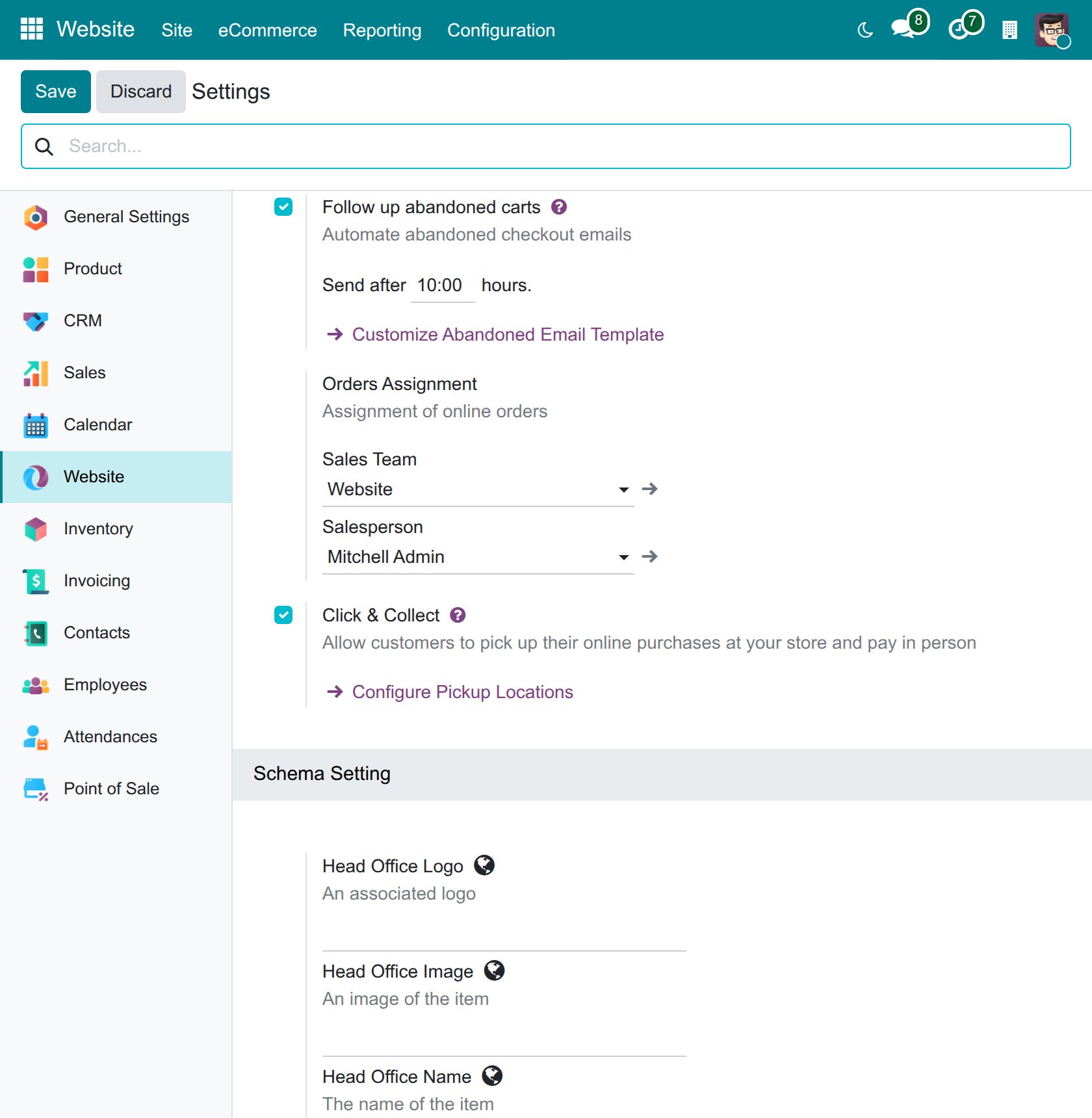
Viindoo adds the delivery method Pick up in store and the payment provider Pay on Site. The delivery method is published when your company has warehouses, and lists them as its stores.
How do I choose the stores?
Click Configure Pickup Locations under the setting. The delivery method Pick up in store opens. When you have several pick-up methods, the list of them opens first.
Open the Stores tab. It lists the warehouses where customers can collect orders, with their opening hours and address. Add a line to offer another warehouse, or remove the line of a warehouse that is not a store.
![The Pick up in store delivery method with its Stores tab]()
The price of the method is the sales price of its Delivery Product. It is free by default.
To reserve the method for some products, use the product tags of the Availability tab: Must Have Tags offers the method only for the products that carry one of these tags, and Excluded Tags removes it for the products that carry one of these tags.
Make sure the method is published: the Published button at the top shows it. A method needs at least one store to be published.
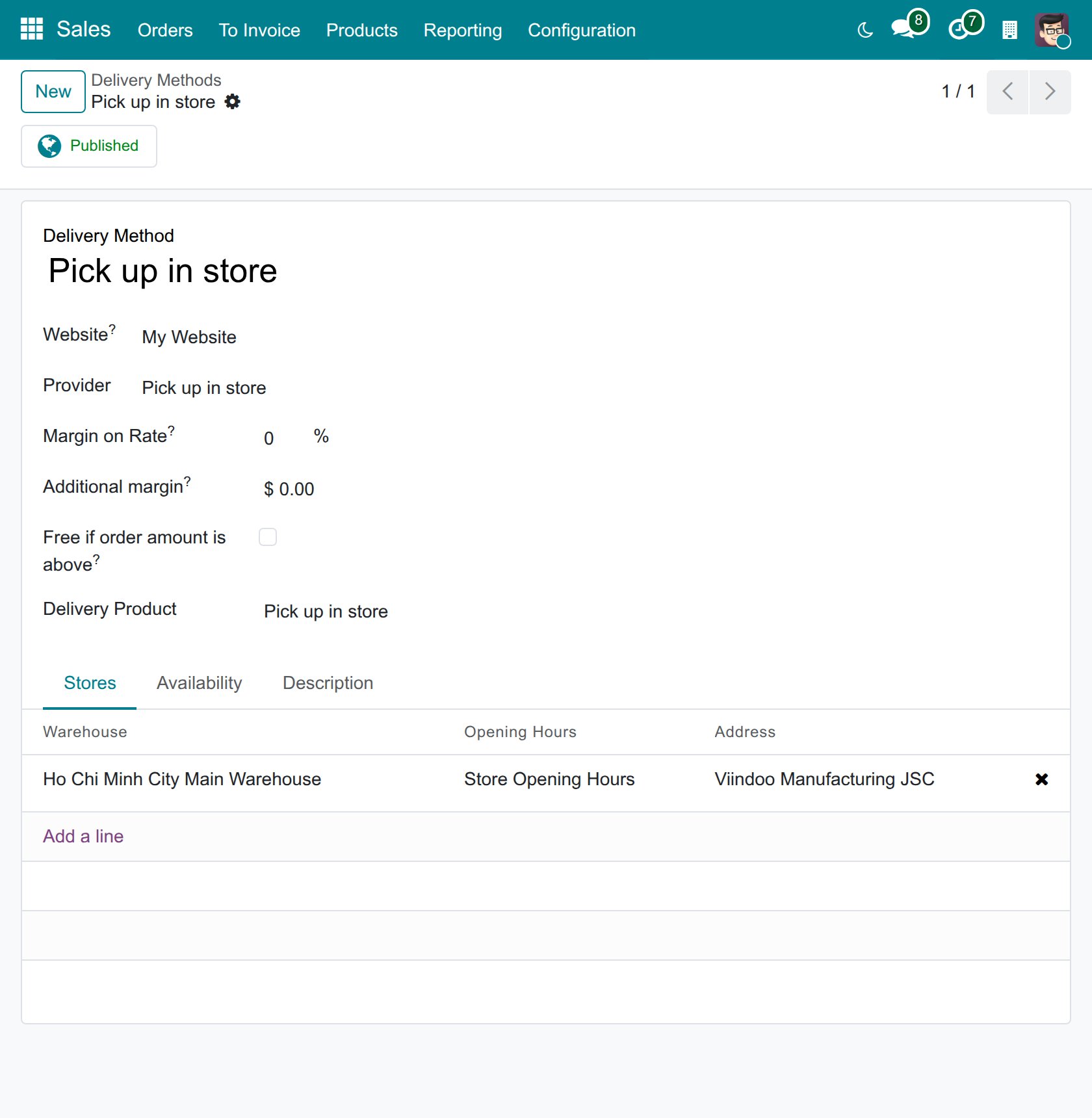
All the stores of a method belong to the company of the method.
How do I set the opening hours of a store?
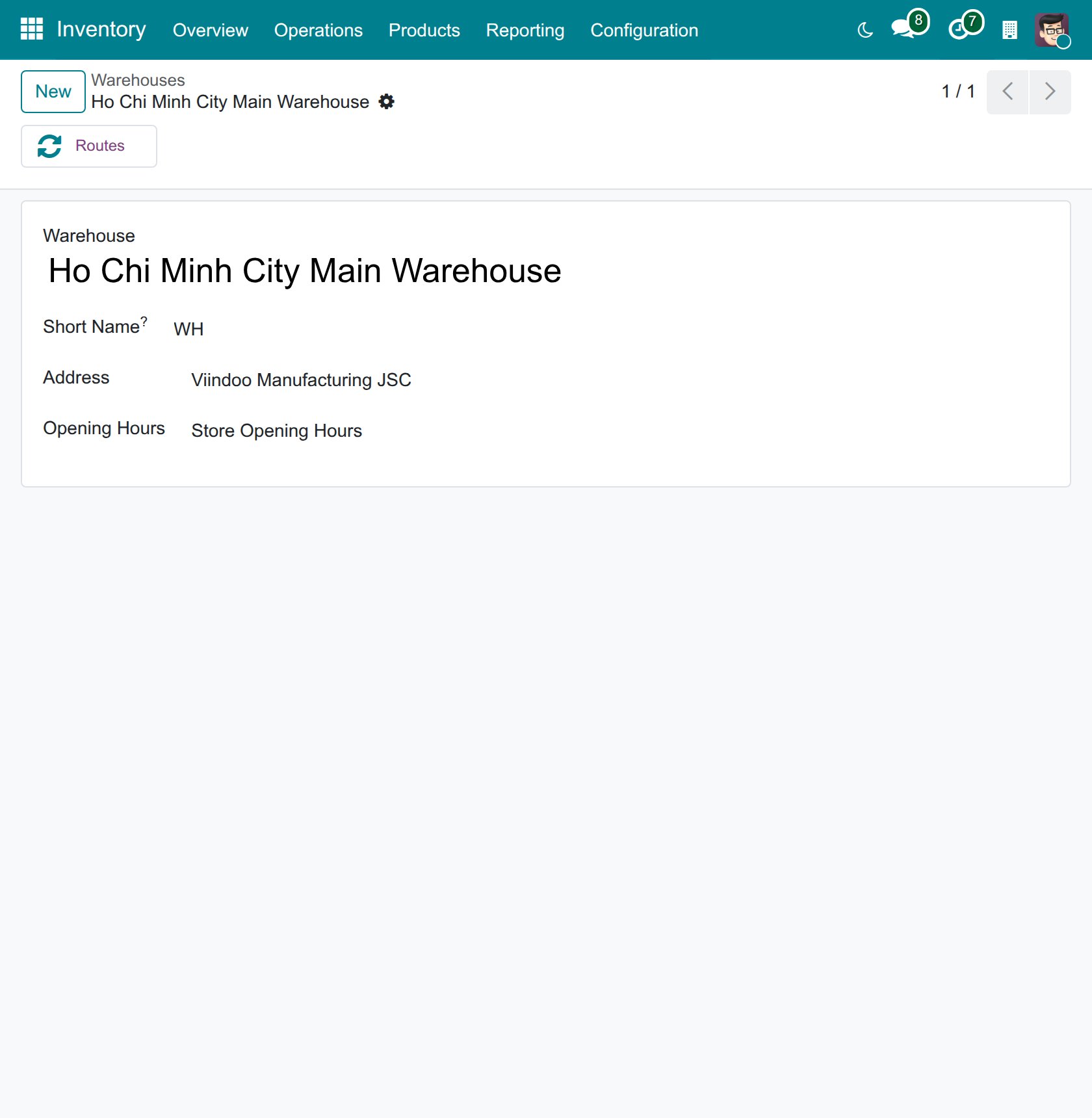
Go to Inventory ‣ Configuration ‣ Warehouse Management ‣ Warehouses and open the warehouse.
In Opening Hours, choose a working schedule, for example one that lists the hours of the week. The customer sees these hours when choosing the store.
Check the Address of the warehouse: Viindoo finds the position of the store from it, to show the stores closest to the customer first.
![A warehouse form with the Opening Hours field]()
How do I let customers pay in store?
Go to Website ‣ Configuration ‣ eCommerce ‣ Payment Providers and open Pay on Site.
Set the state to Enabled, then save.
![The Pay on Site payment provider set to Enabled]()
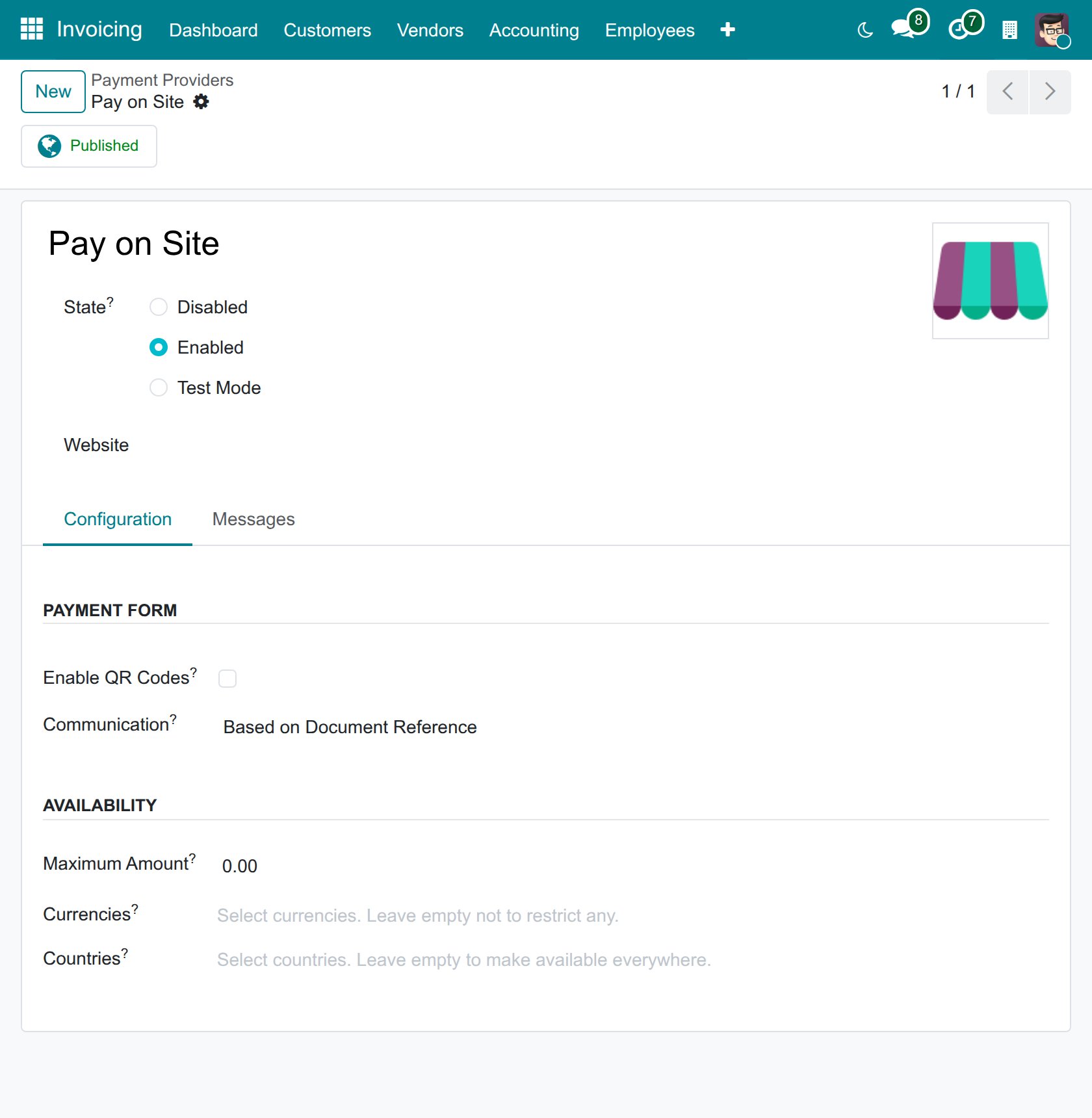
Pay on Site is offered at checkout only when the order uses a pick-up delivery method and contains goods. When the customer chooses it, Viindoo confirms the order at once and tells the customer to come to the store to pay.
What does the customer see?
On the product page of a tracked product, a Click and Collect block shows whether the product is available in the stores, and whether it can be delivered. A customer selects or changes the store from this block.
At checkout, the customer chooses Pick up in store among the delivery methods and picks the store. If some products are missing in that store, a message names them and the customer can update the cart with the available quantity or remove the product.
After the order, the confirmation page shows the pick-up method and its description.
In the Inventory app, the confirmed order creates a transfer from the warehouse of the store. Prepare it as usual, and let the customer pay when collecting the order. A transfer of a pick-up order has no button to send it to a carrier.
Common problems
Problem |
What to do |
|---|---|
The delivery method must have at least one warehouse to be published. |
Add a store in the Stores tab before you publish the method. |
The delivery method and a warehouse must share the same company |
Remove the stores of another company from the method. |
The Click & Collect block is missing on a product |
The product is not tracked in stock, the pick-up method is not published, or a tag of the method excludes the product. |
Customers cannot choose to pay in store |
Enable the Pay on Site provider. It is offered only with a pick-up delivery method and an order that contains goods. |
A store does not appear in the list of the customer |
Check the address of its warehouse (street, city and country): Viindoo uses it to place the store and to sort the stores by distance. |
Next steps
Manage stock of the published products on eCommerce website to follow the stock of the products you sell online.