
How to create and approve a request
To ask for approval, go to Approval ‣ Overview, click Create Request on the approval type you need, fill in the request and click Submit. The approvers receive a scheduled activity and approve or refuse in turn; once enough of them approve, the request becomes Approved. This page uses the General type; other types work the same way.
Who |
Any internal user creates requests. Approvers are set by the approval type; they need the Approvals access right of Team Approver or higher. Forcing an approval needs Approvals ‣ Administrator. |
App |
Approval |
Before you start
Install the OmniApproval™ app and give users their access rights: Approval Overview.
Check who approves each type: Manage Approval Types.
The employee needs a direct manager who has a user account when the type requires the manager’s approval.
How do I create an approval request?
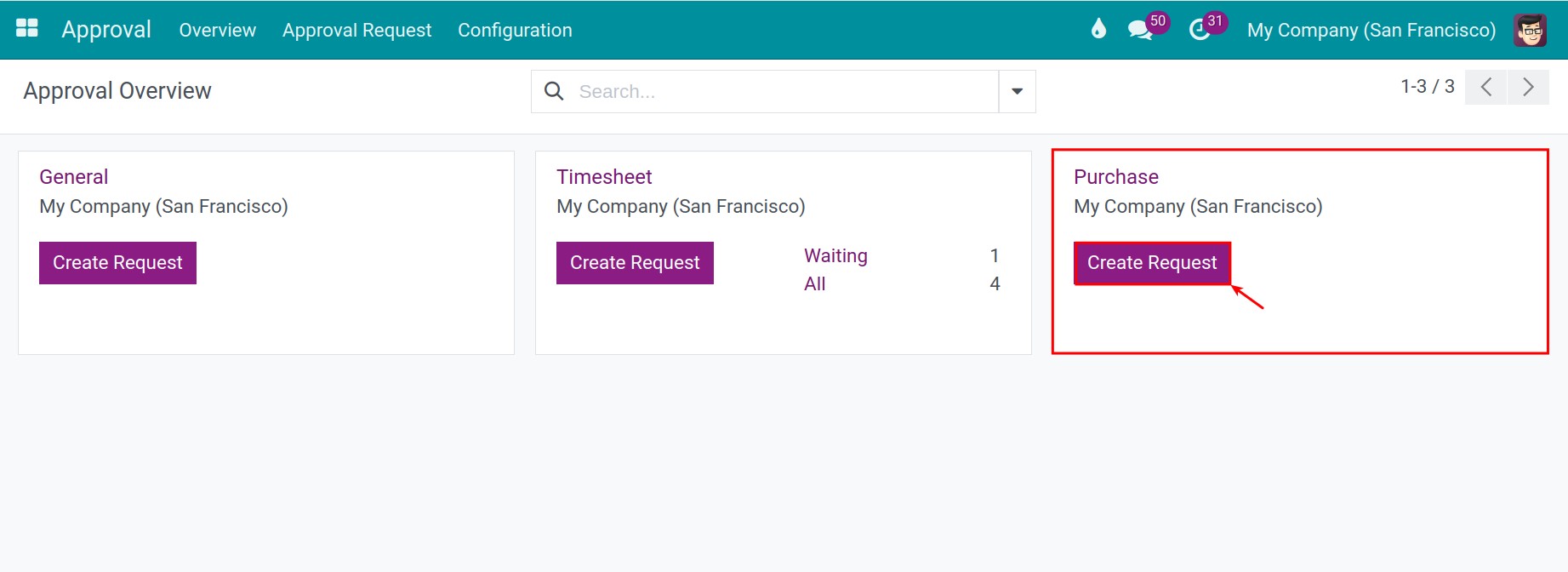
Go to Approval ‣ Overview and click Create Request on the card of the approval type.
![The Create Request button on the General approval type card]()
Note
A card whose button reads … Without Approval (for example Timesheets Without Approval) cannot create a request on its own. Start from the record to approve with Actions ‣ Get Approved, as in Guideline to timesheet in the project.
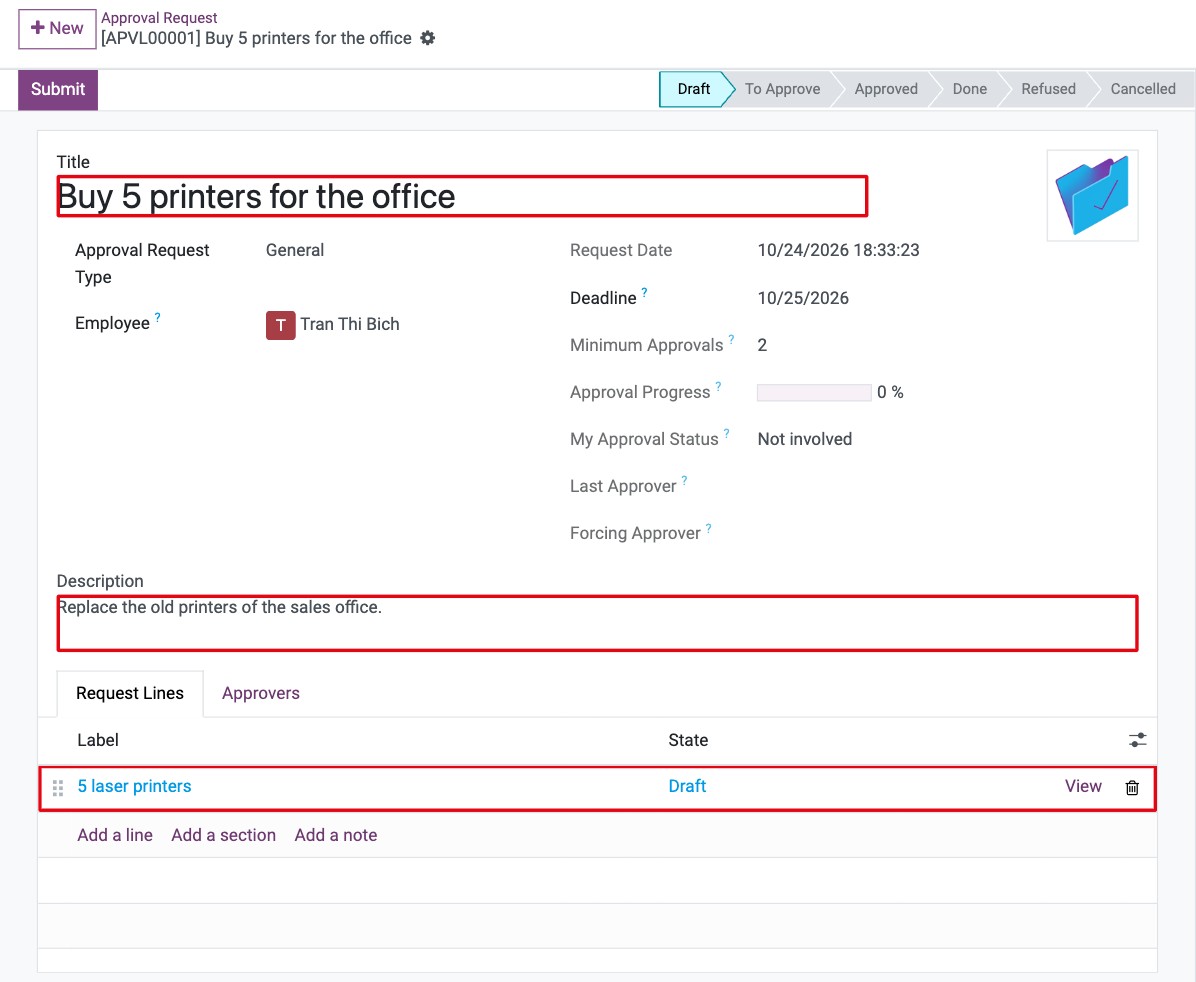
Fill in the request, then click Save.
![An approval request in Draft with a title, a description and one request line]()
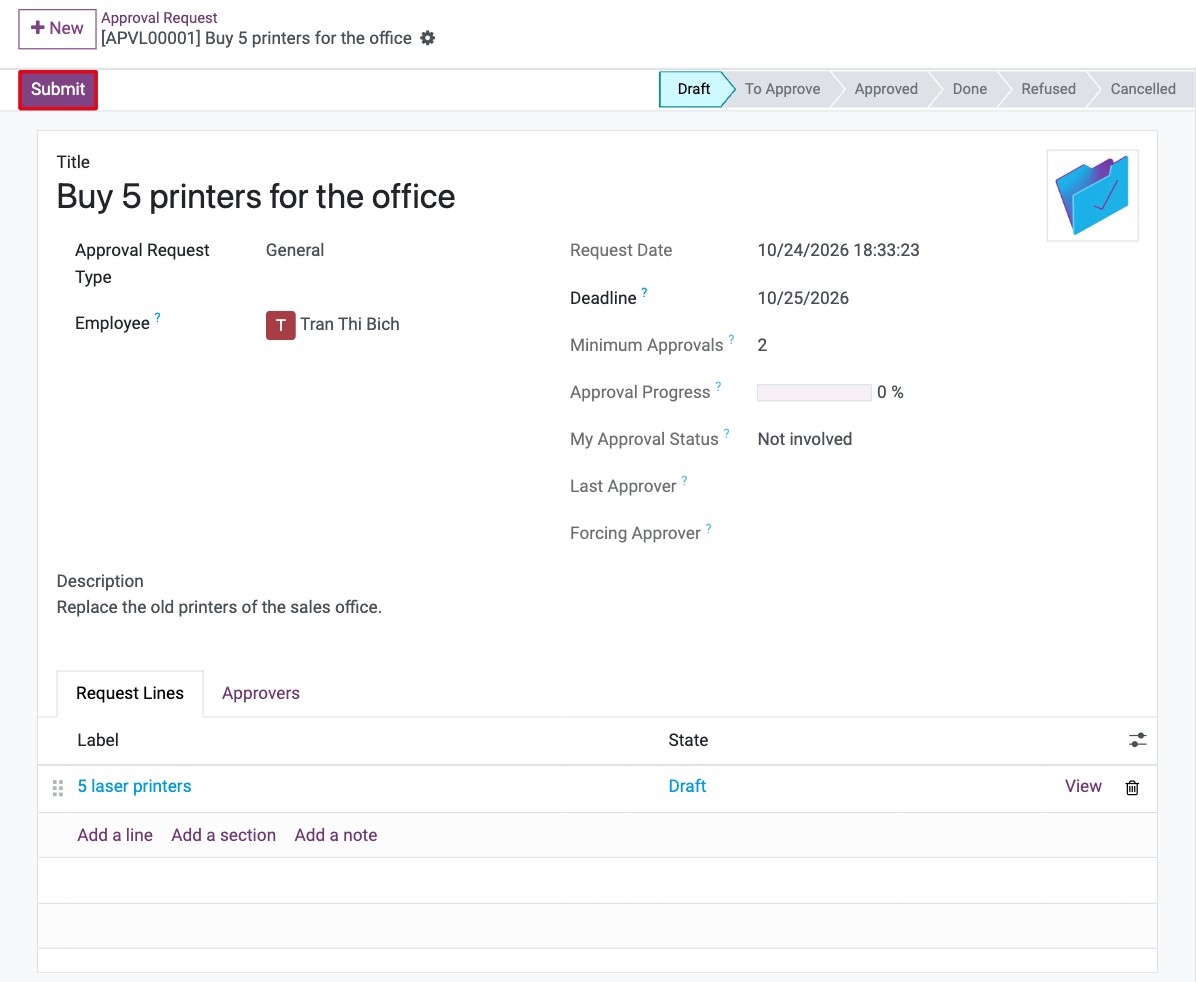
Click Submit. The request moves from Draft to To Approve.
![The Submit button of an approval request in Draft]()
Which fields do I fill in?
Field |
What it does |
If it is wrong |
|---|---|---|
Title |
Name of the request, for example Buy 5 printers for the office. |
A vague title makes the request hard to find. |
Approval Request Type |
Decides the approvers, their order and the number of approvals. Filled in from the card you clicked. |
Another type means other approvers. |
Employee |
The person the request is for. It is filled with you; the manager of this employee is the first approver when the type asks for the manager. |
An employee without a direct manager cannot be submitted when the manager is required. |
Deadline |
Date by which the approvers should act. Computed from Days to Approve of the type. |
Approvers see the activity as late after this date. |
Minimum Approvals |
Number of approvals needed. Read only, copied from the type. |
|
Description |
Details for the approvers. |
|
Request Lines tab |
The items of the request (a label per line). Some types ask for more columns. |
A type with Lines Required cannot be submitted without a line. |
Who approves, and in which order?
After Submit, open the Approvers tab. It lists every approver, whether the approval is Required, the status and the date. Next Approver(s) shows who must act now.
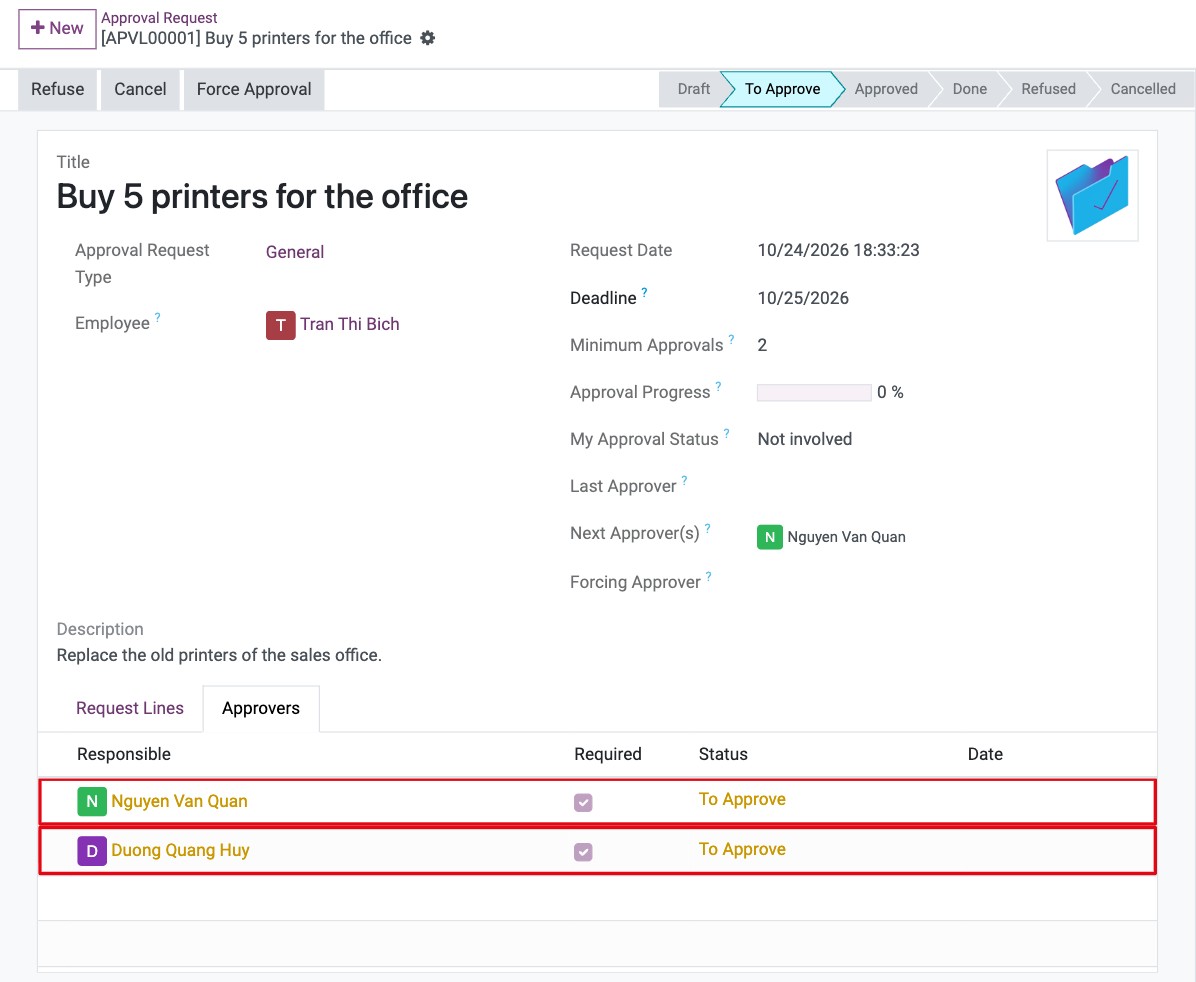
With Sequential Approvals, each approver gets the activity and the Approve button only after the previous one has acted. Without it, all approvers can act at the same time. The request becomes Approved when the Minimum Approvals is reached and every Required approver has approved. If a required approver refuses, the request becomes Refused.
How do approvers approve a request?
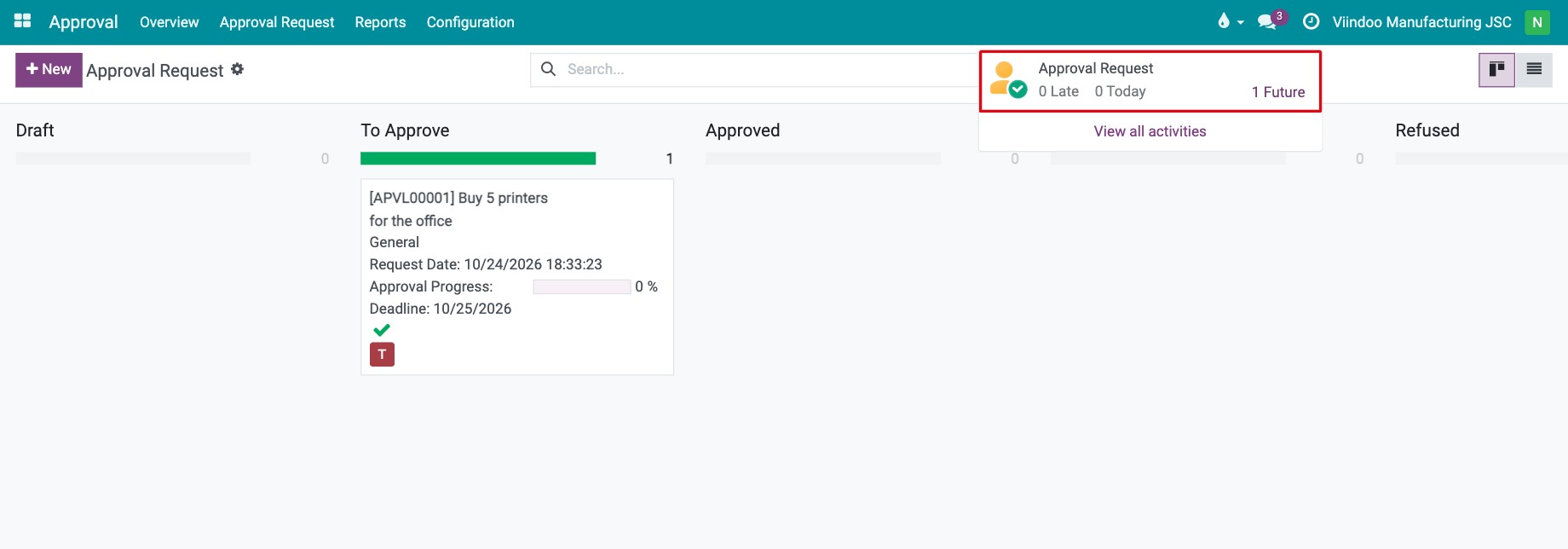
The approver sees an Approval Request activity in the clock menu of the top bar. Open it, or go to Approval ‣ Approval Request.
![The approval request activity in the top bar of the first approver]()
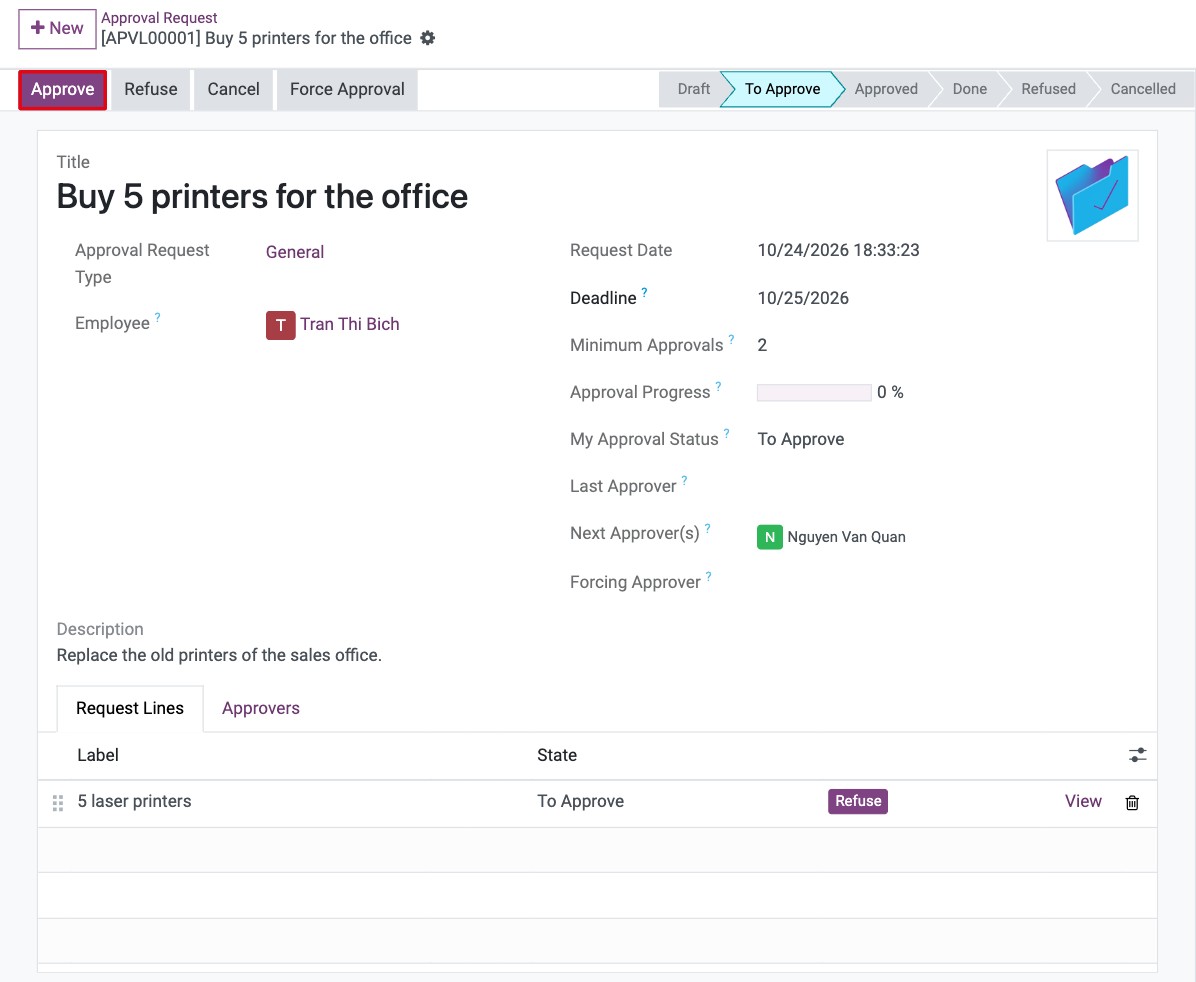
Open the request and click Approve.
![The Approve button of an approval request in To Approve]()
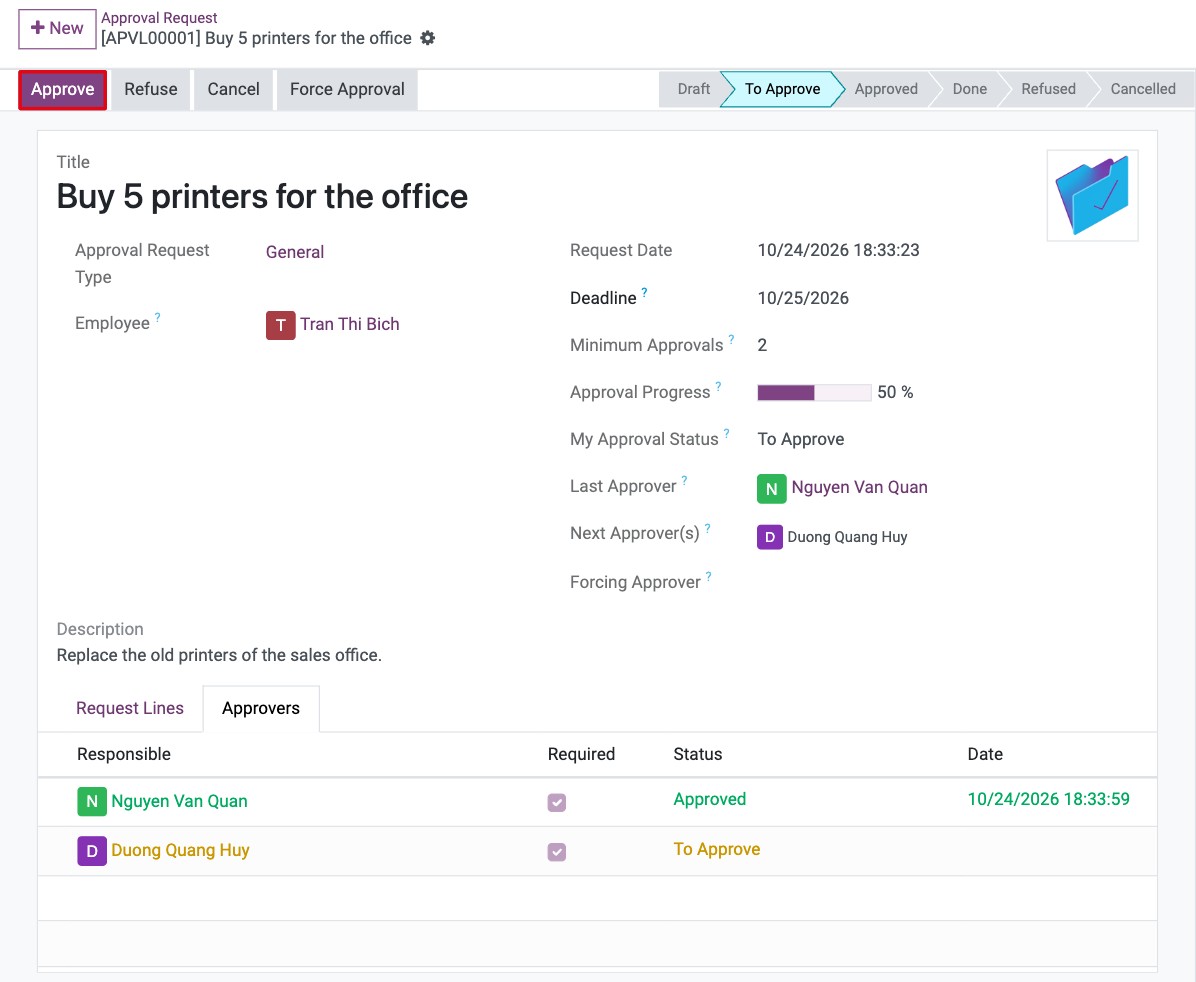
The next approver does the same. The Approval Progress goes up and Last Approver shows who approved last.
![The next approver clicking Approve after the first approval]()
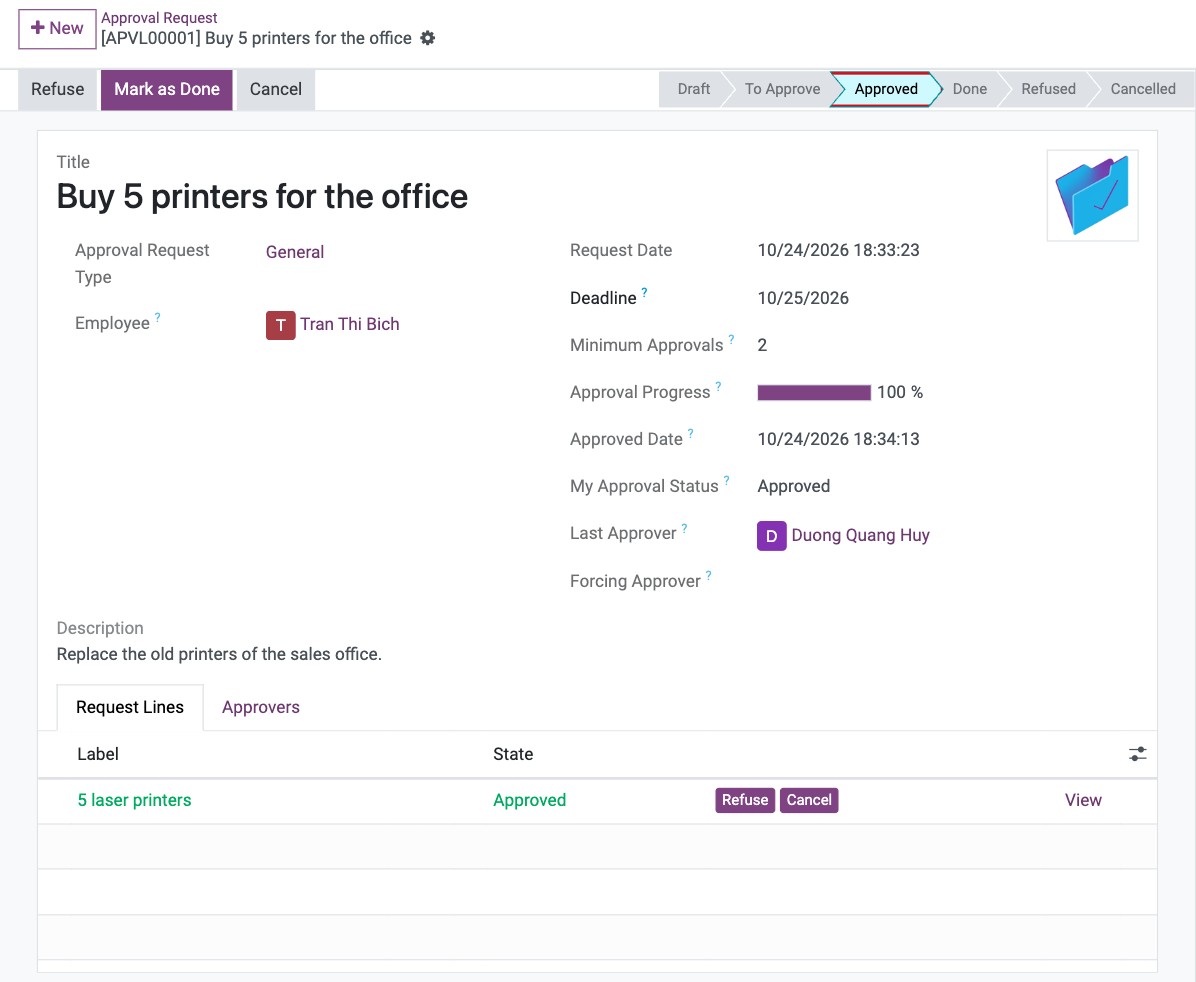
When the last approval arrives the request moves to Approved. The employee who sent it, the employee’s direct manager (as an approver) or an Approvals ‣ Administrator can then click Mark as Done to close it.
![An approved request with the Mark as Done button]()
How do I refuse a request?
Click Refuse, write the reason and click Process.
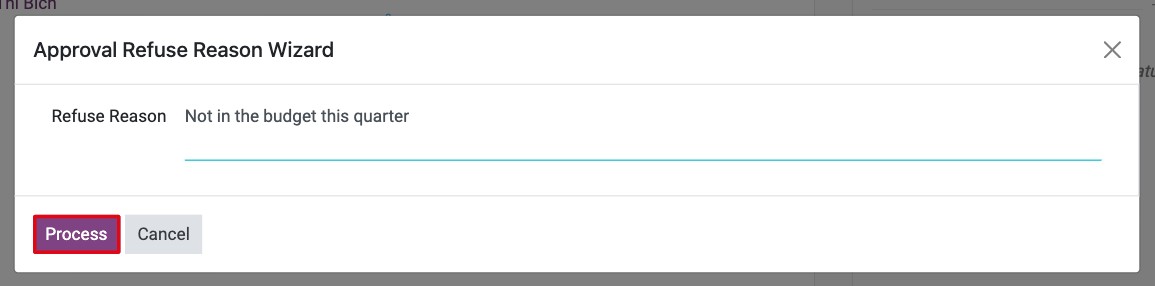
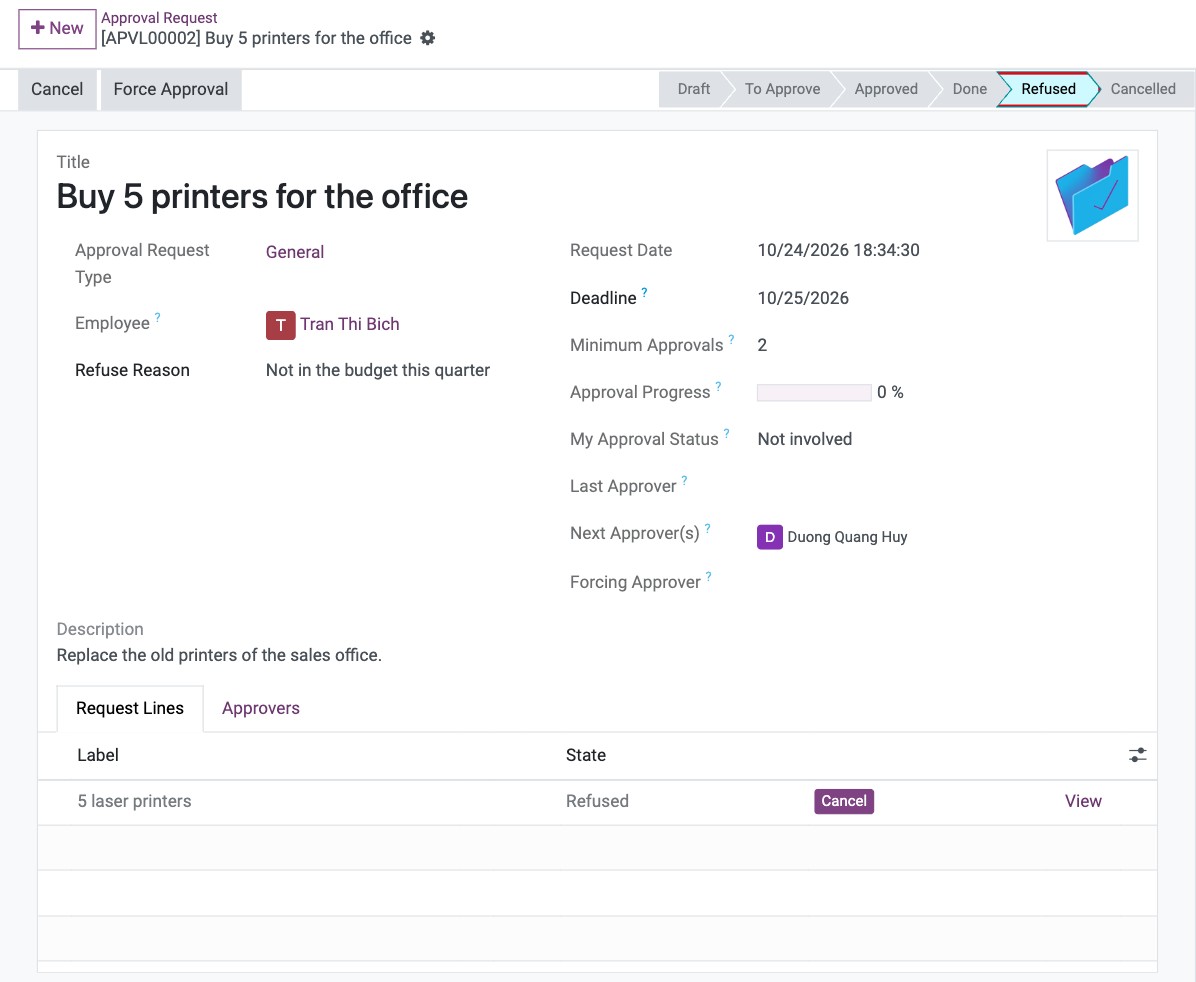
The request moves to Refused and the reason is shown on the request.
How do I cancel a request and edit it again?
Only a request in Draft can be edited. To change a request that was already submitted, cancel it and reset it to draft:
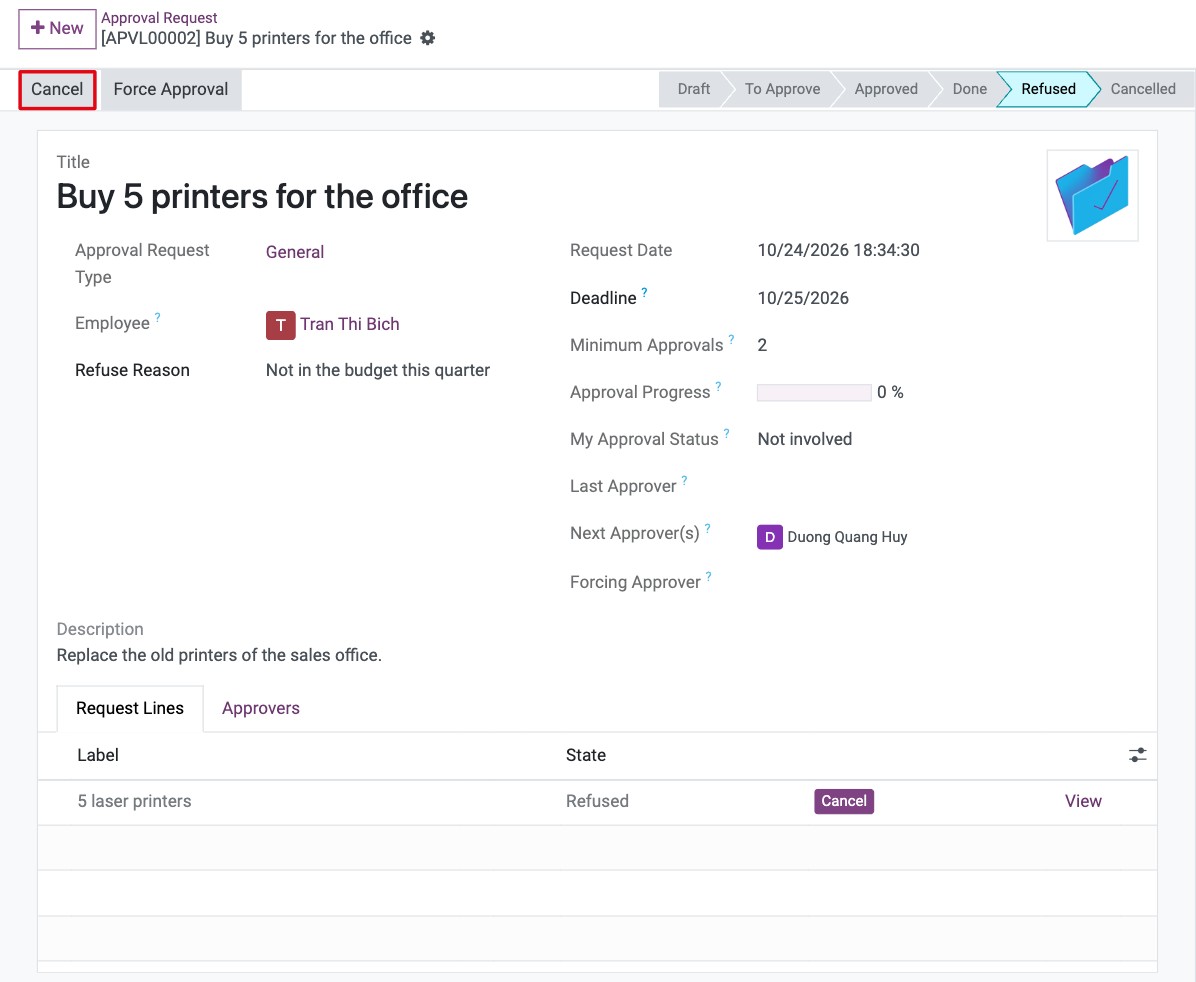
Click Cancel. The employee and the employee’s direct manager can cancel a request that is To Approve or Refused; an Approvals ‣ Administrator can cancel in any status.
![The Cancel button on a refused request]()
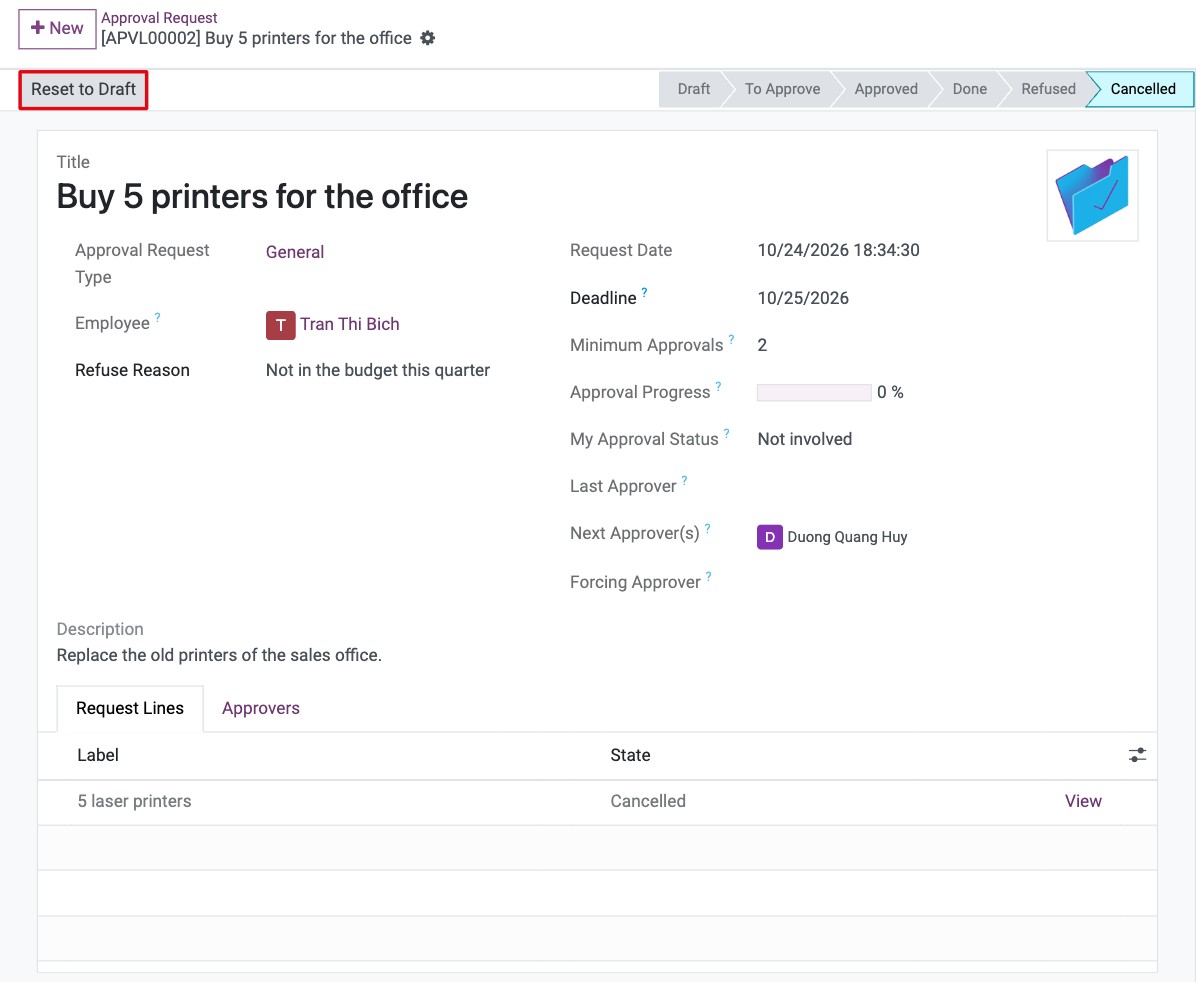
Click Reset to Draft, edit the request and submit it again.
![The Reset to Draft button on a cancelled request]()
How do I force the approval?
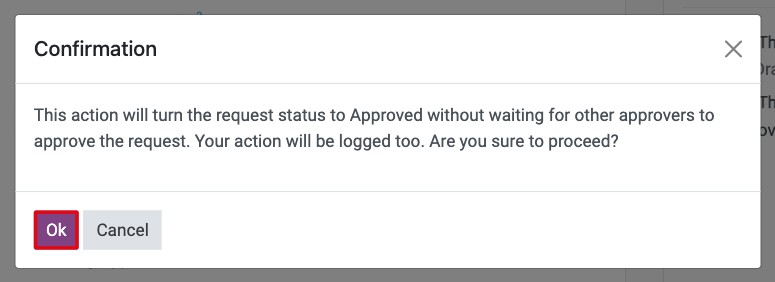
An Approvals ‣ Administrator can approve a request without waiting for the other approvers, even when it was refused: click Force Approval and confirm. The action is logged on the request.
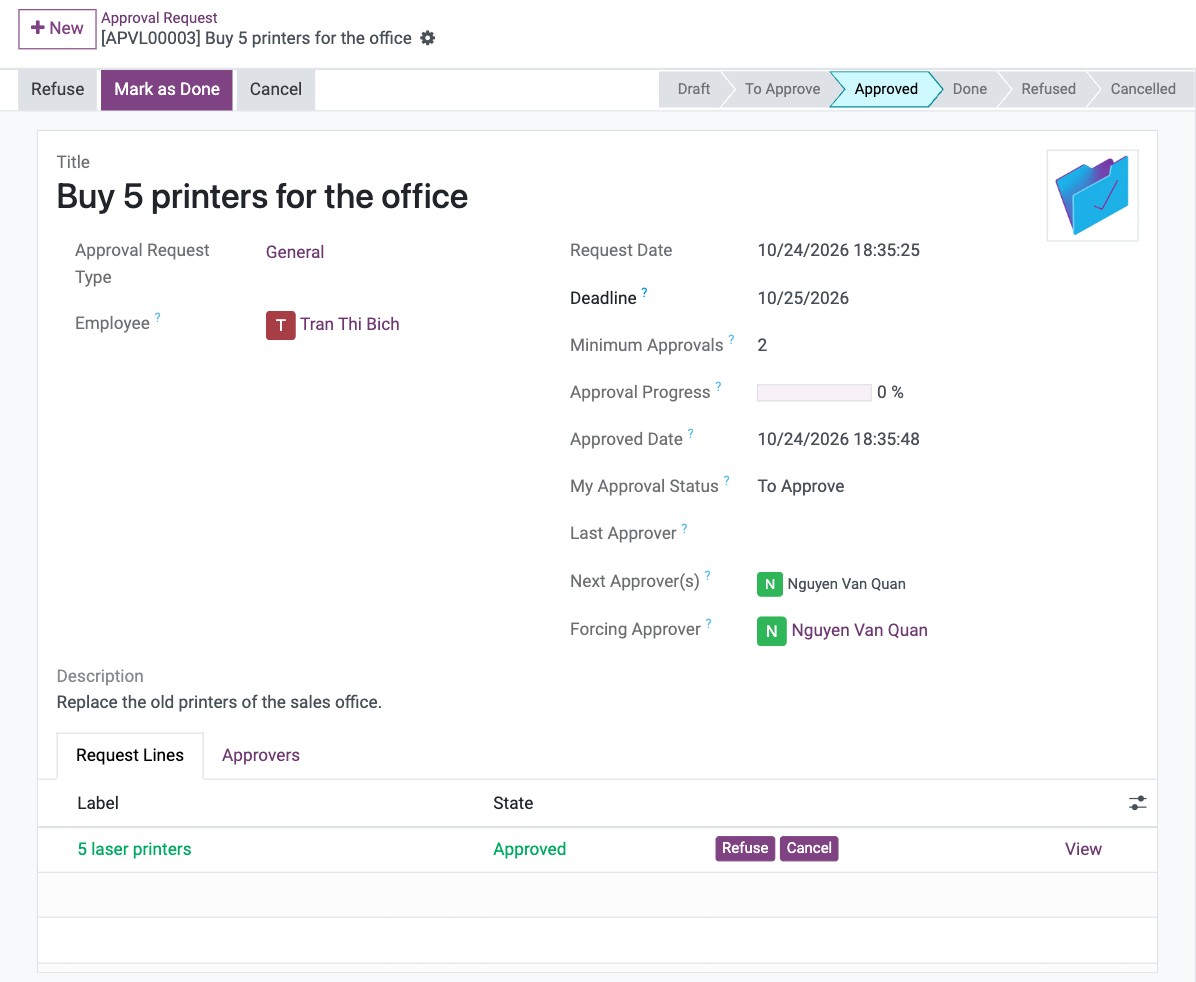
The request moves to Approved and Forcing Approver shows who forced it.
See also
Related articles:
Optional modules: