
How to find your way around Time Off
Open Time Off from the main menu. The menu bar gives access to your own requests and balances (My Time), the company calendar (Overview) and, depending on your access right, to the approvals (Management), the reports (Reporting) and the setup (Configuration). The first screen, My Time ‣ Dashboard, shows your balances and a calendar of your time off.
Who |
Every internal user. The menus you see depend on your access right. |
App |
Time Off |
Before you start
Install the Time Off app and set the access rights, see How to install Time Off and set up access rights.
Create the employees and the time off types.
How do I open the Time Off app?
Click the app icon at the top left of the screen and choose Time Off.

Which menus does the app have?

Menu |
What it contains |
Who sees it |
|---|---|---|
My Time |
Dashboard, My Time Off and My Allocations: your own time off requests and allocations. |
Everyone |
Overview |
The calendar of the time off of all employees, filtered by employee. |
Everyone |
Management |
Time Off and Allocations to approve or refuse requests, or to create them for employees. |
Approvers and officers |
Reporting |
by Employee and by Type. Administrators also see Balance and Time Off Details. See How to track time off with reports. |
Officers and administrators |
Configuration |
Time Off Types, Accrual Plans, Public Holidays and Mandatory Days. |
Administrators |
What does the dashboard show?
The dashboard shows a calendar. Use the arrows to move to another period, and the scale button (Year, Month, Week or Day) to change how much of the calendar you see.
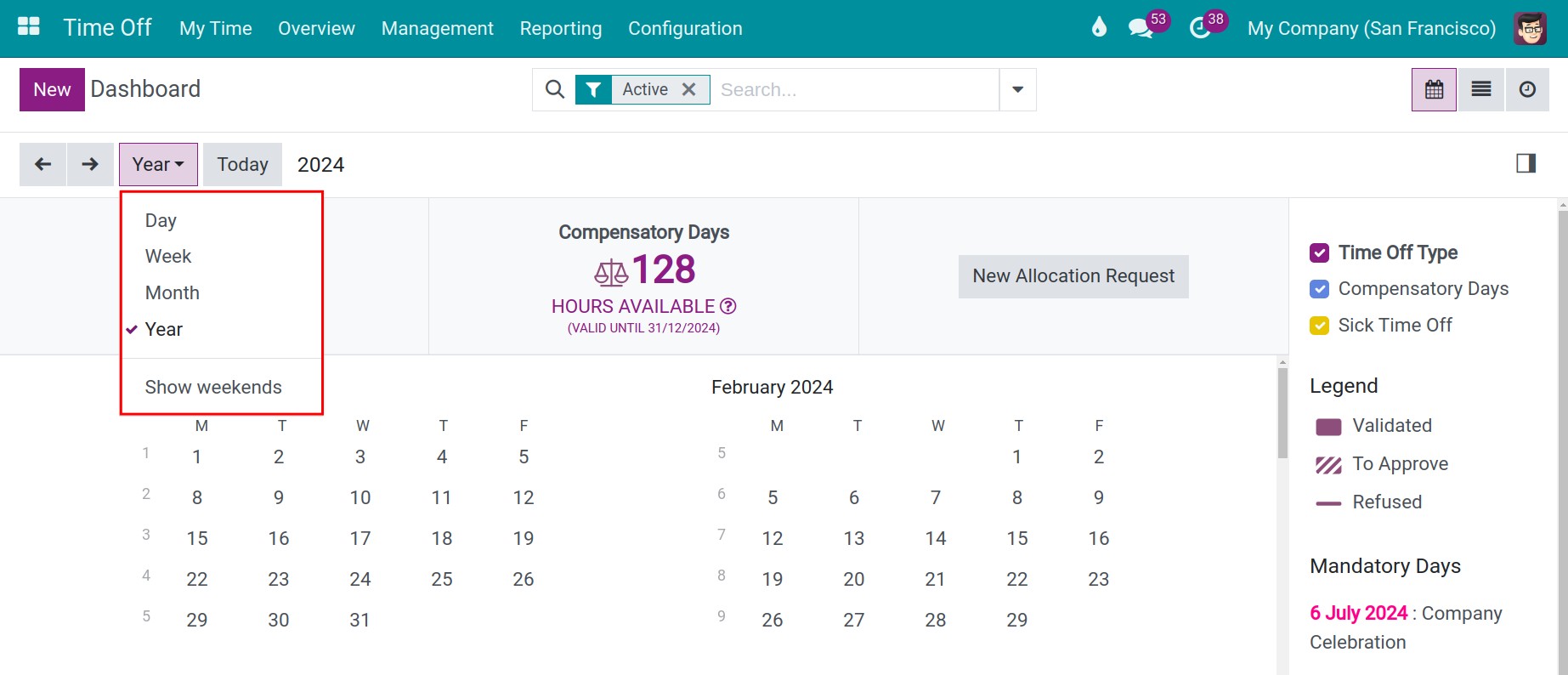
Each coloured period is one request, and its colour is the colour of its time off type. A request waiting for approval is hatched. Use the buttons at the top right to switch between the calendar, the list and the activity view.
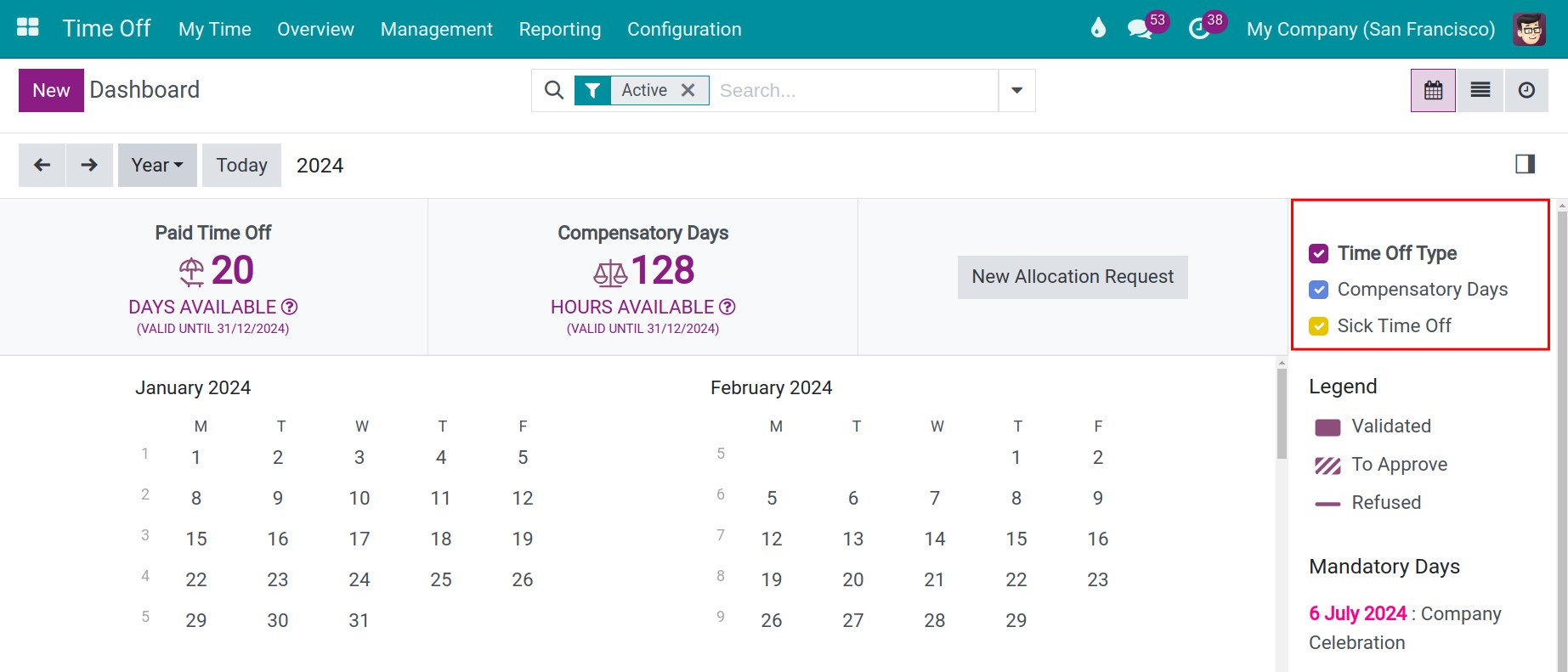
The panel on the right, which you can show or hide with the button next to the scale, lists the time off types you have used. Untick a type to hide it from the calendar. The Legend shows how the three states are drawn: Validated, To Approve and Refused. The Mandatory Days and the Public Holidays of the company are listed below.
What do the figures at the top of the dashboard mean?
For each time off type, the top of the dashboard shows the number of days you can still take, with the date until which the allocation is valid. Click the question mark to see the detail: the days Allocated, Approved, Planned and Available. For a type that does not require an allocation, the card shows the days already taken.
Pending Requests counts your allocation requests that wait for approval. New Allocation Request lets you ask for extra days when the time off type allows it, see How to create a time off allocation. When you have an accrual allocation, the dashboard also shows Balance at the: choose a date to see the days you will have on that date.

How do I create a time off request from the dashboard?
Click New at the top left of the dashboard, or click a day of the calendar. A window opens to fill in the request, see How to request time off.

Common errors
Problem |
What to do |
|---|---|
A menu is missing. |
The menus depend on the access right of the user, see the table above and How to install Time Off and set up access rights. |
A time off type is missing on the calendar. |
The type appears after you use it. Tick it in the panel on the right if you hid it. |
No balance appears at the top of the dashboard. |
Your employee record has no allocation yet, or the type is hidden on the dashboard. Ask your HR officer to create an allocation. |
Next steps
How to request time off: ask for time off.
How to create a time off allocation: allocate days to employees.