
Export and import customizations
Everything a system administrator builds with the Viindoo Customizer - new fields, view edits, new models, menus, reports, access rights - can travel to another database. The Customizer packs it into one module that you export from the first database and import into the second. This article shows how to read the check that comes before the export, how to import the module, and what happens to the customizations when you uninstall them.
Who |
A system administrator: a user whose Role is Administrator. |
App |
Viindoo Customizer |
Requirements
This tutorial requires the installation of the following applications/modules:
It also assumes you know how to open the Customizer. See Customize the existing interface.
The exported module names the modules its customizations rely on, for example Sales when it changes a sales screen. Install them on the other database before you import. When a custom field is restricted to access groups, the other database also needs the Viindoo Customizer, because only the Customizer enforces those groups.
Export your customizations
Export and Import are in the top bar of the Customizer, next to New App. They are there on every screen of the Customizer, including the landing page, because they act on every customization of the database, not on the screen you are editing. When the window is narrower than 1200 pixels, only their icons show: a download icon for Export and an upload icon for Import. Point at one to see its name, Export Module or Import Module.
Open the Customizer on any screen. See Customize the existing interface.
In the top bar, click Export.
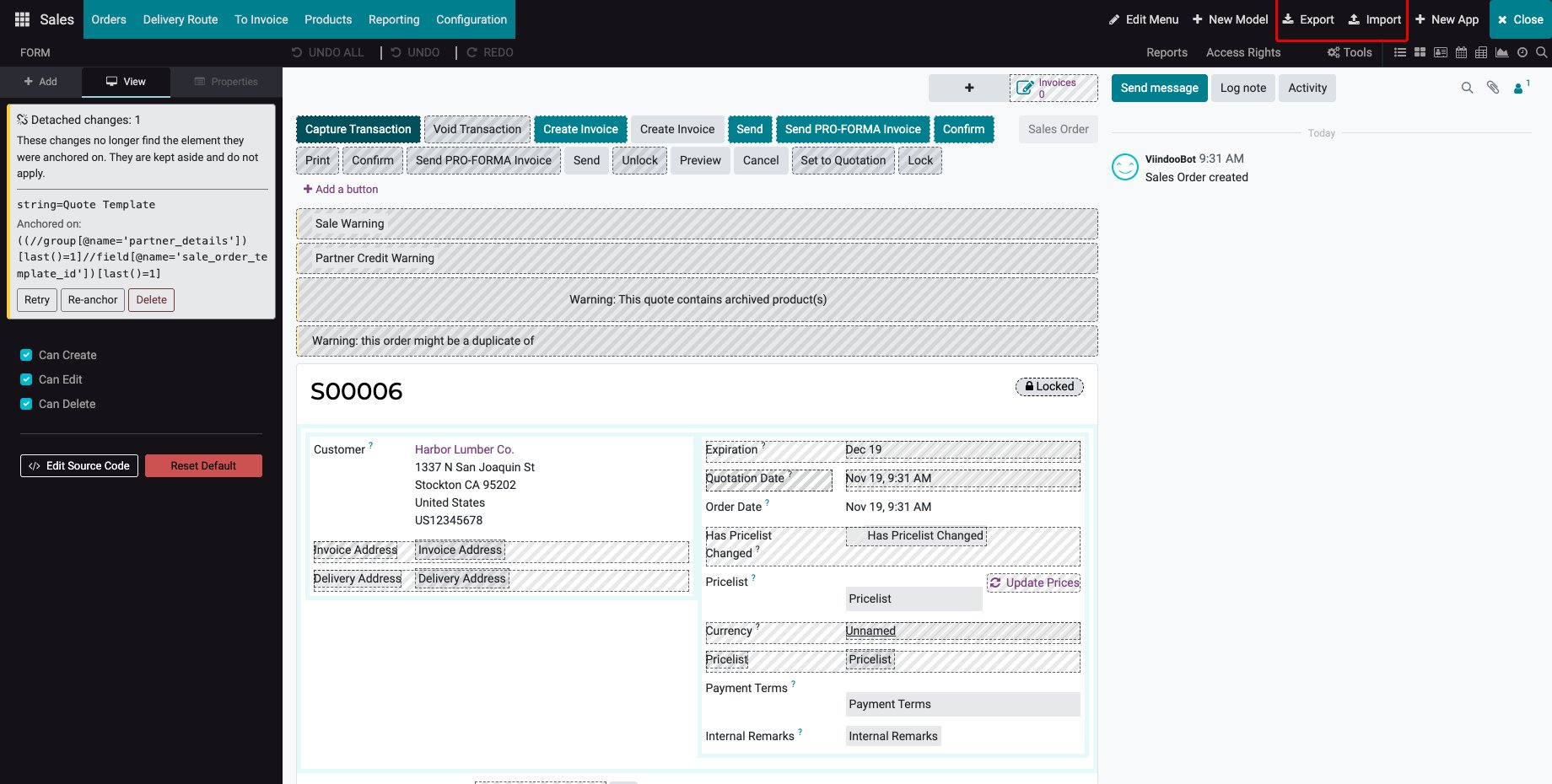
Before it downloads anything, the Customizer checks what the other database could not load with the same meaning. When everything can be carried, the download starts at once. Otherwise a dialog lists what the check found, in up to three parts:
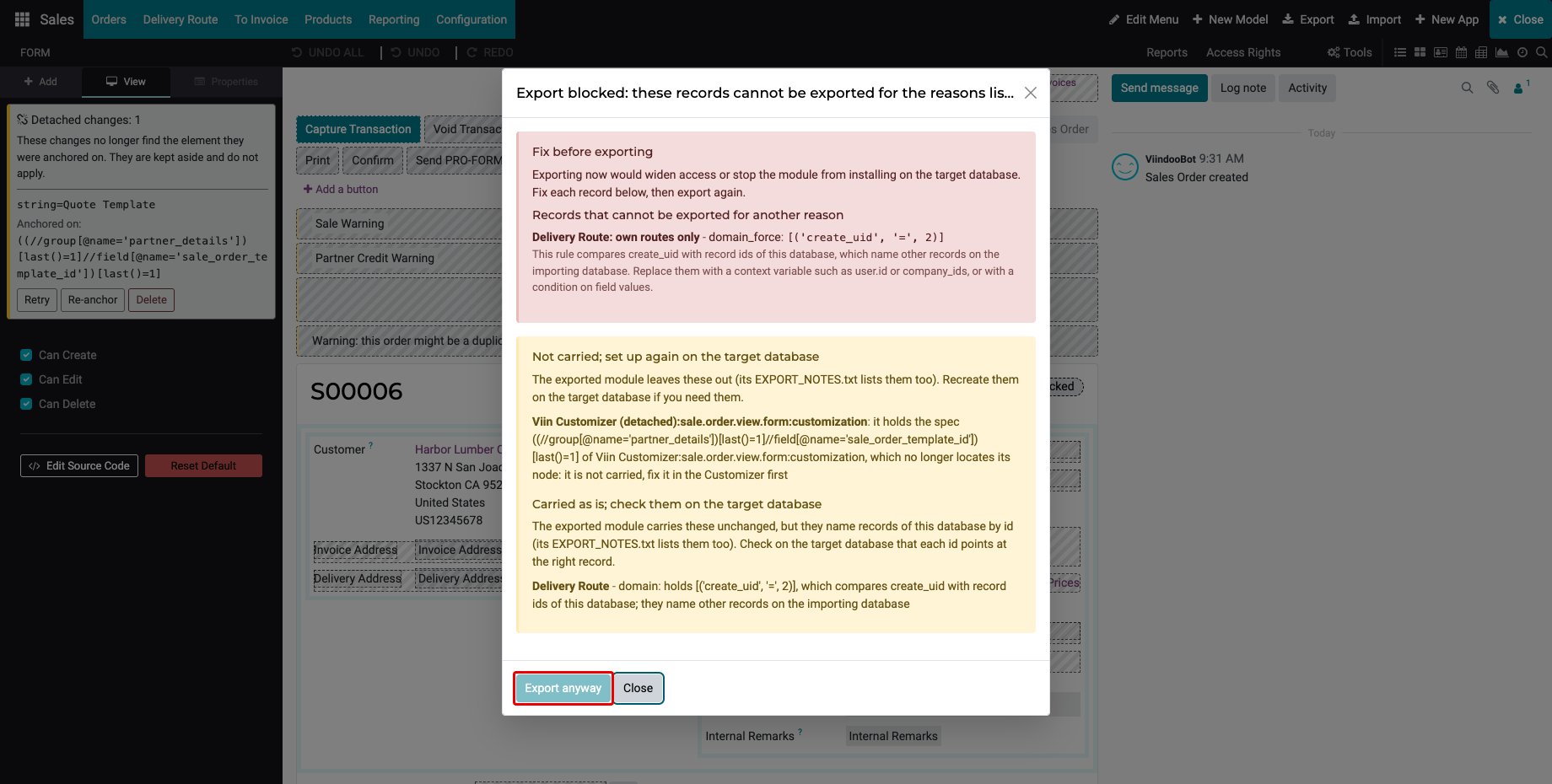
Part |
What it means |
What to do |
|---|---|---|
Fix before exporting |
The export would widen access or stop the module from installing on the other database: an access group the other database cannot identify, a required field restricted to access groups whose default value cannot be carried, or a record rule that compares a field with the id of a record. Each line names the record and says how to fix it. |
Fix each record, then click Export again. While one remains, Export anyway stays disabled. |
Not carried; set up again on the target database |
Records or values the other database could not load with the same meaning, for example a default value that names a record of this database, or a change that no longer finds its element (see Detached changes). |
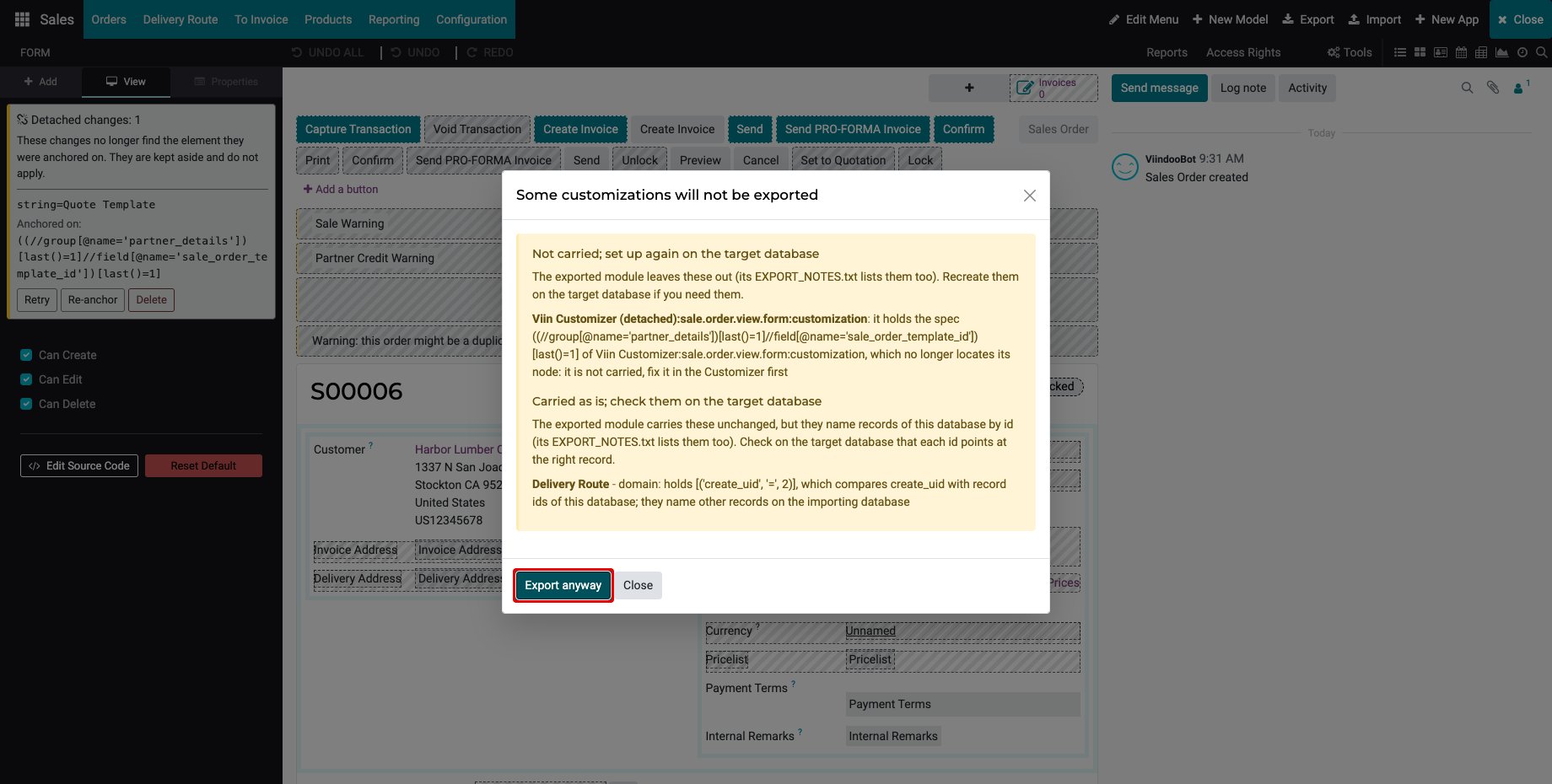
Click Export anyway, then recreate them on the other database if you need them. |
Carried as is; check them on the target database |
Values the module carries unchanged, but that name records of this database by their id, for example a domain that holds a record id. The same id can point at another record, or at none, on the other database. |
Click Export anyway. After the import, check that each id points at the right record. |
When only the second and third parts remain, Export anyway is available:
The download is a .zip file named viin_customization. It contains one module with the
customizations of the database, including the ones imported earlier, ready to import into another
database. It contains only what the Customizer created, plus what that content needs to load
correctly. When the check found something to report, the module also contains EXPORT_NOTES.txt,
which lists the same lines as the second and third parts, each in its own section. Open it when a
customization does not appear after the import, or does not point at the right record.
Neither the check nor the export changes anything in the database.
Import customizations
Open the Customizer on the other database, and click Import in the top bar. The Import Module window opens.
Click Upload your file and choose the
.zipfile you exported.Click Install. The customizations become active at once.
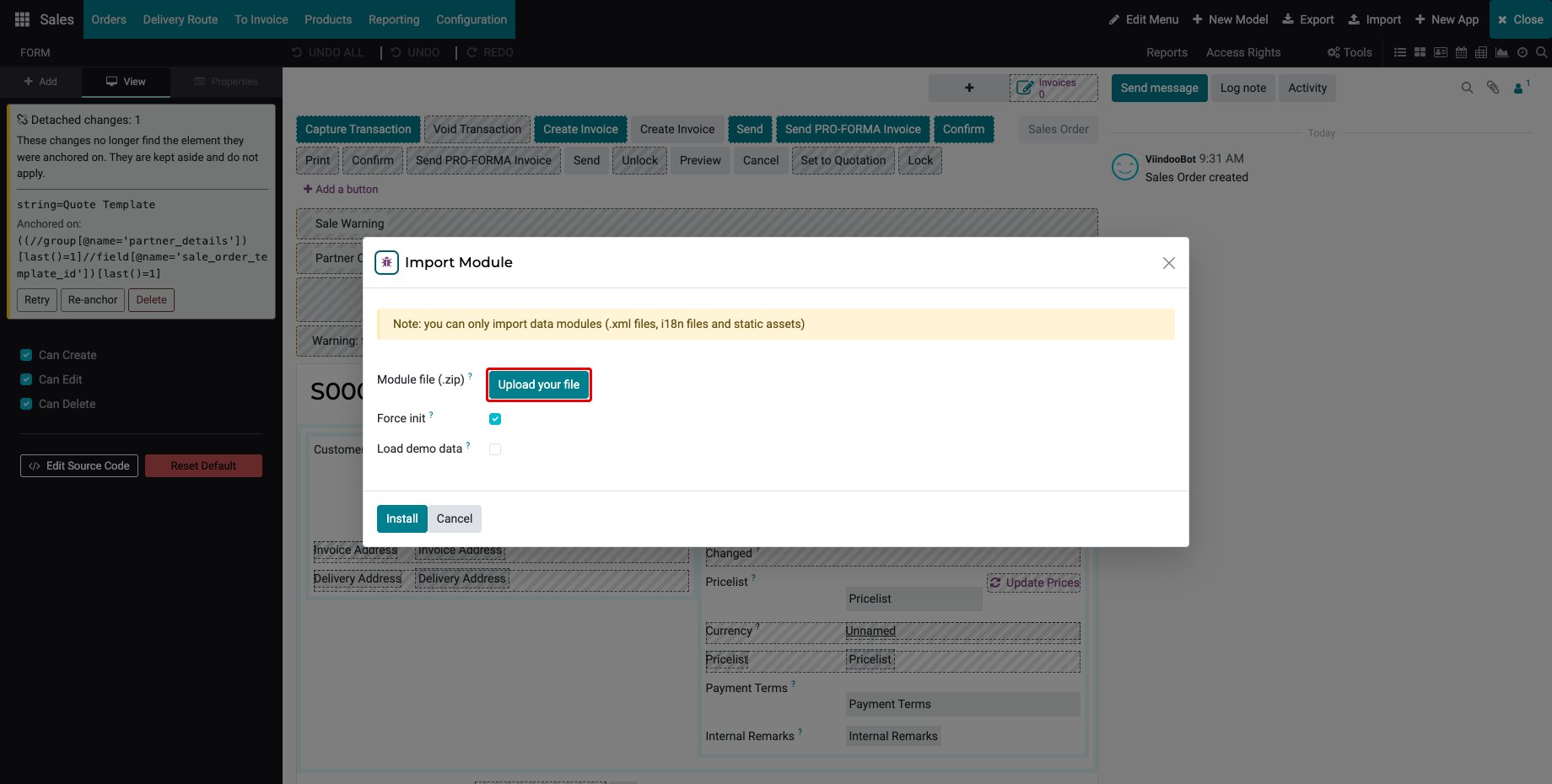
Force init is ticked by default. An existing model or field that this database did not create is then updated with the imported version. Untick it to leave everything that already exists as it is.
Leave Load demo data unticked unless the module also ships demo records you want.
An import never overwrites what the Customizer of this database created, or what it edited on a record of an installed app: a model, a field, a view edit, a menu, an action, a report, an access right or a rule. The local values stay, so your own changes always win. Importing the export of the same database again changes nothing for these records.
A matched model or field is updated or left as it is, never duplicated.
Once imported, a customization belongs to the imported module, and what you edit afterwards is kept apart from it:
The view edits you make after an import are kept separately and apply on top of the imported changes, so they win. When you import an updated version of the module, what it brought is updated and your edits still apply.
A change that comes from an imported module cannot be pinned, anchored again or deleted in the Customizer: fix it in the database that exported it, then import the module again. See Detached changes.
Other records brought by an imported module, such as fields, menus, actions and reports: your edit is saved on the record, but the record stays the imported module’s. Importing that module again updates it and may overwrite your edit.
Uninstall a customization
Everything made with the Customizer, and everything imported with Import, is stored in one module named Viindoo Customization Data. The Customizer app is a separate module, and uninstalling one does not mean uninstalling the other.
Open Apps, remove the Apps filter and search for
viin_customization.On the card of Viindoo Customization Data, open the menu and click Uninstall….
The dialog counts the models, fields, views, reports, menus, actions, access rights and record rules it would delete, and recommends exporting first. The counts are those of your database.
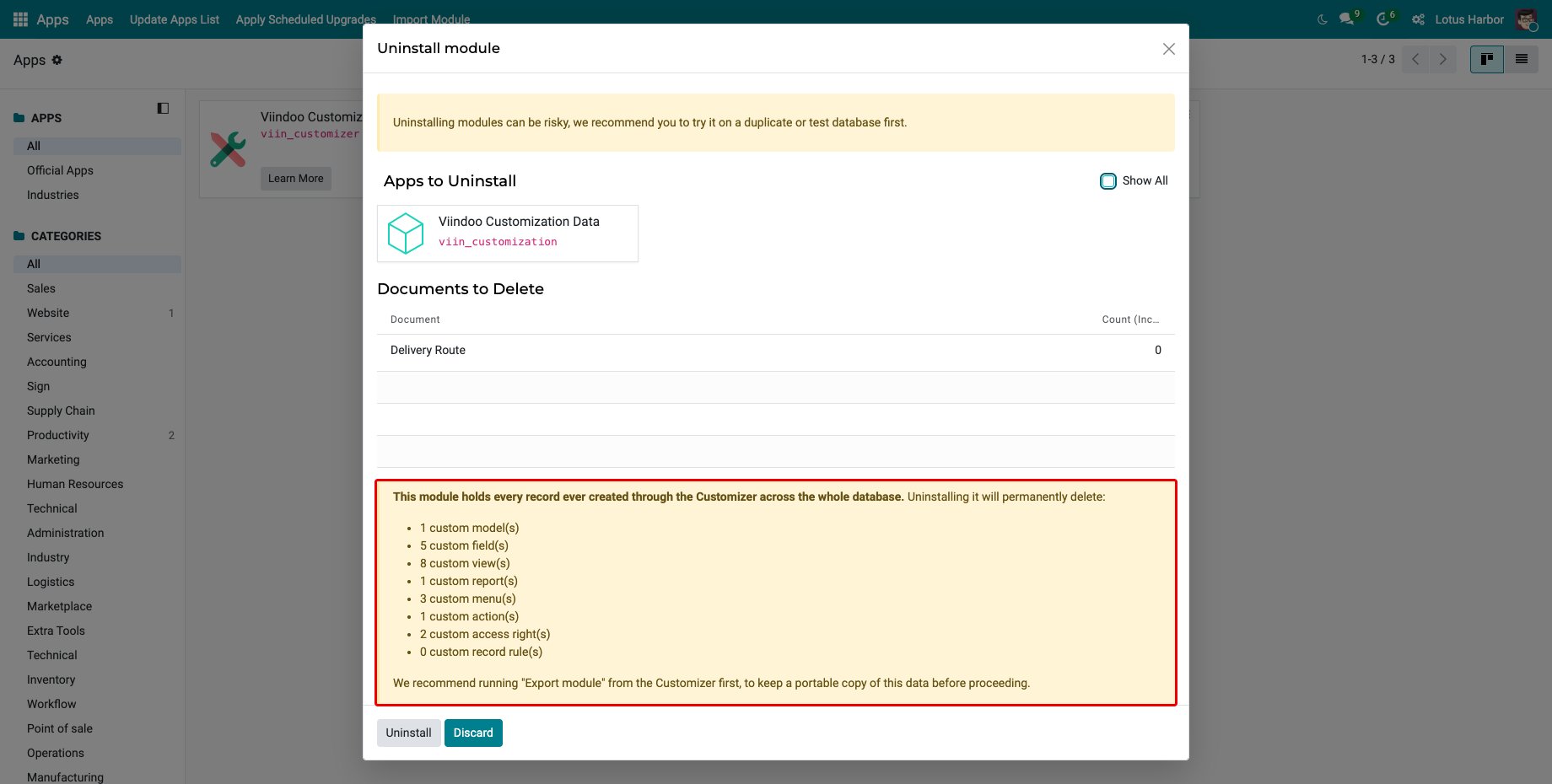
Uninstalling Viindoo Customization Data removes every customization at once, the imported ones and the ones made in this database. Click Discard to keep them.
Warning
Export the customizations before you uninstall the module. The deletion is permanent.
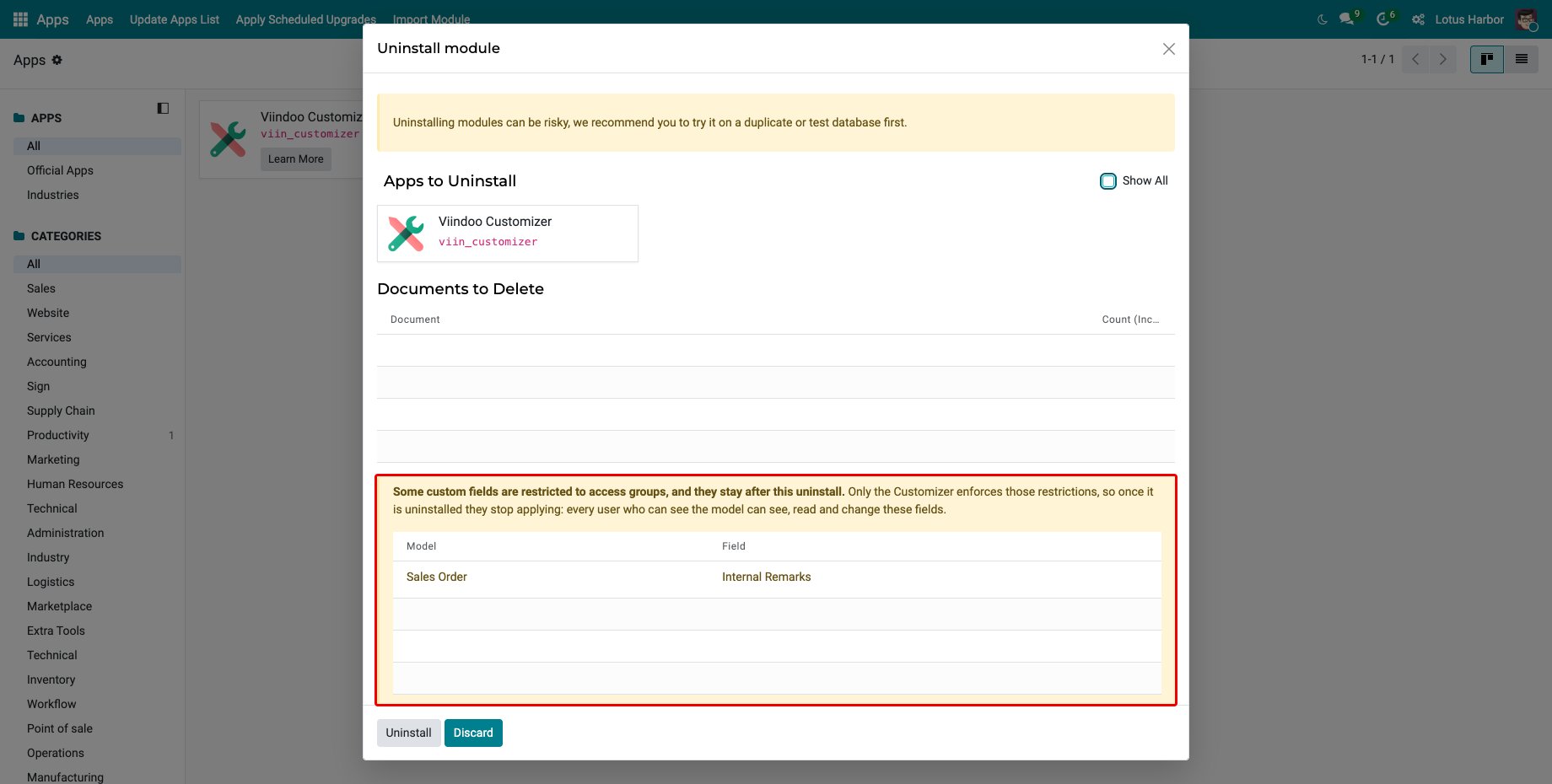
Uninstalling the Viindoo Customizer app is different:
The customizations stay in Viindoo Customization Data and keep working.
One thing stops. The access groups of a custom field are enforced only by the Customizer. Once it is uninstalled, every user who can see the model can see, read and change that field. The dialog lists these fields, with their model, before you confirm.
When Viindoo Customization Data depends on the Customizer, for example because an imported module restricts a field to access groups, the dialog lists Viindoo Customization Data under Apps to Uninstall. Confirming removes it too, with every customization. Read that list before you click Uninstall.
Common problems
Problem |
Cause |
What to do |
|---|---|---|
Export anyway is disabled. |
The check found something under Fix before exporting. |
Fix each record the dialog lists, then click Export again. |
A customization is missing after the import. |
It was listed as not carried, or it is a change that no longer finds its element. |
Open |
A value points at the wrong record after the import. |
It was listed under Carried as is: its id names another record on the other database. |
Open the record and choose the right one. |
For more entries, see Troubleshooting and FAQ.
See also
Related article