
Tax reports using tax grids
In Viindoo Accounting App, the Tax report is built according to the Tax grids which are configured on each type of the Taxes.
Requirements
This tutorial requires the installation of the following applications/modules:
When you use the Vietnam Chart of Accounts (Circular No. 99 or 133) which is set up in the configuration section of the Accounting app, the system has created several tax grids which frequently used by enterprises. However, you can adjust (add or subtract) the tax grid to get accurate information on the report, you do the following steps:
Create a tax grid on the Accounting app
A tax grid is created as a family tree. To make it easier to understand how to create a tax grid, let’s figure out the actual need that the enterprises want to track the expenses related to the taxes of the purchased goods and services. For example, you want to create a new purchase tax grid for 15% of goods and services. You do the steps below:
Create a Tax report
To create a tax grid, navigate to .

You can choose an existing tax report or create a new one by clicking New.
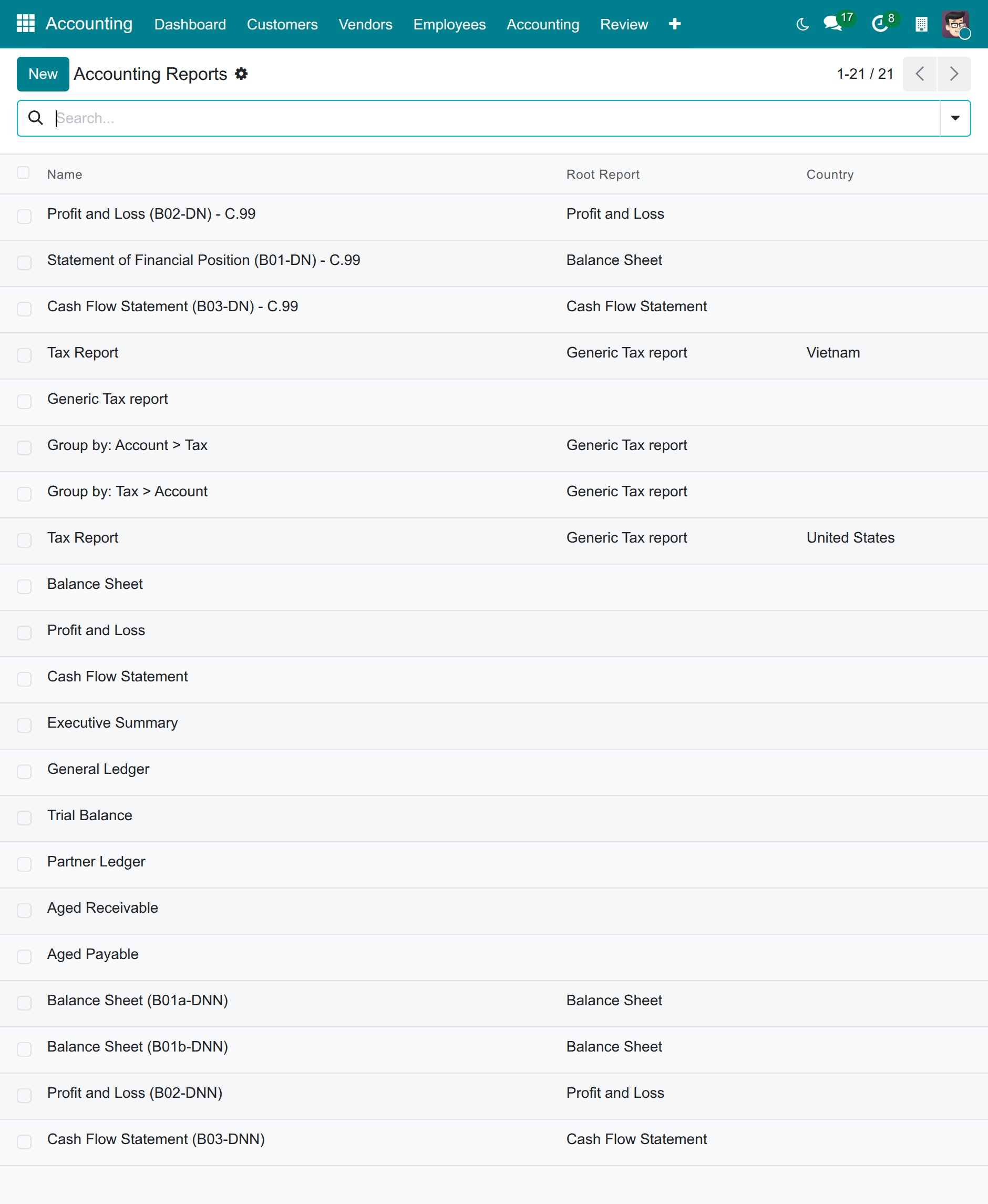
The system display the information as below:
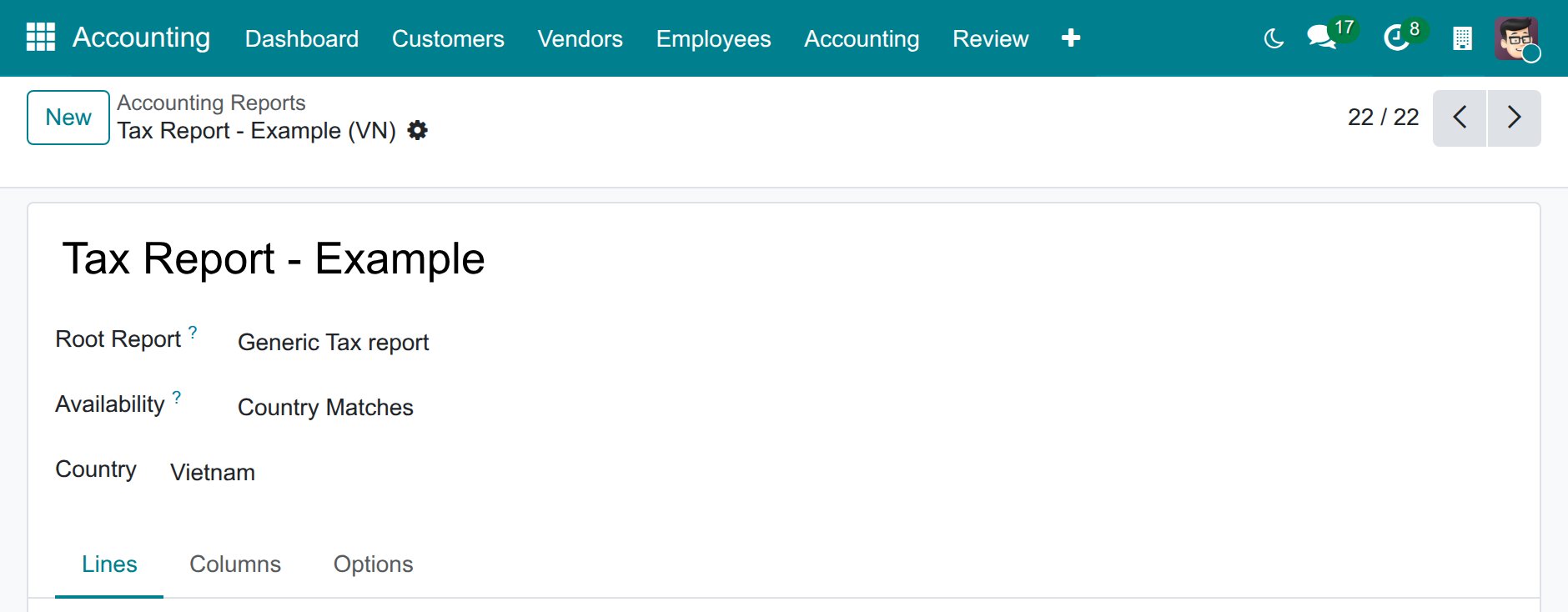
Name: Completed name for this report. It will be used in the tax report.
Root Report: The report this report is a variant of. For a tax report, select Generic Tax report.
Availability: Decides which companies are offered this report. The system provides 3 options. Depending on the condition chosen, additional corresponding information will be displayed:
Country Matches: Select the applicable country for the report at the Country field.
Chart of Accounts Matches: Choose the chart of accounts applicable to the report at the Chart of Accounts field.
Always: The report is always available.
In the Lines tab, click Add a line to create a root report line or choose an existing one to see details.
Create a root report line
The system display the details of root report line:
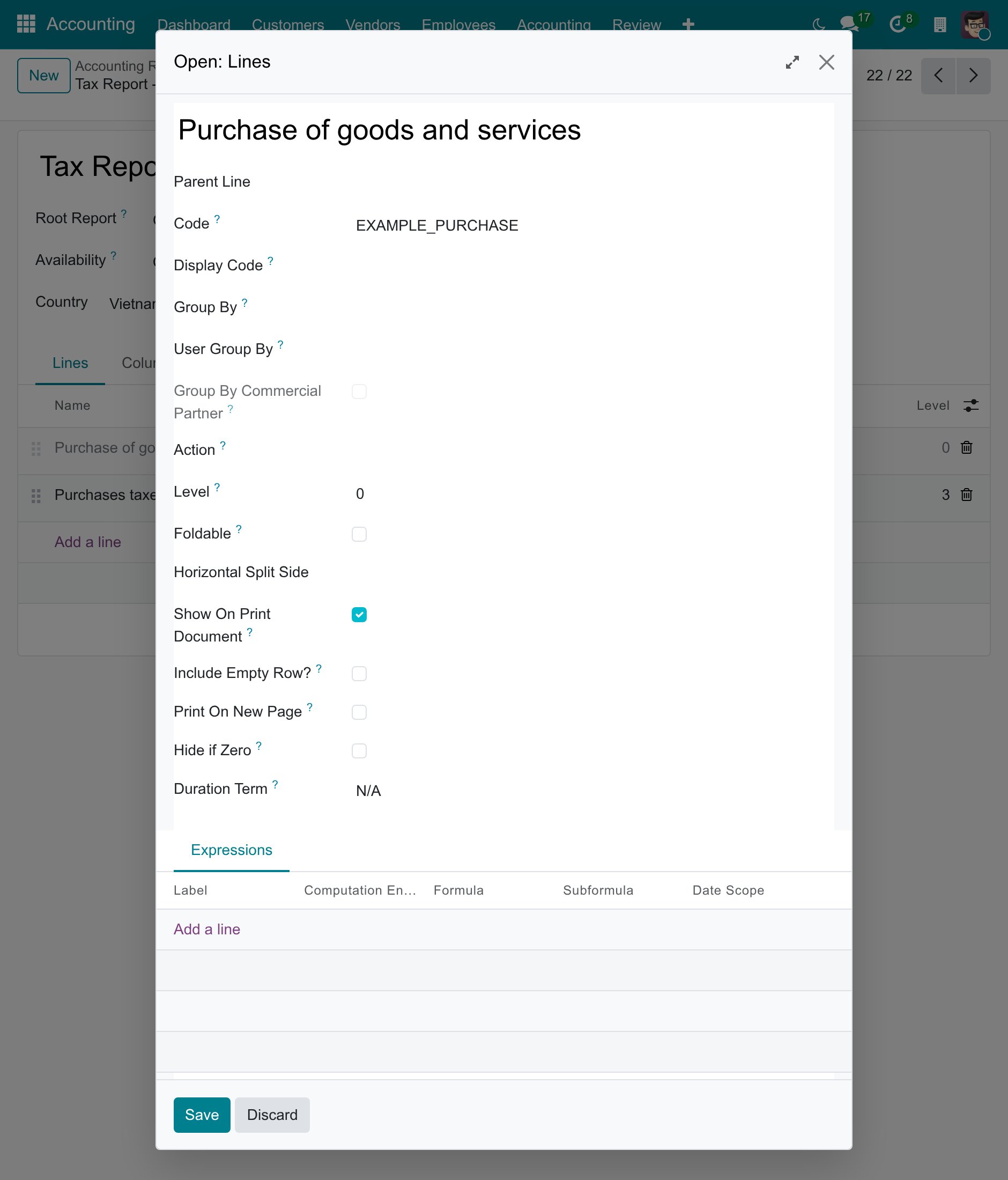
Name: The full name of this report row.
Parent Line: The parent tax grid containing this child tax grid.
Code: The short unique key identifying this row inside its report.
Display Code: The code shown on the printed or on-screen report, when the visible line number differs from the Code.
Level: The indentation depth of the row on the report.
Hide if Zero: Check this option, and the row and its child rows are hidden when all their columns are 0.
Click Add a line in the Expressions table to add an expression for the tax row.
Create detailed expressions to display on the report
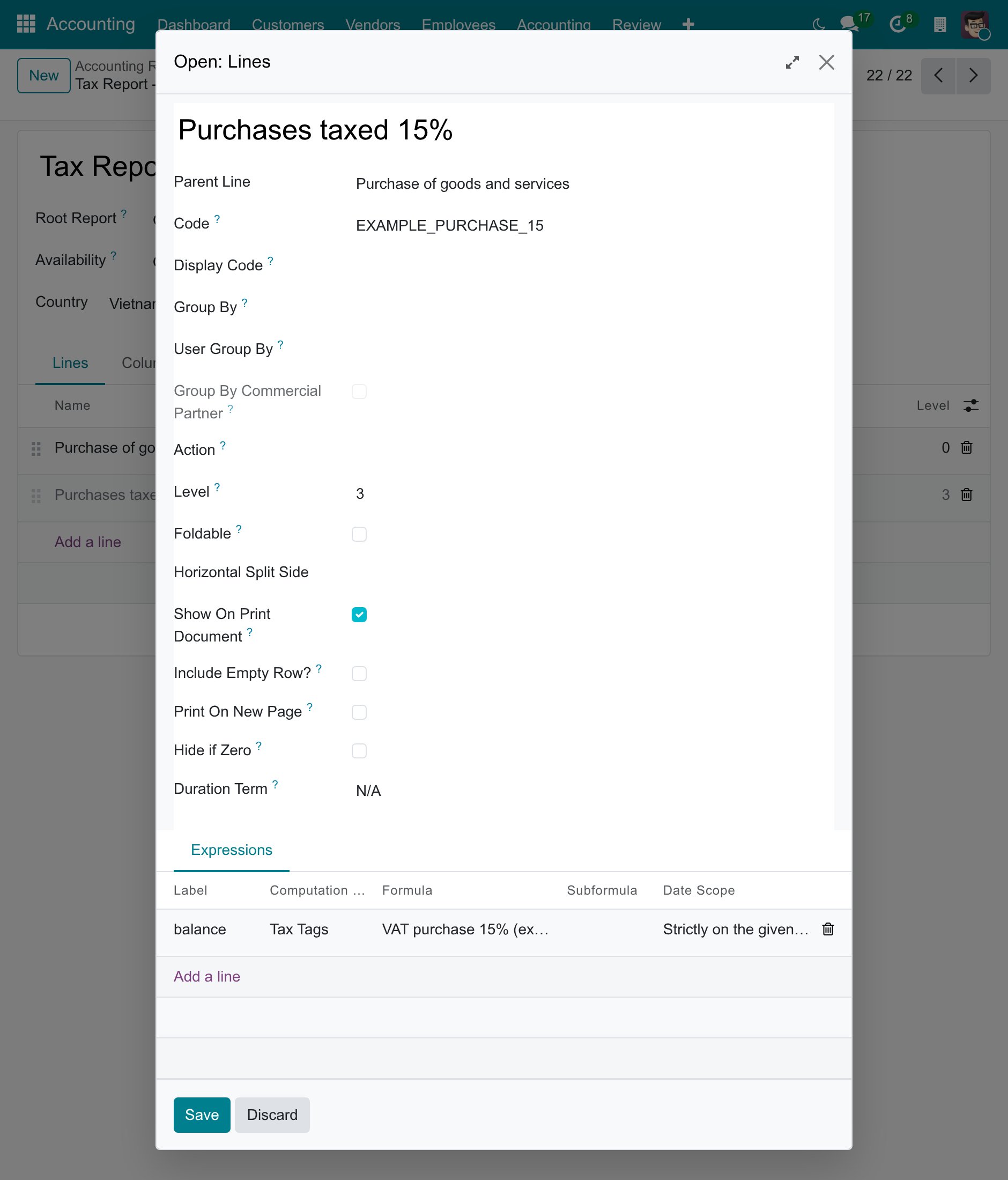
Label: A concise description of the expression, for example balance.
Computation Engine: Choose Tax Tags.
Formula: Enter the name of the tax grid for display on the report. The system creates the tax grid of this name when you save.
Date Scope: Choose Strictly on the given dates to count only the entries of the period of the report.
Click Save to save information.
Corresponding to the above example, we will have a child report line under the root line, with its tax grid as the formula:
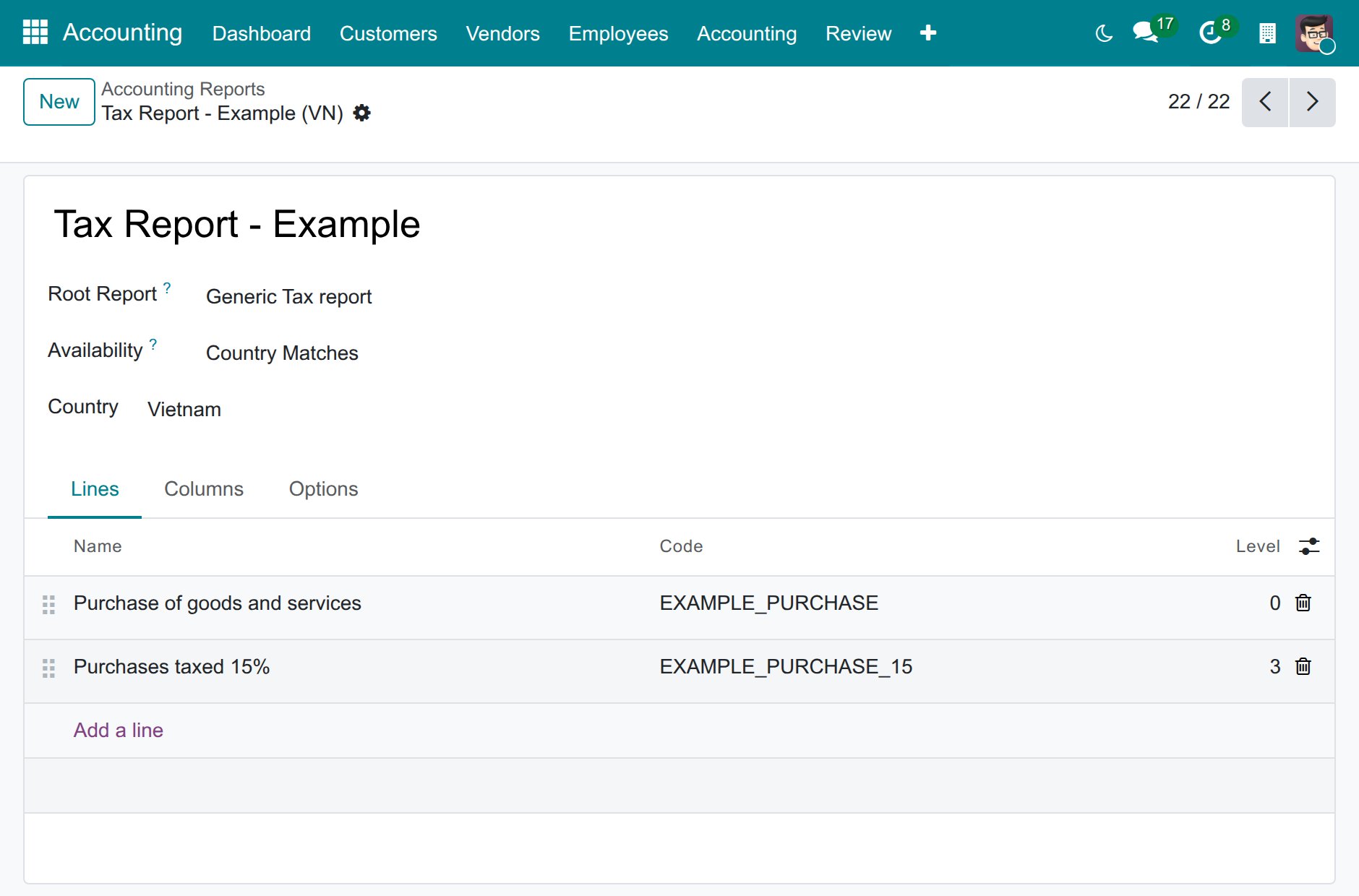
If you want to create multiple child tax grids, continue pressing Add a line on each parent row to create new ones. To change the order of rows, you can drag and drop the arrow icon up or down. This change will affect the tax report interface.
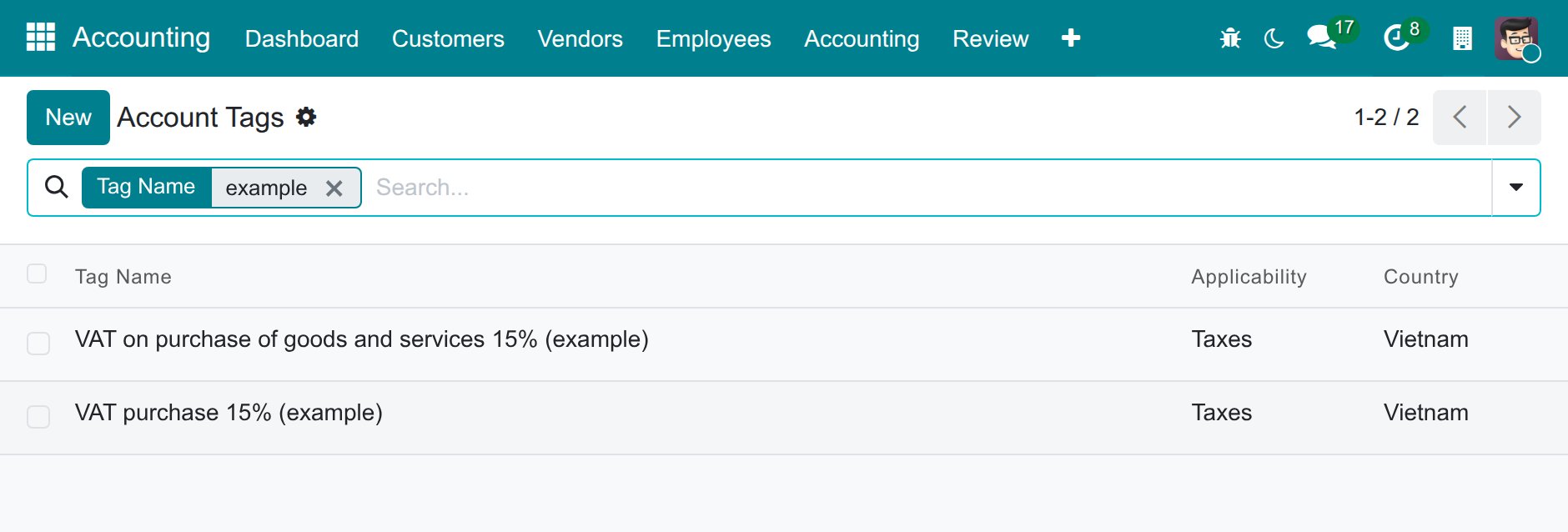
Hit on the Save button, the system will automatically generate the corresponded account tag for the Taxes configuration. Enable the Developer mode and navigate to to view and verify the existed account tags.
Connection between taxes and tax grids
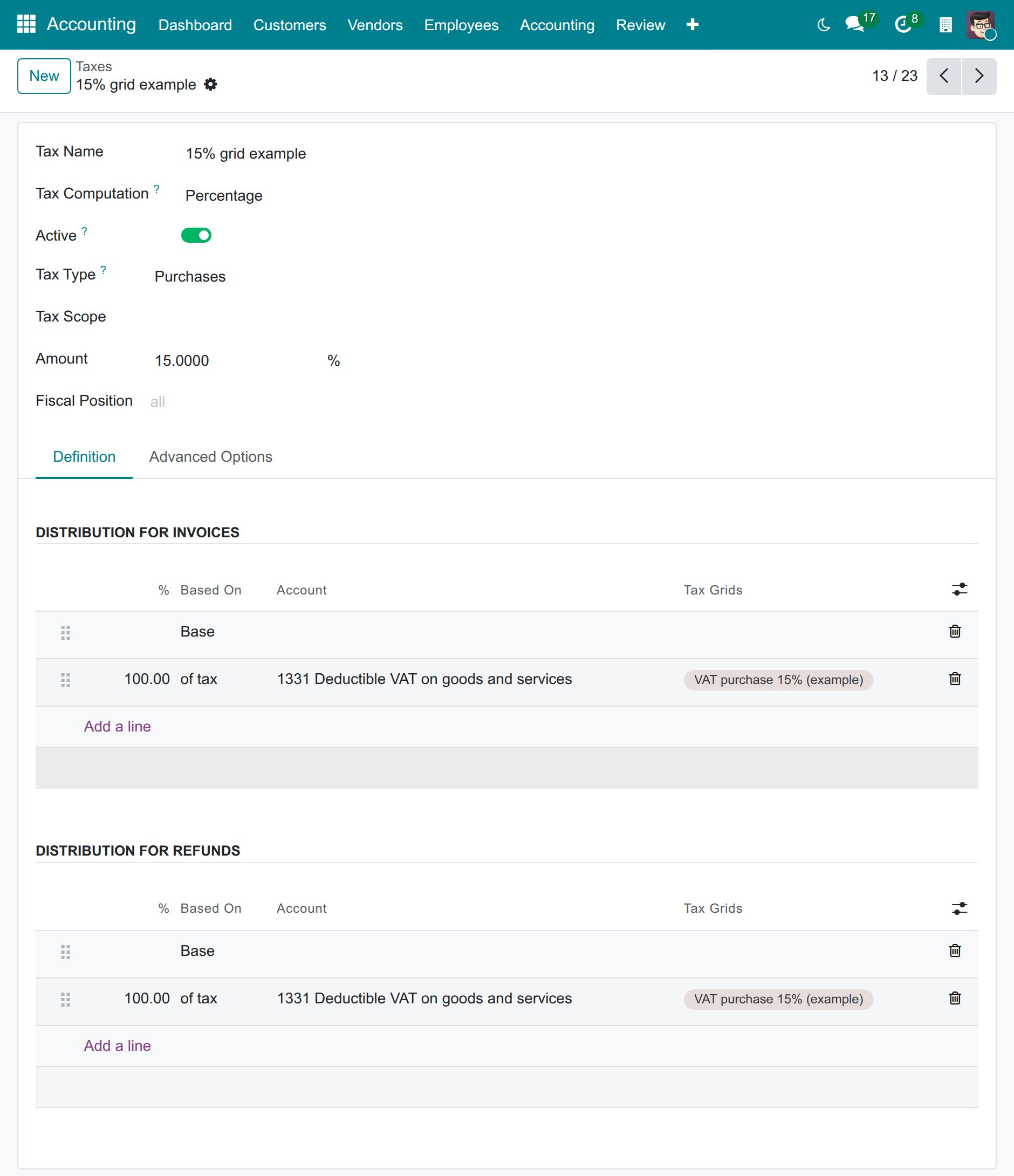
On the tax form, open the Definition tab. In the Tax Grids column of the distribution lines, select the account tags to fill in the corresponding tax grid for the data collection on the tax report. In the example, the tax grid is selected on the line of tax (the tax amount) of the invoices and of the refunds.
Note
The tags of Distribution for Invoices feed the tax report with the invoices.
The tags of Distribution for Refunds feed the tax report with the credit notes. The standard Vietnamese taxes use the same tax grid in both distributions.
View Tax report
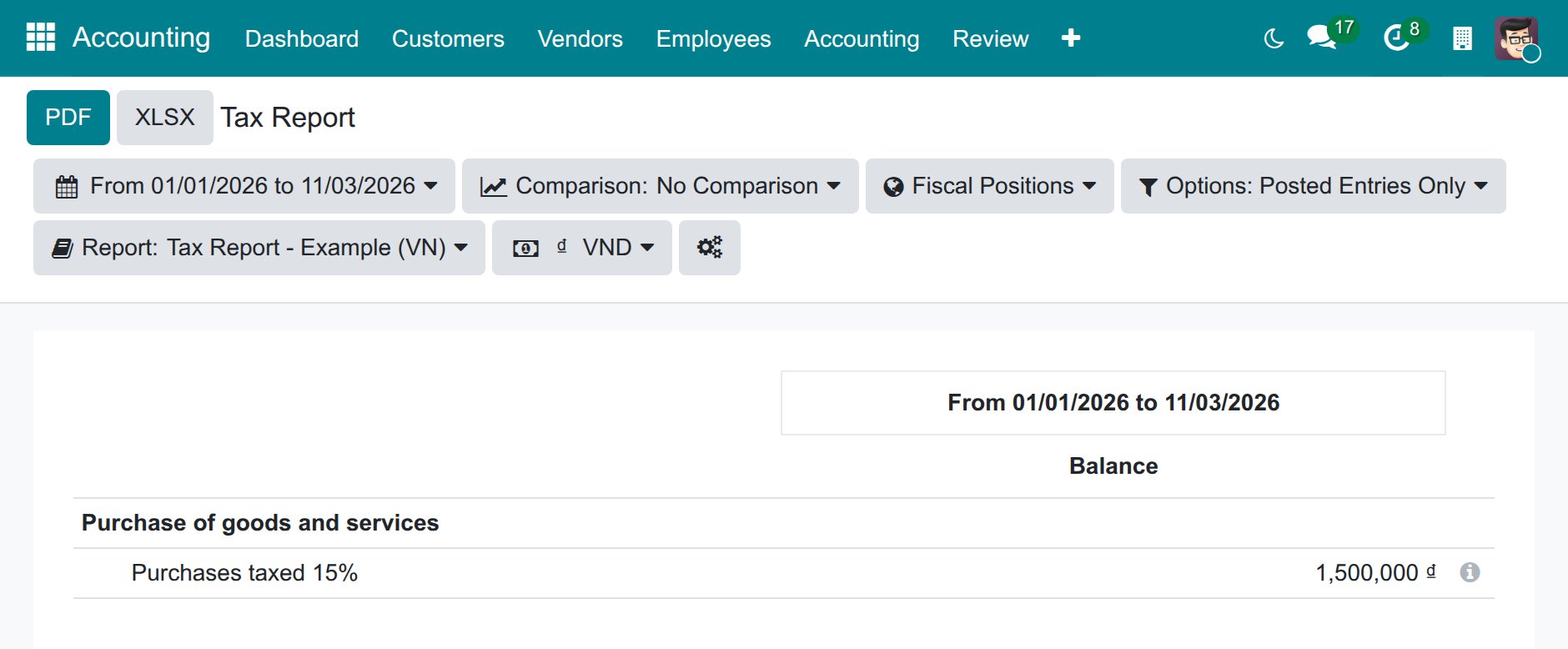
When you need to see the tax data, you can access .

All the data related to the value of goods and the corresponding tax will be shown here. Use the Report selector to switch between the tax reports. In the example, a vendor bill of 10,000,000 ₫ with the 15% tax adds 1,500,000 ₫ to the new tax grid.
See also
Related Article
Optional Module