
How to monitor your website with Google Search Console
Google Search Console is a free service of Google that shows how your website appears in Google Search: the queries that bring visitors, the pages that Google has indexed and the problems it found. Before Google shows you this data, you must prove that you own the website. In Viindoo, you do it with a verification file: you give Viindoo the name of the file that Google generates, and your website then serves that file to Google.
Who |
Administrators of the website. |
App |
Website |
Before you start
You need a Google account, and your website must be reachable on its public web address.
The steps in Google Search Console are done on the Google side. The screens of Google can change: see the help of Google Search Console for the current steps.
How do I get the verification file name from Google?
Sign in to Google Search Console and add your website as a property, using its full web address.
When Google asks how to verify the ownership, choose the HTML file method.
Google gives you a file named like google0a1b2c3d4e5f6a7b.html: google, then 16 letters and digits, then .html. Do not download the file to upload it anywhere: you only need its name. Keep the Google page open.
How do I enter the file name in Viindoo?
Go to Website ‣ Configuration ‣ Settings and find the Tracking & SEO section.
Tick Google Search Console. The Code field appears.
Type the file name in Code, for example google0a1b2c3d4e5f6a7b.html, then click Save.
![The Google Search Console setting with the Code field filled in]()
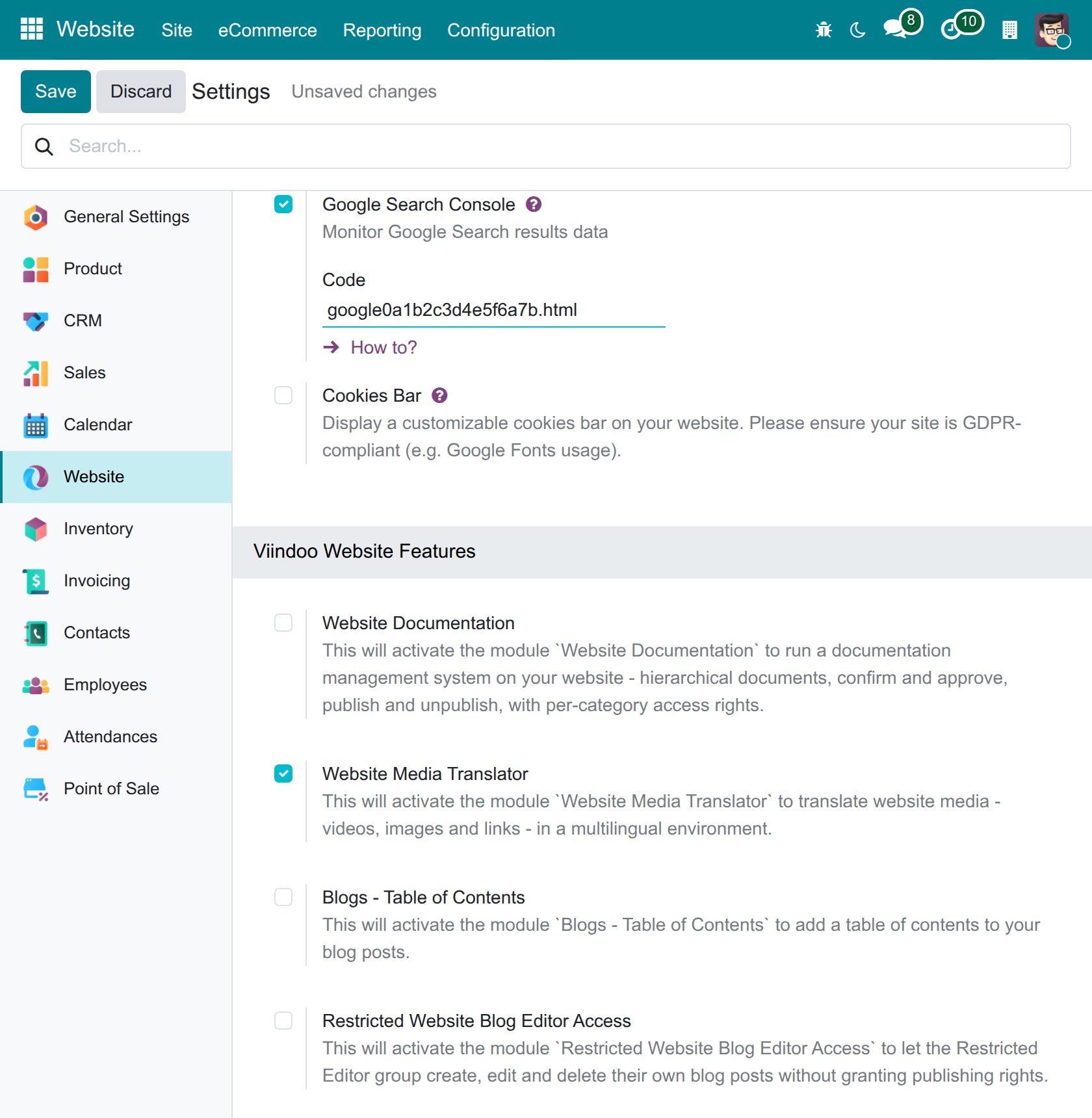
Next to the setting you find two links to this page: the ? icon beside the name of the setting, and the How to? link that appears once the setting is on.
How do I verify the website?
Go back to the Google page and click Verify.
Google asks your website for the file. Viindoo answers with the content that Google expects, so Google confirms the ownership and opens the Search Console of your website.
Keep the setting on after the verification: Google checks the file again from time to time. If you untick it, the verification file is no longer served and Google may remove your access.
The setting belongs to one website: if you run several websites, choose the website first and repeat the steps for each one, with the file name Google gave for that website.
Common problems
Problem |
What to do |
|---|---|
Google says that it cannot find the file. |
Check that you clicked Save and that the code is the exact name Google gave you, with the google prefix and the .html ending. |
The file address shows a 404 page. |
The setting is off, or the name does not have the form google plus 16 characters plus .html. Type the name again. |
I changed my web address. |
Add the new address as a new property in Google Search Console and verify it with its own file name. |