
Decide how a shipment starts: order or shipment
Guide information
Requirements
This tutorial requires the installation of the following applications/modules:
Freight Sale - required for the sales-order path below. It installs automatically with Freight Forwarder Management.
Every shipment can start in one of two places: Operations opens it directly, or Sales quotes it first and the shipment appears once the customer signs. Neither path is wrong, but a team that never agrees which one to use ends up with duplicate shipments, or a booking confirmed before anyone checked the margin. If a term below is new to you, see the Freight forwarding glossary.
A shipment can include pickup to the origin port or cargo terminal, the main sea, air, or road journey, and delivery from the destination port or terminal. Freight teams often call these pre-carriage, main carriage, and on-carriage. Viindoo shows each part as a route leg on the Schedule & Performance tab. These labels describe where a service sits in the journey; they do not decide which legs your company has agreed to provide.
Running scenario: Hai Long Logistics ships 2 x 40FT HC of footwear for Nhat Long
Footwear from Hai Phong Port to Port of Los Angeles with carrier ONE
(booking ONEYBK204581, HBL HLLHPHLAX2611-001). This shipment starts from a sales order. The
shipment-first screens use Nhat Long Footwear’s next order, which Operations opens directly as
a draft shipment.
The six building blocks of every shipment
Whichever path you start from, the same six pieces of information end up on the shipment. Once you know where each one lives, you can always find your way back to it.
Block |
Where it lives |
What it holds |
|---|---|---|
Shipment |
The shipment record itself |
Customer, direction (Export/Import), Main Transport, shipment type, route, current stage |
Route legs |
Schedule & Performance tab |
Pickup before the main journey, the primary transport service, and delivery after arrival; each leg has its own Leg Type and Transport Mode, and its bookings name the carrier |
Milestones |
Containers list on the Cargo & Packages tab |
Empty Picked, Stuffed, Gate-in, Loaded on export; Arrived, Customs Cleared, Gated Out, Unstuffed, Empty Returned on import |
Charges |
Charges tab (appears once Confirmed) |
One line per cost, each with a buy and a sell price, feeding Total Revenue, Total Cost and Gross Profit |
Documents |
Bill of Lading section, plus the Required Documents tab where Freight & Document Integration is installed |
HBL No. and MBL No.; the Shipping Instruction, Draft B/L and D.O requests |
Profit |
Top of the Charges tab |
Total Revenue, Total Cost, Gross Profit, always in the company currency (VND for Hai Long Logistics) |
Tip
You can find your way around when: you can open the Hai Long -> Nhat Long Footwear shipment and point to all six blocks above without searching.
Start from the shipment, or from the sales order?
Shipment-First |
SO-First |
|
|---|---|---|
Who opens the job |
Operations |
Sales |
What exists first |
A shipment in Draft, route and container type already known |
A quotation with a rate already picked through the sailing-schedule wizard |
How the other half appears |
Sales clicks Create Quotation on the shipment; the quotation lines come from the charges that already have a selling price |
Confirming the sales order creates the shipment automatically, in Draft |
Where the legs come from |
Entered by hand on the shipment |
Typed on the order line (Pickup Address, Drop-off Address, Carriage Role), falling back to the addresses on the order |
Where the charges come from |
Confirming the booking adds the freight line with the buy price only; the sell price and any other charge are entered by hand |
Copied from the sales order line, already priced |
Use when |
Operations starts before a quotation exists (for example a repeat customer or a rush booking) and Sales quotes later |
Sales quotes a priced sailing schedule and the customer signs before Operations starts work |
Main risk |
Nobody checks the margin before the booking is confirmed |
A lane that is not typed on the order line, on an order with no addresses, leaves the shipment with no route |
If you are unsure, use SO-First, because the margin is checked before the booking. If the approved path is still unclear, ask the Sales or Operations lead before creating either record. Do not create both: confirming a sales order already creates a shipment.
Warning
Missing the CY cutoff for ONE 026W (ETD Nov 5) rolls the 2 x 40FT HC to 027W (ETD Nov 12): 7 days later, plus any storage or rebooking charge the carrier applies. Whichever path you started from, record the confirmed CY, SI and VGM cutoffs as soon as the booking is confirmed.
Shipment-First: Operations opens the job
Go to (or Import) and create the shipment: Customer, route and Shipment Type, with Main Transport Sea / Waterway.
Fill in the route (Origin Location and Destination Location, or POL and POD) or add a leg on the Schedule & Performance tab, then click Confirm. When the shipment has no leg yet, Viindoo creates the main carriage leg from that route. The Charges tab and the Bill of Lading section appear on the shipment.
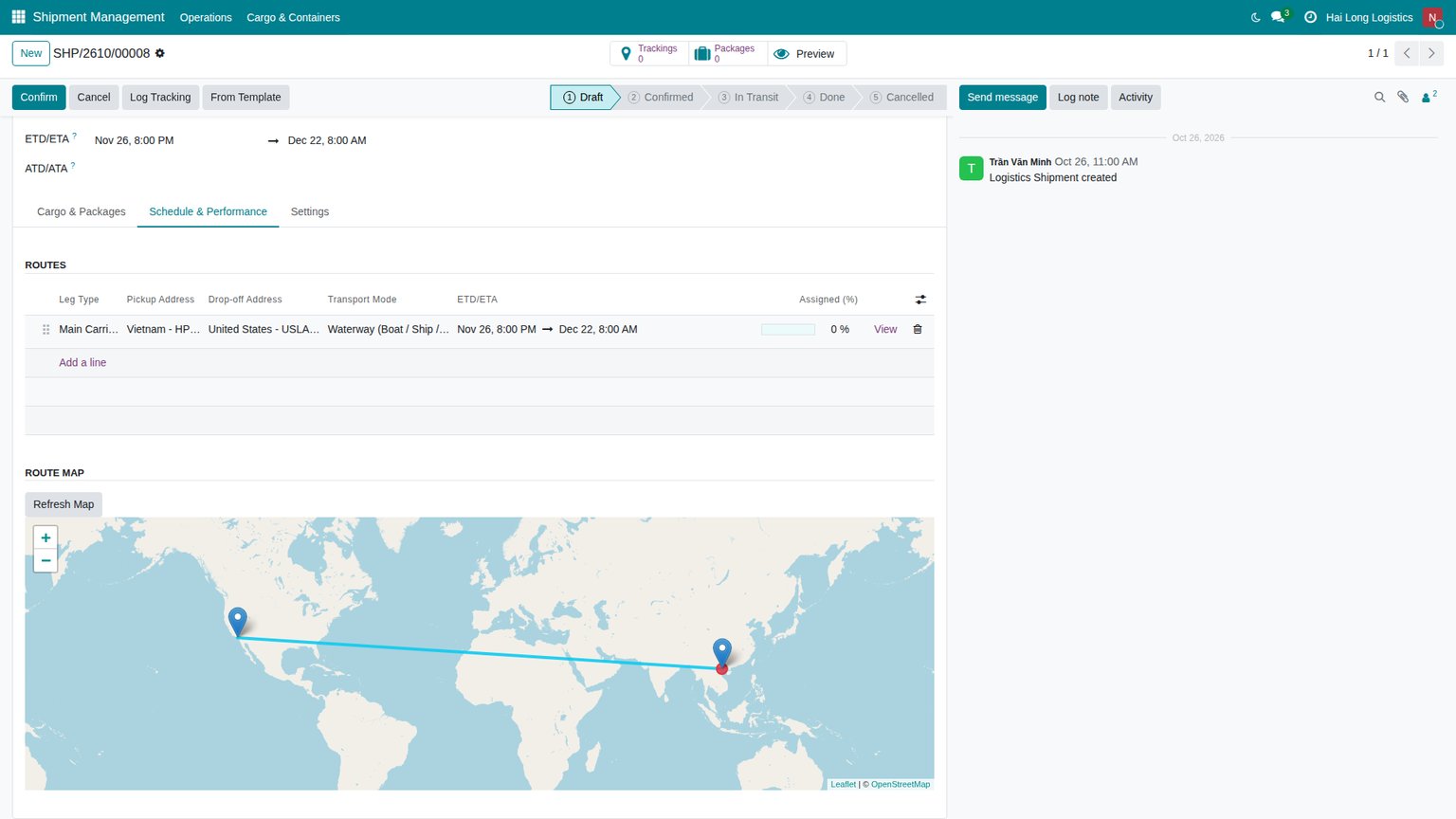
Before you click Confirm, the draft looks like this:
![Draft export shipment SHP/2610/00008 for the next order of Nhat Long Footwear: the header shows only the Confirm, Cancel, Log Tracking and From Template buttons, the Schedule & Performance tab lists one Main Carriage leg from Vietnam - HPH (VN) to United States - USLAX (US) by waterway, and the Charges tab is not there yet.]()
Tip
Check: after you click Confirm, the status bar shows Confirmed and the Charges tab is visible.
Enter the charges on the Charges tab. When the customer needs a formal quotation, Sales clicks Create Quotation on the shipment header: Viindoo opens a draft sales order whose lines come from the charges that already have a selling price (Unit Price above 0) and are not on an order yet. The button appears when the shipment has a customer, a Shipment Type and at least one such charge, and no sales order yet. A shipment still in Draft has no Charges tab, so confirm it first. Once an order exists, the button becomes Add to Sales Order, which lists the charges to add and lets you review them before they reach the order.
Note
Create Quotation and Add to Sales Order need a Sales access right (User: Own Documents Only or higher), not a Logistics one - a user with full Logistics access but no Sales group will not see them.
SO-First: the customer signs first
Sales opens a quotation under .
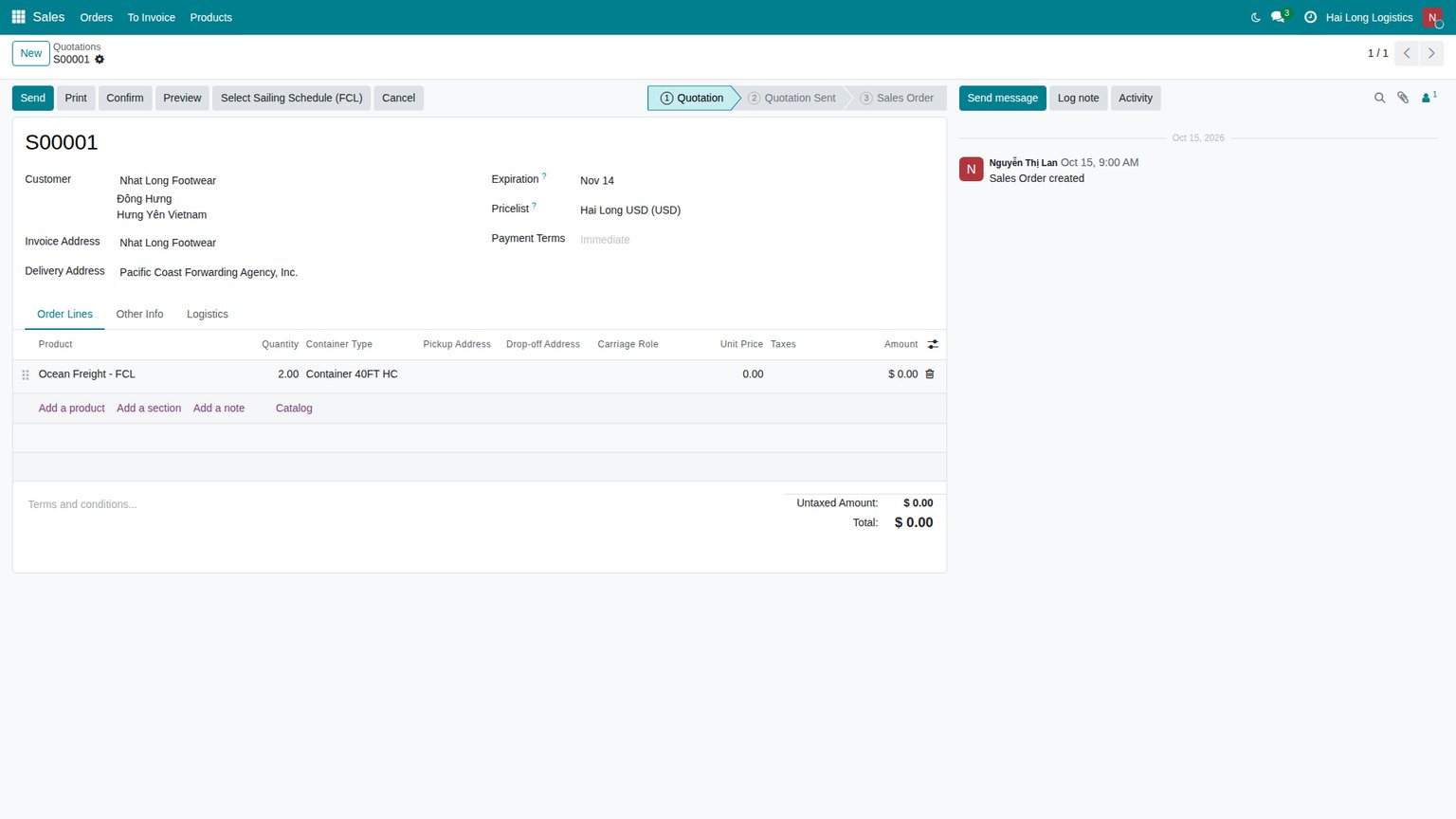
Sales clicks Select Sailing Schedule (FCL) (or the LCL equivalent) to pick a carrier, route and container type, then Apply Quote. Apply Quote fills Unit Price with the carrier’s buy rate (1,850.00 for ONE sailing 026W). Replace it with your sell price before you confirm: Lan enters 2,150.00, so the order total is 4,300.00 and the margin is 2 x 300.00 = 600.00.
![Draft quotation S00001 for Nhat Long Footwear with one Ocean Freight - FCL line for 2 Container 40FT HC at a unit price of 0.00; the Select Sailing Schedule (FCL) button is in the header, the Pickup Address, Drop-off Address and Carriage Role columns are empty, and no schedule has been applied yet.]()
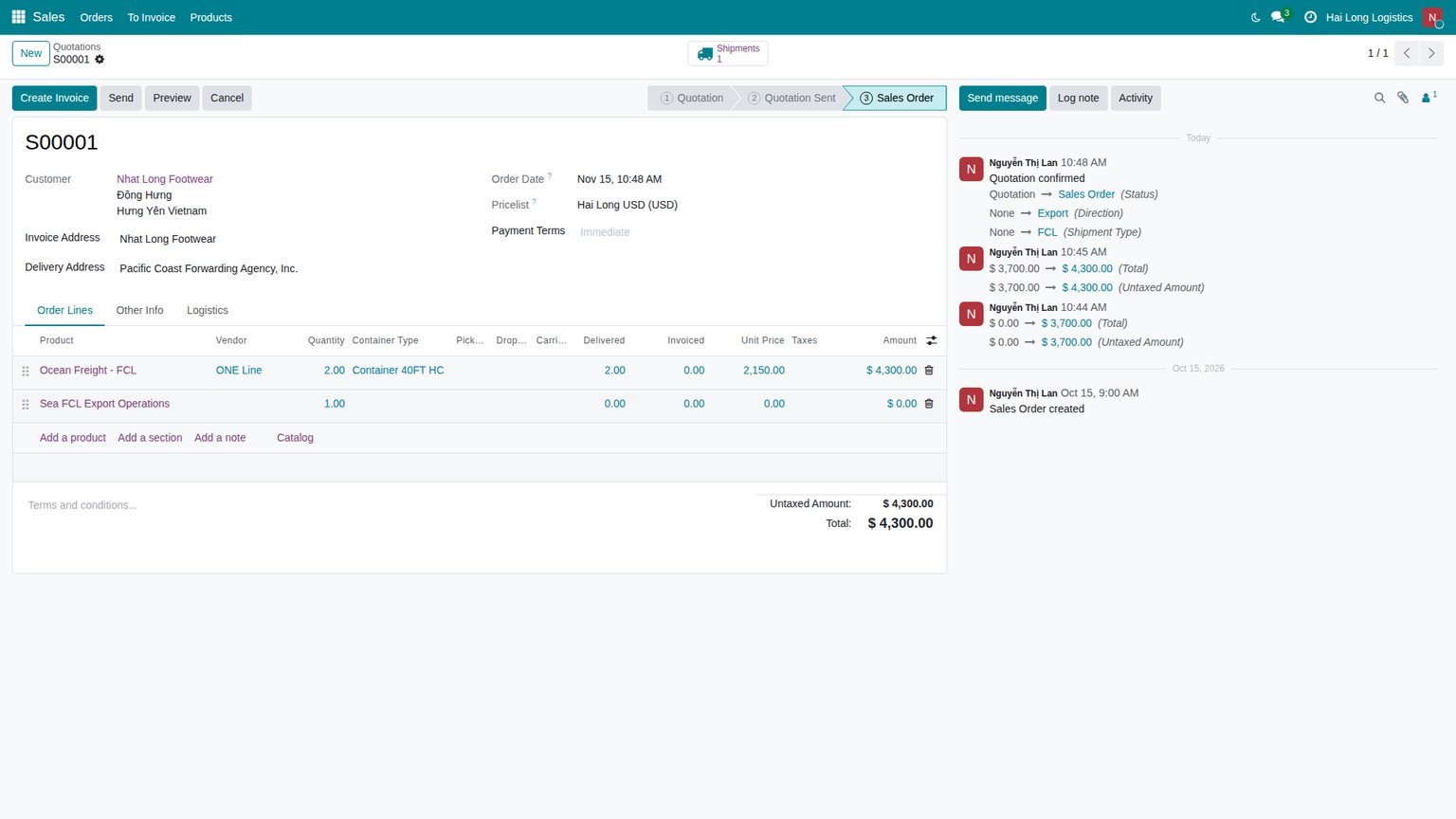
The customer signs, Sales clicks Confirm, and Viindoo creates the shipment automatically, in Draft, with the same carrier, route and container type as the order. For a Full Container Load (FCL) order, the shipment starts with the container lines already created for the containers sold.
![Confirmed sales order S00001 for Nhat Long Footwear: status Sales Order, Shipments smart button reading 1, an Ocean Freight - FCL line for 2 Container 40FT HC at 2,150.00 (4,300.00) and a Sea FCL Export Operations line at 0.00, total $ 4,300.00.]()
Tip
Check: the order status bar shows Sales Order, the Shipments smart button reads 1, and the shipment is in Draft with CONT 01 and CONT 02 (2 containers).
Operations opens the shipment from the Shipments smart button on the order, checks the route and the charge lines, and clicks Confirm - confirming the sales order does not confirm the shipment.
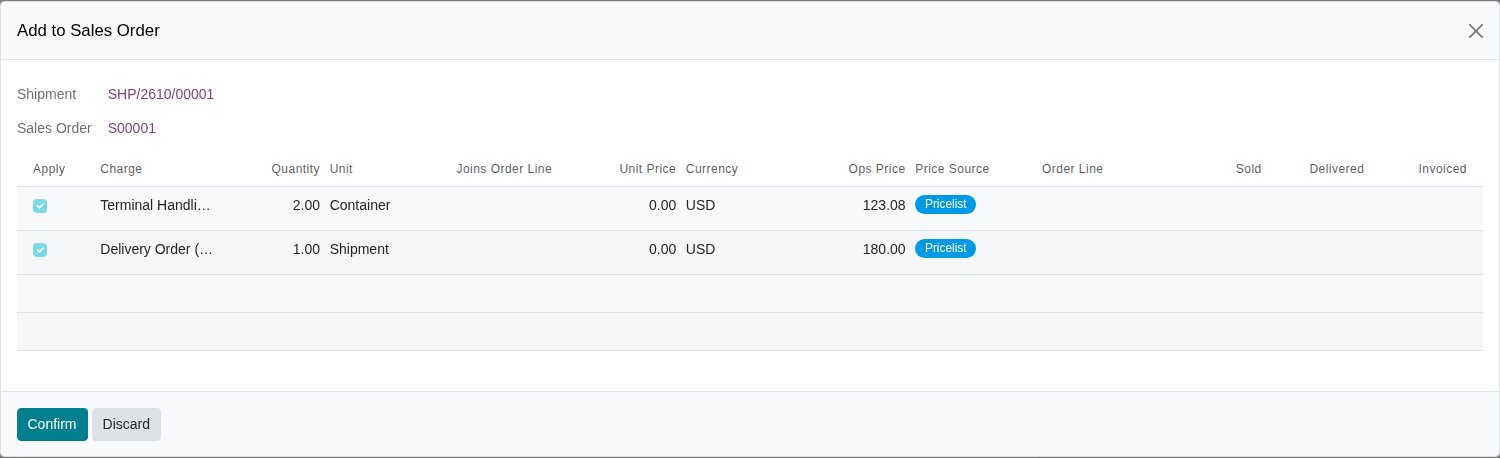
When a charge is added to the shipment later, for example a local charge, Sales clicks Add to Sales Order on the shipment header and reviews the list: Confirm adds the charges to the order, Discard closes the window without changes. A new order line takes its price from the pricelist, not from the Ops Price (the figure shows Unit Price 0.00), so type the sell price on the order line before you send it.
![The Add to Sales Order window for shipment SHP/2610/00001 and sales order S00001, listing Terminal Handling Charge (THC) at 2.00 Container and Delivery Order (D/O) Fee at 1.00 Shipment, both ticked in the Apply column with Unit Price 0.00 USD, Ops Price 123.08 and 180.00, Price Source Pricelist, and the Confirm and Discard buttons at the bottom.]()
Where each document appears
Document |
Created from |
Typical timing |
|---|---|---|
Shipping Instruction (SI) |
Printed from the Print menu as Blank SI Form (FCL) or (LCL), or requested from the shipment’s Required Documents tab |
Before SI Cutoff |
Draft B/L |
Requested and approved through the same document-request flow |
Before CY Cutoff |
House Bill of Lading (HBL) |
Printed from the shipment (gear Action menu, Print HBL) as a Draft or an Original; the number goes in HBL No., and the original also saves its date and place of issue on the shipment |
After the shipment is Confirmed |
Delivery Order (D.O) |
D/O Number in the Import Operations section of the shipment |
On arrival, before cargo release |
Arrival Notice |
Send Arrival Notice button (import shipments only) |
On or shortly after vessel arrival |
Each document has its own deadline. Missing one does not block the others, but it can incur an amendment fee. Check the required-document deadlines and approval status on the shipment before sending documents to the carrier.
Troubleshooting
The Charges tab is not there
Symptom: The shipment is open, but there is no Charges tab.
Cause: The shipment is still in Draft - the tab only appears once it is Confirmed.
Fix: Check the route and Shipment Type, click Confirm (it needs an origin and a destination, or at least one leg), then enter the cost price and unit price on each charge line.
The sales order is confirmed but the shipment is still Draft
Symptom: The sales order has the status Sales Order, but its shipment is still in Draft.
Cause: This is by design - confirming the sales order only creates or links the shipment, it does not confirm it.
Fix: Open the shipment from the Shipments smart button, check the legs and charges against what was sold, then confirm it yourself.
A shipment created from a sales order has no legs
Symptom: A shipment created from a confirmed sales order has an empty route.
Cause: Legs come from the Pickup Address, Drop-off Address and Carriage Role typed on the order lines, falling back to the addresses on the order. An order with neither produces a shipment with no leg.
Fix: Enter the Origin Location and Destination Location on the shipment and click Confirm - Viindoo creates the main carriage leg from them - or add the legs by hand. For the next sale, fill in Pickup Address and Drop-off Address on the order lines before you confirm the order.
Select Sailing Schedule does not appear on the quotation
Symptom: The quotation has a freight line, but neither Select Sailing Schedule (FCL) nor the LCL equivalent shows on the header.
Cause: The button only shows on an order that is still a quotation and has a line with a sea freight product. An ordinary service line, or an order already confirmed, does not show it.
Fix: Check that the order is still a quotation, and that the line’s product has Create on Order Freight Service, Transport Mode Waterway (Boat / Ship / Ferry) and an FCL (or LCL) Shipment Type.