
Run shipment tasks in a project
Guide information
Requirements
This tutorial requires the installation of the following applications/modules:
Freight Project & Operations Tasks (installed automatically once Freight Sale, Project Customization and Sales Timesheet are installed - that is, once the Project and Timesheets apps sit next to Freight Forwarder Management)
A shipment runs through several roles - Booking, documentation, customs, accounting - over a few days. Without one place that shows who is doing what and by when, the Operations Manager only learns a shipment is late after the customer calls, by which time the cutoff has already passed and the container has missed its sailing. This page uses Viindoo’s core Project and Task (see Guideline to basic features of Viindoo Project); Freight only adds the two-way link to the shipment - creating, assigning and closing a task is standard Project work.
Running scenario: the Operations Manager follows shipment SHP/2611/00005, a sea export (FCL, Point to Point, FOB) for Phuoc An Wood Co., Ltd. Its seven tasks belong to the shared project Freight Operations Q2/2026, which other shipments use too. Marc Demo (Booking Officer), Mitchell Admin (Documentation) and the Logistics Manager user (Accounting) carry out the tasks and log their hours. The records are the Viindoo demo data, so yours will differ.
Before you start
The people who work on the tasks are in the User: All Shipments group (see the user’s Freight access in ) and also in Project: User - the freight groups do not grant Project access, and without it a user cannot change a task’s assignee, deadline or status or log hours.
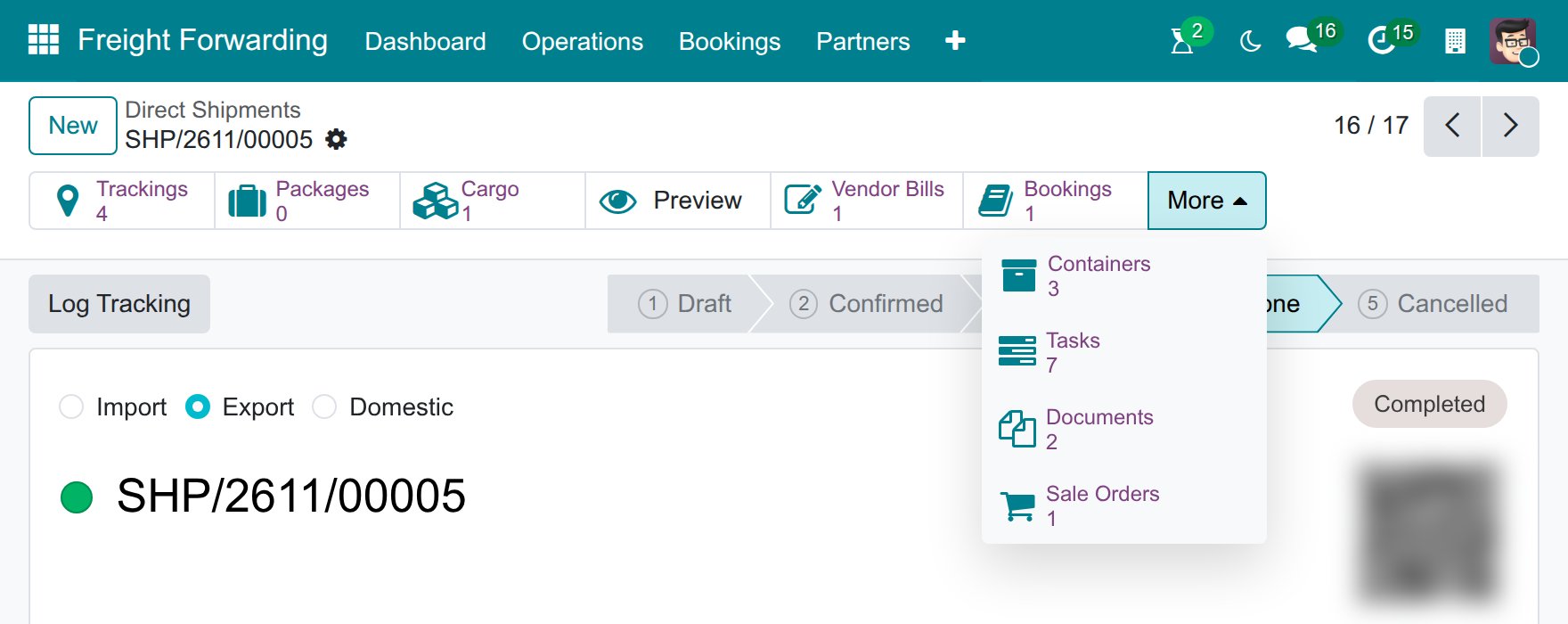
The Tasks smart button on the shipment header only shows for Project: User. On a narrow window the shipment’s smart buttons fold into the More list.
Decide where a shipment’s tasks come from
Option |
Use when |
What changes |
|---|---|---|
The shipment is already linked to a project |
Several shipments for the same large contract or period roll up under one shared project, as here |
Tasks opens exactly the open tasks of this shipment, all in the shared project |
The shipment has no project yet |
A simple shipment that needs only a few tasks |
Clicking Tasks creates an empty project named Shipment: <reference> and opens its task list; you add the tasks yourself |
Link several shipments to one shared project when they belong to the same contract or customer; leave the shipment on its own project when the tasks are specific to it.
Step 1: Open the tasks of the shipment
Tasks are managed from the shipment, so that every task stays tied to the shipment it protects.
Go to and open SHP/2611/00005.
Under More in the header, Tasks shows 7, the number of tasks of the shipment that are not yet Done or Canceled.
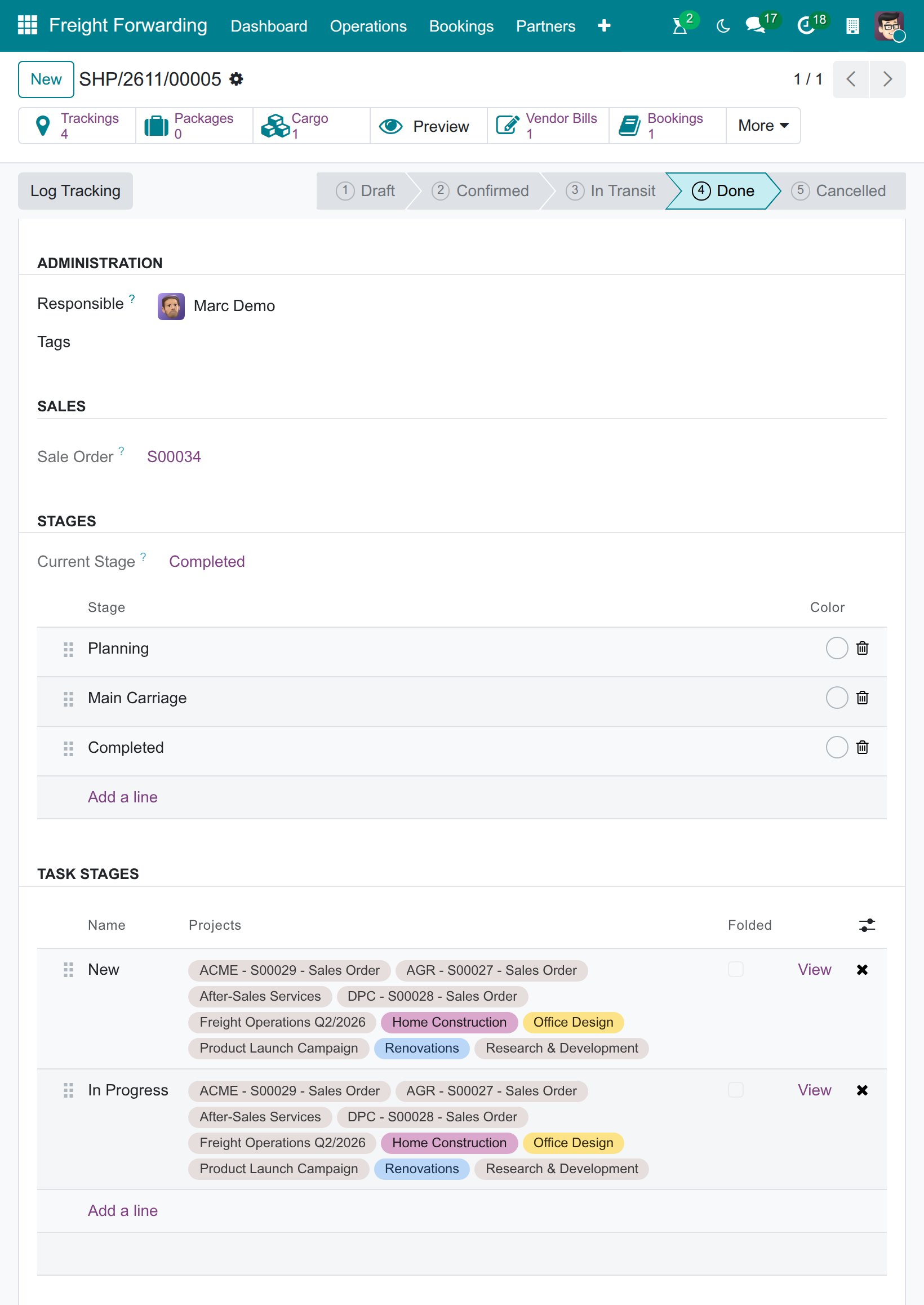
The Settings tab shows the Task Stages table below the shipment Stages: the stages of the project’s task board, here New and In Progress, with the projects that use each of them.
Tip
Step 1 is done when: opening Tasks shows the seven tasks of the shipment: five named [SC-01] Booking confirmation…, [SC-01] VGM submission… and so on, and two named after the shipment.
Step 2: Assign each task to the right person and set a deadline
No part of Viindoo suggests a deadline from the shipment’s cutoffs - each task needs a person and a date with enough buffer before the real cutoff it protects.
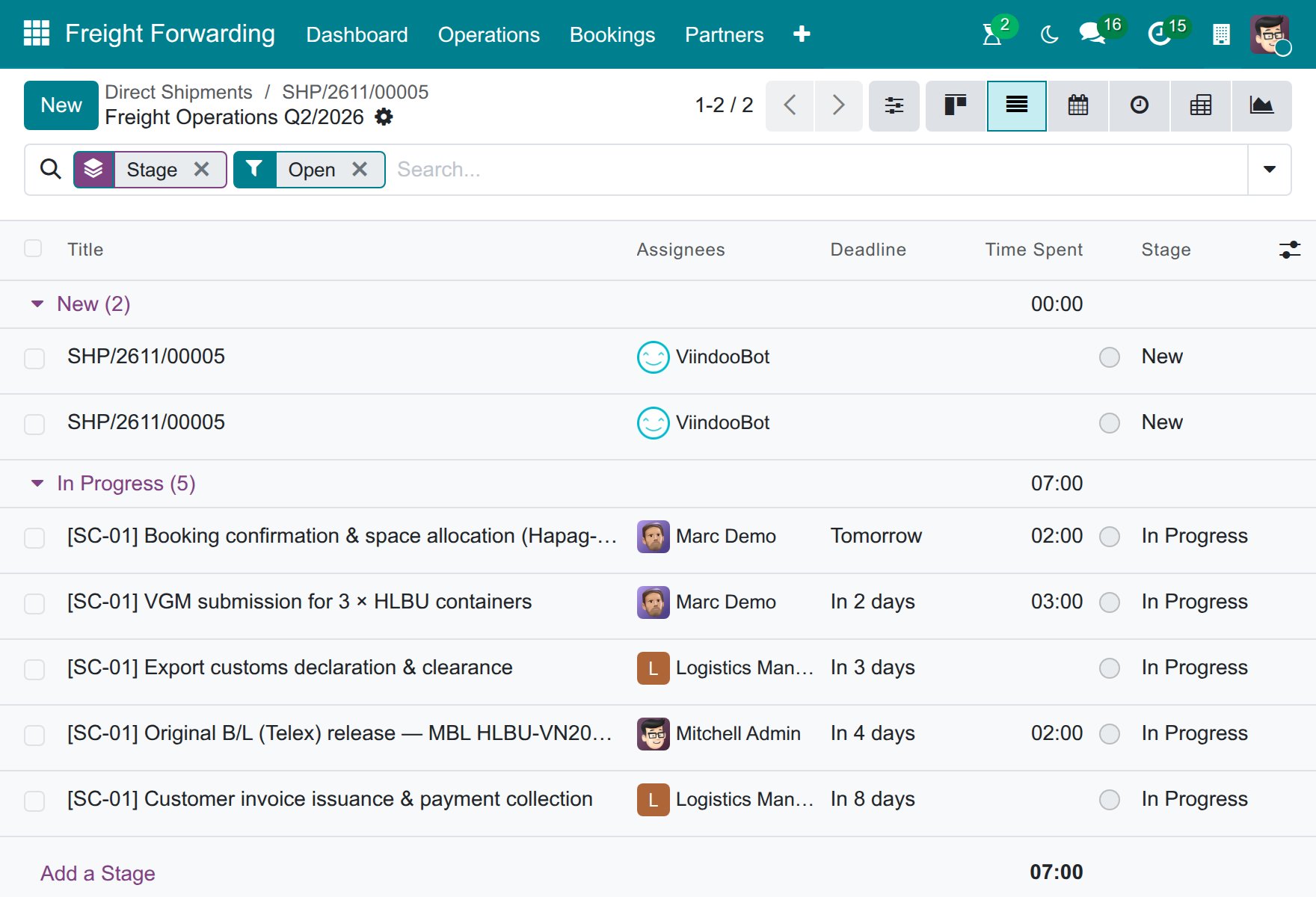
On the shipment, click Tasks and switch to the list view; it shows the open tasks grouped by stage. In the list, the optional-columns menu at the right of the header can show the Deadline column. Open each task and set Assignees and Deadline, working back from the shipment’s cutoffs. For example:
[SC-01] Booking confirmation & space allocation: Marc Demo, 2026-11-03.
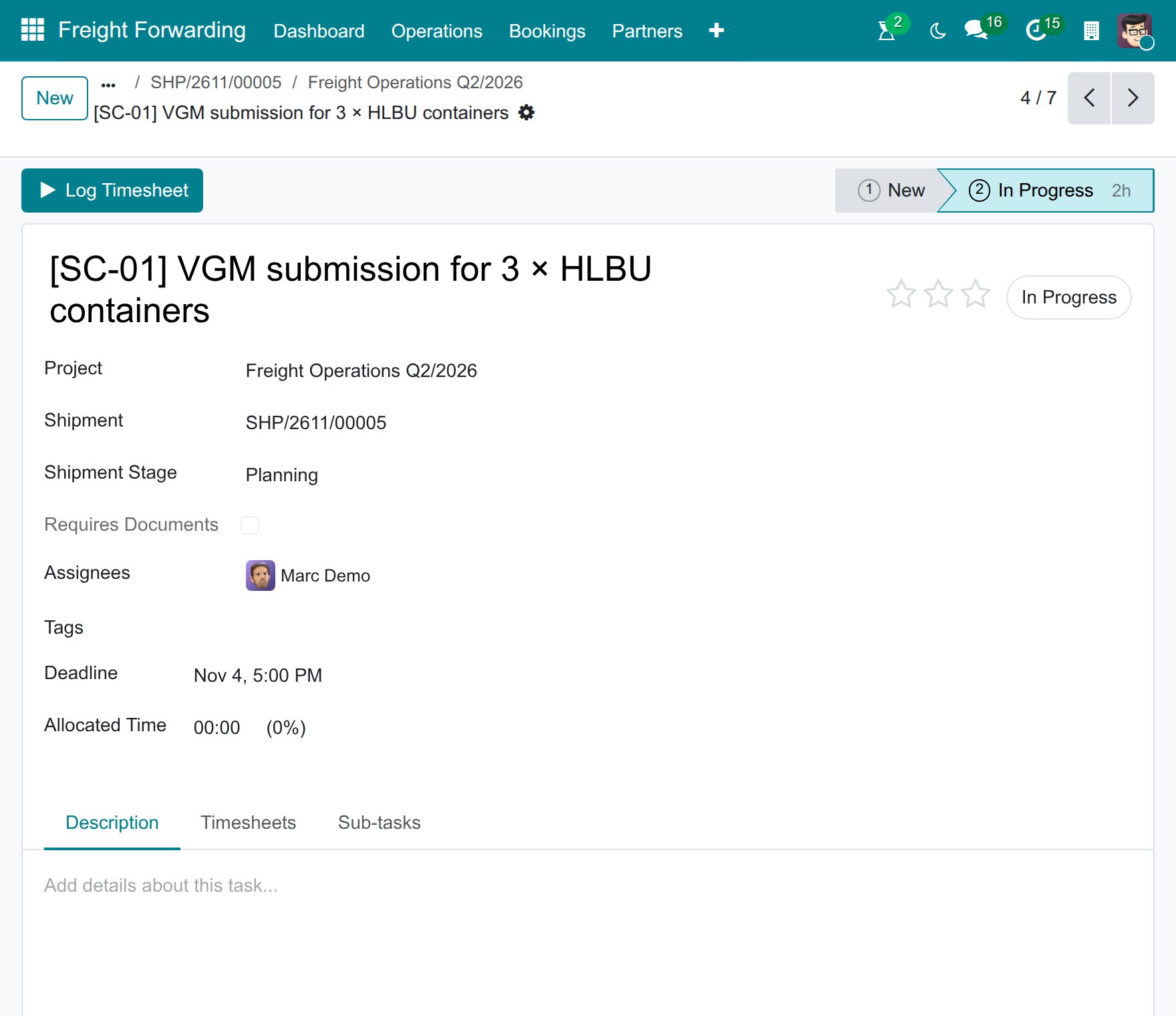
[SC-01] VGM submission: Marc Demo, 2026-11-04.
[SC-01] Export customs declaration & clearance: the Logistics Manager user, 2026-11-05.
[SC-01] Original B/L (Telex) release: Mitchell Admin, 2026-11-06.
[SC-01] Customer invoice issuance & payment collection: the Logistics Manager user, 2026-11-10.
Warning
Setting a Deadline on the exact cutoff date, instead of a day or more ahead, leaves no room for delay - being a few hours late is enough for a container to be shut out of its sailing. Check the real cutoff first in Carrier Booking (Sea) or VGM Entry (Verified Gross Mass).
Tip
Step 2 is done when: every task has an Assignee and a Deadline, and every pre-sailing deadline sits before its cutoff - for example VGM submission a day ahead of the VGM Cutoff.
Step 3: Log the hours actually worked on each task
Hours logged against the right task, on the right day, are the only record of how much staff time a shipment of this type takes.
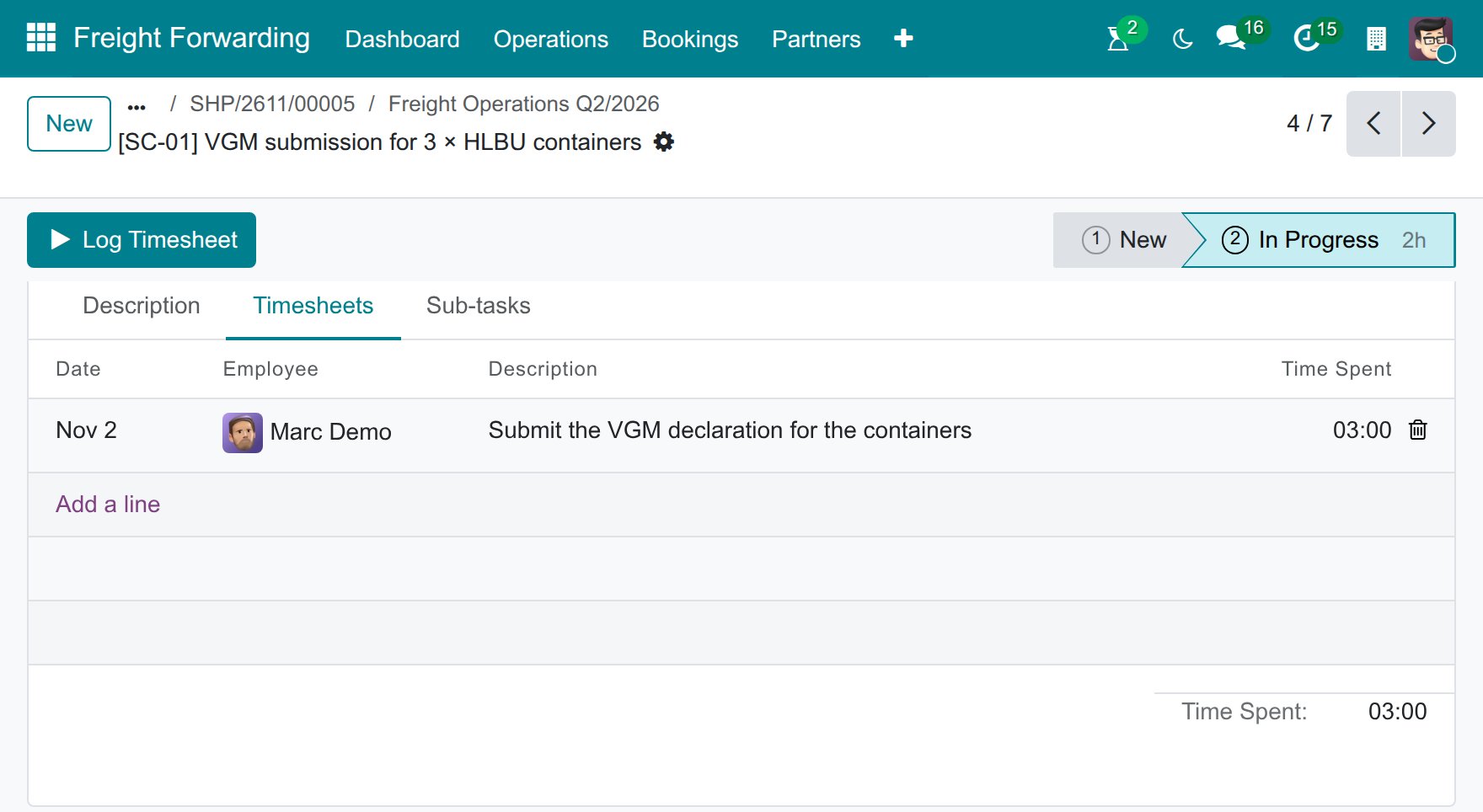
On the task form, tab Timesheets (core, see Guideline to timesheet in the project), click Add a line and fill in the Employee, the Description and the Time Spent; the Date defaults to today. Marc Demo logs 3 hours against the VGM task; in the same way Marc Demo logs 2 hours against the booking task and Mitchell Admin 2 hours against the B/L release task.
Note
Logging a timesheet line here only guarantees one thing: the hours are recorded against the correct task, and that task is linked to this shipment. See Step 7 for how these hours are used afterward.
Tip
Step 3 is done when: every hour worked that day has been logged before the end of the working day, not batched up at the end of the week.
Step 4: Watch task progress across several shipments at once
A delay has to be visible before it becomes an incident at the port, not after the customer calls to ask.
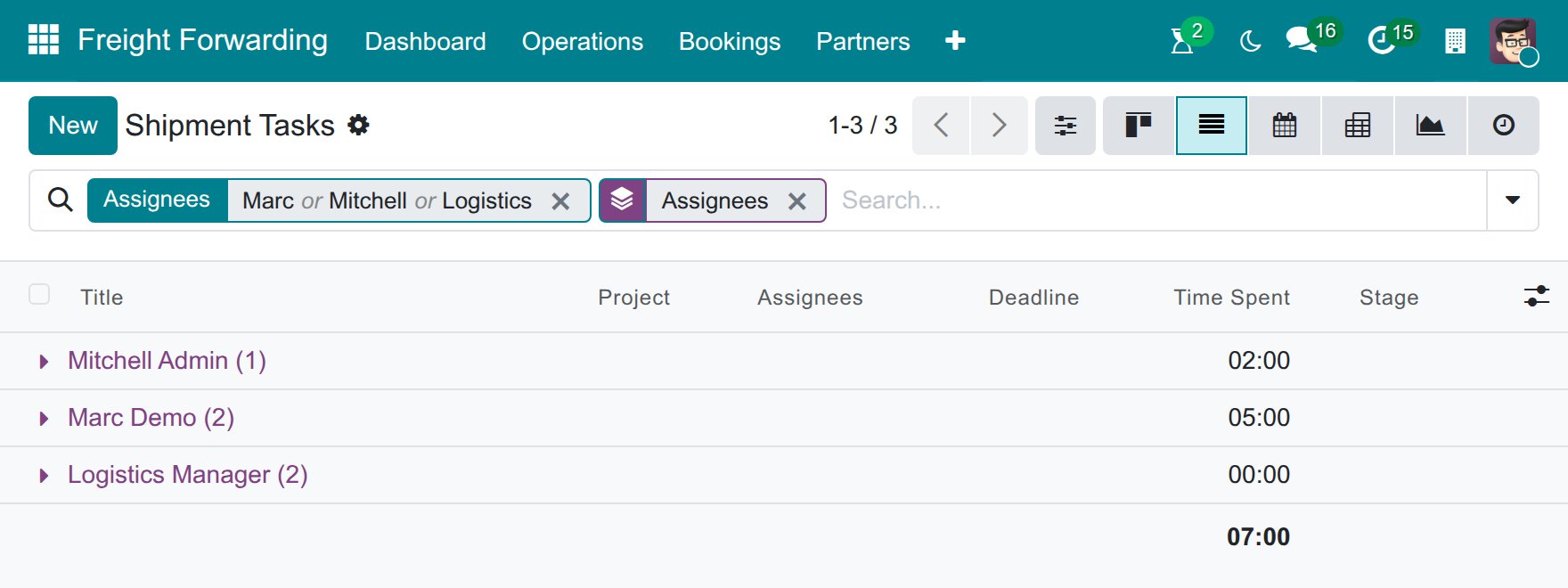
Go to . The board opens as kanban with the columns New and In Progress; switch to the list view, then use Group By –> Assignees or Group By –> Shipment Stage to see who is overloaded across shipments. The search box has no Shipment field; to see one shipment’s tasks, open the shipment and click Tasks.
Tip
Step 4 is done when: you have reviewed this list at least once at the start of the day and can name every task due within the next 24 hours.
Step 5: Act when a task is at risk of missing its cutoff
Acting early is far cheaper than a container shut out of its sailing.
When a task (for example VGM submission) looks likely to miss its deadline: add more people to it, ask for overtime, or warn the agent or carrier early if it is clearly not going to make it. There is no dedicated button or wizard for this - it is a coordination decision, recorded as a comment on the task or the shipment.
Warning
A container shut out for missing the VGM Cutoff can mean 1-2 weeks of storage plus rebooking on the next sailing - a typical industry consequence, not a fee schedule from any one carrier.
Tip
Step 5 is done when: every task at risk has a chatter comment recording how it is being handled - none is left unaddressed.
Step 6: Close tasks as the real work finishes
The project is only trustworthy when its state matches what has actually happened.
On the task’s kanban card or form, open the status selector and choose Done as soon as you have the matching proof - booking confirmed, VGM submitted, SI sent, HBL issued, customs cleared, or the invoice issued. Viindoo does not check for that proof before letting you close the task.
Important
Approval of the SI or Draft B/L completes the document review requirement; it does not prove that the carrier received the SI, that the original B/L was released, or that the customer and carrier were paid. Keep each operational task open until its own work is complete. The Tasks counter counts only the tasks that are still open: closing a task lowers it by one and it reads 0 once every task is Done or Canceled, so check each task’s own work rather than relying on the counter.
Note
Closing a task only notifies the assignees of tasks that depend on it (Blocked By). The tasks of this shipment have no dependency between them, so closing one of them sends no such notification unless you add a dependency yourself.
Tip
Step 6 is done when: no task is Done or Canceled while the real work behind it is still pending, and no task whose real work finished more than a day ago is still open.
Step 7: Review total hours to gauge internal workload
Knowing how many hours of staff time a shipment of this type takes helps plan staffing. Treat it as an internal productivity figure: the Gross Profit on the shipment’s Charges tab is built from charge lines only and does not include these hours (see Charges and Profitability).
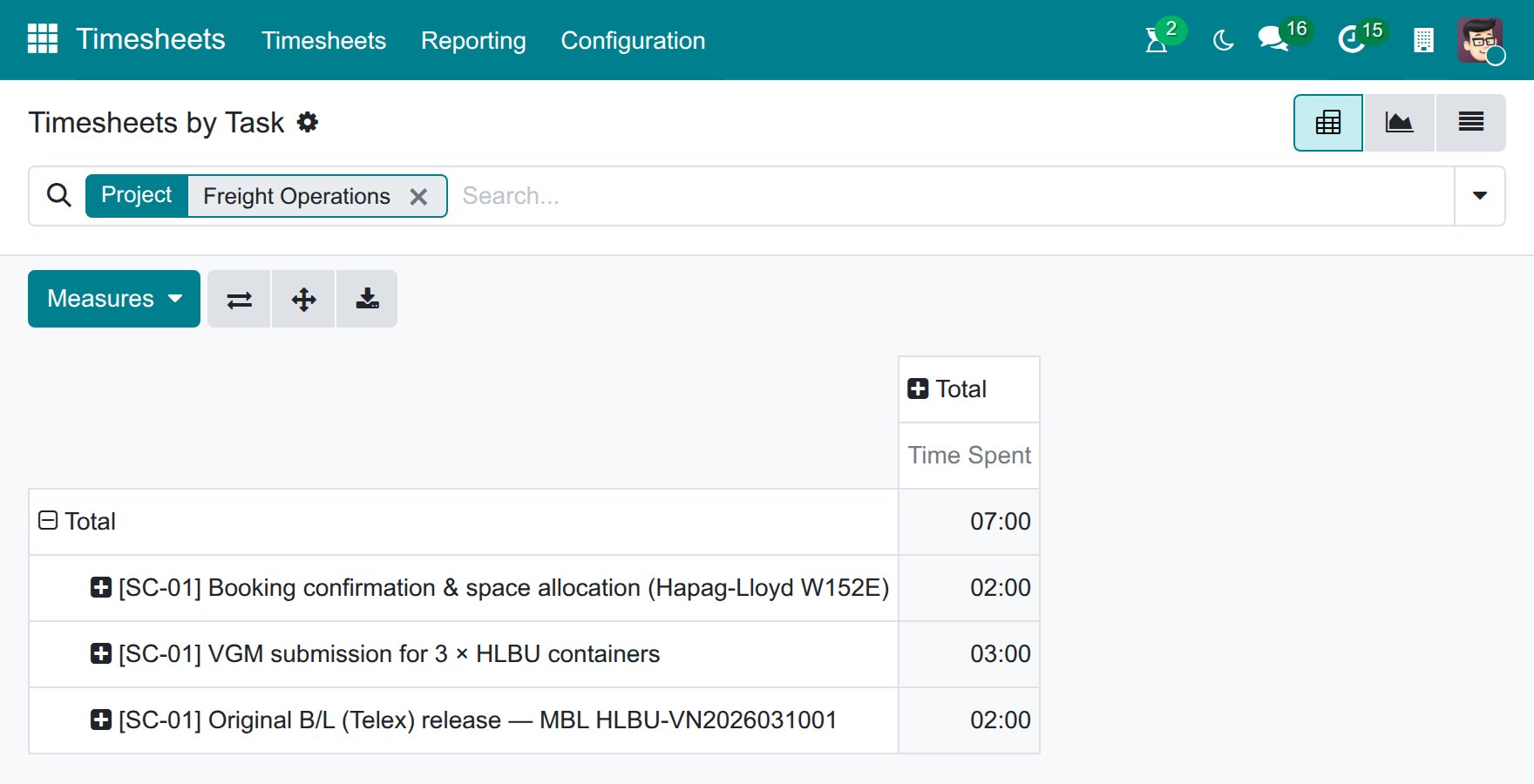
Open each task of this shipment and read the total on its Timesheets tab, or use , then filter on the project with the search box to see the hours of its tasks together.
Tip
Step 7 is done when: the hours of the tasks of this shipment add up to the figure you expect (here 7 hours: 2, 3 and 2), a figure you can compare against a similar sea export shipment.
Known limitations
Step |
What Viindoo does today |
What you do instead |
|---|---|---|
Set a deadline for each task (Step 2) |
No deadline is suggested from the shipment’s Booking, VGM, SI or CY cutoff |
Check the real cutoff in Carrier Booking (Sea) or VGM Entry (Verified Gross Mass), then type the deadline yourself, ahead of that date |
Flag a task at risk (Step 4-5) |
No separate “at risk” flag exists for a task, unlike the shipment’s own tracking alert |
Sort or filter the Shipment Tasks list by Deadline and review it regularly |
Start from a ready-made task list |
Applying a scenario template that carries a project (From Template on a draft shipment, for example the Sea FCL Export template) creates the project and links its tasks to the shipment, but the copied tasks are archived: the Tasks counter reads 0 and the task list stays empty |
Create the tasks directly from the shipment’s Tasks button and set their Shipment field |
Compare total hours by shipment type (Step 7) |
No ready-made report totals hours “per shipment type” |
Use the Timesheets By Task report, then check each task’s Shipment field by hand |
Troubleshooting
Clicking Tasks created a new, empty project
Symptom: the shipment had no project; after clicking Tasks the list is empty and a project named Shipment: <reference> now exists.
Cause: the Tasks button creates the project of a shipment that has none, so that tasks can be added right away.
Fix: add the tasks of the shipment in that project. To use a shared project instead, open an existing task of that project from and set its Shipment field to this shipment.
A task is marked Done but the real paperwork is not finished
Symptom: task “Original B/L release (Telex or OBL)” is Done on the kanban, but the B/L has not actually been released - the customer asks and the Operations Manager has no warning, because the project looks complete.
Cause: Viindoo does not check for business proof before letting a task’s status change - this is core Project behavior, and Freight adds no such check.
Fix:
Reopen the task and set it back to In Progress.
Agree as a team to only mark a task Done once the matching reference (document link, submission number) is on the task’s chatter.
See also
Related articles
Carrier Booking (Sea) - the booking whose cutoffs the task deadlines protect
Charges and Profitability - revenue, cost and gross profit of the shipment