
How to record transfers and scraps on a past date
This page is for warehouse operators and inventory managers who validate a transfer or a scrap after it happened. Click Validate, enter the date and time the goods really arrived, left or were written off, and confirm: the transfer, its stock movements and the stock it brings in carry that date instead of the moment you got to the keyboard.
Who |
A user with the Inventory Backdate right: warehouse operators and inventory managers. |
App |
Inventory, with the Inventory Backdate module |
Warning
Recording operations on a past date is not recommended in day-to-day work. It makes it easier to record incorrect data, deliberately or not, and it can discourage people from recording operations at the moment they happen. The feature is designed mainly for the initial implementation, when a company needs to enter operations that took place before it started using Viindoo.
Before you start
Your administrator turned on Inventory Backdate and gave you the right Stock Backdate Operations, as Record operations on a past date explains. Without the right you validate at the current time and no date is asked.
Know how to process a stock transfer.
To record an inventory count on a past date, read How to apply an inventory count on a past date instead: counts need no special right.
How do I validate a transfer on a past date?
Open the receipt, the delivery order or the internal transfer, for example from Inventory ‣ Operations ‣ Transfers ‣ Receipts.
Check the Quantity of each line, then click Validate. The window Validate with a Back Date opens and proposes the current date and time.
In Transfer Date, enter the date and time the goods really arrived or left, in your own time zone.
Click Validate to record the transfer at that date, or Cancel to leave it as it was.
![Window Validate with a Back Date on a receipt with the Transfer Date set to a past date]()
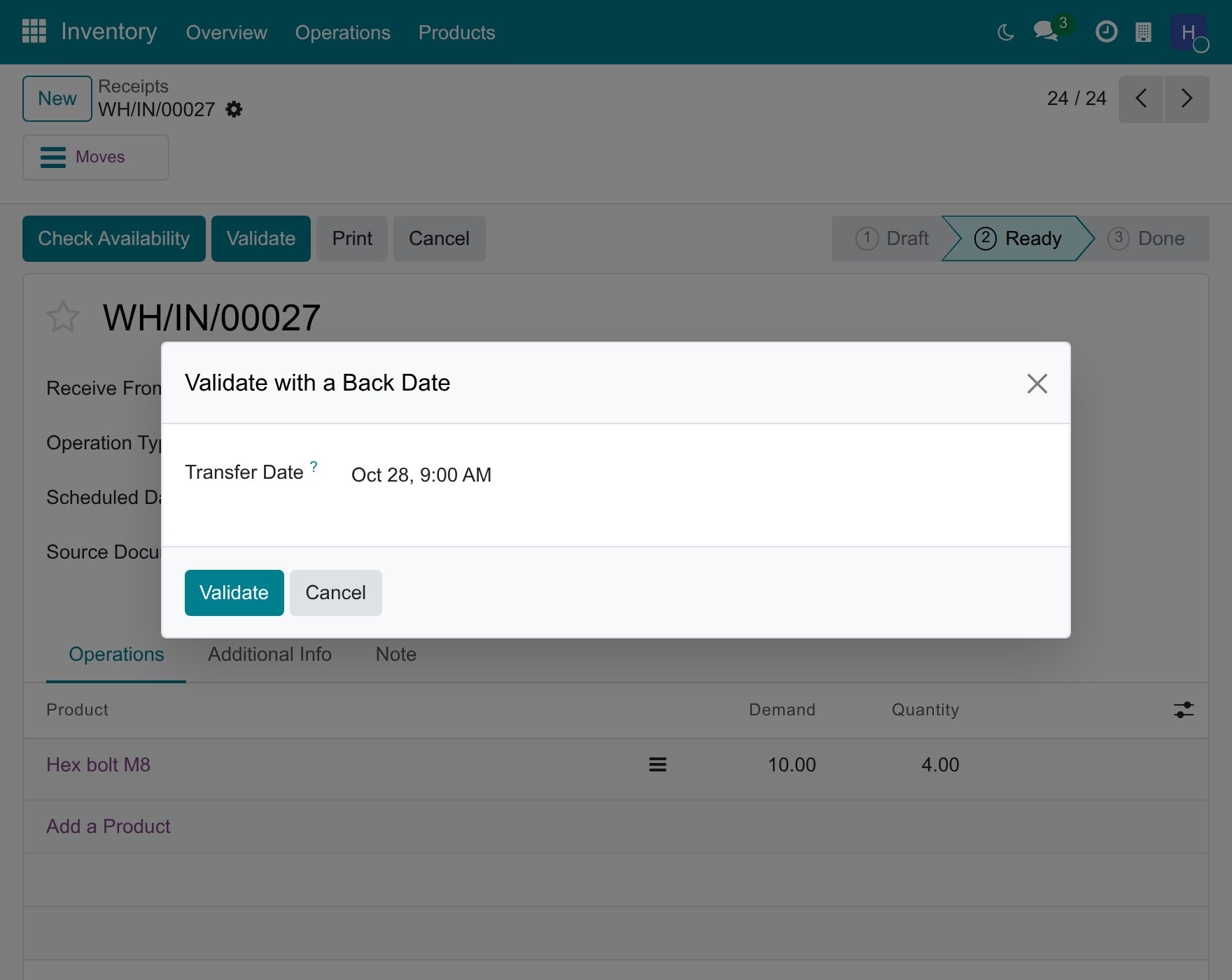
The transfer is done at the date you entered. This date is carried to:
the Effective Date of the transfer, each of its stock movements and their lines;
the incoming date of the stock the transfer brings in, so that the oldest stock leaves first in the order the goods really arrived (FIFO). Stock that already carries an incoming date in the same location keeps it.
The dialog proposes the current time. Leave it unchanged to record the transfer now.
What if I receive only part of the goods?
Enter the quantity you received in Quantity, click Validate and give the date as above. Viindoo then asks whether to create a backorder for the rest.
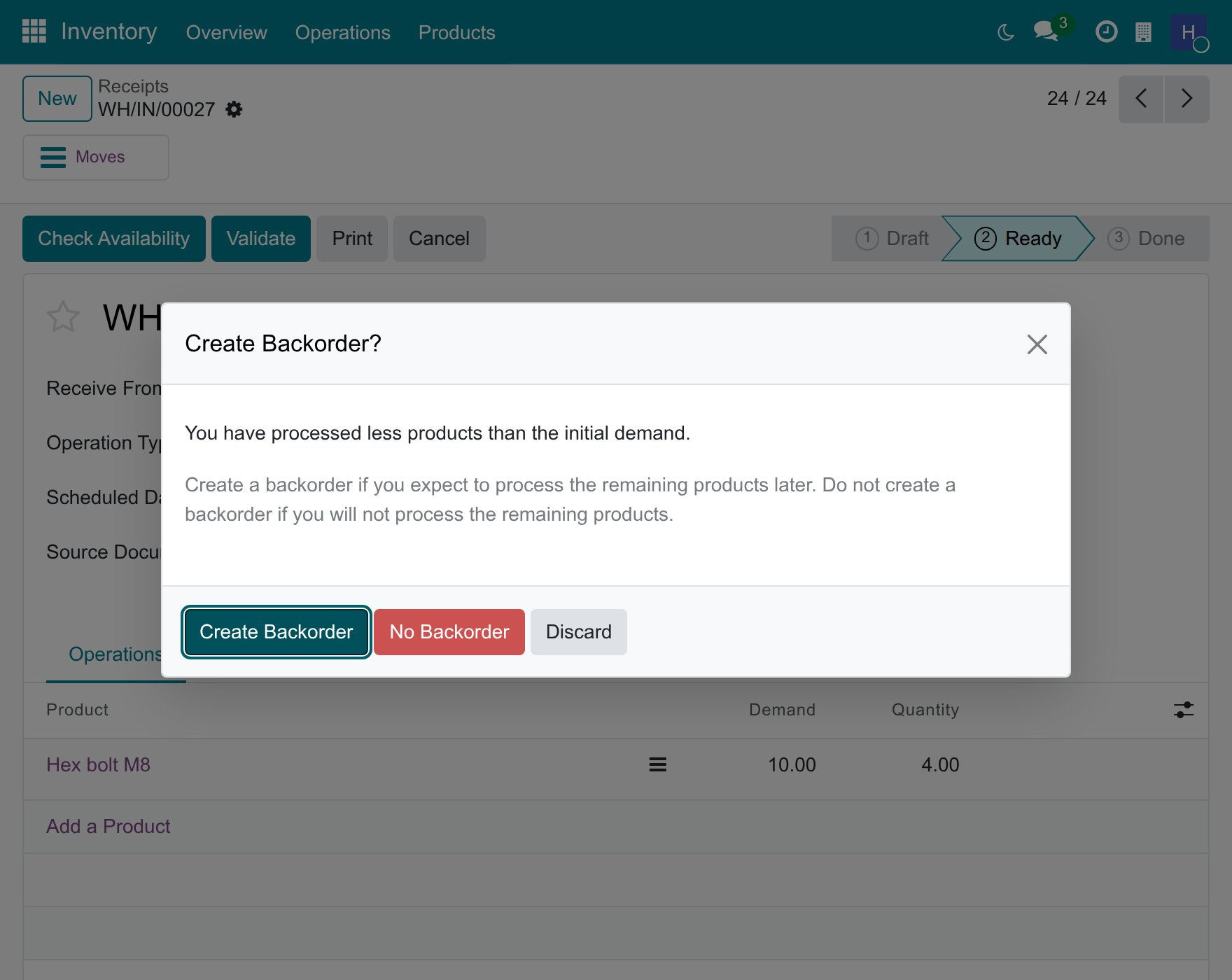
Click Create Backorder. Only the part you received takes the past date. The backorder stays open and, when you validate it, Viindoo asks for its own date: goods that arrive in two deliveries have two dates.
How do I check the date of a validated transfer?
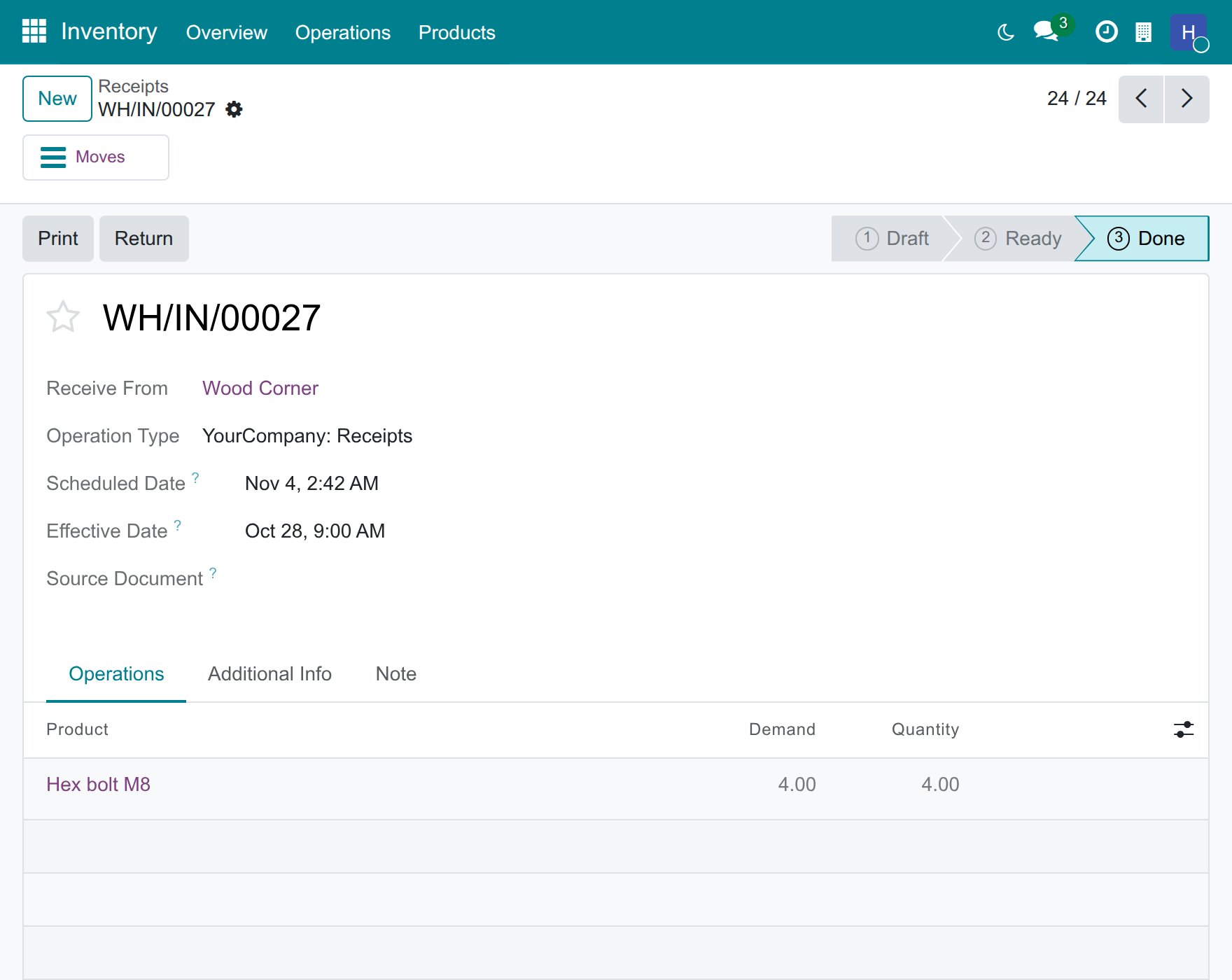
Open the transfer. Its Effective Date shows the date you gave in the window.
Can I correct the date of a transfer I already validated?
Yes, an Inventory Administrator can, as long as the new date does not fall in a locked accounting period:
Open the validated transfer, click Actions and choose Lock/Unlock to unlock it.
Change the Effective Date, then save.
The date of the transfer and of its stock movements changes. The incoming date of the stock the transfer already brought in does not: when the goods’ arrival order matters, validate the transfer with the right date in the first place.
How do I validate a scrap on a past date?
Go to Inventory ‣ Operations ‣ Adjustments ‣ Scrap, click New and fill in the product and the quantity.
Click Validate. The window Validate with a Back Date opens.
In Actual Scrap Date, enter the date and time of the write-off.
Click Validate.
![Window Validate with a Back Date on a scrap order with the Actual Scrap Date set to a past date]()
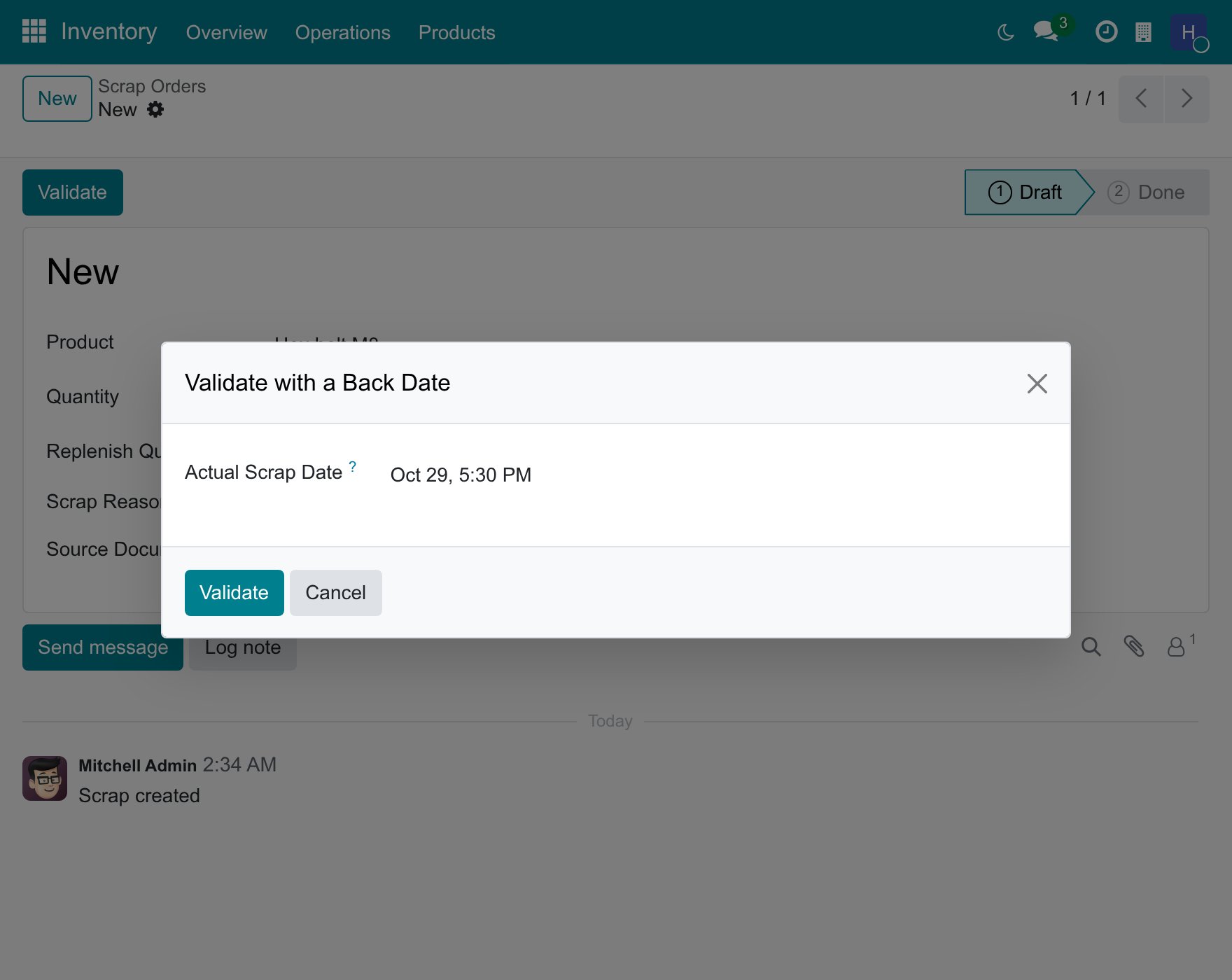
The scrap is done at that date: the scrap order and its stock movement carry it.
What about equipment and subcontracted goods?
When the module Equipment Working Frequency - Backdate is on, the equipment created from a serial-numbered receipt validated on a past date takes the day of that date as its Effective Date, and the maintenance figures that count from it start on that day.
A receipt of goods from a subcontractor validated on a past date completes the subcontracted manufacturing order on the same date: see Subcontracting receipts.
Why does Viindoo refuse my date?
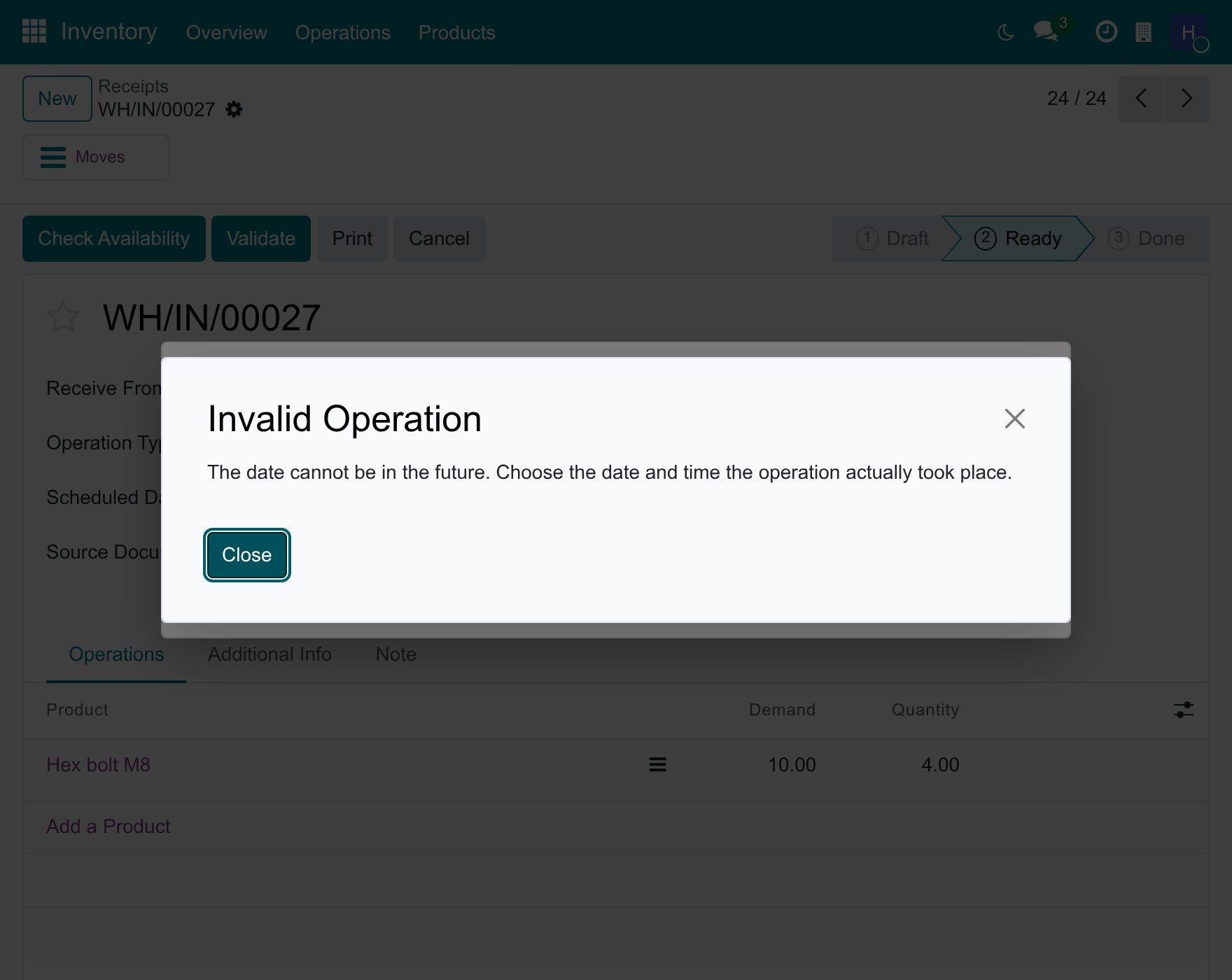
A date in the future is never accepted. Viindoo shows The date cannot be in the future. Choose the date and time the operation actually took place. The window stays open: correct the date or click Cancel.
![Message that the date cannot be in the future]()
A date in a locked accounting period is refused for a transfer: the message says that the date falls within a locked fiscal period. Choose a date after the lock date, or ask the person who closes the books to move it. A scrap is not refused: the scrap keeps its date and Viindoo books its journal entry outside the locked period, as Accounting date of back-dated stock operations explains.
Common problems
Problem |
What to do |
|---|---|
Validate does not open any window. |
You do not have the right Stock Backdate Operations, so the transfer is recorded at the current time. Ask your administrator to give you the right. |
The date is refused as being in the future. |
Enter a date and time up to the current time. |
The transfer is refused because of a locked fiscal period. |
Choose a date after the lock date of the accounting period. |
The Effective Date cannot be edited. |
The transfer is locked: an Inventory Administrator unlocks it with Actions ‣ Lock/Unlock. |