
How to use different units of measure on a product
To buy, store and sell a product in different units, such as pieces and boxes of 6, turn on Units of Measure in , create the unit in , and choose the unit of the product on its form. Units of the same category are converted into each other automatically, so your stock stays accurate.
Who |
Users with the Inventory Administrator access right. |
App |
Inventory ‣ Configuration |
Before you start
Install the Inventory app (see How to install Inventory and give users access to it).
Create the product you want to manage in several units.
How do I turn on units of measure?
Go to .
In the Products block, tick Units of Measure and click Save.
![Units of Measure setting turned on in the Viindoo Inventory settings]()
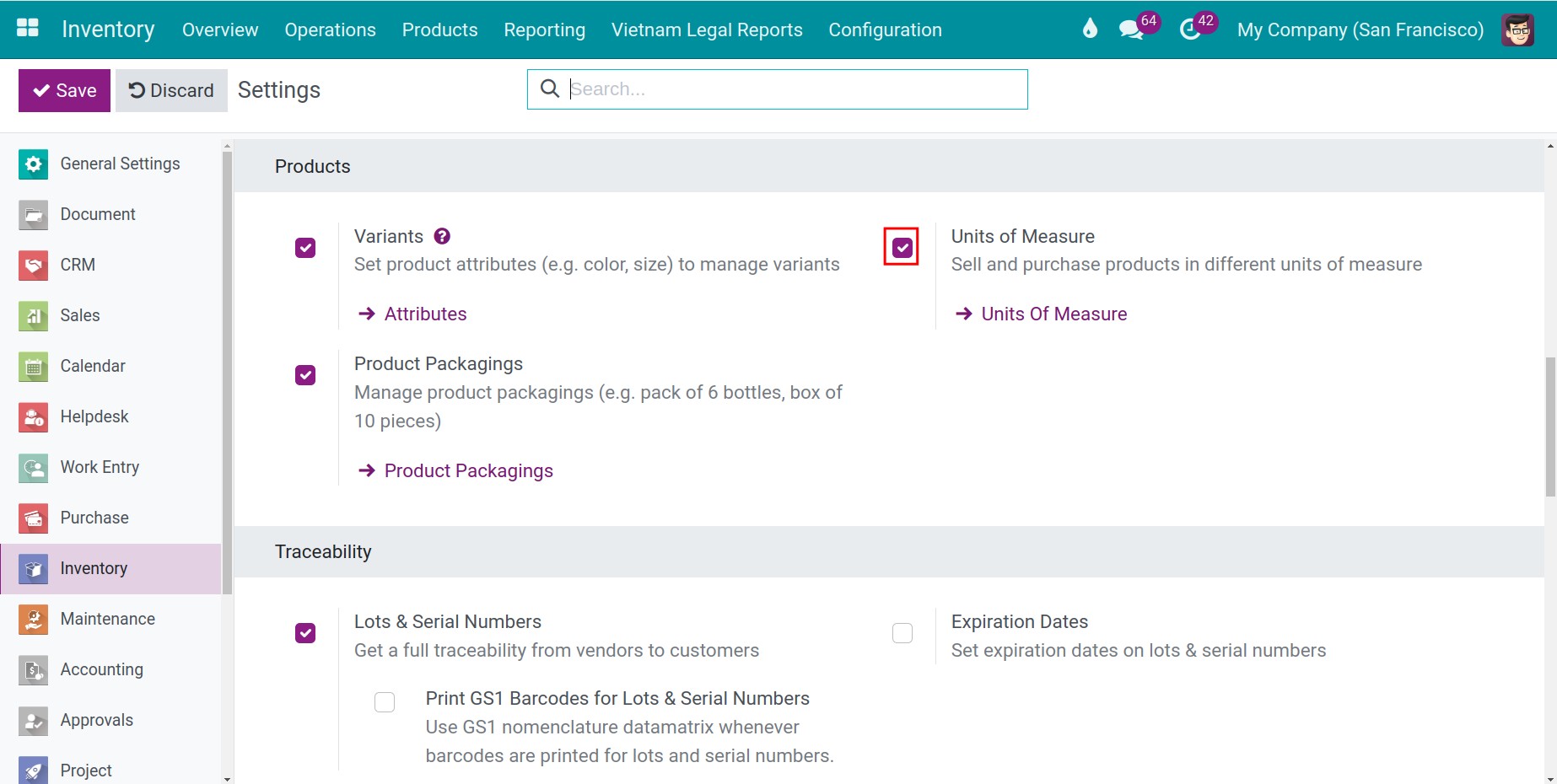
You should now see a Unit choice wherever a quantity is entered: on the lines of a transfer, in the replenishment window, and on the product form. The new menu is also available.
What is a UoM category?
Units of measure are grouped in categories, and Viindoo converts a quantity only between units of the same category. Each category has one reference unit, and the other units are defined relative to it. The categories that come with Viindoo are Unit, Weight, Working Time, Length / Distance, Surface, Volume and Energy. Create a new category only if none of them fits.
How do I create a unit of measure?
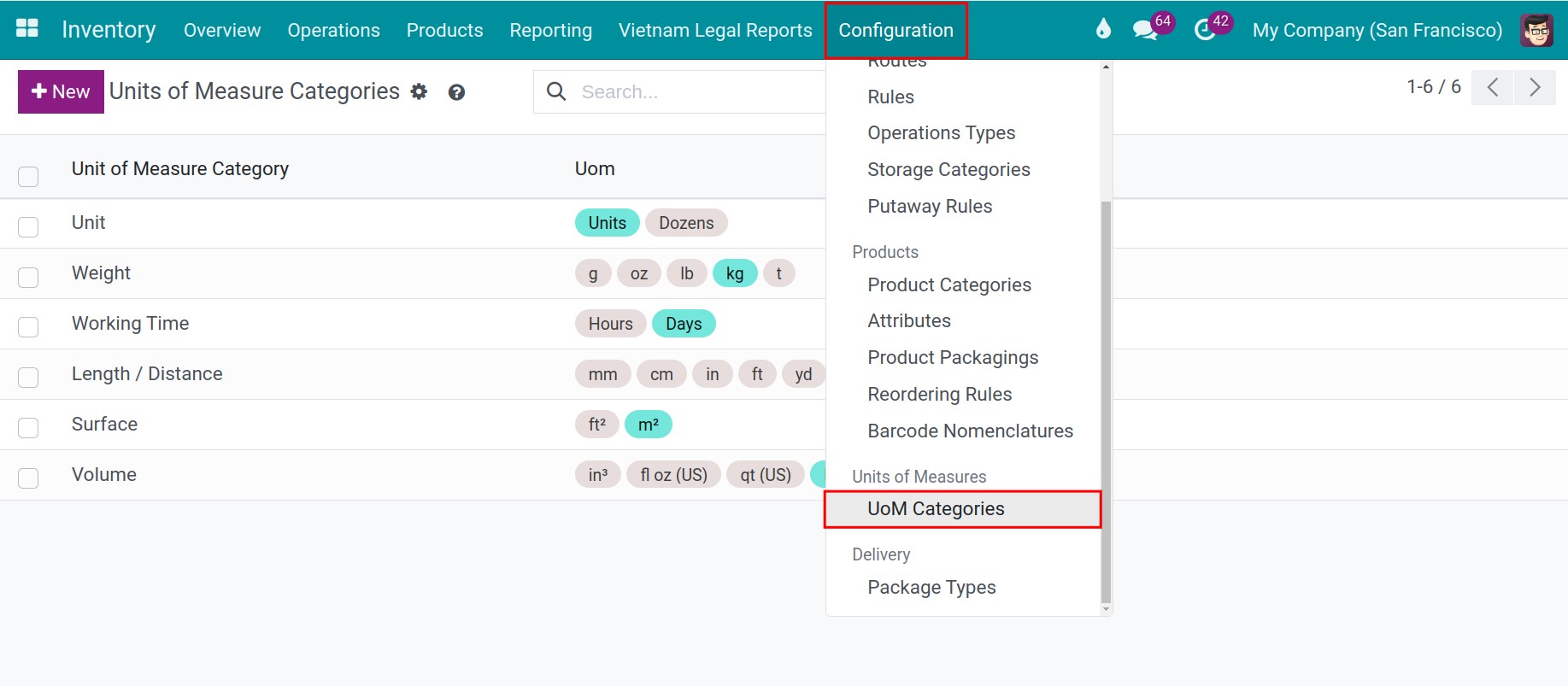
Go to and open the category, for example Unit.
![UoM Categories list in Viindoo Inventory with the Unit category opened]()
In the Unit of Measure table, click Add a line and fill in the unit, for example Box of 6 with the type Bigger than the reference Unit of Measure and the ratio 6.
![New line in the UoM category with the name, type and ratio of the unit]()
Click Save.
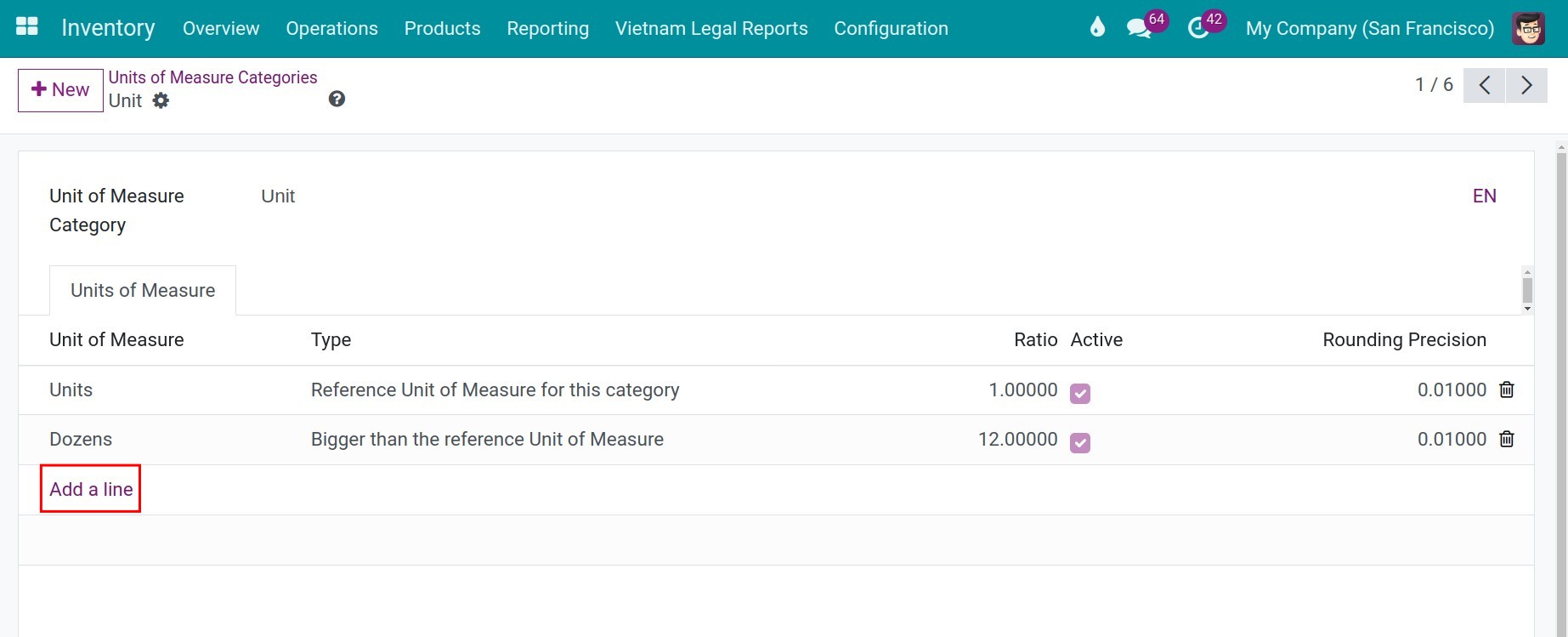
Field |
Effect |
If wrong or empty |
|---|---|---|
Unit of Measure |
Name of the unit shown on products and transfers. |
Required. |
Type |
Bigger than or Smaller than the reference Unit of Measure. The reference unit of the category is the one all others are compared to. |
A category has exactly one reference unit: UoM category … should only have one reference unit of measure. |
Ratio |
For a bigger unit: how many reference units it contains (a box of 6 has ratio 6). For a smaller unit: how many of it make one reference unit. |
A ratio of 0 is refused: The value of ratio could not be Zero |
Rounding Precision |
Quantities in this unit are multiples of this value. Use 1 for a unit that cannot be split, such as a piece; use 0.01 for a unit like liters. |
Must be greater than 0: The rounding precision must be strictly positive. |
Active |
Untick to hide the unit without deleting it. |
Ticked by default. |
Note
Quantities are converted only between units of the same category. You cannot convert pieces into kilograms.
How do I set the unit of measure on a product?
Go to and open the product.
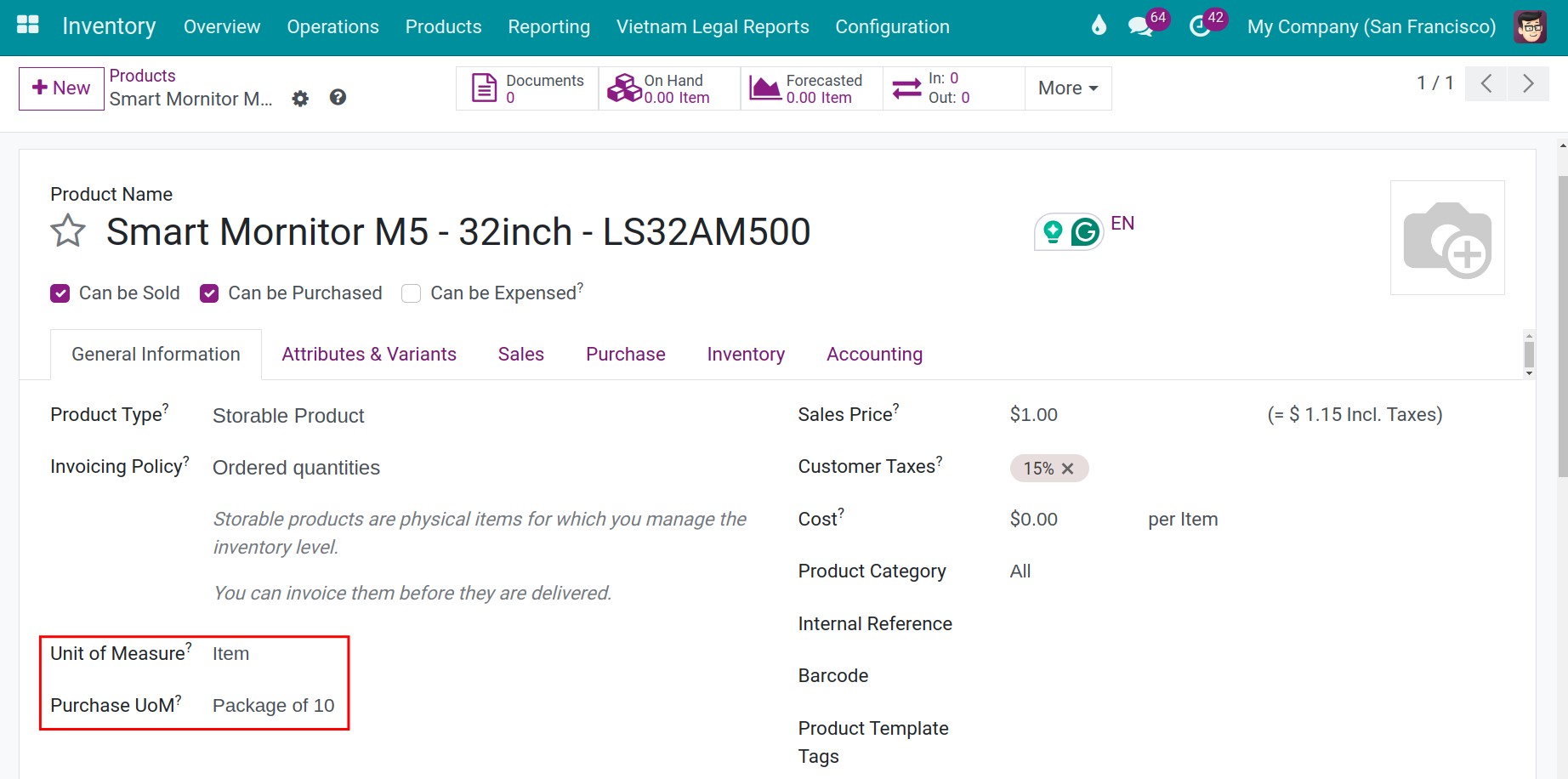
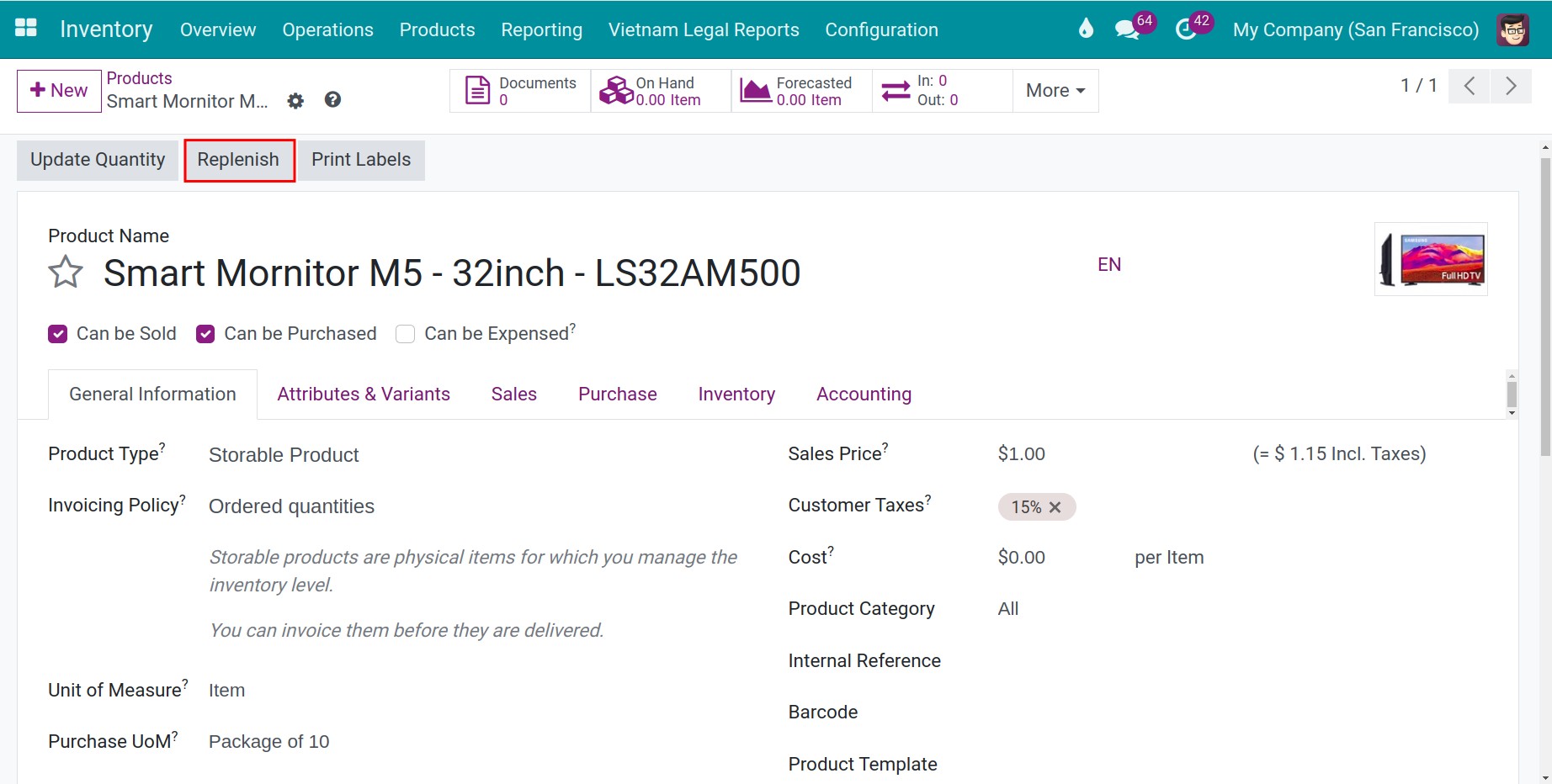
On the General Information tab, choose the unit after the sales price (per …). This is the unit in which Viindoo counts the stock of the product and processes its receipts, deliveries and internal transfers.
![Product form with the unit of measure chosen after the sales price]()
Click Save.
Warning
You cannot change the unit of a product that already has stock moves. Archive the product and create a new one instead.
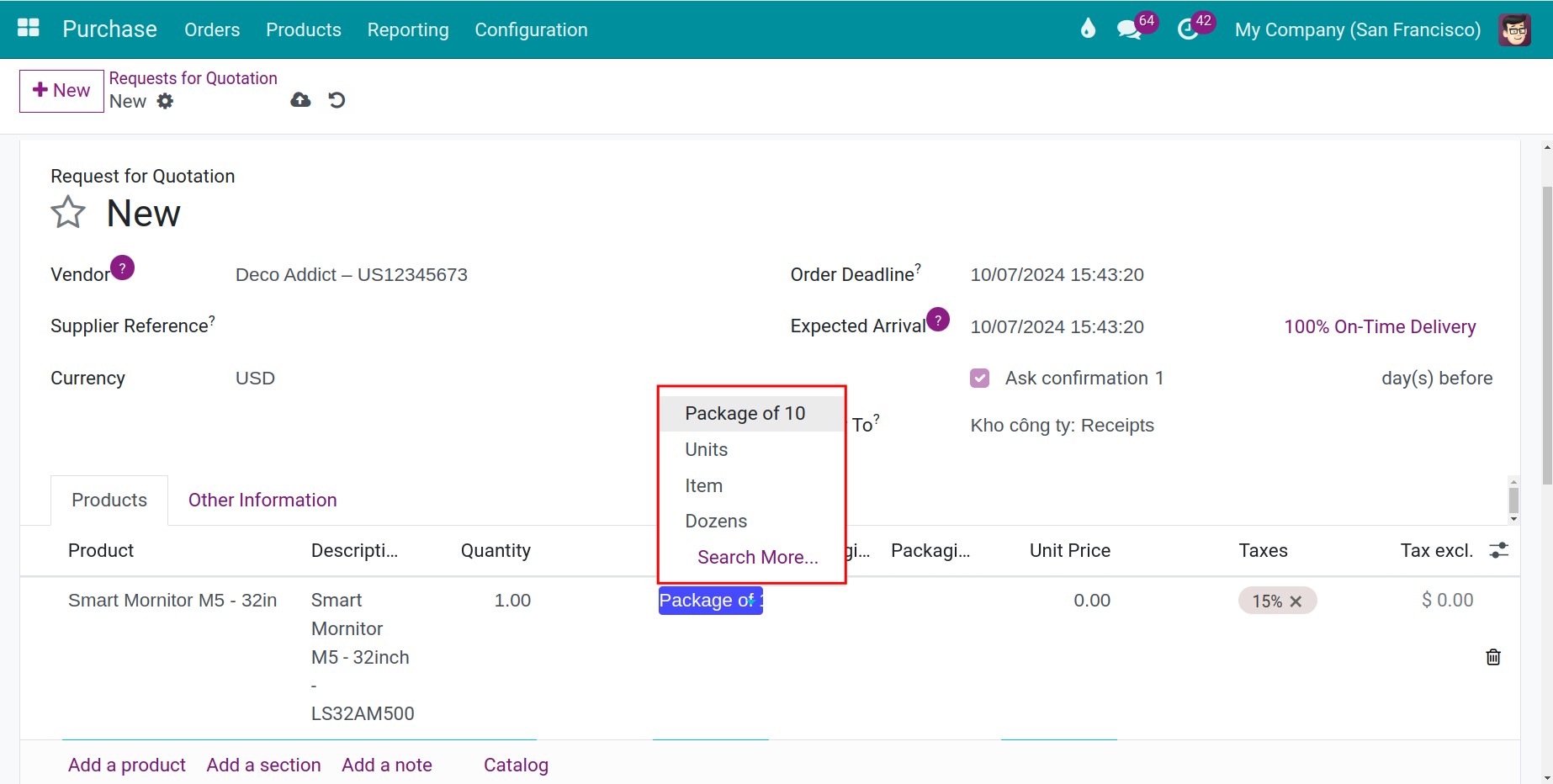
If you also install Purchase, a Purchase tab appears with the Purchase UoM of the product, which must be in the same category as the unit of the product.
How do I use another unit on a transfer or a replenishment?
On the lines of a transfer, choose a unit of the same category in the Unit column: Viindoo converts the quantity into the unit of the product. In the same way, in the Replenish window of a product you can order 10 pieces or 1 box of 6 by changing the unit next to the quantity.
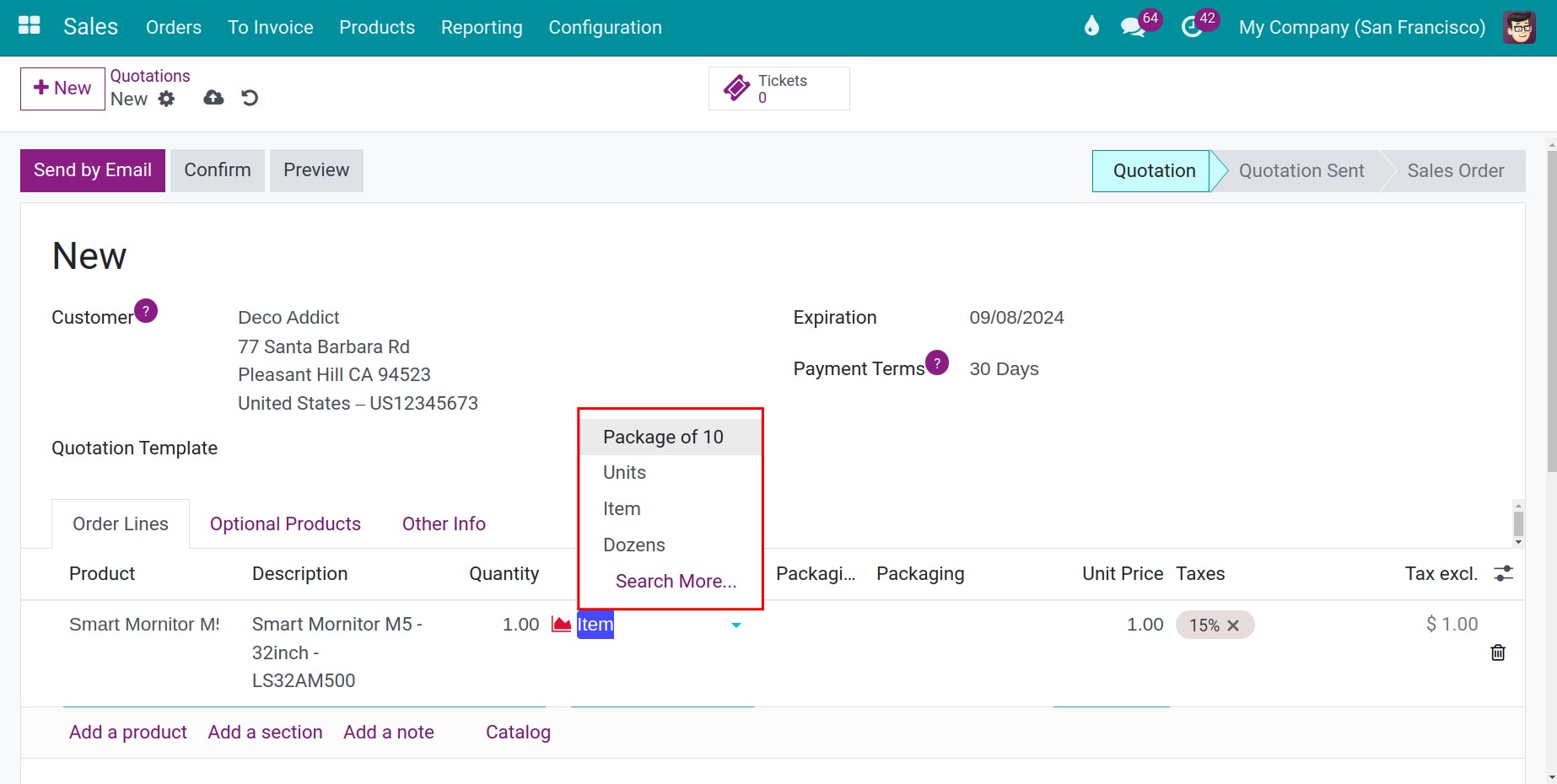
If you also install Purchase or Sales, the lines of a quotation or an order also offer the units of the product category.
What should I see when it works?
The lines of the transfer show the quantity in the unit you chose, and the stock of the product is still counted in the unit of the product. For example, receiving 2 boxes of 6 adds 12 pieces.
Common problems
Message or problem |
What to do |
|---|---|
There is no Unit column or UoM Categories menu. |
Turn on Units of Measure in . |
You cannot change the unit of measure as there are already stock moves for this product. If you want to change the unit of measure, you should rather archive this product and create a new one. |
Keep the unit. Archive the product and create a new one with the right unit. |
You cannot perform moves because their unit of measure has a different category from their product unit of measure. |
Choose a unit of the same category as the unit of the product. |
Warning Unsafe unit of measure |
You chose a unit smaller than the unit of the product. This can cause rounding problems on reserved quantities: use the smallest unit as the unit of the product, or set a smaller rounding precision. |
Next steps
How to sell in packs and put goods in packages: sell and ship in packs.
How to set up replenishment rules: minimum stock and make to order: replenish products automatically.
Version notes
The Purchase UoM of a product is on the Purchase tab, which appears when Purchase is installed.