
How to track time off with reports
To see how much time off your employees take, open the Reporting menu of the Time Off app: by Employee shows the days taken per month, by Type compares allocations, time off and balance for each type, Time Off Details shows the days and hours per month, and Balance shows what each employee has left. Every report can be filtered, grouped and downloaded to Excel.
Who |
Officer: Manage all requests for by Employee and by Type; Administrator for Balance and Time Off Details. |
App |
Time Off, with the Viin Time-Off module for Time Off Details |
Before you start
Install the Time Off app, see How to install Time Off and set up access rights, and the Viin Time-Off module for Time Off Details.
Create time off requests and allocations.
How do I see the time off of each employee?
Go to Time Off ‣ Reporting ‣ by Employee. The report is the Time Off by Employee. It opens as a pivot table of the approved requests and the requests to approve of the current year, with the employees and their types in rows and the months in columns. Click a header to open or close a group.
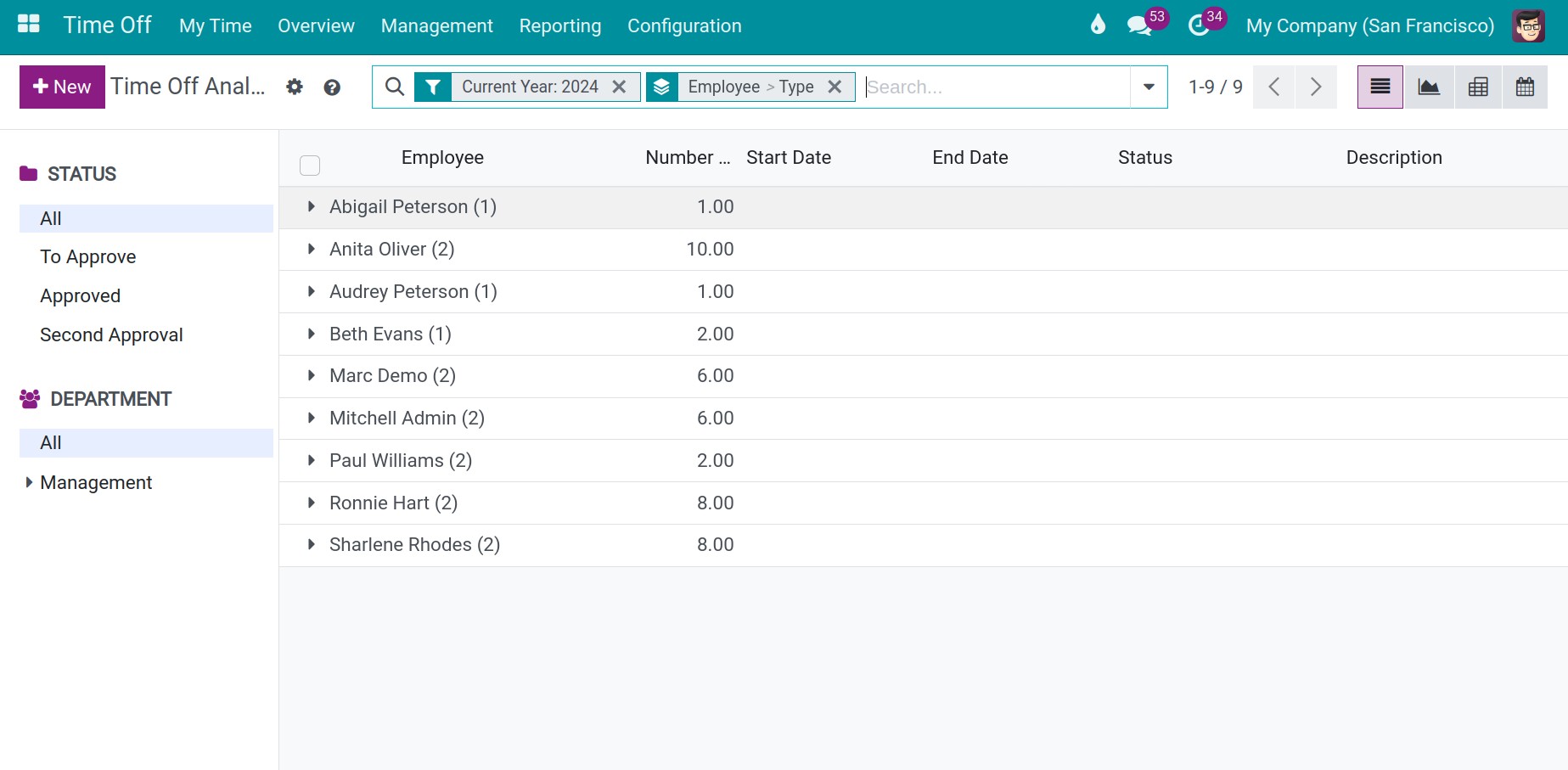
Use the buttons at the top right to change the view: pivot, list, graph or calendar. To change the period or the grouping, remove the default filters and use the search options, see How to search, filter, group and save searches.

How do I read the graph?
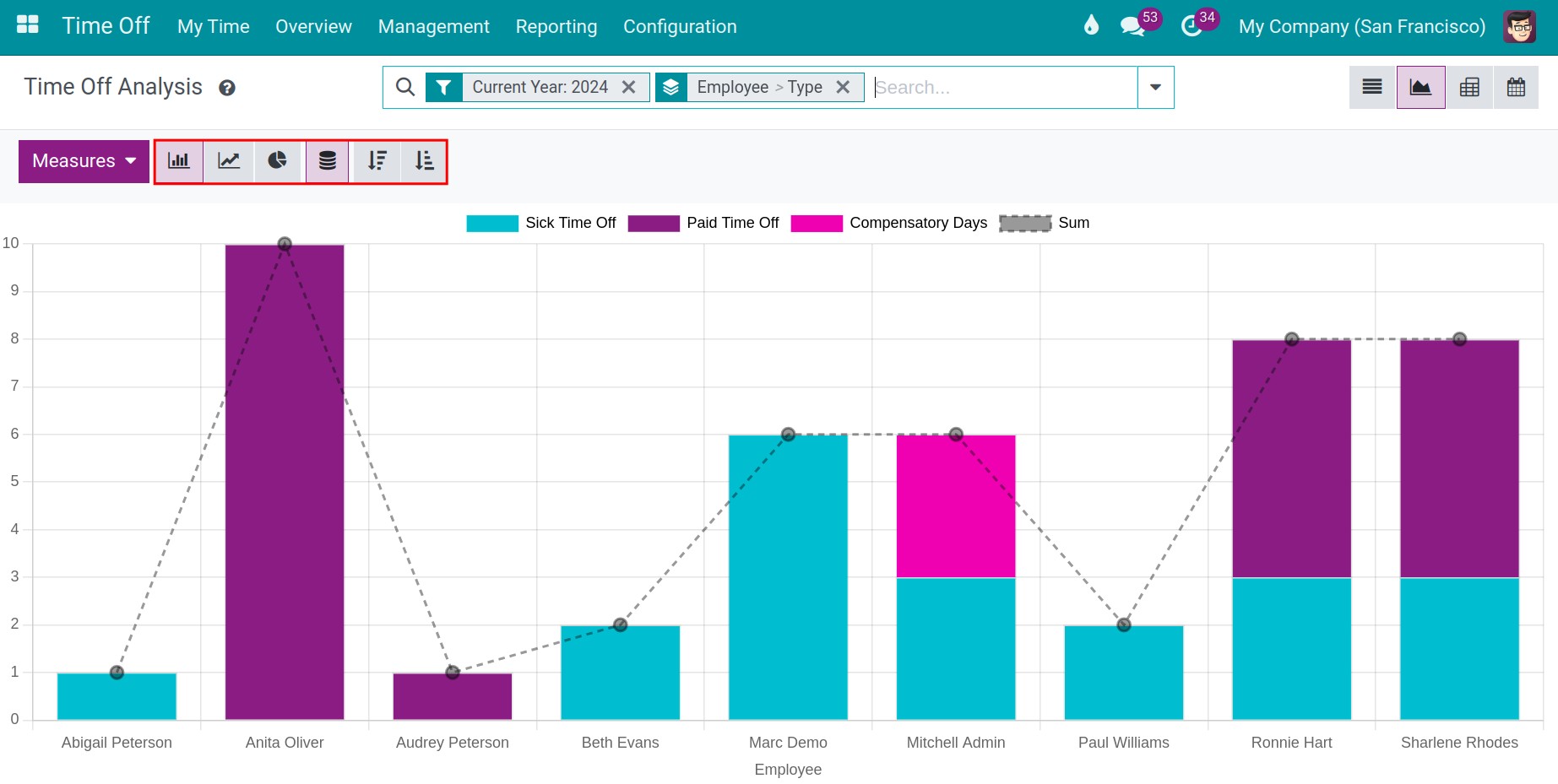
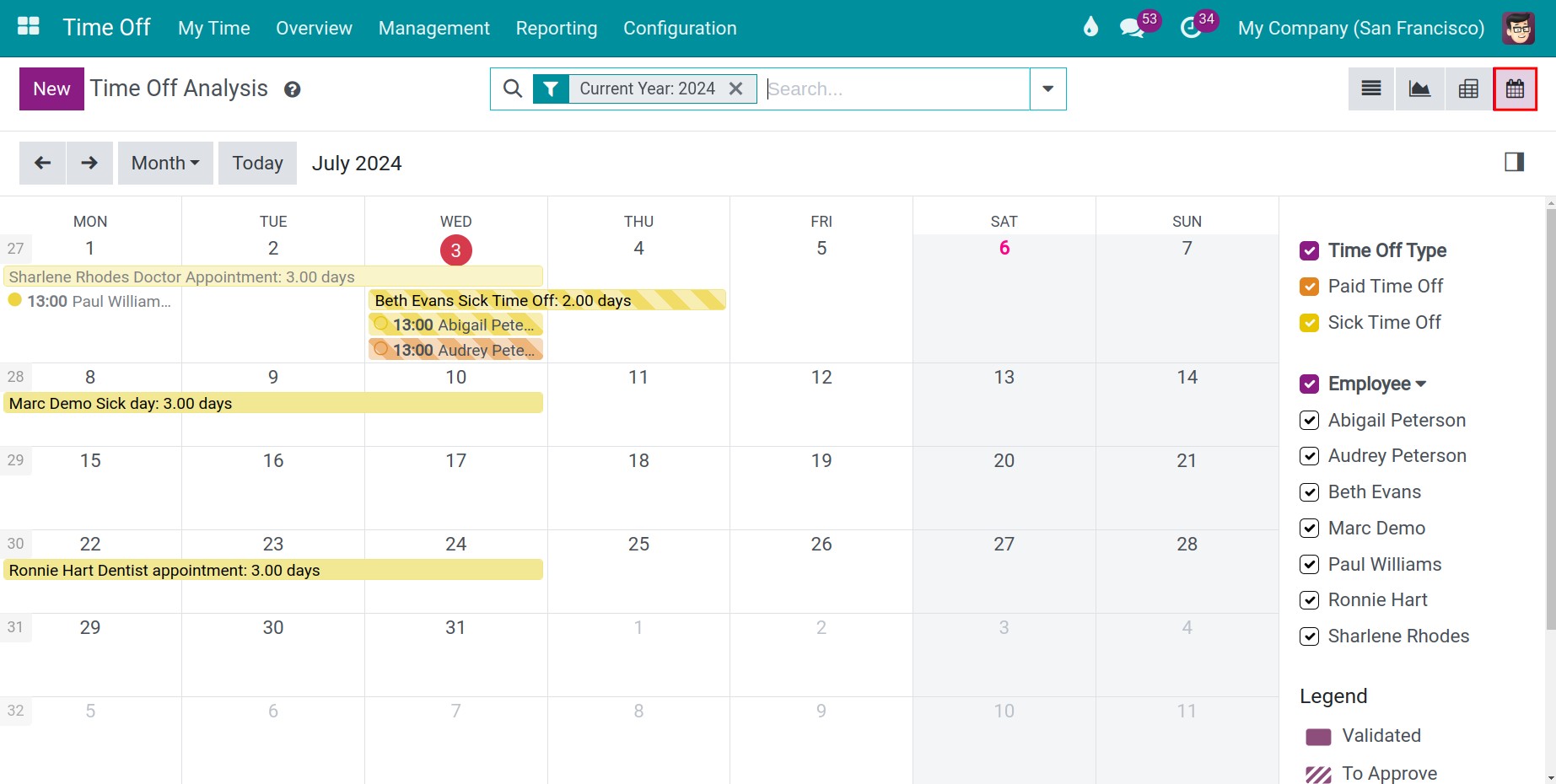
In the graph view, the vertical axis shows the Measures (the duration in days) and the horizontal axis shows the grouping. Choose a bar, line or pie chart, stacked or not, and sort the values in ascending or descending order with the buttons above the graph.
How do I analyse the report in a pivot table?
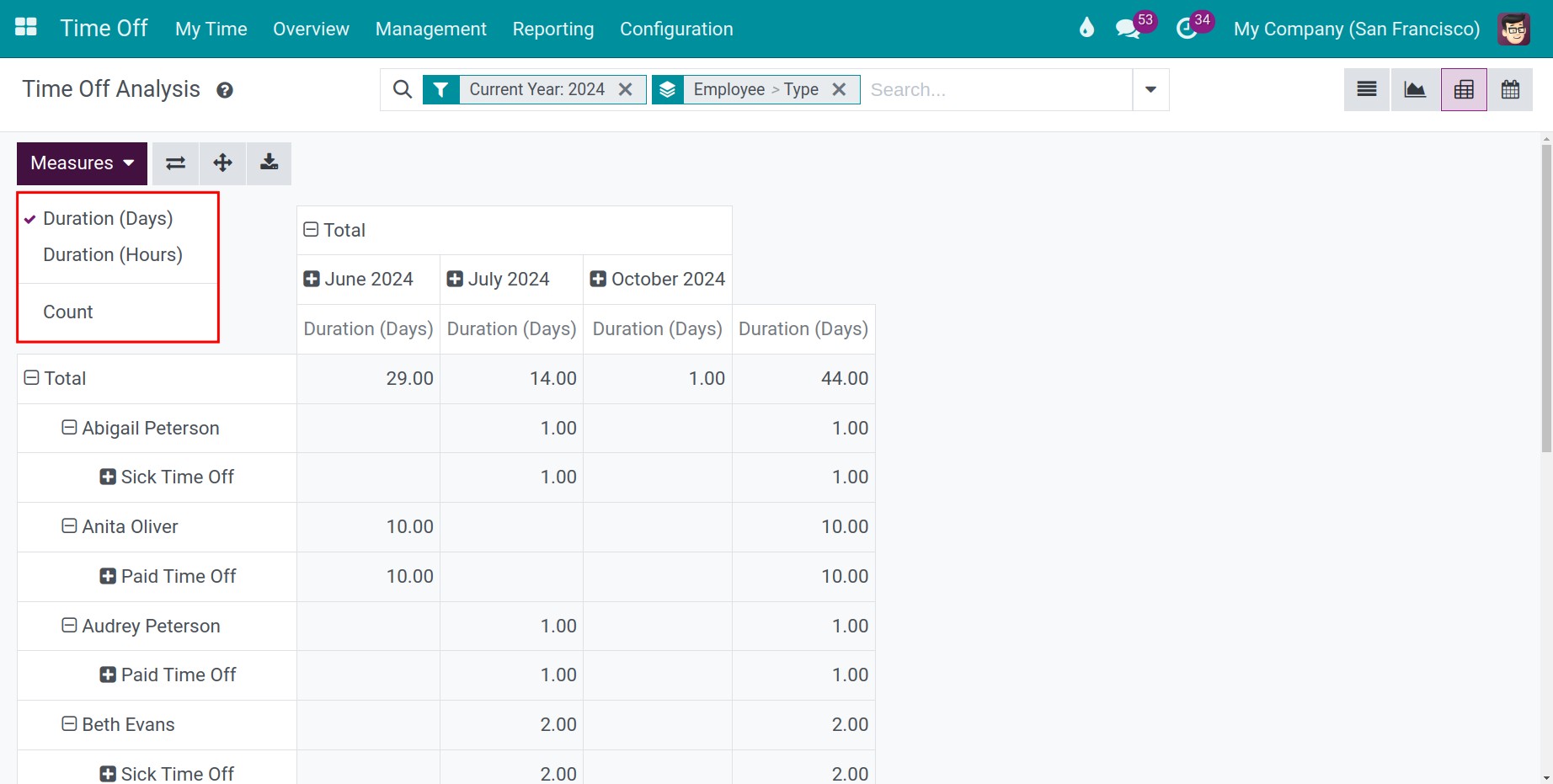
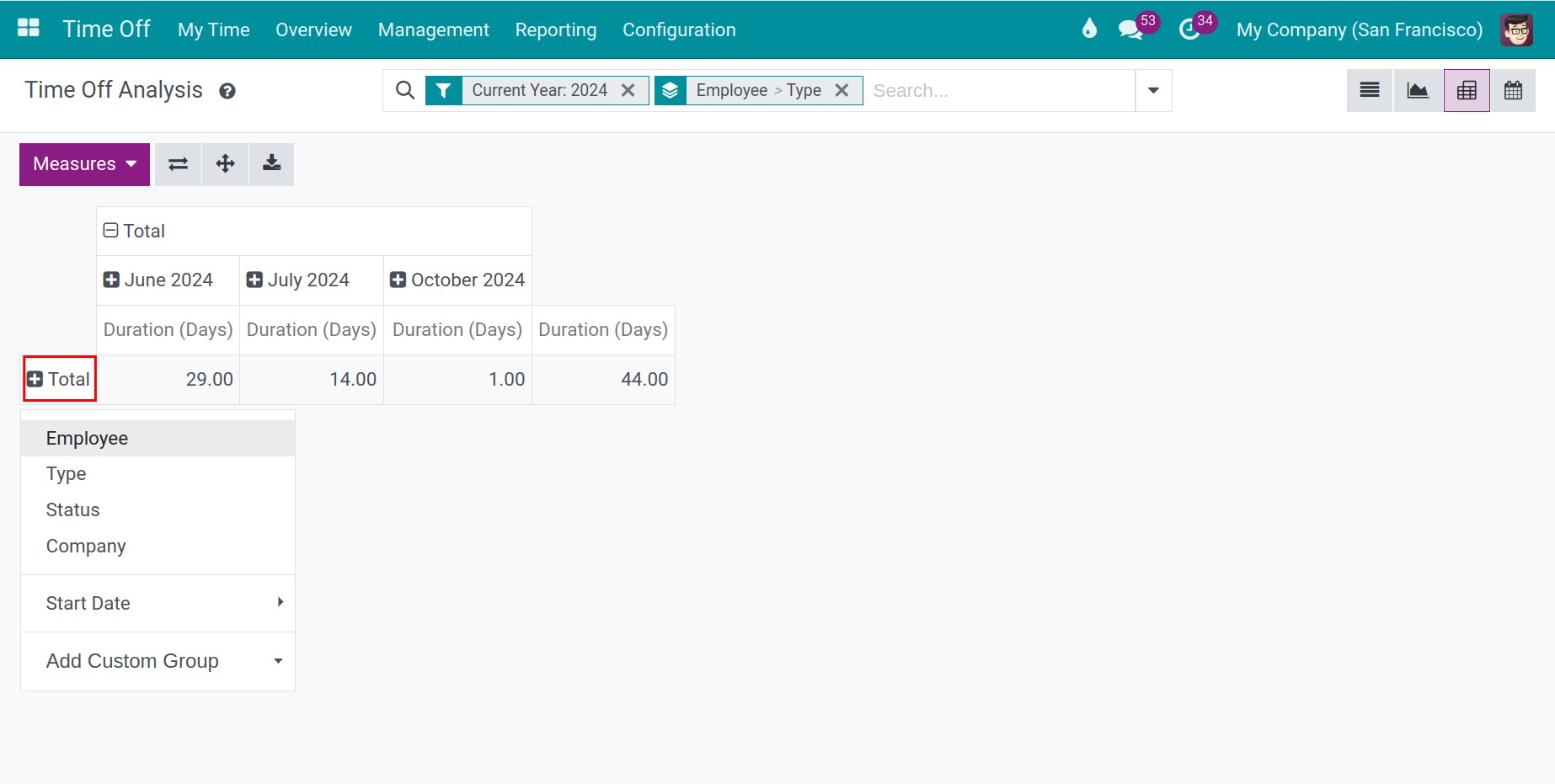
The pivot view lets you combine several measures. Open the Measures menu to choose them, click a header to choose the rows and the columns (employee, type, status, start date), and click the flip icon to swap rows and columns.
Click the download icon to export the table to an Excel file.
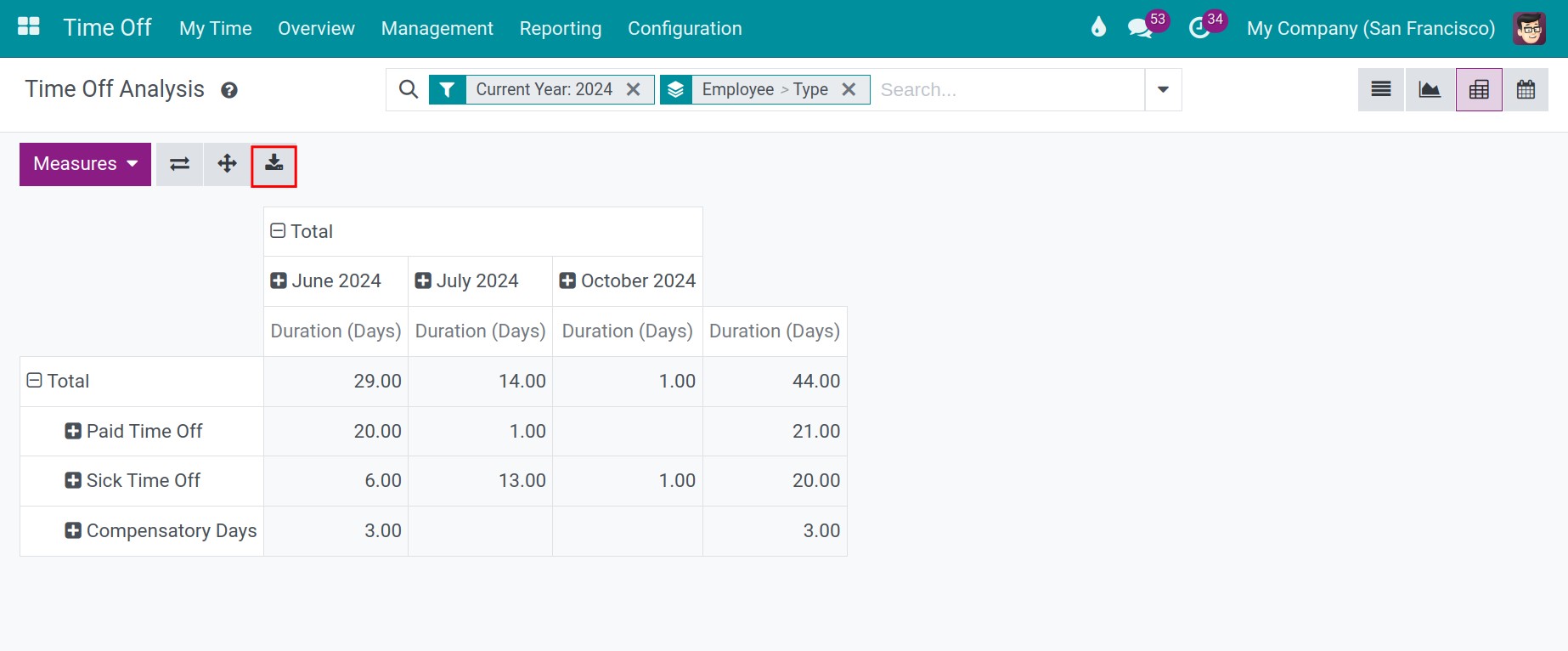
The calendar view shows the time off of all employees by day. Use the panel on the right to show only some types or some employees.
How do I see the time off by type?
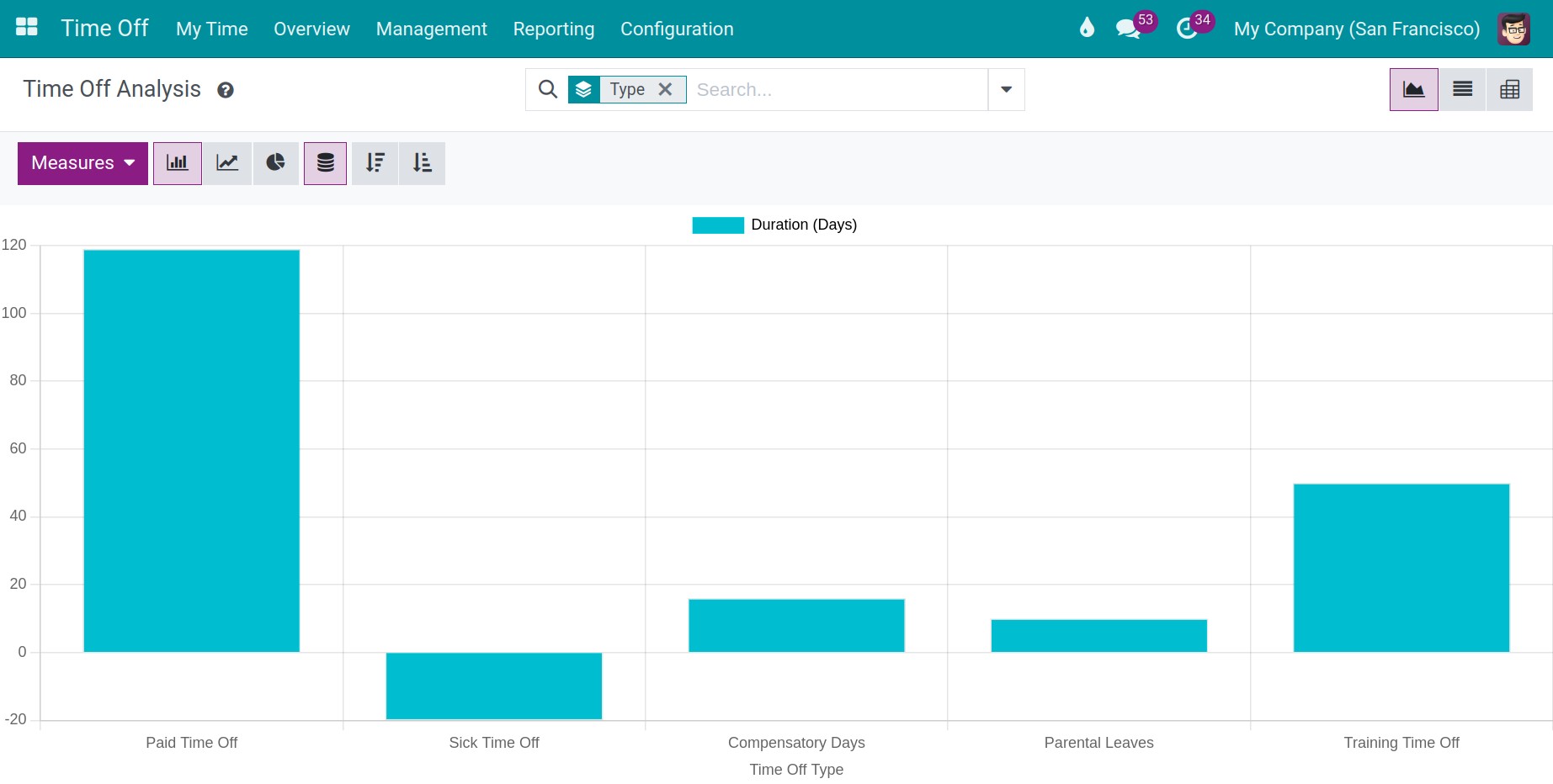
Go to Time Off ‣ Reporting ‣ by Type. The report opens as a bar chart grouped by type, with three measures: Allocation, Time Off and Balance. Use it to compare, for each type, the days allocated, the days taken or planned, and what is left.
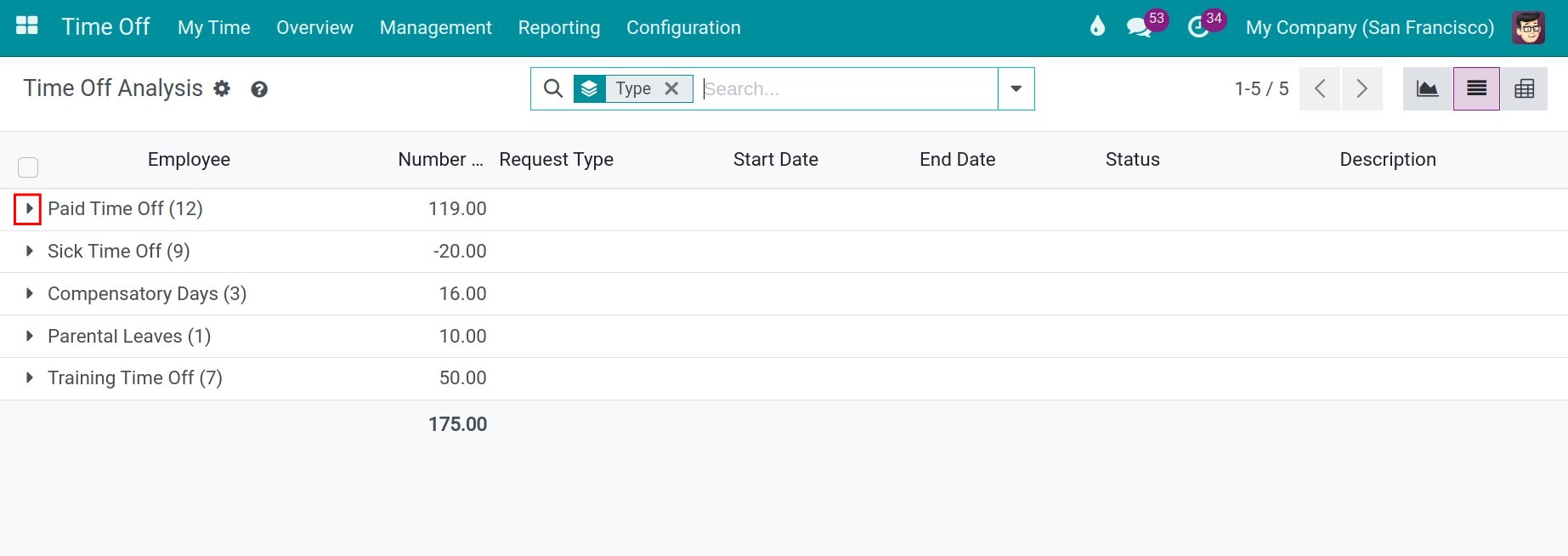
Switch to the list view to see each request and each allocation of a type: its number of days, its type, its dates and its status. Allocations count as positive days and the time off taken counts as negative days. Like the first report, it also has a pivot view.
How do I see the days and hours per month?
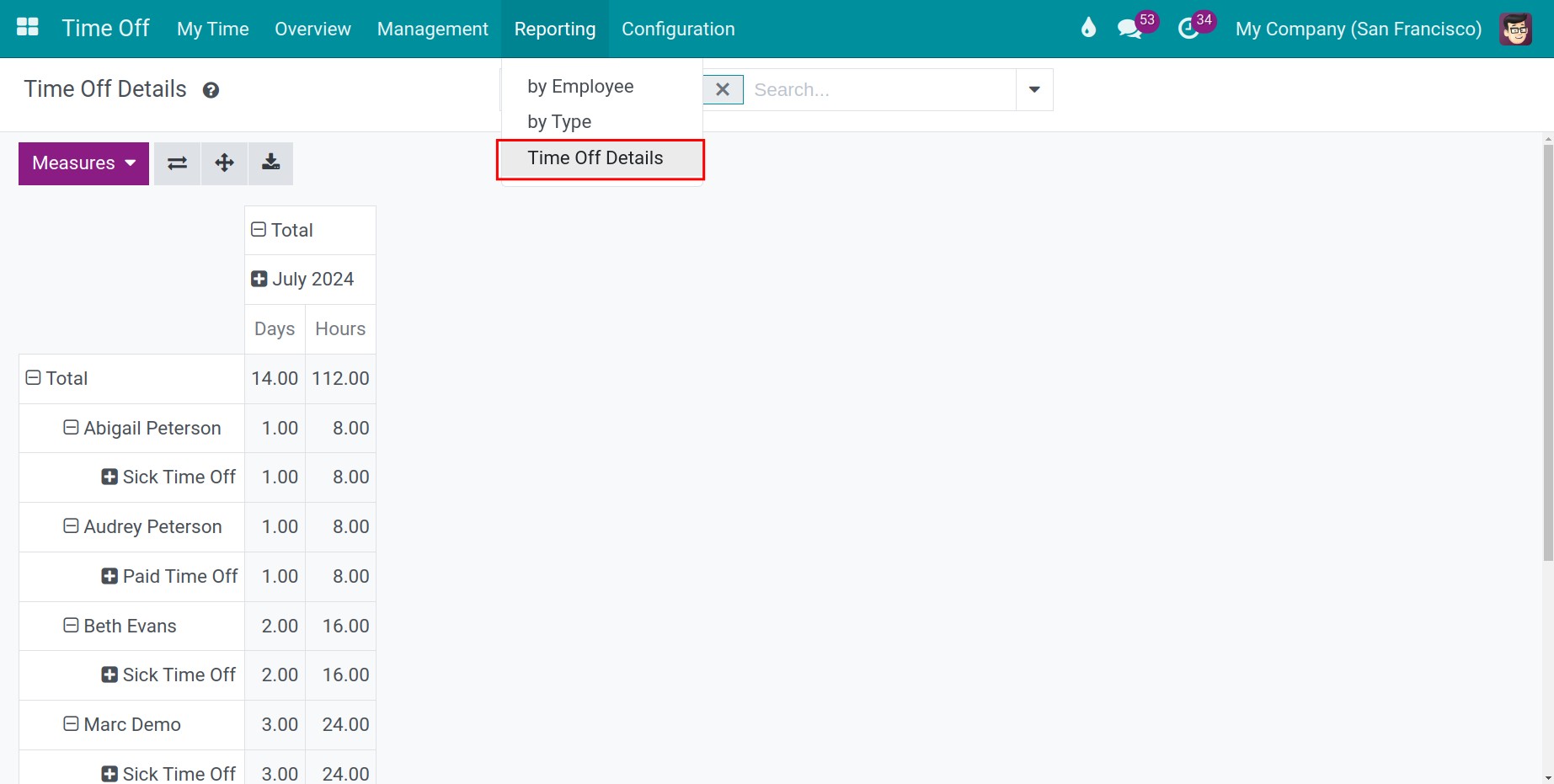
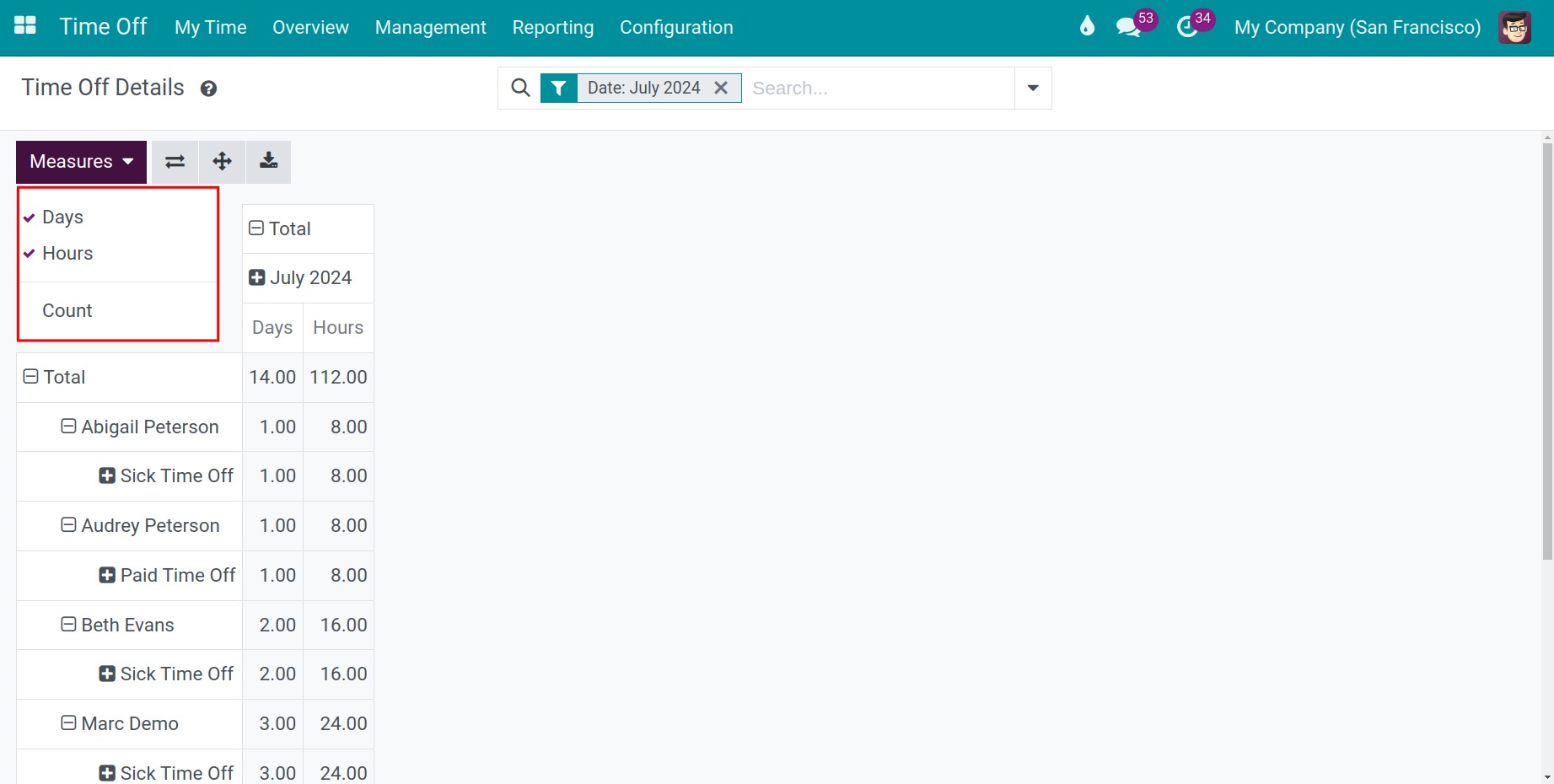
Go to Time Off ‣ Reporting ‣ Time Off Details. The report is a pivot table of the days and hours of time off per employee and per type for a month; it opens on the current month. Open Measures to show the days, the hours or both.
How do I see what each employee has left?
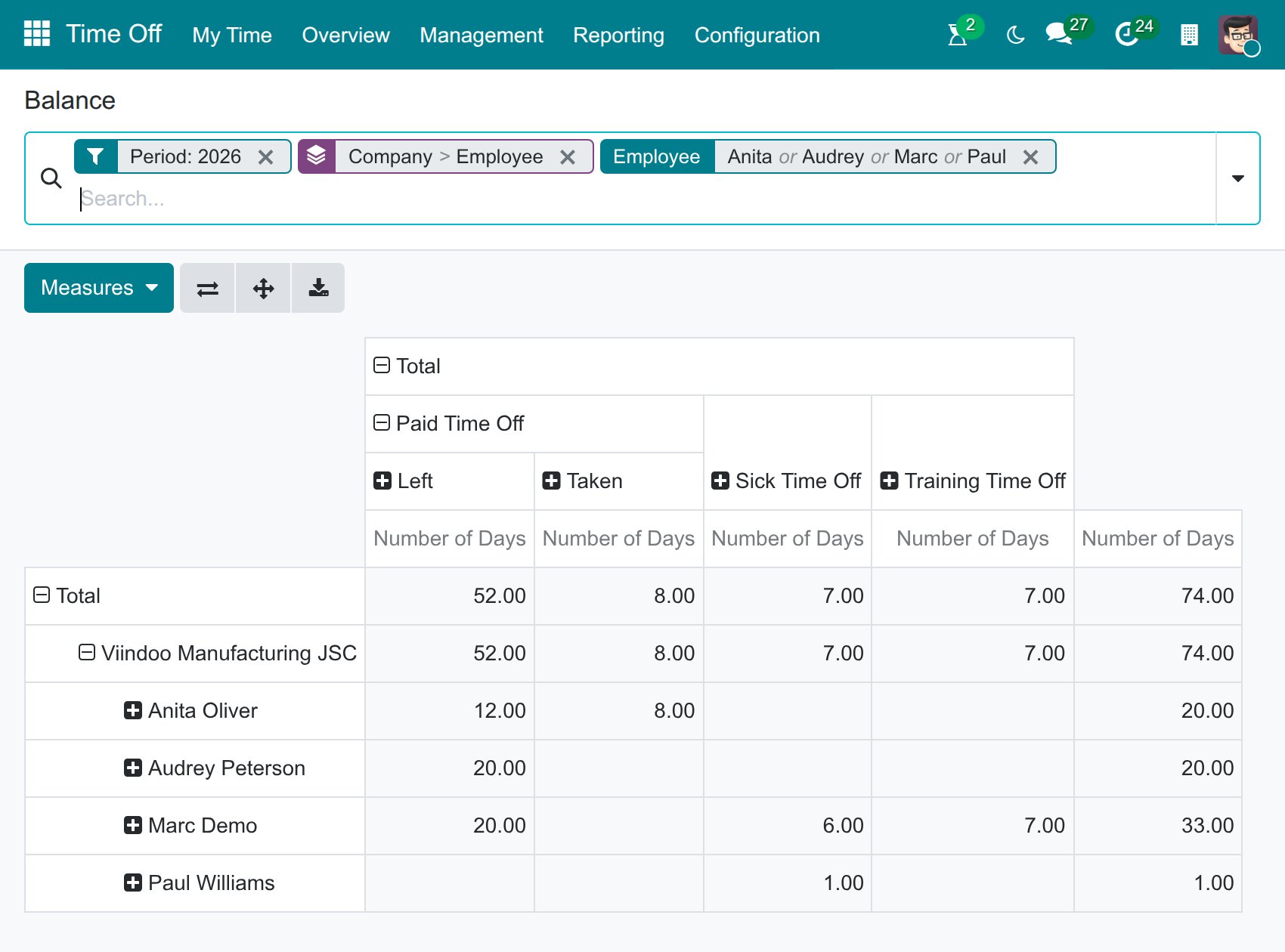
Go to Time Off ‣ Reporting ‣ Balance. The pivot table gives, for each employee and each time off type, the days and hours that are Left, Planned and Taken during the year. Click the header of a type to open or close its columns, and open Measures to choose between the days and the hours.
How do I print a summary of time off?
Go to Employees ‣ Employees, switch to the list view and select the employees.
Click Print, then Time Off Summary.
![The Print menu of the employee list with Time Off Summary]()
Choose the From date and the type of time off to include in Select Time Off Type: Approved, Confirmed or Both Approved and Confirmed. Click Print.
![The Time Off Summary window with the date and the type of time off]()


Viindoo generates the summary as a PDF file.
Common errors
Problem |
What to do |
|---|---|
You cannot see Balance or Time Off Details. |
Both need the Administrator access right, and Time Off Details needs the Viin Time-Off module. |
A report shows only the current year or month. |
Remove the default filter and choose another period. |
Time Off Summary is not in the Reporting menu. |
Print it from the list of employees, see above. |
Next steps
How to adjust a time off request: correct the dates of a request.
Overview and Configuration of Viindoo Overtime: follow the overtime of your employees.