
How to set up the attendance kiosk
The kiosk is a screen that employees use to check in and check out, usually on a tablet at the entrance. Employees scan a badge with a barcode scanner or an RFID reader, or pick their name and type a PIN. The kiosk opens in the browser from a link, so it needs no user login.
Who |
Users with the Attendances ‣ Administrator access right set up the kiosk. Users with the Attendances ‣ Officer: Manage all attendances access right open it from the menu. The Employees ‣ Officer: Manage all employees access right is needed to give badges and PINs. Employees use the kiosk without any access right. |
App |
Attendances, Employees |
Before you start
The employees exist in the Employees app, see How to create a new employee.
To scan badges you need a USB or Bluetooth barcode scanner or an RFID reader that types the badge number like a keyboard, or a device with a camera. Set the reader up with the tools of its manufacturer. You can search the web for an RFID reader to buy one.
How do I choose how employees identify themselves?
Go to Attendances ‣ Configuration ‣ Settings.
In the Modes section, choose the Kiosk Mode:
Mode
What the kiosk offers
Barcode / RFID
Employees scan their badge only.
Barcode / RFID and Manual Selection
Employees scan their badge, or click Identify Manually and pick their name.
Manual Selection
Employees pick their name from the list, with their PIN if you ask for it.
![The Kiosk Mode setting with the Installation Manual link]()
Click Save.
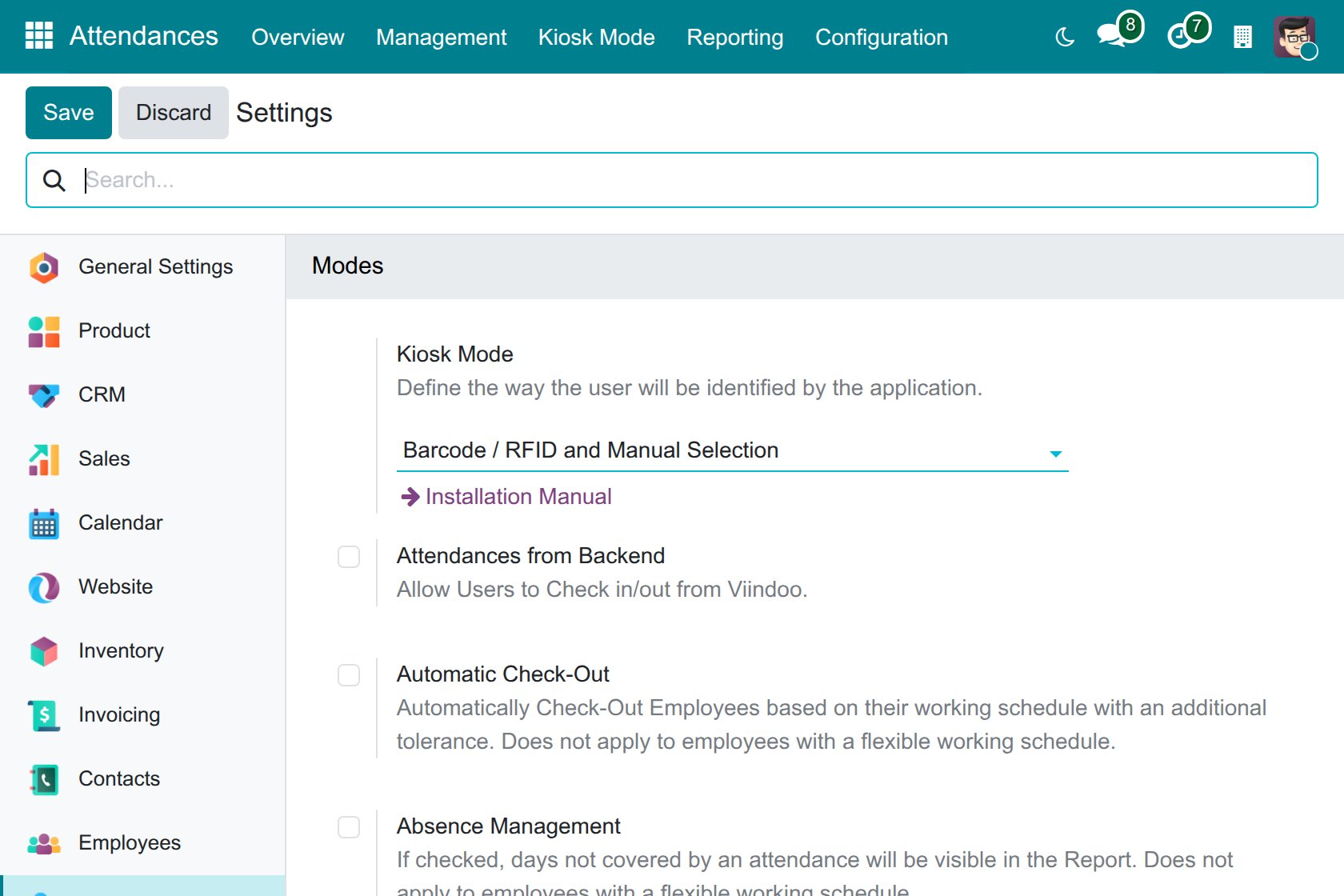
The Installation Manual link under the field opens this page.
How do I set the options of the kiosk?
In the Kiosk Settings section of the same page:
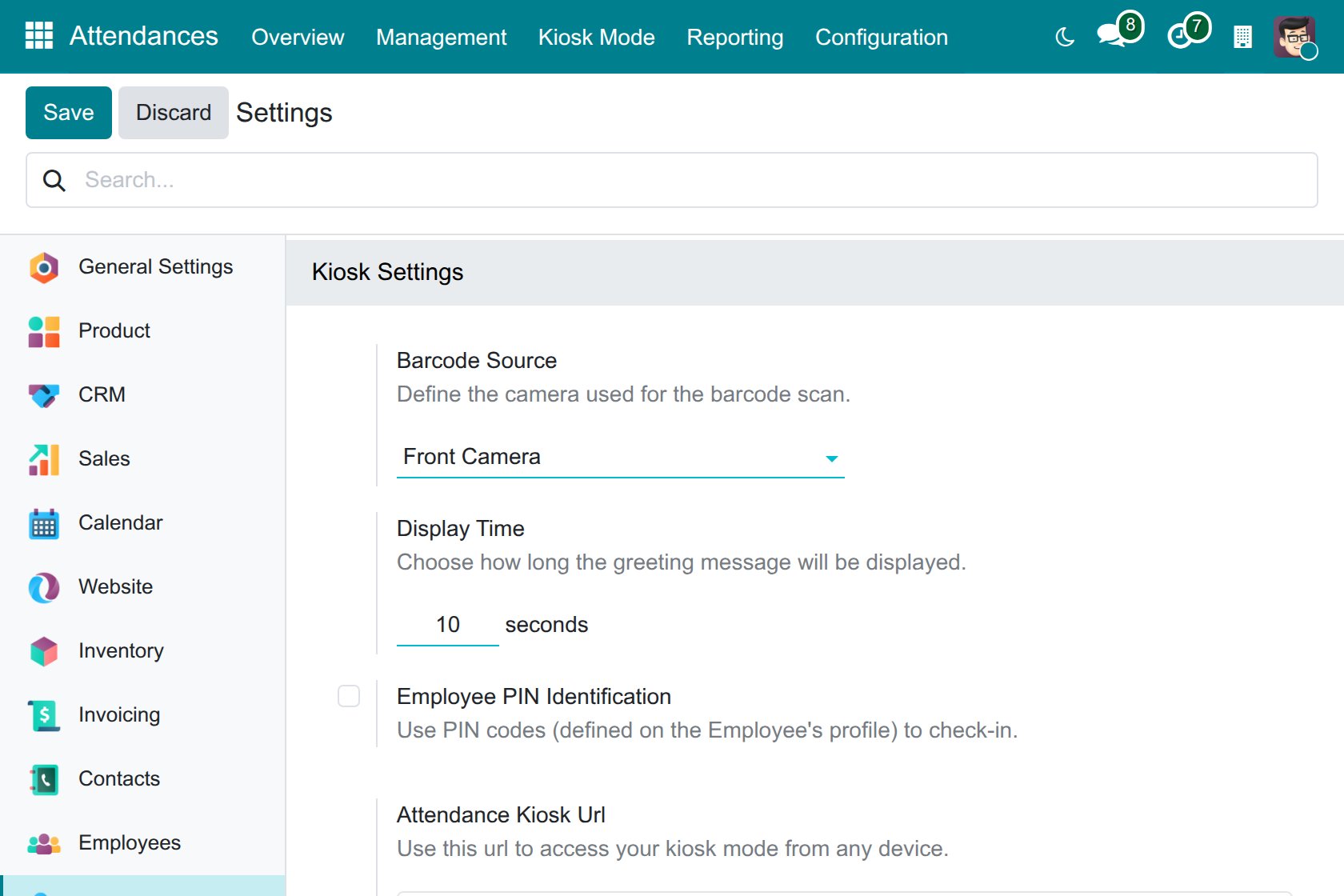
Barcode Source: choose Scanner for a barcode scanner or an RFID reader, or the Front Camera or the Back Camera of the device. This option does not appear in the Manual Selection mode.
Display Time: the number of seconds the greeting stays on the screen after a check in or a check out. The default is 10.
Employee PIN Identification: check it to ask for the PIN of the employee. This option does not appear in the Barcode / RFID mode.
Attendance Kiosk Url: the address of the kiosk, to open on any device. Anyone who has this address can open the kiosk screen, so share it with care. Click Generate new URL to replace it: the former address stops working.
Click Save.
How do I give a badge or a PIN to an employee?
Go to Employees ‣ Employees and open the employee.
Open the Settings tab. In the Attendance/Point of Sale group:
type the PIN Code, if you use PINs;
type or scan the RFID/Badge Number, or click Generate to create a number. Read a badge fills the number from a scan with the camera.
Once the employee has a badge number, click Print Badge to print the badge with its barcode.
How do I open the kiosk?
Open Attendances ‣ Kiosk Mode, or paste the Attendance Kiosk Url in the browser of the tablet. The kiosk opens in the language of the company.
When you open the kiosk from the menu and your user has a password, Viindoo signs your user out of the browser, so that a kiosk left open at the entrance does not give access to your session.
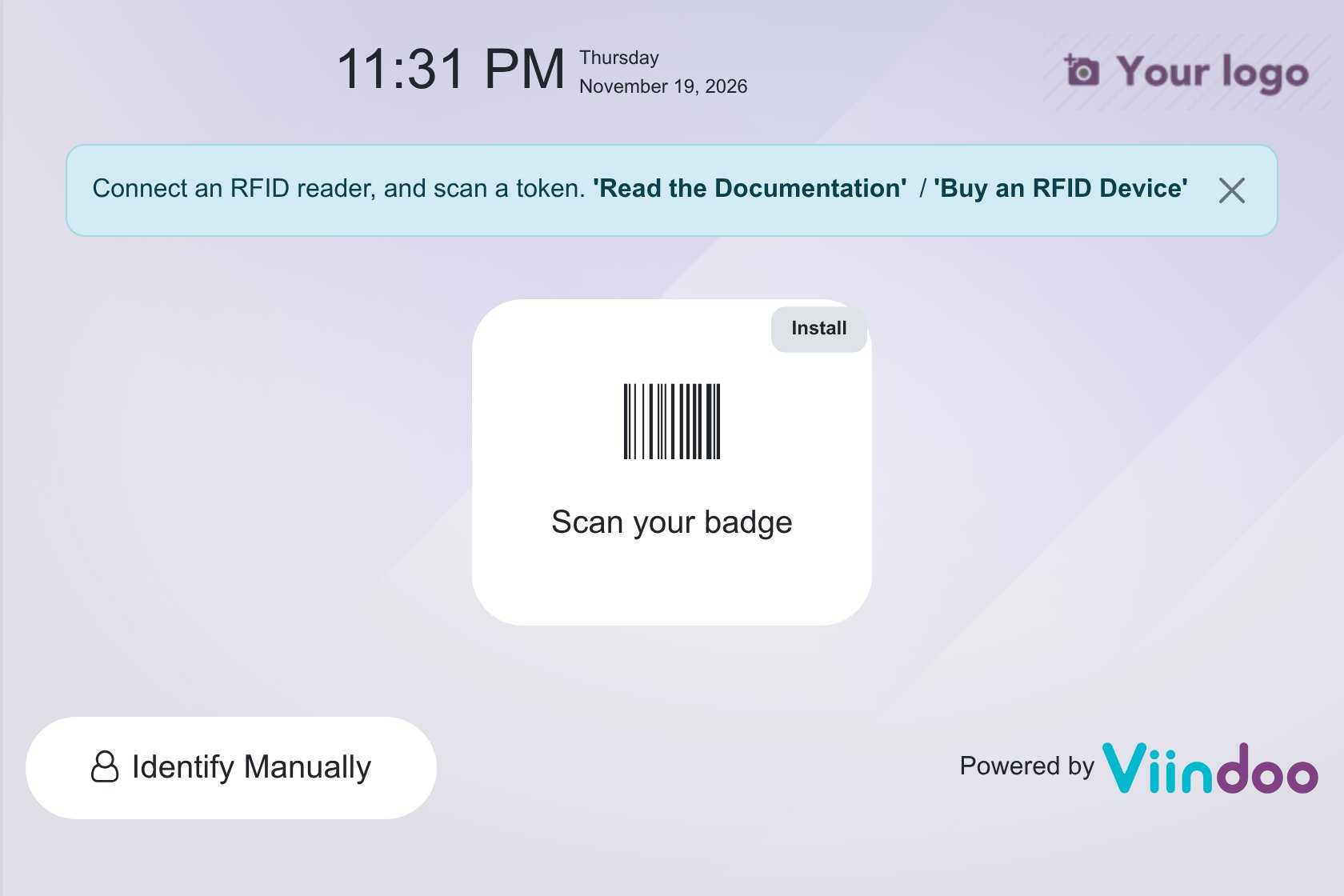
The screen of the kiosk depends on the mode. A banner reminds you to connect an RFID reader and links to this page with Read the Documentation; click its cross to hide it. The Install button adds the kiosk to the device as an application.
How do employees check in and check out?
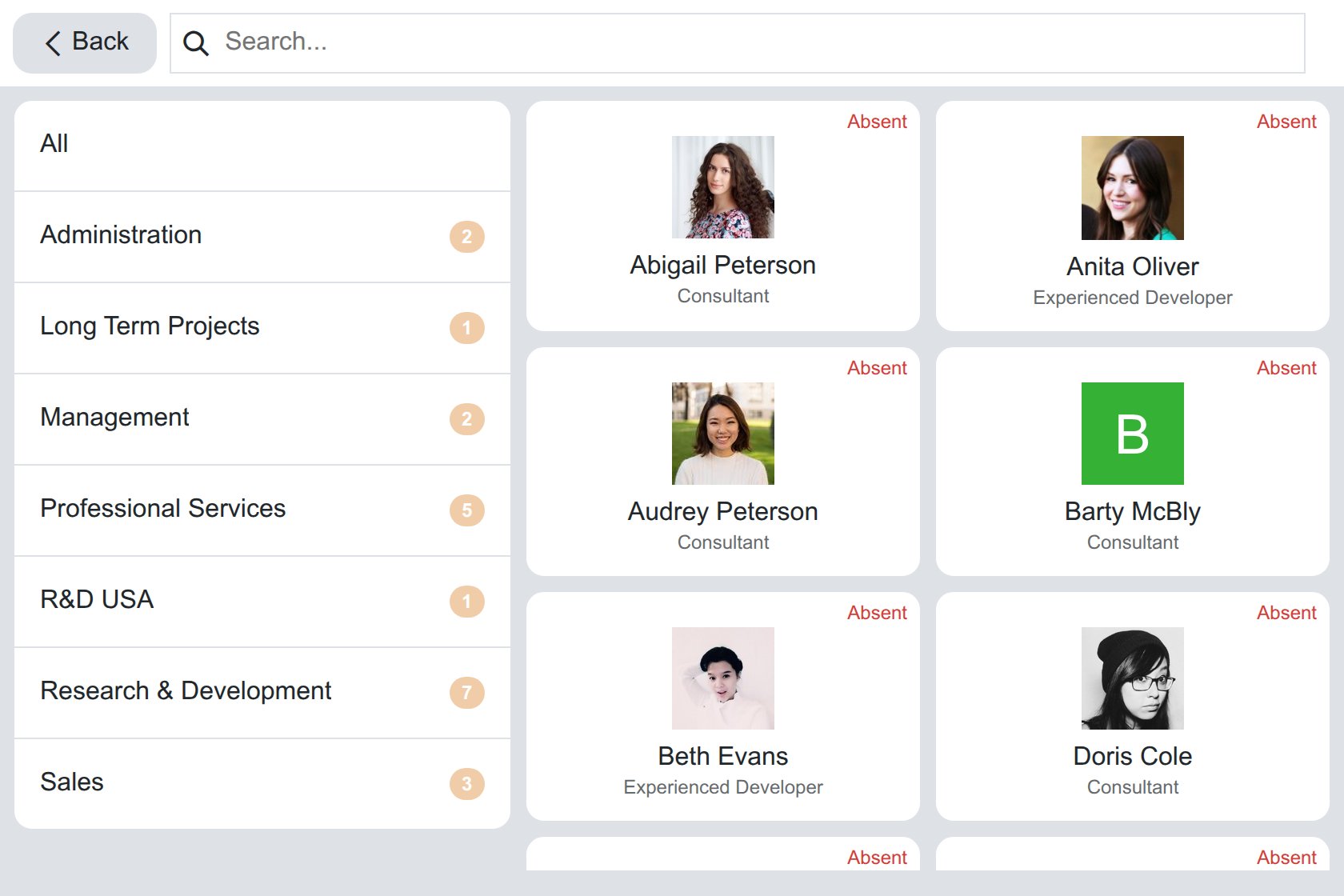
The employee scans their badge. Or the employee clicks Identify Manually, then picks a department and their name in the list.
![The list of employees to pick from, grouped by department]()
When the employee picked their name and Employee PIN Identification is on, the employee types the PIN on the keypad.
The kiosk greets the employee with Welcome and the check in time, or Goodbye and the check out time, then goes back to the main screen after the Display Time. The check in or check out appears in Attendances, see Getting started with Attendances in Viindoo.
Common problems
Problem |
What to do |
|---|---|
No employee corresponding to Badge ID … |
The number scanned is not on any employee of the company. Check the RFID/Badge Number of the employee. |
Wrong Pin |
The employee types the PIN again, or you check the PIN Code on the employee. |
The address of the kiosk no longer opens a page. |
Generate new URL replaced it. Use the new Attendance Kiosk Url. |
The camera of the device does not scan. |
In Barcode Source, choose the Front Camera or the Back Camera, and allow the browser to use the camera. |