
Getting started with Survey
Requirements
This tutorial requires the installation of the following applications/modules:
Introductions on Surveys app in Viindoo system
Main features of the Surveys app
The Viindoo system allows users to create surveys with a variety of question types for different purposes such as:
Collect feedback from customers;
Assess the level of satisfaction concerning products, services, events, etc.;
Create exams for the tasks related to HR.
Surveys app installation
You can install the Surveys app by following these steps:
Navigate to Viindoo Apps and use filters to search by Apps;
Type Surveys in the searching bar;
Select the Surveys app and press Activate.
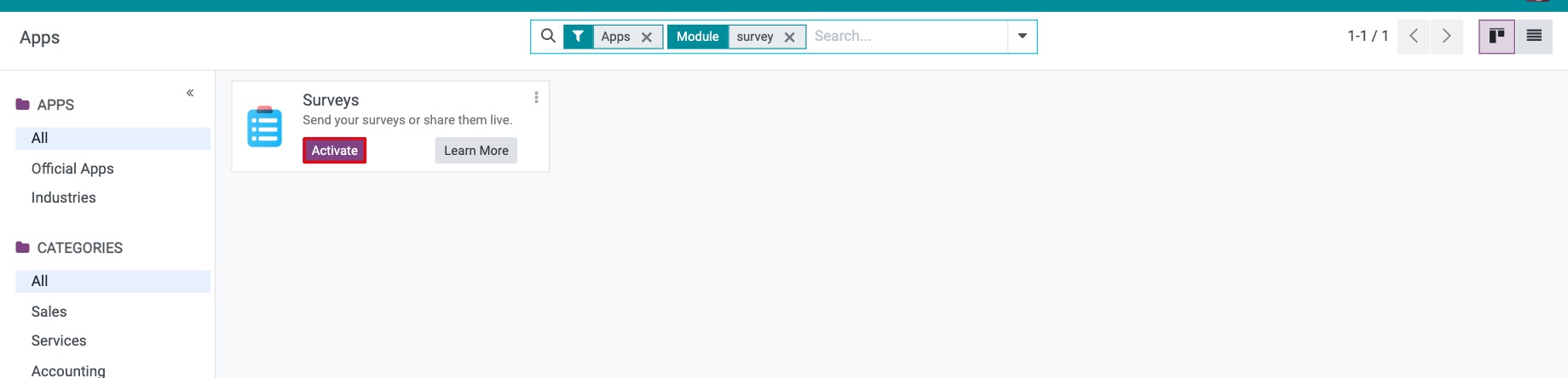
After the successful installation, navigate to the Surveys app in the Viindoo main view.

Grant access rights in the Surveys app
The access rights of the Surveys app are set in the Marketing section of the Access Rights tab of a user. Two selectors are available:
- Surveys:Blank: Cannot access the Surveys app.User: Create, view, edit, and delete the surveys that the user created or is responsible for.Administrator: Create, view, edit, and delete all surveys.
- Certifications: applies to the surveys that are set as a certification (see How to create and manage online surveys). Surveys and certifications are managed separately, so a Surveys right does not open the certifications.User: Create, view, edit, and delete the certifications that the user created or is responsible for.Administrator: Create, view, edit, and delete all certifications.

Surveys app overview
Overview
When navigating to the Surveys app, you can see all the existing surveys in the kanban view.
- New button: to create a new survey;
- Searching toolbar: helps to search the surveys or group by rules;
- Survey cards: each card shows the survey title and the person responsible, the number of questions, the average duration, the number of registered and completed participations, and the score or certification result when the survey is scored. The Share, Test, See results and Start Live Session buttons on a card open the corresponding action of the survey (Start Live Session is shown only for surveys that can run a live session).

Participations view
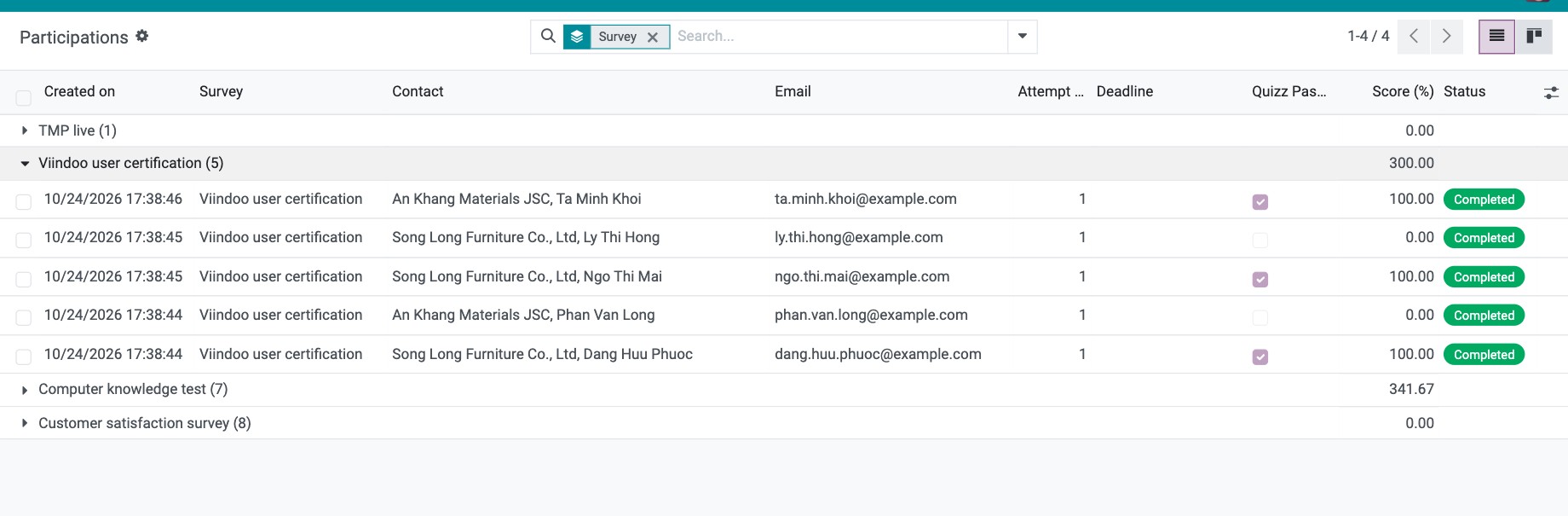
Navigate to Surveys ‣ Participations.
The view of Participations shows all survey answer sheets in the list view, grouped by survey, containing the following information: survey name, contact, email, time of creation, deadline, score, status, etc.
Questions & Answers view
Navigate to Surveys ‣ Questions & Answers. This menu helps to manage the information of Questions, Suggested Values, Detailed Answers.
- Questions: show all questions in the list view.
- Suggested Values: show all choices in the list view, group by Question.
- Detailed Answers: show all detailed answers of participants in the list view, group by Survey & User Input.

Settings in the Surveys app
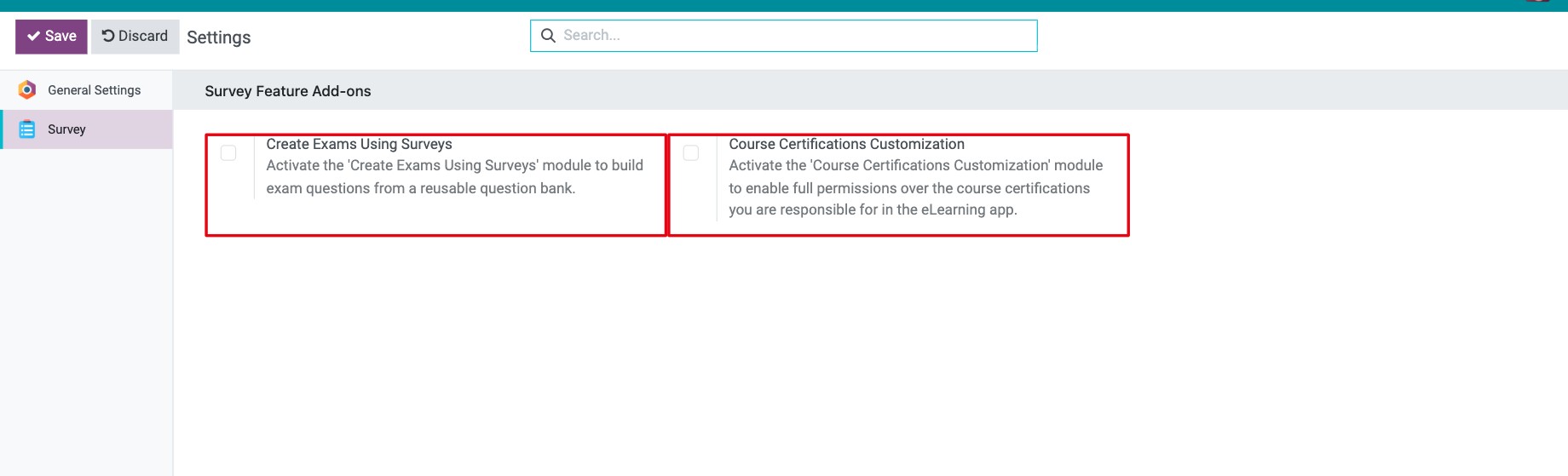
Navigate to Surveys ‣ Settings. The Survey Feature Add-ons block lets you quickly activate the extra modules of the survey application. Tick the box of a feature and click Save:
- Create Exams Using Surveys: allows you to build exam questions from a reusable question bank.
- Course Certifications Customization: gives full permissions over the course certifications that you are responsible for in the eLearning application.
Note
After you correct the correct answers or the scores of a survey, use the Recompute Answers Score button on the survey form to score again the answers that were already submitted. See How to create and manage online surveys.
See also
Related article
Optional module