
Plan shipment tasks on a Gantt chart
Guide information
Requirements
This tutorial requires the installation of the following applications/modules:
Freight Project & Operations Tasks (installed automatically once Freight Sale, Project Customization and Sales Timesheet are installed) - provides the shipment tasks this page plans
Freight Project Gantt - adds the Gantt Chart view to the shipment task lists. It is not installed automatically: install it from Apps, which also brings Project Scheduling and Web Gantt, before starting.
An Operations lead runs several shipments at once, each with several operational tasks - booking, documentation, customs, delivery. A list or kanban view of these tasks has no timeline, so seeing who is overloaded on a given day means opening each task one by one. The Gantt chart plots every shipment’s tasks on one axis instead, so an overlap is visible at a glance, and dragging a bar reschedules the task the moment something upstream changes - a vessel sailing later, for example.
Running scenario: Hai Long Logistics’s export shipment SHP/2610/00001 for Nhat Long Footwear sails later than planned, on 12 November. Duc (Operations Manager) reschedules the shipment’s Original B/L release (Telex or OBL) task to 13 November, after the new sailing date. The records are sample records, so yours will differ.
Before you start
The shipment’s tasks already exist.
The tasks already carry planned dates. A newly created task gets Planned Start Date = the moment it was created and a Planned End Date worked out from it, so its bar sits on the creation date until someone plans it. Drag each bar to its deadline before you use the chart to compare workloads.
You are in the User: Own Shipments group or above, to see the Tasks menu, and also in the Project: User group - the Freight access levels do not grant Project access on their own. Dragging bars needs write access to the tasks, as Duc has with Administrator.
Note
Dragging a task on the Gantt chart does not notify whoever is assigned to it. Tell the team through the chatter or an internal channel when a reschedule needs to reach them quickly.
Step 1: Open the Shipment Tasks Gantt chart
Every shipment’s tasks need to land on one timeline before an overlap becomes visible, so the chart has to show more than the shipment you are currently working on.
Go to , then click the Gantt Chart icon, the last one on the view switcher.
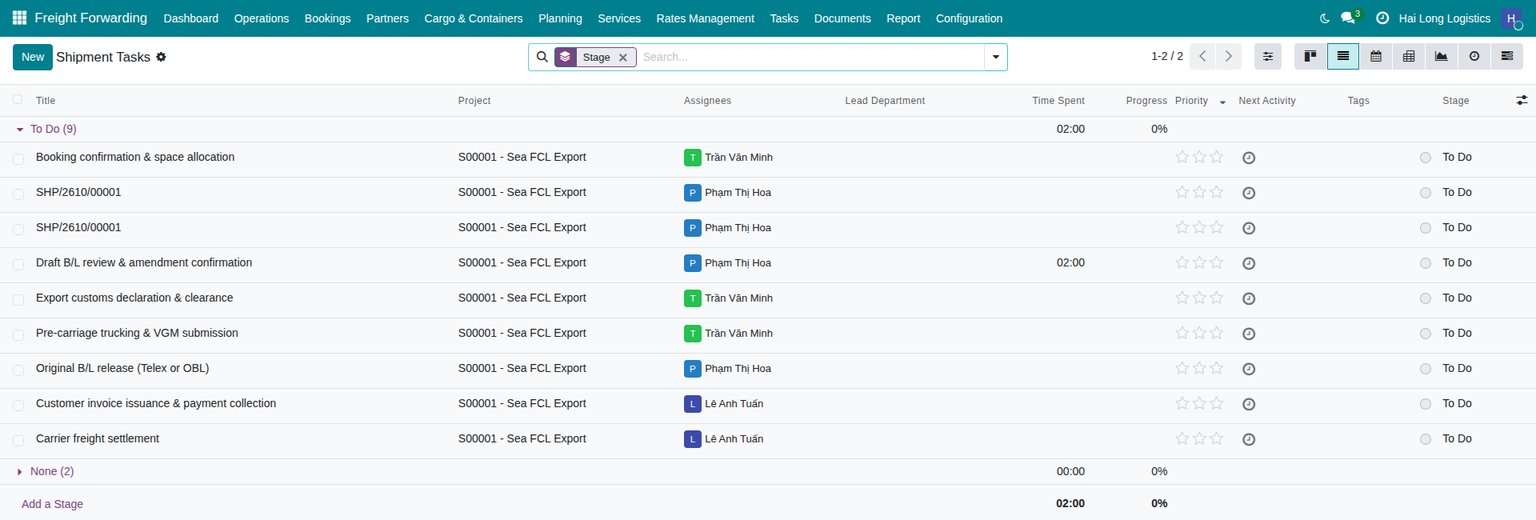
After you click the Gantt Chart icon:
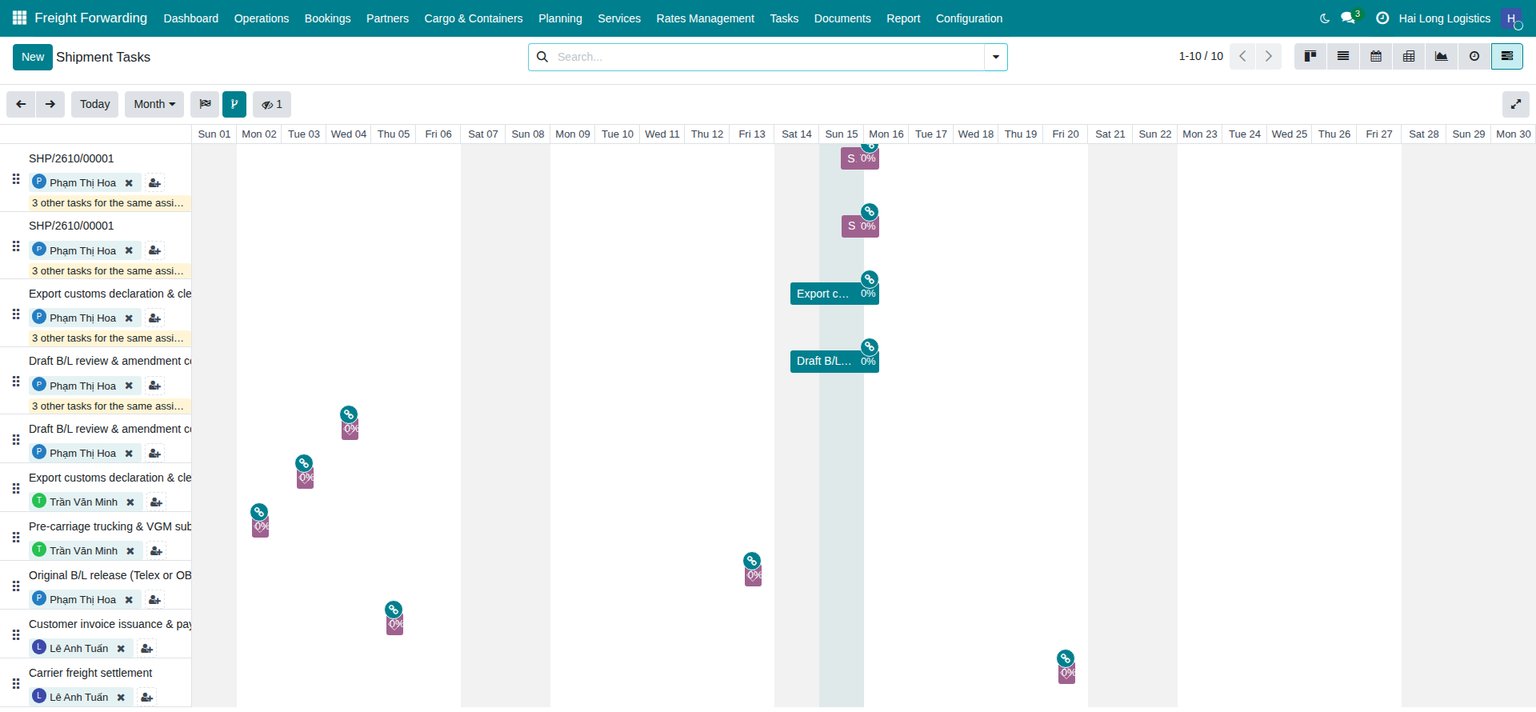
Every shipment task appears as a row with its bar on the timeline, and the people assigned to it shown beside the task name.
The chart opens on the Month scale; use the Month menu to change the time scale, and Today to jump to the current date.
When a person has other tasks planned at the same time, the row shows a yellow alert such as 3 other tasks for the same assignee are scheduled at the same time!
Document-request tasks (the SI and the Draft B/L) also appear as rows named after the shipment. Here two of them are planned on 15-16 November for Phạm Thị Hoa and, with her other tasks, trigger the overlap alert on her rows.
Tip
Step 1 is done when: the tasks of shipment SHP/2610/00001 show as bars on the chart, with Original B/L release (Telex or OBL) among them.
Decide which task list to plan from
Option |
Use when |
What changes |
|---|---|---|
Shipment Tasks |
Planning for the whole team, across every open shipment |
The chart includes every user’s tasks, not filtered by who is assigned |
My Tasks |
Checking or rescheduling only your own tasks |
The chart keeps only the tasks where you are one of the assignees |
Use Shipment Tasks for a team-wide review and My Tasks for your own workload. Check the selected view before rescheduling so you do not move another person’s task without coordination.
Step 2: Reschedule a task by dragging its bar
The booking of SHP/2610/00001 rolled over to a later sailing (see Handle rolled-over and not-loaded containers), so the sailing date moved. The Original B/L release (Telex or OBL) task is still planned on its old date on the chart - a date before the vessel has sailed, since the B/L can only be released once the cargo is on board.
Drag the bar for Original B/L release (Telex or OBL) to the right until it lands on 13 November, the day after the new sailing date.
After you drop the bar in its new position:
The bar moves immediately to the new dates on the chart.
Planned Start Date and Planned End Date are written straight to the task - there is no separate confirmation step.
Warning
Dropping the bar so that its end lands before its start - by dragging the wrong edge - is rejected on save, so the task keeps its old dates and the drag has to be redone; until then the chart still shows the B/L release before the sailing. See Troubleshooting.
Tip
Step 2 is done when: the Original B/L release (Telex or OBL) bar sits after the new sailing date - no bar for this task remains before the vessel has sailed.
Known limitations
Step |
What Viindoo does today |
What you do instead |
|---|---|---|
Tell the assignee about a new date (Step 2) |
Dragging a bar changes the dates without notifying the people assigned to the task |
Post in the task’s chatter or tell them directly |
Resolve an overlap (Step 2) |
The chart flags a person’s overlapping tasks but never reassigns anyone |
Change Assignees on one of the tasks yourself |
Troubleshooting
Dragging a task reports an error about the dates
Symptom: “The Planned Start Date must be earlier or equal to the Planned End Date”.
Cause: the drag left the end date earlier than the start date.
Fix: drag the bar again in the right direction, so that the start comes first.
The Gantt Chart icon does not appear on the view switcher
Symptom: opening Shipment Tasks or My Tasks shows a view switcher with no Gantt icon.
Cause: Freight Project Gantt is not installed automatically, and neither is Project Scheduling, on which it depends (see Requirements).
Fix: install Freight Project Gantt from Apps (see Requirements).
A rescheduled task still shows its old assignee, even though the new date overlaps another task
Symptom: after dragging a task to a new date, the person assigned to it is unchanged, even though the chart now shows two of their tasks on the same day.
Cause: the Gantt chart warns about this - it counts each user’s overlapping tasks and shows an alert such as “3 other tasks for the same assignee are scheduled at the same time!” - but it never reassigns anyone by itself.
Fix: read the overlap alert on the task, then reassign one of the two tasks to someone else by changing its assignees, if the overlap is a real conflict.
See also
Related articles
Issue an HBL or send an Arrival Notice - releasing the B/L this task tracks