
Buy subcontracted services with purchase orders
Guide information
Requirements
This tutorial requires the installation of the following applications/modules:
Freight Sale - required for the vendor-price details used by this flow. It may install automatically when all its dependencies are present; check Installed Apps before starting.
Supplier-Based Pricelist - installed as a dependency of Freight Sale; it adds the Vendor column on the sales order line used to generate the purchase order.
Sale Purchase (core module - installed automatically together with the Sales and Purchase apps) - provides the Subcontract Service checkbox on the product and the automatic RFQ on Confirm.
Freight Booking & Purchase Integration - provides Generate PO on the booking, the Create Purchase Orders and Update Purchase Orders buttons on the shipment’s Charges tab, and the Purchase Orders smart button on the booking and shipment. It may install automatically when its Sales and freight-purchase dependencies are present; check Installed Apps.
A forwarder rarely performs every leg of a shipment itself. When Hai Long Logistics sells sea freight but hires a local trucker to move the empty container, Accounting needs to trace both supplier orders and bills. This scenario keeps trucking on a separate order; its cost does not automatically enter the sea shipment’s Charges or Gross Profit. A common mistake is confirming the sales order, calling the vendor by phone, and never creating a purchase order: the service gets delivered, but the cost never enters the system. Subcontract Service and the Purchase smart button on the sales order are core features (module Sale Purchase), not something Freight adds - Freight only adds the same mechanism on the booking and the shipment, for charges that appear after the order is confirmed.
Running scenario: Hai Long Logistics books the sea freight for Nhat Long Footwear’s FCL export (2 x Container 40FT HC, Hai Phong Port to Port of Los Angeles, carrier ONE Line) under Main Only coverage - the scope booked with the carrier. The empty-container pickup is a separate service Hai Long sells on a separate VND order and subcontracts to Phuong Nam Transport Co., Ltd.: buy price 2,500,000 VND per container, sell price 3,200,000 VND per container, quantity 2. The USD sea-freight order keeps its ocean freight lines; do not add this VND trucking line to it or link the separate trucking order to the shipment.
Before you start
The product Domestic Trucking - Empty Container Pickup already has Subcontract Service ticked and Phuong Nam Transport Co., Ltd. listed as a vendor with a price - Step 1 below shows where to check this.
You are in the User: All Shipments group, or you are a User: Own Shipments user who is Responsible for the shipment: that includes someone responsible only for a house, who can click Generate PO on the house’s booking without a permission error (see Grant freight access by role). If neither applies, ask your freight Administrator to grant the access before starting.
You also have the Purchase: User access right, or the Generate PO button stays hidden even with User: All Shipments. Create Purchase Orders on the shipment’s Charges tab needs User: All Shipments.
The booking for the ONE Line sea freight already exists and has a charge with Vendor = ONE Line - see Book carrier space for a shipment leg.
Step 1: Configure the subcontract service product
If Subcontract Service is missing, confirming the sales order later will not raise a request for quotation, and the trucking cost is easy to forget.
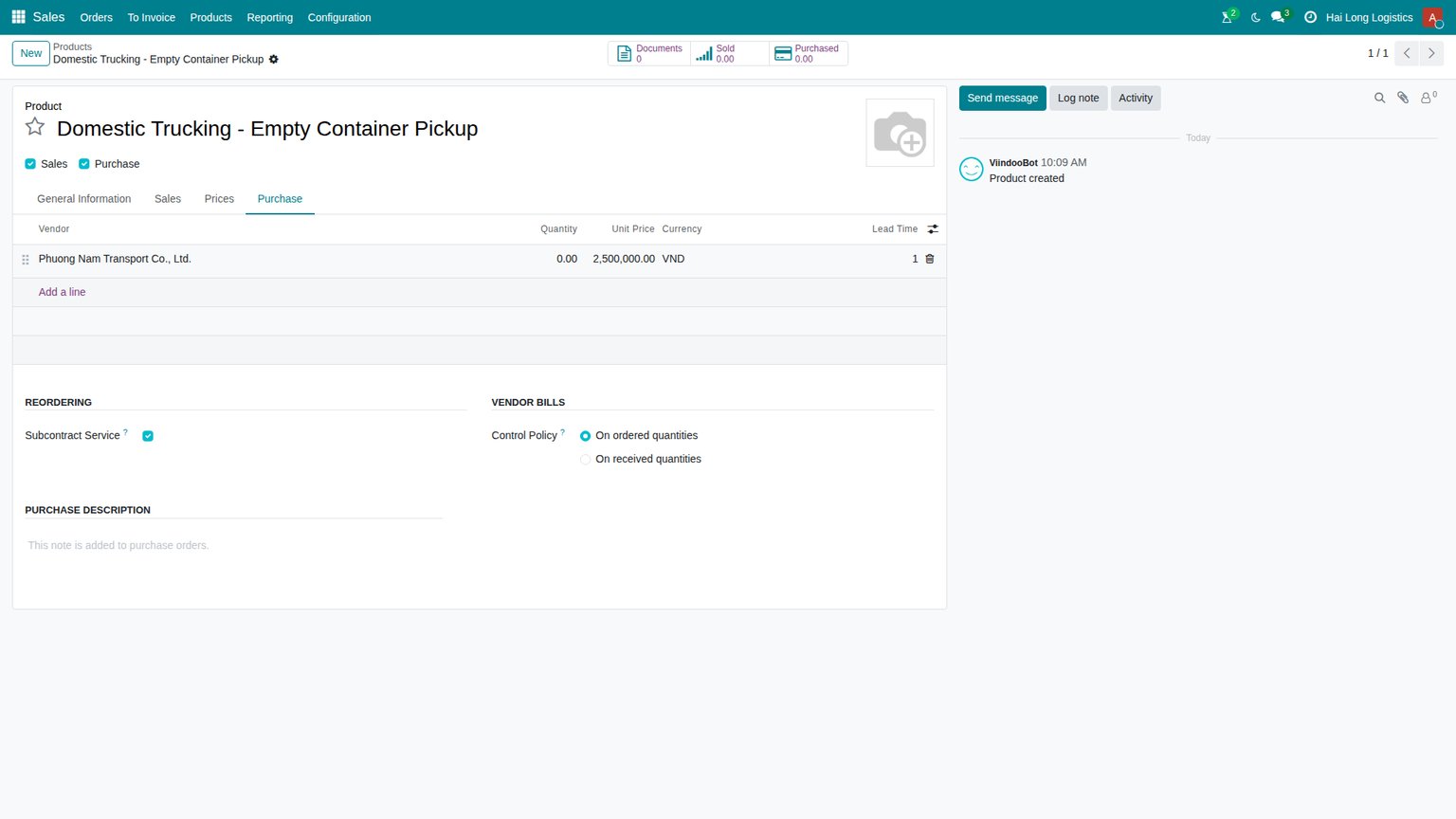
Go to and open Domestic Trucking - Empty Container Pickup.
General Information tab: Product Type = Service.
Purchase tab, group Reordering: tick Subcontract Service. The tick is stored per company, so make it while you work in the company that sells the service (Hai Long Logistics).
Purchase tab, table Vendors: add Phuong Nam Transport Co., Ltd., Unit Price = 2,500,000 VND.
Warning
If you tick Subcontract Service with no vendor in the Vendors table, Viindoo blocks the save with “Please define the vendor from whom you would like to purchase this service automatically.”
Tip
Step 1 is done when:
Subcontract Service is ticked on the product.
The Vendors table shows Phuong Nam Transport Co., Ltd. at 2,500,000 VND.
Step 2: Create the separate VND trucking quotation
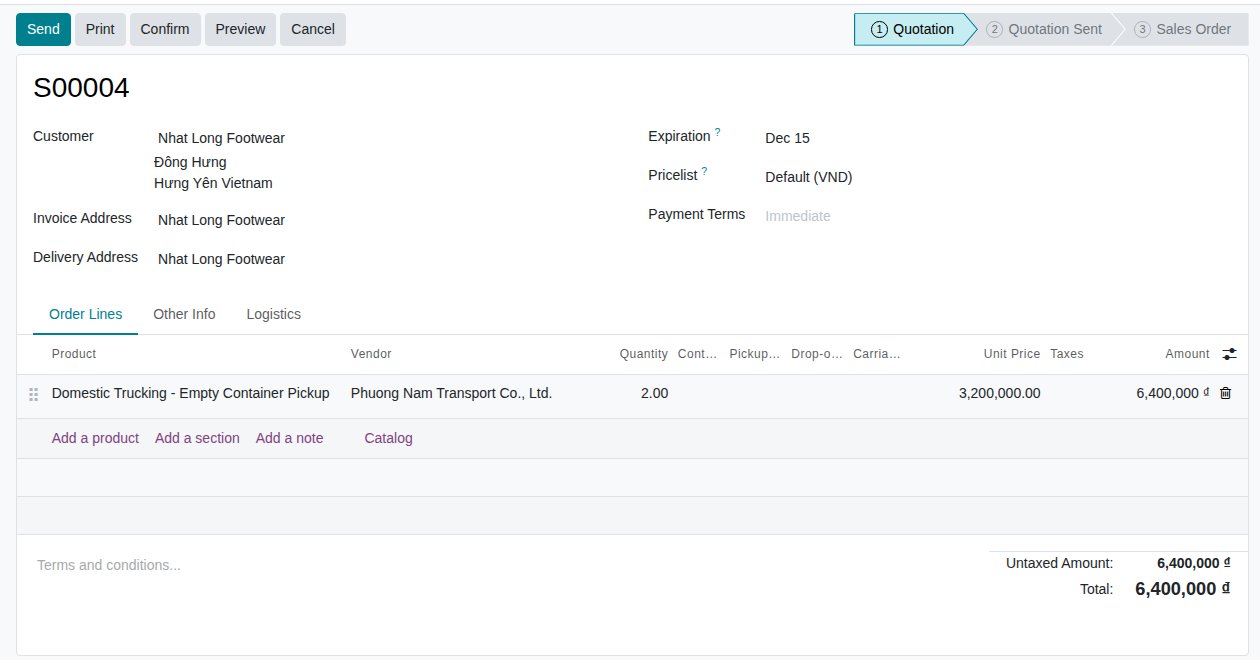
Keep the trucking agreement in its agreed currency. Nhat Long Footwear defaults to the Hai Long USD pricelist, so choose the VND pricelist explicitly on this new order.
Go to and click New. Select Nhat Long Footwear as customer; the pricelist fills in with the Hai Long USD pricelist, so change Pricelist to Default (VND). Check the displayed currency before entering prices. On the order lines, turn on the optional Vendor column if it is hidden. On this separate quotation, add only:
Product: Domestic Trucking - Empty Container Pickup.
Vendor: Phuong Nam Transport Co., Ltd..
Quantity: 2.
Unit Price: 3,200,000 VND (it fills in from the pricelist).
Do not add the ocean freight line or assign the sea shipment to this order. A blank Vendor on the order line prevents the automatic purchase, even when the product is subcontracted.
Tip
Step 2 is done when: the separate quotation is in VND, has just the trucking line with the correct vendor, totals 6,400,000 VND before tax, and is not linked to the sea shipment.
Step 3: Confirm the trucking order
Sales performs this step using an account with access to the sales order. Booking and Accounting continue with their own purchase-order and billing steps below.
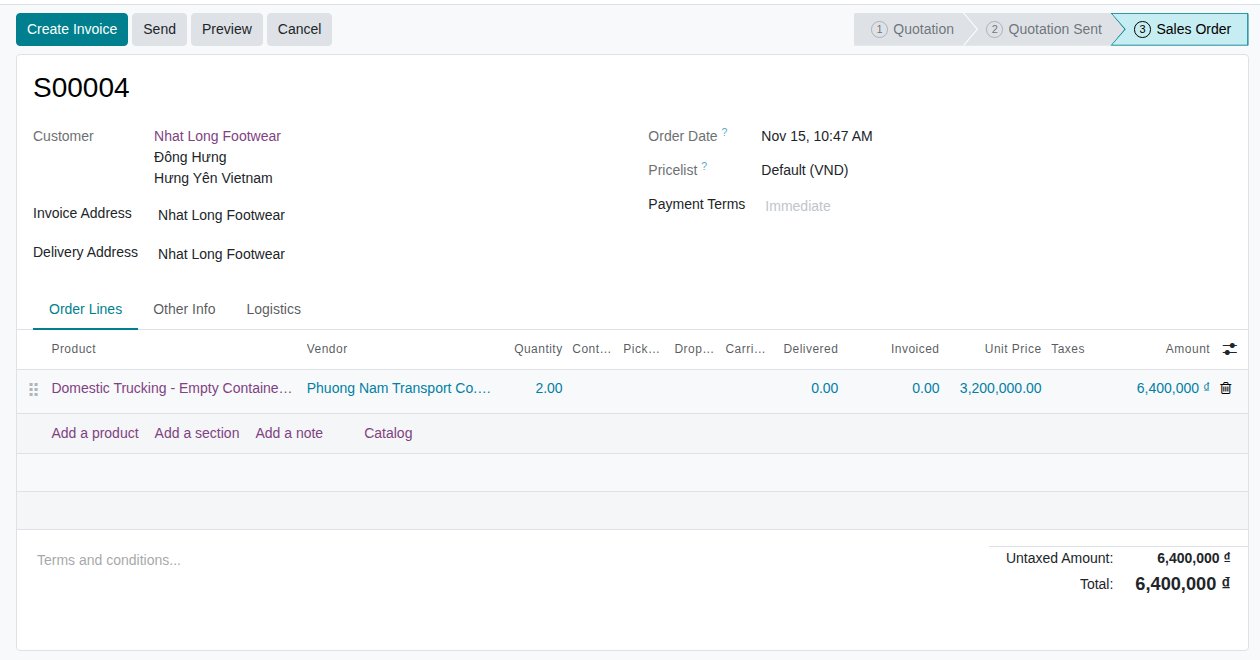
Confirming orders the subcontracted service from the vendor. Click Confirm on that order after the customer agrees.
After confirmation, the order becomes Sales Order and creates a draft RFQ automatically. The plain trucking service does not create a freight shipment. The Purchase smart button shows 1 for users who also have Purchase access; a Sales-only user such as Lan does not see it, so the order header shows no Purchase button. Hand over to the buyer, who can find the RFQ in by the trucking order’s number in its Source Document.
Tip
Step 3 is done when: the buyer can open the draft RFQ whose Source Document is the trucking order, for Phuong Nam Transport Co., Ltd., 2 x the vendor’s buy price of 2,500,000 VND before tax, 5,000,000 VND in total. The PO uses the vendor’s buy price, not the 3,200,000 VND customer price.
Decide how to raise the purchase order
Option |
Use when |
What changes |
|---|---|---|
Subcontract Service on the product (Steps 1-3 above) |
The vendor is fixed for this service, order after order (this scenario’s trucking) |
Confirming the sales order is enough - no extra click needed |
Generate PO from the booking (Step 4 below) |
The vendor changes shipment to shipment, or the charge only appears after the sales order is already confirmed (this scenario’s ocean freight, bought from ONE Line) |
Ops chooses the moment and confirms the vendor on the Charges tab before generating the PO |
Create Purchase Orders from the shipment’s Charges tab (see the note in Step 4) |
Several charges of the whole shipment are still unbought and you want every PO in one click |
One draft PO per vendor and currency for all unbought charges, not only those of one booking |
If you are not sure which one applies, check whether the same vendor performs this service every time: if yes, tick Subcontract Service; if it varies, leave it unticked and use Generate PO from the booking instead.
Do not tick Subcontract Service on a sea freight product you sell on LCL houses that are consolidated under a master: the master’s booking buys the ocean leg once for every house, so a house order with that checkbox raises no purchase of the sea freight (see Known limitations).
Step 4: Generate the PO for the ocean freight booking
Unlike the trucking line, the Ocean Freight - FCL charge on the sea freight booking is not tied to a Subcontract Service product, so Confirm does not raise a PO for it - it stays a pending buy charge until someone generates the PO from the booking itself.
Open the shipment for Nhat Long Footwear, click the Bookings smart button, and open the booking BK-261020-002 (carrier ONE Line, Booking Reference ONEYBK204581).
Important
The Charges tab on the shipment has two separate partner columns: Vendor and Agent. Only Vendor feeds Generate PO - a charge with only an Agent filled in will never make Generate PO appear, and Viindoo does not warn you about this.
See also
Agent is for on-behalf collect/pay flows, not for a purchase: Track on-behalf payments for customers.
Click Generate PO. This button is visible because the booking’s Ocean Freight - FCL charge already has Vendor = ONE Line, Cost Price = USD 1,850 per container, quantity 2, and no PO linked yet. The button also appears when the buy price is still empty: the PO line is then created at a zero price and a note on the order asks you to price it before confirming.
Note
On a house that belongs to a consolidated master, Generate PO and confirming a sales order with Subcontract Service do not buy the house’s ocean freight: the master’s booking buys it once for every house, and a note on the order points to the master’s charge. Trucking is still bought per house - each house books its own truck, which gives a PO and a bill for the right trucker. See Consolidate LCL export shipments under a master.
Open the generated RFQ and check it before confirming. Viindoo raises the RFQ in the currency of the charge, so ONE Line’s agreement in USD stays in USD whatever the company’s currency: the RFQ reads USD with a line Unit Price of 1,850 and Quantity 2, so the untaxed total is USD 3,700, with no manual correction. Charges bought from the same vendor in different currencies get one RFQ per currency.

Warning
Generate PO on a booking only gathers its own charges, but it reuses an open PO of the same shipment for the same vendor and currency. If a sibling booking on the same shipment already has a draft or confirmed PO for ONE Line, the new lines are added to that PO and the booking is linked to it, instead of a second PO being created.
Note
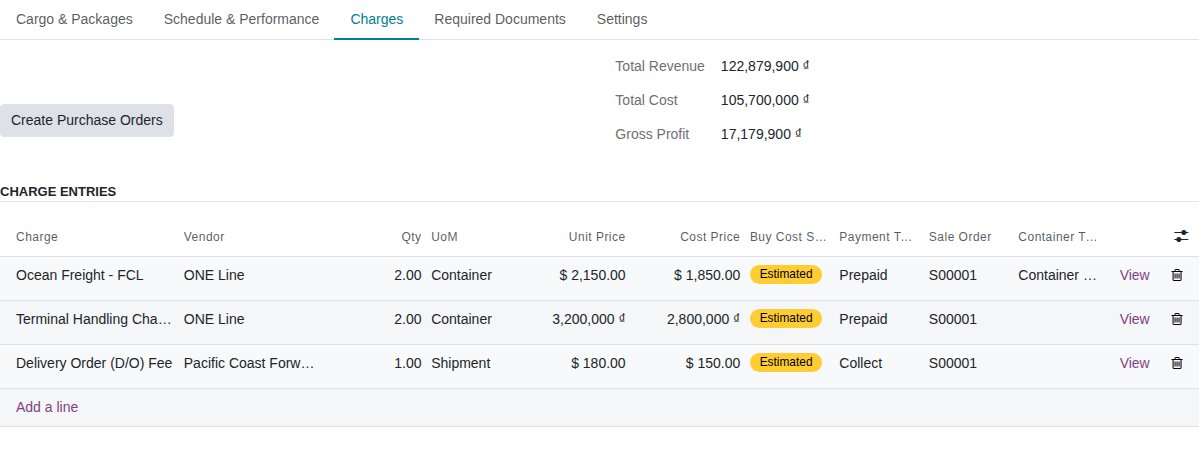
You can also raise or refresh the purchase orders of the whole shipment from its Charges tab: Create Purchase Orders buys every charge that is still unbought, and Update Purchase Orders appears when the charges differ from their draft POs (price, quantity, vendor or currency). Once Tuan has added the Terminal Handling Charge (THC) and the D/O Fee and Lan has put them on the sales order (see Record charges, invoice the customer, and bill vendors), the button shows next to the three charges. It creates draft POs only: a buyer prices and confirms them, and the shipment’s chatter lists what was created. A charge without a buy price is still bought, at a zero price with a note on the PO asking you to price it before you confirm.
Tip
Step 4 is done when: the booking shows Purchase Orders = 1; opening it shows a PO for ONE Line with line Ocean Freight - FCL, 2 x USD 1,850 = USD 3,700, and no Domestic Trucking line on it.
Step 5: Trace each PO from the record that owns it
The shipment and the separate trucking order have different purchasing records. Check both before Accounting bills either vendor.
Open the sea shipment’s Purchase Orders smart button (it sits under More in the header): it shows 1, the ONE Line PO for USD 3,700 from the booking. It shows more only if you also ran Create Purchase Orders from the Charges tab. As the buyer, open Purchase on the trucking order to find the Phuong Nam Transport PO for 2 x 2,500,000 VND. That PO is not counted on the sea shipment.

Tip
Step 5 is done when: ONE Line’s PO is accessible from the sea shipment and Phuong Nam’s PO from the trucking order; no trucking charge or PO has been added to the sea shipment to make it appear in this count.
Step 6: Confirm the POs and create the vendor bills
The sea shipment’s Charges already includes its entered ocean freight Cost Price in estimated Gross Profit before posting. The separate trucking order has no charge on that shipment, so its cost and revenue are not included in that shipment’s Gross Profit.
A vendor bill is created from a confirmed purchase order only: the shipment’s Charges tab has no Create Vendor Bill button, and the PO form has no Create Bill button. Open each PO from its owning record and click Confirm Order. Then go to , select the confirmed POs and click Create Bills (this needs access to the Purchase app). Verify the actual document type, vendor, currency, quantity and buy price before Accounting posts the bill. Create Bills is refused with a message that the order is not confirmed yet or waits for approval until a user with Purchase rights confirms it (and a Purchase manager approves it where approval is required).
If Create Bills reports that there is no line left to bill, check the product’s Control Policy on its Purchase tab. A new service product defaults to On ordered quantities; if someone set it to On received quantities, a service nobody receives has nothing to bill until you set it back to On ordered quantities for the freight and local charge products you buy by PO (see Set up freight services and local charges).
For the ocean freight PO, Viindoo links the vendor document, a Vendor Bill or a Purchase Receipt, to its matching shipment charge (a vendor credit note is not linked). For the trucking PO, follow the bill from the trucking order; there is no matching sea-shipment charge to update.
Tip
Step 6 is done when: ONE Line’s document contains USD 3,700 and Phuong Nam’s contains 2 x 2,500,000 VND before tax, each linked to the correct PO. The ocean freight charge has a bill link; the trucking bill remains with the separate order.
Known limitations
Step |
What Viindoo does today |
What you do instead |
|---|---|---|
Subcontract Service on sea freight sold on consolidated houses |
The master’s booking buys the ocean leg for every house, so a house order whose sea freight product has Subcontract Service ticked does not order it from the carrier |
Leave Subcontract Service unticked on those products; the master’s booking and vendor bill carry the carrier cost |
Step 4, filling in the wrong column |
No warning appears when a charge has a partner in Agent but not in Vendor - Generate PO simply never shows up, with no explanation on screen |
If Generate PO is missing, open the Charges tab and confirm the partner is in Vendor, not Agent |
Troubleshooting
Saving the product fails with a message about defining a vendor
Symptom: Saving the product shows “Please define the vendor from whom you would like to purchase this service automatically.”
Cause: Subcontract Service is ticked, but the Vendors table on the Purchase tab is empty.
Fix: Add at least one vendor with a price in the Vendors table before saving.
Create Purchase Orders reports that no charge is left to order
Symptom: Create Purchase Orders shows “No charge of <shipment> is left to order …” followed by the reasons.
Cause: every charge of the shipment is already on a purchase order or a vendor bill, has only an Agent, or has no Vendor. Chatter on the shipment names the charges that were left out.
Fix: follow the reason in the message: fill in Vendor where it is missing, or release the charge from the purchase order or bill that holds it (delete the bill line, reset a posted bill, or cancel the PO) before buying it again.