
How to publish your products to Google Merchant Center
Google Merchant Center is the Google tool that shows your products in Google Shopping and in product ads. It reads your catalog from a product feed, a file that lists your products with their price, image, availability and link. Viindoo builds this file for your online shop and keeps it up to date, so you do not type your products into Google by hand.
Who |
Website administrators and designers, who turn the feature on and manage the feeds. |
App |
Website (eCommerce) |
Before you start
You need a Google Merchant Center account, created with a Google account. This part happens on the website of Google, not in Viindoo.
Your products are published on the website. The feed only lists the products that visitors can buy on the shop: published and sellable goods and combos. Services are not listed.
Your website must be reachable from the internet, because Google fetches the feed from its address.
How do I turn the feature on?
Go to Website ‣ Configuration ‣ Settings and find the eCommerce section.
Turn on Google Merchant Center, then click Save.
![The Google Merchant Center setting with the Manage feeds button]()
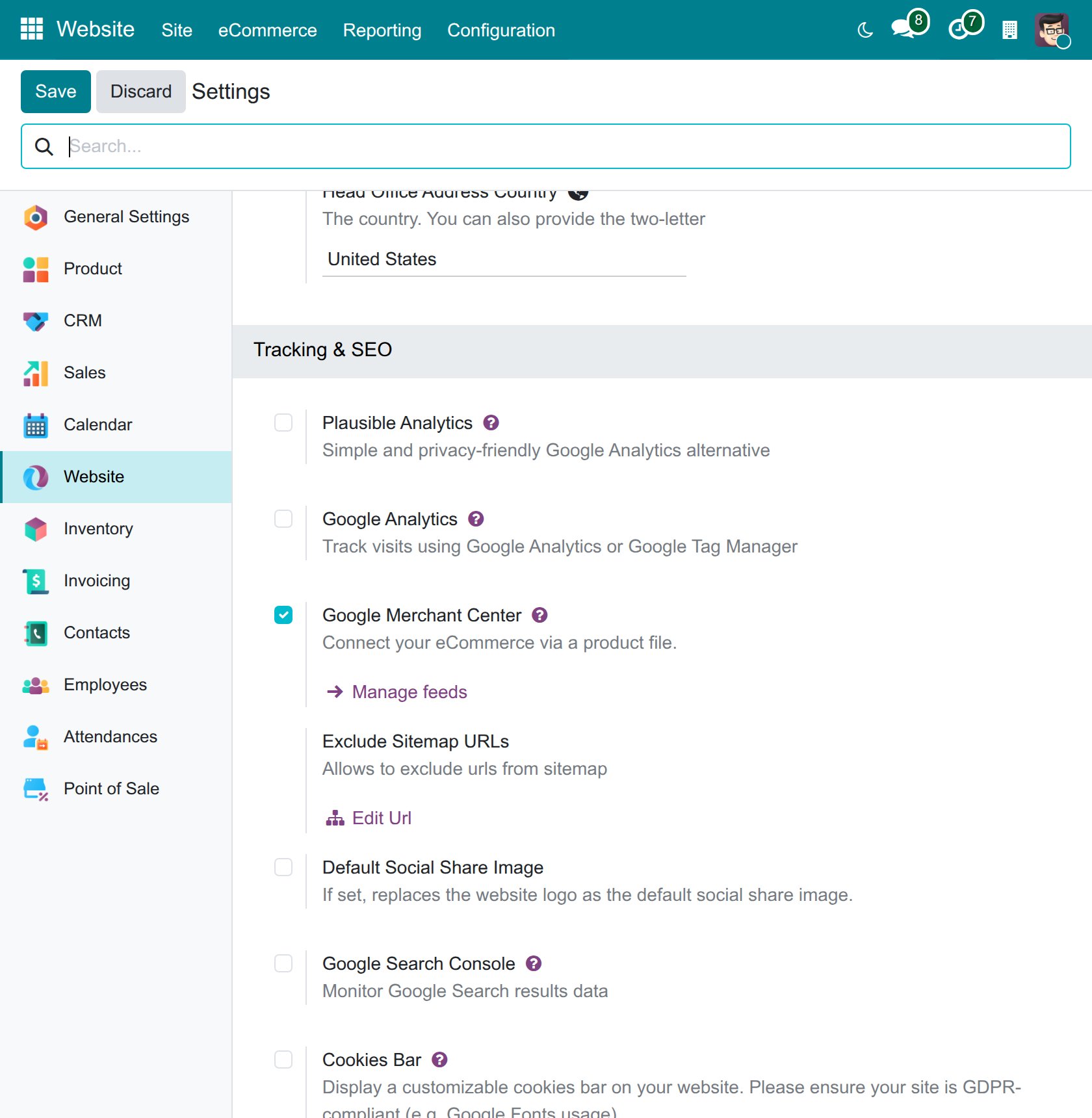
Viindoo creates a first feed named GMC 1 for your website, with all your products, when the shop has no more than 5,000 of them. Larger catalogs start with no feed: create one feed per group of categories, as explained below.
How do I set up a feed?
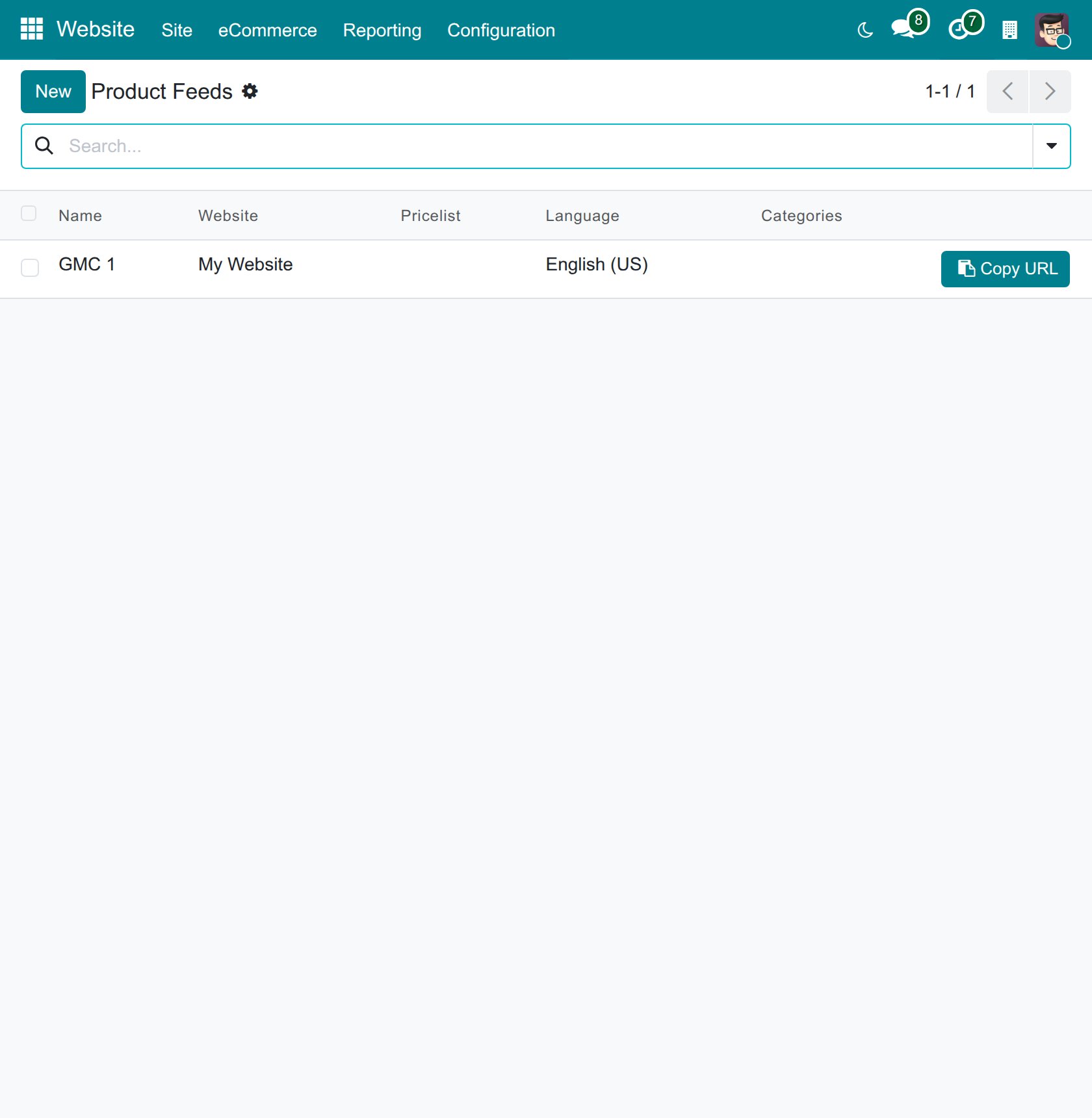
Click Manage feeds under the setting. The list of the feeds of your shop opens.
![The list of product feeds with the Copy URL button of each feed]()
Click a line to change it, or New to add a feed. Each feed has:
Name: a name for you to recognize the feed.
Website: the website whose products the feed lists, when you run several websites.
Pricelist: the pricelist that gives the prices and the currency of the feed. Leave it empty to use the default pricelist of the website. The pricelist must be selectable on the website. The field appears when pricelists are turned on.
Language: the language of the product names, descriptions and links. You choose among the languages of the website. Create one feed per language if you sell in several.
Categories: the eCommerce categories to include, with their sub-categories. Leave it empty to include all the categories.
Click Copy URL on the line of the feed to copy its address.
Warning
The address of a feed contains a secret key: anybody who has it can read the feed. Give it to Google only. Without its key, the address is refused.
How do I give the feed to Google?
This part happens in Google Merchant Center, and its screens can change: see the help of Google Merchant Center for the current steps.
Sign in to Google Merchant Center.
Add a product source that fetches a file on a schedule, and paste the address that you copied in Viindoo.
Choose how often Google fetches the file. Viindoo refreshes the content of the feed once a day, so a daily fetch is enough.
Google checks your products and tells you in Merchant Center which ones it accepts. The format of the file is described in the product data specification of Google.
What does the feed contain?
For each product (each variant, when a product has several), the feed gives Google:
the reference or the identifier, the name, the description and the link of the product page; the description is the meta description of the product page, else its sales description;
the main image and up to ten more images;
the barcode as a GTIN. A product without barcode is declared as having no identifier;
the price, and the sale price with its dates when a discount applies. The price carries the currency of the feed;
the availability: in stock, or out of stock when the product is tracked in stock and sold out;
the variant values, and a group identifier that links the variants of a product together;
the eCommerce categories of the product, up to five, and the product tags, up to five, which you can use as custom labels in Google;
whether the product is a bundle, for a combo.
When Prevent Sale of Zero Priced Product is turned on in the website settings, the products priced at zero are left out of the feed.
Note
Viindoo keeps a copy of the feed for one day, so a change to a product can take up to a day to reach Google. Changing the language, the pricelist or the categories of the feed refreshes it at once.
A feed holds at most 5,000 products: Viindoo refuses to save a feed that is larger and asks you to split the products by category. Beyond 6,000 products the feed is cut. Once the feed is past 5,500 products, the salesperson of the website receives a message, at most once a week.
Common problems
Problem |
What to do |
|---|---|
Manage feeds is missing |
Turn on Google Merchant Center in the settings and save. |
Google reports that the feed cannot be read |
Copy the address again with Copy URL: a feed address without its key is refused. Check that the website is reachable from the internet. |
A product is missing from the feed |
Check that it is published, sellable on the website, in the categories of the feed, and that its price is not zero when Prevent Sale of Zero Priced Product is turned on. |
A single feed cannot contain more than 5,000 products |
Choose categories in the feed, and create several feeds. |
Prices are not in the currency Google expects |
Select the pricelist of the right currency in the feed. |