
Send a debit note for shipment charges
Guide information
Requirements
This tutorial requires the installation of the following applications/modules:
Sales, Logistics Shipment Sale Integration and Freight Sale - required for this sales-order workflow. Some integrations may install automatically when their dependencies are present; check Installed Apps before starting.
Once the customer invoice for a shipment is Posted, Viindoo will never add a new charge into it - a cost that comes up afterward, such as the customer asking to amend the B/L after the SI Cutoff, has to be billed on its own. Without a document that explains why, the customer only sees a second invoice for a shipment it thought was already settled, and payment gets delayed while it asks what the new amount is for.
Running scenario: continuing from Record charges, invoice the customer, and bill vendors, Hai Long Logistics has already invoiced and posted Nhat Long Footwear’s shipment (HBL HLLHPHLAX2611-001, MBL ONEY204512367). Nhat Long Footwear now asks, after the SI Cutoff, to amend one detail on the B/L. Lan bills this as a new B/L Amendment Fee, USD 50, on the sales order already Confirmed for this shipment.
Before you start
The shipment already has a customer invoice Posted - see Record charges, invoice the customer, and bill vendors.
You have a Sales access level (User: Own Documents Only or above) to open the linked sales order from the shipment and add a line to it, and User: Own Shipments or above to print Debit Note from the shipment - as Lan (Sales) does.
Step 1: Add the extra fee to the sales order
The invoice is already Posted, so the fee cannot be added to it directly - it has to go on the sales order instead, on the same document the Debit Note is printed from.
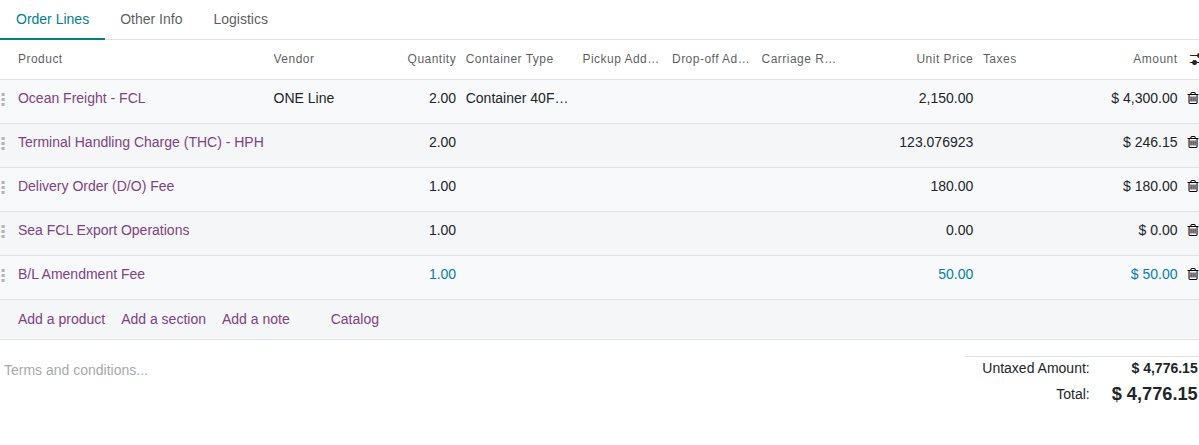
Open the Nhat Long Footwear shipment and click the Sale Orders smart button in the header (it counts orders regardless of their status, so it still shows even though the order is already Confirmed). On the order lines, add:
Product: B/L Amendment Fee.
Quantity: 1.
Unit Price: 50 (USD) - the line does not start at the amount of the fee, so type it.
Note
This new row is a plain sales order line, not a shipment charge - it does not appear as a row of the shipment’s Charges tab. It still counts in Total Revenue of the shipment, which reads the lines of the sales order (see Record charges, invoice the customer, and bill vendors), but no buy cost goes with it. To give the fee a buy side, type it as a charge instead (see Known limitations).
Tip
Step 1 is done when: the order lines list the existing lines of the order plus one new B/L Amendment Fee row, Unit Price 50 USD, not yet invoiced.
See also
Keep a sales order and its shipment in sync for how a Confirmed sales order and its shipment stay aligned when the order changes.
Step 2: Invoice the new line on its own
The Ocean Freight line on this order was already invoiced, and that invoice already Posted, when the booking’s customer invoice was created in Record charges, invoice the customer, and bill vendors - only the new line still needs one.
On the sales order, click Create Invoice and confirm Regular invoice in the wizard. Because every other line already shows as fully invoiced, this creates exactly one new draft invoice containing only the B/L Amendment Fee line.
Tip
Step 2 is done when: exactly one new draft invoice exists for Nhat Long Footwear, for 50 USD. Check the Invoice Date before posting; creating a draft does not guarantee that this date is filled.
Hand the draft to Accounting. Tuan checks the Customer, Currency, Invoice Date and total of 50 USD, then posts it. Lan can then send the issued invoice together with the Debit Note. Creating a draft does not mean the invoice has been issued or paid.
Step 3: Print the Debit Note and send it with the new invoice
Without the Debit Note, the customer sees a second invoice for a shipment that was already invoiced, with nothing on it explaining why.
On the shipment form (not the sales order), click the gear (Actions) icon next to the shipment name, then open Print –> Debit Note.
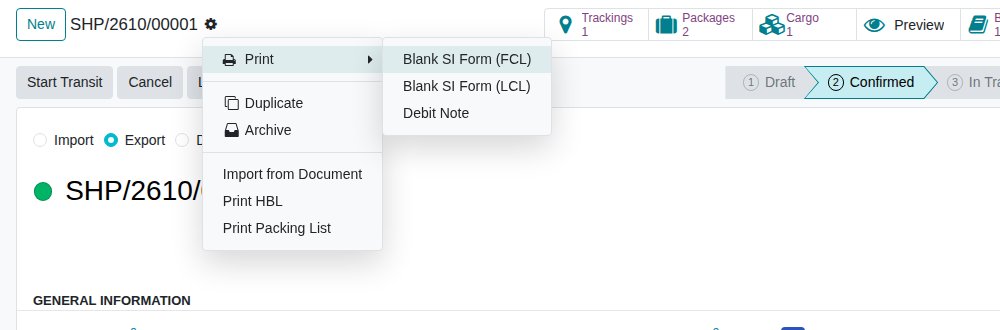
Clicking it produces a PDF with the issuing company and customer, vessel and voyage, HBL/MBL, POL/POD, and a table of charge lines.
Warning
The Debit Note prints the lines that live on the sales order linked to this shipment - it does not read the shipment’s own Charges tab. For this shipment, the printed table lists the Ocean Freight - FCL line (2 x USD 2,150), the THC and D/O Fee lines that Lan put on the order with Add to Sales Order in Record charges, invoice the customer, and bill vendors, and now the B/L Amendment Fee (USD 50). A charge that was typed on the Charges tab and never added to the order is missing. See Known limitations below.
Tip
Step 3 is done when: the PDF shows HBL HLLHPHLAX2611-001, MBL ONEY204512367, the Ocean Freight - FCL row at 2 x USD 2,150 and the B/L Amendment Fee row at USD 50.
Decide when to print the Debit Note
Option |
Use when |
What changes |
|---|---|---|
Print right after Step 1 (before creating the new invoice) |
The customer wants to see the fee coming before it is billed |
The PDF already includes the fee - it reads the sales order line directly, not the invoice, so it does not need Step 2 done first |
Batch several extra fees before printing once |
Two or more fees come up within a day or two of each other |
One Debit Note instead of several separate ones for the same shipment - if the fees are spread further apart, print separately so the customer can match each one to its cause |
Print the Debit Note only when the extra fee and the customer-facing amount are approved and the document is due under your billing process. The PDF can include a sales-order line before a new invoice exists, so verify the fee, recipient and billing status before sending it.
Known limitations
Issue |
What Viindoo does today |
What you do instead |
|---|---|---|
Debit Note scope (this page) |
A charge typed on the shipment’s Charges tab does not appear on the Debit Note until it is on the sales order, because the report only reads sales order lines matched to the shipment |
Put the extra fee on the order: add the line as Step 1 does, or type the fee as a charge (with its buy cost) and have Lan click Add to Sales Order in the shipment header, then enter the agreed Unit Price on the new order line |
Troubleshooting
Create Invoice reports an error on the sales order
Symptom: “Cannot create an invoice. No items are available to invoice.”
Cause: every line on the order already shows as fully invoiced, or the new line’s Invoicing Policy expects a delivered quantity that was never recorded (the same two causes the message itself lists). A freight service whose delivered quantity comes from a shipment charge has nothing delivered until a charge is linked to the line.
Fix: confirm the B/L Amendment Fee row was saved with Quantity = 1 before clicking Create Invoice again; if it still fails, open the product and set its Invoicing Policy to Ordered quantities on the General Information tab.
The B/L Amendment Fee does not appear on the printed Debit Note
Symptom: the PDF still lists only the original Ocean Freight - FCL line(s).
Cause: the new line was added to a different order than the one this shipment points to - for example, a second Confirmed quotation for the same customer instead of the order opened through this shipment’s own Sale Orders smart button.
Fix: reopen the order through the shipment’s Sale Orders smart button, confirm the fee row is on that same order, then print Debit Note again.