
Detached changes
A view edit made with the Viindoo Customizer is attached to an element of the screen. When an app update removes or reshapes that element, the edit can no longer find it. The Customizer then sets the edit aside and tells you in a notice, instead of applying it to the wrong element. This article shows what the notice says and what to do with each change it lists.
Who |
A system administrator: a user whose Role is Administrator. |
App |
Viindoo Customizer |
Requirements
This tutorial requires the installation of the following applications/modules:
It also assumes you know how to open the Customizer. See Customize the existing interface.
Why a change detaches
When you edit an element, the Customizer remembers it by a technical name: its own, or that of an element next to it. It does not remember its position on the screen. That is why the change stays on the right element when an update, or another app, adds or moves elements around it. Removing a standard element only hides it, so the apps that build on it keep working.
A change detaches when the update removes or reshapes the element it was attached to. The screen then shows the layout of the app for that change, as if you had not made it.
Read the notice
Open the screen in the Customizer. When a view has changes to look at, a notice lists them at the top of the left panel. Each entry shows the change and the element it is Anchored on.
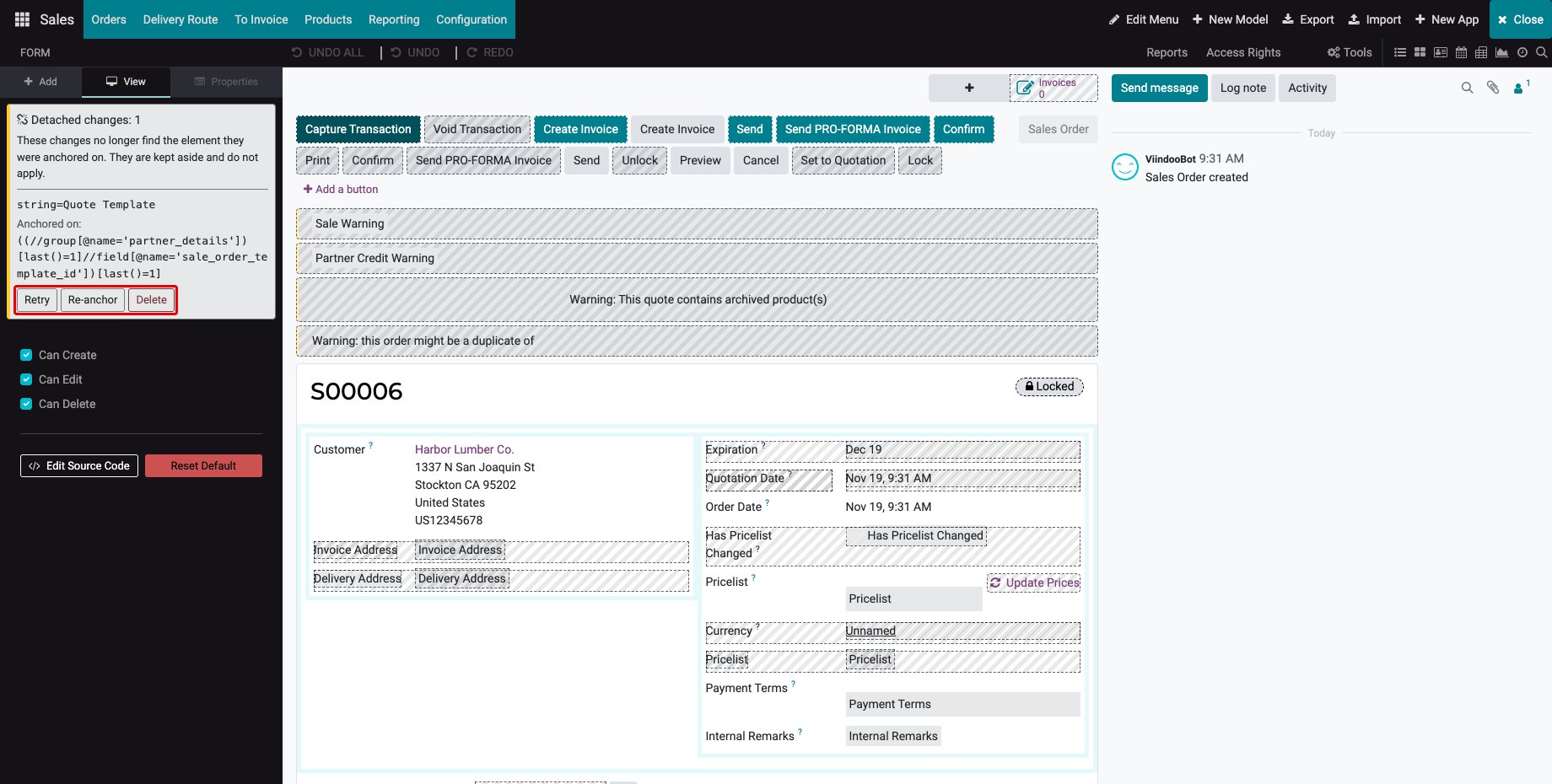
The notice has two parts:
Detached changes |
Edits that no longer find the element they were anchored on. They are kept aside and do not apply. |
Changes that may move |
Edits that still apply, but reach their element only by its position, or match several elements. A change made by another module may move them onto another element. |
Fix a detached change
For each detached change, choose one of the three buttons:
Retry: applies the change again. Use it when the element is back, for example after you fix the app.
Re-anchor: click it, then click on the canvas the element the change should apply to. Click Cancel in the notice to give up.
Delete: discards the change. The Customizer asks you to confirm, because a deleted change cannot be restored.
Tip
When the element comes back, the change is applied again by itself and leaves the notice.
Fix a change that may move
For each change that may move, choose one of the three buttons:
Pin to current element: anchors the change on the element it applies to now, so that a later update cannot move it.
Re-anchor: anchors the change on another element that you click on the canvas.
Delete: discards the change, after a confirmation.
When such a change comes from an imported module, the notice names the module and says that the change cannot be changed here. Fix it in the database that exported the module, then import the module again. See Export and import customizations.
Detached changes and export
A detached change is not carried by the export: it applies to no view, so the export check lists it under Not carried; set up again on the target database. Fix it first with the buttons above, then export again.
Common problems
Problem |
Cause |
What to do |
|---|---|---|
A change you made no longer shows on the screen. |
An update removed or reshaped the element it was attached to, so it is listed as detached. |
Open the screen in the Customizer and use Retry, Re-anchor or Delete. |
Re-anchor is disabled. |
The change cannot be anchored on another element, or you are already choosing an element. |
Use Retry or Delete. |
A change of an imported module has no buttons. |
It belongs to the imported module. |
Fix it in the database that exported the module, then import it again. |
For more entries, see Troubleshooting and FAQ.
See also
Related article