
How to validate delivery addresses with Google Places
A wrong address means a failed delivery. With Google Places, a customer who types a street at checkout sees a list of matching addresses, and one click fills the street, the city, the zip code, the state and the country. The same help is available to your users when they type the address of a contact or a company. Viindoo asks Google for the suggestions with an API key that you create in your own Google account.
Who |
Administrators, who enter the API key. Customers then use the suggestions at checkout, and users on the address of contacts. |
App |
Website (eCommerce), Settings |
Before you start
You need a Google account to create a Google Cloud project. Google, not Viindoo, bills the requests that Viindoo sends: check the prices and the free usage of the Places API on the website of Google.
What the customer types in the street field is sent to Google to get the suggestions.
How do I get an API key from Google?
This part happens in Google Cloud, not in Viindoo. The screens of Google can change: see the documentation of Google Maps Platform for the current steps.
Sign in to the Google Cloud console and create a project.
Enable billing on the project, as Google bills the requests.
Enable the Places API for the project and create an API key. Keep the key secret, and restrict it in Google Cloud to the services you use.
How do I turn it on for the website?
Go to Website ‣ Configuration ‣ Settings and find the setting Google Address Validation.
Turn it on and click Save. Viindoo installs what it needs, then the API Key field appears below the setting.
Paste the key of Google in API Key, then click Save again.
![The Google Address Validation setting with the API Key field and the links to Google]()
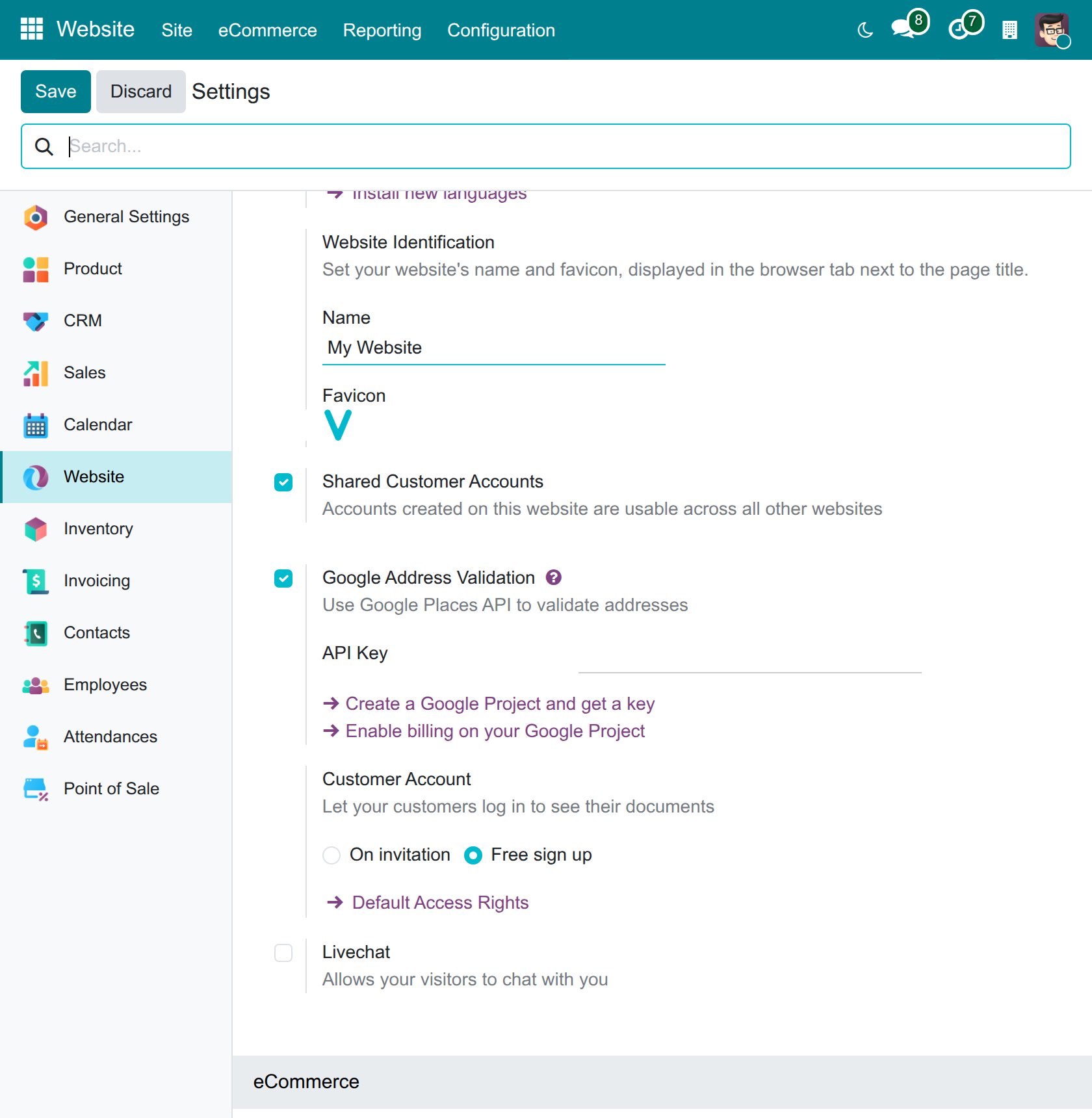
The key belongs to the website: when you run several websites, choose the website at the top of the settings and enter a key for each one. Only administrators can read it.
How do I turn it on for contacts?
Go to Settings ‣ General Settings and find the setting Google Address Autocomplete in the Integrations section.
Turn it on and click Save. The key field appears.
Paste the key of Google, then click Save. This key is separate from the key of the website.
![The Google Address Autocomplete setting with the API key field]()
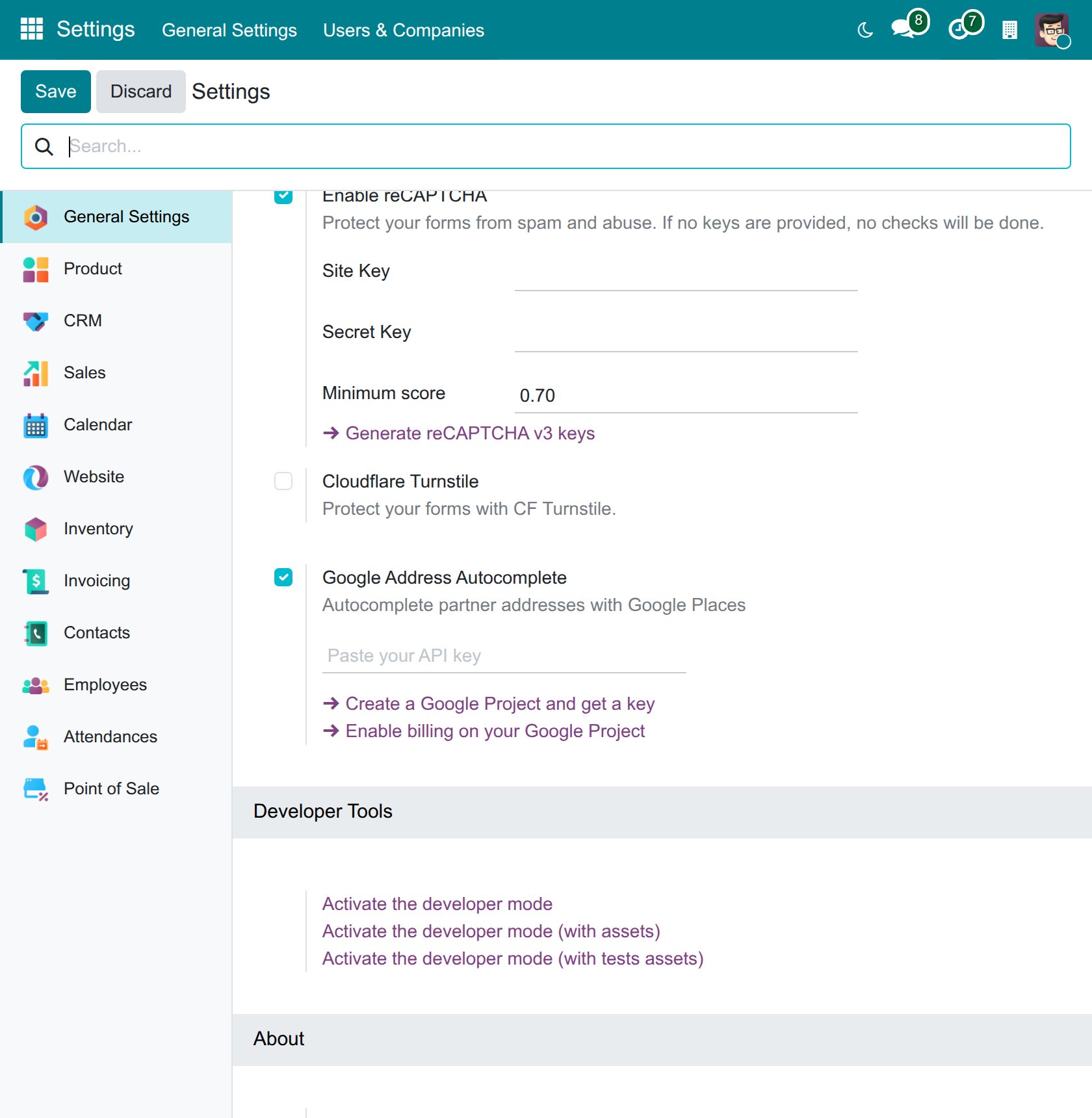
From then on, the Street field of contacts and companies suggests addresses while a user types.
What does the customer see?
At checkout, when the customer starts typing a street in the address form, a list of addresses matching the text appears under the field, with the mention Powered by Google. When the customer clicks one, Viindoo fills the street with its number, the second address line, the city, the zip code, the country and the state, and leaves the customer free to change any of them. The suggestions appear only on the websites that have a key.
Common problems
Problem |
What to do |
|---|---|
No suggestion appears |
Check that the key is entered for the right website (or in the general settings for the contacts), that billing is enabled in your Google project and that the Places API is enabled. Type at least six characters. |
Suggestions worked and stopped |
Google can refuse the requests, for example when the billing of the project is closed or the key is restricted to other services or addresses. Fix the key in Google Cloud. |
The country or the state is not filled |
Viindoo fills the state only when it finds exactly one match in the country. Choose it by hand. |
You do not see the API Key field |
Turn the setting on and save first: the field appears once the feature is installed. |
Next steps
Steps to design, customize your Shop in Viindoo to finish setting up your shop.