
Record operations on a past date
This page is for administrators, who switch past-date recording on and give people their rights, and for everyone who records an operation after it happened. When a person confirms an order, validates a transfer or marks an order as done, Viindoo can ask for the date and time the operation really happened, and the operation takes that date. The administrator turns the feature on in Settings ‣ Backdate Operations and gives each person the right of their app on the user form.
Who |
Administrators (set-up); users who hold the back-date right of their app (recording) |
App |
Settings, then Inventory, Purchase, Sales and Manufacturing |
Warning
Recording operations on a past date is not recommended in day-to-day work. It makes it easier to record incorrect data, deliberately or not, and it can discourage people from recording operations at the moment they happen. The feature is designed mainly for the initial implementation, when a company needs to enter operations that took place before it started using Viindoo.
Before you start
You need the Administrator role to see Settings ‣ Backdate Operations and to change the rights of a user: see Manage Users.
Each module is installed together with the app it belongs to: for example Sales Confirmation Backdate needs the Sales app. Ticking its box installs both.
What can I record on a past date?
Operation |
Right the person needs |
Guide |
|---|---|---|
Receipts, deliveries, internal transfers and scraps |
Inventory Backdate |
|
Inventory counts |
None: any inventory user sets the Counting Date |
|
Confirmation and approval of purchase orders |
Purchase Backdate |
|
Confirmation of sales orders |
Sales Backdate |
|
Manufacturing orders and work orders |
Manufacturing Backdate |
|
Accounting date of the stock and manufacturing entries |
None: it follows the operation |
Which modules provide it?
Ten modules work together. Most have a box in Settings ‣ Backdate Operations; two bridge modules are installed automatically when the apps they connect are present.
Module |
What it adds |
Installation |
|---|---|---|
The settings section and the rules every dialog shares |
With any other back-date module |
|
Date of transfers, scraps and counts |
Box in Settings |
|
Accounting date of the valuation entry of a count |
Box in Settings; automatic with Inventory Backdate and WMS Accounting |
|
Effective date of equipment created from a back-dated receipt |
Box in Settings |
|
Confirmation and approval date of purchase orders |
Box in Settings |
|
Confirming an order that has alternatives |
Automatic with Purchase Confirmation Backdate and Purchase Agreements |
|
Confirmation date of sales orders |
Box in Settings |
|
Dates of manufacturing orders and work orders |
Box in Settings |
|
Accounting date of the labour entry of a manufacturing order |
Box in Settings; automatic with Manufacturing Backdate and Accounting - MRP |
|
Completing the subcontracted order on the date of the receipt |
Automatic with Manufacturing Backdate and Subcontracting |
How does the administrator switch a feature on?
Open Settings ‣ Backdate Operations.
Tick the box of the module you need. The text under the box names what is installed with it.
Click Save.
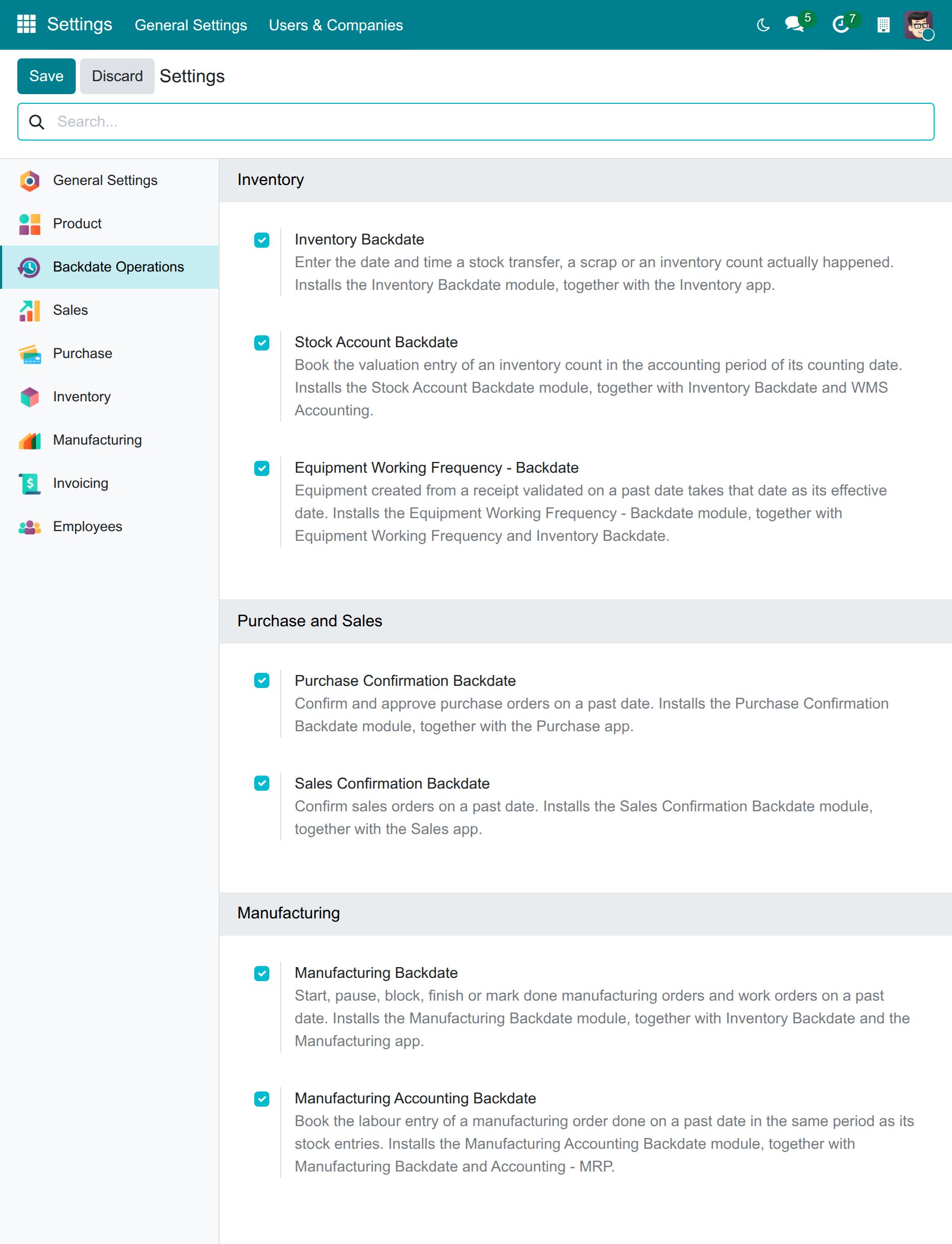
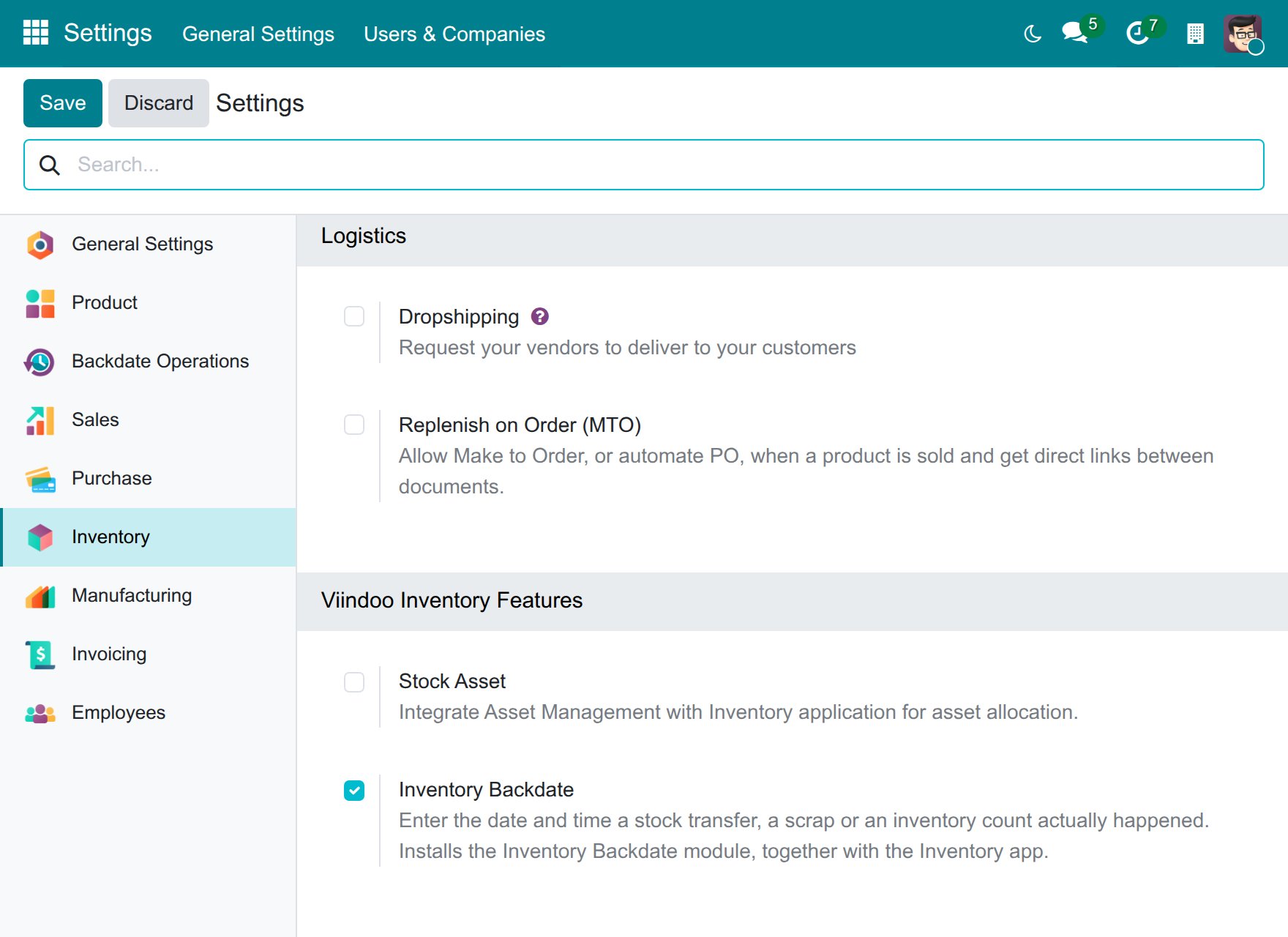
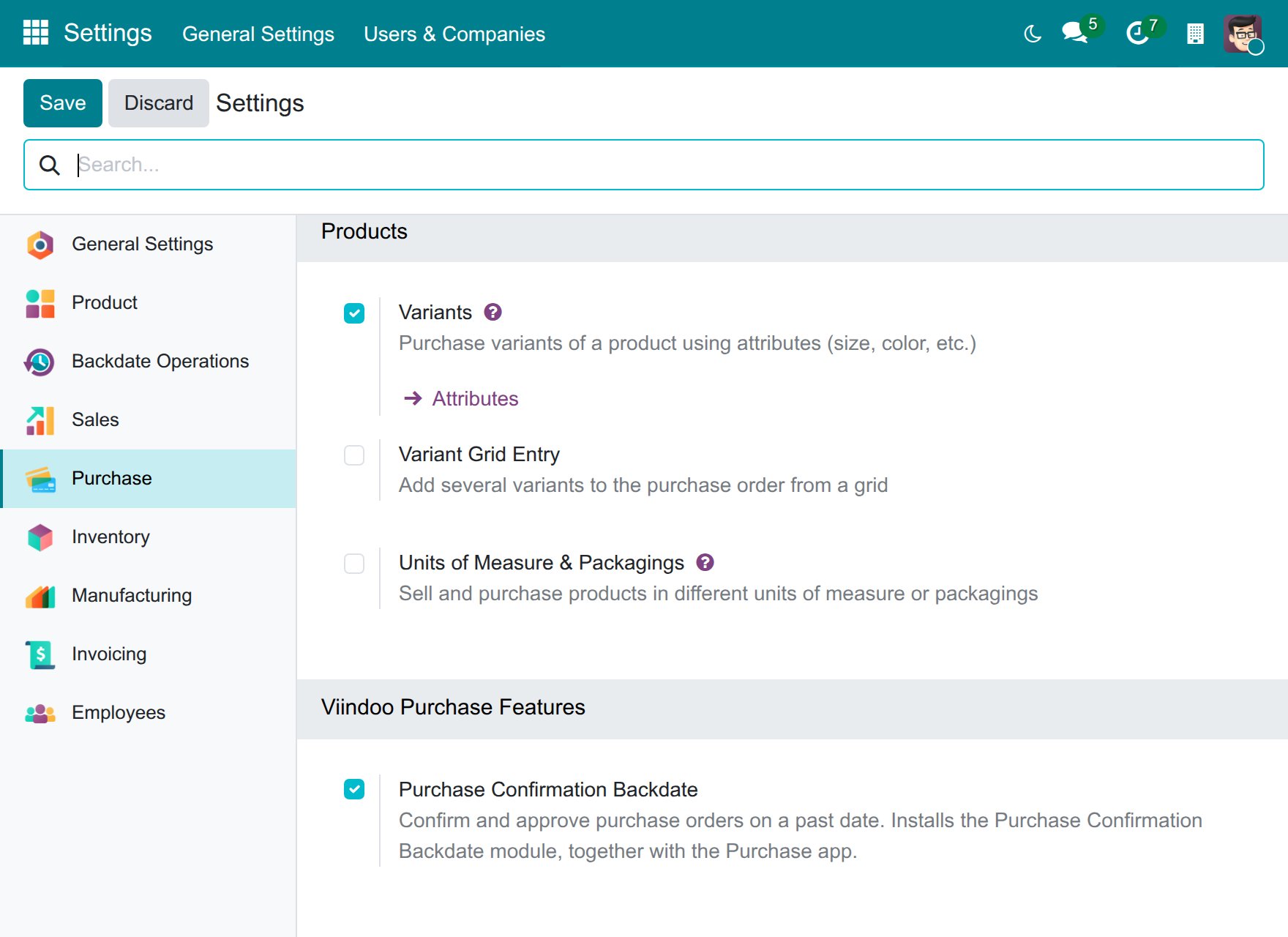
Viindoo installs the module together with the app it needs. The Inventory Backdate box also appears in the Inventory settings, and the Purchase Confirmation Backdate box in the Purchase settings. They are the same switch: both places always show the same state and ticking either one installs the same module.
A module that is not available in your database shows no checkbox. Its box carries the link Purchase or Learn more instead: it opens the module page in a new browser tab and leaves Settings as it is. Once the module is added to your database, the checkbox replaces the link.
How do I switch a feature off?
Open Settings ‣ Backdate Operations and untick the box.
Click Save. Viindoo shows the confirmation Uninstall modules. Tick Show All to list the modules that go with the one you remove: the modules that depend on it are part of the list.
Click Uninstall to confirm, or Discard to change nothing.
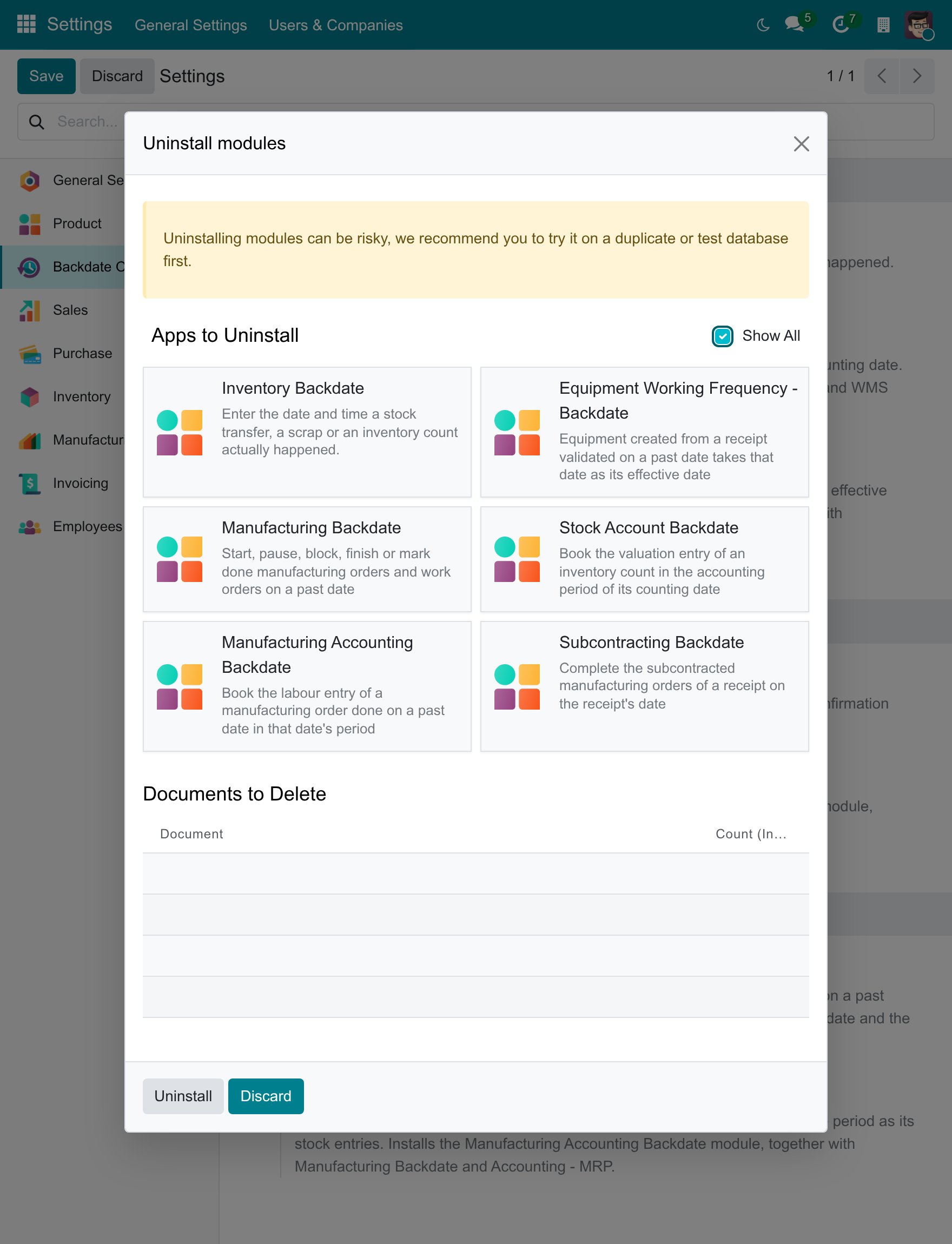
The app that was installed together with the module, for example Inventory, stays installed. A module that installed itself, such as Stock Account Backdate, stays uninstalled after you remove the module it depends on, until you tick its box again. Installing or removing a module applies to the whole database, not to one company.
How do I give people the right to record on a past date?
Each right sits in the section of its app on the user form.
Open Settings ‣ Users & Companies ‣ Users and open the user.
In the tab Access Rights, find the row of the right in the section of its app, as the table below shows.
Choose the right in the list and click Save.
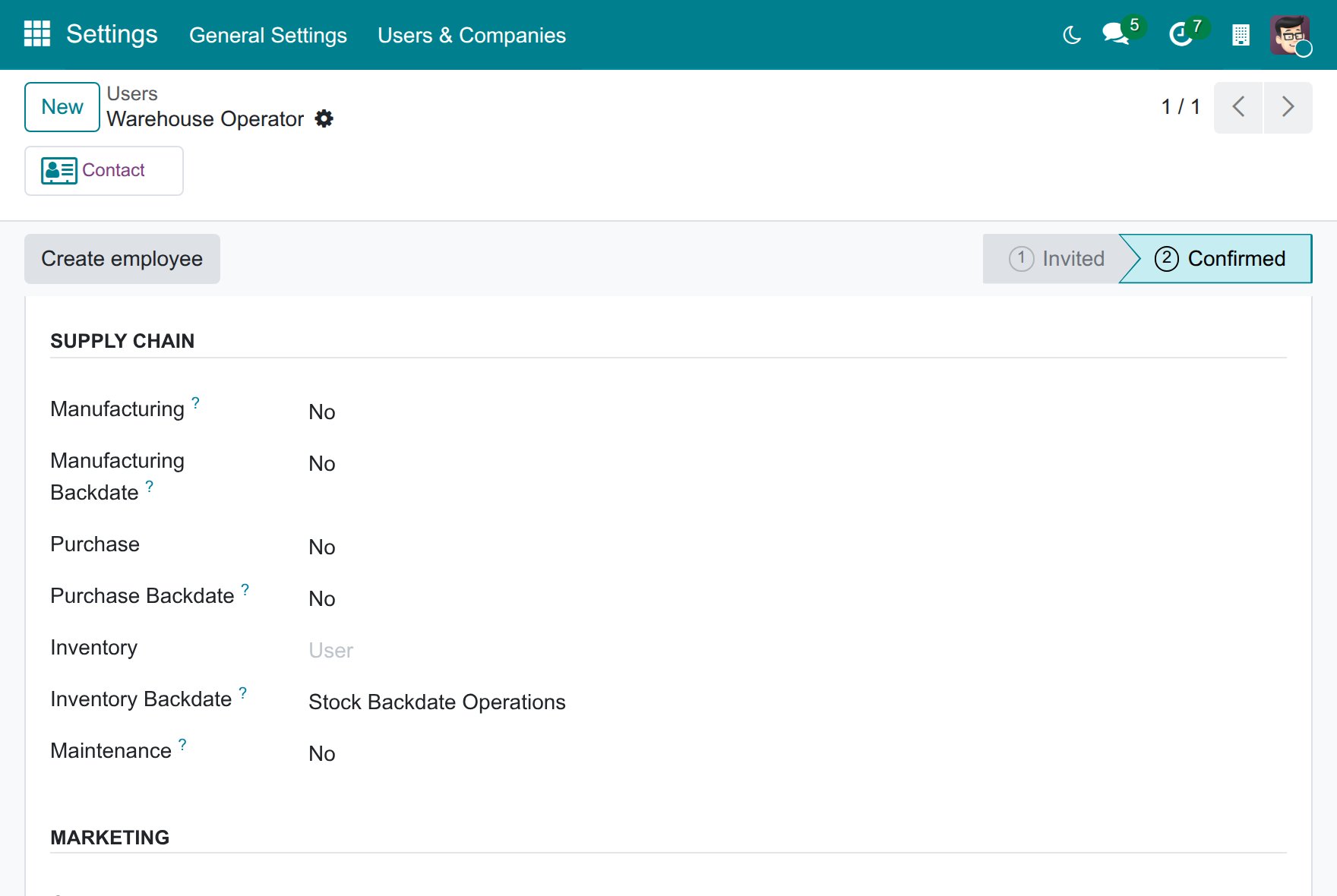
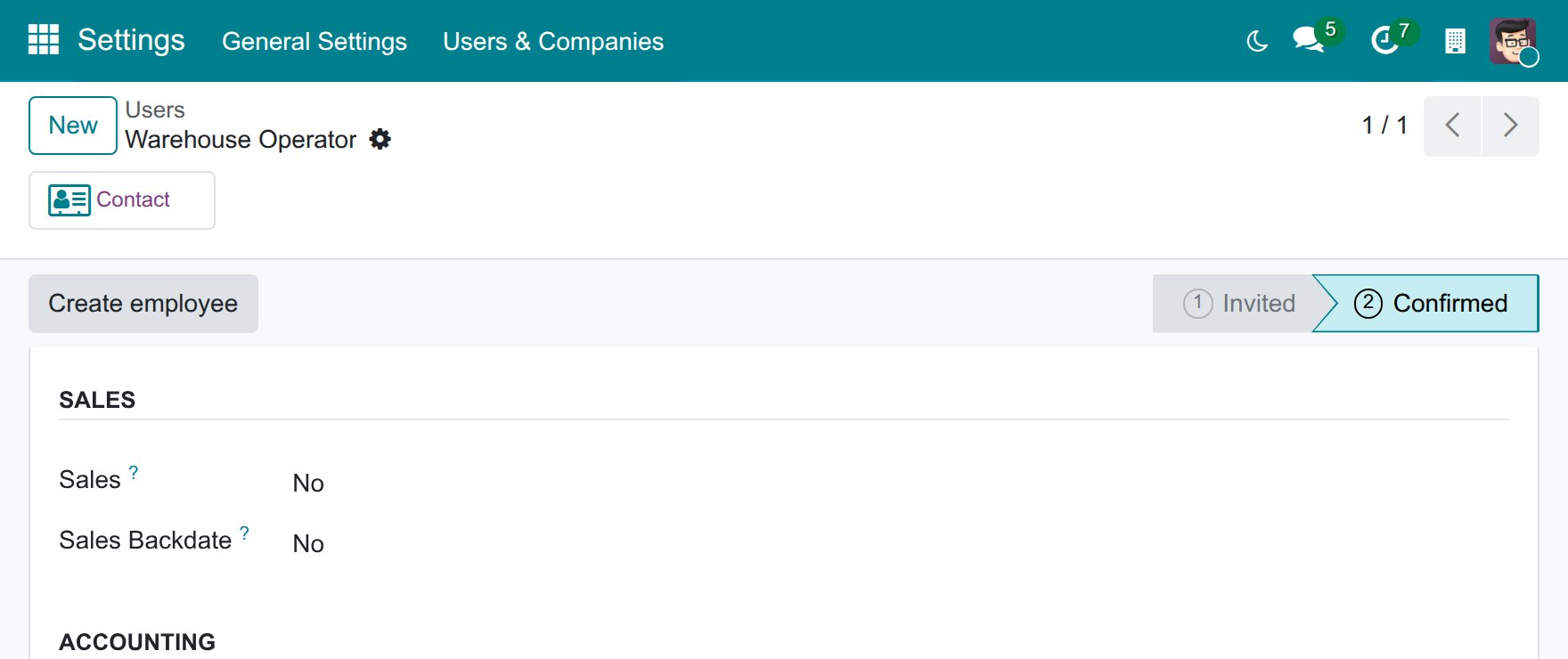
Section |
Row |
Choice that gives the right |
|---|---|---|
Supply Chain |
Inventory Backdate |
Stock Backdate Operations |
Supply Chain |
Purchase Backdate |
Purchase Backdate Operations |
Supply Chain |
Manufacturing Backdate |
Manufacturing Backdate Operations |
Sales |
Sales Backdate |
Sale Backdate Operations |
A row appears only when its module is installed. Nobody holds a right by default, and the right includes the user right of its app, so giving it is enough to let the person work in the app. Choosing No takes the right away: from then on the action runs at the current time for that person, without a window.
The right only decides who is offered the window; it never stops anyone else from working, and everyone who can open a document sees it with its date. Counting stock needs no right: any inventory user can set the Counting Date.
What does a person see when they record an operation?
A person who holds the right sees a window as soon as they click the action of the document, for example Validate on a transfer or Confirm on an order. The window is titled “… with a Back Date” and proposes the current date and time.
Enter the date and time the operation really happened, in your own time zone.
Click the confirm button of the window, or Cancel to leave the document as it was.
Rules that every window shares:
A date in the future is never accepted. Viindoo shows The date cannot be in the future. Choose the date and time the operation actually took place. The document stays as it was and the window stays open.
Dates are entered in the time zone of the user. The accounting day of the operation is the day of the date the person chose, in that time zone.
A locked accounting period. A transfer dated in a locked period is refused. For a count, a scrap or a manufacturing order, the movement keeps its date and Viindoo books the journal entry outside the locked period: today, or the last day of the first open month.
Common problems
Problem |
What to do |
|---|---|
Backdate Operations is missing from Settings. |
Only users with the Administrator role see it, and only when the module Backdate Operations is installed. |
A person confirms or validates without any window. |
The person does not hold the right of that app. Give it in the Access Rights tab of the user. |
The row of a right is missing from the user form. |
The module is not installed. Tick its box in Settings ‣ Backdate Operations. |
The date is refused as being in the future. |
Enter a date and time up to the current time. |
The uninstall confirmation shows no module. |
Tick Show All to list the modules that go with the one you remove. |