
How to create a payslip
To pay one employee for one period, go to , click New, choose the employee and the period, then click Compute Sheet. The system reads the contract, the validated work entries, the time off and the payroll contributions of the employee, applies the salary rules of the salary structure and fills in the payslip. You check it, click Confirm, then Mark as Done once the salary is paid.
Who |
Users with the Payroll ‣ Officer or Payroll ‣ Administrator access right. |
App |
Payroll |
Before you start
The employee has a running contract with a salary structure and a personal tax rule.
The work entries of the period are validated in . A payslip without validated work entries shows a warning and pays nothing for the period.
To compute the insurances and the labor union fee, the employee has payroll contribution registers.
To pay several employees at once, use a payslip batch instead.
The example of this article is the payslip of Đỗ Quang Huy for November 2026: a basic wage of 35,000,000 ₫, three allowances, one dependent, and the social, health, unemployment insurances and the labor union fee of Vietnam.
How do I create a payslip?
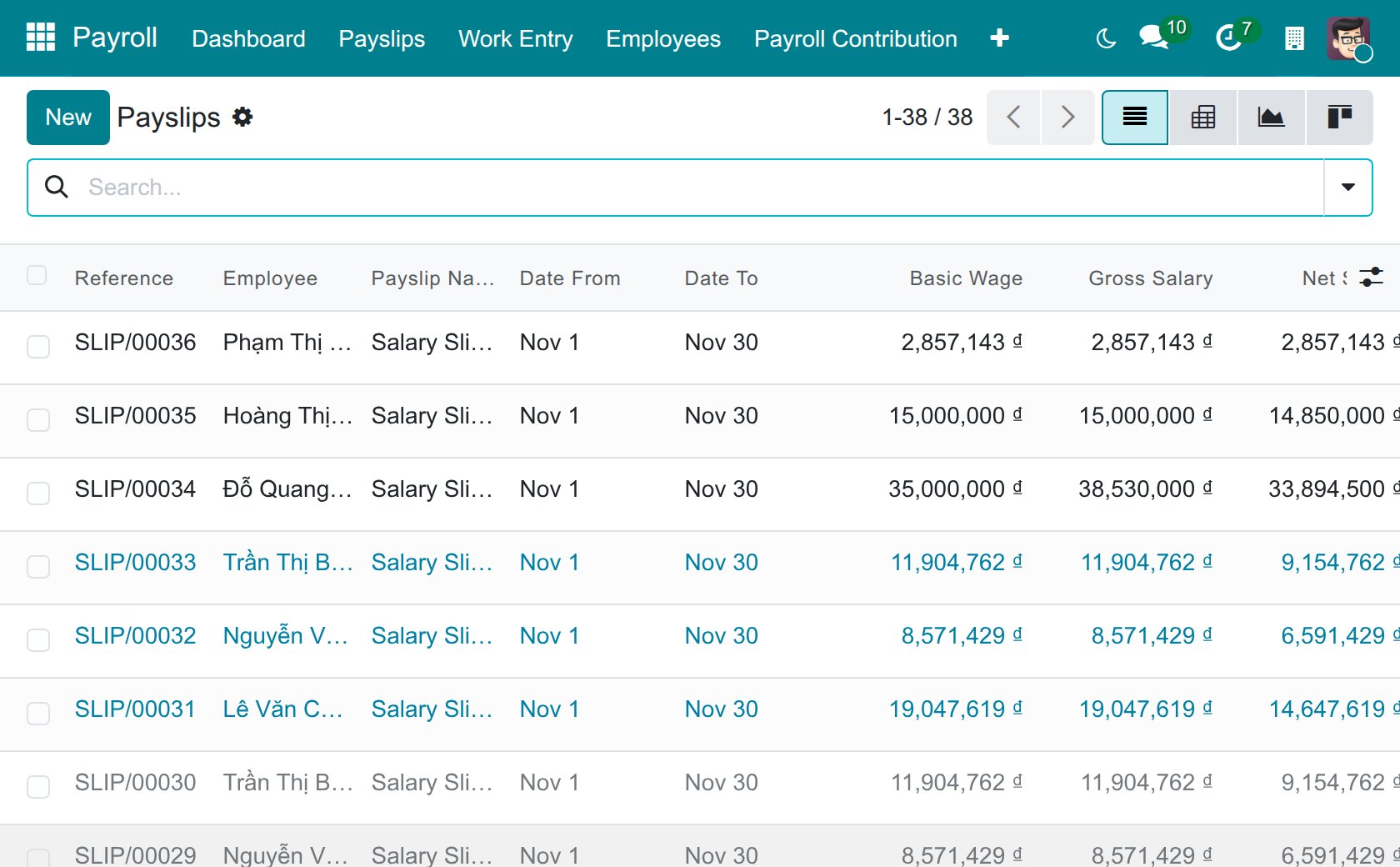
Go to and click New.
![The list of payslips with the New button]()
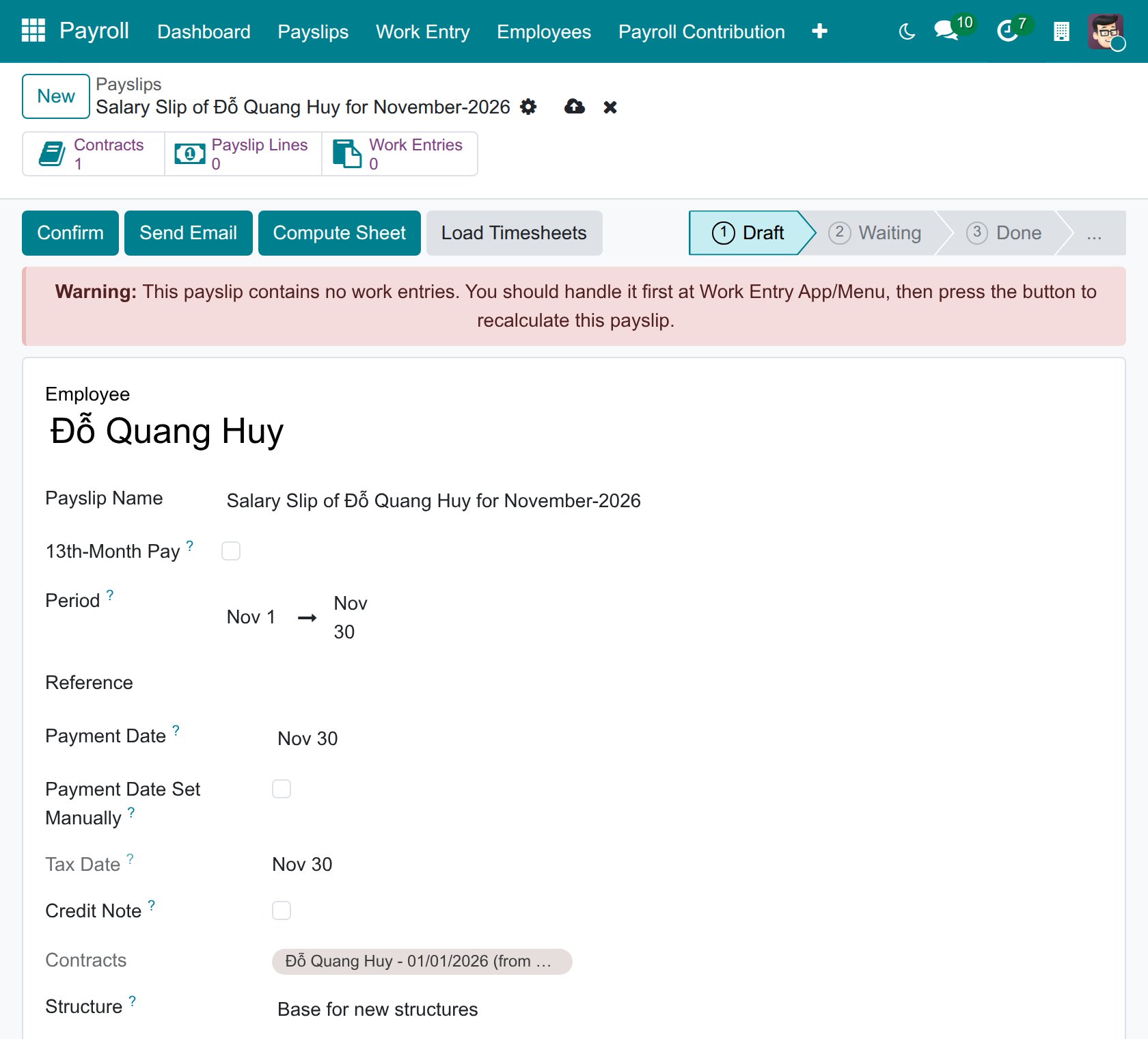
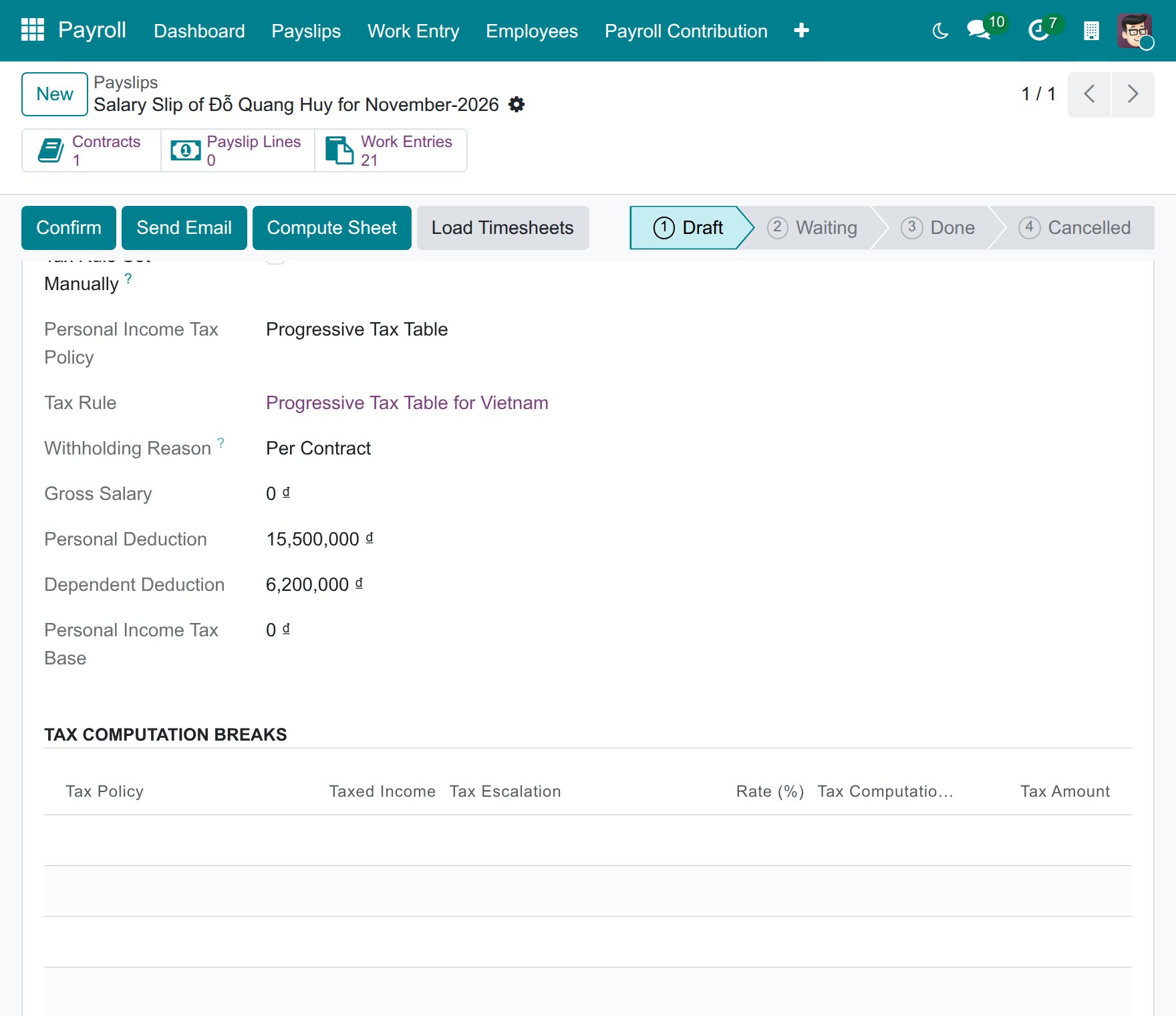
Choose the Employee. The system fills in the rest from the contract:
![A new payslip of Đỗ Quang Huy for November 2026 with its period, contract and structure]()
Field
What it does
Payslip Name
Built from the employee and the month, for example Salary Slip of Đỗ Quang Huy for November-2026. You can change it.
Period
The period of the payslip. It defaults to the previous salary cycle. Change it if you pay another period.
Payment Date
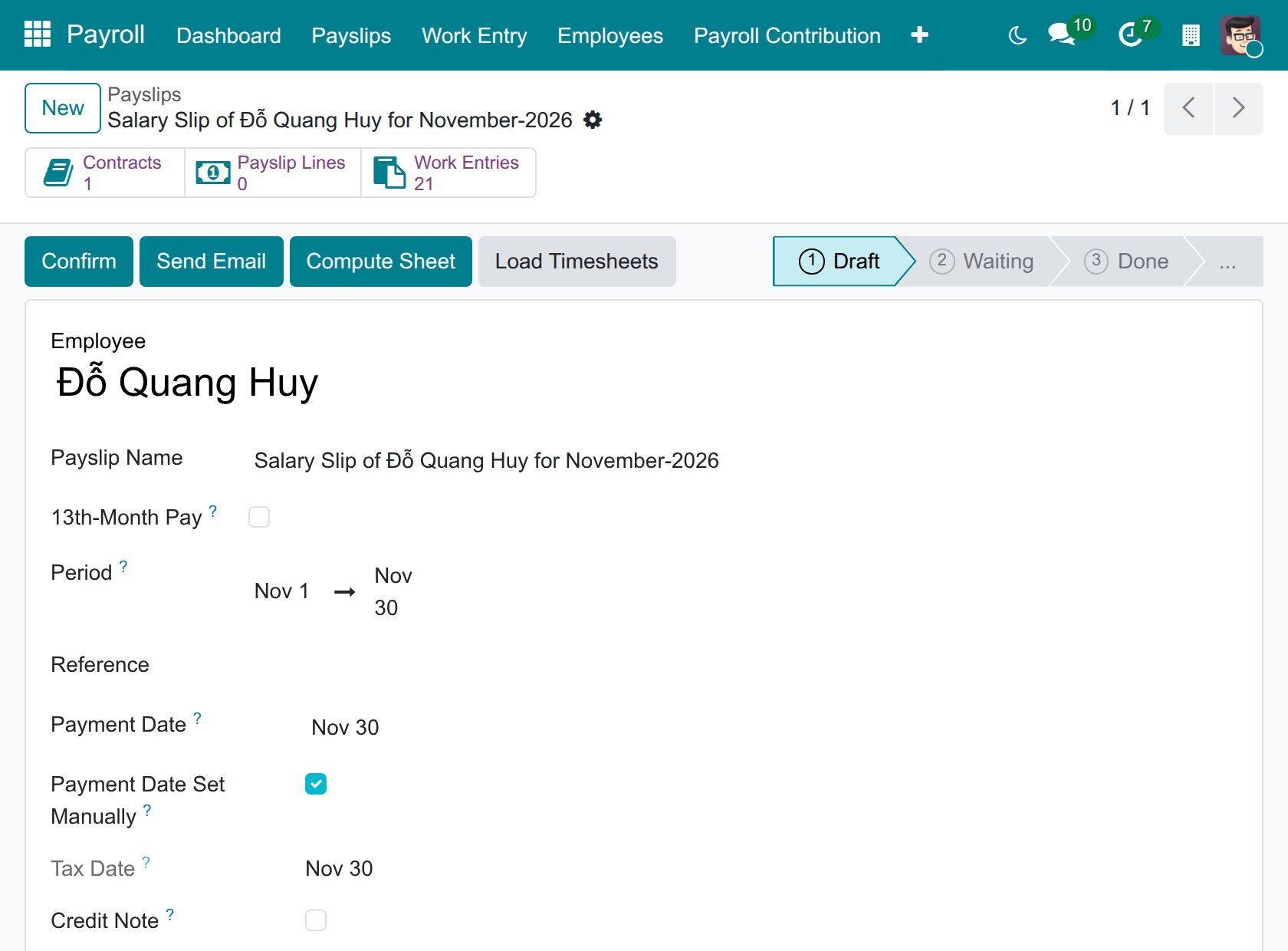
The date the salary is paid: the end of the period, or the end of the batch of the payslip. This date decides how the personal income tax is withheld when the contract has already ended. When Payment Date Set Manually is ticked, the payslip keeps the date you entered; untick it to go back to the computed date.
Credit Note
Tick it to make the payslip a refund of another payslip.
Contracts
The contracts of the employee that are valid in the period.
Structure
The salary structure of the contract. The salary rules of this structure compute the payslip.
Click Compute Sheet. The payslip gets its reference, the Payslip Lines button counts the computed lines and the tabs are filled in.
![The payslip after Compute Sheet, with its reference and the Payslip Lines button]()
Click Compute Sheet again whenever you change the contract, the work entries, the time off or an input amount: the payslip is recomputed from the current data.
How do I pay the 13th-month salary?
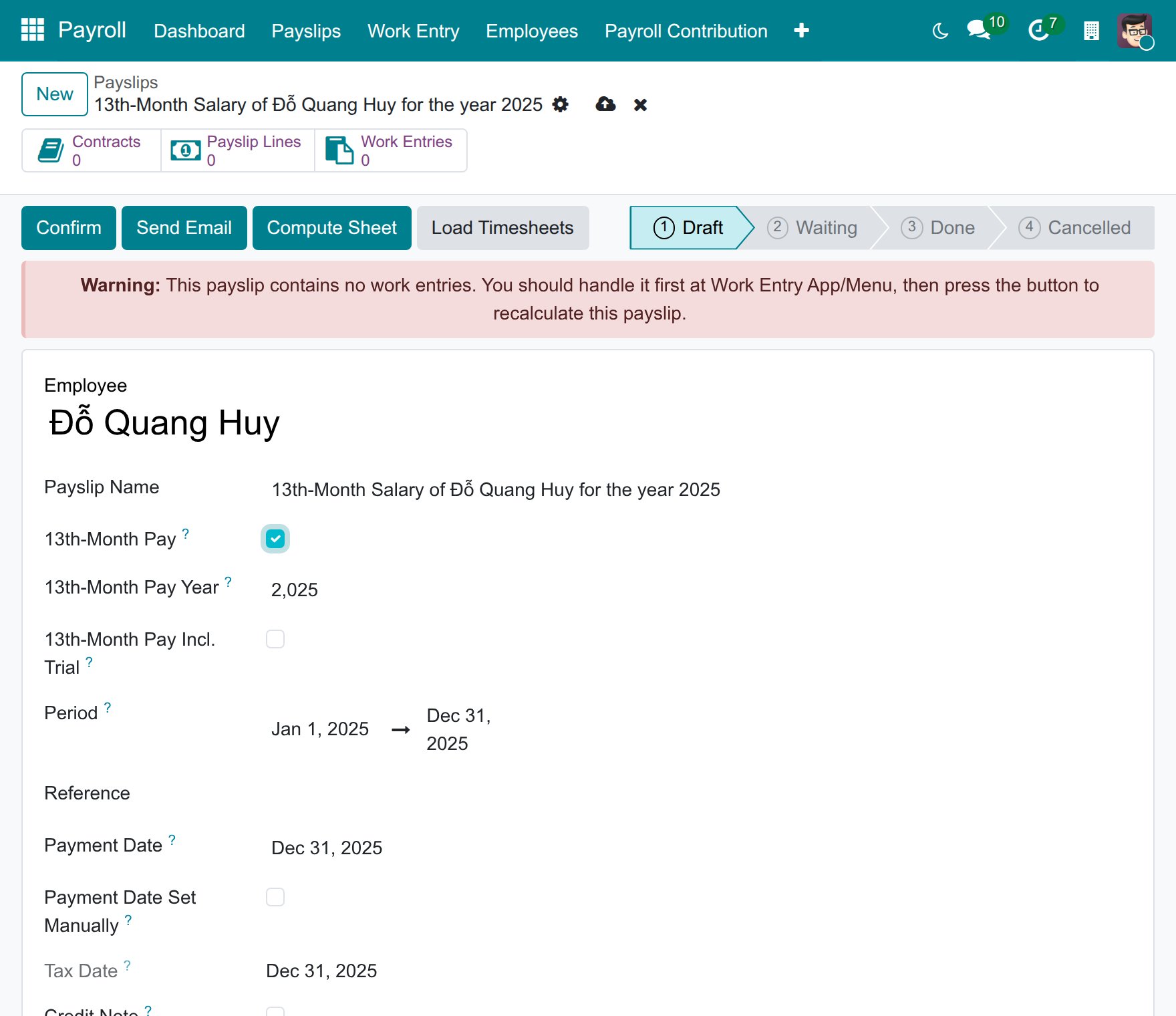
Tick 13th-Month Pay on a new payslip. Enter the 13th-Month Pay Year: the period becomes the whole year and the salary rules use the average amounts of that year. Tick 13th-Month Pay Incl. Trial to include the probation contracts in the computation.
What does each tab of the payslip show?
Work Information
The top of the tab compares the working schedule with what the employee actually worked in the period.
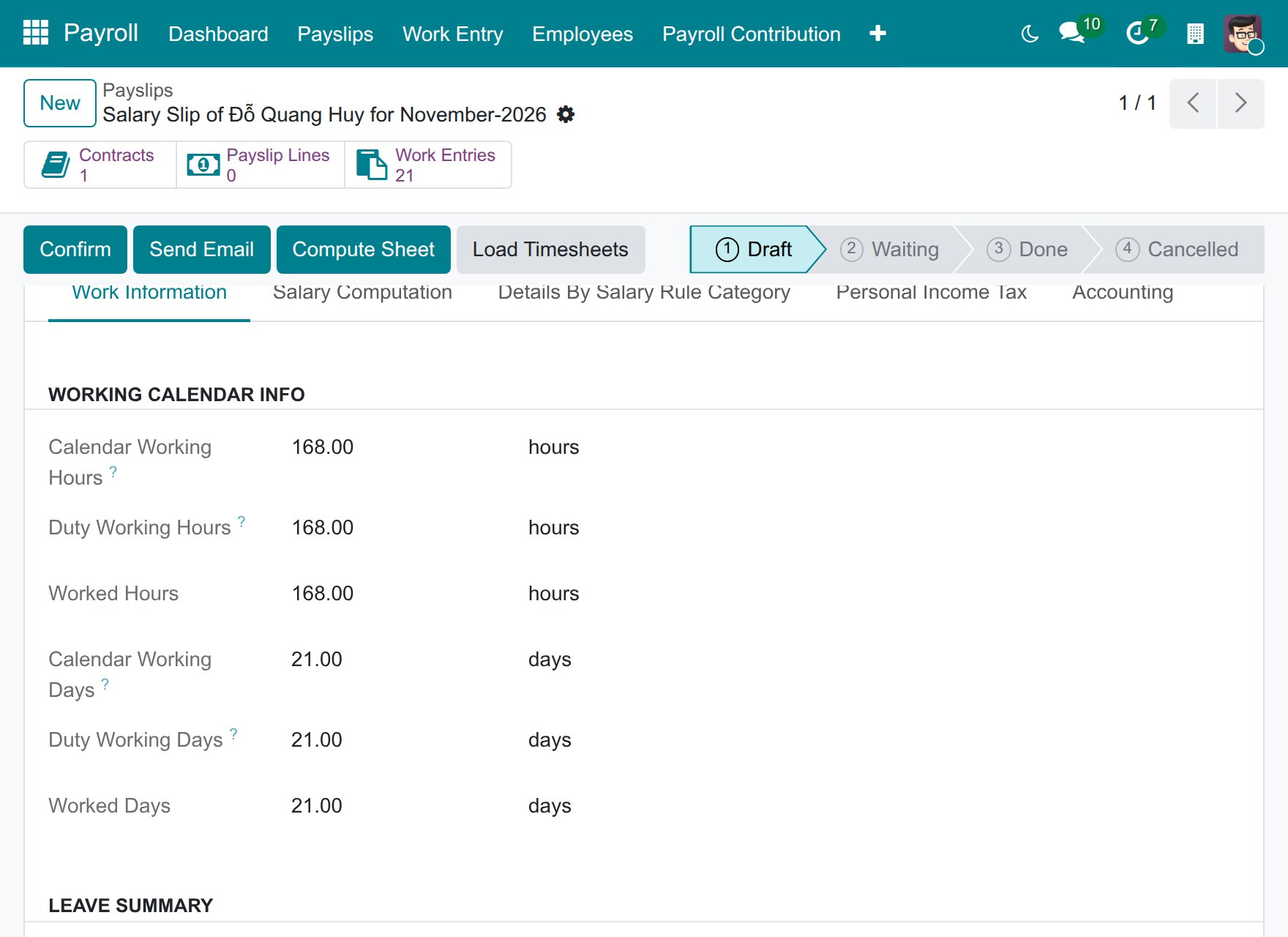
Calendar Working Hours and Calendar Working Days: the time planned by the working schedule of the contract in the period, without the public holidays.
Duty Working Hours and Duty Working Days: the time the employee has to work under the contracts of the period.
Worked Hours and Worked Days: the time actually worked.
Leave Summary: the hours and days of approved time off, and the unpaid part of them.
Worked Days lists the work entries of the period by type, with their Paid Rate. A paid rate of 1.00 means the time is fully paid.
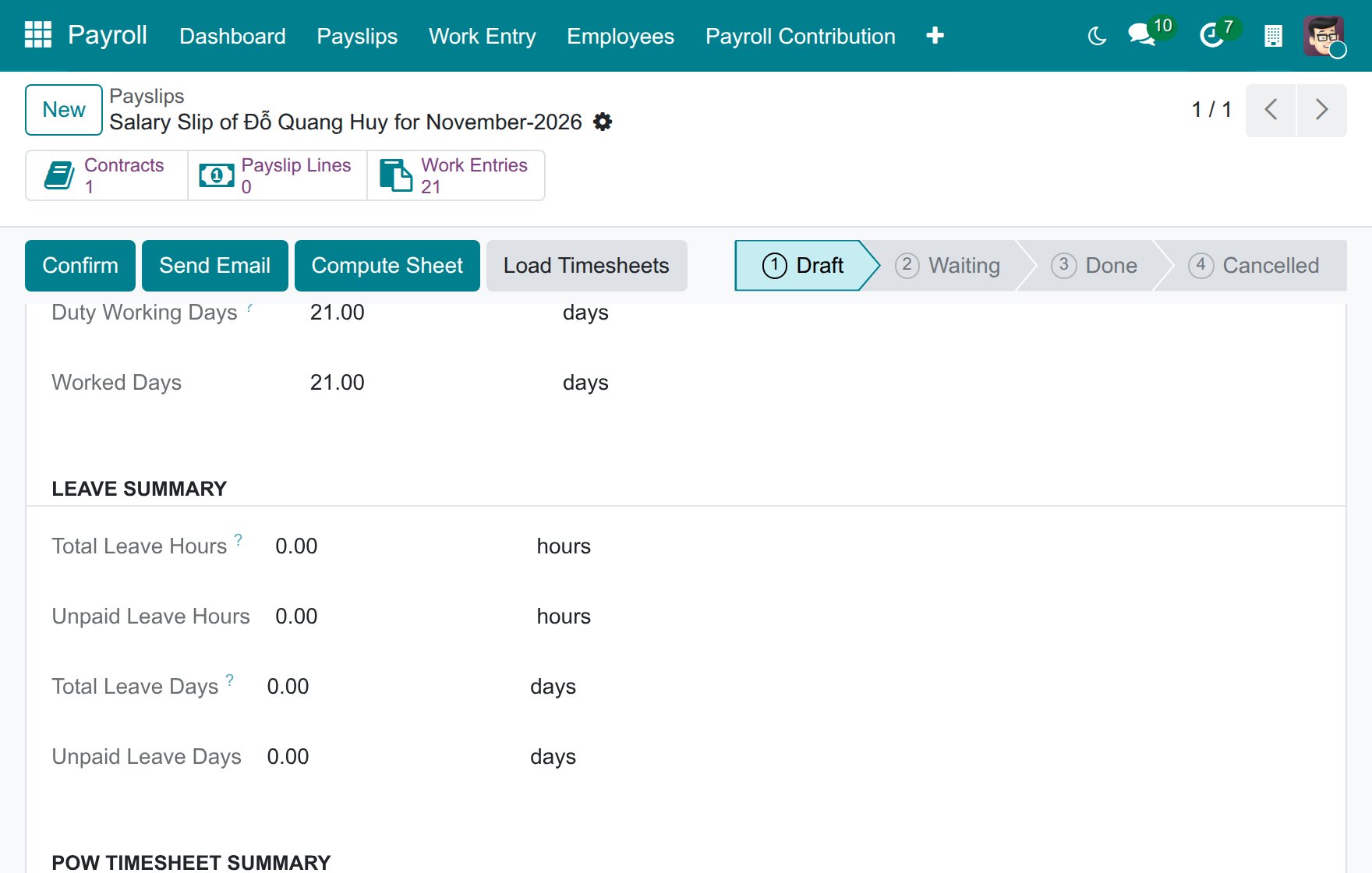
Contribution Lines shows the contribution of the employee and of the company for each payroll contribution register in force in the month. In the example, the social insurance is 8% of 35,000,000 ₫ for the employee (2,800,000 ₫) and 17.5% for the company (6,125,000 ₫).
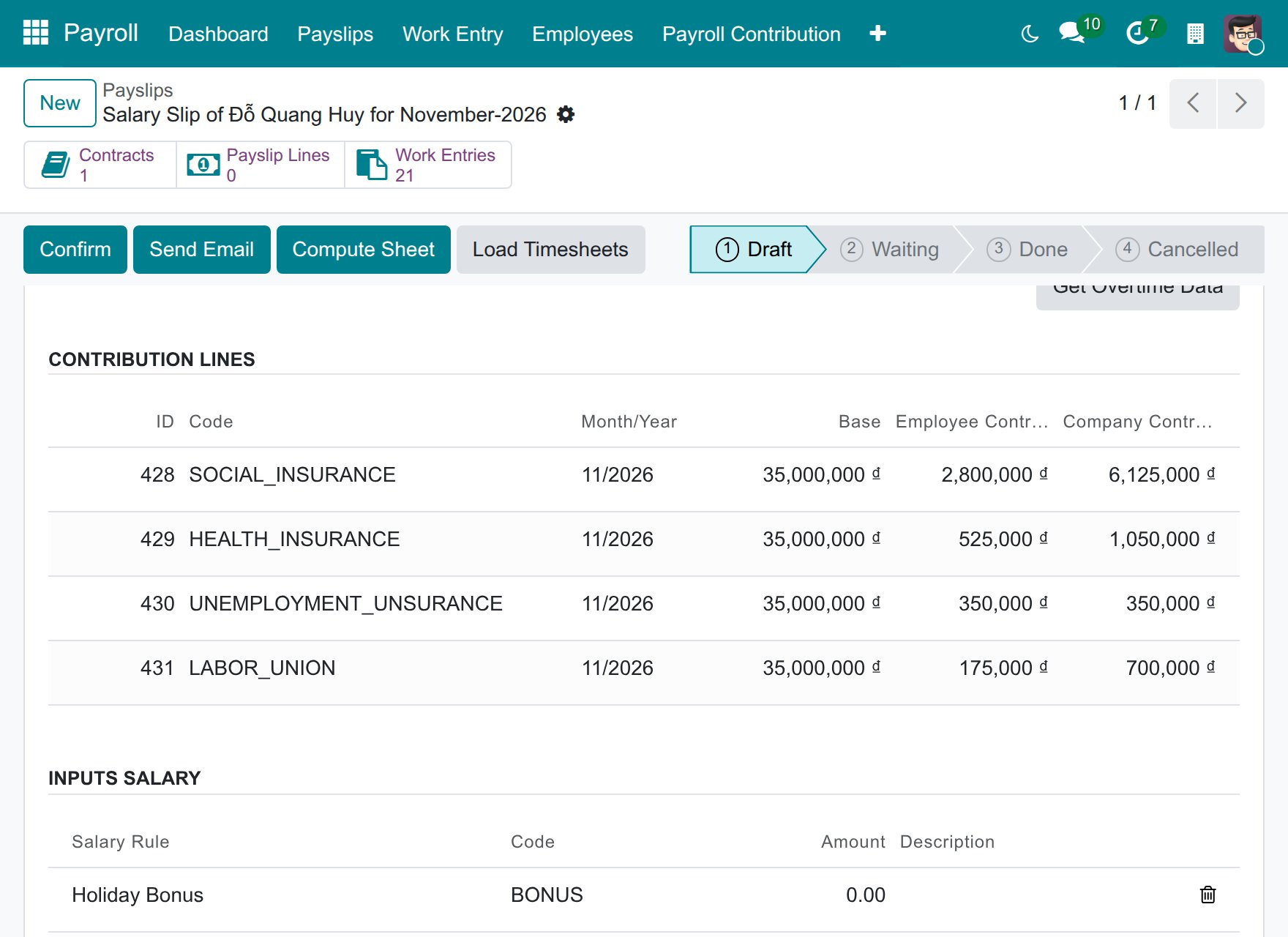
Inputs Salary has one line for each input salary rule of the structure, for the amounts you enter by hand such as a bonus. See How to pay variable amounts.
Salary Computation
Each line is a salary rule of the structure, in the order of its sequence, with its Quantity, Rate, Amount and Total. The deductions are negative.
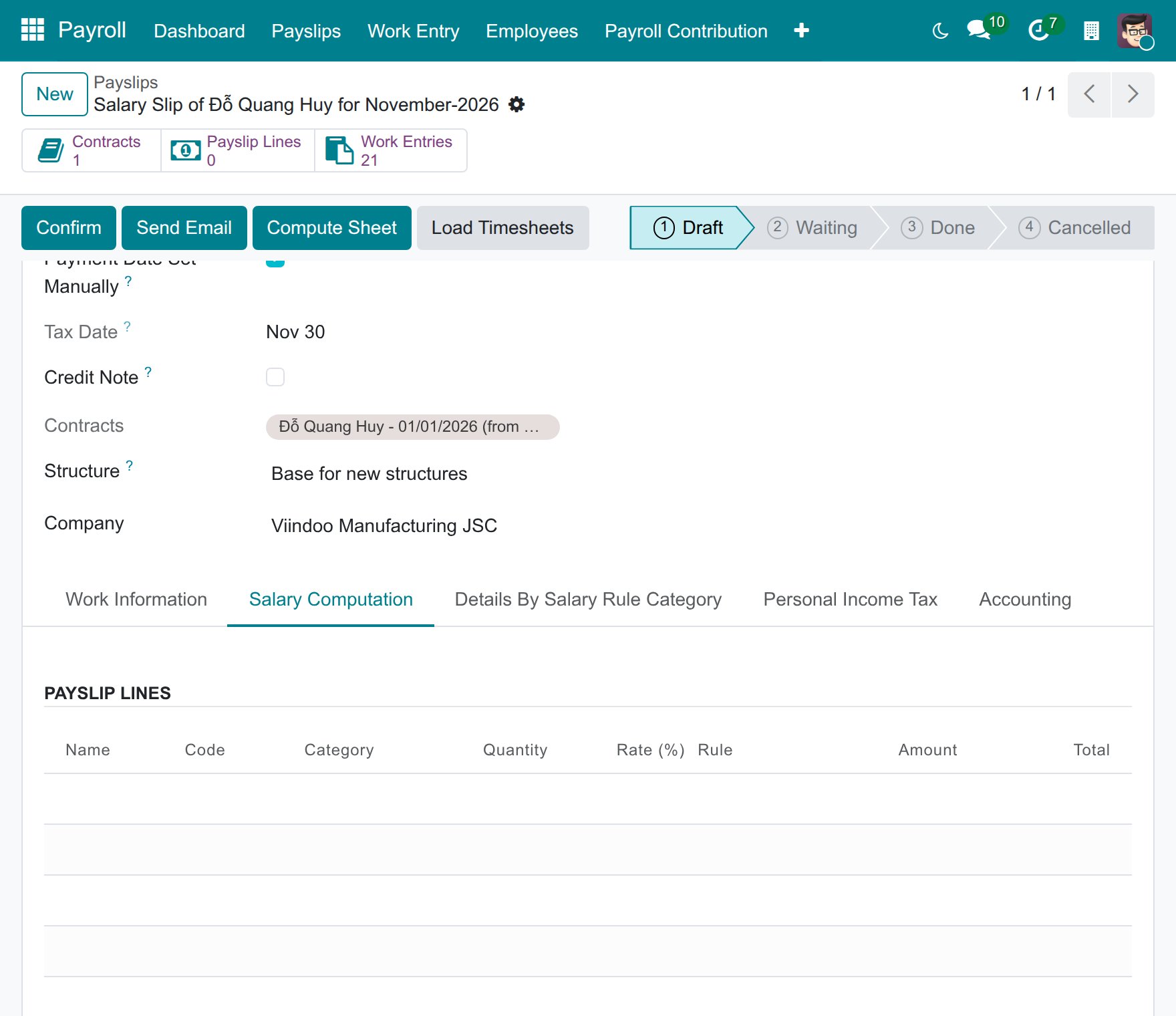
The rules decide whether a line appears on the payslip and how its amount is computed: see salary rules.
Details By Salary Rule Category
The same lines grouped by salary rule category, for example all the allowances together.
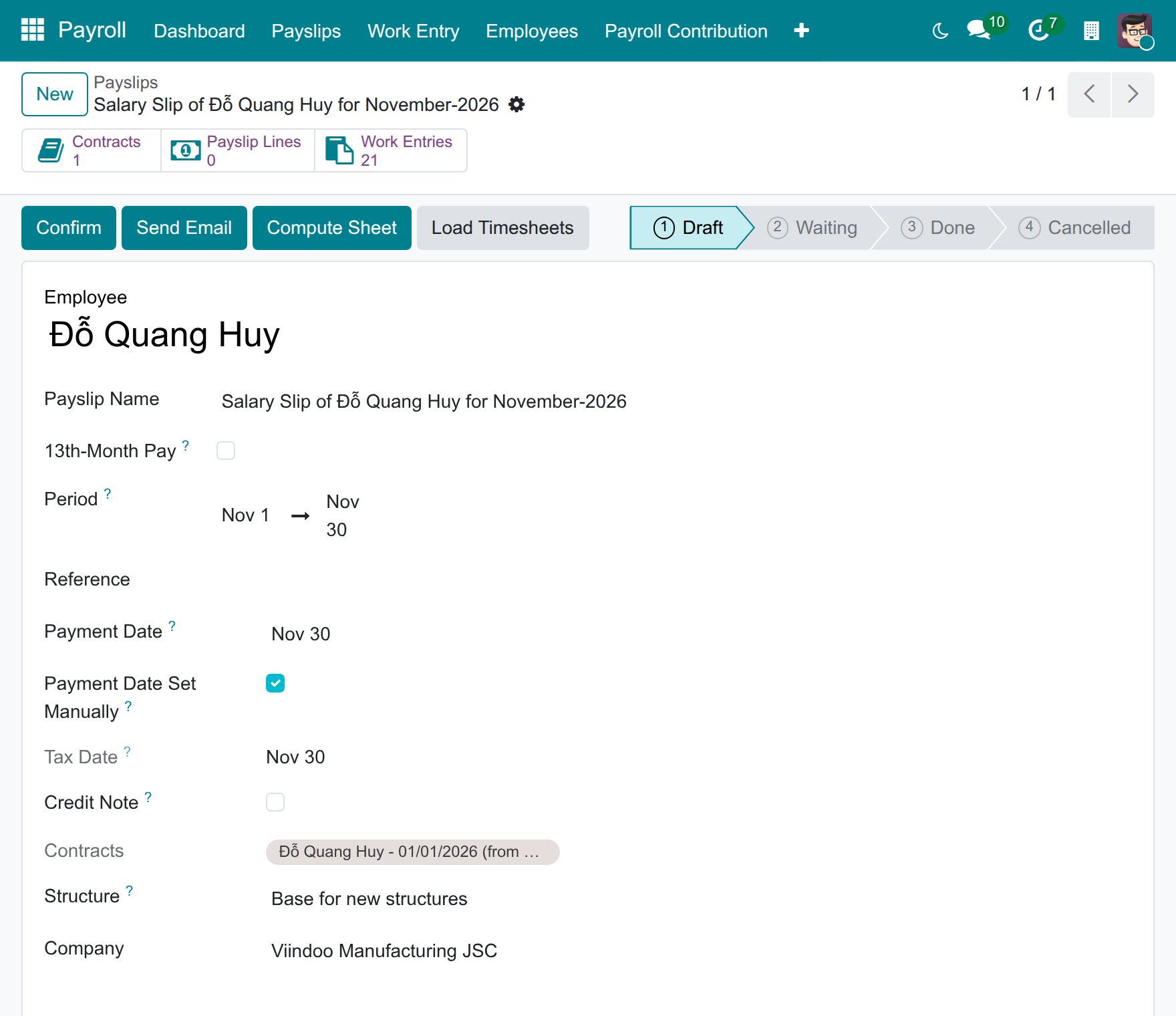
Personal Income Tax
The tab shows how the tax was computed, with the tax rule of the contract.
Gross Salary: the income of the payslip before the deductions.
Personal Deduction and Dependent Deduction: the amounts of the tax rule in force, the second one multiplied by the number of dependents of the employee.
Personal Income Tax Base: the taxable income after the deductions and the insurances paid by the employee.
Tax computation breaks: the tax of each level of the progressive table.
In the example, the gross salary is 38,530,000 ₫ with a holiday bonus of 2,000,000 ₫. After the personal deduction of 15,500,000 ₫, one dependent at 6,200,000 ₫, the insurances of the employee and the phone allowance, the taxable income is 12,855,000 ₫: 5% on the first 10,000,000 ₫ and 10% on the remaining 2,855,000 ₫, so a tax of 785,500 ₫.
Tick Tax Rule Set Manually only to use another tax rule on this payslip than the one of the contract.
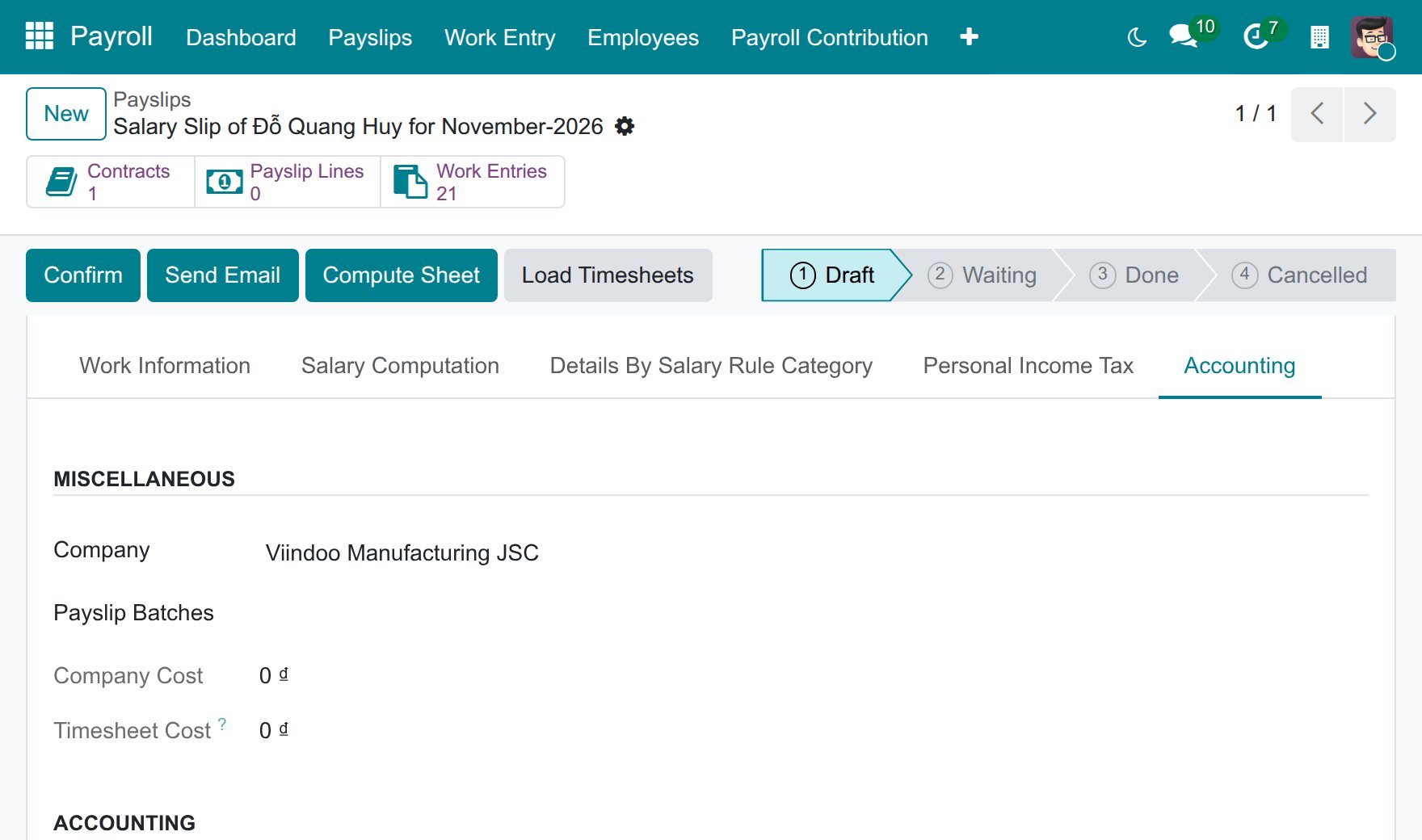
Accounting
The tab shows the Payslip Batches of the payslip and the Company Cost: the salary plus the contributions paid by the company. With the payroll accounting module, the payslip also creates its journal entry.
How do I confirm and close a payslip?
Click Confirm. The system computes the payslip one last time and its status becomes Waiting.
![A payslip in the Waiting status with the Mark as Done, Refund and Cancel Payslip buttons]()
Once the salary is paid, click Mark as Done.
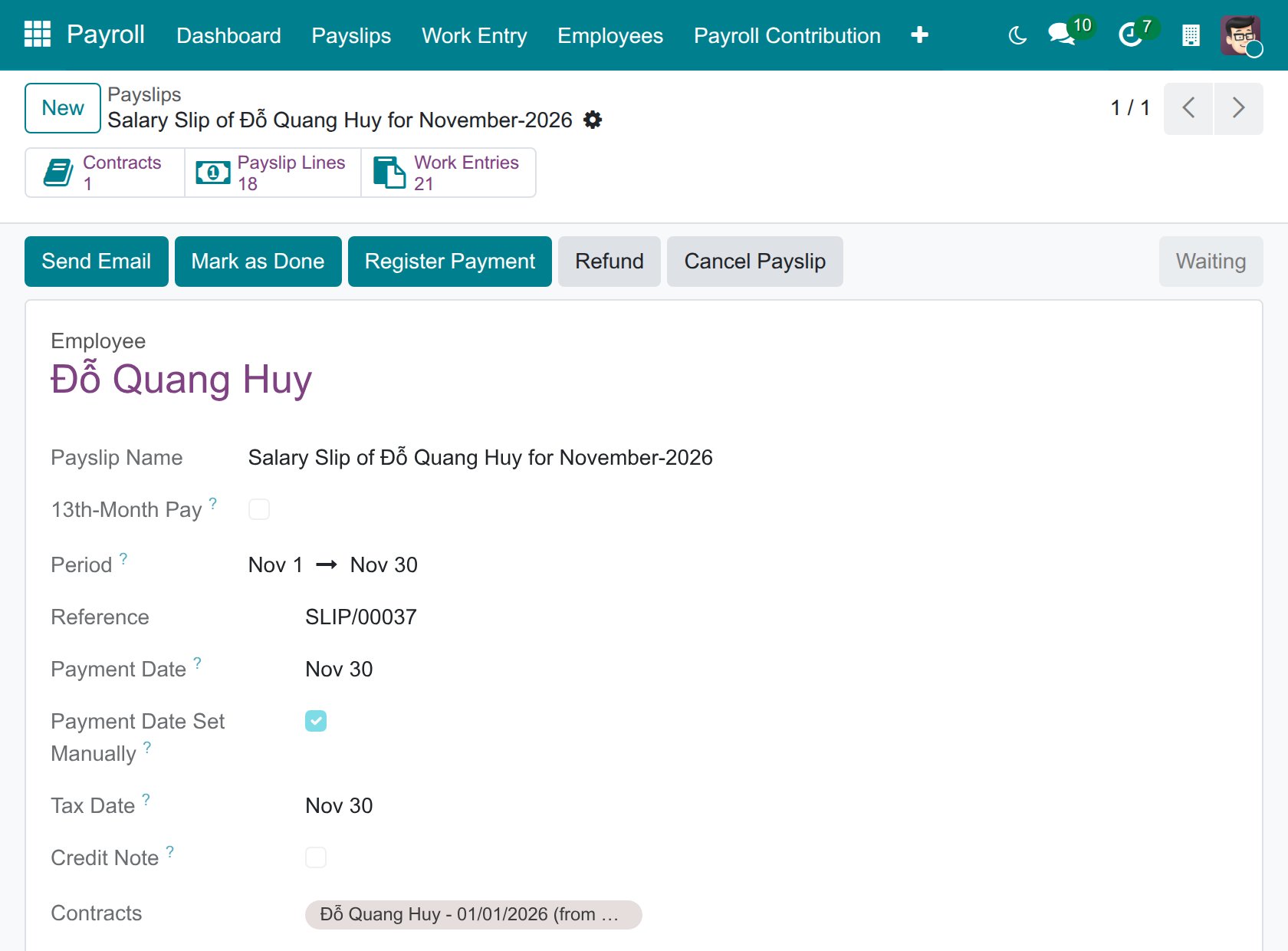
From a waiting or done payslip you can also:
click Send Email to send the payslip to the employee;
click Refund to create a refund payslip that reverses it;
click Cancel Payslip. A cancelled payslip has the status Rejected; click Set to Draft to change and compute it again.
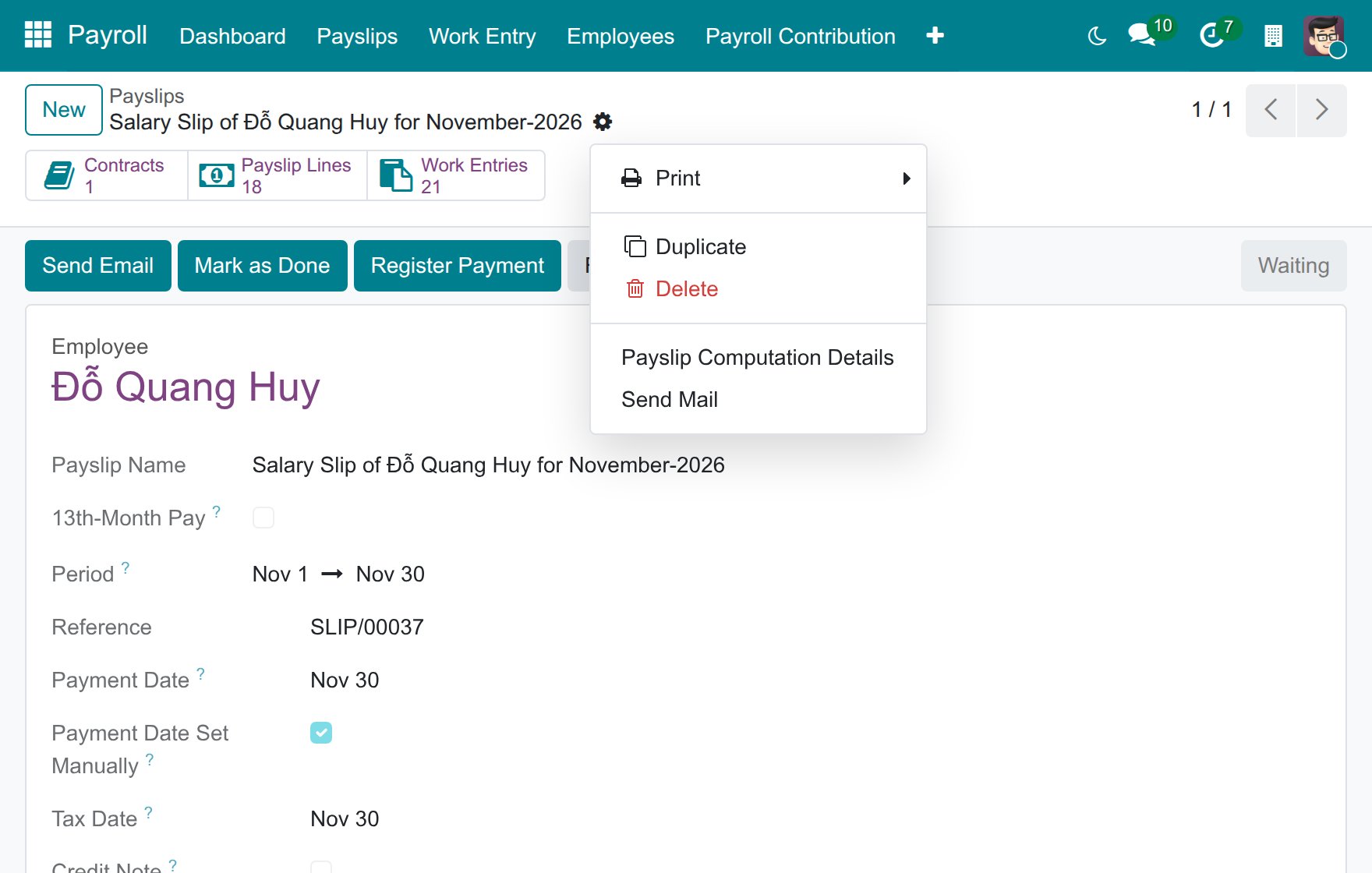
To print the payslip, open the Actions menu (gear icon) and choose Print. Payslip Computation Details in the same menu opens the computed lines in a list.
Common errors
Problem |
What to do |
|---|---|
A red warning says that the payslip contains no work entries. |
Generate and validate the work entries of the period in the Work Entry menu, then click Compute Sheet. |
A message says the payslip has no applicable contract for the period. |
The employee has no running contract in the period. Check the dates of the contract. |
The insurances are missing from the payslip. |
The employee has no confirmed payroll contribution register, or it starts less than 15 days before the end of the period. |
The personal income tax is 0. |
The taxable income is below the deductions. Check Personal Income Tax Base in the tab Personal Income Tax. |
I cannot delete a payslip. |
Only a payslip in Draft or Rejected can be deleted. Cancel it first. |
Next steps
How to create a payslip batch: pay all the employees of a period at once.
How to pay variable amounts: add bonuses and other variable amounts.
How to analyse the payroll: analyse the salaries.
See also
Related articles
Optional modules