
Manage post on social media
This page is for approvers, who publish the posts and put right the ones that fail, and for editors, who follow their posts. It explains what each state of a post means, why a post fails and what to do, and what happens to the posts of a Facebook Page that are synchronized or removed on Facebook.
Task |
Who does it |
Where |
|---|---|---|
Follow the posts and read their states |
Editor and approver |
|
Retry or cancel a failed post, delete a post from the social network |
Approver |
The post, or the post cards of the article |
Synchronize the pages and the posts of a page |
Approver and Social Marketing administrator |
An approver acts on the posts of the pages and networks assigned to them, the Social Marketing administrator on all posts. An action on another post is refused with the message You don’t have rights on the post of the page followed by the name of the page.
Requirements
This tutorial requires the installation of the following applications/modules:
Facebook Social Marketing for the Facebook Pages
Linkedin Social Marketing for the LinkedIn pages
To manage posts in Social Marketing app, navigate to .
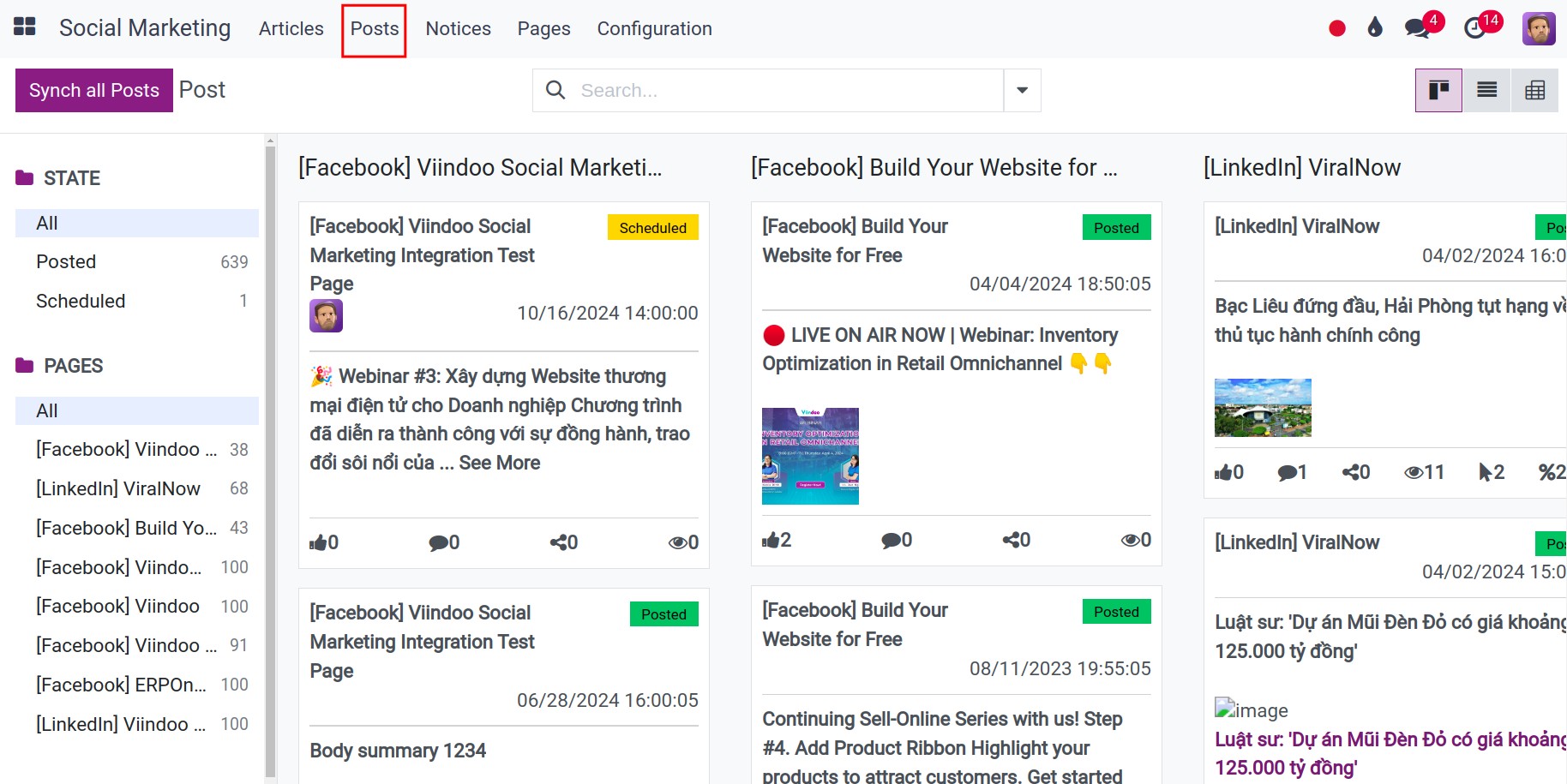
On the left column of the screen, there are statistics of all post states and integrated pages. Posts are displayed in Kanban view by default. Each post also shows its figures with words, for example 64 likes and 9 comments; views are shown only when the network gives them, and a LinkedIn post adds its clicks and engagement rate. The sums per month and per page are in Reporting.
Approvers and Social Marketing administrators also see the button Synchronize Posts at the top of the screen: it reads again the posts of every connected page (see Synchronize posts).
Open a Posted post to see its window: the text, the pictures, the figures of the post and its comments. You can reply to the comments of the viewers, with emojis, from this window.


For inappropriate comments, you can press Delete or Hide comment in the menu of the comment to not show them on the post. The comments that the Page itself posted offer no Hide comment and no Unhide. When Facebook refuses to hide or unhide a comment, the message reads Facebook did not hide or unhide this comment: followed by the words of Facebook.

The comments, reactions and messages of a page reach Viindoo after a short delay: the notifications of the social network are processed in the background every 5 minutes. When nothing arrives, see Find the cause of a failed connection, post or notification. A reply to a Messenger conversation that Facebook refuses is explained there too.
States of a post
The state of a post is shown on its card, in the status bar of its form and in the filters of .
The list of posts shows the columns State, Date and Content by default; Page can be turned on from the optional columns menu, and Content can be hidden there. The Date column shows the date only: the full time, and for a Scheduled post the time at which it is scheduled, is on the kanban card and on the form. The form of a scheduled post shows Scheduled For and Scheduled by; the form of any other post shows Posted On and Posted by.
State |
Meaning |
What you can do |
|---|---|---|
Ready |
The post waits to be published. |
Post Now publishes it, Cancel drops it. |
Uploading |
A video or a Reel is being sent to the social network. It runs in the background: the scheduled actions Social: Upload videos to Facebook and Social: Upload videos to LinkedIn move it forward every 5 minutes, and you can keep working. While the social network limits the calls of the app, the post waits in this state and goes on by itself afterwards (see Calls limited by the social network). |
Cancel drops the post and its upload. |
Publishing |
The video is sent and the social network is processing it. |
Wait: the state changes by itself to Posted, Scheduled or Failed. |
Scheduled |
Facebook publishes the post at the time chosen in the article. |
View on Social opens it, Delete Post removes it from Facebook. The state changes to Posted after the time has passed (see Create articles on social media). |
Posted |
The post is on the page. |
View on Social opens it, Edit Post changes its text, Delete Post removes it from the social network. |
Failed |
The post could not be published: the social network refused it, or a video could not be sent. The reason is shown at the top of the post. |
Retry publishes it again, Cancel drops it, Delete Post removes it. See When a post fails. |
Cancelled |
The post was dropped. |
Set To Ready puts it back, Delete Post removes it. |
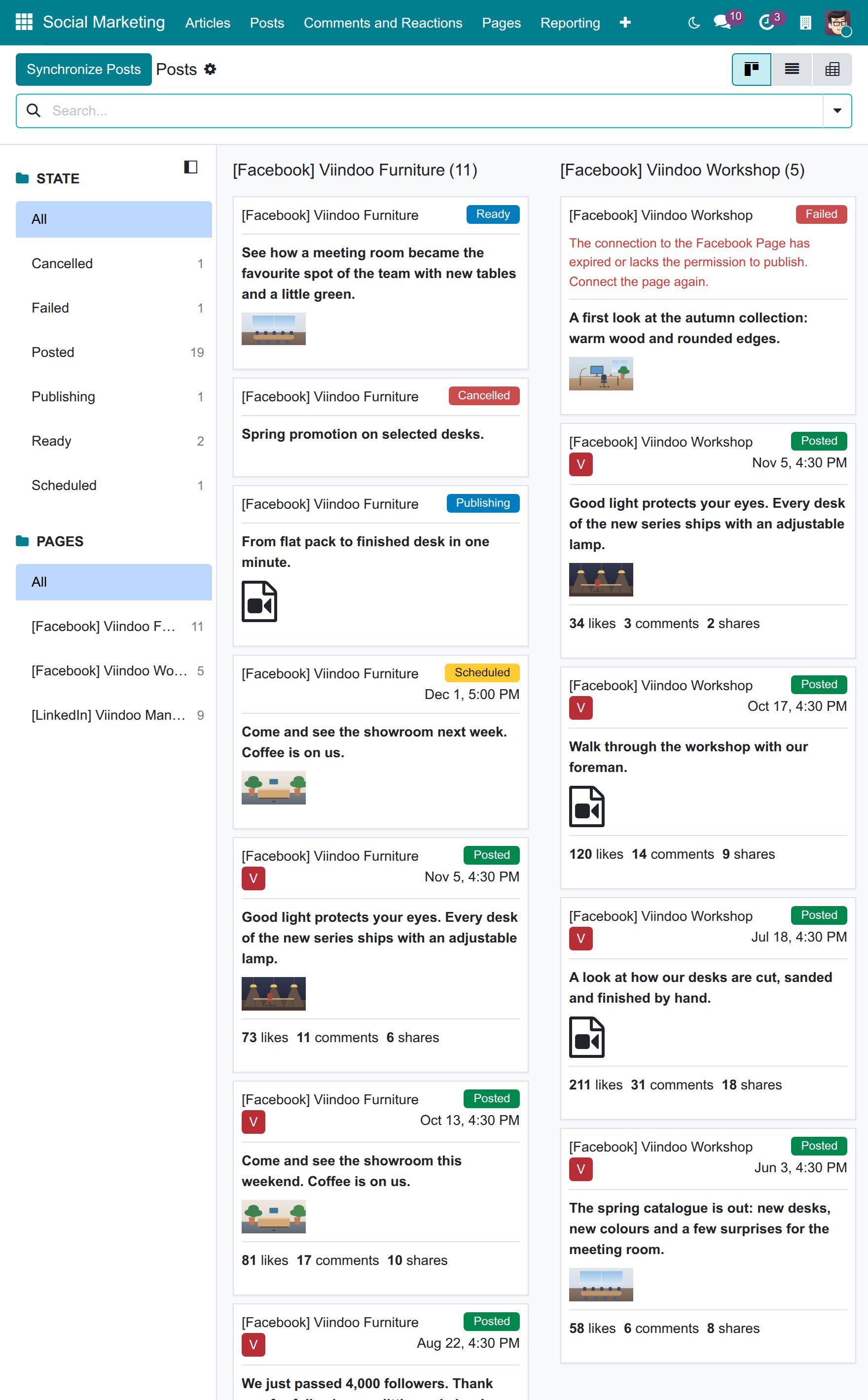
A text, link or photo post is sent at once and becomes Posted, or Scheduled when the article is scheduled, or Failed when the social network refuses it. A video goes through Uploading, then Publishing, then Posted or Failed.
While a post is Publishing, the form shows the message The post is being published. Its state changes by itself once the social network answers. The post cannot be cancelled, set back to Ready, archived, edited or deleted in this state: the system answers This post is being published on the social network and cannot be cancelled, archived, deleted or edited now. Wait until it is Posted or Failed, then use Delete to remove it from the social network. A post that is already on the social network cannot be cancelled either: use Delete Post, which also removes it there.
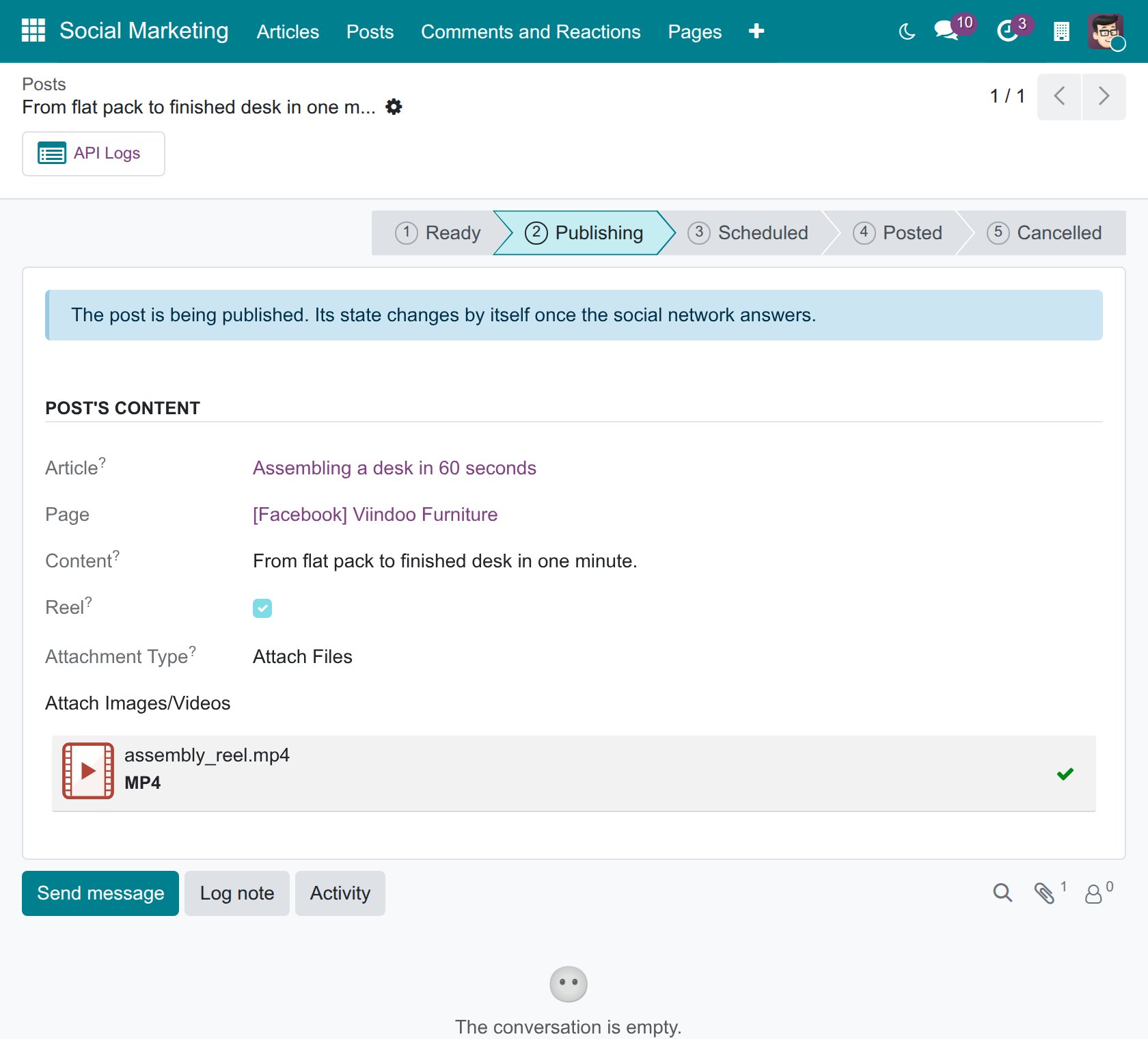
If you cancel or delete a post while its video is being uploaded, the upload is dropped and nothing is published later.
When a post fails
A post ends Failed when the social network or Viindoo cannot publish it: a video that cannot be sent or processed, or a text, link or photo post that the social network refuses when the approver presses Post Now. The reason is in the field Failure Reason, at the top of the post, together with the message:
The post could not be published. An approver fixes the cause given above, then presses Retry. When the connection of the page has expired, ask your Social Marketing administrator to link the account again.
The Setup guide button of this message opens this section. The author, the assignee of the article and the person who asked to publish are told in the chatter of the article. When the social network refuses the post at the moment of Post Now, the approver also gets a warning with the same reason, and the post offers Retry and Cancel.
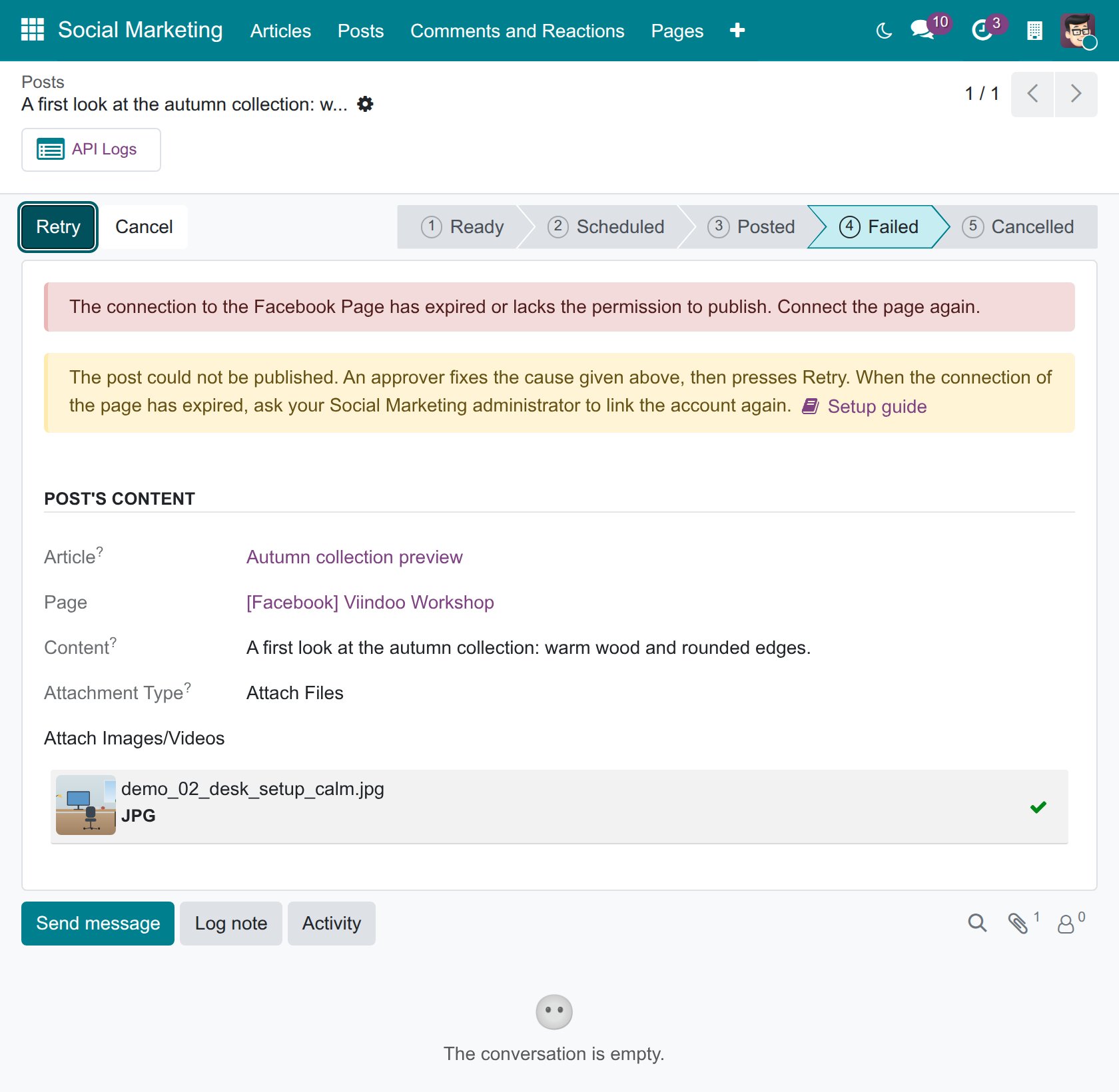
Read the reason, correct the cause, then press Retry or Cancel:
Failure Reason |
What to do |
|---|---|
The connection to the Facebook Page has expired or lacks the permission to publish. Connect the page again. |
A Social Marketing administrator presses Reconnect or Link Account again (see Check the connection and connect again), then an approver presses Retry |
Facebook (or LinkedIn) refused the post. It answered: followed by the words of the network, or the status code when the network gives no words |
Read what the network says. For a picture, replace it by a png or jpeg image within the limits of Files each network accepts; for a text, correct it. Then press Retry, or publish the article again after a change (see below) |
Facebook could not process the video of this Reel. Check that the file is a valid mp4 video, then retry. |
Replace the file if it is not a valid mp4 video, then press Retry (see Publish a video as a Reel) |
The video upload timed out on Facebook. An approver can retry the upload. |
Press Retry |
The video is too large for Facebook, is too long, or its format is not accepted |
Replace the video by an mp4 file within the limits of Files each network accepts, then publish the article again (see below) |
Facebook blocked the video because of its content policy. |
Replace the video, then publish the article again (see below) |
Facebook rejected the request, check the title, the content and the schedule of the post. |
Check the title and the text of the article and its scheduled time, then publish it again |
The scheduled time came too close while the video was uploading. |
Choose a later time, then publish the article again (see below) |
Facebook did not confirm the end of the upload of the video, which may already be on the Page: check the Page before retrying. |
Open the Page on Facebook and look for the video before pressing Retry |
A video that makes no progress for 60 minutes fails with a message; an approver retries it. A common cause is a network that cannot reach the upload server of the social network. A post whose video file cannot be read from the storage fails with a message; attach the video again to the article, then publish.
Images and videos uploaded to LinkedIn for a post that was not created, or whose post was deleted, stay in the media library of the organization; LinkedIn has no call to delete them.
Retry starts the publication again; only an approver or a Social Marketing administrator sees it. Cancel gives the post up: its state becomes Cancelled, Set To Ready puts it back and Delete Post removes it.
To change the video, the picture, the text or the scheduled time, the approver the article is assigned to, or the Social Marketing administrator, presses Cancel on the article, which deletes its posts, then Set to Draft. After the change, confirm the article and press Post Now again.
A video that was published 7 days ago or more may have left the storage of Viindoo: to retry its post, add a page or copy the article, remove the emptied video from the article and attach the video again first; the video attached again is kept for at least 7 days (see The video of a published article).
Another failure reason, or no clear one: the system administrator opens the API Logs button of the post and reads the answer of the social network (see Find the cause of a failed connection, post or notification).
When the article has several pages, each page goes out on its own: the posts that the social network already took stay Posted, and the warning names the page that did not go out. The pages that are already posted or scheduled are left alone. After a limit of the calls or a refused connection on one social media, the other pages of that social media are not asked: they stay Ready and the warning names them. When the social network could not be reached, it may still have published the post: check the page before trying again. What Viindoo can check beforehand (your rights, the state of the posts, the video, a connection that is not linked, a time outside the range of the network) is checked before the first page is posted: a page that fails there stops the action with an error and nothing is posted.
Synchronize posts
If you create posts from Facebook /Linkedin or manage old posts before integration and want to manage posts on Viindoo all-in-one software platform, you need to synchronize your post information with Viindoo. The page must first be integrated with Viindoo. Navigate to , open the page of the social networking site to sync and press Synchronize Posts.

At this stage, all selected social media posts will be synced to the Posts menu. A notification tells the pages synchronized, the new posts and the posts archived because the social network no longer has them, and the screen shows the new counts. With no connected page, the notification asks you to use Link Account first; for a page whose connection is not linked it gives only the sentence of that page. When the social network reports a usage limit, refuses the connection or cannot be reached for one page, the notification names that page; the other pages are still synchronized and nothing is paused.
Note
On a Facebook Page, Synchronize Posts reads the 100 most recent posts up to the time of synchronization, with the posts scheduled on Facebook. When the option Sync all posts of the page (shown on Facebook pages only) is ticked, it reads up to 500 posts.
A video published from Viindoo stays one single post, linked to its article, however many times you synchronize. Facebook lists a video under another identifier than the one Viindoo keeps; Viindoo recognizes the video and does not create a second post or archive the first. A duplicate of the video that has no article is removed at the next synchronization.
The comment figure of a post counts the replies to comments, the same as the post window.
Synchronize Old Posts appears on the page only when older posts remain. Each press reads up to 500 older posts. With the option Sync all posts, the scheduled action Social Pages: Synchronize Old Posts reads them progressively, once a day.
When Facebook refuses to let Viindoo read a page, a readable message is shown.
Synchronize pages
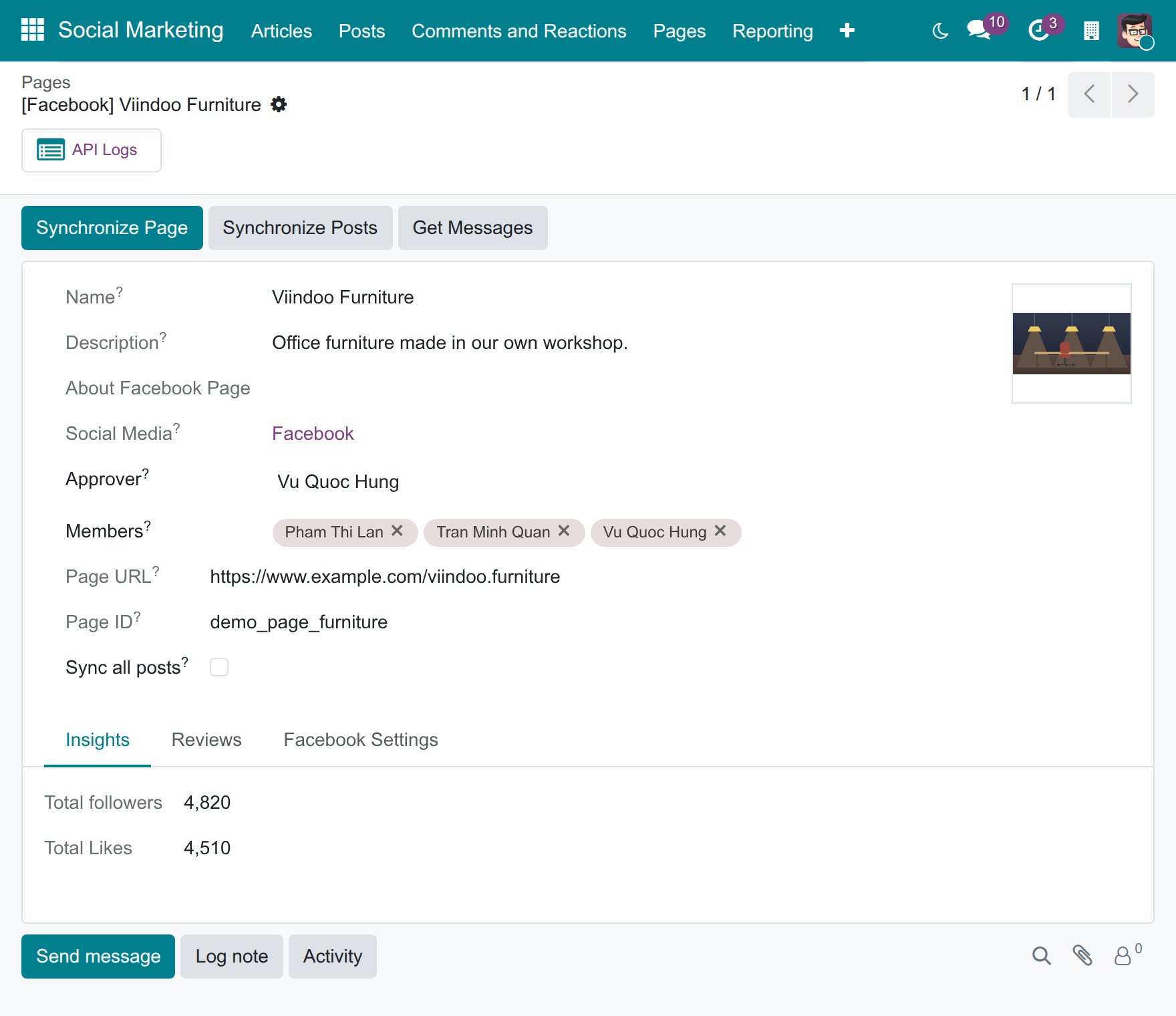
In case your business manages more than one Facebook/Linkedin page and you have just integrated a page with Social Marketing app, you need to synchronize the page by clicking Synchronize Page at the specific page interface.

At this point, the system will synchronize all the social media pages that you are managing with Social Marketing app and information such as likes, page links, social page IDs and access tokens. A notification tells how many pages were found, how many are new and how many were archived; Pages synchronized counts only the pages synchronized without error. On a LinkedIn connection that is not linked, the warning reads This LinkedIn account is not linked. An administrator needs to use Link Account on its Social Media first.
Note
After synchronizing the page, you click Synchronize Posts right on the interface of the page.
Update Social Posts
To update the contents and title of a post that is already on the social network, you go to menu , look for its article, and adjust the needed contents. Press Save and Update Social Posts:

A window tells what will be done: how many new posts will be posted, how many posts will be deleted and how many posts will be updated. Press Confirm to update all the posts on the social medias:
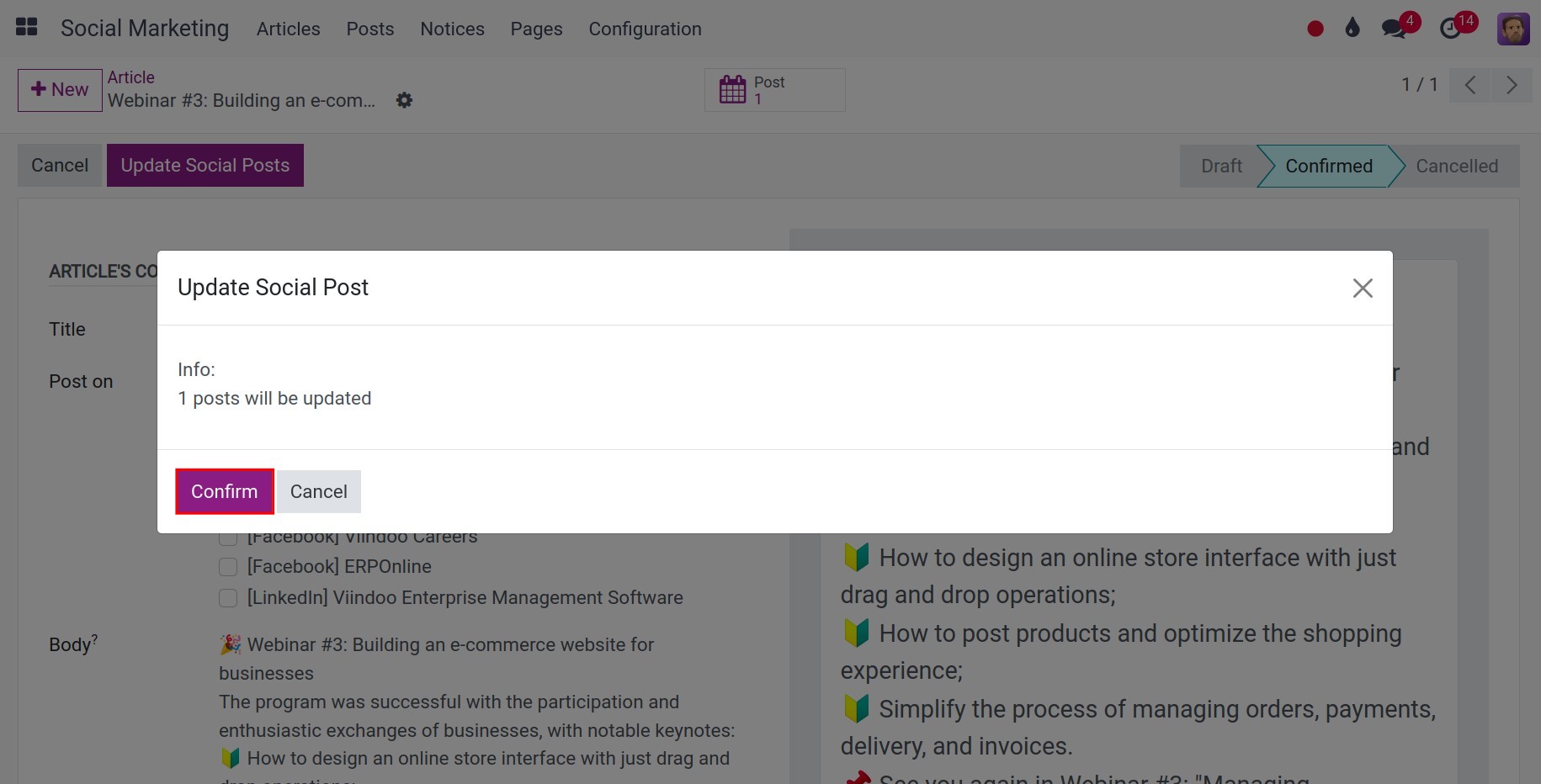
The posts that are added, removed from the social network or updated each go through on their own. When the social network refuses one of them, the warning names the page, and the post keeps the content that the social network holds.
Delete posts
There are two methods to delete posts in Social Marketing app:
Method 1: Directly delete posts on social networking sites. The posts stay in Viindoo’s system, archived (see Posts removed on Facebook).
Method 2: Delete posts in Social Marketing app, at this time all posted content will be deleted both on social networking platforms and in Viindoo’s system.
To do method 2, navigate to , open the article, find the post you want to delete among the post cards and click Delete Post button right on the post. After a confirmation, the post is removed from Viindoo and from the social network.
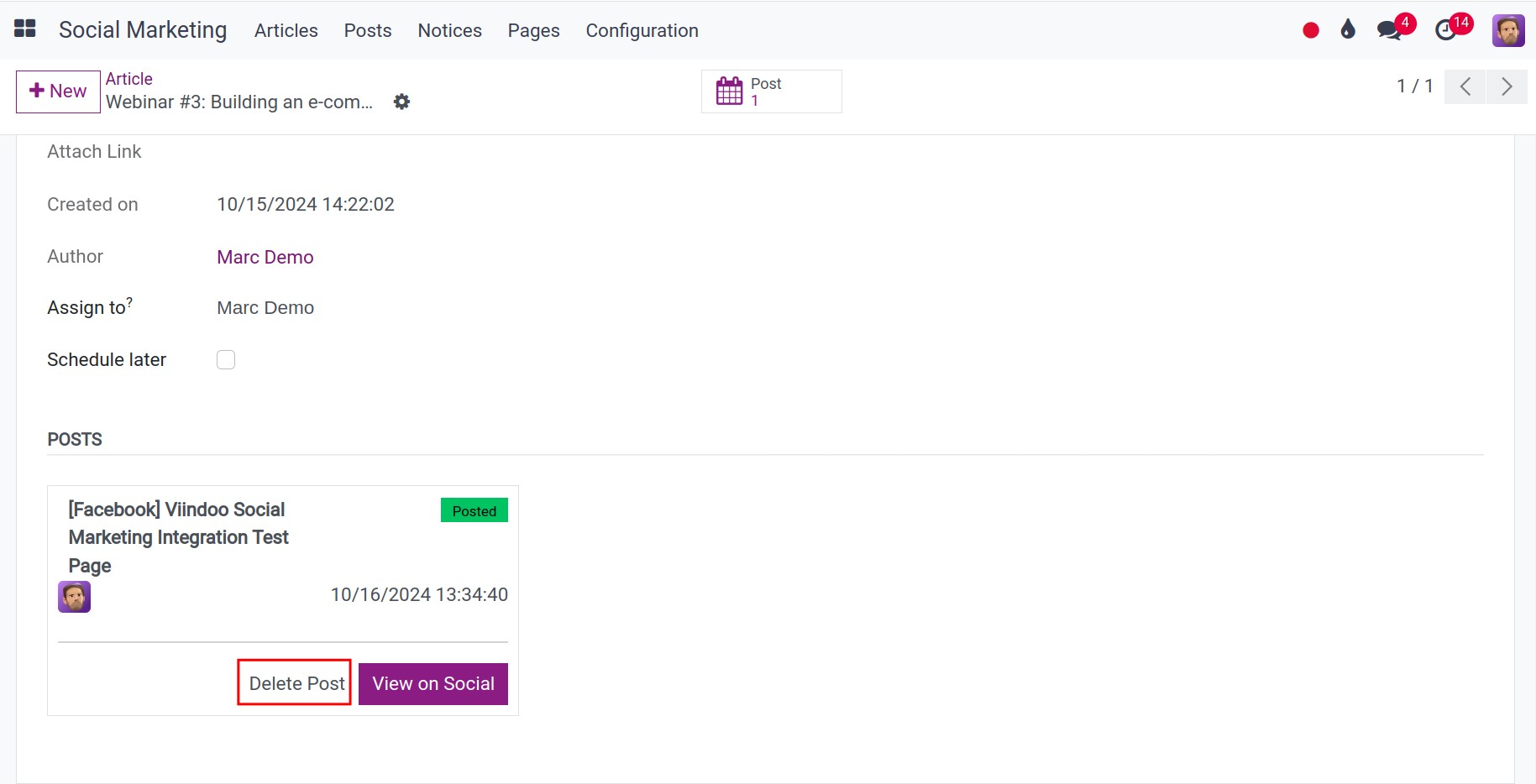
In case you want to delete all posts related to the article, click Cancel button right above the post.
Posts removed on Facebook
A post that you delete on Facebook, or move to its trash, is archived in Viindoo, never deleted, and its state does not change. To find it, open and use the filter Archived: the form of the post shows the ribbon Archived.
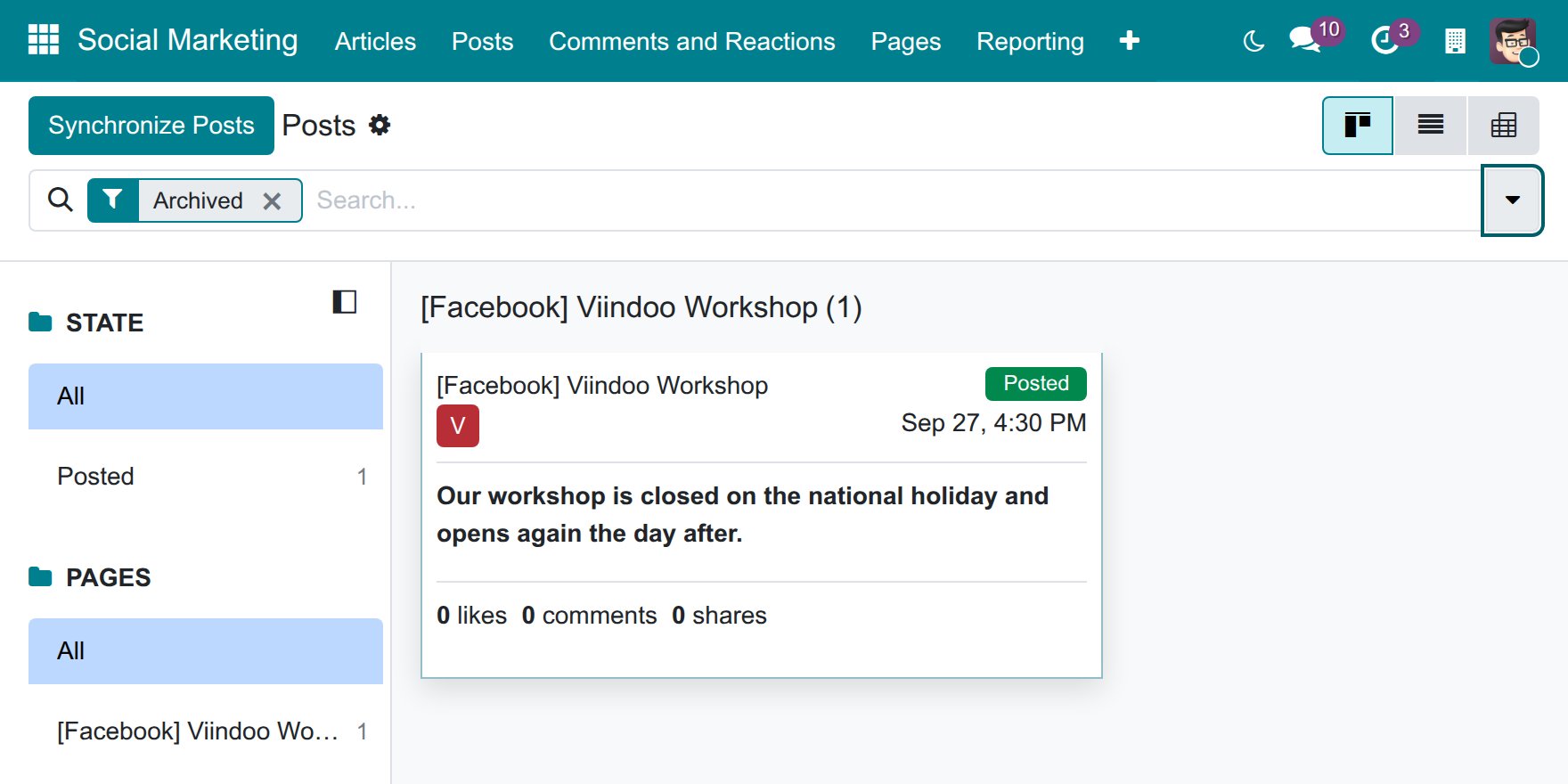
The post is archived:
at once, when Facebook tells Viindoo that the post was removed;
otherwise within a day, by the scheduled action Social: Archive Posts Removed from Facebook. It runs daily, reads the whole list of posts and of scheduled posts of each Facebook Page and archives the posts that the Page no longer lists. A Page is checked once a day at most, a Page that cannot be read is skipped and the other Pages are still checked;
or when you press Synchronize Posts on a page whose posts that button reads whole, which is the case of a page with fewer posts than the button reads (see the note above).
A post is never archived on a doubtful reading: when the list of the Page was not read to its end, or when it holds no post of the Page at all, nothing is archived.
On LinkedIn, a published or scheduled post that no longer appears in the list of LinkedIn is archived only when LinkedIn answers that the post does not exist; a post that LinkedIn still has stays active. The posts never checked come first, then the posts checked longest ago, so every missing post is checked over the following synchronizations. At most 50 such checks are made per page at each synchronization and the remaining posts are checked at the next one. When LinkedIn reports that a usage limit is reached or refuses the connection during these checks, the checks end with a warning message.
A post that Facebook lists again, for example one restored from the trash, becomes active again at the next check or synchronization.
A system administrator can switch the scheduled action off in (developer mode is required). The posts removed on Facebook are then archived only on the notice of Facebook or by Synchronize Posts.
See also
Related article
Optional module