
How to integrate Quality Control with Manufacturing orders
To control quality in production, install Manufacturing Quality Control and choose the Manufacturing operation type on the control points of your components and finished products. Confirming a manufacturing order then creates the finished-product check, and each work order gets the checks of the components it consumes. A work order does not start on unchecked components, it does not finish while one of its checks is still to do, and the manufacturing order cannot be closed while a check is still to do or a check of a control point marked No Proceed if Failed has failed. Recording the quantity produced is never refused.
Who |
Users with the Quality ‣ Administrator access right create the control points. Production staff with the Manufacturing ‣ User access right record the checks, with no Quality access right. Users with the Quality ‣ User access right decide about failed checks and waive checks. |
App |
Quality, Manufacturing |
Before you start
Install the Quality, Manufacturing and Manufacturing Quality Control modules, see How do I install Manufacturing Quality Control?. The module needs Stock Quality Control, which is installed with it.
Give yourself the Quality ‣ Administrator access right to open Control Points.
In Manufacturing ‣ Configuration ‣ Settings, tick Work Orders, so that operations and work centers are used on your manufacturing orders.
Have a bill of materials with an operation, see How to create bills of materials. On each component line that must be checked, fill Consumed in Operation to tell which work order uses it. A component line without it gets no check.
How do I install Manufacturing Quality Control?
Go to Apps.
Remove the Apps filter, type Manufacturing Quality Control in the search bar and click Activate if the module is not installed yet.
![The Manufacturing Quality Control module found in the Apps list]()
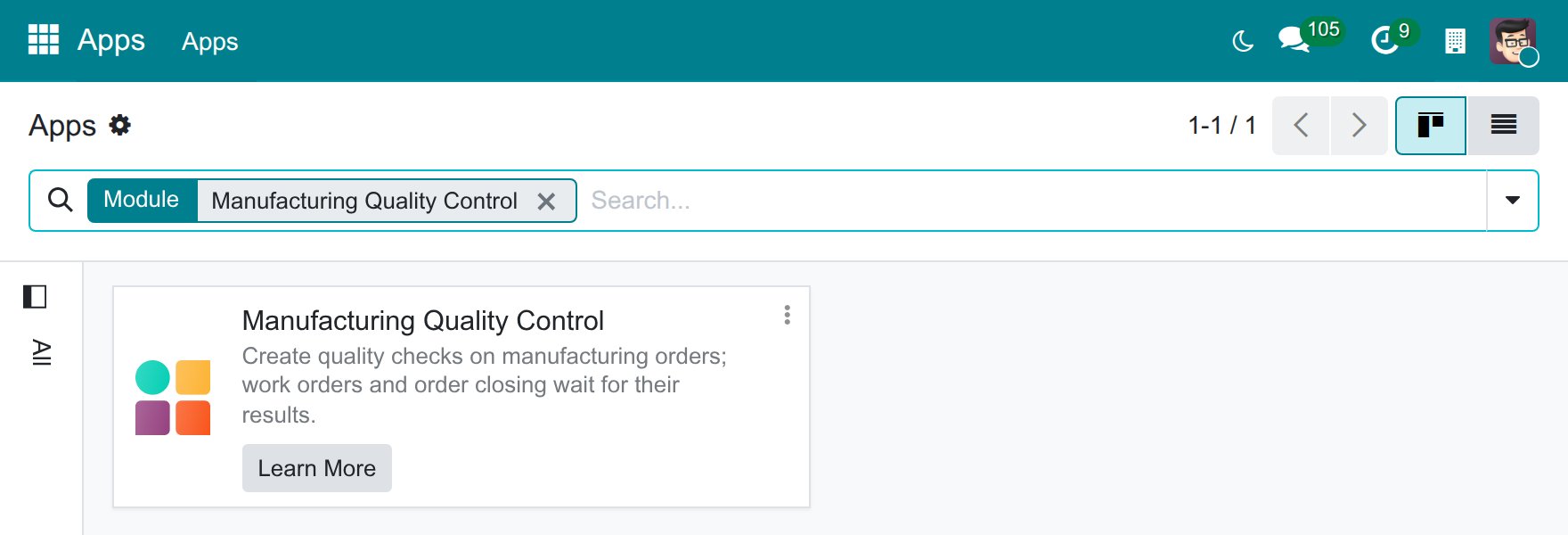
For the general steps, see How to install, upgrade and uninstall apps and modules.
How do I set up the control points of a manufacturing order?
This example makes office chairs, each from steel tubes and other components. The steel tubes are checked where the frame is welded, and the finished chair is checked before the order is closed.
Go to Quality ‣ Quality Control ‣ Quality Controls ‣ Control Points and click New.
For the finished product, choose the chair in Products and the Manufacturing operation type in Operation Types. Tick No Proceed if Failed to hold the order when the check fails.
![A Pass - Fail control point for the finished products on the Manufacturing operation with No Proceed if Failed ticked]()
For a component, create a second control point with the component in Products, here the steel tube, and the same Manufacturing operation type.
![A Pass - Fail control point for the steel tube on the Manufacturing operation]()
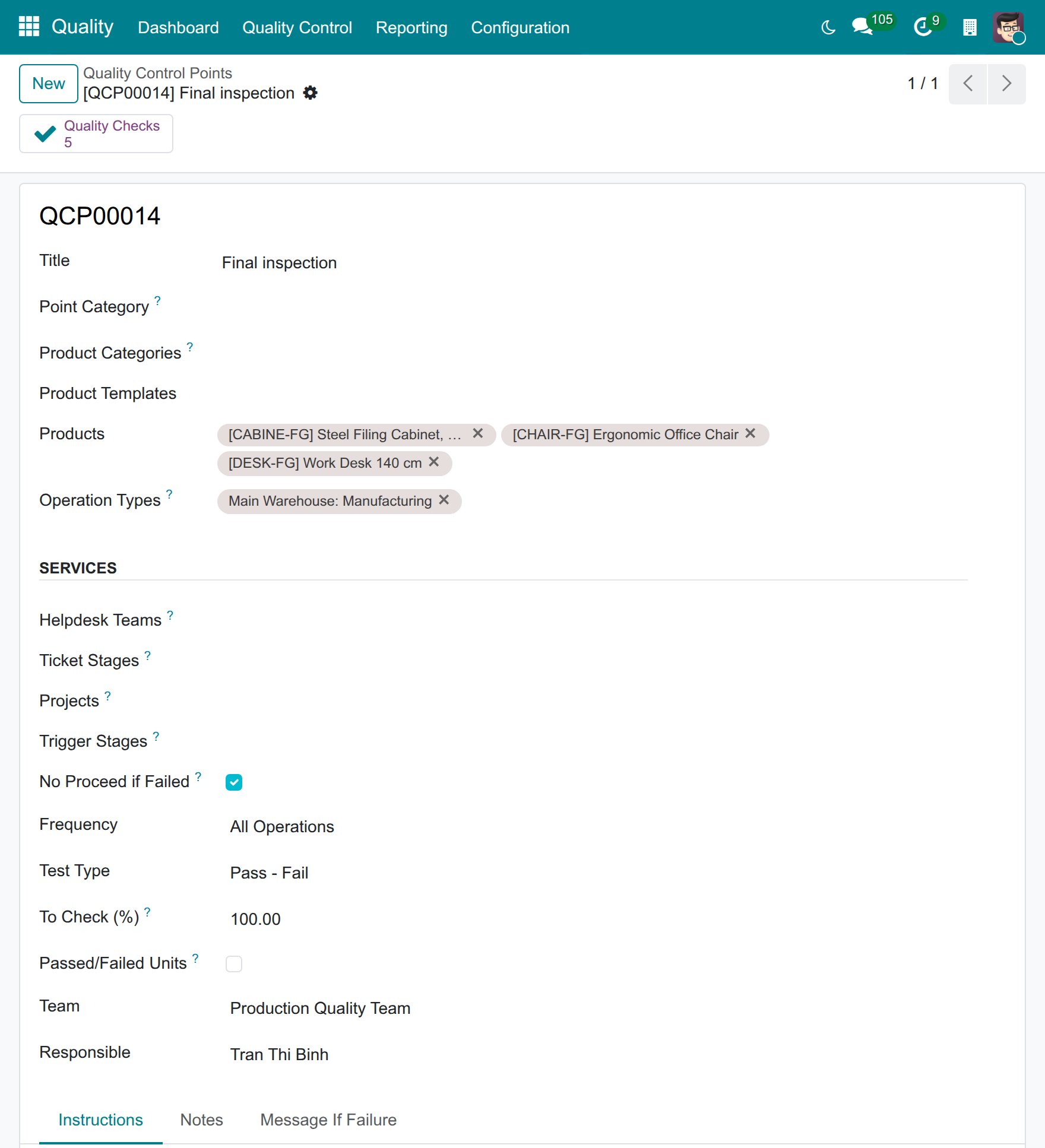
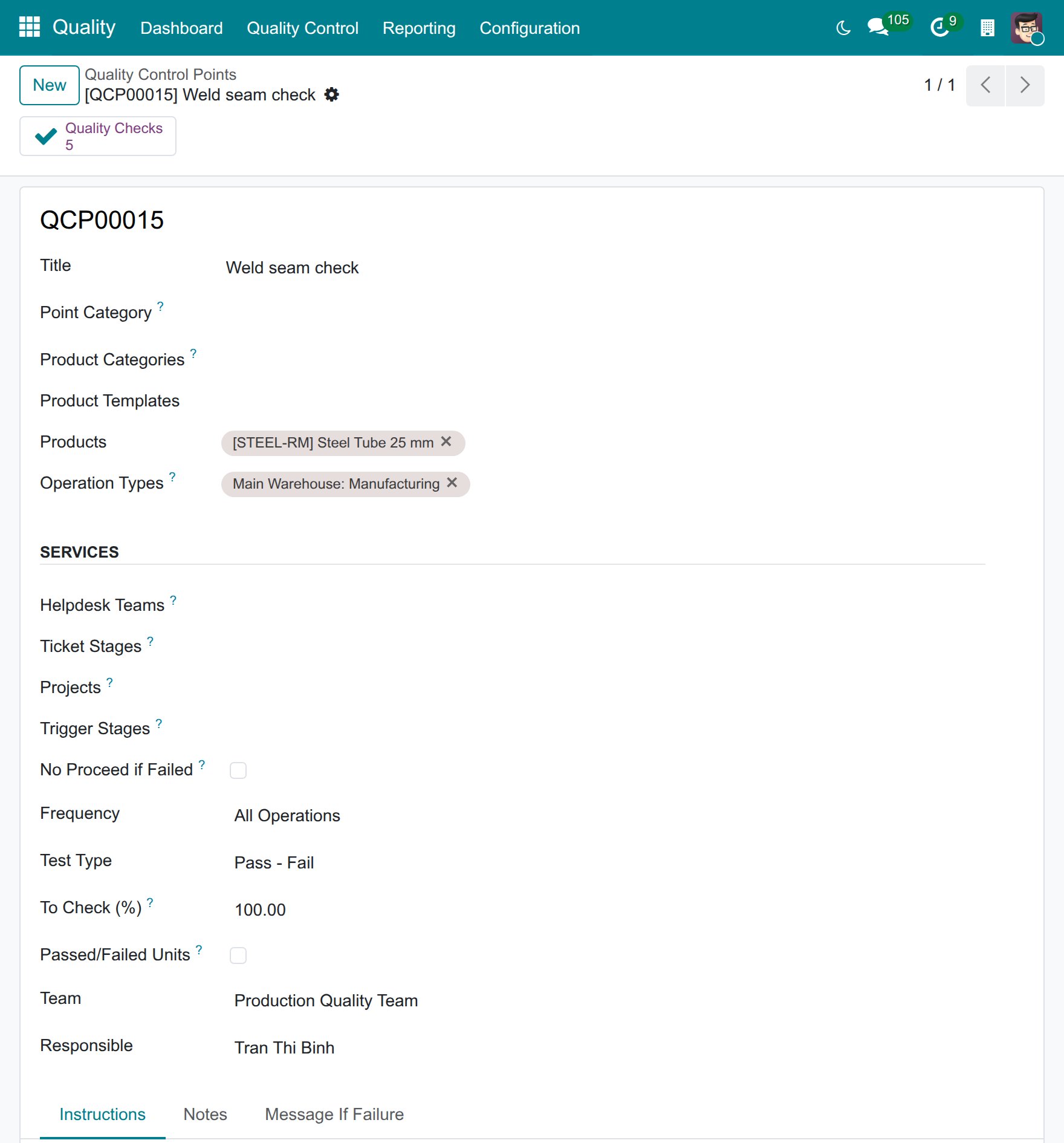
The other fields work as in Create control points and quality checks. With several warehouses, each one has its own Manufacturing operation type, prefixed with the warehouse name.
Note
The system judges a product against its control points once, when the order starts producing or consuming it. A control point created after an order was confirmed adds no check to that order, a control point without operation type is never applied to a manufacturing order, and a control point of another company is never applied to the orders of this company.
What happens when I confirm the manufacturing order?
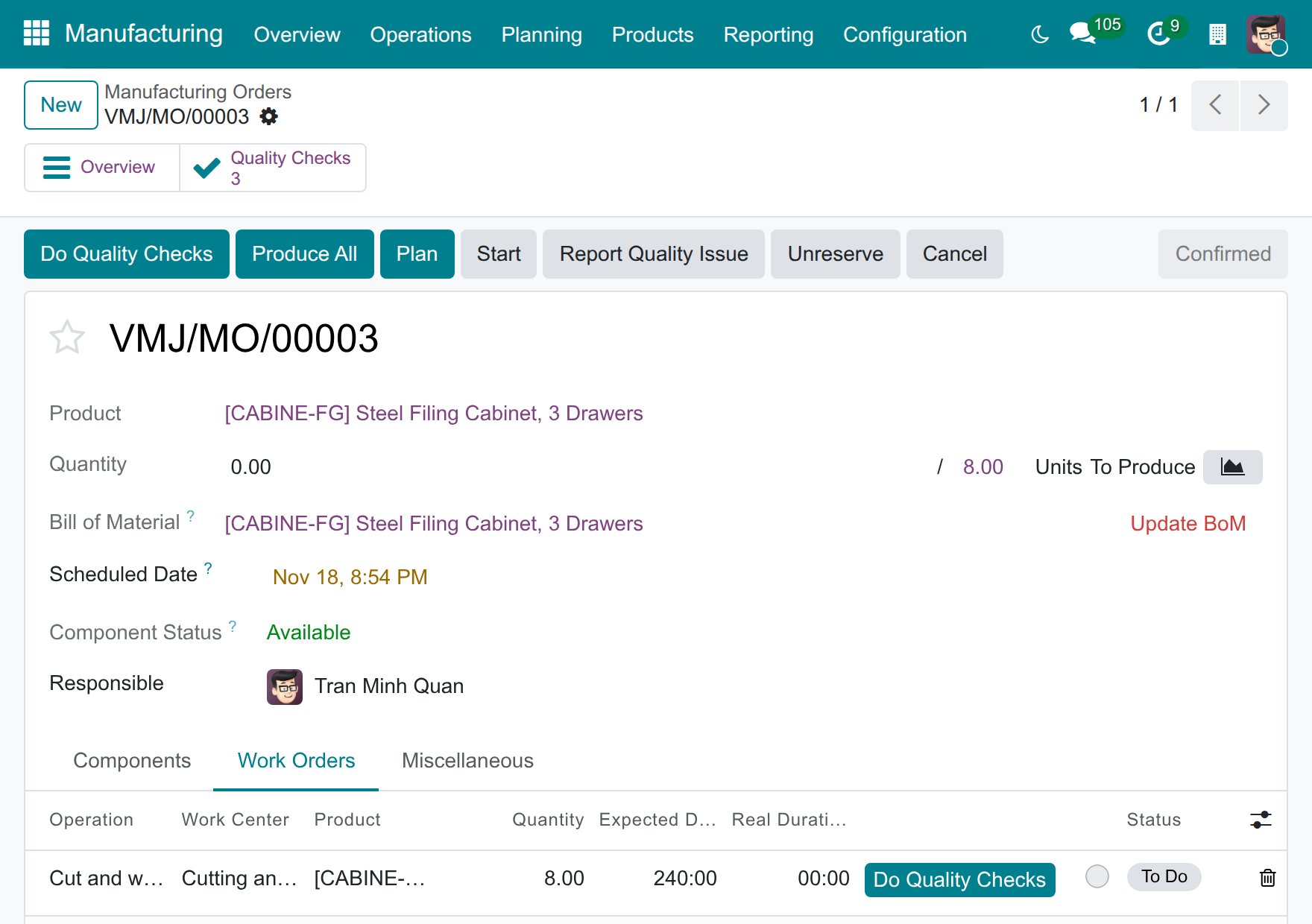
Create the manufacturing order and click Confirm. The system creates a check of the finished product on the order, and, on each work order, the checks of the components it consumes. The order shows the Quality Checks button with the number of checks and a highlighted Do Quality Checks button in the header while a check is still to do.
![A confirmed manufacturing order with the Do Quality Checks and Quality Checks buttons]()
Open the Work Orders tab. The work order that consumes the steel tube shows Do Quality Checks and no Start button yet.
![The Work Orders tab with the Do Quality Checks button on the work order]()
Click Do Quality Checks on the order or on the work order. A window opens with the control point and the product in its title and the position of the check. Click Pass or Fail, add a photo with Take Picture if you need one, and the window moves on to the next check.
![The quality check window with the Pass and Fail buttons]()
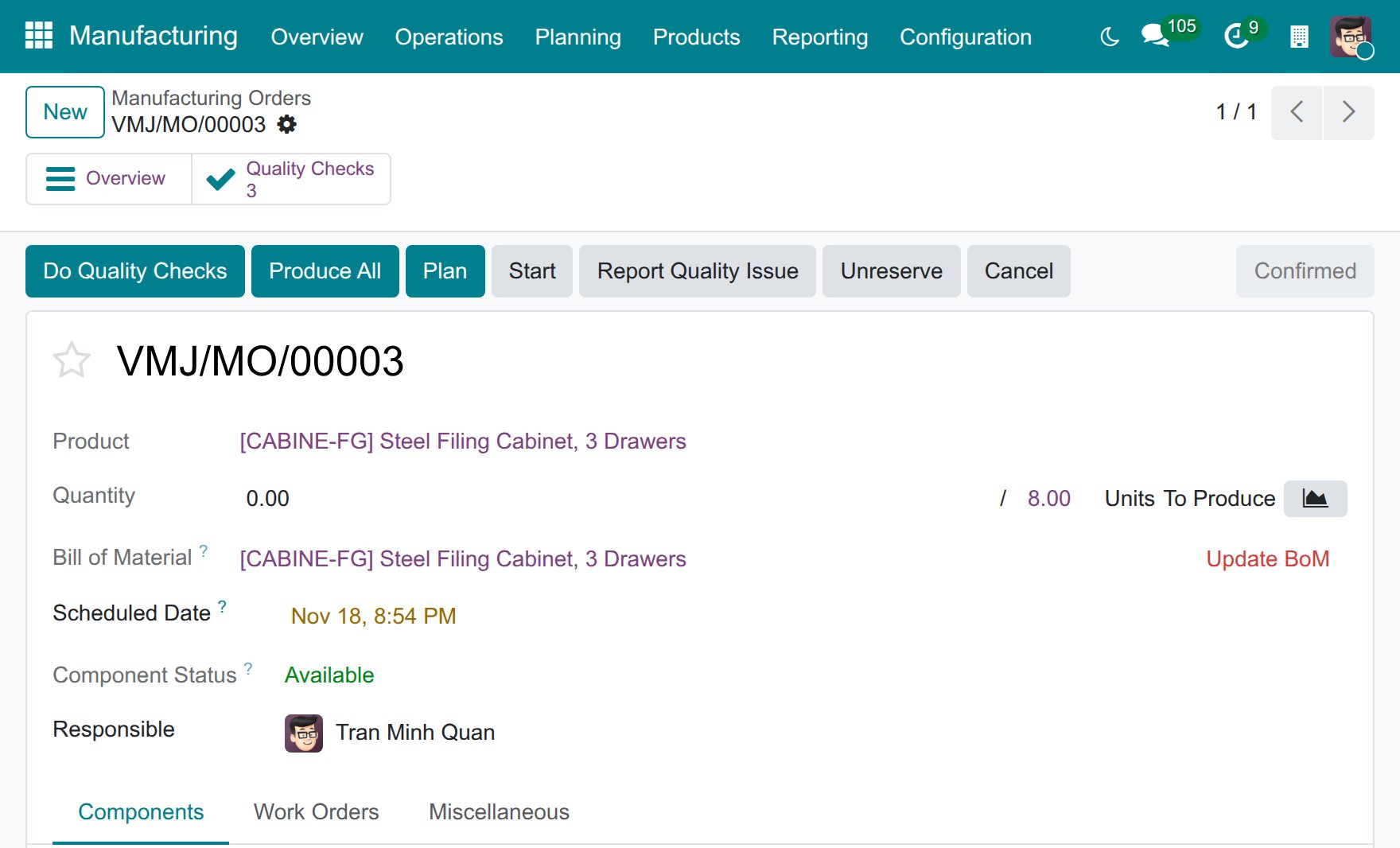
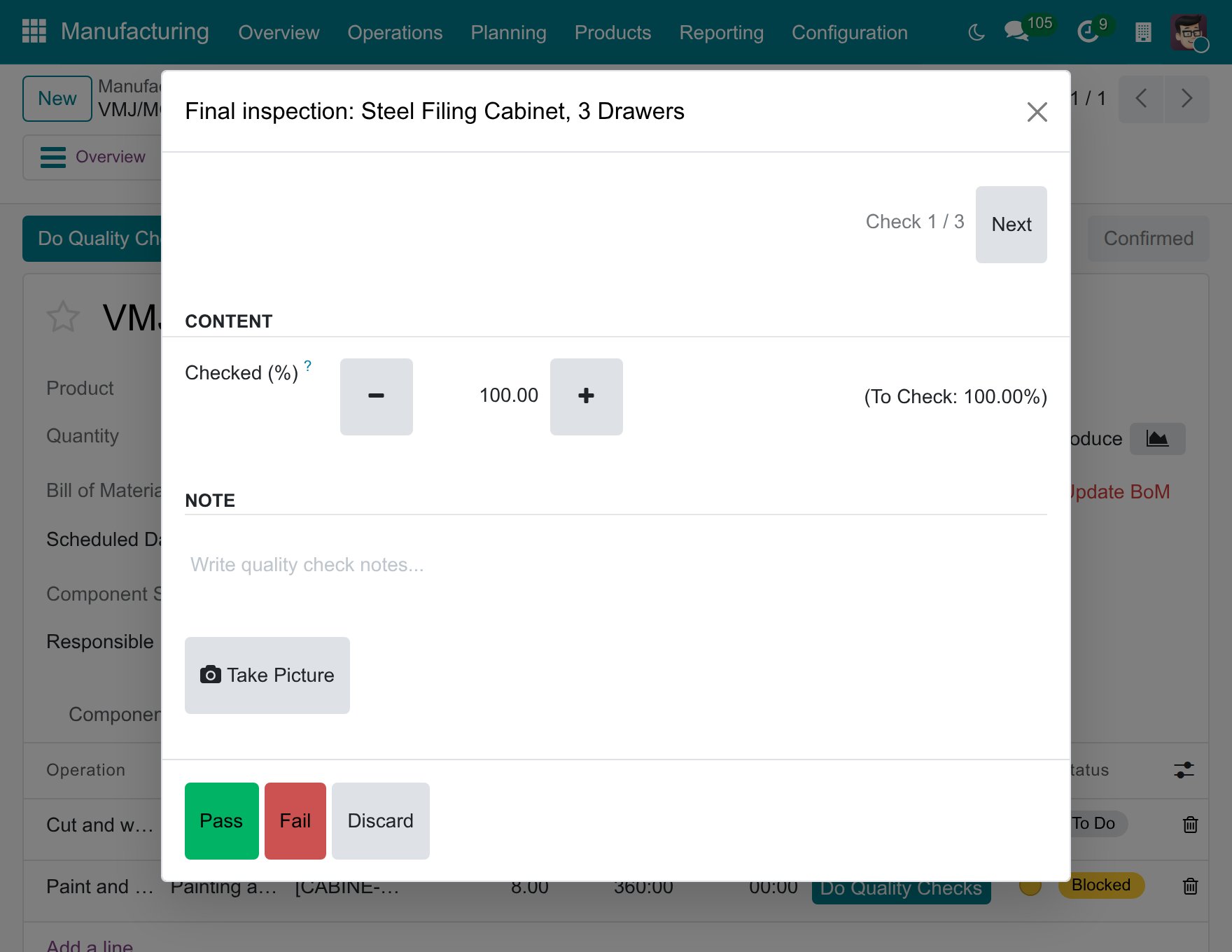
The finished-product check belongs to the order and is recorded from the order. A backorder gets its own checks for the remaining quantity. The checks follow the order while it changes: Update BoM keeps them in step with the new bill of materials, merging orders gives the merged order the checks of the orders it replaces, and cancelling an order deletes its checks that are still to do. Checks that already have a result stay.
Any production user records the results of the checks of the orders they can open, whoever the control point names as Responsible. They cannot create or delete a check, and they cannot take a failed check out of the Failed status.
What does a check that is still to do or has failed block?
Starting a work order. A work order starts once the checks of its components are recorded and no failed check of a No Proceed if Failed control point holds the goods. A check of the finished product does not hold the start. When you start several work orders at once, the free ones start and a notification names the ones that are held.
Finishing a work order. A work order does not finish while one of its checks is still to do or a failed check holds the goods.
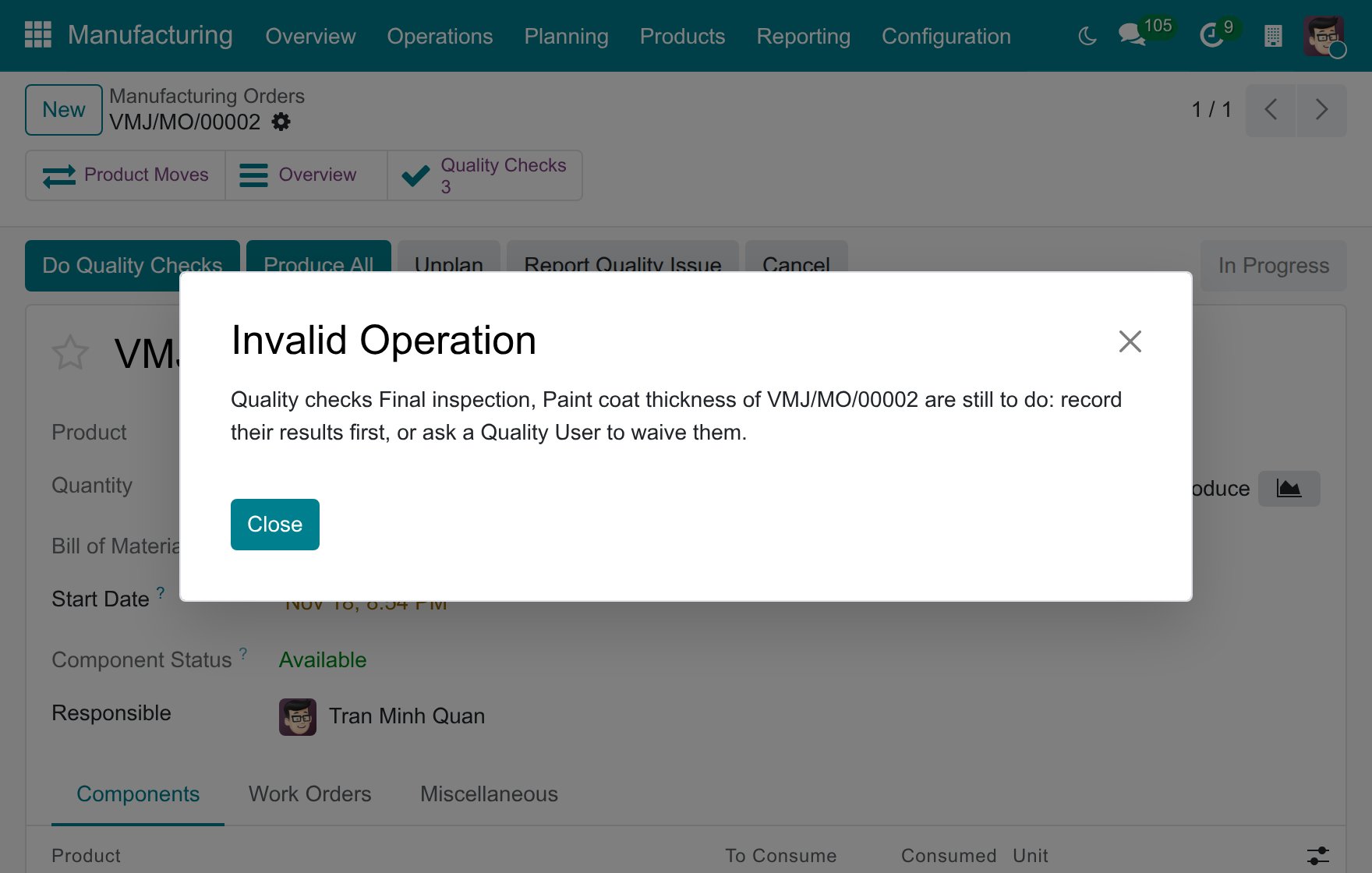
Closing the order. When you click Produce All while a check of the order or of one of its work orders is still to do, the order is refused. The message names each check and the way out.
![The message asking to record the quality check still to do before closing the order]()
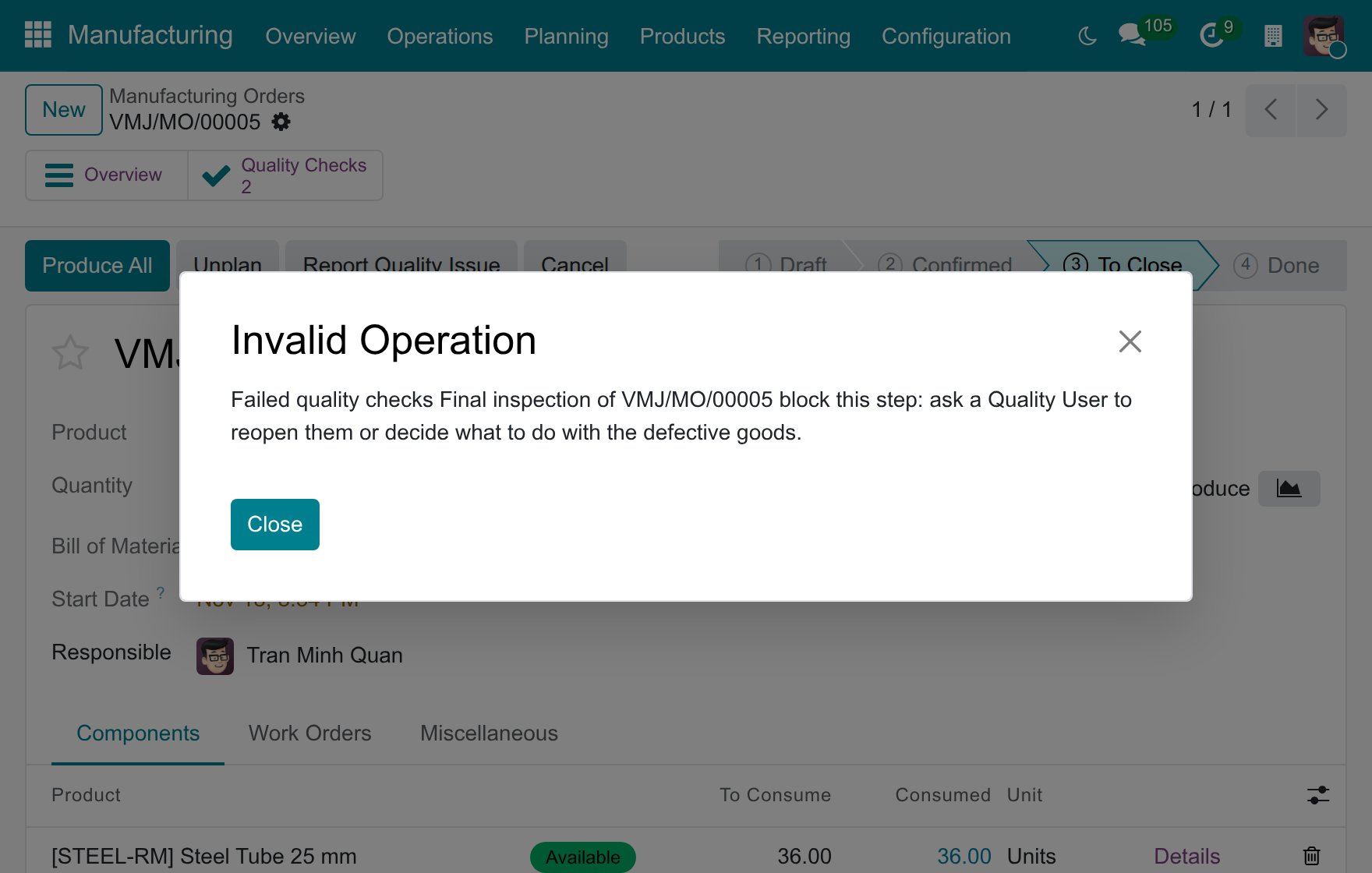
When the finished product fails and its control point has No Proceed if Failed, Produce All is refused again and the message names the failed check. The same rule holds the start and the end of a work order.
A failed check of a control point without No Proceed if Failed is recorded but holds nothing. To report the problem, click Report Quality Issue, see Create Quality Alerts.
How do I release the order after a failed check?
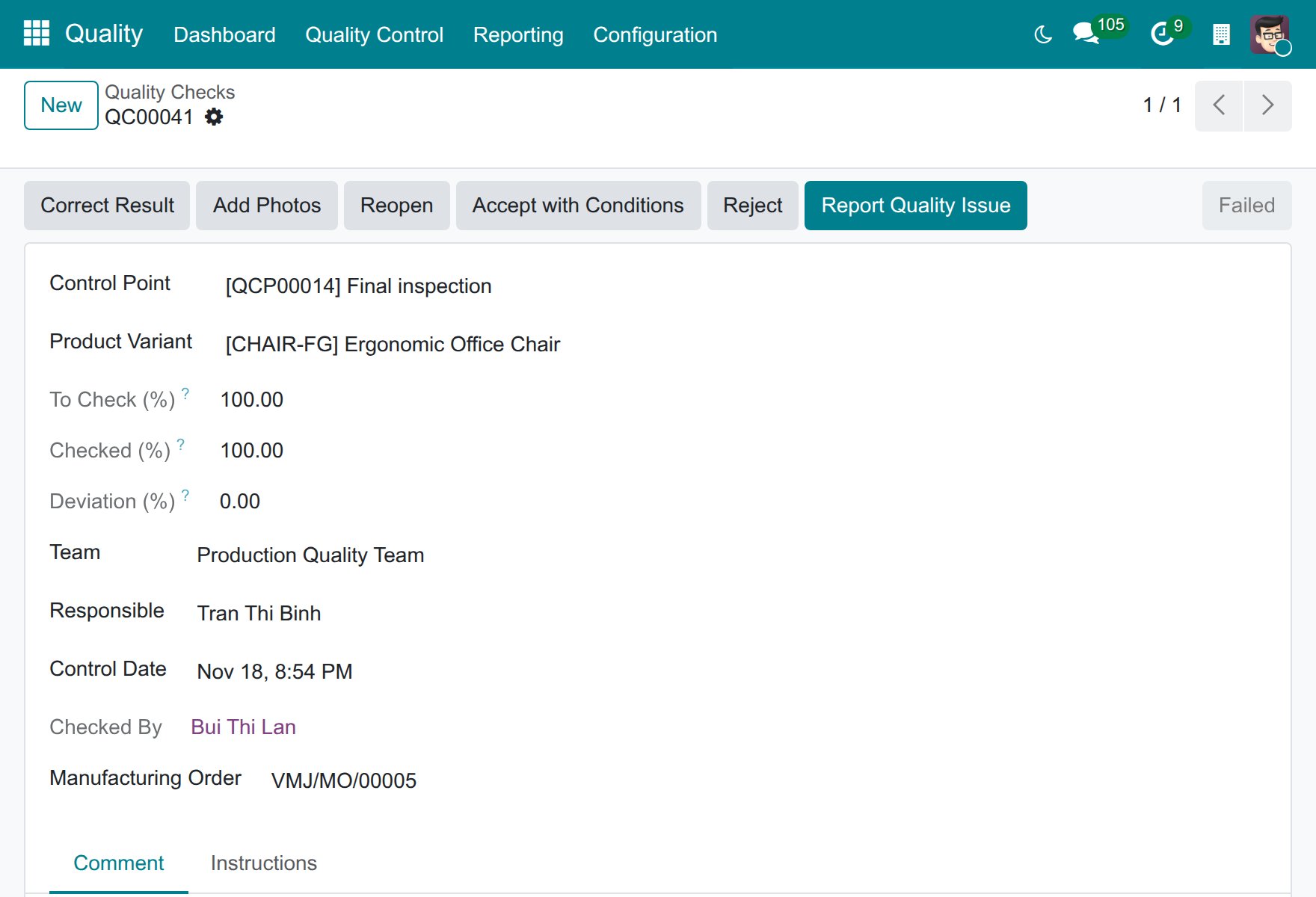
A Quality User decides, from the check, what happens to the goods.
Click the Quality Checks button of the order, or go to Quality ‣ Quality Control ‣ Quality Controls ‣ Quality Checks and use the Failed filter, then open the failed check.
![The failed check of the finished product with Correct Result, Reopen, Accept with Conditions and Reject]()
Choose the decision, see Create control points and quality checks:
Accept with Conditions releases the goods: the work order can start or finish and the order can close.
Reject keeps the failure and the hold. The order stays held and the production user cancels the order.
Reopen sends the check back to To do for a new inspection. Record Pass to release the goods or Fail to confirm the defect.
Waive, on a check that is still to do, makes it Waived: it holds nothing.
Go back to the order and click Produce All. The order is done.
![A manufacturing order in Done status]()
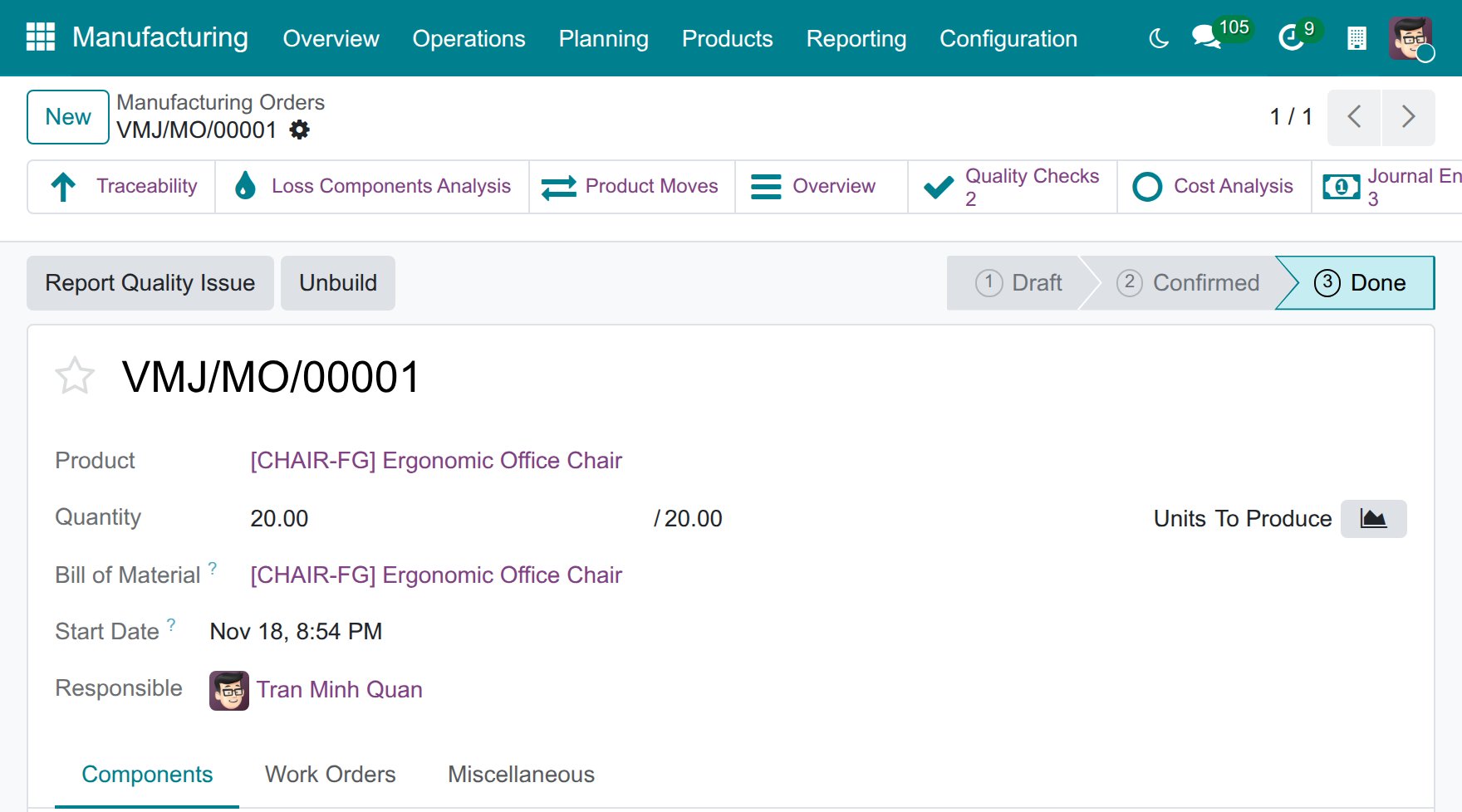
When the order or the work order is done or cancelled, a production user can open its checks but cannot change a result: only a Quality User does. To close an order partially, fill in the quantity actually produced, click Produce and Create backorder: the backorder is judged on its own and gets its own checks.
How do I find what waits for a check?
In Quality ‣ Quality Control ‣ Quality Controls ‣ Quality Checks, open the filters and choose Ready to Check (offered to users with a Manufacturing access right). In Manufacturing ‣ Operations ‣ Work Orders, the filter Waiting for Quality Checks lists the work orders whose checks are still to do. To find the checks or the alerts of one order, type its reference in the search box and choose Search Manufacturing Order for; with work orders turned on you can also search and group by Work Order and Work Center. See Read quality reports and SPC charts.
How do the checks run on the shop-floor tablet?
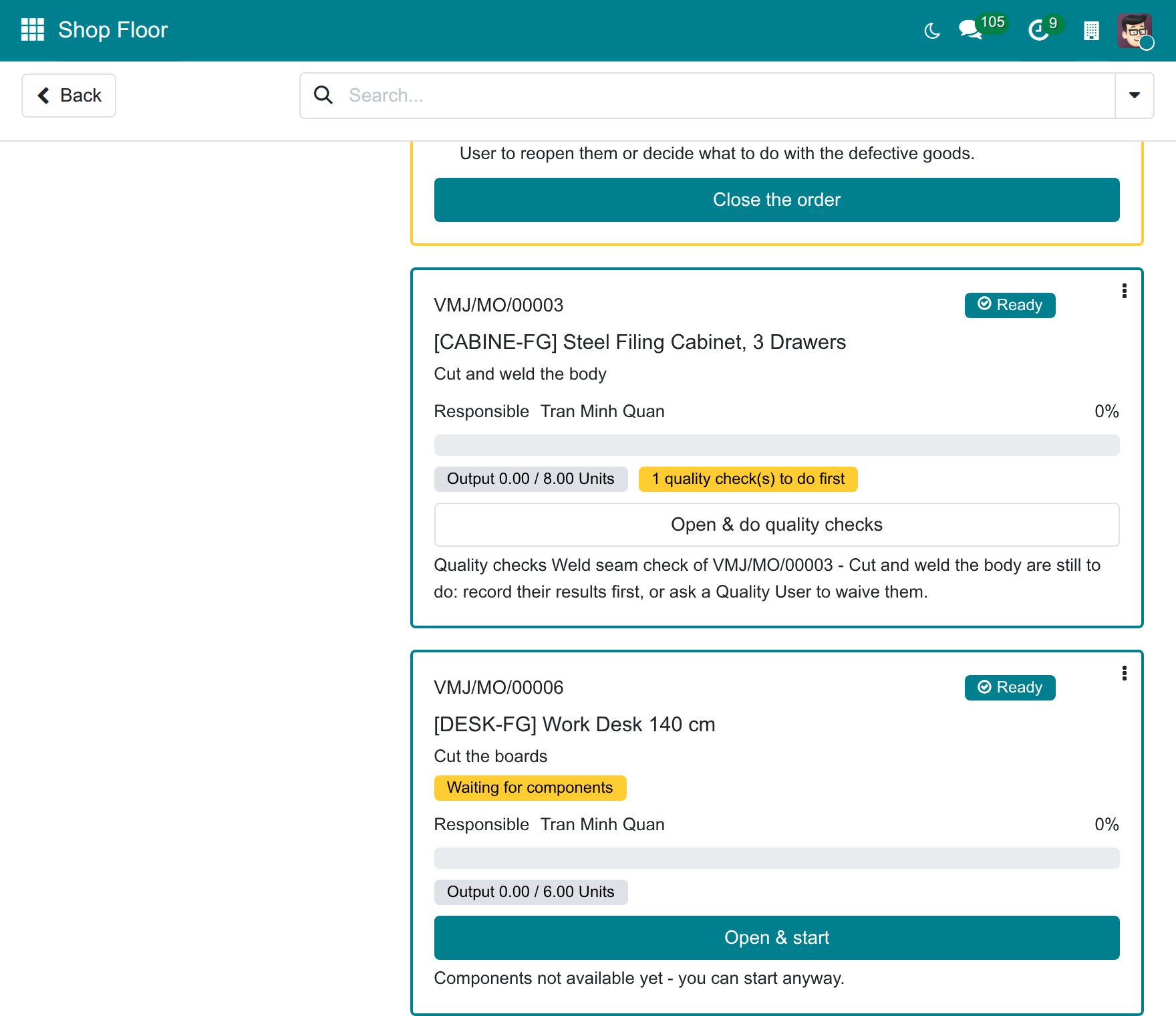
With the Shop Floor Control - Quality module, installed by itself when Shop Floor Control and Manufacturing Quality Control are both installed, the operator records the checks of a work order on the tablet, at the machine. The same rules of start, finish and closing apply. The card of a job on the job board tells what holds it, for example 1 quality check(s) to do first, and its button opens the checks.
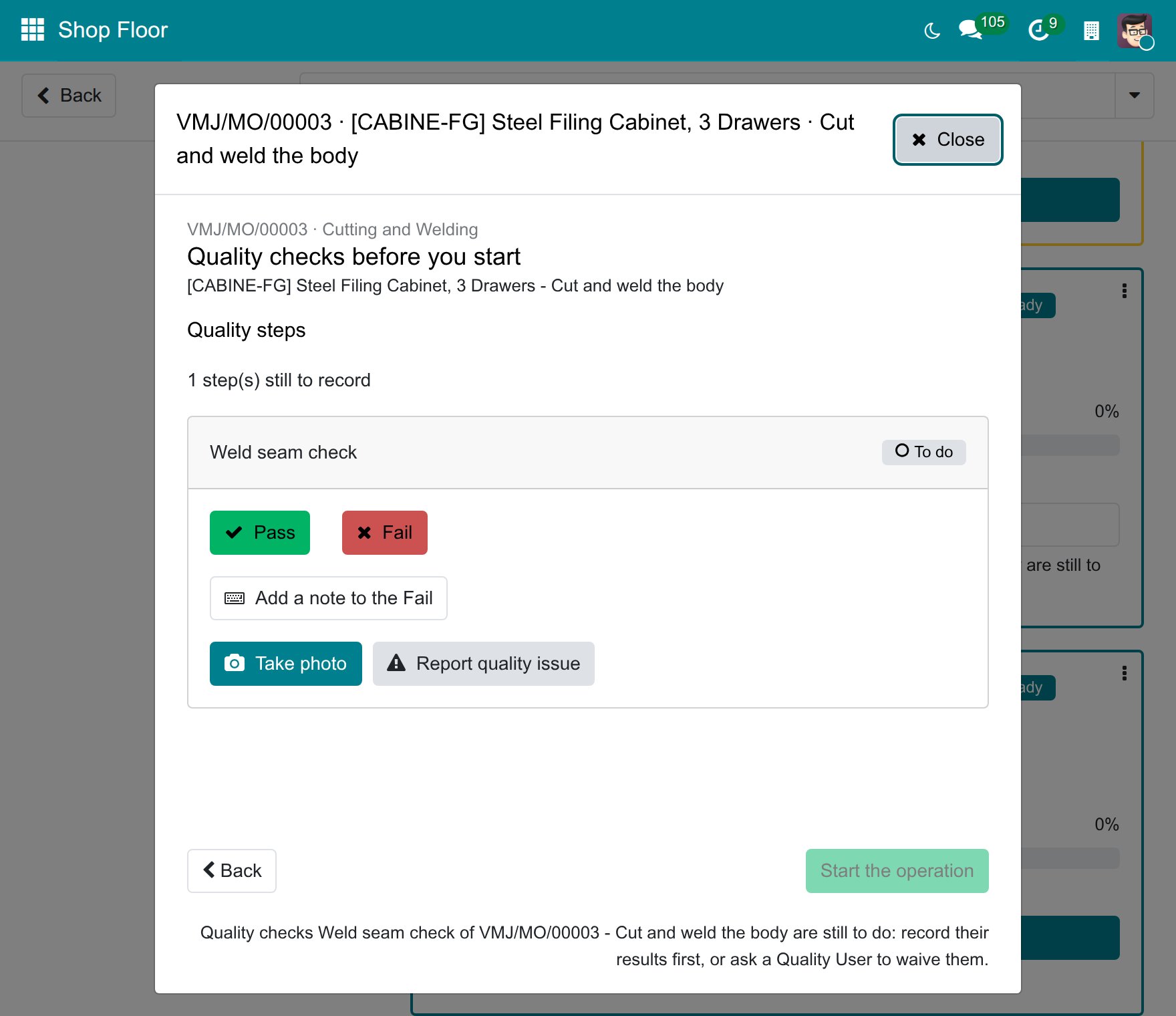
The screen Quality checks before you start lists every step with its status. Record each step, then start the operation: Start the operation stays disabled while a step is to do or a failed step holds the job.
Common errors
Problem |
What to do |
|---|---|
The order has no quality check after confirmation. |
Open the control point: its Operation Types must include the Manufacturing operation type and its products must include the product of the order or of a component. A control point created after the confirmation adds no check to the order. |
The work orders have no component check. |
On the bill of materials, fill Consumed in Operation on the component line. The checks of a component belong to the work order of that operation. |
Produce All says that quality checks are still to do. |
Record the result of the checks named in the message, or ask a Quality User to waive them. |
Produce All says that failed quality checks block this step. |
Ask a Quality User to accept the goods with conditions or to reopen the check. |
The Start button of the work order is missing. |
A check of a component is still to do: click Do Quality Checks on the work order. |
I cannot change the result of a check on a finished order. |
Once the order or the work order is done or cancelled, only a Quality User can change it. |
Next steps
Create Quality Alerts: report a quality problem found in production and follow its actions.
How to Integrate Quality Control with Transfers: check the goods when they are received or delivered.