

Time-Off Project Timesheet
by Viindoo
| Lines of Code | 947 |
| Technical name | viin_project_timesheet_leave |
| License | OPL-1 |
| Website | https://viindoo.com/apps/modules/19.0/viin_project_timesheet_leave |
| Read description for | v 13.0 v 14.0 v 15.0 v 16.0 v 17.0 v 18.0 |
| Required Apps | Time Off (hr_holidays) Project (project) Discuss (mail) Calendar (calendar) Employees (hr) |
| Extensions | Payroll - Work From Home Timesheet Exclude Time off Timesheet records on Payslip |

Time off, charged to the right project
A project and task on the time-off record, so absence lands where the cost belongs.
Time-Off Project Timesheet (technical name viin_project_timesheet_leave) is an Odoo 19.0 app for Odoo Community and Odoo Enterprise and Viindoo Cloud, built for project manager, team member, delivery lead, finance.
At a Glance
The facts of Time-Off Project Timesheet, version 0.1.1, in one place. Published by Viindoo.
How It Works
Three screens.
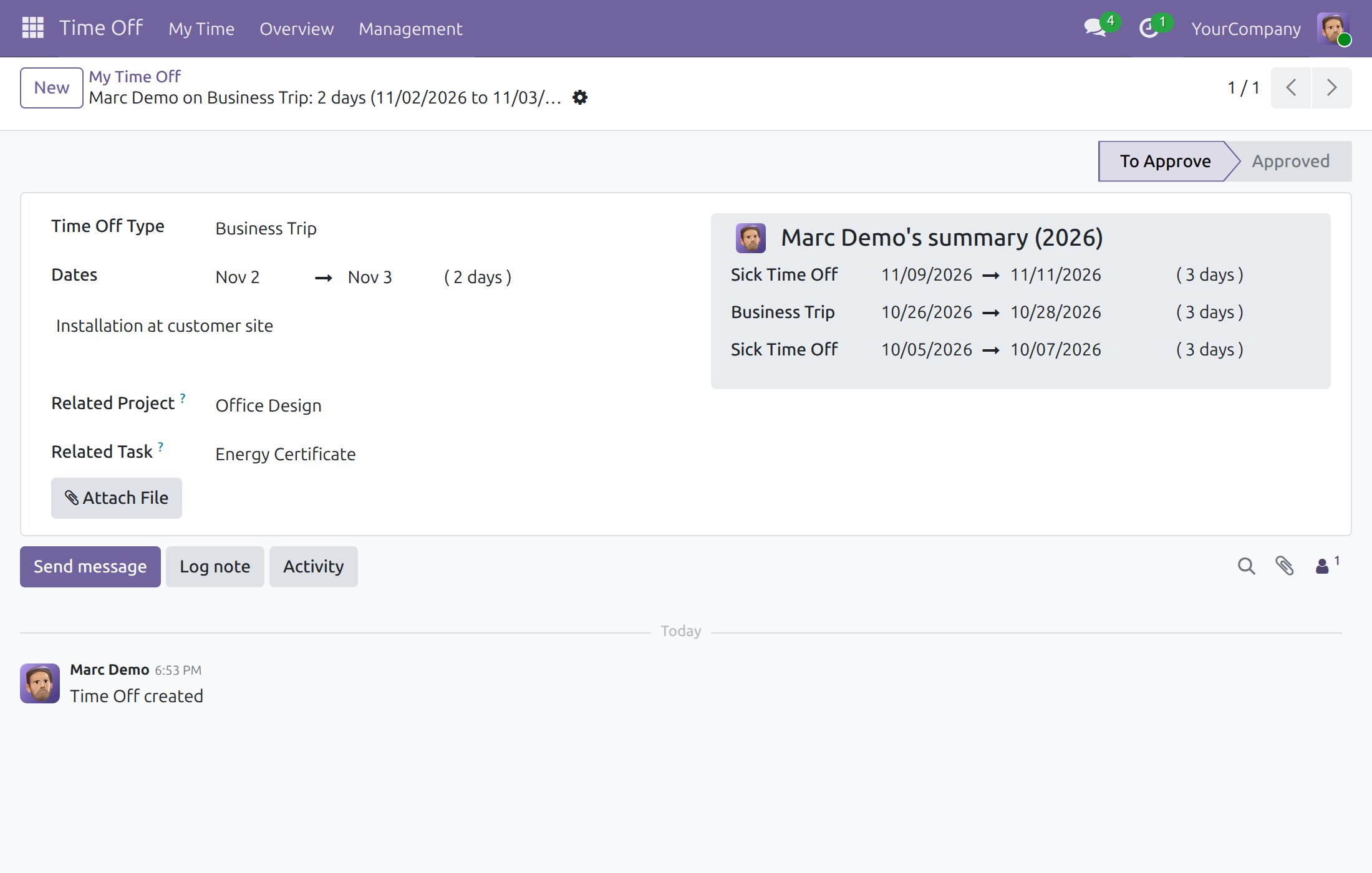
The time off
Where the absence is recorded.
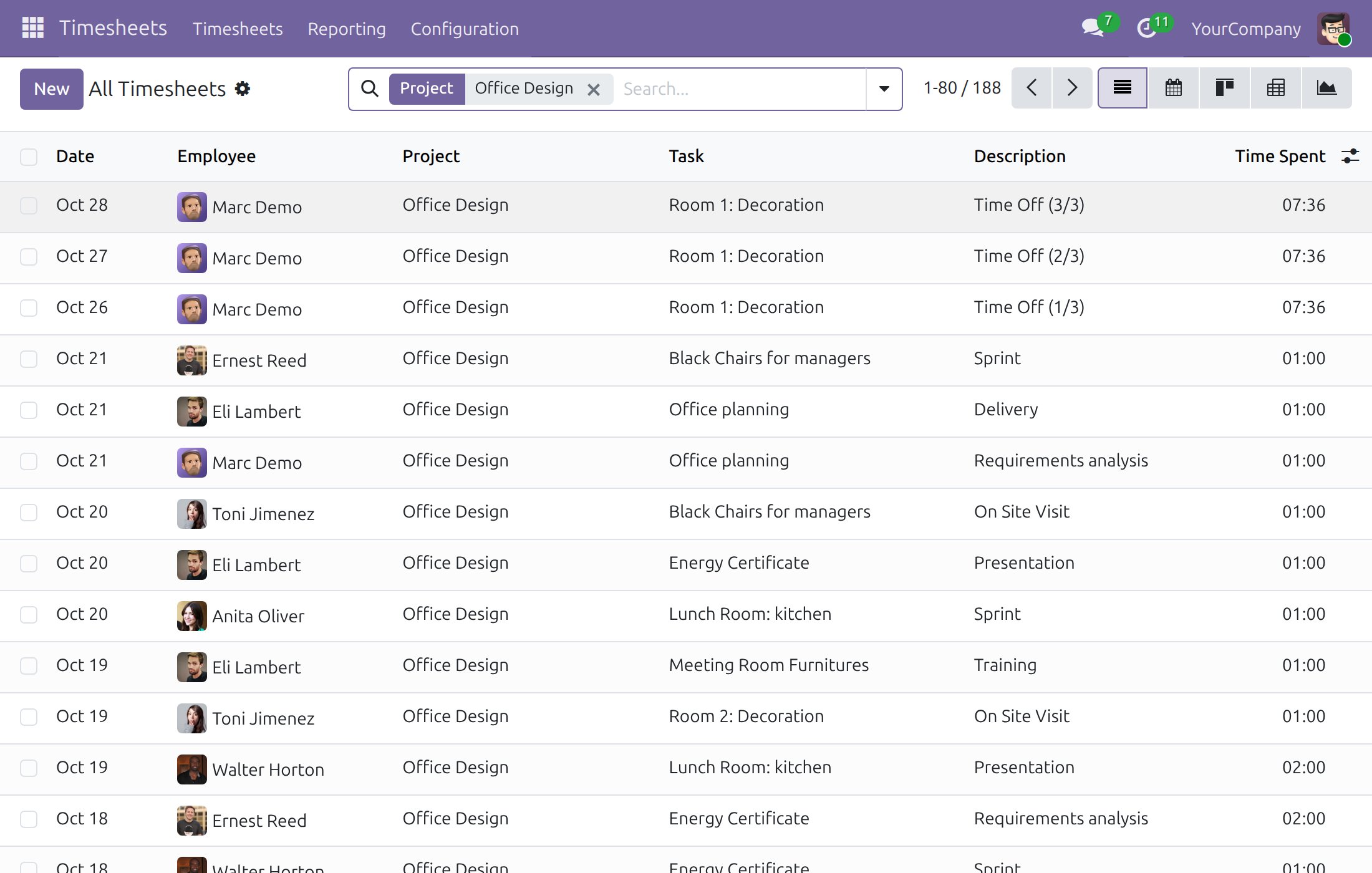
The timesheet it makes
Booked to the right project.
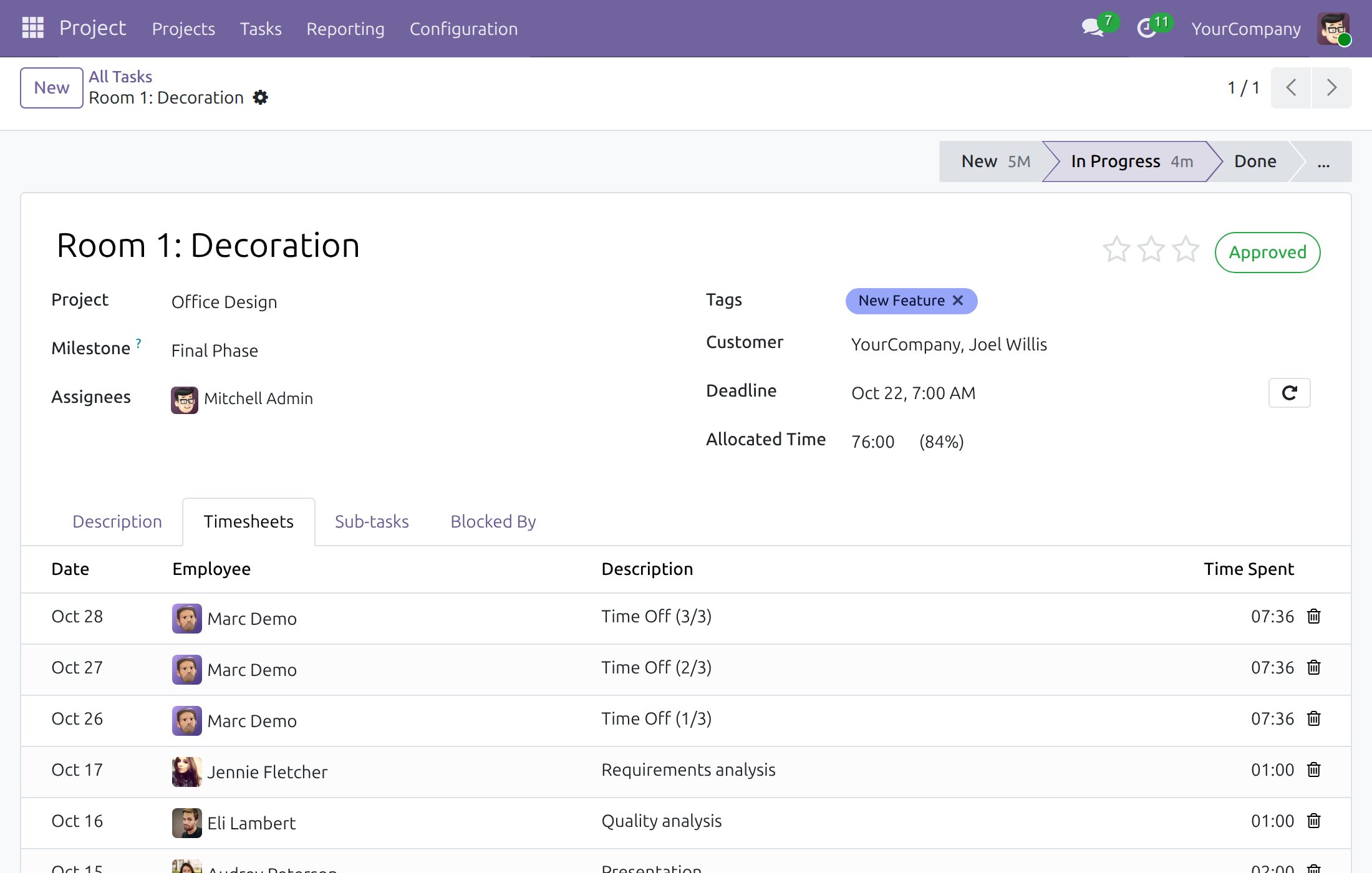
The projects
That carry the hours.
What You Get
Project Required option on each time off type
Related Project and Related Task on the time off request
Timesheet lines booked on that project and task at approval
Filter to leave time off out of the timesheets
Works with the standard time off approval flow
Hours follow the employee's working schedule, one line per working day
More Screens
Everything below was taken on a database seeded with real business data, on this series - not a mock-up and not a screenshot from an older version.
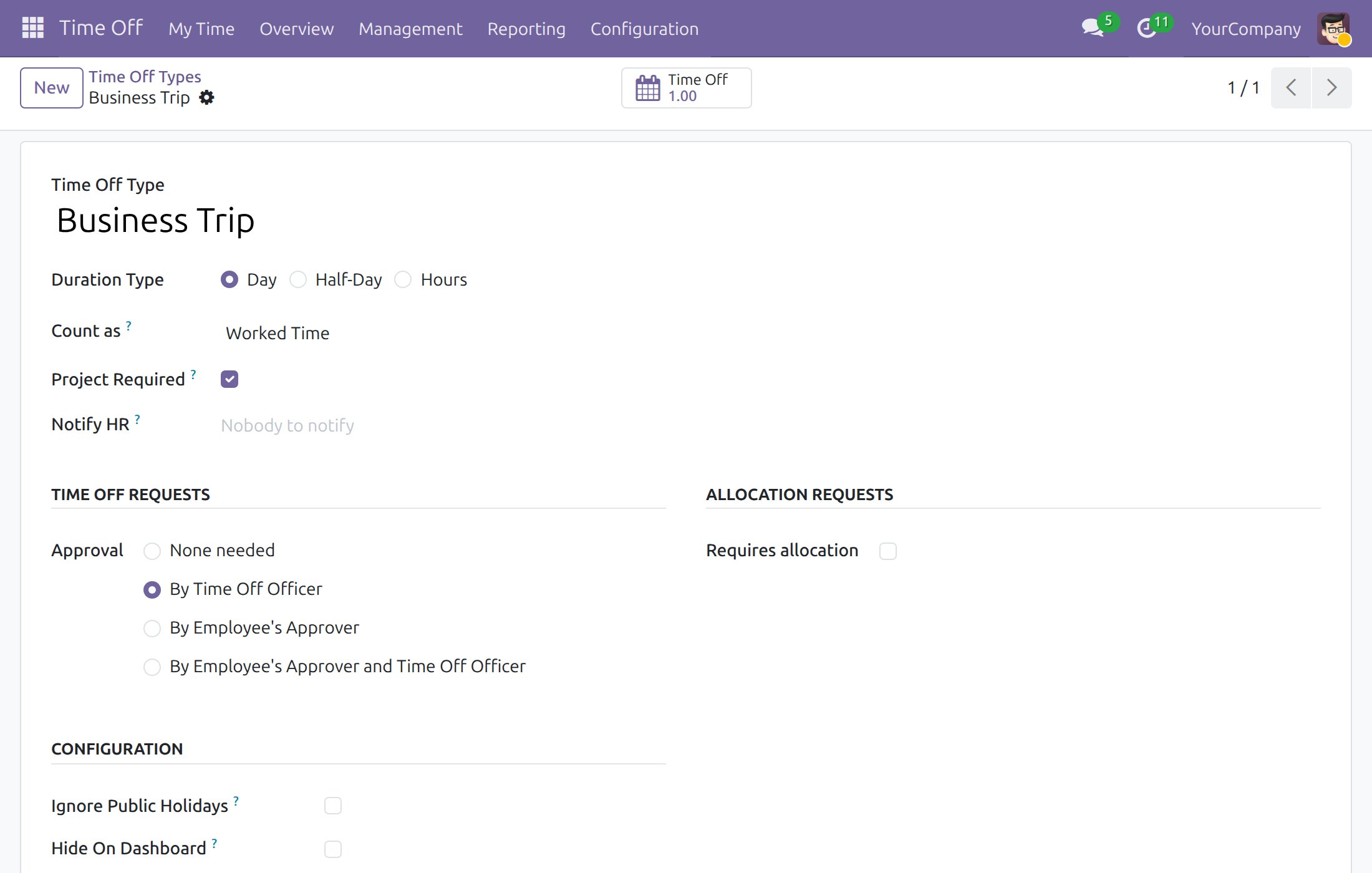
Time off type that requires a project
What This App Does Not Do
Read this before you buy. Everything below is something the app deliberately leaves to another app or to you.
Whether absence is charged to a project is your rule.
Approval stays in the Time Off app.
What is invoiced remains a billing decision.
Time Off and Project (with timesheets).
Works Well With
Apps from the same stack, built to fit this one:
Who Should Use Time-Off Project Timesheet?
Project manager
Plans and reports from the same records.
Team member
Sees what is expected this week.
Delivery lead
Reads progress that was measured.
Finance
Costs a project from what was logged.
Frequently Asked Questions
What does Time-Off Project Timesheet do?
A project and task on the time-off record, so absence lands where the cost belongs.
What does Time-Off Project Timesheet not do?
It does not decide policy. Whether absence is charged to a project is your rule. It does not approve leave. Approval stays in the Time Off app. It does not bill it. What is invoiced remains a billing decision. It needs both apps. Time Off and Project (with timesheets).
Who is Time-Off Project Timesheet for?
Project manager: Plans and reports from the same records. Team member: Sees what is expected this week. Delivery lead: Reads progress that was measured. Finance: Costs a project from what was logged.
Which Odoo version and editions does it support?
Odoo 19.0 - Odoo Community, Odoo Enterprise, Viindoo Cloud. Upgrades to a newer Odoo series are a separate purchase for that series.
What does it depend on?
It installs on top of: project_timesheet_holidays. Odoo installs them with it.
How do I set it up?
Tick Project Required on a time off type, then employees pick a project and task on their requests. A request of that type cannot be saved or validated without a project, however it is created.
What works well with it?
Project extensions (viin_project): The project layer these build on. Progress & velocity (viin_project_progress): How fast the work is actually going.
Can I try it before buying?
Yes - the Live Preview button at the top of this page opens the module's own screen on a working database.
How do I get support?
Open a ticket at viindoo.com/ticket with your Odoo version and the technical name viin_project_timesheet_leave; pre-sales questions go through viindoo.com/contactus.
See Time-Off Project Timesheet in Action
Live demo: v19demo-int.viindoo.com/web#action=hr_holidays.hr_leave_action_action_approve_department
Need help with Time-Off Project Timesheet?
For questions, implementation support or a custom feature, contact Viindoo.
Pre-Sales & Partnership
viindoo.com/contactusUpgrades to a newer Odoo series are a separate purchase for that series.
All Viindoo apps: Viindoo Apps
Technical Requirement
Changes log
0.1.1 - Latest on the 19.0 line
- Time off requests carry a project and task; approval books the hours on them.
Time-Off Project Timesheet
Audience: Time Off administrators, employees who travel or work away from the office, Time Off officers who approve requests, and project managers who follow the hours booked on their projects.
Overview
Employees on a business trip or an assignment outside the office are absent from the office but still working for a project. This module lets a time off request name the project and, optionally, the task the time is spent on. When the request is approved, the hours appear on that project and task as timesheet lines, so project hours and project costs stay complete.
The process runs in four steps:
- The Time Off administrator marks a time off type as requiring a project.
- The employee requests time off of that type and picks the project (and task).
- The Time Off officer approves the request.
- The hours are booked on the project and task, where the project manager follows them.
| Role | What they do | Access right to assign |
|---|---|---|
| Time Off administrator | Sets up the time off types that require a project. | Time Off: Administrator |
| Employee | Requests time off and chooses the related project and task. | Time Off: no extra right needed to request; Timesheets: User (own timesheets only) to see the resulting hours |
| Time Off officer | Approves or refuses the requests. | Time Off: Officer (manage all requests) |
| Project manager | Follows the time off hours on projects and tasks. | Project: User or Administrator, Timesheets: User (all timesheets) |
Setup (for the Administrator)
Installation
- Open Apps.
- Search for Time-Off Project Timesheet.
- Press Install. The Time Off and Project apps it relies on are installed with it.
Configure a time off type
- Open Time Off > Configuration > Time Off Types and open a type, or press New (for example Business Trip).
- Tick Project Required. Every request of this type has to name a project, however the request is created, and the type counts as worked time (Count as: Worked Time), because the employee is working while away.
- Leave Project Required unticked for ordinary absences such as paid or sick leave. Naming a project on a request is then optional, and the absence is counted as time off.
- Press Save.
Note
A request that names a project must use a project on which timesheets are allowed, and its task must belong to that project.
Employee: request time off for a project
Request time off
- Open Time Off > My Time > My Time Off and press New.
- Choose the Time Off Type that requires a project, for example Business Trip.
- Enter the Dates and a description.
- Choose the Related Project. It is mandatory for a type that requires a project and optional for the others.
- Choose the Related Task among the tasks of that project (optional).
- Press Save. The request waits for approval.
The project and task can be changed while the request is still waiting for approval. After approval they are locked.
For a type that requires a project, a request without one cannot be saved or validated: the message names the type and asks for a project. This holds for requests created by import or on behalf of an employee as well.
Time Off officer: approve the request
- Open Time Off > Management > All Time Off and open the request with the status To Approve.
- Check the dates, the Related Project and the Related Task.
- Press Validate to approve it, or Refuse to reject it.
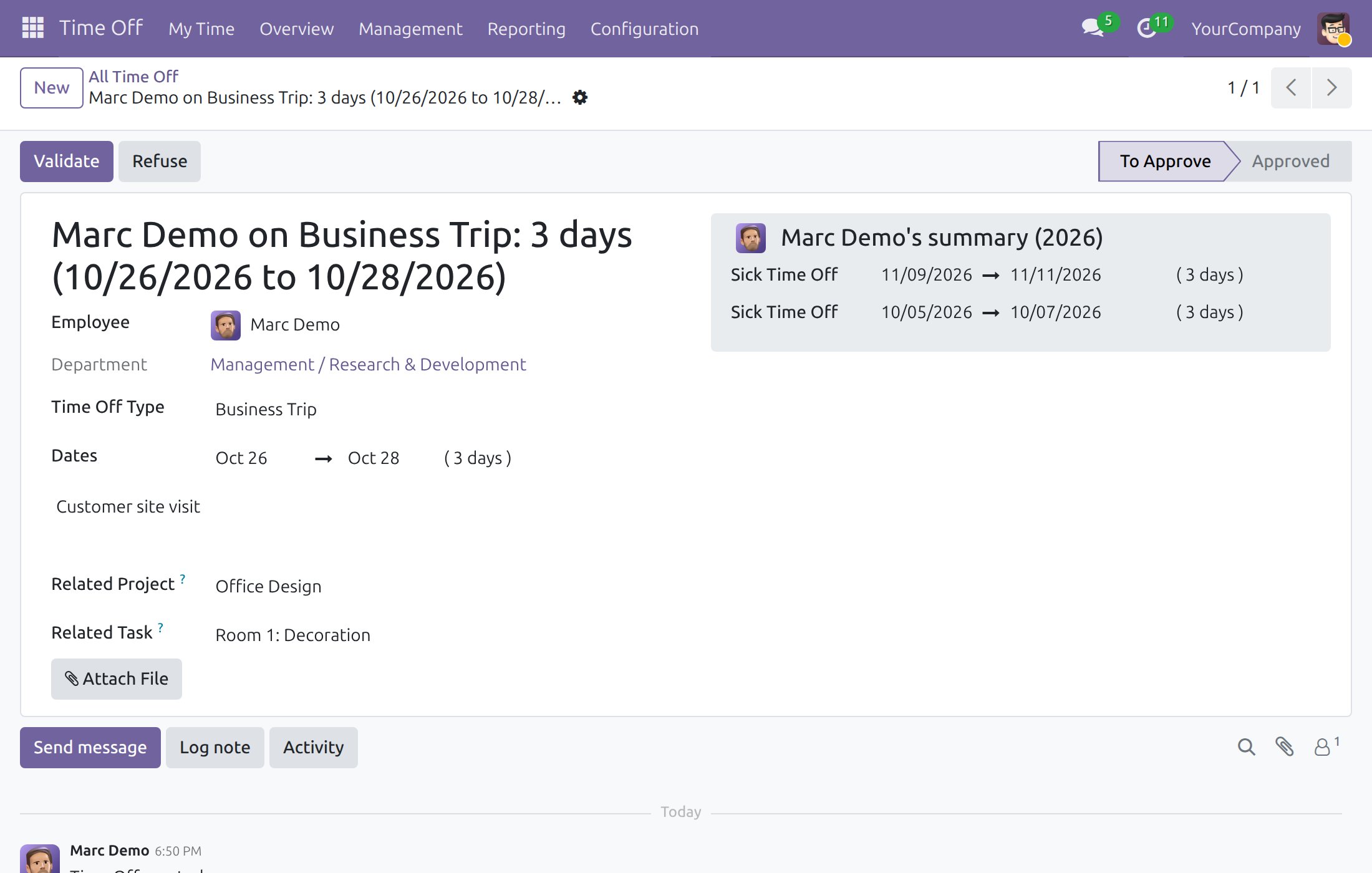
When the request is validated, one timesheet line is created for each working day of the employee, on the chosen project and task, with the description Time Off. The hours follow the employee's working schedule. If the request is validated again after a change, the lines are replaced and never duplicated. A request without a project keeps the standard Odoo behaviour: its hours go to the company's internal time off project.
Project manager: follow the hours
On the project
- Open Timesheets > Timesheets > All Timesheets.
- Search the Project you manage. The time off lines are listed with the other timesheets of the project.
- To leave the time off lines out, open the filter menu and choose Without Time-off Timesheet.
On the task
Open the task (Project > Tasks > All Tasks) and select the Timesheets tab. The time off lines of the employees show with the description Time Off, together with the hours worked on the task.
Note
Project cost and profitability figures that rely on accounting entries need the optional accounting module of your edition; the hours themselves are available without it.
Troubleshooting
- The Related Project field does not offer my project. Only projects on which timesheets are allowed are listed. Allow timesheets in the project settings.
- The Related Task field is empty. Choose the project first: only the tasks of that project are offered.
- No timesheet line appears after approval. The request must name a project and be in the Approved status; check the employee is active and the dates fall on working days.
- I get a message that the time off type requires a related project. The type is marked Project Required. Choose a Related Project on the request, or ask the Time Off administrator to untick Project Required on the type.
- I cannot change the project of a request. Only requests waiting for approval can be edited.
This software and associated files (the "Software") may only be used (executed, modified, executed after modifications) if you have purchased a valid license from the authors, typically via Odoo Apps, or if you have received a written agreement from the authors of the Software (see the COPYRIGHT file).
You may develop Odoo modules that use the Software as a library (typically by depending on it, importing it and using its resources), but without copying any source code or material from the Software. You may distribute those modules under the license of your choice, provided that this license is compatible with the terms of the Odoo Proprietary License (For example: LGPL, MIT, or proprietary licenses similar to this one).
It is forbidden to publish, distribute, sublicense, or sell copies of the Software or modified copies of the Software.
The above copyright notice and this permission notice must be included in all copies or substantial portions of the Software.
THE SOFTWARE IS PROVIDED "AS IS", WITHOUT WARRANTY OF ANY KIND, EXPRESS OR IMPLIED, INCLUDING BUT NOT LIMITED TO THE WARRANTIES OF MERCHANTABILITY, FITNESS FOR A PARTICULAR PURPOSE AND NONINFRINGEMENT. IN NO EVENT SHALL THE AUTHORS OR COPYRIGHT HOLDERS BE LIABLE FOR ANY CLAIM, DAMAGES OR OTHER LIABILITY, WHETHER IN AN ACTION OF CONTRACT, TORT OR OTHERWISE, ARISING FROM, OUT OF OR IN CONNECTION WITH THE SOFTWARE OR THE USE OR OTHER DEALINGS IN THE SOFTWARE.
