

Exclude Time off Timesheet records on Payslip
by Viindoo
| Lines of Code | 237 |
| Technical name | to_hr_project_timesheet_timeoff_payroll |
| License | OPL-1 |
| Website | https://viindoo.com/apps/modules/19.0/to_hr_project_timesheet_timeoff_payroll |
| Read description for | v 13.0 v 14.0 v 15.0 v 16.0 v 17.0 v 18.0 |
| Required Apps | Time Off (hr_holidays) Project (project) Discuss (mail) Employees (hr) Calendar (calendar) |
| Included Dependencies | Payroll Employee Relatives Viindoo Base Payroll Timesheet Integrator Advanced HR Management HR Contracts (Viindoo) Work Entry Work Entry - Contract Viin Time-Off Base Addendum Viin - Holiday Work Entry Time-Off Project Timesheet Viindoo Holiday & WorkDay Manager Safe IR Metadata Proxies |
Pay only for the hours actually worked, even when time off is booked on timesheets
For companies that calculate salaries from timesheets
On payslips, exclude timesheet records that represent time off.
Is this you?
Employees book time off on projects, so the same day shows up as paid leave and as timesheet hours.
Public holidays write hours on everyone's timesheet and push payslips above the real worked time.
Payroll staff comb through timesheet lines by hand before every salary run.
Project managers need to see who is away, but payroll must not count it as work.
What changes
Time off counted twice on the payslip
→ Load timesheets on the payslip and get worked hours only.
Public holidays inflating hours
→ Public holiday lines stay on the timesheet and stay off the payslip.
Manual clean-up before payroll
→ Nothing to filter by hand: the exclusion happens when timesheets are loaded.
Losing sight of absences on projects
→ Time off remains on the project timesheet, booked on the project the employee chose.
How it works
Request
The employee requests time off and chooses the project the days are booked on.
Approve
The Time Off Officer approves; one timesheet line per working day off appears.
Load on payslip
The Payroll Officer loads timesheets on the payslip; time off lines are left out.
Key Features
Worked hours only on payslips
Timesheet lines written by approved time off are left out when a payslip loads timesheets.
Public holidays left out too
Holiday lines written on employees' timesheets do not count toward salary.
Time off booked on a project
Time off types can require the employee to choose the project, with an optional task.
Lines stay visible
Time off lines remain on the timesheet for managers and project follow-up.
Manual hours are kept
Hours an employee logs by hand on a day off are worked time and stay on the payslip.
Cost on worked lines only
When a payslip is confirmed, the cost update touches worked timesheet lines only.
Who it is for
Payroll Officer
Wants payslips from timesheets without double counting. Gets worked hours only with one click on Load Timesheets.
Time Off Officer
Approves requests as usual. The timesheet side follows automatically.
Project manager and employees
Time off stays visible on projects; employees choose the project when they request.
Administrator
Nothing to switch on: it installs with the two timesheet modules and uses the existing time off settings.
Best for: companies that pay salaries from timesheets and have employees who take time off or public holidays.
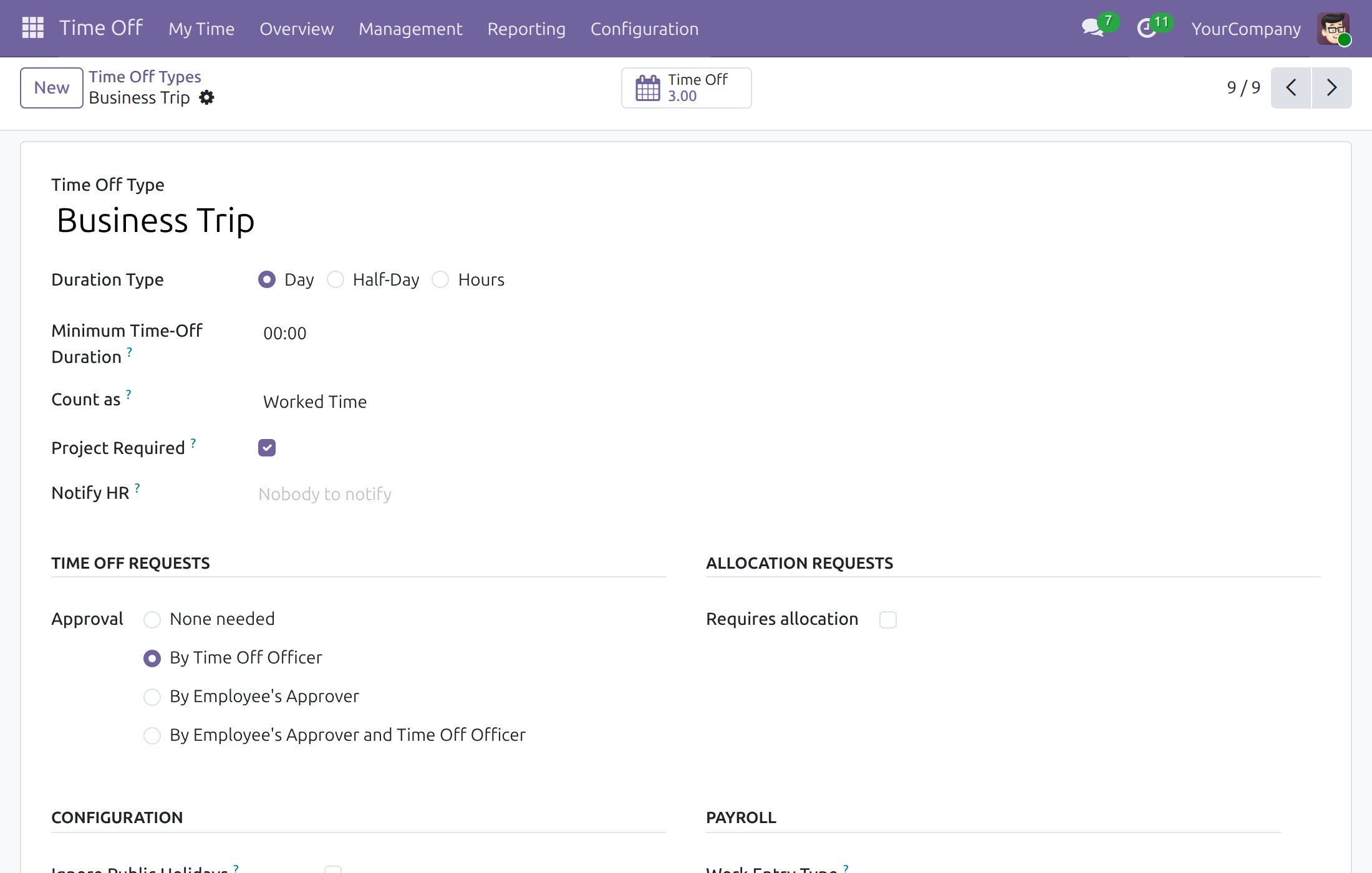
Require a project on a time off type
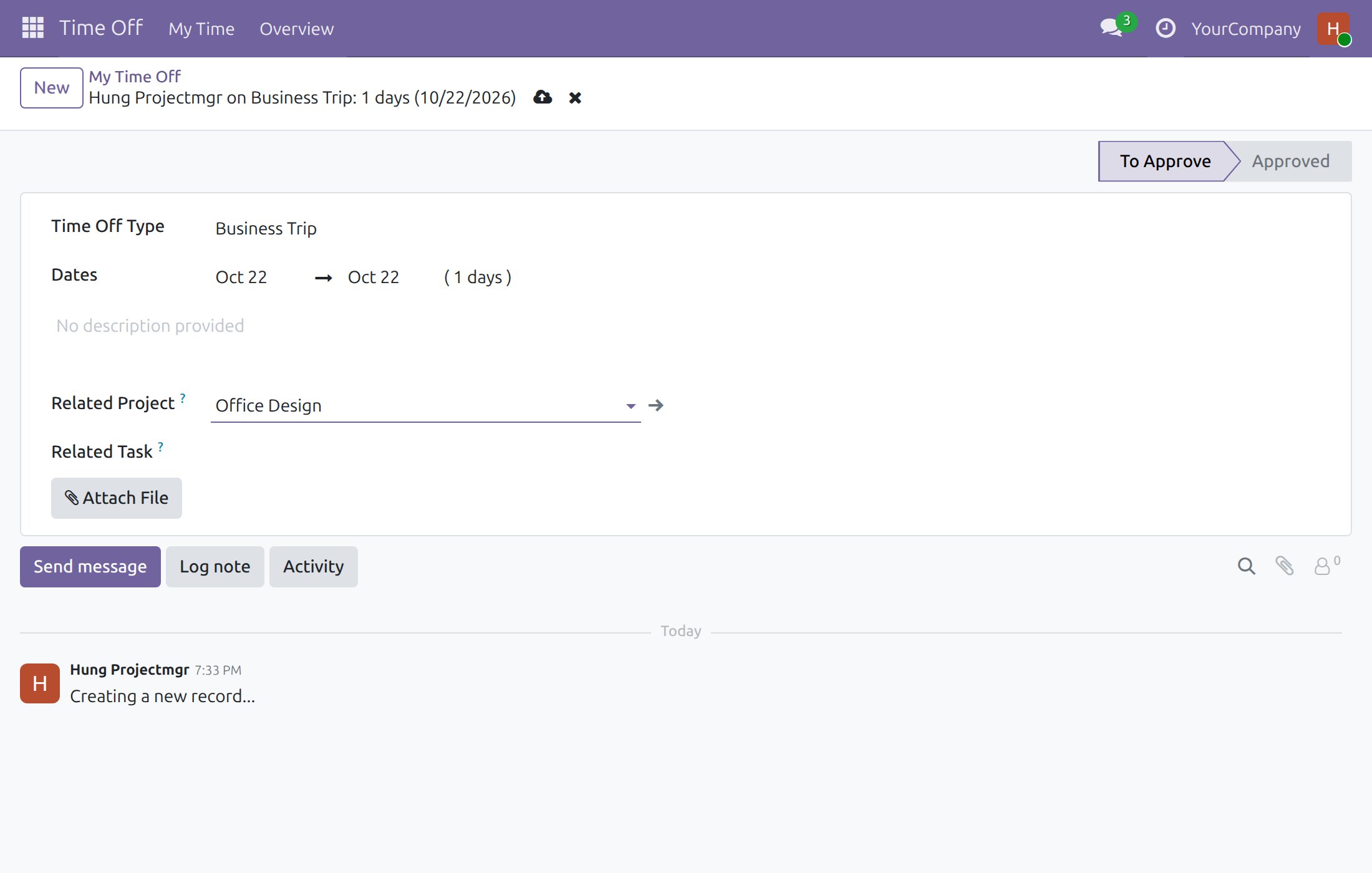
Request time off on a project
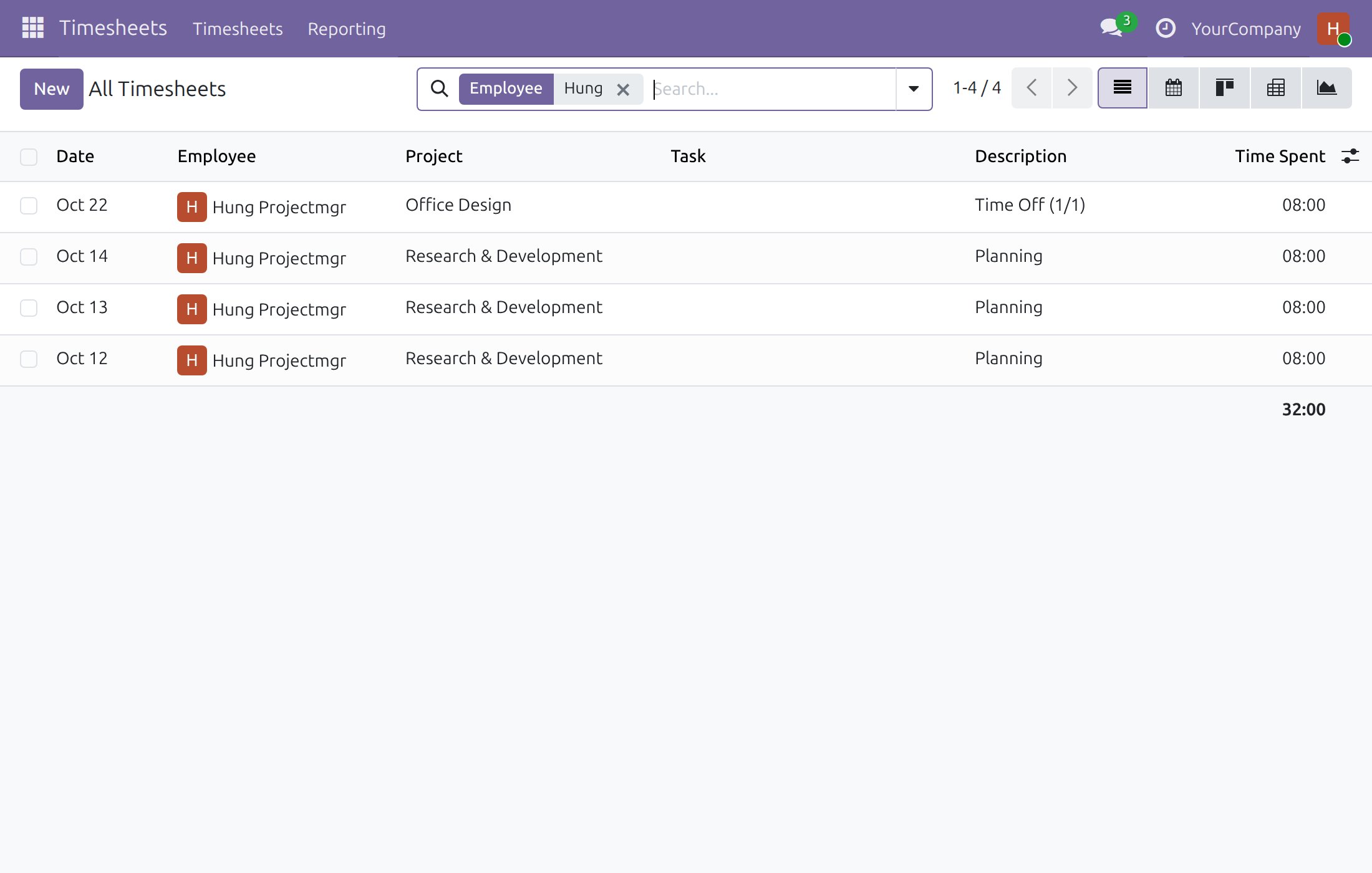
Time off appears on the timesheet
Payslip timesheets without the time off day
Frequently Asked Questions
Do I have to configure anything?
No switch is needed. The module installs itself when the two timesheet modules are present, and uses the time off project settings you already have.
Are time off timesheet lines deleted?
No. They stay on the timesheet and in project reporting. They are only left out of the timesheets a payslip loads.
What about hours an employee logs by hand on a day off?
They are worked time like any other and stay on the payslip.
Does it cover public holidays?
Yes. Lines written by public holidays are left out as well.
Need help with Exclude Time off Timesheet records on Payslip?
Technical Requirement
- Odoo version: 19.0
- Editions: Community
- Required modules: Payroll Timesheet Integrator, Time-Off Project Timesheet
- License: OPL-1
Exclude Time Off Timesheets from Payslips
For: Payroll Officers who load timesheets on payslips, Time Off Officers who approve requests, employees who request time off, and the Administrator who sets the module up.
Note
Extends Payroll Timesheet Integrator - see its documentation. This module is also fed by the time off timesheets of Time-Off Project Timesheet - see its documentation.
Overview
When salaries are calculated from timesheets, an employee on time off must not be paid twice: once for the time off and once for the hours the time off itself writes on the timesheet. This module keeps the two apart. Every time off request that is approved writes timesheet lines for the days off, and public holidays do the same for every employee; when a payslip loads timesheets, only the hours actually worked are counted. The time off and public holiday lines stay on the timesheet, where projects and managers still see them.
The process:
- The employee requests time off, choosing the project the days are booked on.
- The Time Off Officer approves the request; the timesheet lines of the days off appear.
- The Payroll Officer loads the timesheets on the payslip; the time off lines are left out.
| Role | What they do | Access right to assign |
|---|---|---|
| Employee | Requests time off and books it on a project. | None beyond the internal user right |
| Time Off Officer | Approves or refuses time off requests. | Time Off: Officer: Manage all requests |
| Payroll Officer | Loads timesheets on the payslip and computes it. | Payroll: Officer |
| Administrator | Configures time off types and the company time off project. | Time Off: Administrator |
Setup (for the Administrator)
Installation. The module has nothing to switch on. It installs itself as soon as both Payroll Timesheet Integrator and Time-Off Project Timesheet are installed. Otherwise open Apps, search for Exclude Time off Timesheet records on Payslip and press Install.
Payroll from timesheets. Tick Payroll Timesheet Enabled on the job position (Employees > Configuration > Recruitment > Job Positions); the contract takes the value of the job position and it can be changed on the employee's Payroll Information tab. A contract paid by timesheet is not also paid by the Basic Salary rule, otherwise the hours would be paid twice.
Where time off is booked.
- By default the days off are booked on the company's internal project and its time off task. Set them in Settings, in the Timesheets section, under the time off option (Project and Task).
- A time off type can require the employee to choose the project. Open Time Off > Configuration > Time Off Types, open the type and tick Project Required (turning it on makes the type count as worked time). A request of such a type cannot be saved without a project.
Access rights. Give each person the right of their role in Settings > Users & Companies > Users. The person who pays salaries needs the Payroll right.
Employee: request time off on a project
- Open Time Off > My Time > My Time Off and press New.
- Choose the Time Off Type and the Dates.
- Fill Related Project (required when the type has Project Required) and, if the days belong to a task, Related Task.
- Save. The request waits in To Approve.
Time Off Officer: approve the request
- Open Time Off > Management > Time Off and open the request.
- Press Validate (or Refuse).
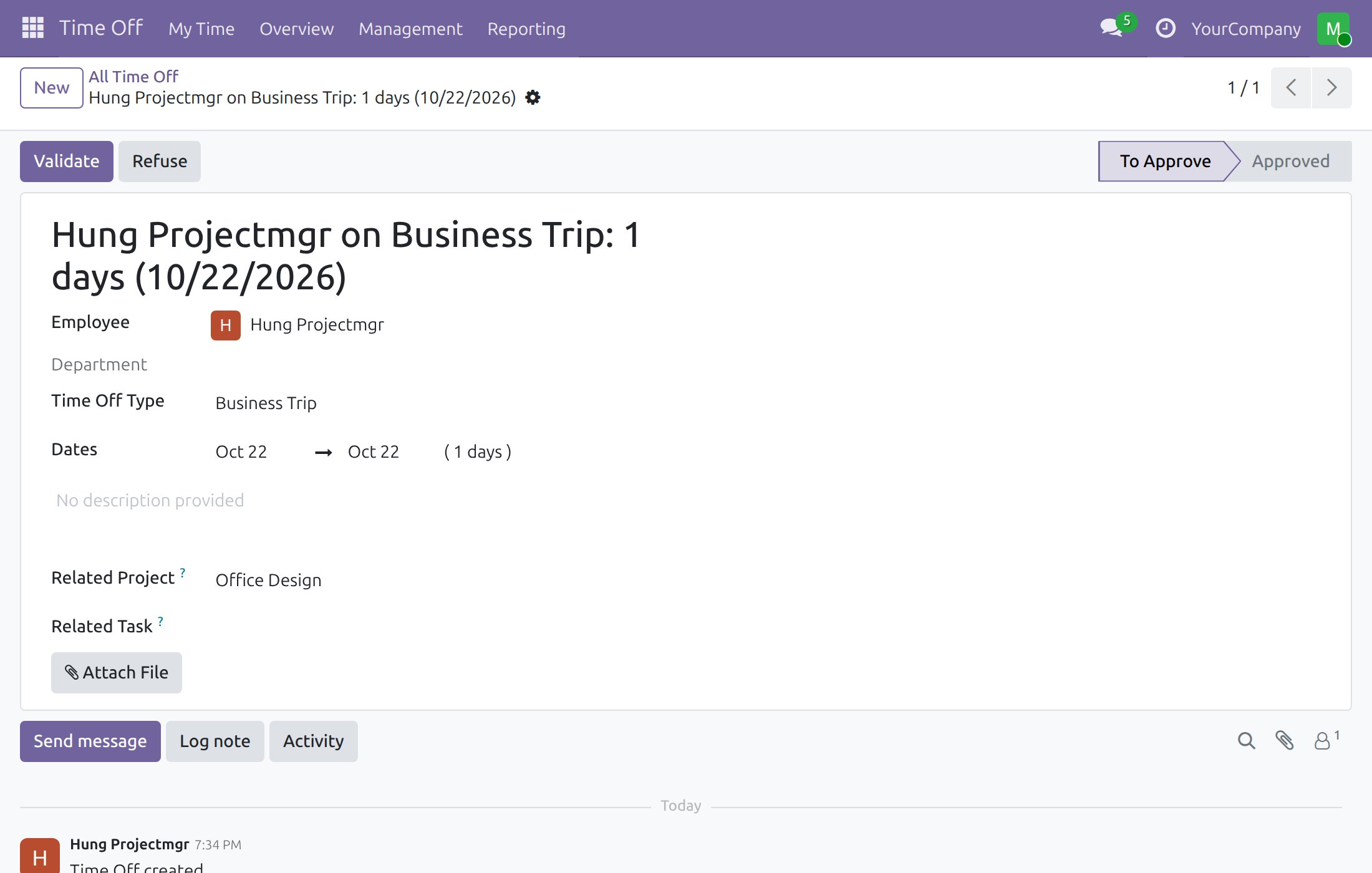
Once approved, one timesheet line per working day off is written for the employee on the related project (or on the company time off project when none was chosen). They are visible in Timesheets > Timesheets > All Timesheets, described Time Off.
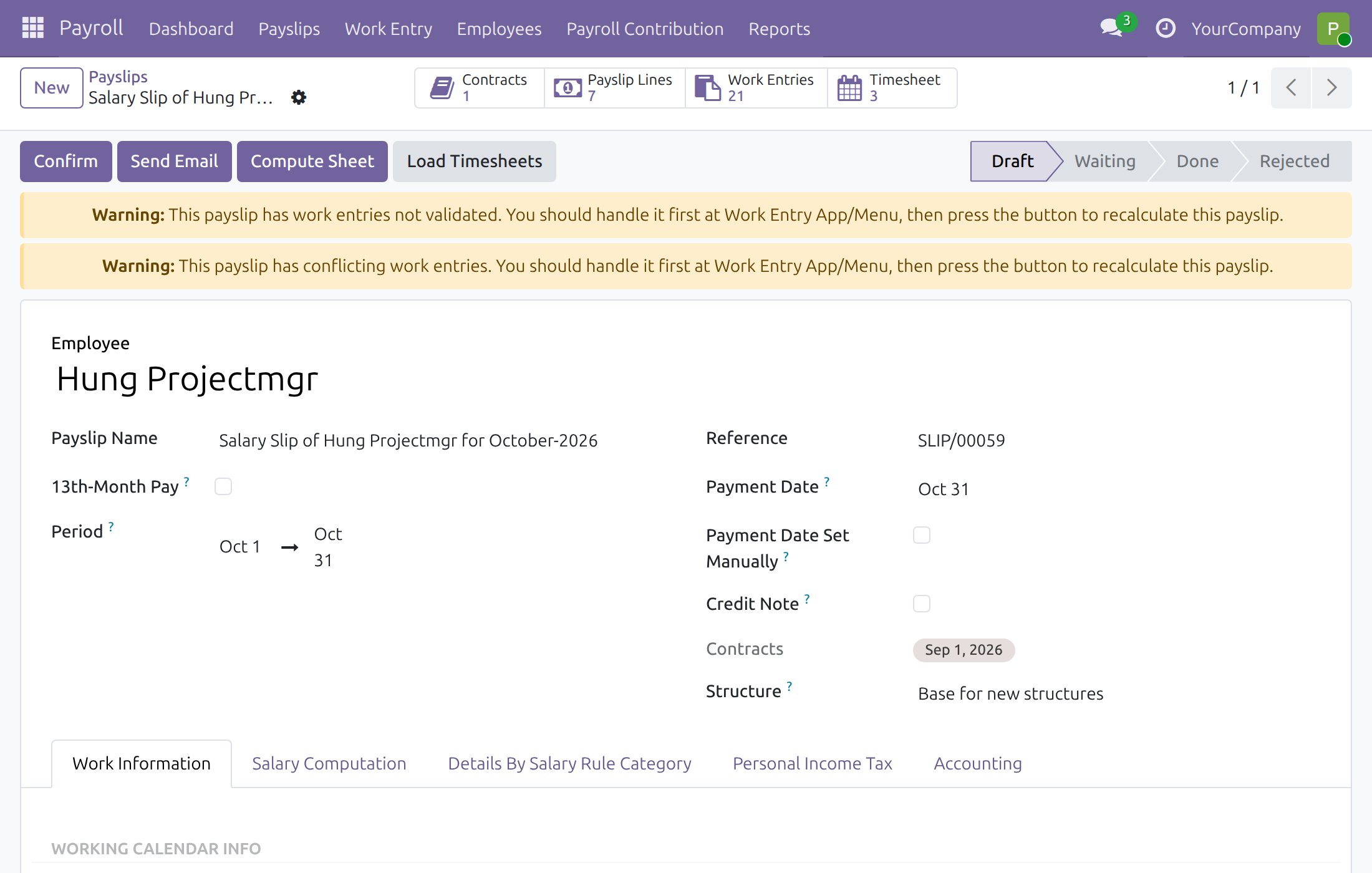
Payroll Officer: load timesheets on the payslip
- Open Payroll > Payslips > Payslips and open the employee's draft payslip.
- Press Load Timesheets.
- Press the Timesheet button at the top of the payslip to see the lines loaded.
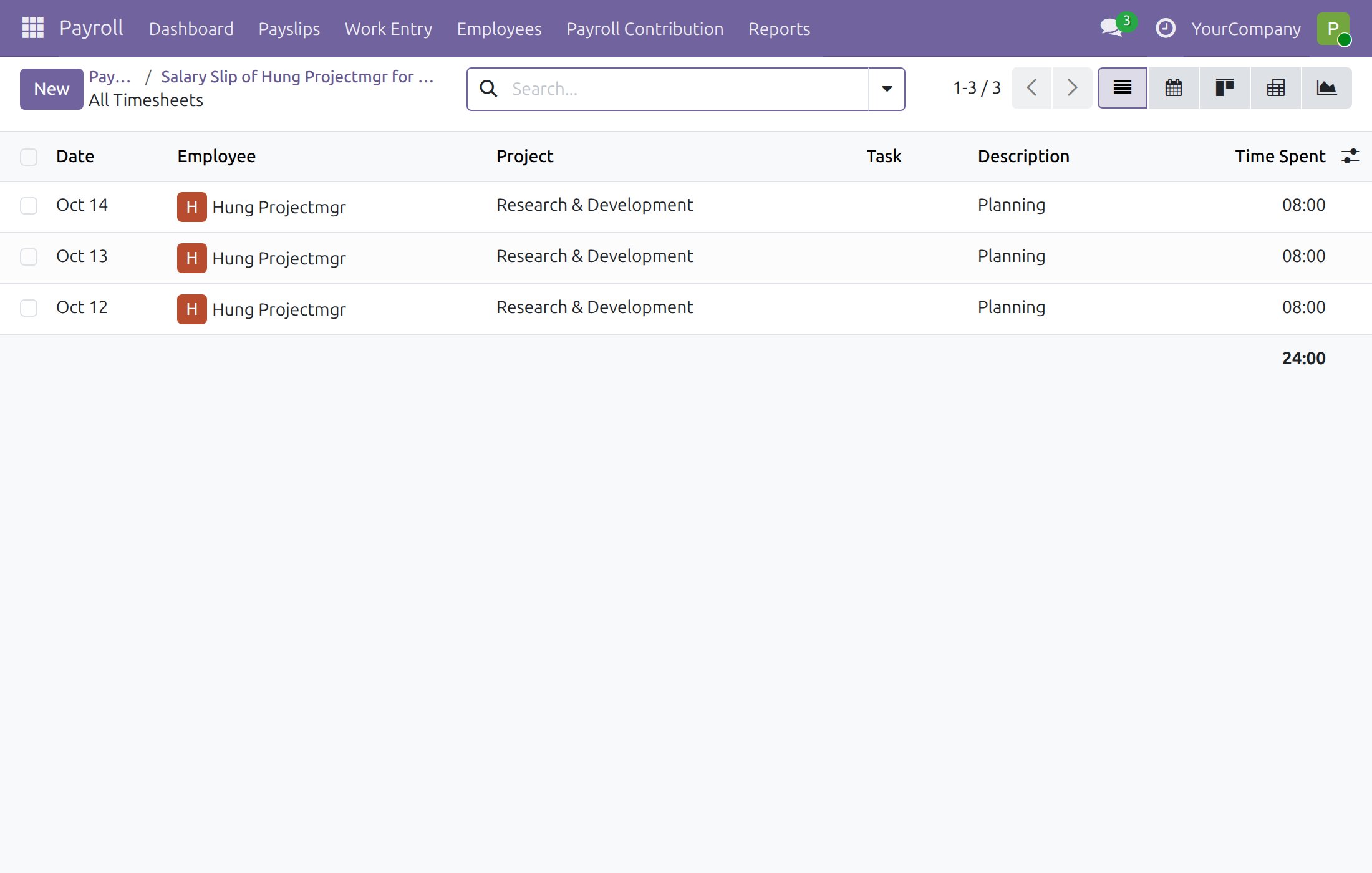
The list holds the worked hours of the payslip period only; the time off day is not in it, although it sits on the same employee's timesheet. The same rule applies when the payslip is confirmed and the cost of the worked timesheet lines is updated: time off lines are not touched.
Good to know
- Timesheet lines the employee logged by hand on a day off are worked time like any other and stay on the payslip; only lines written by a time off request or a public holiday are left out.
- Support: https://viindoo.com/ticket - Buying: https://viindoo.com/contactus
This software and associated files (the "Software") may only be used (executed, modified, executed after modifications) if you have purchased a valid license from the authors, typically via Odoo Apps, or if you have received a written agreement from the authors of the Software (see the COPYRIGHT file).
You may develop Odoo modules that use the Software as a library (typically by depending on it, importing it and using its resources), but without copying any source code or material from the Software. You may distribute those modules under the license of your choice, provided that this license is compatible with the terms of the Odoo Proprietary License (For example: LGPL, MIT, or proprietary licenses similar to this one).
It is forbidden to publish, distribute, sublicense, or sell copies of the Software or modified copies of the Software.
The above copyright notice and this permission notice must be included in all copies or substantial portions of the Software.
THE SOFTWARE IS PROVIDED "AS IS", WITHOUT WARRANTY OF ANY KIND, EXPRESS OR IMPLIED, INCLUDING BUT NOT LIMITED TO THE WARRANTIES OF MERCHANTABILITY, FITNESS FOR A PARTICULAR PURPOSE AND NONINFRINGEMENT. IN NO EVENT SHALL THE AUTHORS OR COPYRIGHT HOLDERS BE LIABLE FOR ANY CLAIM, DAMAGES OR OTHER LIABILITY, WHETHER IN AN ACTION OF CONTRACT, TORT OR OTHERWISE, ARISING FROM, OUT OF OR IN CONNECTION WITH THE SOFTWARE OR THE USE OR OTHER DEALINGS IN THE SOFTWARE.
