

Overtime Timesheet Approval
by Viindoo
| Lines of Code | 930 |
| Technical name | viin_hr_overtime_timesheet_approval |
| License | OPL-1 |
| Website | https://viindoo.com/apps/modules/19.0/viin_hr_overtime_timesheet_approval |
| Read description for | v 13.0 v 14.0 v 15.0 v 16.0 v 17.0 v 18.0 |
| Required Apps | Time Off (hr_holidays) Project (project) Discuss (mail) Employees (hr) Calendar (calendar) |
| Included Dependencies | Viindoo Base OmniApproval™: One platform. Every approval. Overtime Advanced HR Management HR Contracts (Viindoo) Work Entry HR Timesheet Timer OmniApproval™ - Overtime Approvals OmniApproval™ - Timesheet Approvals Work Entry - Contract Base Addendum Overtime Timesheet Viindoo Holiday & WorkDay Manager OmniApproval™ - Analytic Accounting Approvals Safe IR Metadata Proxies OmniApproval™ - Project & Task Approvals Countup Timer Widget |

Overtime is paid on hours somebody has checked
For payroll, HR, team leads and project managers
Count only approved timesheets as overtime, and let every plan update itself the moment an approval is decided.
Overtime Timesheet Approval is an app for Odoo 19.0 Community and Enterprise, built for teams that plan overtime and log it on project timesheets.
Builds on Overtime Timesheet, OmniApproval™ - Timesheet Approvals & OmniApproval™ - Overtime Approvals.
Is this you?
Employees log extra hours on a task and nobody has checked them before they turn into overtime.
Payroll cannot tell which overtime hours were signed off and which are still claims.
Team leads approve timesheets in one place, while overtime plans are updated by hand somewhere else.
Project managers are asked about overtime on projects that are not theirs.
What changes
Unchecked hours turn into overtime.
→ Only approved timesheets recognise overtime; draft, pending and refused ones stay out.
Payroll cannot tell signed-off hours from claims.
→ A warning on the plan lists the timesheets still waiting for approval, so the gap is visible.
Plans are updated by hand after an approval.
→ The plan matches again by itself when the approval of its timesheets changes.
Managers are asked about other projects.
→ One overtime request holds the plans of one project, so each manager answers for their own.
How it works
Plan and log
Overtime officer plans the overtime; Employee logs the timesheets of the period.
Send for approval
Employee sends the timesheets in an approval request. Until it is decided, the plan warns and leaves them out.
Decide
Team lead approves or refuses the request; the project manager can give an opinion on the plans of the project.
Hours update
The plan matches the approved timesheets again by itself, and its actual overtime follows.
Key Features
Only approved timesheets count
Overtime hours come from timesheets a manager has checked.
Warning while approval is pending
Officers see which timesheets still wait for approval, on the plan, the plan line and the overtime request, with a button to list them.
Plans match again by themselves
Actual overtime follows the approval without anyone pressing a button.
One project per overtime request
Project managers are asked about their own project only.
Project at hand
Show the project in the plan list and set it when scheduling overtime for several people at once, so plans of a project are reviewed together.
Who it is for
Payroll
Pays hours somebody signed off, and sees what is still pending.
HR
One clear rule about which hours count as overtime.
Team lead
Their approval of a timesheet decides what becomes overtime.
Project manager
Asked only about the overtime of their own project.
Best for: Payroll; HR; Team lead; Project manager
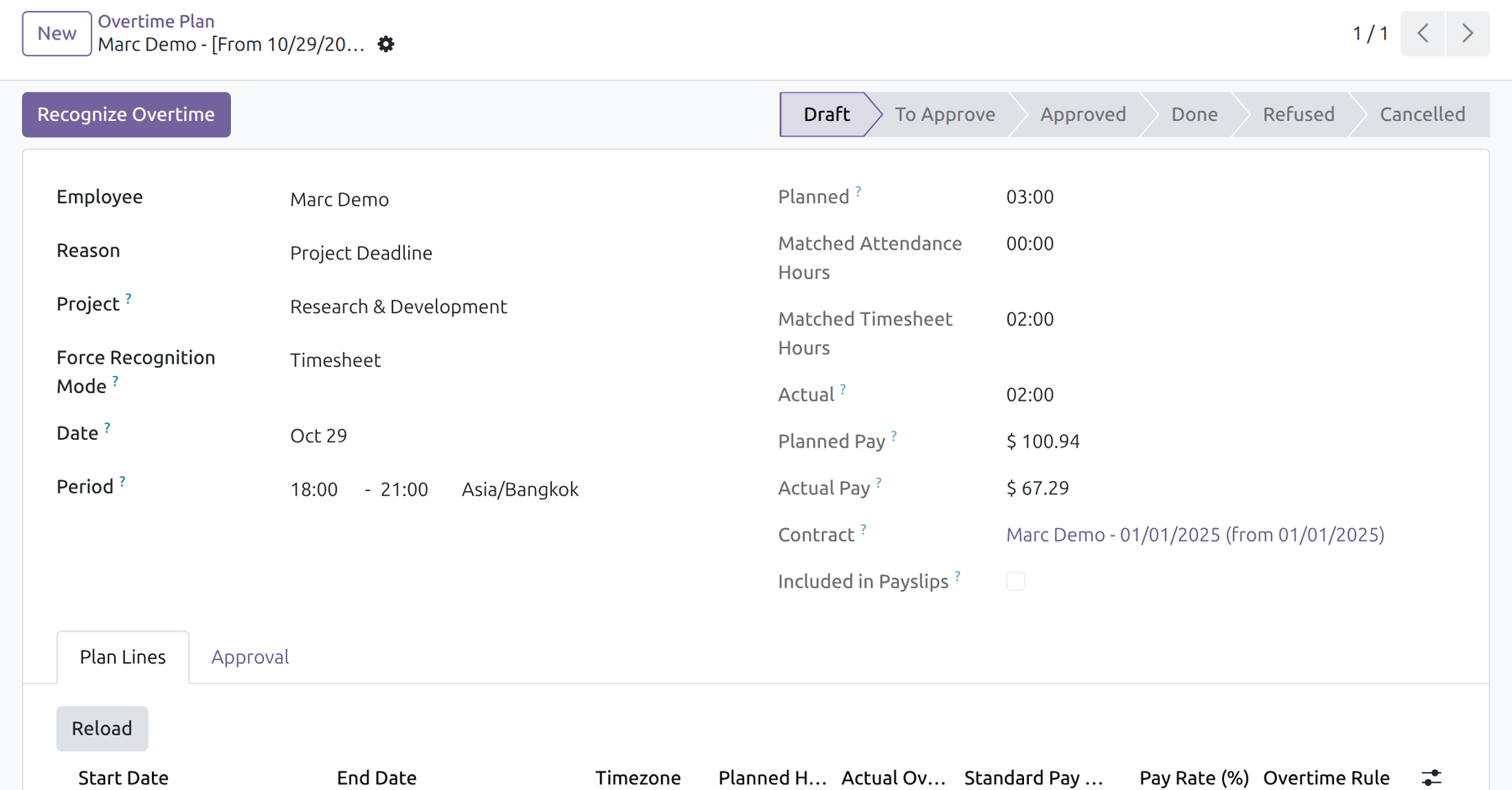
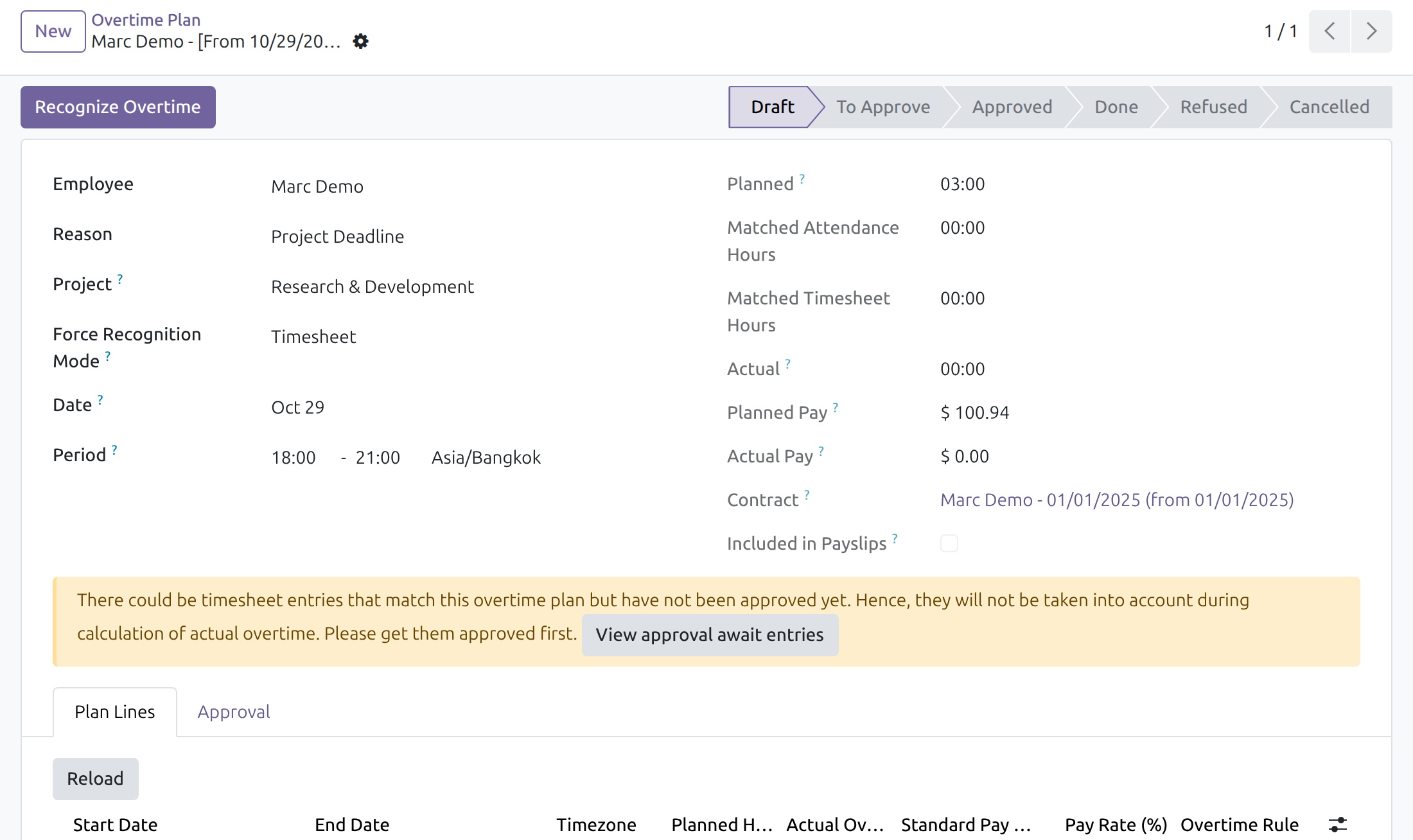
Hours wait for their approval
The plan warns about timesheets that are not approved yet and keeps their hours out of the actual overtime.
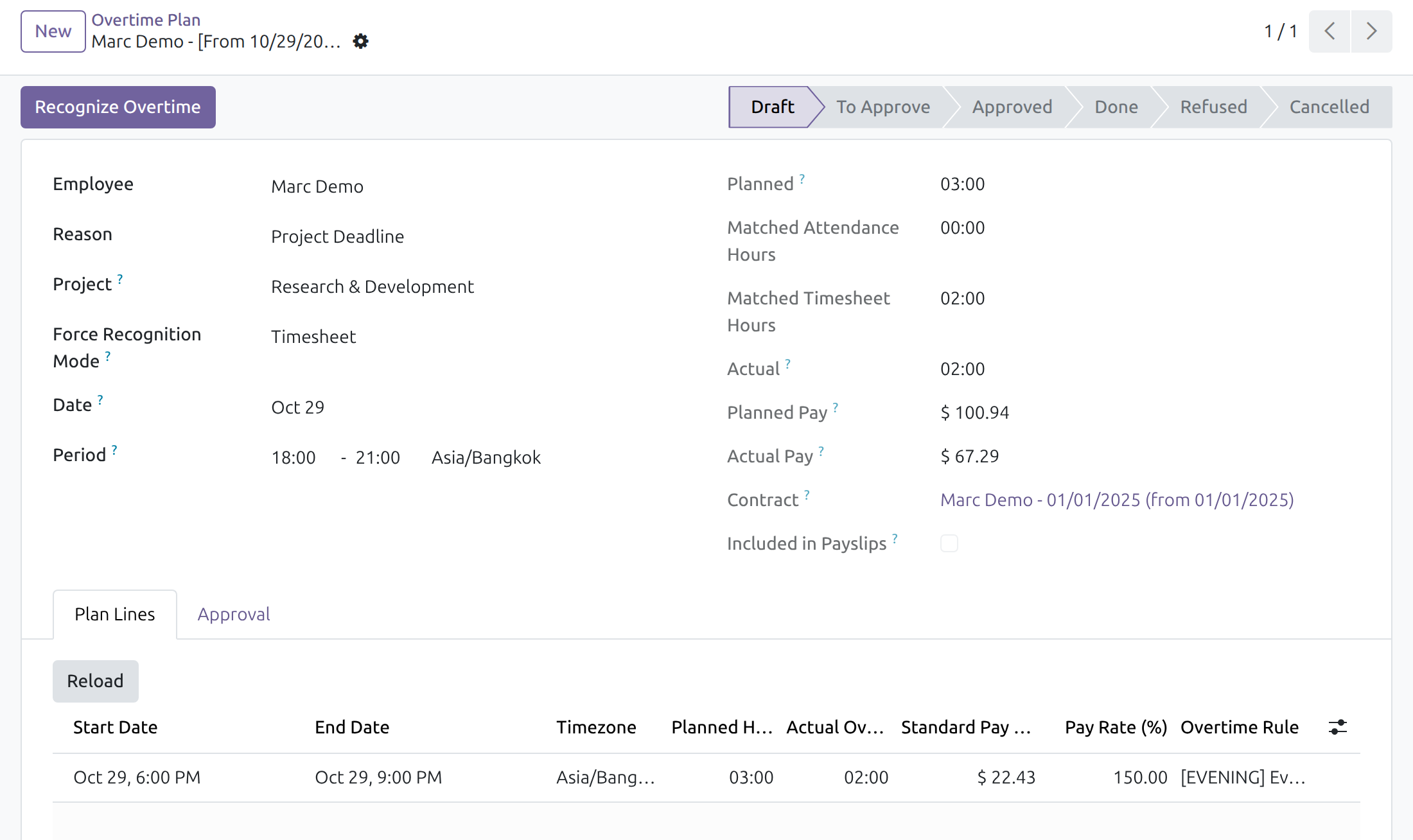
Hours count once approved
After the approval, the warning is gone and the matched timesheet hours and the actual overtime are updated.
Frequently Asked Questions
Do I have to rematch the plans after an approval?
No. When the approval state of a timesheet changes, the plans that cross it match again by themselves.
What happens to refused or cancelled timesheets?
They never count as overtime.
Does it approve the timesheets?
No. Timesheets are approved in the timesheet approval app; this app makes overtime follow that decision.
Can one request hold plans of several projects?
No. One overtime request holds the plans of one project; the system refuses a mix and names the projects.
Does it need a screen of its own?
No. It adds a warning, a project column and a project field to the screens of the apps it connects.
Does it compute pay?
No. It decides which hours are recognised; pay stays with the overtime rules.
Which editions and series does it support?
Odoo 19.0, Community and Enterprise.
Need help with Overtime Timesheet Approval?
For questions, implementation support or a custom feature, contact Viindoo.
Pre-Sales & Partnership
https://viindoo.com/contactusTechnical Support
https://viindoo.com/ticketAll Viindoo apps: Viindoo Apps
Technical Requirement
- Odoo version: 19.0
- Editions: Odoo Community, Odoo Enterprise
- Required modules: Overtime Timesheet, OmniApproval™ - Timesheet Approvals, OmniApproval™ - Overtime Approvals, OmniApproval™ - Project & Task Approvals
- License: OPL-1
Changelog
19.0
- New Only approved timesheets recognise overtime.
- New A warning and a View approval await entries button show the timesheets still waiting for approval.
- New Plans match again by themselves when the approval of their timesheets changes.
- New One overtime approval request holds the plans of one project.
- New A Project column in the plan list and a Project field when scheduling overtime in bulk.
This guide is written for HR officers, team leads who approve timesheets, project managers and employees: the people who plan overtime and want only approved timesheets to count as worked overtime.
Note
Extends Overtime Timesheet (viin_hr_overtime_timesheet) - see its documentation for the recognition mode, overtime plans and the matching of timesheets.
Note
Extends Timesheet Approval (viin_approval_hr_timesheet) - see its documentation for approval requests of timesheets and the Timesheet State.
Note
Extends Overtime Approval (viin_hr_overtime_approval) - see its documentation for the approval of overtime plans.
Overview
When overtime is recognised from timesheets, an employee could log hours that nobody has checked. This module closes that gap: a timesheet counts as overtime only once it is approved. The plan keeps the hours of approved timesheets and leaves the others aside until their approval request is decided.
The process, from the plan to the recognised hours:
- An overtime plan is created for an employee, and the employee logs the timesheets of the overtime period.
- The timesheets that need approval are sent in an approval request. Until the request is approved, the plan shows a warning and its Actual overtime does not include them.
- When the request is approved, the plan matches the approved timesheets again by itself and its Actual overtime is updated. Refused or cancelled timesheets never count.
The module has no screen of its own: it adds the warning, the matching rule and the project handling described below to the three modules above.
| Role | What they do | Access right to assign |
|---|---|---|
| Employee | Logs the timesheets of the overtime and sends them for approval. | Timesheets / User: own timesheets only |
| Team lead | Approves or refuses the timesheet requests of the team. | Timesheets / User: all timesheets |
| Overtime officer | Plans overtime, follows the warning of a plan and checks the recognised hours. | Overtime / Officer |
| Project manager | Is asked, when an overtime request names the project, to give an opinion on the plans of that project. | Manager of the project |
The warning of a plan and its button are shown to users who hold an access right on the Timesheets app.
Setup (for the Administrator)
- Navigate to Apps, search with keyword viin_hr_overtime_timesheet_approval and press Install. It is installed together with the apps it connects.
- Navigate to Overtime ‣ Configuration ‣ Settings and set the Overtime Recognition Mode to Timesheet, as described in the documentation of Overtime Timesheet.
- Make sure the hours of the employees concerned need approval: the checkbox Timesheet Approval of the contract, the job position or the department, described in the documentation of Timesheet Approval. Hours that need no approval are approved when they are logged and count at once.
- Check the approvers of the approval type Overtime in Approval ‣ Configuration ‣ Approval Types. The project managers of the project of the plans are asked as an optional step: the request is not held when they do not answer.
Employee: log and send the timesheets
Log the hours of the overtime in Timesheets ‣ Timesheets ‣ My Timesheets, on a project task, with the Start Time of each entry. Then send them in an approval request: select the entries, open the Actions menu, choose Get Approved, press Create Approval Request and then Submit the request. The steps are described in the documentation of Timesheet Approval.
Until the request is approved the entries stay Draft or To Approve, and they are left out of the overtime.
Overtime officer: follow a plan
Waiting for approval
Open the plan in Overtime ‣ Planning ‣ Planning. When timesheets of the employee fall inside the planned period but are not approved yet, the plan shows a yellow warning above its tabs. Matched Timesheet Hours and Actual do not include them.
Press View approval await entries to list the timesheets that wait for their approval. The same warning and button appear on a plan line, and on the overtime approval request that holds the plan. Ask the employee, or the team lead who approves, to get the request decided.
Once approved
As soon as the approval request of a timesheet is decided, the plans that cross the timesheet are matched again: no action is needed. After an approval the warning disappears, Matched Timesheet Hours shows the hours of the approved timesheets inside the planned period and Actual and Actual Pay follow.
If the request is refused or cancelled, its timesheets stay out of the overtime and the plan keeps the hours of the other approved entries only. To force a new matching at any time, press Recognize Overtime on the plan, or Rematch Timesheet in the tab Timesheet of a plan line, as described in the documentation of Overtime Timesheet.
Plans of a project
For overtime officers and project managers. This module also keeps the project of a plan along its approval:
- The overtime approval request carries the project of each plan, so that the project managers of that project are asked.
- One overtime approval request holds the plans of a single project. When plans of several projects are put in the same request, the system refuses it with a message naming the projects: put the plans of each project in a separate request. A plan moved to another project is checked the same way.
- In the list of plans, the column Project can be shown from the optional columns menu.
- In Mass Schedule, the field Project appears under the Reason when the reason requires a project.
Troubleshooting
The plan still shows the warning after the request was approved. The warning lists the timesheets of the employee that cross the planned hours and are not approved. Open View approval await entries: an entry that is still Draft, To Approve or Refused is not in an approved request. Only entries that fall inside the period of the plan are listed.
A timesheet is approved but its hours are not recognised. Check that the entry has a project and a Start Time, that it is not a time off or a public holiday entry, and that it crosses the period of the plan: see the documentation of Overtime Timesheet.
This software and associated files (the "Software") may only be used (executed, modified, executed after modifications) if you have purchased a valid license from the authors, typically via Odoo Apps, or if you have received a written agreement from the authors of the Software (see the COPYRIGHT file).
You may develop Odoo modules that use the Software as a library (typically by depending on it, importing it and using its resources), but without copying any source code or material from the Software. You may distribute those modules under the license of your choice, provided that this license is compatible with the terms of the Odoo Proprietary License (For example: LGPL, MIT, or proprietary licenses similar to this one).
It is forbidden to publish, distribute, sublicense, or sell copies of the Software or modified copies of the Software.
The above copyright notice and this permission notice must be included in all copies or substantial portions of the Software.
THE SOFTWARE IS PROVIDED "AS IS", WITHOUT WARRANTY OF ANY KIND, EXPRESS OR IMPLIED, INCLUDING BUT NOT LIMITED TO THE WARRANTIES OF MERCHANTABILITY, FITNESS FOR A PARTICULAR PURPOSE AND NONINFRINGEMENT. IN NO EVENT SHALL THE AUTHORS OR COPYRIGHT HOLDERS BE LIABLE FOR ANY CLAIM, DAMAGES OR OTHER LIABILITY, WHETHER IN AN ACTION OF CONTRACT, TORT OR OTHERWISE, ARISING FROM, OUT OF OR IN CONNECTION WITH THE SOFTWARE OR THE USE OR OTHER DEALINGS IN THE SOFTWARE.
