

Helpdesk & Human Resources Integration
by Viindoo
| Lines of Code | 447 |
| Technical name | viin_helpdesk_hr |
| License | OPL-1 |
| Website | https://viindoo.com/apps/modules/19.0/viin_helpdesk_hr |
| Read description for | v 15.0 v 16.0 v 17.0 v 18.0 |
| Required Apps | Discuss (mail) Employees (hr) |
| Included Dependencies | Helpdesk Viindoo Base |

Every ticket shows which department raised it and which department owns it
For organisations whose departments ask each other for help through one helpdesk
Integrate the Helpdesk with Human Resources
Odoo 19.0 · Community and Enterprise · OPL-1
Extends Helpdesk: its tickets carry the departments of the people behind them.
What changes for your team
You know where each request comes from
The ticket names the colleague who opened it; their department is looked up in the employee directory, ticket by ticket.
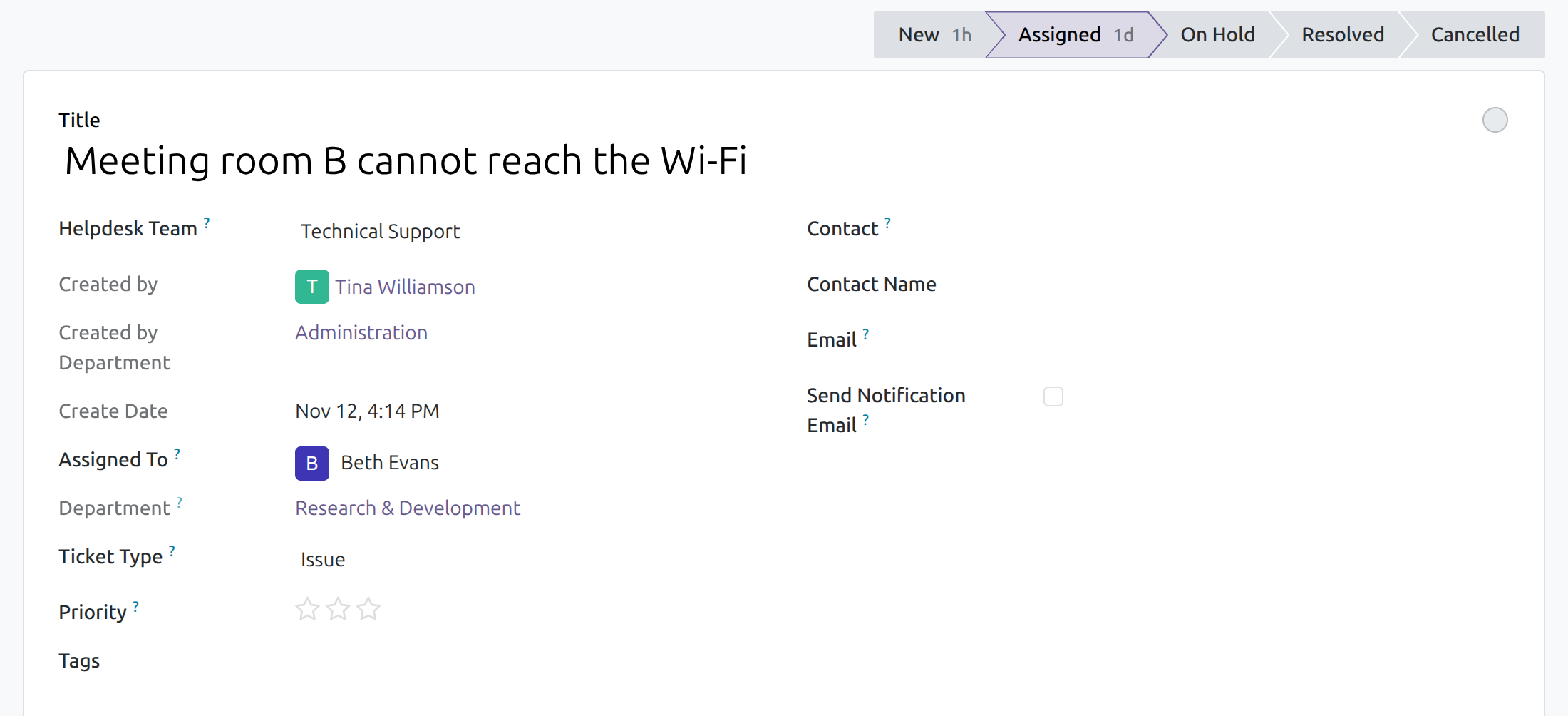
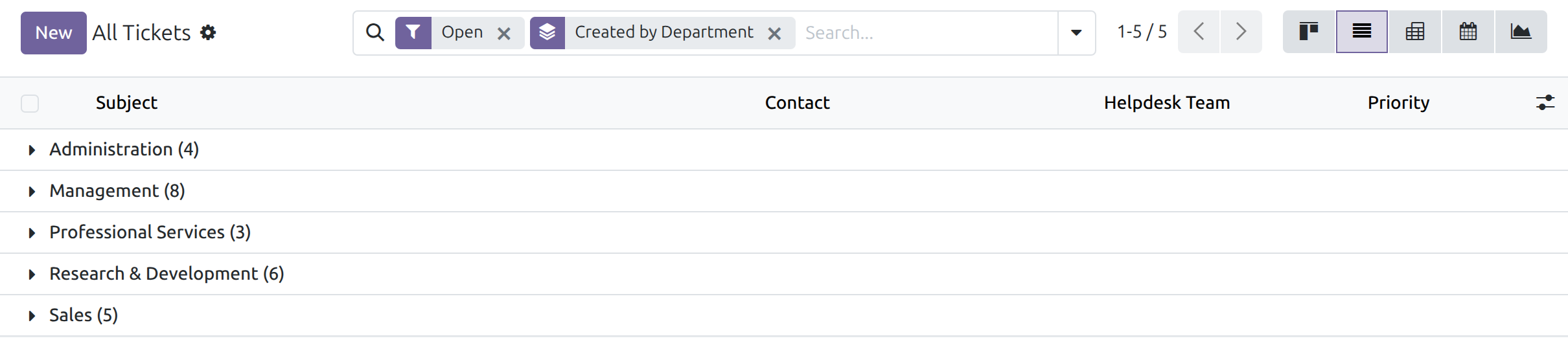
→ Created by Department fills in from the creator's employee record: the department they belonged to on the day the ticket was created, kept when they later move.
You see which department carries the work
Tickets are counted per person; what each department handles is rebuilt in a spreadsheet.
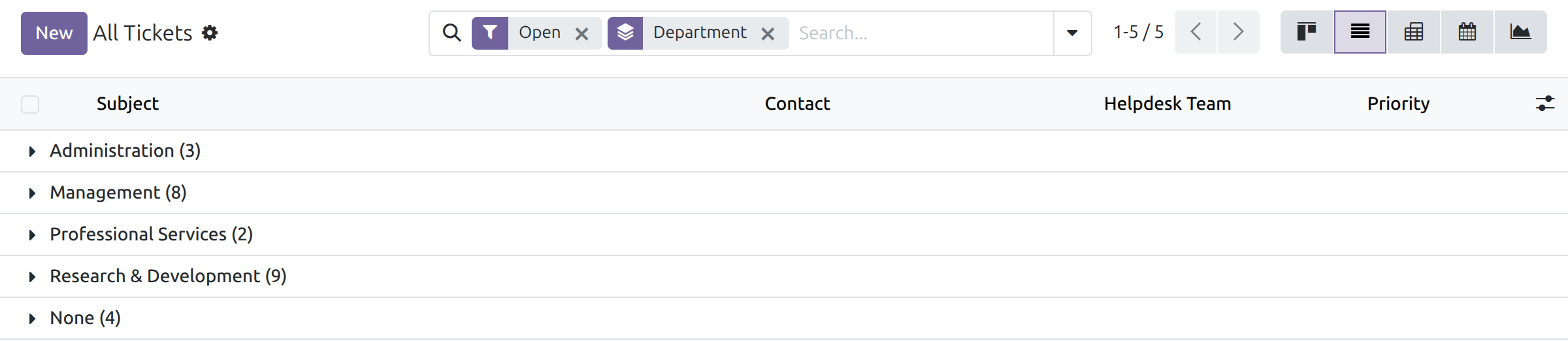
→ Department records the department of the assignee when the ticket is assigned, and follows each reassignment.
Managers read the flow between departments
Which departments ask, and which ones answer, is a question for a meeting.
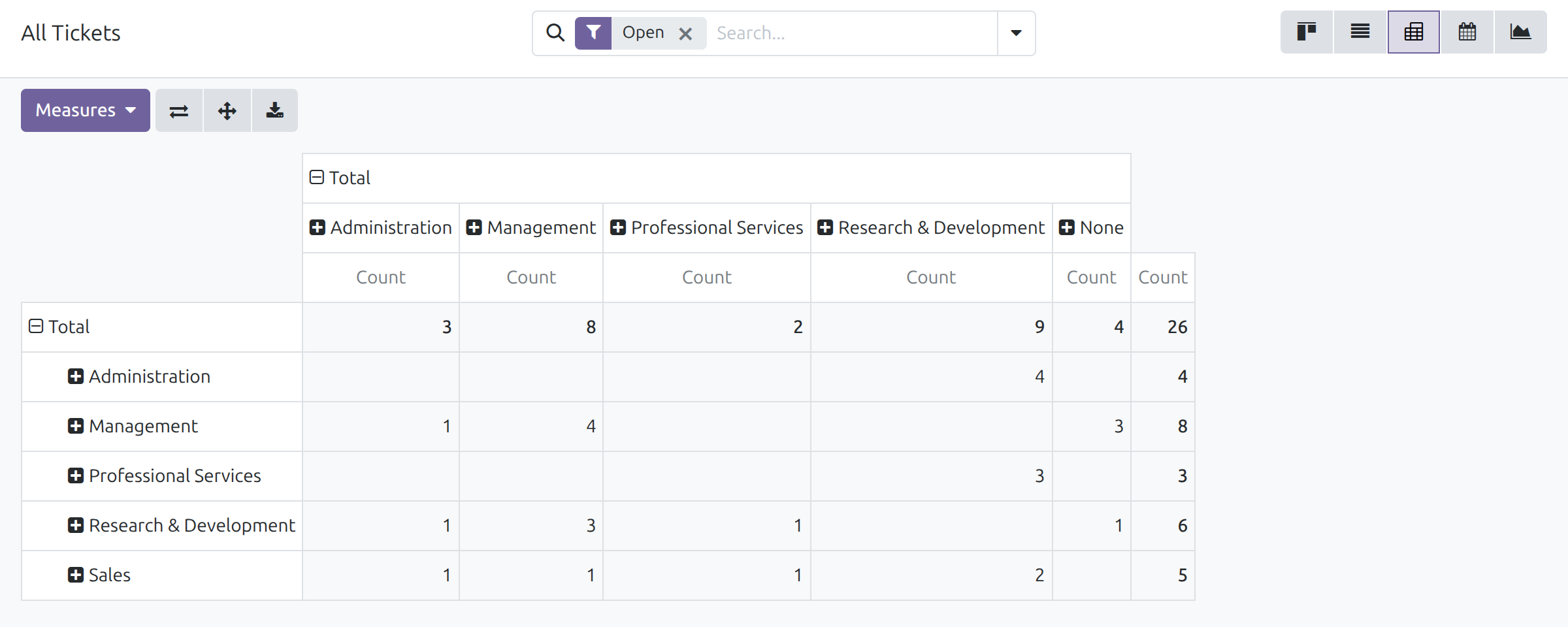
→ Both departments are search options and Group By entries; in the pivot view, one on the rows and the other on the columns, they show who asks whom.
Ready on day one
Installs itself
Once Helpdesk and Employees are both installed, this module is installed with them.
Your history included
Existing tickets receive both departments at installation, including those of employees who have since left.
Nothing to type
Both fields are read-only and fill in from the employee records.
What you set up first
An employee record with a department, linked to the user, for each person who creates or handles tickets.
What is included
The creator's and the assignee's department on every ticket form, both as search options and Group By entries in the ticket list, and the filling of existing tickets at installation. Teams, stages and assignment come from Helpdesk; departments and employees come from Employees.
Before you decide
What happens when an employee changes department?
Tickets that already exist keep the departments they recorded. Reassigning a ticket sets its Department again; changing the ticket's company sets both departments again.
Who sees the departments?
Every internal user who can open the ticket. Nobody edits them by hand: they follow the employee records.
We run several companies. Which department is used?
The department of the person's employee record in the ticket's company.
What if a person has no employee record?
The field stays empty, and the ticket appears under None when you group by department. Tickets created by the system itself fall there too.
Which languages does it ship?
English and Vietnamese.
Try it, then ask us
The Documentation tab walks the administrator, the support agent and the helpdesk manager through setup and daily use; Live Preview opens a demo database.
Pre-sales & partnership
viindoo.com/contactusTechnical support
viindoo.com/ticketTechnical requirements
- Odoo version: 19.0
- Editions: Community, Enterprise
- Required modules: Helpdesk, Employees
- License: OPL-1
- Languages: English, Vietnamese
Helpdesk & Human Resources Integration
Note
This guide is for administrators who set the integration up, support agents who work tickets, and helpdesk managers and team leaders who follow where requests come from and who handles them.
Note
Extends Helpdesk - see its documentation for tickets, teams and stages.
Overview
A ticket often travels between departments: a colleague asks for help, and a person in another department solves it. This integration records both ends of that path on every ticket:
- Created by Department: the department of the person who created the ticket.
- Department: the department of the person the ticket is assigned to.
Both departments come from the Employees application, so there is nothing to type: they fill in by themselves. Managers can then search tickets by department, group them by department and see which departments ask for help and which ones answer.
| Role | What they do | Access right to assign |
|---|---|---|
| Administrator | Gives each person a user account, an employee record and a department. | Administrator, in the Helpdesk field of the user |
| Support agent | Creates tickets and works the tickets assigned to them; sees both departments on the ticket. | User, in the Helpdesk field of the user |
| Helpdesk manager or team leader | Searches and groups the tickets of the team by department to see where requests come from and who handles them. | User, in the Helpdesk field of the user, and named as the Leader of the team |
Setup (for the Administrator)
Install the integration
- Go to Apps.
- Search for Helpdesk & Human Resources Integration.
- Press Install.
The Helpdesk and Employees applications are installed with it. When both applications are already installed, the integration installs itself. Tickets that already exist receive their departments at installation.
Prepare the people
A ticket can show a department only for a person who has an employee record with a department, so each person who creates or handles tickets needs both.
- Go to Employees ‣ Departments and create the departments of the company.
- Go to Employees ‣ Employees, open the employee and choose the Department in the Work tab. In the Settings tab, set User to the user who signs in to Helpdesk.
- Go to Settings ‣ Users & Companies ‣ Users, open the user and set the Helpdesk field to User or Administrator.
- Go to Helpdesk ‣ Configuration ‣ Helpdesk Teams, open the team and add the person to Team Members so that tickets of the team can be assigned to them.
Note
A person has one employee record per company. The ticket uses the employee of the ticket's company.
Create and assign a ticket (for the Support agent)
- Go to Helpdesk ‣ Tickets ‣ All Tickets and press New.
- Fill in the Title, the Helpdesk Team and the Ticket Type.
- Choose the person in Assigned To.
- Save the ticket (the cloud icon next to its name).
The ticket now shows two departments:
- Created by Department, right under Created by: the department of the person who created the ticket.
- Department, right under Assigned To: the department of the person the ticket is assigned to.
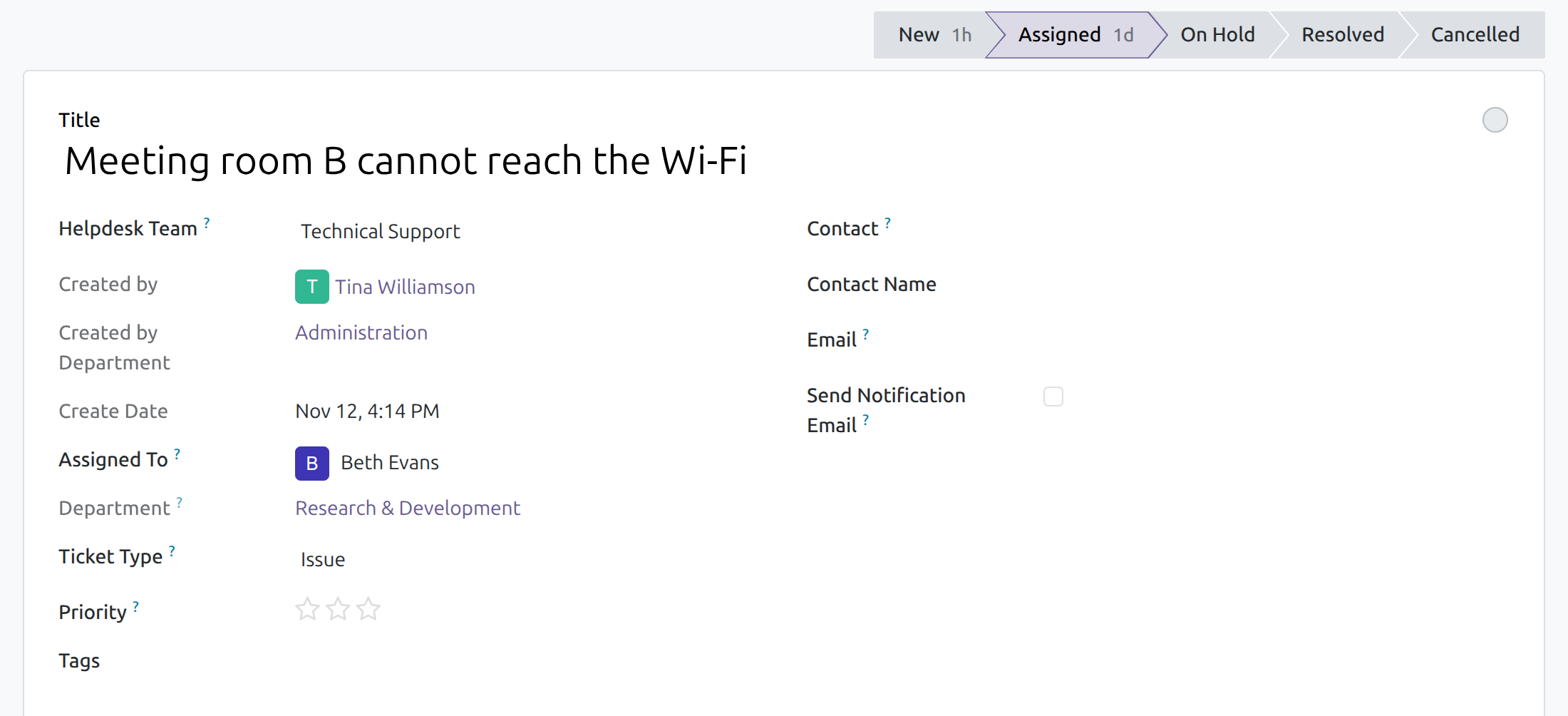
How the departments are set
- Both fields are read-only: they follow the employee records.
- Created by Department is the department the creator had on the day the ticket was created. A later move of the employee to another department does not change tickets that already exist.
- Department is set when the ticket is assigned to someone. Assigning the ticket to another person sets it again; removing the assignee empties it. A later move of the assignee does not change the ticket.
- If the person has no employee record in the company of the ticket, the field stays empty.
- If the Company of a ticket changes, both departments are set again from the employees of the new company.
- A ticket created before the integration was installed receives its departments at installation, including those of employees who have since left.
Follow tickets by department (for the Helpdesk manager)
- Go to Helpdesk ‣ Tickets ‣ All Tickets and switch to the list view. The Open filter is on, so the list holds the tickets that are not closed; remove it to count every ticket.
- Open the search options (the arrow at the end of the search box) and, under Group By, choose Created by Department or Department. They sit right after Team.
Each group shows the number of tickets of one department. A ticket belongs to the group None when it has no department: it is not assigned yet, or the person has no employee record in the company of the ticket.
The frame below shows the open tickets grouped by the department of their creator.
The same list grouped by Department shows which departments handle the work.
To find the tickets of one department, type its name in the search box and choose the Created by Department or Department option the search box offers.
Read the flow between departments
- In Helpdesk ‣ Tickets ‣ All Tickets, switch to the pivot view.
- Press Total in the rows and choose Created by Department.
- Press Total in the columns and choose Department.
Each row is a department that asks for help, each column a department that answers, and each cell counts the tickets that went from one to the other. The column None holds the tickets that are not assigned yet.
This software and associated files (the "Software") may only be used (executed, modified, executed after modifications) if you have purchased a valid license from the authors, typically via Odoo Apps, or if you have received a written agreement from the authors of the Software (see the COPYRIGHT file).
You may develop Odoo modules that use the Software as a library (typically by depending on it, importing it and using its resources), but without copying any source code or material from the Software. You may distribute those modules under the license of your choice, provided that this license is compatible with the terms of the Odoo Proprietary License (For example: LGPL, MIT, or proprietary licenses similar to this one).
It is forbidden to publish, distribute, sublicense, or sell copies of the Software or modified copies of the Software.
The above copyright notice and this permission notice must be included in all copies or substantial portions of the Software.
THE SOFTWARE IS PROVIDED "AS IS", WITHOUT WARRANTY OF ANY KIND, EXPRESS OR IMPLIED, INCLUDING BUT NOT LIMITED TO THE WARRANTIES OF MERCHANTABILITY, FITNESS FOR A PARTICULAR PURPOSE AND NONINFRINGEMENT. IN NO EVENT SHALL THE AUTHORS OR COPYRIGHT HOLDERS BE LIABLE FOR ANY CLAIM, DAMAGES OR OTHER LIABILITY, WHETHER IN AN ACTION OF CONTRACT, TORT OR OTHERWISE, ARISING FROM, OUT OF OR IN CONNECTION WITH THE SOFTWARE OR THE USE OR OTHER DEALINGS IN THE SOFTWARE.
