

Attendance Data Validation (HR)
by Viindoo
| Lines of Code | 617 |
| Technical name | viin_hr_attendance_validation |
| License | OPL-1 |
| Website | https://viindoo.com/apps/modules/19.0/viin_hr_attendance_validation |
| Read description for | v 13.0 v 14.0 v 15.0 v 16.0 v 17.0 v 18.0 |
| Required Apps | Attendances (hr_attendance) Discuss (mail) Employees (hr) |
| Included Dependencies | Viindoo Base HR Contracts (Viindoo) Base Addendum Viindoo Holiday & WorkDay Manager Safe IR Metadata Proxies |
| Extensions | Payroll Attendance |
Pay and manage the hours that count, not the hours the clock recorded
For HR teams, team leaders and payroll officers who work from check-in and check-out data
Valid attendance hours, lateness and early leaving worked out from each employee's schedule.
Is this you?
You read raw check-in and check-out times and still have to work out by hand how much of them counts.
Lateness and early leaving are an impression in a meeting, not a number you can show.
People forget to check out, and someone has to chase every open entry at the end of the month.
After a contract, schedule or time-off change, the old figures stay wrong until somebody fixes them.
What changes
Raw times you still have to interpret
→ Read the valid check-in, valid check-out and valid attendance hours next to every entry.
Lateness as an impression
→ Filter late coming and early leave and see the hours per entry and in total.
Forgotten check-outs left open
→ Close them automatically after a tolerance you choose, or in one action for the entries you select.
Figures that go stale
→ Valid hours are calculated again for the affected entries when a contract, a working schedule or a time off changes.
How it works
Check in and out
The employee checks in and out as usual.
Hours validated
The entry is compared with the employee's working schedule, holidays and time off.
Review
The team leader or the Attendance Manager filters late and early entries and closes forgotten check-outs.
Set the rules
The Administrator switches on Automatic Check-Out and sets the tolerance in hours.
Key Features
Valid hours from the schedule
Valid check-in, valid check-out and valid attendance hours: early arrival, late departure and time off are left out.
Late and early, in hours
Late coming hours and early leave hours per entry, with totals in the list and filters to find them.
Automatic check-out
A forgotten check-out is closed at the end of that day's last work period once your tolerance has passed.
Who changed what
Every check-out filled in or changed by hand records the user who did it.
Always up to date
Valid hours are recalculated when the contract, working schedule or time off changes, or on demand.
Shifts past midnight
Entries that start and end on different days are flagged and can be filtered.
Who it is for
HR officer
Stops estimating lateness by eye: it is a number per entry.
Team leader
Sees the late, early, manual and auto-closed entries of their own team.
Attendance Manager
Keeps every employee's data right and closes forgotten check-outs in one action.
Employee
Is measured against the working schedule the contract gives them.
Best for: companies with fixed or complex working schedules that need attendance figures they can rely on.
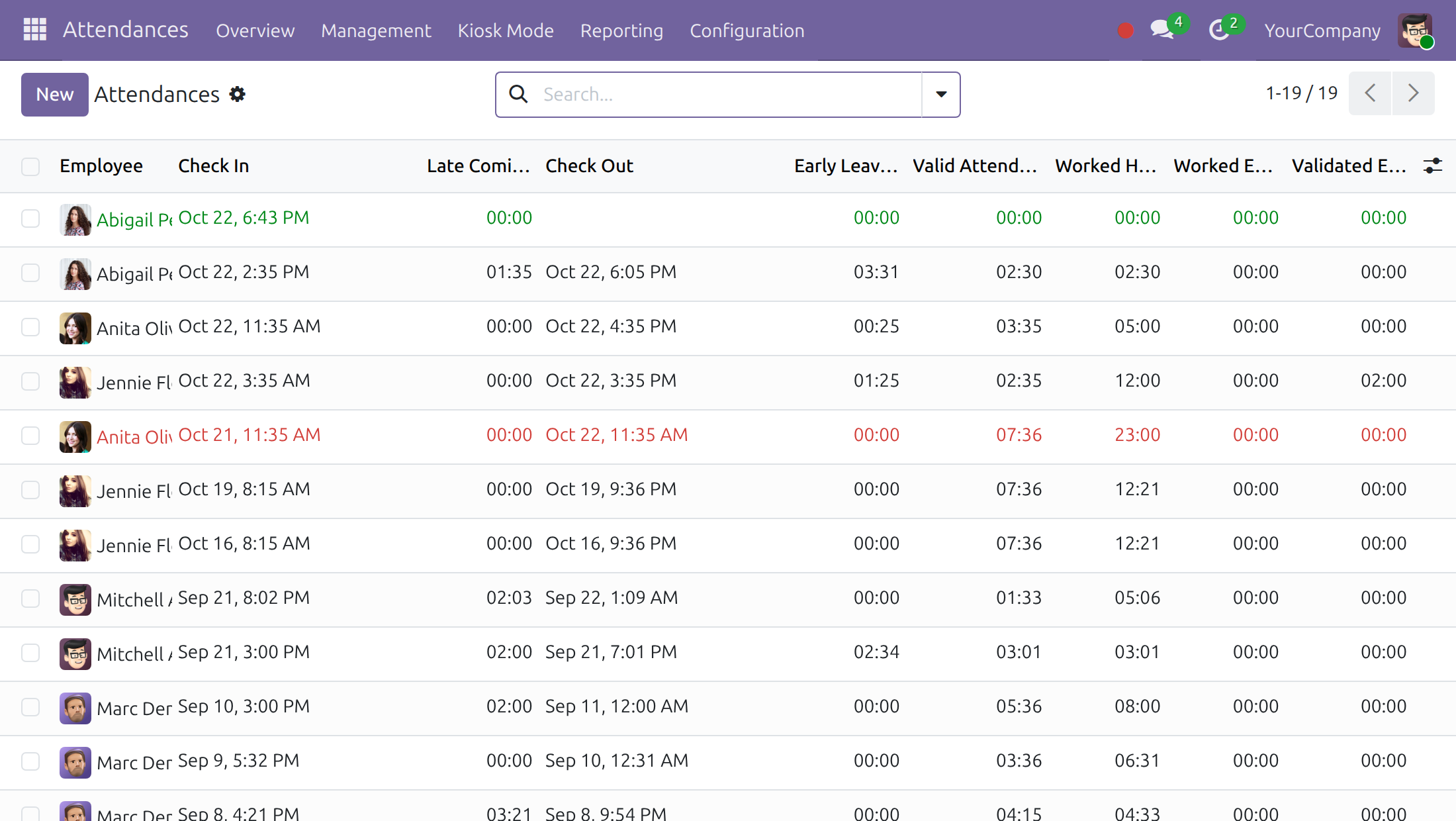
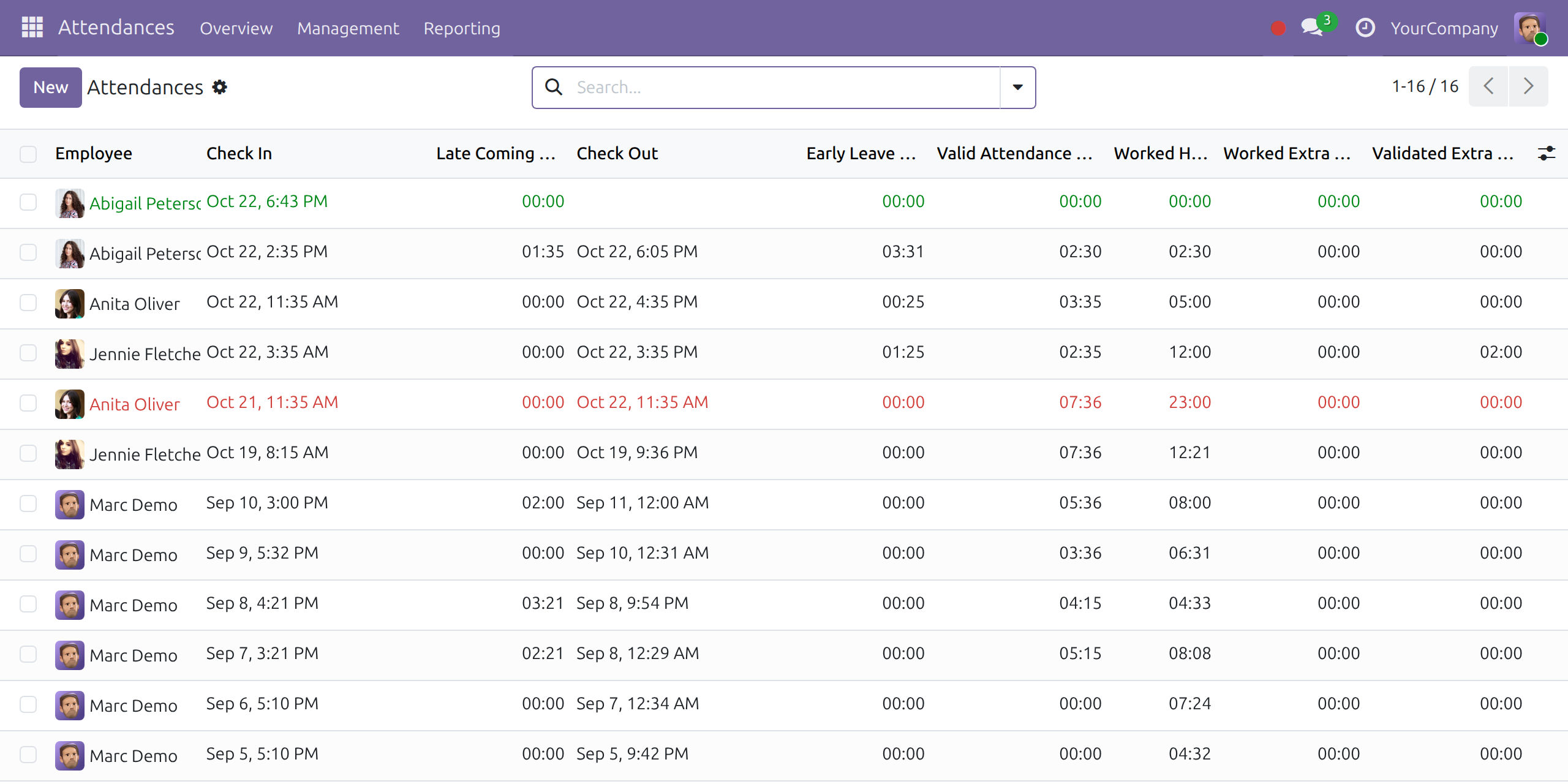
Read the valid hours of your team
A team leader sees the late coming, early leave and valid attendance hours of the employees who name them as approver.
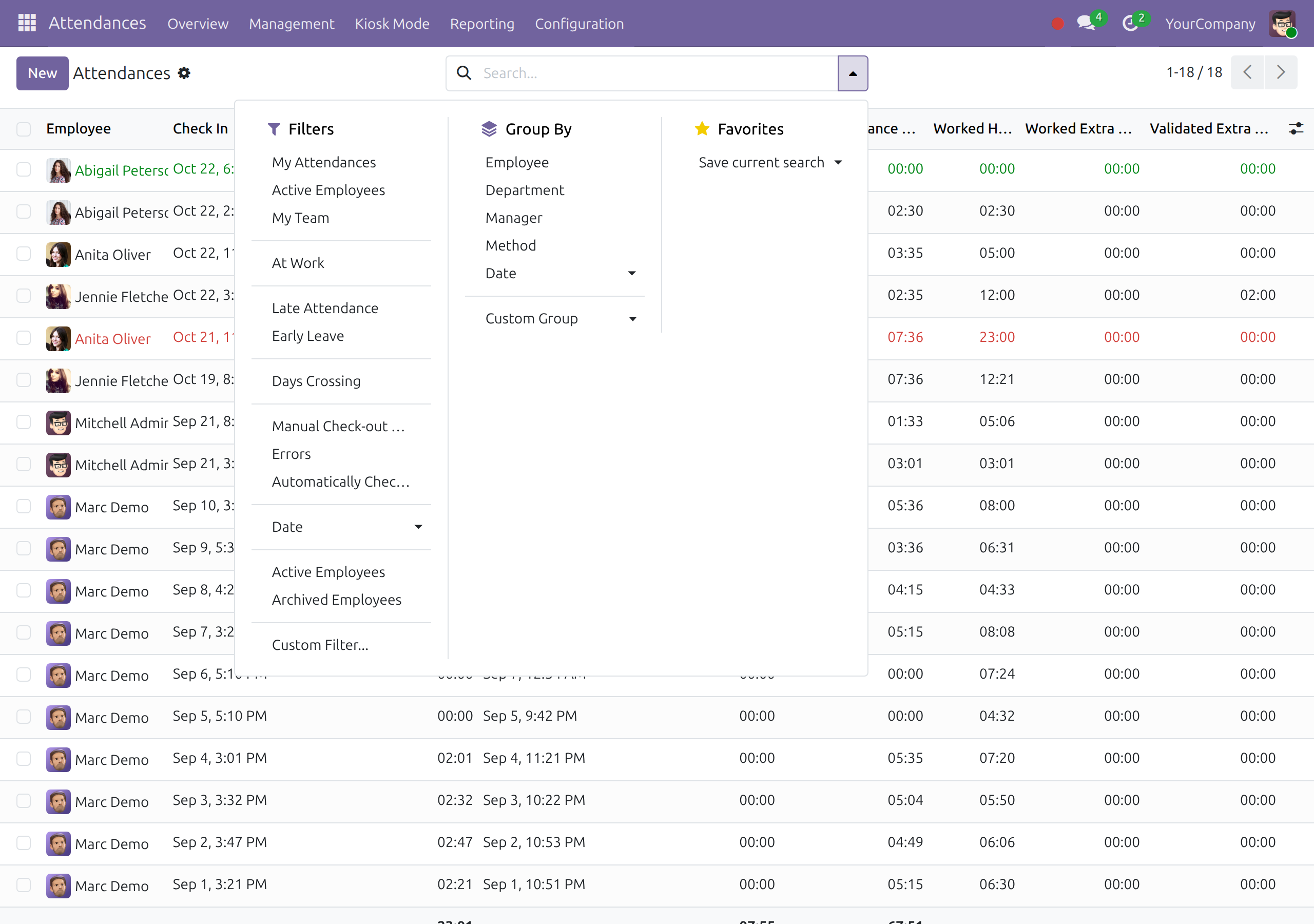
Find the late and early entries
Filter late attendance, early leave, days crossing, manual and automatic check-outs.
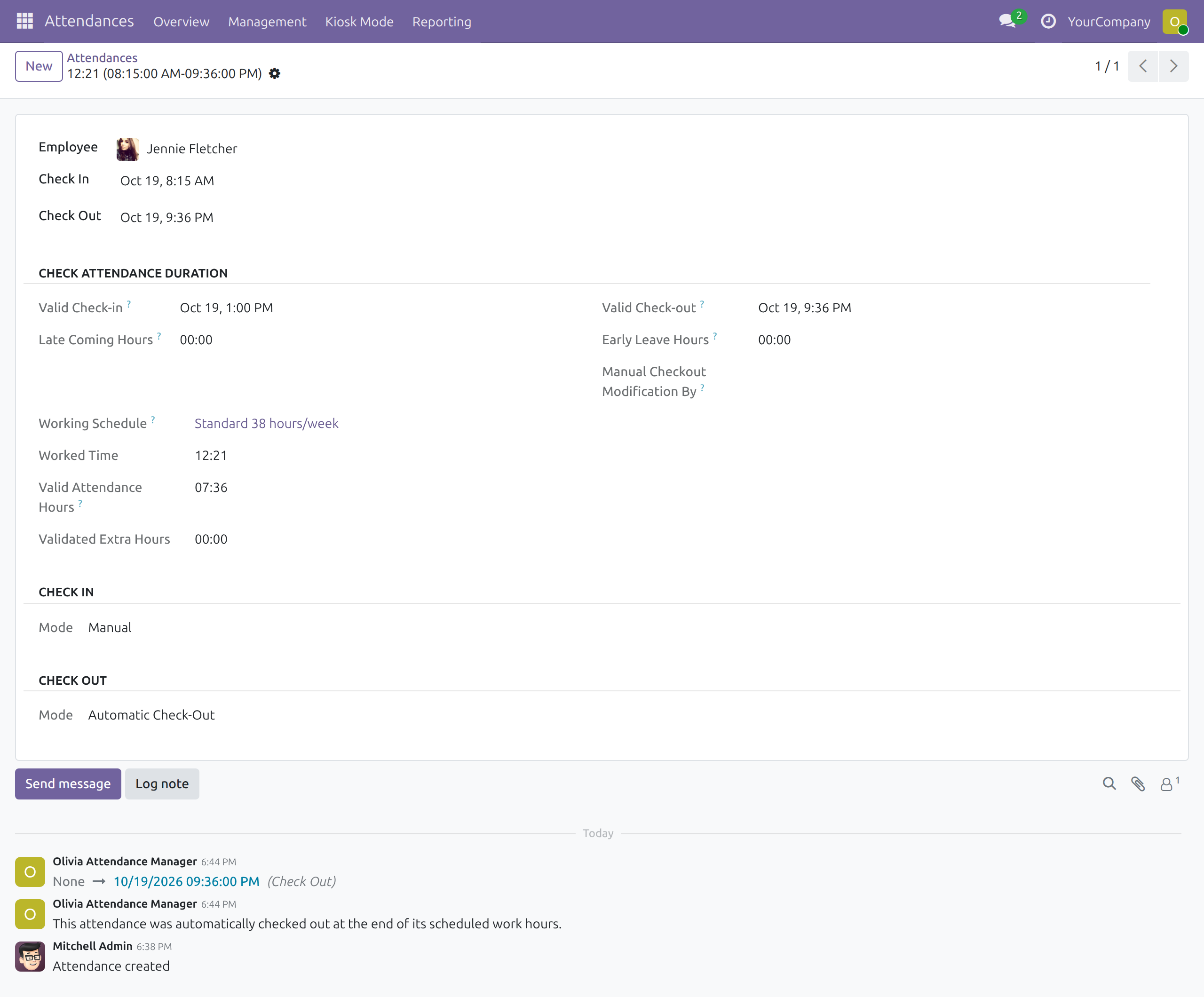
Open one entry in full
Valid check-in and check-out, late and early hours, who changed the check-out, and the note left by the automatic check-out.
Close forgotten check-outs in one action
Select the open entries and choose Auto Check-out, or Revalidation to recalculate.
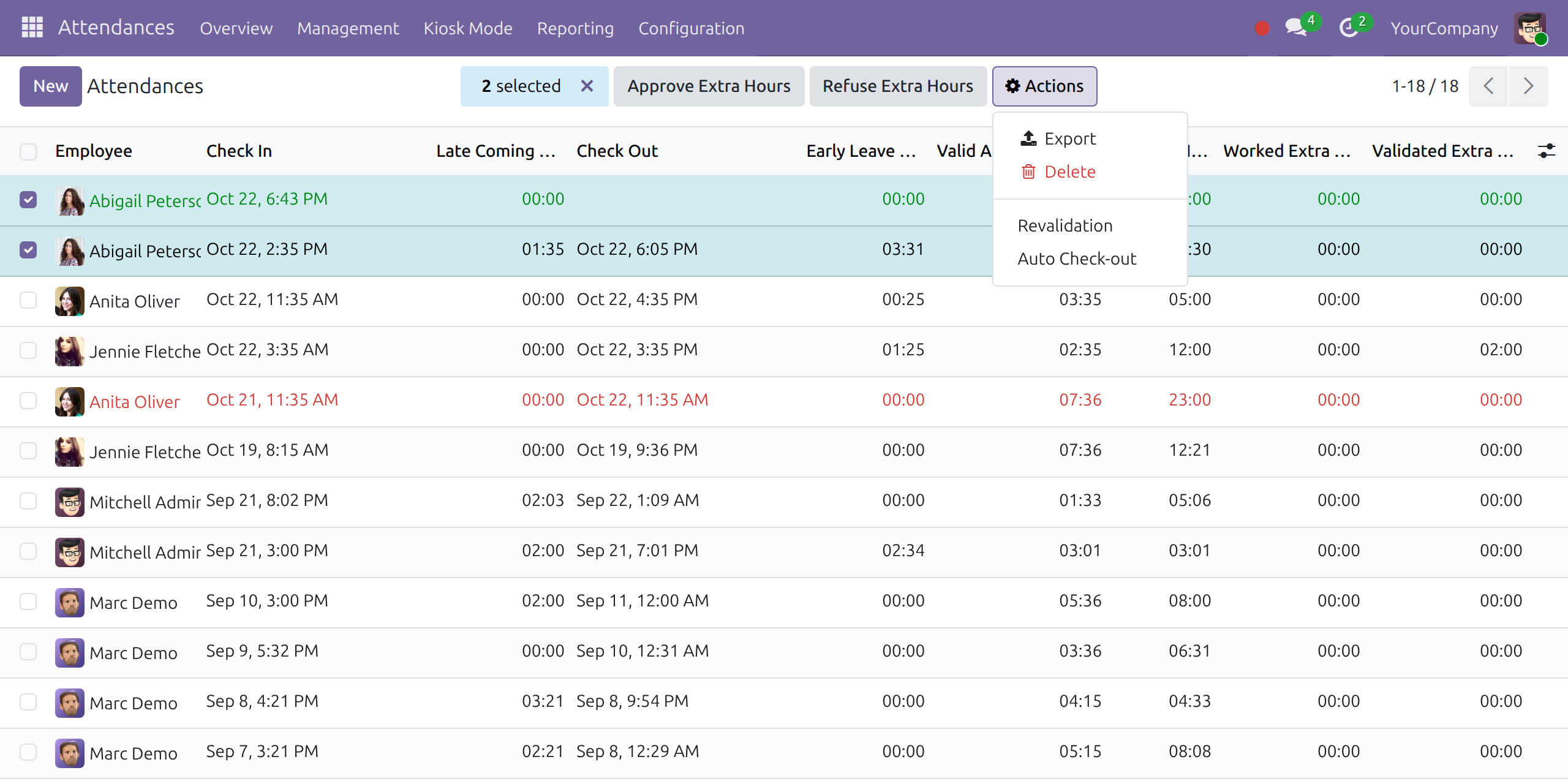
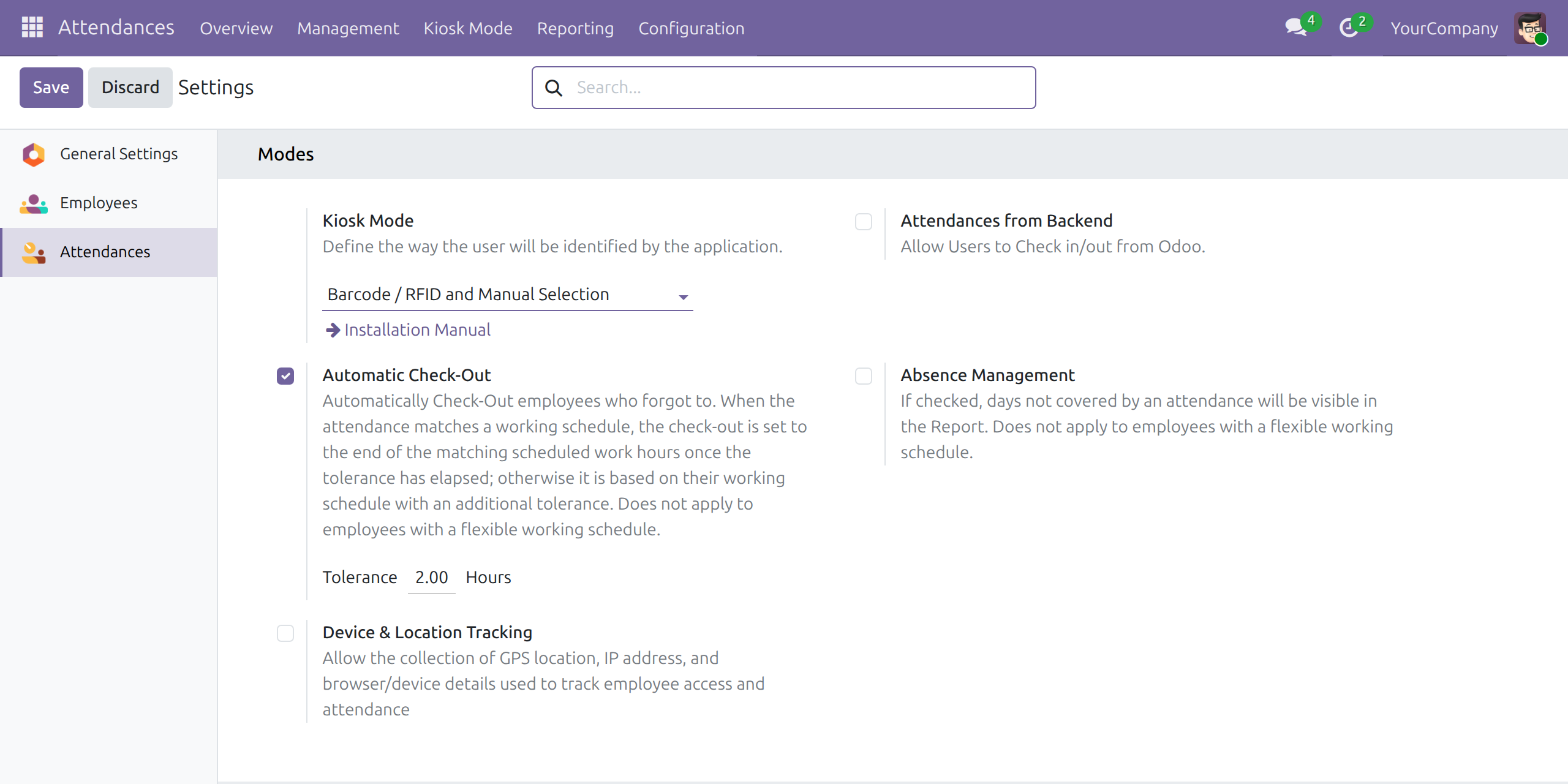
Let the system close them for you
Switch on Automatic Check-Out and set the tolerance in hours.
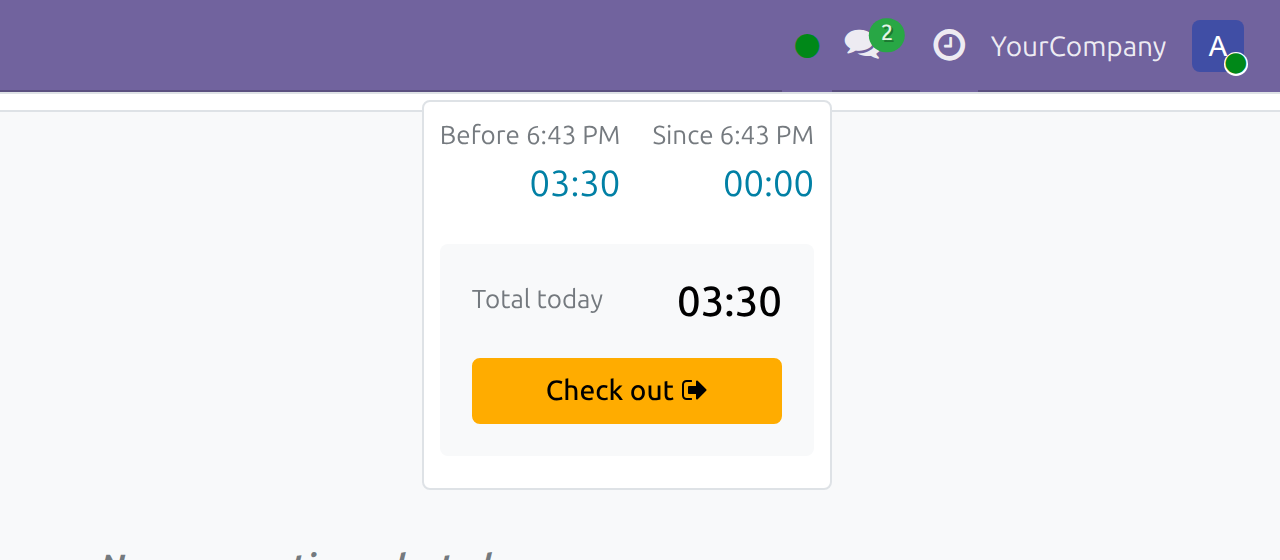
Employees check in and out from the top bar
One click on the status dot; the entry is validated against the schedule.
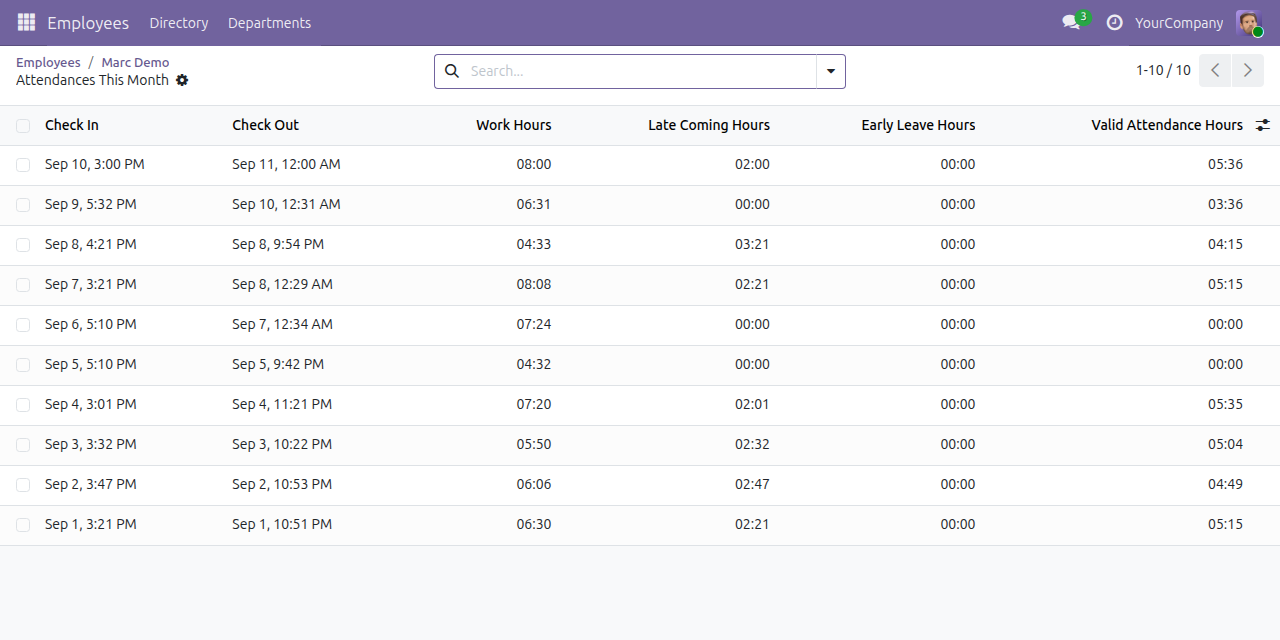
Every employee sees their own valid hours
Open your profile and Monthly Hours: late coming, early leave and valid attendance hours for each entry.
Valid hours in the Management list too
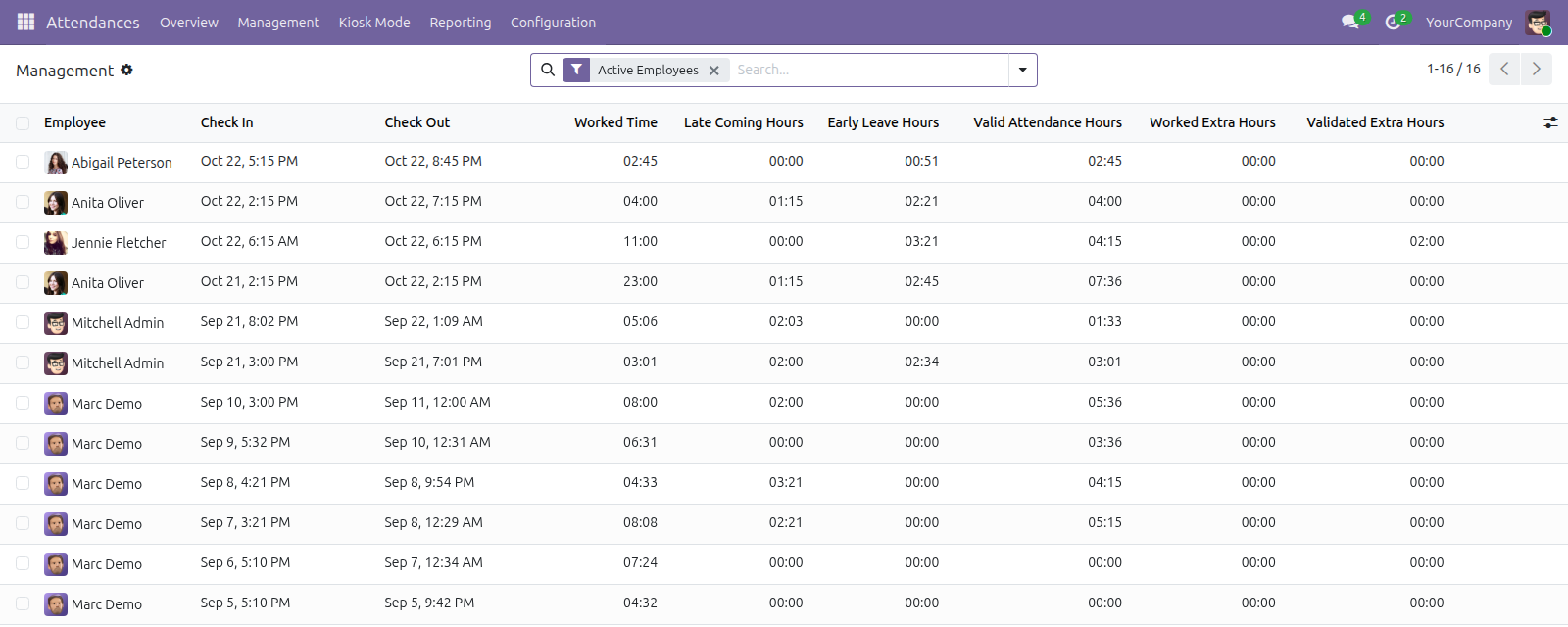
Managers read the same columns next to the worked time in Attendances > Management.
See Attendance Data Validation (HR) in Action
Live demo: v19demo-int.viindoo.com
Frequently Asked Questions
What does it measure attendance against?
The working schedule on the employee's contract, with holidays and time off taken into account.
What if an employee forgets to check out?
Switch on Automatic Check-Out and set a tolerance in hours. The entry is closed at the end of that day's last work period once the tolerance has passed. A manager can also close selected entries at once. It does not apply to employees with a flexible working schedule.
Does it approve or reject attendance?
No. It works out what counts; reviewing and correcting is done by the team leader or the Attendance Manager.
Does it need a working schedule?
Yes. Employees without one have nothing to be measured against.
Who can see the results?
The Attendance Manager sees every employee; a team leader sees the employees who name them as Attendance Approver, plus their own. Each employee sees their own valid hours in their profile.
Which Odoo version and editions are supported?
Odoo 19.0: Odoo Community, Odoo Enterprise and Viindoo Cloud. A newer Odoo series is a separate purchase for that series.
Need help with Attendance Data Validation (HR)?
For questions, implementation support or a custom feature, contact Viindoo.
Pre-Sales & Partnership
Contact ViindooTechnical Support
Open a support ticketUpgrades to a newer Odoo series are a separate purchase for that series.
All Viindoo apps: Viindoo
Technical Requirement
- Odoo version: 19.0
- Editions: Odoo Community, Odoo Enterprise, Viindoo Cloud
- Required modules: Attendances, and Contracts from Viindoo (installed with it)
- License: OPL-1
Attendance Data Validation (HR)
Who this guide is for: the Administrator who sets up attendance and assigns access rights, the Attendance Manager and the team leader (Attendance Approver) who review attendance data, and the Employee who checks in and out.
Overview
Raw check-in and check-out times say when people pressed the button, not how much of that time counts. This module compares every attendance entry with the employee's working schedule, taking holidays and time off into account, and shows next to the recorded times:
- the Valid Check-in and Valid Check-out the schedule expects;
- the Late Coming Hours and Early Leave Hours;
- the Valid Attendance Hours: the worked time that falls inside the schedule, without early arrival, late departure or time off;
- for employees who forgot to check out, an automatic check-out at the end of that day's working schedule.
The process runs in four steps:
- The Employee checks in and out.
- The system works out the valid hours of the entry. It repeats the calculation when the contract, the working schedule or a time off of the employee changes.
- The team leader (Attendance Approver) or the Attendance Manager reviews the entries, filters the late and early ones and closes forgotten check-outs.
- The Administrator decides whether forgotten check-outs are closed automatically and for how long the system waits.
| Role | What they do | Access right to assign |
|---|---|---|
| Employee | Checks in and out. | Attendances: User: Read his own attendances |
| Team leader (Attendance Approver) | Reviews the attendance of the employees who name them as Attendance Approver, and of their own. | Attendances: Officer: Manage attendances |
| Attendance Manager | Reviews the attendance of every employee and closes forgotten check-outs. | Attendances: Officer: Manage all attendances |
| Administrator | Sets up automatic check-out and the attendance modes. | Attendances: Administrator |
Setup (for the Administrator)
- Open Apps, search for Attendance Data Validation (HR) and press Install. The Attendances and Contracts apps it needs are installed with it.
- Make sure each employee has a working schedule on their contract; without one there is nothing to compare the entries with.
- Open Settings > Users & Companies > Users and give each person the access right of their role, as listed in the table above.
- For each employee, choose the team leader in the Attendance Approver field of the employee form, so that the leader can see that employee's attendance.
- Open Attendances > Configuration > Settings. Tick Attendances from Backend so that employees can check in and out from the top bar of Odoo, and tick Automatic Check-Out to close forgotten check-outs (see below). Press Save.
Switch on Automatic Check-Out
- Open Attendances > Configuration > Settings.
- Tick Automatic Check-Out and enter the Tolerance in hours (2 hours by default).
- Press Save.
From then on, an employee who checked in and forgot to check out is closed automatically: once the tolerance has passed after the end of that day's working schedule, the check-out is set to the end of the last work period of that day, not to the end of the morning or afternoon block they happened to start in. For a schedule of 8:00 - 12:00 and 13:00 - 17:00, an employee who checked in at 8:00 or at 13:00 and never checked out gets a check-out at 17:00 the same day.
Automatic Check-Out does not apply to employees with a flexible working schedule.
Employee: check in and out
With Attendances from Backend switched on, the status dot at the top right of Odoo shows whether you are checked in (green) or not (red).
- Click the status dot.
- Press Check in when you start work.
- When you finish, click the dot again and press Check out.
The panel shows the time worked before and since your last check-in, and your total for today. If you forget to check out and Automatic Check-Out is on, the system closes the entry at the end of that day's working schedule. Ask your team leader or Attendance Manager if that time is wrong.
Read your own valid hours
- Open your employee profile and click the Monthly Hours button.
- Read the Late Coming Hours, Early Leave Hours and Valid Attendance Hours next to each Check In and Check Out.
The valid hours of your entries are also visible to your team leader and to the Attendance Manager. The Attendances app itself is not open to the Employee role.
Team leader: review the attendance of your team
The team leader sees the entries of the employees who named them as Attendance Approver, plus their own. Everything that follows works the same way for the Attendance Manager, who sees every employee.
Read the valid hours
- Open Attendances > Overview > Dashboard.
- Read the columns Late Coming Hours, Early Leave Hours and Valid Attendance Hours next to Check In and Check Out. Use the column selector at the right of the header to also show Valid Check-in, Valid Check-out, Working Schedule and Days Crossing.
- The same three columns are in Attendances > Management, next to Worked Time.
An entry that falls outside every work period of its day (for example, a check-in on a day off) has no valid check-in or valid check-out, so it shows no late or early hours. In the filter menu, group by Employee to see each person's entries together.
Filter the data
Open the filter menu of the search bar:
- Late Attendance and Early Leave: entries with late coming or early leave hours;
- Days Crossing: entries that start and end on different days;
- Manual Check-out Modification: check-outs that someone filled in or changed by hand;
- Automatically Checked-Out: entries closed by Automatic Check-Out;
- Active Employees: leave out archived employees.
Open an entry for the detail
- In the list, click an entry.
- In Check attendance duration, read the valid check-in and check-out, the late and early hours, and Manual Checkout Modification By, which shows who filled in or changed the check-out by hand.
- Valid Attendance Hours sits with Worked Time below.
Attendance Manager: keep the data right
The Attendance Manager has everything the team leader has, for every employee. The team leader and the Attendance Manager can both close forgotten check-outs and recalculate valid hours; the Revalidation and Auto Check-out actions are hidden for everyone else.
Close forgotten check-outs at once
To close open entries without waiting for the tolerance:
- Open Attendances > Overview > Dashboard and tick the open entries.
- Choose Actions > Auto Check-out.
The entry then shows Automatic Check-Out as its check-out mode, the check-out is set to the end of that day's working schedule, and a note in its chatter says: This attendance was automatically checked out at the end of its scheduled work hours.
Recalculate the valid hours
If a contract, a working schedule or a time off changes afterwards, the valid values of the affected entries are recalculated. To recalculate selected entries yourself, tick them and choose Actions > Revalidation.
This software and associated files (the "Software") may only be used (executed, modified, executed after modifications) if you have purchased a valid license from the authors, typically via Odoo Apps, or if you have received a written agreement from the authors of the Software (see the COPYRIGHT file).
You may develop Odoo modules that use the Software as a library (typically by depending on it, importing it and using its resources), but without copying any source code or material from the Software. You may distribute those modules under the license of your choice, provided that this license is compatible with the terms of the Odoo Proprietary License (For example: LGPL, MIT, or proprietary licenses similar to this one).
It is forbidden to publish, distribute, sublicense, or sell copies of the Software or modified copies of the Software.
The above copyright notice and this permission notice must be included in all copies or substantial portions of the Software.
THE SOFTWARE IS PROVIDED "AS IS", WITHOUT WARRANTY OF ANY KIND, EXPRESS OR IMPLIED, INCLUDING BUT NOT LIMITED TO THE WARRANTIES OF MERCHANTABILITY, FITNESS FOR A PARTICULAR PURPOSE AND NONINFRINGEMENT. IN NO EVENT SHALL THE AUTHORS OR COPYRIGHT HOLDERS BE LIABLE FOR ANY CLAIM, DAMAGES OR OTHER LIABILITY, WHETHER IN AN ACTION OF CONTRACT, TORT OR OTHERWISE, ARISING FROM, OUT OF OR IN CONNECTION WITH THE SOFTWARE OR THE USE OR OTHER DEALINGS IN THE SOFTWARE.
