
Quote several container types in one FCL shipment
Guide information
Requirements
This tutorial requires the installation of the following applications/modules:
Freight Sale - required for freight quotations and the Container Demands grid on this page. Check Installed Apps before starting; it may install automatically when all its dependencies are present.
Supplier-Based Pricelist - installed as a dependency of Freight Sale.
Freight - Mixed Container Cost Per Type - Patch 1 - required for Container Demands and the per-type comparison. Check that it is installed before starting.
An FCL shipment can use several container sizes on the same sailing (see Freight forwarding glossary). Sales enters the proposed combination, compares carriers that can price every type, then quotes each type at its agreed selling price. Operations checks that the loading plan and available space suit the cargo before booking.
Running scenario: Hai Long Logistics quotes a follow-on order for Nhat Long Footwear: about 1,050 more cartons of footwear (~88 CBM), too much cargo for one Container 40FT HC (using a planning allowance of ~68 CBM in this example). Sales compares 1 x Container 20FT and 1 x Container 40FT HC (96 CBM of estimated usable space) on the same ONE Line sailing, route Hai Phong Port to Port of Los Angeles. The buy rate is USD 1,250 per Container 20FT and USD 1,850 per Container 40FT HC (the same 40FT HC rate already used in Quote a full container load for sea export); the price agreed with the customer is USD 1,430 and USD 2,150 respectively.
Note
The 28 CBM and 68 CBM figures are packing allowances chosen for this example, not the container’s nominal capacity. ONE container specifications list about 33.1 m³ for a dry 20FT and 76.2 m³ for a 40FT High Cube; individual units vary. Operations must check cargo dimensions, door opening, weight limits and the loading plan before confirming that the combination fits.
Before you start
A rate card for ONE Line, Hai Phong Port to Port of Los Angeles, exists for both Container 20FT and Container 40FT HC on the same sailing (vessel, voyage and ETD) - see Maintain carrier rates and vessel schedules. Rate cards on two different sailings do not combine.
Decide the combination by hand (spreadsheet or experience) - nothing computes how many containers of each type a cargo volume needs; the wizard only prices the combination you enter.
You are in the Sales group, as for Quote a full container load for sea export.
See also
Cargo that fills an exact number of one container size does not need this page - see Quote a full container load for sea export.
Decide how many container types to combine
Option |
Use when |
What changes |
|---|---|---|
One container type (Quote a full container load for sea export) |
The cargo fills a whole number of containers of a single size |
The wizard behaves like a plain FCL quote - no Container Rates or Ocean Freight Total columns appear |
Two or more container types (this page) |
The cargo volume does not divide evenly into one container size |
The comparison table only lists carriers with a rate for every type on the same sailing; the price shown is the combined total |
If you are not sure, price both options and compare them as in Step 3 before you send anything.
Step 1: Add one order line per container type
The wizard reads the container combination back from the order lines, so each type needs its own line - a single combined line would not tell it which types, and how many of each, to price.
Go to and click New.
Customer: Nhat Long Footwear.
Order Lines, line 1 - Product: Ocean Freight - FCL, Quantity: 1, Container Type: Container 20FT.
Order Lines, line 2 - Product: Ocean Freight - FCL, Quantity: 1, Container Type: Container 40FT HC.
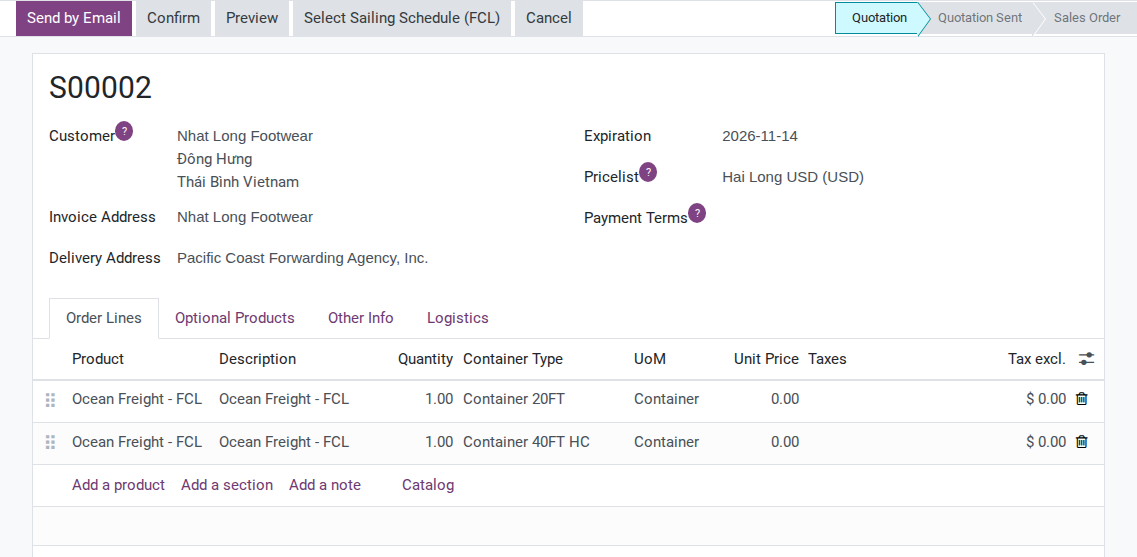
The Container Type column only takes a value on freight lines, and the Select Sailing Schedule (FCL) button appears in the header, as in Quote a full container load for sea export.
Tip
Step 1 is done when: there are 2 lines reading Ocean Freight - FCL, each with a different Container Type and Quantity 1.
Step 2: Search for complete sailings
Only a sailing with a rate for every container type counts as a usable combination - a sailing that covers one of the two types would leave part of the cargo unpriced, so the table hides it.
Click Select Sailing Schedule (FCL). The single Container Type / Containers fields of a one-type quote are hidden; the Container Demands grid shows instead, already filled from the order lines: Container 20FT x 1 and Container 40FT HC x 1.
Enter POL: Vietnam - HPH (VN) and POD: United States - USLAX (US). Clear Include Origin Local Charges and Include Destination Local Charges for this ocean-freight-only comparison; add any separately agreed local charges to the quotation later. Click Search.
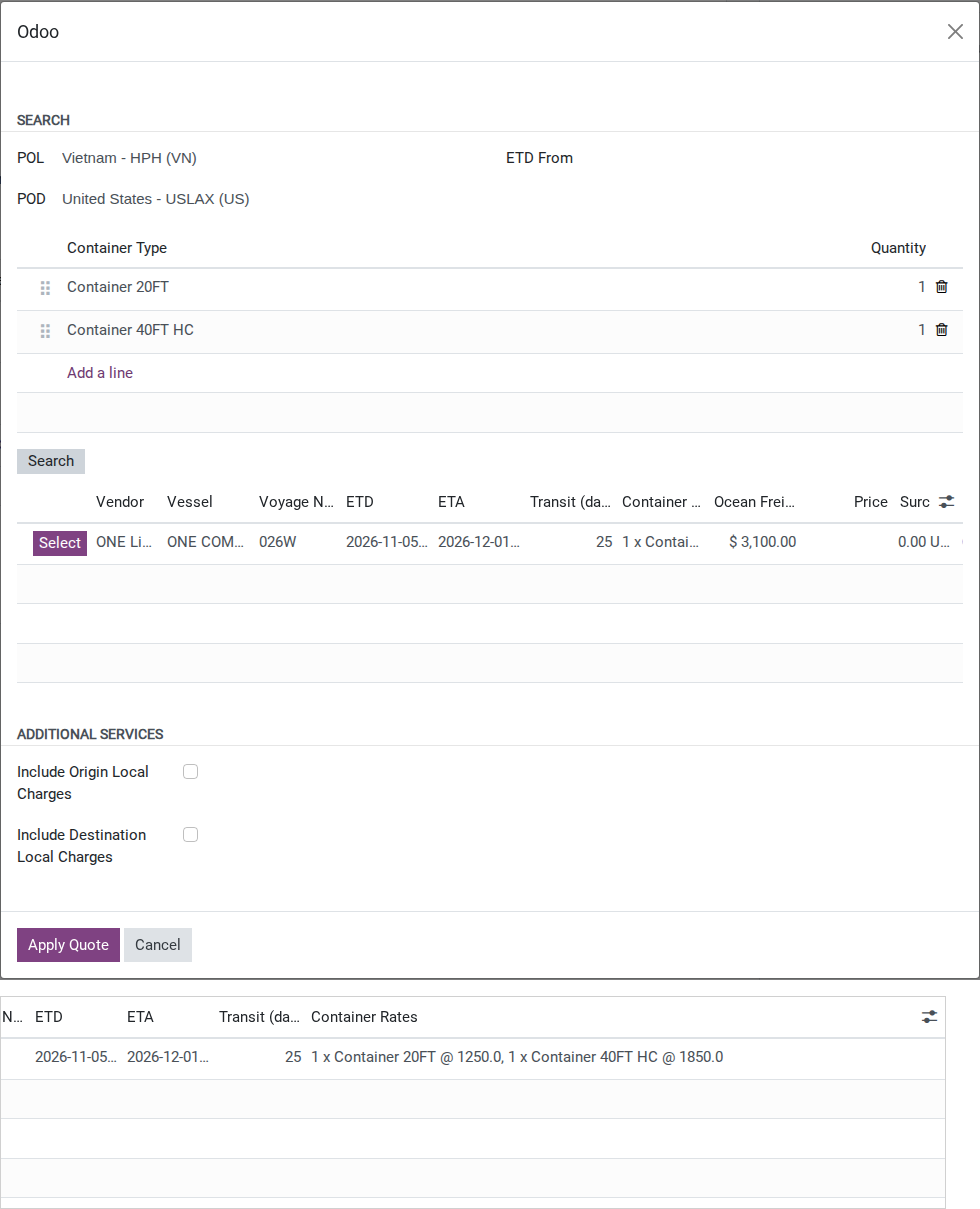
Each row now shows a Container Rates column - plain text built by the system, for example 1 x Container 20FT @ 1250.0, 1 x Container 40FT HC @ 1850.0 - and an Ocean Freight Total column instead of the single price column of Quote a full container load for sea export.
Warning
If the table is empty, or the carrier you expect is missing, do not type a price by hand: no single carrier has a rate for every type you listed on the same sailing. See Troubleshooting.
Tip
Step 2 is done when: exactly one ONE Line row appears, its Container Rates cell lists both Container 20FT and Container 40FT HC, and its Ocean Freight Total reads USD 3,100.00 (1,250 + 1,850).
Step 3: Compare against the single-type alternative
Compare both the freight price and the loading plan before deciding which combination to offer. Outside the wizard, compare the Ocean Freight Total from Step 2 with 2 x Container 40FT HC for the same 88 CBM (the option of the original order in Quote a full container load for sea export): 1 x Container 20FT + 1 x Container 40FT HC provides an estimated 96 CBM of usable space for USD 3,100; 2 x Container 40FT HC provides an estimated 136 CBM for USD 3,700 (2 x 1,850), using the same packing allowances. These estimates still require Operations to approve the loading plan.
Important
The wizard keeps one combination on screen at a time: changing the Container Demands grid and clicking Search again replaces the table. Write down the Ocean Freight Total of each combination you try before moving to the next one.
Tip
Step 3 is done when: the mix (USD 3,100, 96 CBM) is recorded as cheaper than 2 x Container 40FT HC (USD 3,700), and Operations has checked that the proposed loading plan accommodates the cargo within dimension and weight limits.
Step 4: Apply the quote and set the markup for each container type
Applying the quote writes the carrier and the buy rate onto each order line - one rate per container type. Review both rates and enter the selling prices agreed with the customer before sending the quotation.
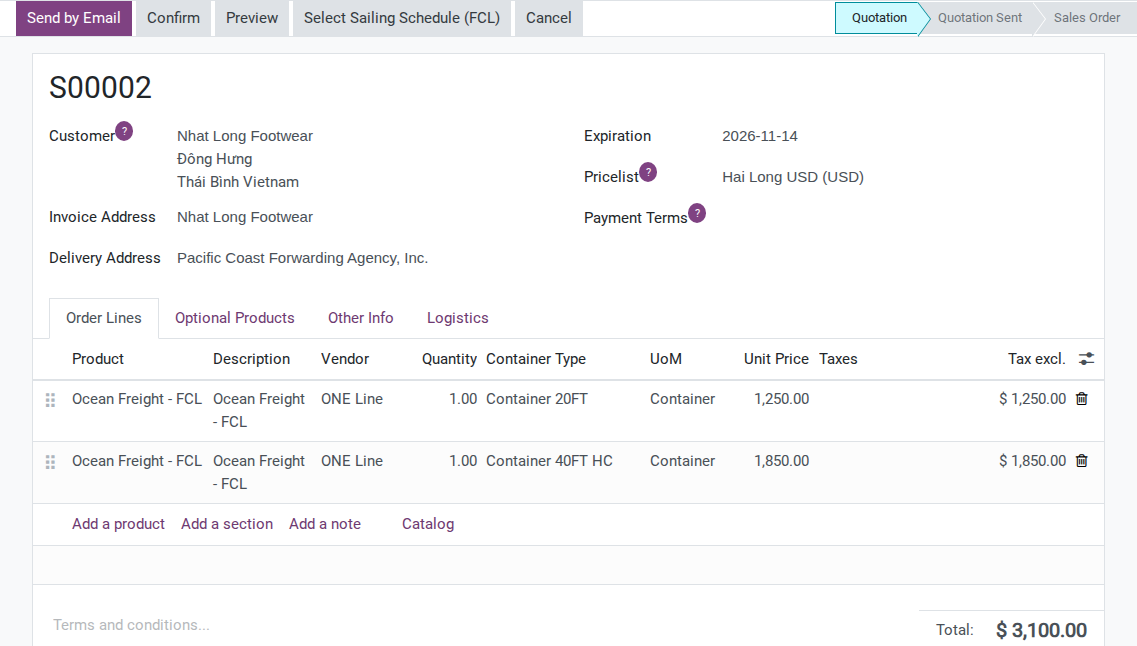
Click Select on the ONE COMMITMENT / 026W row, review the selected sailing and confirm that both local-charge options remain cleared, then click Apply Quote. Both lines now show Vendor: ONE Line and the buy price as Unit Price (1,250.00 and 1,850.00).
Important
This is not a display error - as in Quote a full container load for sea export, Apply Quote writes the buy price on every line unless the customer’s pricelist has a “Supplier Price List” rule with a markup (see the product’s pricing configuration). Here the gap repeats once per container type.
Edit each Unit Price:
Container 20FT line: 1,250.00 -> 1,430.00 USD (markup USD 180, about 14.4% of cost).
Container 40FT HC line: 1,850.00 -> 2,150.00 USD (markup USD 300, about 16.2% of cost, the same as in Quote a full container load for sea export).
Tip
Step 4 is done when:
Both lines show Vendor ONE Line, each at its own markup (14.4% vs 16.2% of cost).
The order’s total revenue (USD 3,580) is higher than its total cost (USD 3,100).
Step 5: Send the quotation
Click Send by Email or Print, following the standard Odoo Sales flow. Because each container type is its own order line, the printed quotation lists them as separate lines on its own, without any extra configuration.
Note
The system does not add a “subject to space availability” note per container type on its own. Write it into the quotation’s Terms or an internal note by hand if the carrier has not confirmed space for both types yet.
Tip
Step 5 is done when: the quotation sent to the customer shows Container 20FT at USD 1,430.00 and Container 40FT HC at USD 2,150.00 as separate lines, totalling USD 3,580.00.
Step 6: Confirm and hand off to Operations
The combination has to be locked before Operations starts booking - changing it afterwards means going back to Step 2 and re-applying a quote on an order that is no longer a draft.
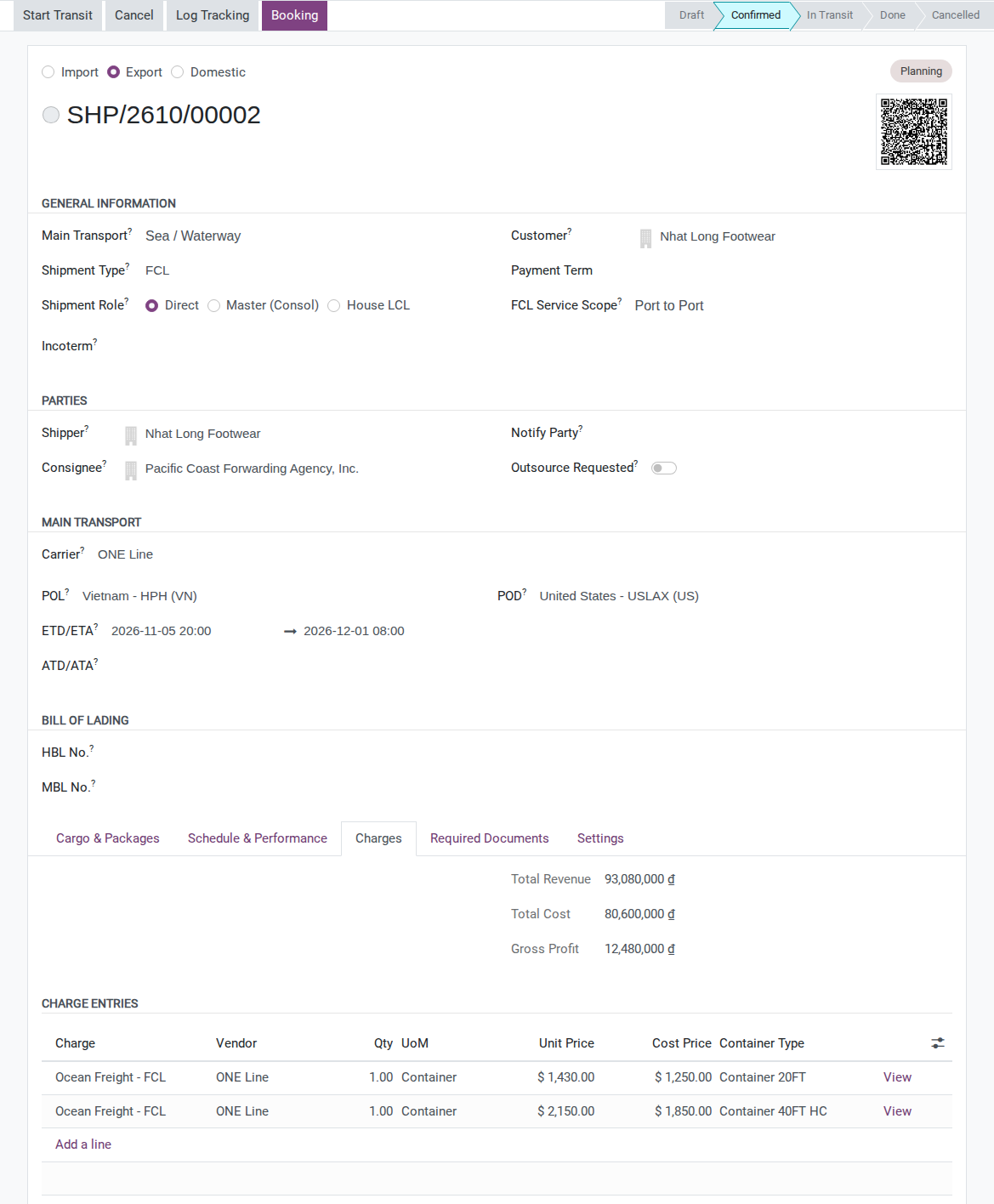
Click Confirm on the quotation. Operations then opens the new Draft shipment, checks the route and parties (Shipper: Nhat Long Footwear, Consignee: Pacific Coast Forwarding Agency, Inc.), reviews both charge lines and clicks Confirm on the shipment. Booking is a separate next step.
After you click Confirm:
The order moves to Sales Order.
A shipment is created automatically, and its Charges tab already shows 2 lines, one per container type - Operations opens the shipment and sees the exact combination without asking Sales again.
Note
There is no single field on the shipment header summarizing “2 container types” - the combination only shows up as 2 lines on the Charges tab. Declaring the actual containers (numbers, seals) is a separate step performed on the shipment’s Cargo & Packages tab, outside this page.
Tip
Step 6 is done when:
The new shipment’s route reads Hai Phong Port to Port of Los Angeles.
Its Charges tab has 2 lines: one Container 20FT quantity 1, one Container 40FT HC quantity 1.
Known limitations
Step |
What Viindoo does today |
What you do instead |
|---|---|---|
Before Step 1 (deciding the combination) |
No field or tool computes how many containers of each type a cargo volume needs on an FCL quote |
Work out the combination by hand (spreadsheet or experience) before opening the wizard |
Step 3 (comparing combinations) |
Each Search keeps only the latest combination; there is no side-by-side table of several combinations |
Write down the Ocean Freight Total of each combination you try, then compare by hand |
Step 4 (Apply Quote) |
Every line’s Unit Price, one per container type, defaults to the buy price unless the pricelist has a markup rule configured (same gap as Quote a full container load for sea export) |
Edit each Unit Price by hand, using a different markup per container type |
Step 5 (sending the quotation) |
No “subject to space availability” text is generated per container type |
Add it to the quotation’s Terms or an internal note by hand if needed |
Step 6 (handover) |
The shipment header has no single field summarizing the container combination |
Read the combination from the Charges tab instead of a header field |
Troubleshooting
A carrier with rate cards for both types does not appear in the comparison table
Symptom: Rate cards exist for both Container 20FT and Container 40FT HC from the same carrier, but the comparison table does not show that carrier after Search.
Cause: The two rate cards are attached to different sailings (a different vessel, voyage or ETD) - only rate cards sharing the exact same sailing are combined into one row.
Fix:
Open both rate cards in Maintain carrier rates and vessel schedules.
Check that both list the same vessel, voyage and ETD.
Correct the sailing on whichever rate card is wrong, then Search again.
“No matching vessel schedules were found for all container types in this quotation.”
Symptom: After Search, this message appears and the table stays empty.
Cause: No single carrier has a rate for every container type currently listed in the Container Demands grid, on the same sailing.
Fix:
Add the missing rate card for the container type that has none, or
Remove the container type that does not actually need a separate rate from the grid.
“A container type can only appear once.”
Symptom: Saving the wizard is blocked with this message after entering 2 lines for the same container type in the Container Demands grid.
Cause: A single wizard cannot hold two demand lines for the same container type - the quantity is meant to carry the total for that type.
Fix:
Remove the extra line.
Add the total quantity for that type to the remaining line instead.
“The selected sailing rate bundle is stale. Search again.”
Symptom: Clicking Apply Quote on a row selected a while ago returns this error instead of applying a price.
Cause: The combination’s live data (a rate card or a vessel schedule) changed between the Search and the Apply Quote click.
Fix:
Click Search again.
Reselect the ONE Line row.
Click Apply Quote right away.