
Track LCL package milestones
Guide information
Requirements
This tutorial requires the installation of the following applications/modules:
Freight Forwarder Management (installs Logistics Accounting automatically)
On an LCL shipment, each package travels on its own until the moment it is loaded onto the master container - one pallet can already be sitting at the CFS while another is still at the customer’s warehouse. If the milestones are not updated as each package actually moves, Customer Service cannot tell which package has left and which has not, and answers the customer’s tracking question with yesterday’s position, not today’s. If a term such as CFS is new to you, see the Freight forwarding glossary.
Running scenario: house shipment SHP/2610/00004 for Song Hong Handicraft Co., Ltd., LCL export from Hai Phong Port to Port of Singapore (PSA), consolidated under master container WHLU2233445 (Wan Hai Lines). The house ships 3 pallets: 280 kg / 1.6 CBM, 280 kg / 1.7 CBM and 290 kg / 1.7 CBM.
Before you start
The house shipment already has its packages declared - see Declare cargo, packages and containers.
You are on the house shipment’s Cargo & Packages tab. The LCL Packages group only appears once Load Mode = LCL and the shipment has left Draft.
Step 1: Mark the packages Ready
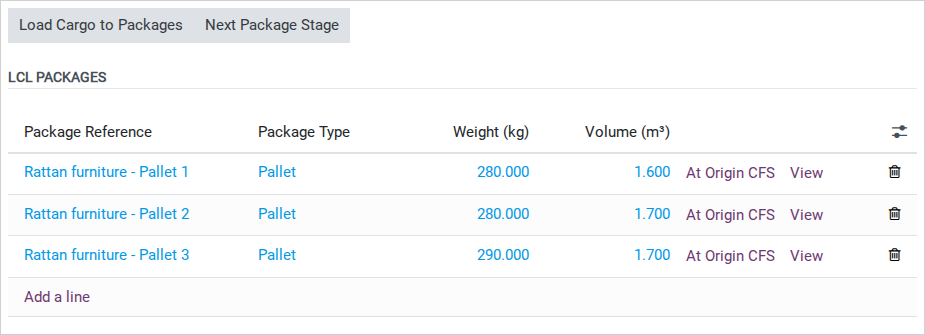
Each row in the LCL Packages group carries its own milestone button - a package only shows the button for the stage that comes right after its current one, and the row color gives the stage group: blue for Draft and Ready, orange from At Origin CFS to At Destination CFS, green for Delivered. The stage itself is not shown as a column.
Once a pallet is packed and ready at Song Hong Handicraft’s warehouse, click Ready on its row. Repeat for all 3 pallets.
Tip
Step 1 is done when: all 3 pallets of house SHP/2610/00004 (850 kg / 5 CBM in total) are blue and show the At Origin CFS button - they are Ready.
Step 2: Move the packages through the CFS and the voyage
Not every pallet reaches the CFS, or leaves it, at the same moment - update each one as it actually moves, rather than waiting for the whole house to be ready together.
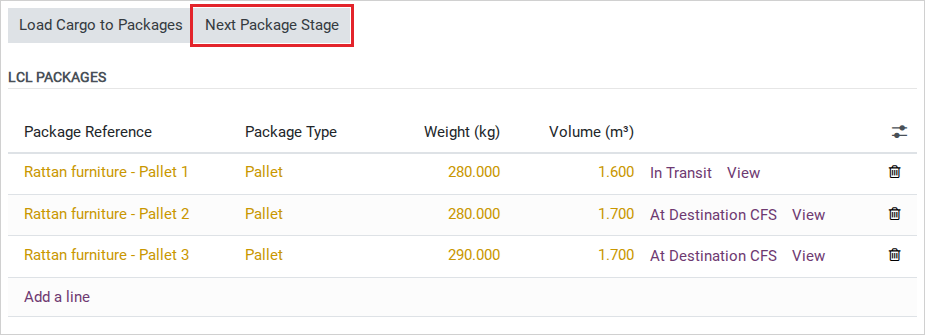
On each row, click in order: At Origin CFS once the pallet reaches Dinh Vu CFS, then In Transit once container WHLU2233445 has actually sailed (see the note below), then At Destination CFS once it reaches Marina Bay Consol Agency Pte. Ltd. in Singapore.
Note
Clicking Cargo Received at CFS on the house (see Consolidate LCL export shipments under a master) already moves every pallet of the house to At Origin CFS in one go - skip that button on the rows if it was used.
Or, at the top of the Cargo & Packages tab, click Next Package Stage to push every package of this house forward one stage at once - each package advances from its own current stage, so packages that started at different stages do not land on the same stage.
Important
Loading the pallets onto the master container through the Load House Package to Container wizard (run on the LCL master, see Consolidate LCL export shipments under a master) does not touch these milestones at all - the wizard and the milestone buttons are two independent actions with no link between them. Click In Transit yourself once the master has actually sailed; do not expect the wizard to do it.
Tip
Step 2 is done when: every pallet that has physically sailed on WHLU2233445 is orange and shows the At Destination CFS button (it is In Transit) - none still shows At Origin CFS or In Transit as its next button.
See also
Track container milestones from empty pickup to return for the container-level milestones (Empty Picked to Loaded) that run in parallel with these package-level ones on the master container itself.
Decide whether to click each package or use Next Package Stage
Option |
Use when |
What changes |
|---|---|---|
Click each package’s own button |
The pallets are not all at the same stage at the same moment (one already at the CFS, one still at the warehouse) |
Full control per row; nothing moves that has not actually moved |
Next Package Stage |
All pallets of this house move together, at the same moment |
Every pallet advances one stage from its own current stage at once - it does not bring mismatched pallets to a common stage first |
If you are not sure whether every pallet moved at the same moment, click each row’s own button instead of Next Package Stage.
Step 3: Mark the packages Delivered
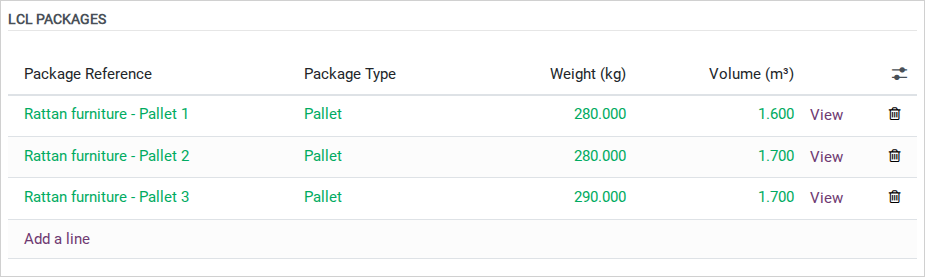
Click Delivered on each pallet’s row once Marina Home Décor Pte. Ltd. has received it.
Tip
Step 3 is done when: all 3 pallets are green with no milestone button left - Delivered - and the house shipment can be closed.
Known limitations
Step |
What Viindoo does today |
What you do instead |
|---|---|---|
Step 2 (loading onto the master) |
The Load House Package to Container wizard never writes to a package’s milestone field |
Click In Transit (or Next Package Stage) yourself once the master container has actually sailed; loading alone does not mean the cargo is In Transit |
Whole page (customer portal) |
Package milestones do not appear anywhere on the Customer Portal |
If the customer needs to track progress by individual package, use another channel - the shipment-level updates in shipment-level tracking updates do not cover individual packages either |
Troubleshooting
Next Package Stage does not bring every package to the same new stage
Symptom: after clicking Next Package Stage, the pallets land on different stages from each other instead of one common stage.
Cause: the button advances each package one step from its own current stage; it never lines every package up to a common stage first.
Fix: if every pallet must land on the same stage, click the individual milestone buttons until they match, then use Next Package Stage.
In Transit does not match when the master container actually sailed
Symptom: a pallet still shows the At Origin CFS or In Transit button even though the master container has already been marked Loaded (see Track container milestones from empty pickup to return).
Cause: loading through Load House Package to Container does not update package milestones (see Known limitations above).
Fix: after confirming the master, return to each house shipment and click In Transit by hand for every pallet it carries.
See also
Related articles