
Set up Spaces, templates and access
Guide Overview
Before You Start
You need |
Why |
|---|---|
Administration / Settings on your user |
To install Viindoo Brain, to give people their access right and to change the company options. |
Brain / Brain Admin on your user |
To manage every Space, the templates and the wiki-admin lists. A wiki admin is a Space admin of every Space. |
Role Space admin in the Space |
To change the settings of that one Space. |
Note
A Space admin is a role inside one Space. It is not the same as the Brain Admin access right, which covers every Space.
Install Brain and Give People Access
Open Apps, search for Viindoo Brain and click Activate.
Brain works on its own. When your database also uses Sales, CRM, Helpdesk, Employees, Recruitment, Purchase, Inventory, Project or Invoicing, a small connector for that application installs itself. It adds a starter Space for that team, such as Sales Knowledge.
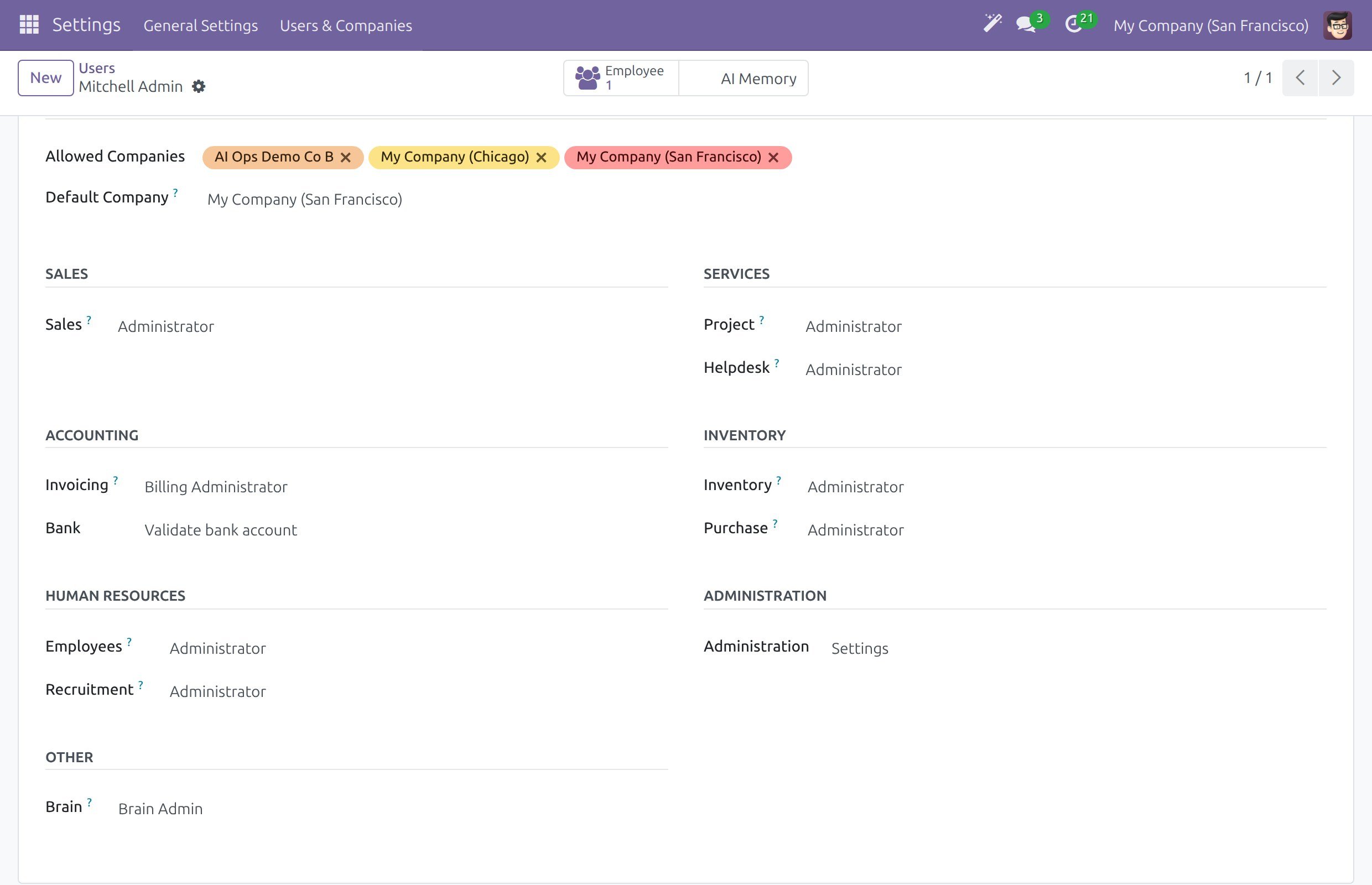
Open and open the person.
In the Access Rights tab, find the field Brain in the group Other and choose the access right:
Value
What the person can do
Empty
Opens the Brain app and works in the Spaces where the person has a role. Every internal user can open the app.
Editor
Everything above, and creates Spaces.
Brain Admin
Is a wiki admin: full control of every Space of the companies the person may see, plus the extra menus described below.
Save the user.
What a person may do inside a Space follows the role the person has in that Space (Viewer, Commenter, Editor or Space admin). A Space admin sets these roles in the settings of the Space.
Set the Company Options
Open and click Brain in the left column. If you also hold Brain / Brain Admin, you can open instead.
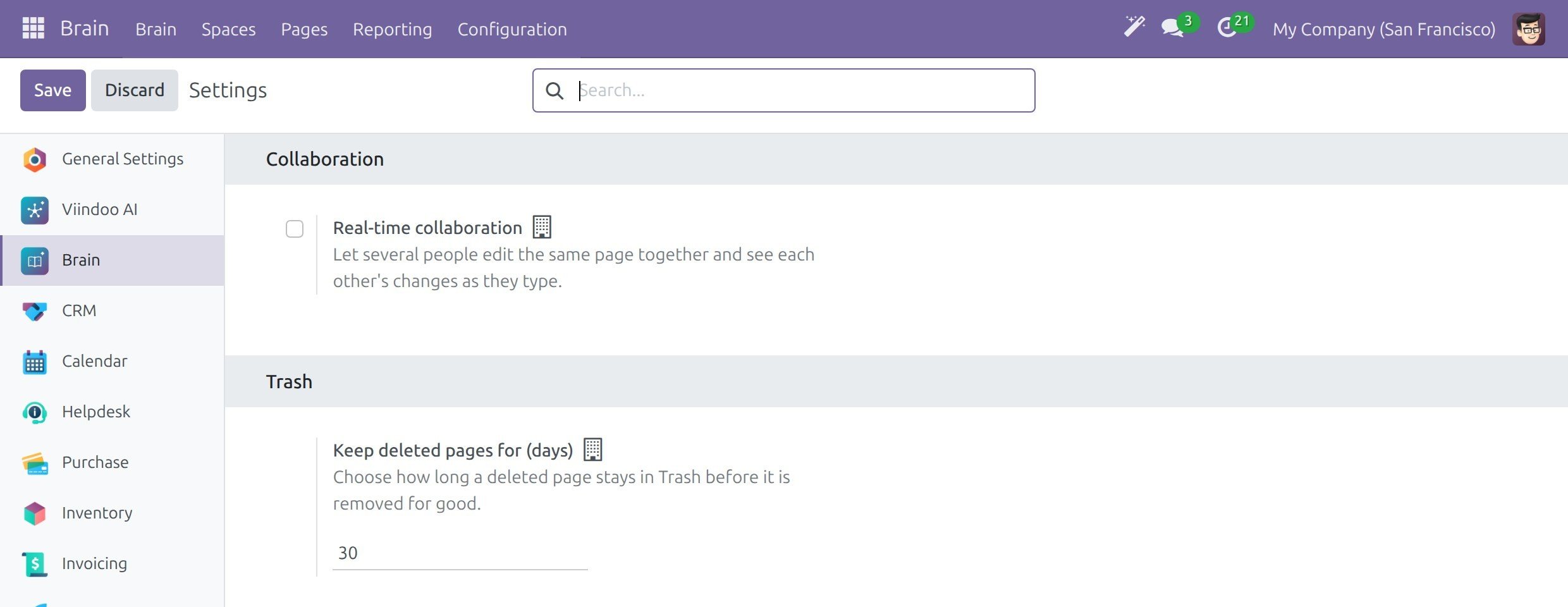
Choose the options. The first two are saved per company; a building icon beside the label marks a value that belongs to one company. Each option has a one-line help under it.
Option
What it does
Real-time collaboration
Off by default. When it is on, several people edit the same page at the same time and see each other’s changes as they type. When two people change the same text, the last save wins.
Keep deleted pages for (days)
How long a deleted page stays in Trash before it is removed for good. The default is 30 and the minimum is 1 (see Delete, restore and archive pages).
Click Save.
After you switch Real-time collaboration, ask everyone to reload the pages they have open. Switch it on only for wikis whose editors you trust.
Install the Add-ons from Settings
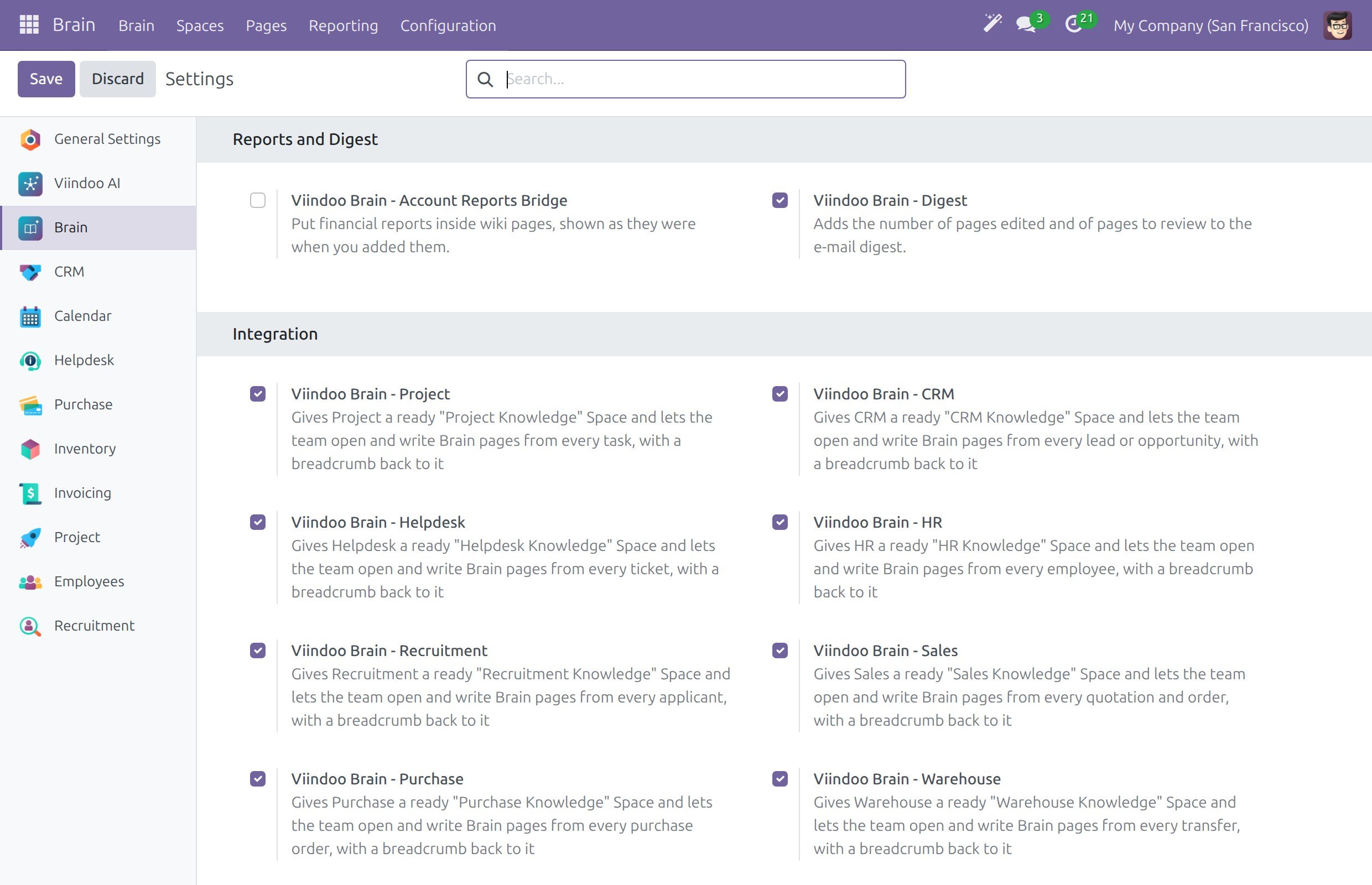
Further down the Brain section, the blocks AI Assistant, Reports and Digest and Integration list the add-ons of Viindoo Brain. Tick an add-on and click Save to install it. An add-on your database does not have shows a Purchase or Learn more link in place of the tick box.
Block and add-on |
What it adds |
|---|---|
AI Assistant: Viindoo AI and Viindoo AI - Brain Bridge |
The app that connects an AI vendor, and the bridge that lets the assistant search and write in your wiki (see Use the AI assistant in Brain). |
Reports and Digest: Viindoo Brain - Account Reports Bridge |
Lets writers put financial reports inside pages, shown as they were when added. It needs the Accounting Reports app. |
Reports and Digest: Viindoo Brain - Digest |
Adds the number of pages edited and of pages to review to the e-mail digest (see Watch the health of the wiki). |
Integration: Viindoo Brain - Project, CRM, Helpdesk, HR, Recruitment, Sales, Purchase, Warehouse and Accounting |
A ready Space for that team, such as Project Knowledge, and Brain pages from every record of the application. The connector of an installed application installs itself; use the tick box when you want to add or remove one. |
Look After the Spaces
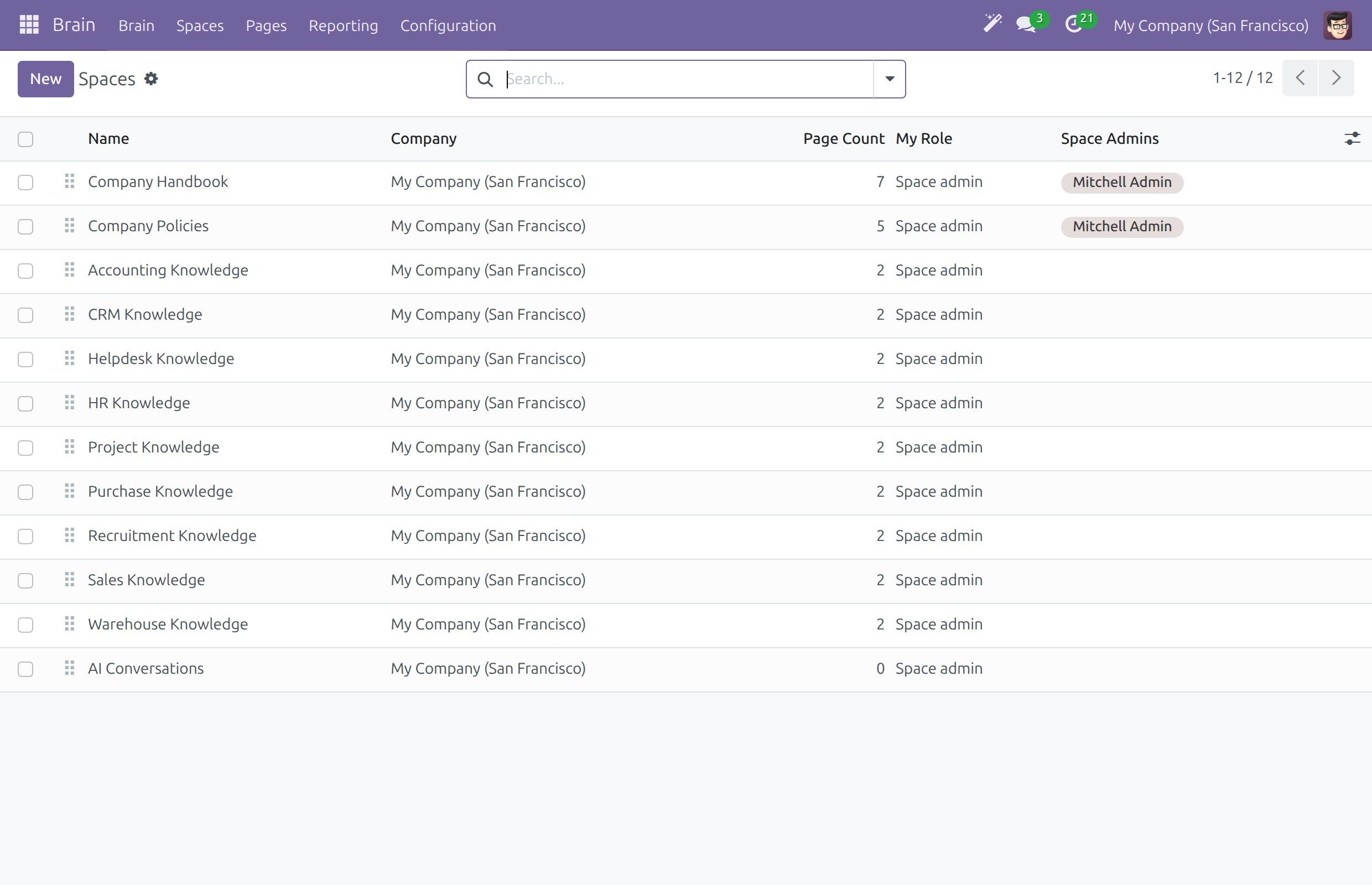
Every company starts with two Spaces to adapt: Company Handbook (How to use this wiki, Your first week, Expense claims, About us, Who does what, Tools and accounts, How we communicate) and Company Policies (Leave policy, Code of conduct, Working hours and remote work, Information security, Spending and approval limits). Each connector adds its own Space.
The outline pages are created once, in the language of the database or of the person who creates the company, and are then the company’s own pages. Activating another language later translates the names and descriptions of Spaces and the templates, but leaves pages as they are. To start a company with Vietnamese outlines, create the database in Vietnamese or create the company while working in Vietnamese.
Open . The list shows every Space you may see with its company, the number of pages, your role and its Space admins. The columns button at the right of the header adds more columns, such as whether daily notes are on.
Click New to create a Space. The person who creates it becomes its Space admin. Open a Space to see its form. Hover the question mark beside a field to read its help.
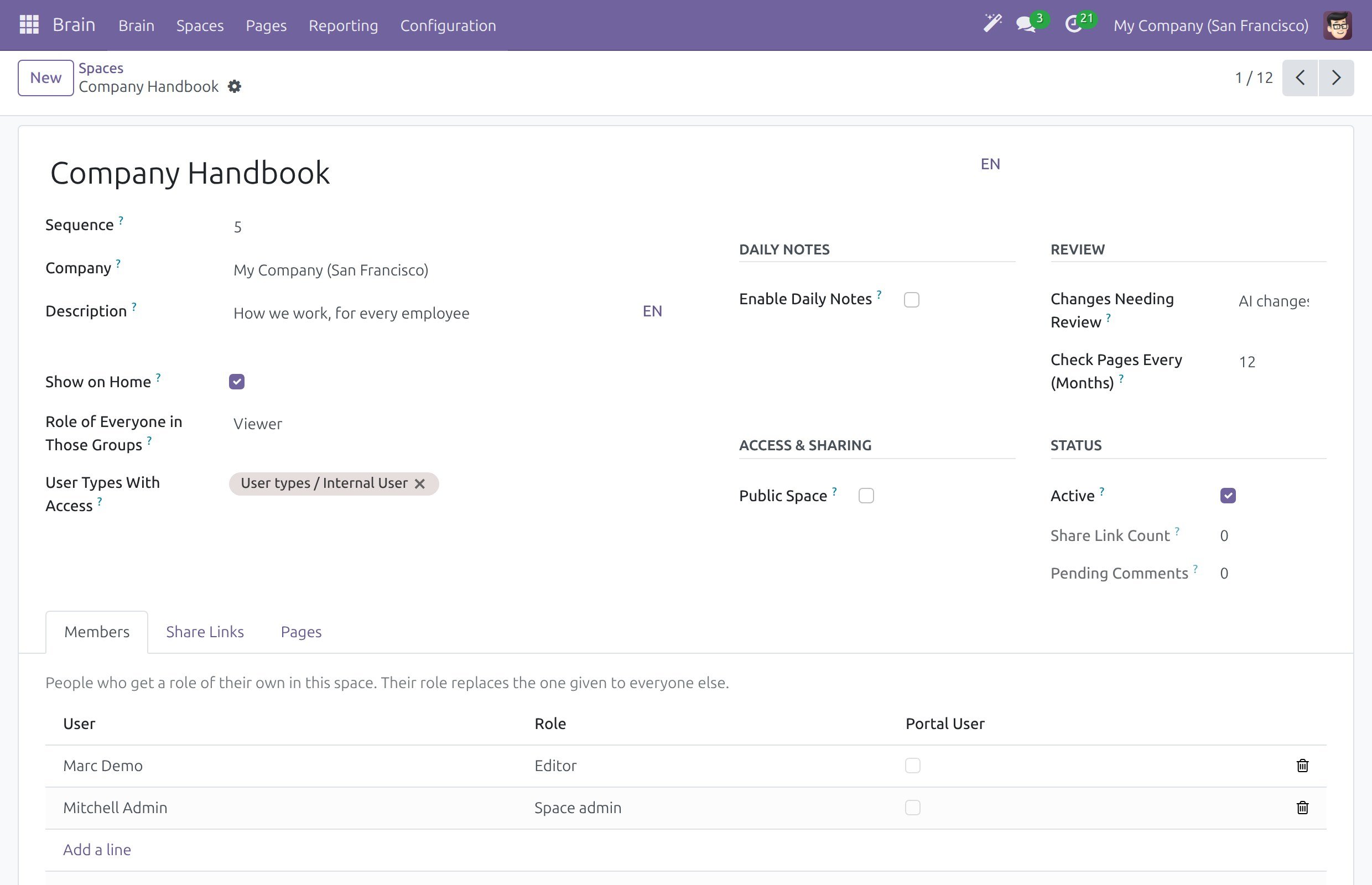
Field |
What it does |
|---|---|
Sequence |
The order of the Spaces in the sidebar and on Home. |
Show on Home |
Shows the Space as a card on the Home screen of the people who can read it. |
User Types With Access and Role of Everyone in Those Groups |
Give a whole user type, for example Internal User, a default role, so a department reads its Space without a member list to maintain. None opens the Space only to the people listed in Members. |
Enable Daily Notes |
Gives every member a daily note of their own each morning. |
Public Space |
Lets editors give pages of this Space a public link (see Share a page with people inside and outside). |
Members |
The people who have a role of their own: Viewer, Commenter, Editor or Space admin. |
Change the Settings of a Space
A Space admin changes the day-to-day rules of a Space from the Space itself.
Open the Brain app, then the Space, and click the gear button at the right of the Space header. Its tooltip reads Space settings. The button shows only to Space admins and wiki admins.
Change the settings. The dialog has five sections, and every field has a one-line help under it:
Setting
What it does
General: Name and Description
The name people see in the sidebar and on Home, and the short line under it. Both are translatable: each person sees them in their own language.
Who can read: User types with access and Role of everyone in those groups
The default role of a whole user type, for example Internal User, in this Space. None means only the people listed in Members can open the Space.
Review: Changes needing review
No review, AI changes or All changes. With All changes, the text a writer edits and every new page wait as a draft until the page owner or a Space admin approves it (see Submit and approve page changes).
Review: Re-check pages every (months)
How long after its last verification a page asks its owner to check it again. The default is 12. 0 means pages are never checked by date (see Own and verify a page).
Start here pages
The pages pinned under Start here on Home and on the Space.
Members
The people who have a role of their own. Click Add a line, pick the person and choose the role.
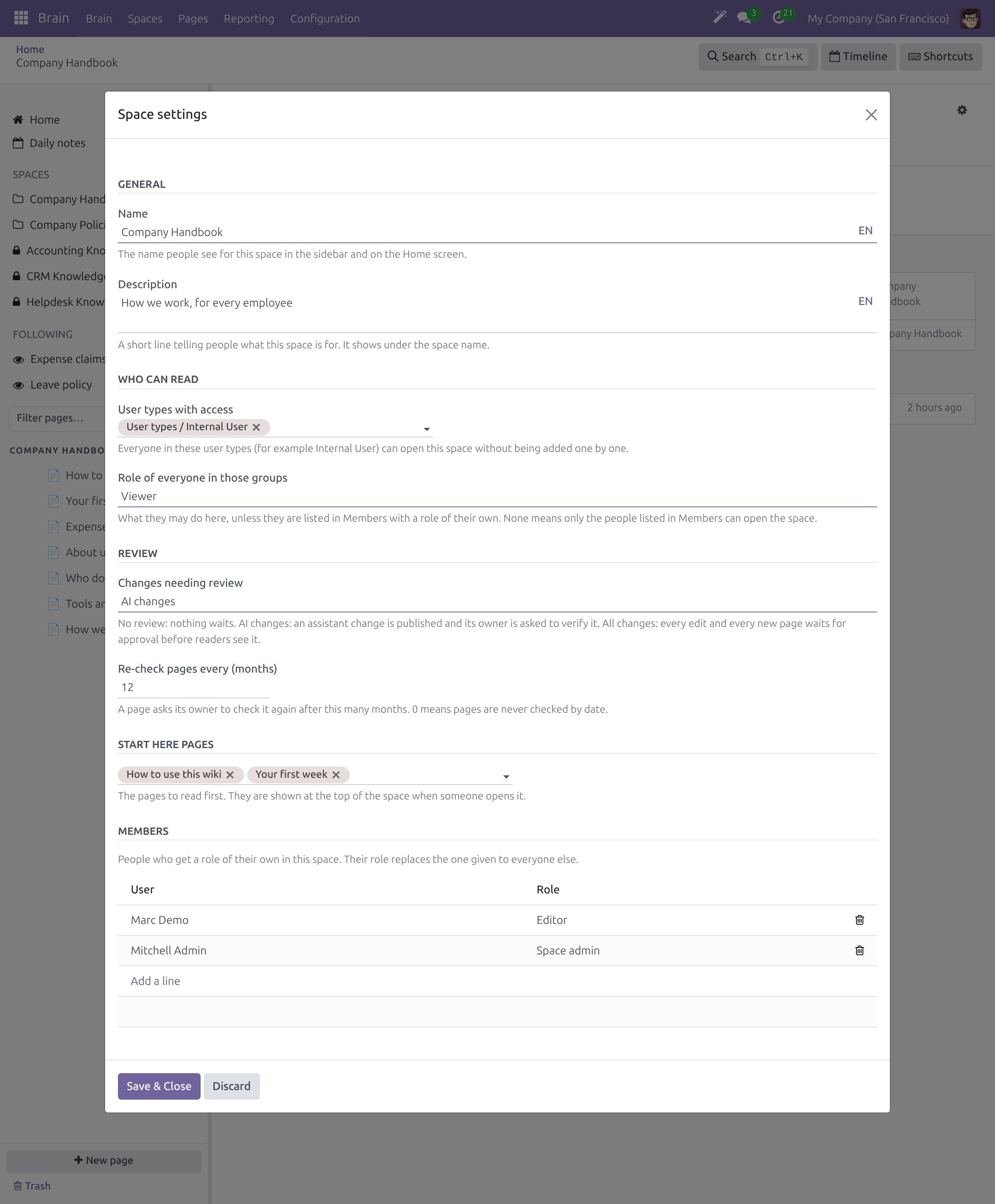
Click Save & Close. The change applies at once.
Show on Home, Enable Daily Notes and Public Space are not in this dialog; a wiki admin sets them on the Space form ().
The pages deleted from a Space wait in Trash, where Space admins and wiki admins can also remove them for good (see Delete, restore and archive pages).
Manage the Templates
A template is a page that writers pick in the New page dialog to start from a prepared text. Twelve shared templates ship with Brain: Meeting Notes, Decision Record, Daily Note, Contract Draft, OKR, Legal Document, Policy, Standard Operating Procedure, How-to guide, Weekly team update, Incident report and Retrospective. Each connector adds the templates of its own Space, such as Employee Onboarding Checklist in HR Knowledge. The text of a new page follows the language of the person who creates it.
Every internal user can open to read the list. Only wiki admins create, change or archive templates.
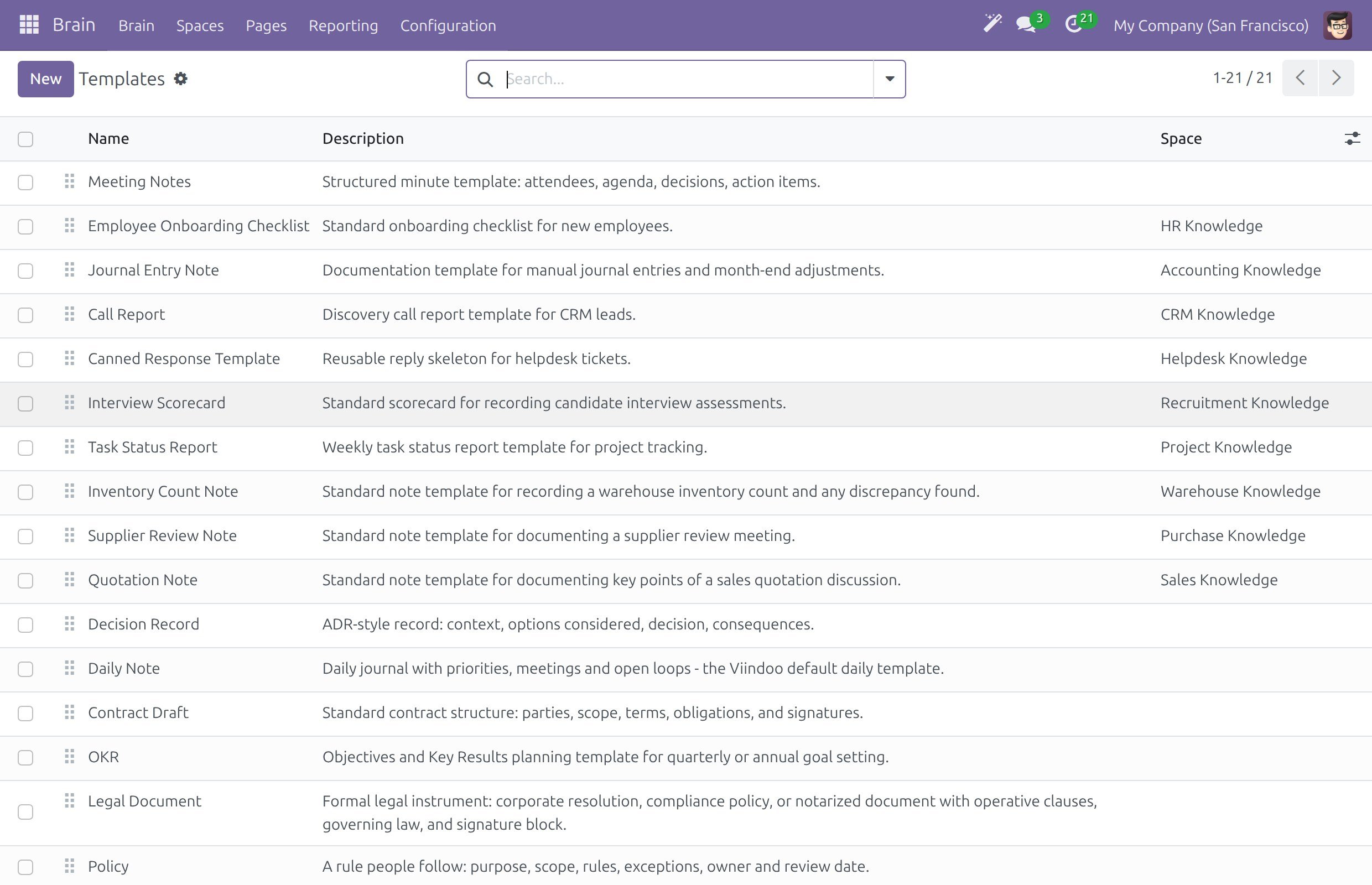
Open and click New.
Fill the form: Name, a short Description, an Icon and the text in the Body tab.
In Space, choose the Space that may use the template. Leave it empty to offer the template in every Space.
Tick Daily Default for the template that daily notes start from, then click Save.
The New page dialog lists the shared templates and the templates of the Space chosen in In space. When the writer picks another Space, the list changes with it (see Read, create and edit pages).
The templates marked Is Builtin ship with Brain; the columns button of the list shows that column and Daily Default. They cannot be deleted; untick Active to archive one you do not want writers to see.
Other Lists for the Wiki Admin
These lists open for wiki admins only. They are in the Configuration menu of Brain. Their technical columns are hidden, and an empty list explains what it is for.
Menu |
What it lists |
What you do |
|---|---|---|
The tags of each Space, with their parent tag, colour and number of pages. |
Add, rename or recolour a tag, and set its parent. |
|
The typed fields writers add to pages, such as text, number, date, selection, link, user or file. |
Create a property, choose its type and, for a selection, its options. |
|
The views of a database page as a list, kanban, board, calendar, gallery, timeline or graph. |
Rename a view or choose which one opens first. |
|
The public links of pages, with password, expiry date, revoked state and visits. |
Revoke a link, issue a new token or show its address. |
|
The comments visitors left on shared pages; the filter Pending is on by default. |
Approve or Reject a comment, or put it back to pending. |
Success Checkpoint
The person you set up opens Brain and, for a wiki admin, sees the Configuration menu with Settings, Templates, Tags, Properties, Database Views, Share Links and Comments.
Brain in Settings shows the options and keeps the value you saved.
The Space shows the new rule or the new members after Save & Close.
The New page dialog offers the templates of the Space you picked.
Common Problems
Problem |
What to do |
|---|---|
I do not see the Space settings gear on a Space. |
Only Space admins and wiki admins see it. Ask a Space admin to give you the role Space admin in the Space. |
I do not see Configuration or Templates to edit in the Brain menu. |
Configuration and the lists above need Brain / Brain Admin. Settings also needs Administration / Settings; the Brain section of needs only the second. |
A person cannot create a Space. |
Set Brain to Editor or Brain Admin on the user. |
A template is missing in the New page dialog. |
The template belongs to another Space, or it is archived. Check Space and Active on the template, and the Space chosen in In space. |
Viindoo Brain - Account Reports Bridge does nothing. |
It needs the Accounting Reports app in your database. |
Next Steps
Submit and approve page changes - the review rule of a Space in use.
Delete, restore and archive pages - what happens to deleted pages.
Own and verify a page - the review interval in use.
Watch the health of the wiki - watch the health of the whole wiki.